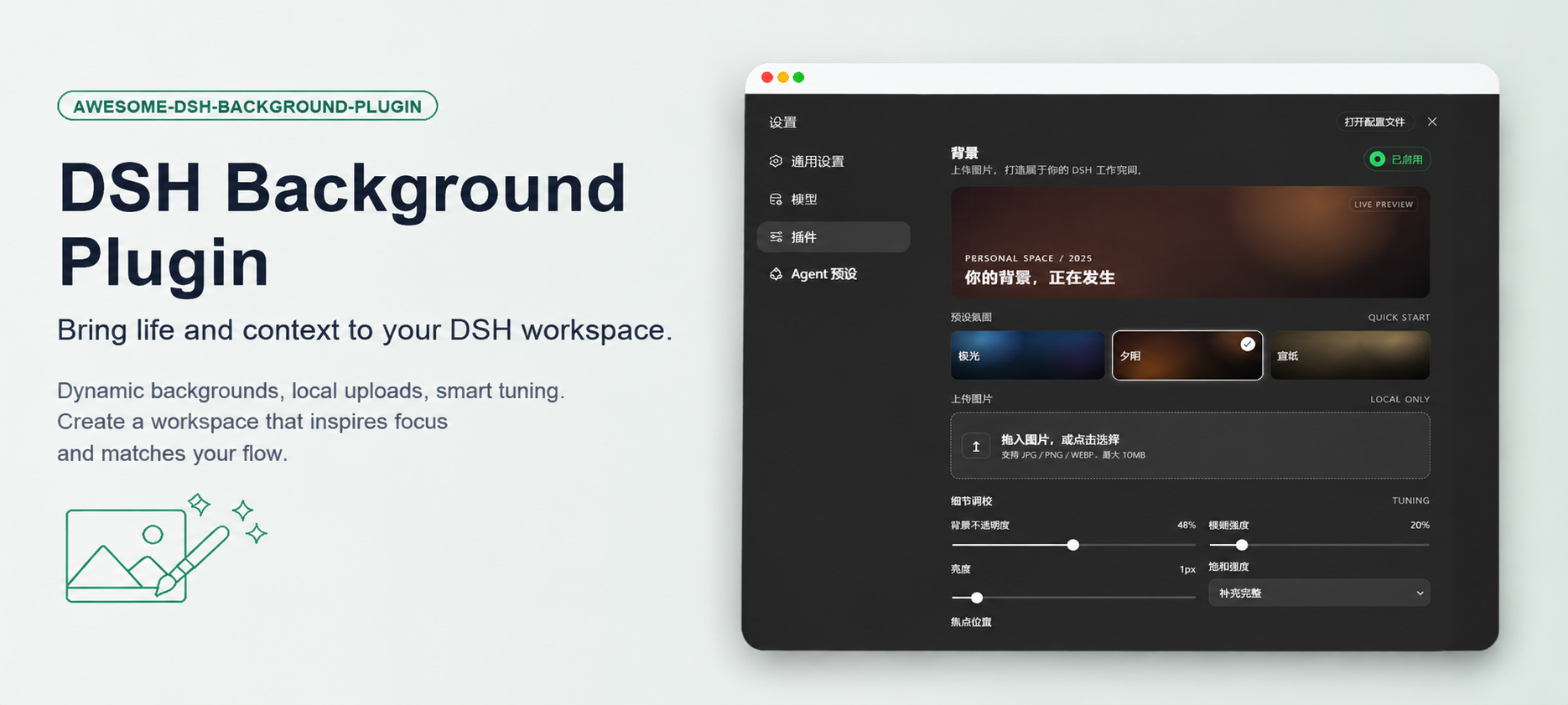
# DSH Background
> A DSH Cordis plugin that gives your **DSH Desktop** and **DSH Web** workspace a customizable background — atmosphere presets or your own image, persisted across restarts.
[简体中文](README.md) | **English**
[](https://dsh.directory/plugins/leavestring/awesome-dsh-background-plugin)
[](https://github.com/leavestring/awesome-dsh-background-plugin/releases)
[](LICENSE)
[](package.json)
[](cordis.patch.yml)
[](cordis.patch.yml)
[](https://github.com/leavestring/awesome-dsh-background-plugin)
---
## ⚠️ Match the version first
DSH plugins are **isolated per profile**: a plugin installed into `web` will **not** appear in the desktop app, and vice versa. The two DSH lines also differ in their internal APIs, so this plugin ships two version lines:
| You are on | DSH version | Install this plugin | Target profile |
|---|---|---|---|
| **DSH Desktop** (Windows / macOS app) | `0.2.x` | **`0.2.2`** | `desktop` |
| `dsh web` (new runtime) | `0.2.x` | `0.2.2` | `web` |
| `dsh web` (old runtime) | `0.1.x` | `0.1.9` | `web` |
- **How to check your DSH version**: run `dsh --version` (on the desktop, use the CLI bundled with the app — see Option B below; it reports the same runtime version).
- The desktop plugin manager also **enforces peer versions** and rolls back an install it deems incompatible, e.g.
`Plugin awesome-dsh-background-plugin@0.1.9 is incompatible with dsh 0.2.0-rc.2`.
If you see that, you picked the wrong line — use `0.2.2`.
- `0.2.x` (from `0.2.1` on) is a **port rewritten for 0.2.x** (host exports `Config` with `volatile()` fields; the browser half uses `ctx.configForms`). It is not backwards compatible with `0.1.x` — `0.1.x` users should stay on `v0.1.9` (see the Web section below).
## Why this plugin?
DSH ships with a single theme-colored background. If — like us — you want your workspace to feel **yours** instead of looking like everyone else's, you've probably already tried:
- **Editing theme files / CSS directly** — doesn't survive updates. DSH is plugin-architecture driven and its theme is built on CSS variables; any update overwrites your edits.
- **Userscripts or browser extensions** — invasive, selector-heavy, and needs to track every DSH release.
- **Just living with it** — staring at a flat monochrome surface all day is tiring and impersonal.
This plugin turns "background" into a **first-class setting item** using DSH's official Cordis plugin mechanism — and solves the three hardest problems along the way:
1. **The value must be readable, not just writable** — saving is only half the job; the browser half must actually read it back. On `0.1.x` the host gates settings namespaces behind an allowlist (the bundled `expose-namespace.mjs` adds the entry); on `0.2.x` the profile entry id *is* the namespace and `dsh-api-settings-controller` exposes every registered namespace — so **the desktop app needs no allowlist step at all**.
2. **Page containers hide the background** — the conversation pane, details panel and layout frame all paint opaque backgrounds. The desktop adds one more trap: on Windows the desktop shell paints the layout frame with a **different token** (`--dsw-specific-sidebar-fill`), and DSH wraps the frame in a slot-root element so a child combinator from `#root` matches nothing. While a background is active the plugin clears each page-level container while the sidebar, message bubbles and composer keep their own surfaces.
3. **Images vanishing after restart** — large images are slow to write and are lost. The plugin compresses images to ≤1600px WEBP in-browser, then **persists them the moment they are uploaded**, so they survive restarts untouched.
## Screenshots
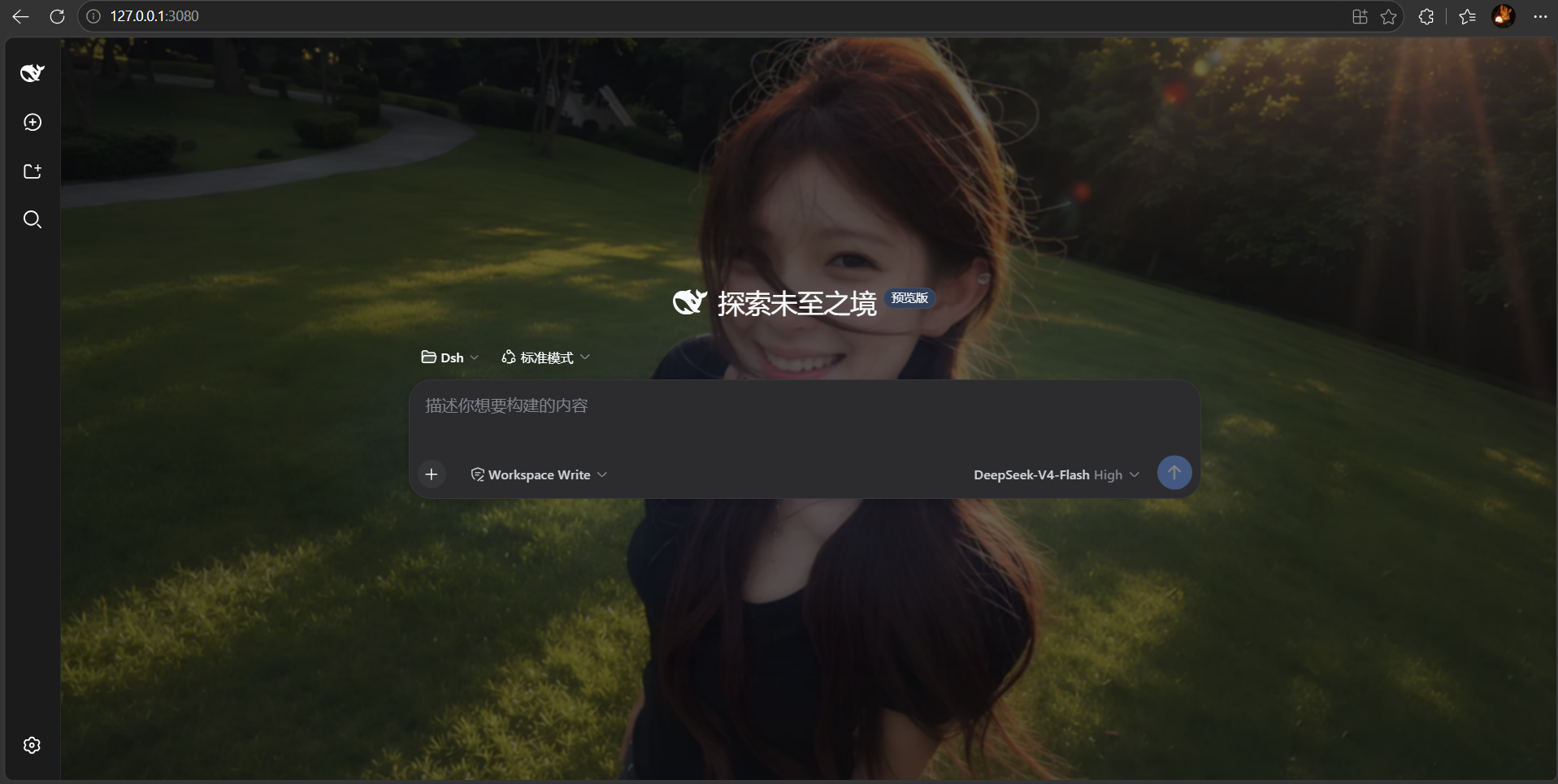
Dark mode with a custom image background:
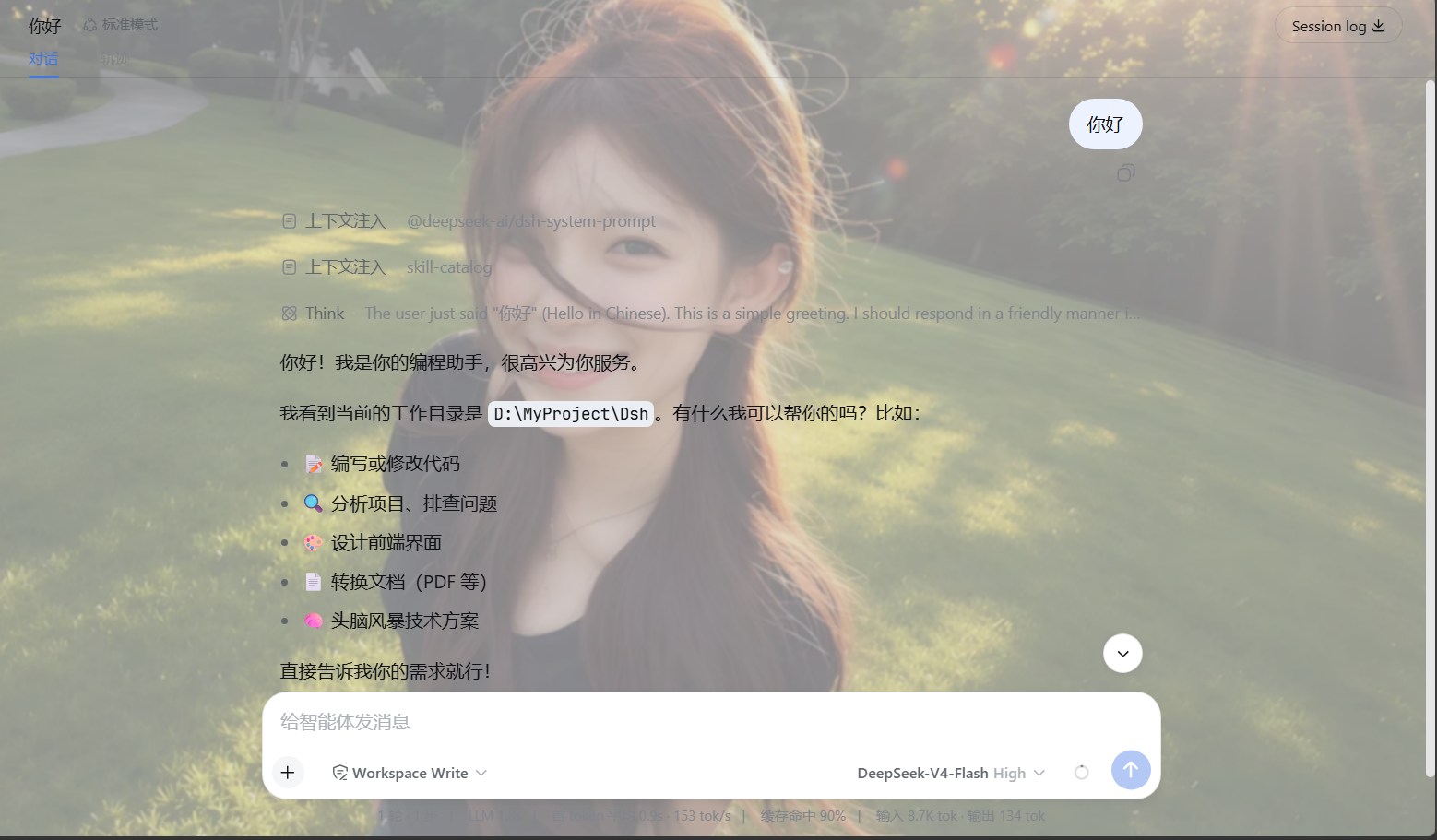
Light mode with a custom image background:
## Features
- 🖥️ **Desktop and Web** — one UI and one persistence model, supported on both runtimes (two version lines; see the version table above).
- 🖼️ **Upload your own image** — JPG / PNG / WEBP / GIF, compressed locally with Canvas (max edge 1600px, WEBP output — a good balance of quality and size). **Persisted immediately on upload**, no separate save step, restored automatically after restarts.
- 🎨 **Three atmosphere presets** — Aurora, Ember, Paper; one click to switch, takes effect instantly. No image hunting required for a quick mood change.
- 🎚️ **Five fine-tuning knobs** — image presence (opacity), dark overlay (keeps foreground readable), soft focus (blur), fit mode (fill / contain / stretch) and focal position (center / top / bottom / left / right).
- 🔄 **Live preview** — what you see in the settings panel is what you get; drag a slider and watch the conversation area update in real time. Discard anytime before saving.
- 🔒 **Privacy-friendly** — the image is processed only in your browser and written to your local settings document; **nothing is uploaded to any server**.
- 🌐 **Bilingual UI** — 中文 / English.
- 🧩 **Non-invasive, fully removable** — the background is a fixed page layer; conversation content is never modified or covered. Turn off the *Enabled* switch or click *Restore default* to remove it completely.
- 🌗 **Theme agnostic** — works in both light and dark themes (the dark-mode screenshot below is the real effect).
## Installation
### 🖥️ DSH Desktop (0.2.x)
The desktop app runs the `desktop` profile:
| Platform | Profile directory |
|---|---|
| Windows | `C:\Users\\.dsh\profiles\desktop` |
| macOS / Linux | `~/.dsh/profiles/desktop` |
#### Option A — install from inside the app (recommended, no terminal)
1. Open the desktop app and go to **Settings → Plugins**.
2. Click **Add plugin**.
3. In "Package name or address", enter **any one** of:
| What to enter | Example |
|---|---|
| A local directory path | your cloned repo, e.g. `D:\code\awesome-dsh-background-plugin` |
| A tarball path | e.g. `D:\code\awesome-dsh-background-plugin\awesome-dsh-background-plugin-0.2.2.tgz` |
| A Git repository address | `https://github.com/leavestring/awesome-dsh-background-plugin` |
4. Click **Install**.
5. When it finishes, click **Enable now**. If it says "Installed; it loads at the next start", restart the desktop app.
> Of the three inputs, **a local directory or a `.tgz` is the most reliable** (no network needed). A Git
> repository address requires this machine to reach GitHub directly — if it cannot, use the
> "Use mainland China mirror" option in the dialog.
>
> The in-app flow shows progress, the exact failure reason and the install location — nicer than the CLI for day-to-day use.
> Note: plugins do not auto-update yet. To upgrade, uninstall and install the new version.
#### Option B — use the CLI bundled with the desktop app
The desktop app ships its own `dsh` CLI, so **you do not need** Node or pnpm installed:
```powershell
# Windows (replace with your actual DeepSeek Harness location)
& "\resources\runtime\cli\bin\dsh.cmd" plugin --profile desktop add
```
```bash
# macOS
/Applications/DeepSeek\ Harness.app/Contents/Resources/runtime/cli/bin/dsh plugin --profile desktop add
```
For example:
```powershell
& "E:\Deepseek Harness\resources\runtime\cli\bin\dsh.cmd" plugin --profile desktop add "D:\code\awesome-dsh-background-plugin\awesome-dsh-background-plugin-0.2.2.tgz"
```
Verify afterwards:
```powershell
& "\resources\runtime\cli\bin\dsh.cmd" plugin --profile desktop list
```
#### Option C — install from this repository's source
```bash
git clone https://github.com/leavestring/awesome-dsh-background-plugin.git
cd awesome-dsh-background-plugin
pnpm pack --pack-destination . # produces awesome-dsh-background-plugin-0.2.2.tgz
```
Then install the resulting `.tgz` with Option A or B.
#### After installing
Restart the desktop app (or click **Enable now**), then go to **Settings → General → Background** and pick a preset or upload an image.
> **The desktop app needs no allowlist step.** `scripts/expose-namespace.mjs` only serves `0.1.x`
> (`WEB_SETTINGS_NAMESPACES`). On `0.2.x`, `dsh-api-settings-controller` exposes every registered namespace.
### 🌐 DSH Web
```bash
# DSH 0.2.x (new runtime)
dsh plugin --profile web add ./awesome-dsh-background-plugin-0.2.2.tgz
# DSH 0.1.x (old runtime) — use 0.1.9 and run the allowlist helper too
dsh plugin --profile web add ./awesome-dsh-background-plugin-0.1.9.tgz
node scripts/expose-namespace.mjs
```
Restart `dsh web`, open `http://127.0.0.1:3080` (**Ctrl+F5** to bypass the browser cache) and go to
**Settings → General → Background**.
### ⚡ One-command install script
`scripts/install.mjs` does everything — **build → install → allowlist (0.1.x only)**:
```bash
# defaults to the desktop profile
node scripts/install.mjs
# install into another profile
node scripts/install.mjs --profile web
```
It runs `pnpm pack`, then `dsh plugin --profile add `, then tries to expose the namespace
(on `0.2.x` it reports that this is unnecessary and skips — that is not a failure).
> Requires Node.js (≥ 18), pnpm and a working `dsh` command.
> If it says the `dsh` command is missing (you launch DSH via npx), set `DSH_CMD` and re-run:
> - Windows PowerShell: `$env:DSH_CMD = "npx @deepseek-ai/dsh"`
> - macOS / Linux: `export DSH_CMD='npx @deepseek-ai/dsh'`
>
> Desktop users do not need this script — "Add plugin" inside the app is simpler.
### 🤖 Let a DSH agent install it (desktop)
If you are talking to an agent inside the desktop app, paste this prompt:
> Please install the DSH Background plugin (desktop).
>
> Repository:
> `https://github.com/leavestring/awesome-dsh-background-plugin.git`
>
> Requirements:
>
> 1. Determine the running DSH version and the profile directory the desktop app actually uses.
> 2. Match the lines: DSH `0.2.x` → plugin `0.2.2` into the `desktop` profile; DSH `0.1.x` → plugin `0.1.9` into the `web` profile plus the allowlist step.
> 3. Clone the repo, `pnpm pack` if needed, and install into the target profile.
> 4. Verify the plugin landed in **both** that profile's `dependencies` and its `dsh.profile.bundles`.
> 5. `0.2.x` needs no allowlist — do **not** run `expose-namespace.mjs` there; `0.1.x` does.
> 6. Only touch the profile / installation copy this DSH actually uses; leave other profiles and caches alone.
> 7. Do not start a second DSH server during the install.
> 8. If restarting this DSH would interrupt your session, do **not** close or restart it for me — just tell me how to restart.
> 9. If any step fails, stop and report the exact error instead of retrying or making destructive changes.
> [!IMPORTANT]
> If the installing agent runs inside the current DSH, restarting DSH kills its session, so it will normally
> not restart for you. **After it reports success, restart the desktop app yourself** (or reload the window).
### 🧑🔧 Manual install (understand each step)
**Step 1 — build the plugin**
```bash
pnpm pack --pack-destination .
```
**Step 2 — install into a DSH profile**
```bash
# Desktop (DSH 0.2.x)
dsh plugin --profile desktop add ./awesome-dsh-background-plugin-0.2.2.tgz
# Web (DSH 0.2.x)
dsh plugin --profile web add ./awesome-dsh-background-plugin-0.2.2.tgz
```
On the desktop, use the CLI bundled with the app (full path in Option B above).
**Step 3 — expose the namespace (0.1.x only)**
DSH `0.1.x`'s `dsh-host-apiproxy` only allows **allowlisted** settings namespaces to be read and written by the browser. If the namespace is missing, saves are silently rejected (`settings-not-exposed`) — you see the toggle flip back to "disabled" right after saving.
```bash
node scripts/expose-namespace.mjs
# if it cannot locate your dsh installation, pass the file path explicitly:
node scripts/expose-namespace.mjs /@deepseek-ai/dsh-host-apiproxy/lib/index.js
```
> Manual alternative: add `"ui-background"` to `WEB_SETTINGS_NAMESPACES` (right after `"ui-theme"`) inside that file.
> **`0.2.x` (including the desktop app) has no such allowlist — skip this step.**
**Step 4 — restart and open**
- Desktop: restart the app (or reload the window).
- Web: restart `dsh web`, open `http://127.0.0.1:3080` (hard-refresh with Ctrl+F5 if needed).
Either way, go to **Settings → General → Background**.
### ❓ FAQ
| Symptom | Fix |
|---|---|
| Desktop says `incompatible with dsh 0.2.x` | Wrong version line: `0.2.x` needs **0.2.2**, not 0.1.9 |
| No "Background" row in the desktop Settings at all | ① the plugin went into another profile (desktop uses `desktop`); ② it was not enabled / the app was not restarted; ③ the version was rejected. Check Settings → Plugins |
| Web (0.1.x): the toggle flips back to "disabled" after saving | Allowlist not applied: re-run `node scripts/expose-namespace.mjs` |
| `pnpm not found` | Install pnpm: `npm install -g pnpm` (or `corepack enable`). Not needed for the in-app installer |
| `dsh` command not found | Set the `DSH_CMD` env var and re-run; on desktop use the app's bundled CLI path |
| Web: background not showing / page looks stale | **Ctrl+F5** hard refresh (browser cached the old bundle), or restart `dsh web` |
| Desktop: background not showing | Make sure the Background row's switch is on, then reload the window (Ctrl+R) or restart the app. If it still fails, report your DSH version together with the plugin version |
| Uploaded image lost after restart | Make sure the plugin is `0.1.6+` (uploads auto-save); older versions need "Save background" |
## Usage
1. Open **Settings → General → Background**.
2. Click a preset, or upload an image (it is persisted immediately — no need to hit Save).
3. Drag the *Image presence / Dark overlay / Soft focus* sliders to preview live, then press **Save background** to persist the tuning.
4. To remove the background: click **Restore default**, or turn off the **Enabled** switch and save.
## How it works
- **Host half** (`lib/index.js`)
- `0.2.x`: DSH serves one settings namespace **per profile entry**, so the entry id (`ui-background`) *is* the namespace. The plugin exports a `Config` schema whose fields are all marked `volatile()`, and opts out of the auto-generated settings page with `settings.configure({ auto: false })` (the background row is rendered by the plugin itself). Values persist with the profile's patch document.
- `0.1.x` (v0.1.9): registers the namespace imperatively with `settingsNamespace()` + `ctx.settings.register()` from `@deepseek-ai/dsh-settings`, writing to `~/.dsh/settings.yaml`.
- **Browser half** (`lib/client.js`)
- `0.2.x` uses `ctx.configForms.get("ui-background")` for the namespace's live snapshot and write queue; `0.1.x` uses `ctx.settingsScope.bind({ namespace })`. Both share the same `getSnapshot / subscribe / set / unset` semantics.
- Registers the *Background* row in the `settings.general.item` slot, using the same persistence path as official settings.
- **The background layer**: a `position: fixed; z-index: 0` layer (`#dsh-background-layer`) prepended to ``, pinned to the very bottom of the page. While active:
- `--dsw-alias-bg-base` is overridden to `transparent` so the conversation pane, details panel and layout frame reveal the background;
- the layout frame's own fill is cleared as well — on Windows the desktop shell paints it with `--dsw-specific-sidebar-fill`, and DSH nests the frame under a slot-root element, so the rule uses a descendant combinator rather than a child combinator;
- but the frame's `::before` is **kept**: on Windows that pseudo-element *is* the title bar (`[data-windows-titlebar] .BynINW_frame:before`), painted with the same `--dsw-specific-sidebar-fill`, so the top bar stays opaque and follows the active DSH theme automatically (`#f9fafb` light / `#1b1b1c` dark). Clearing it let the window's acrylic backdrop bleed through and made the strip disagree with the native window controls, which DSH keeps opaque;
- the sidebar, message bubbles and composer use their own dedicated variables and stay opaque for readability;
- dropdowns rendered via `createPortal` into `` (e.g. the message "more" menu) keep their original positioning and stacking, so clicks keep working.
- **Images** are compressed to a data URL by Canvas and written through the local DSH settings API; nothing is uploaded anywhere.
## Project structure
```
awesome-dsh-background-plugin/
├── lib/
│ ├── index.js # Host plugin: exports the ui-background Config schema (0.2.x)
│ └── client.js # Browser plugin: background layer, settings row, upload, persistence
├── scripts/
│ ├── install.mjs # One-command installer (build + install + allowlist when needed)
│ └── expose-namespace.mjs # Helper (0.1.x only): adds ui-background to the host allowlist
├── screenshots/ # Repo showcase screenshots
├── cordis.patch.yml # DSH bundle patch: registers the plugin entry
├── package.json # Plugin metadata (dsh.client injection)
├── CHANGELOG.md
└── LICENSE # MIT
```
## Development
```bash
node --check lib/client.js && node --check lib/index.js # syntax check
pnpm pack --pack-destination . # build tarball
```
After editing the plugin, the desktop app's client HMR loads the new browser bundle directly (no restart);
host-side changes still need an app restart.
## License
[MIT](./LICENSE)