Minke
A local-first desktop agent workspace powered by DeepSeek Harness
English · 简体中文




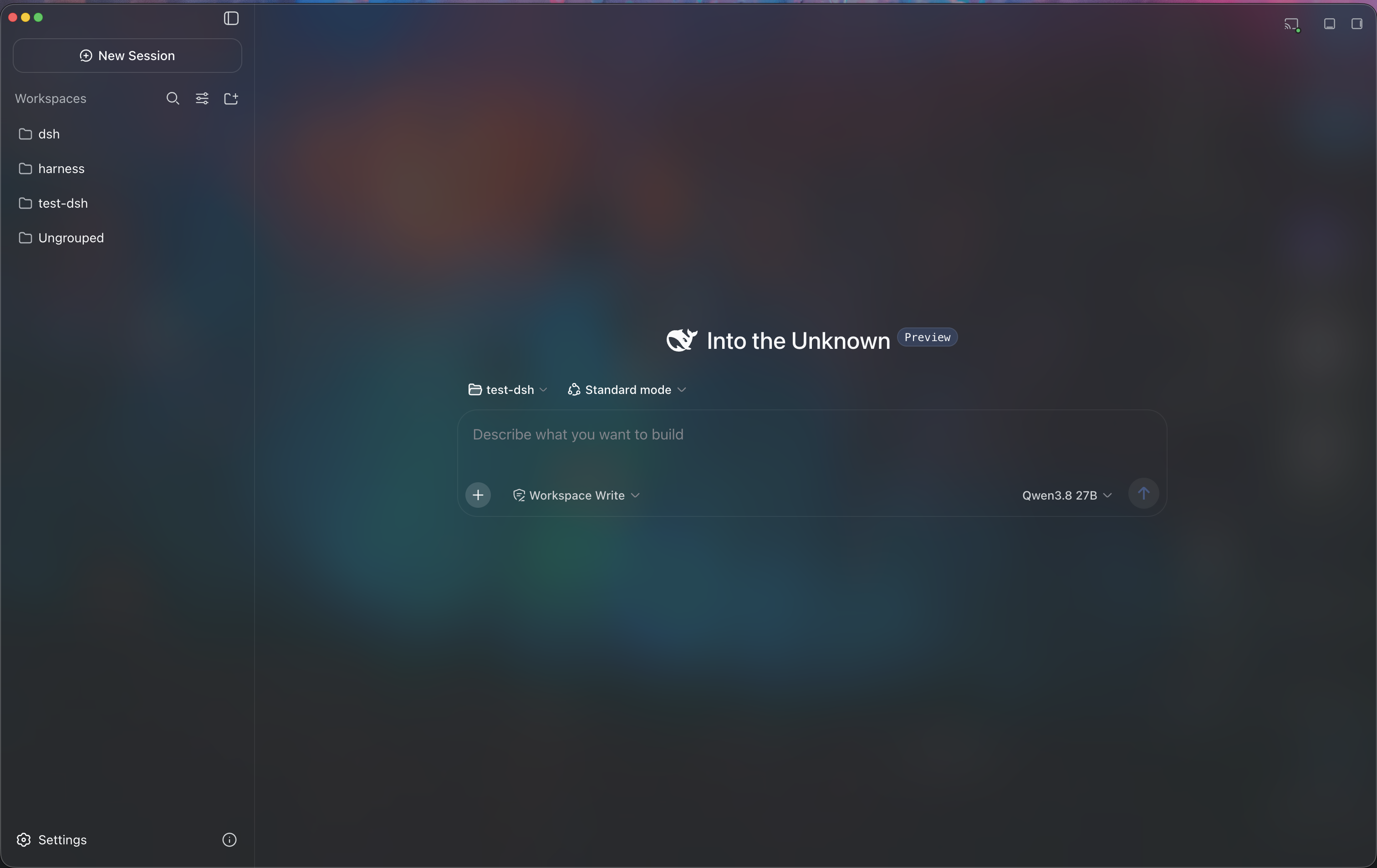
Minke brings conversations, files, terminals, and a shared browser into a local-first desktop agent workspace powered by [DeepSeek Harness](https://github.com/deepseek-ai/deepseek-harness). Available on macOS, Windows, and Linux, with sessions and settings stored on your computer.
> Minke is an independent community project under active development. Packaged releases may differ from the current source.
## Highlights
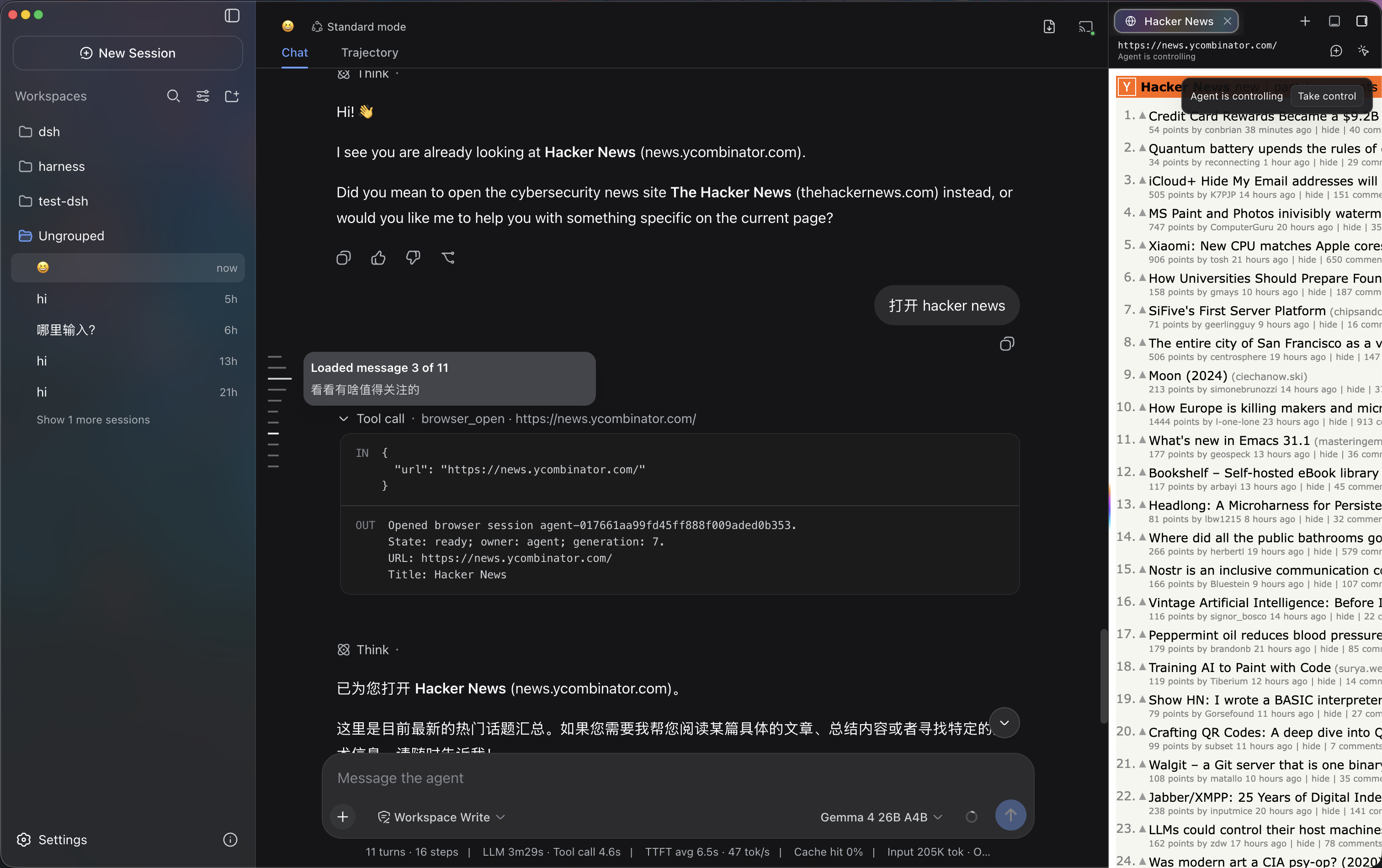
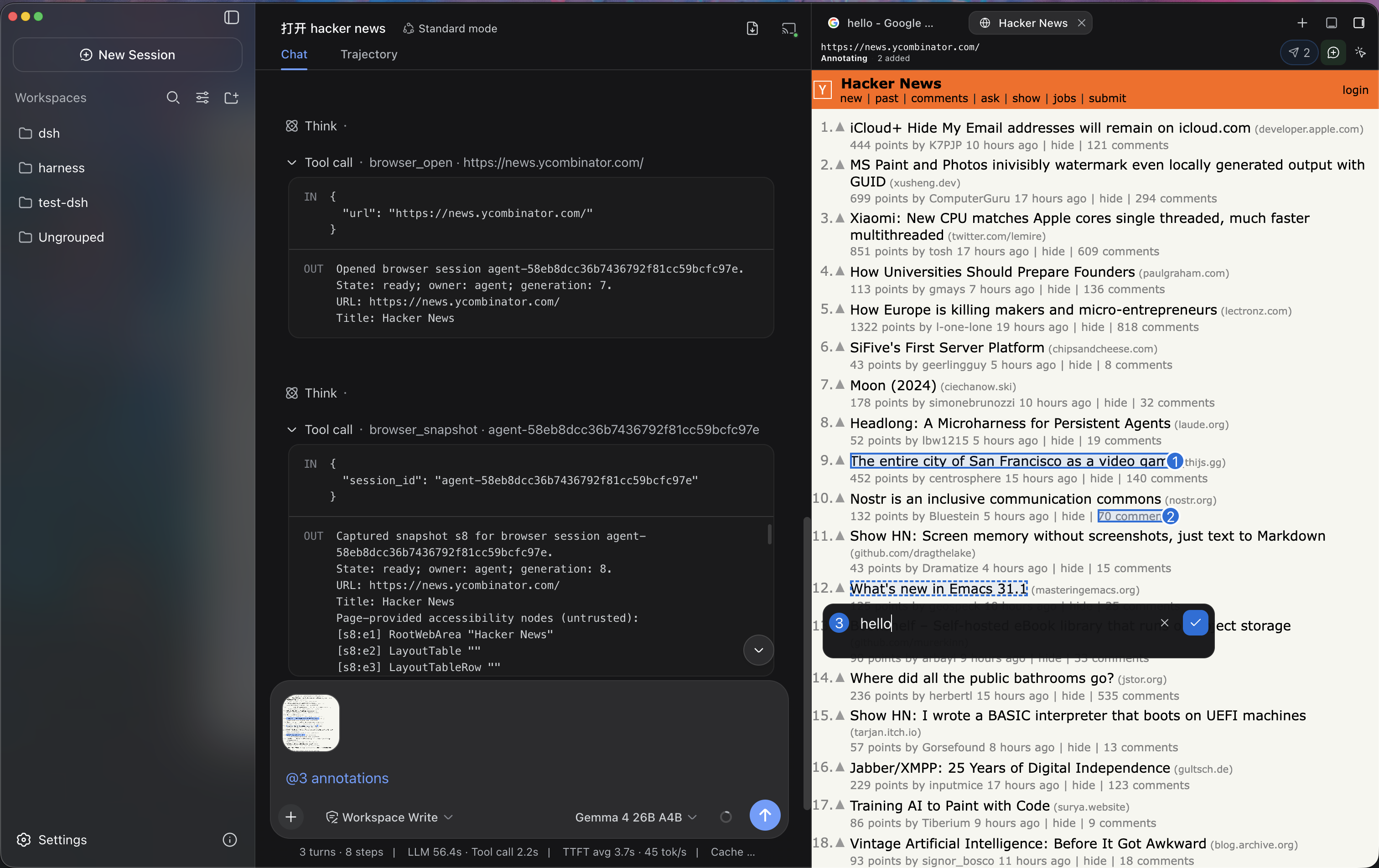
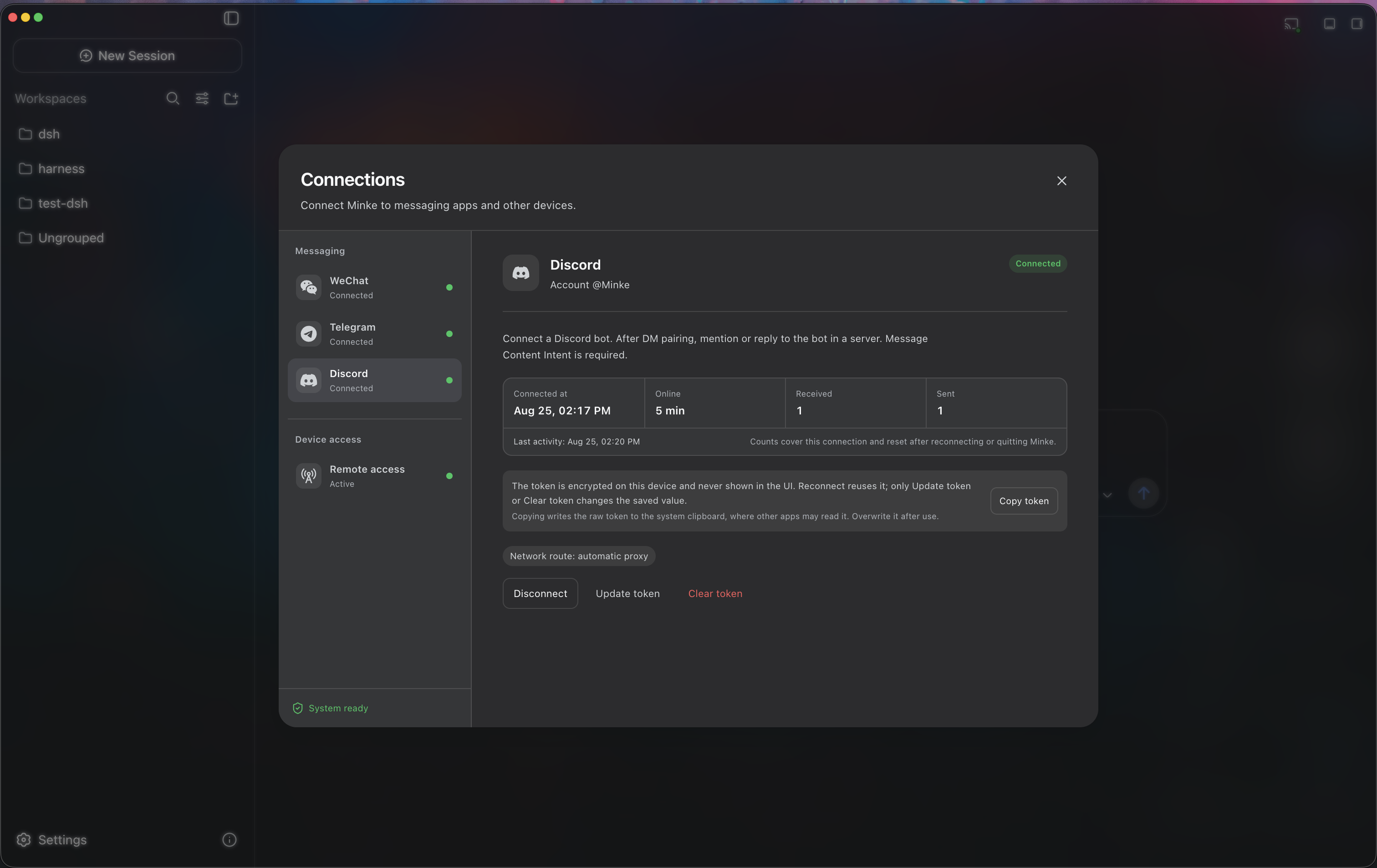
- **Shared browser control** — Watch the agent work in visible browser tabs, take over at any time, and send annotated page context back to the conversation.
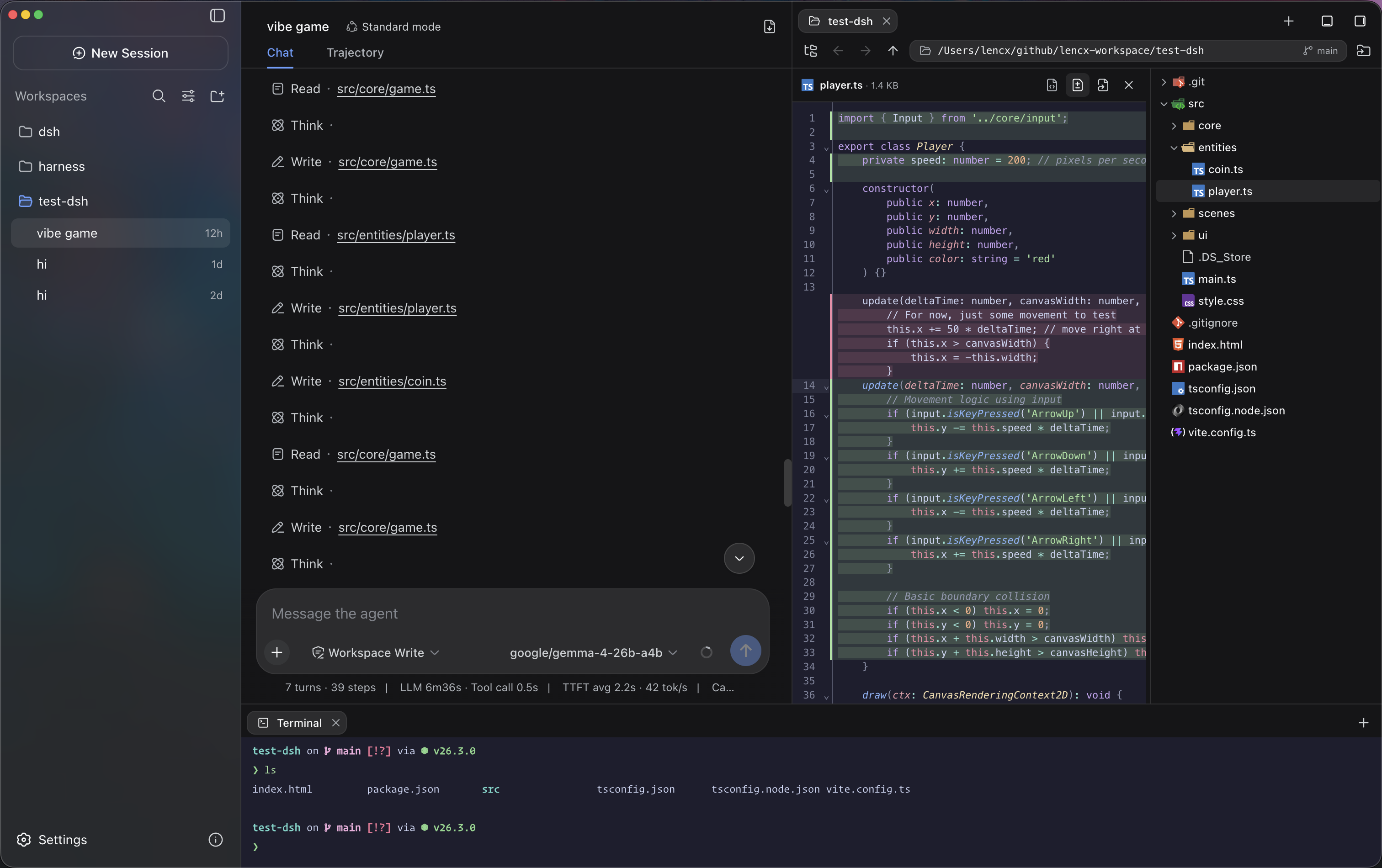
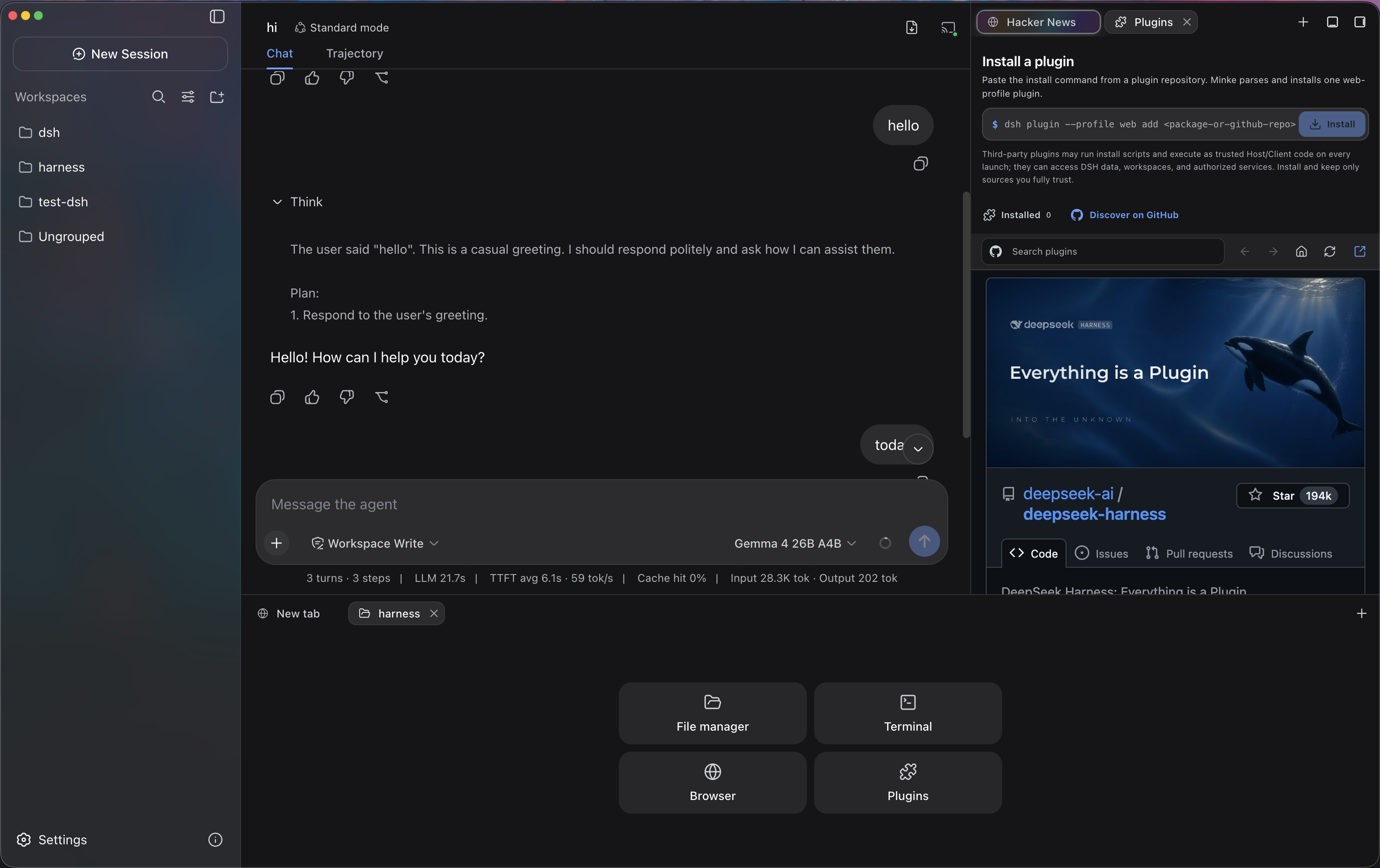
- **One workspace** — Keep conversations, files, and terminals side by side. Organize work with split views and a bottom panel; edit files, preview documents, and review changes in place.
- **Access across devices** — Reach your workspace through Web / PWA on a phone or another computer, or start tasks through WeChat, Telegram, and Discord.
- **Cloud and local models** — Use cloud providers or custom endpoints, discover LM Studio and Ollama models, and optionally start local services.
- **Agents and plugins** — Use DSH's presets, skills, subagents, and scheduled tasks, and extend the workspace through native plugin management.
## Remote access from another device
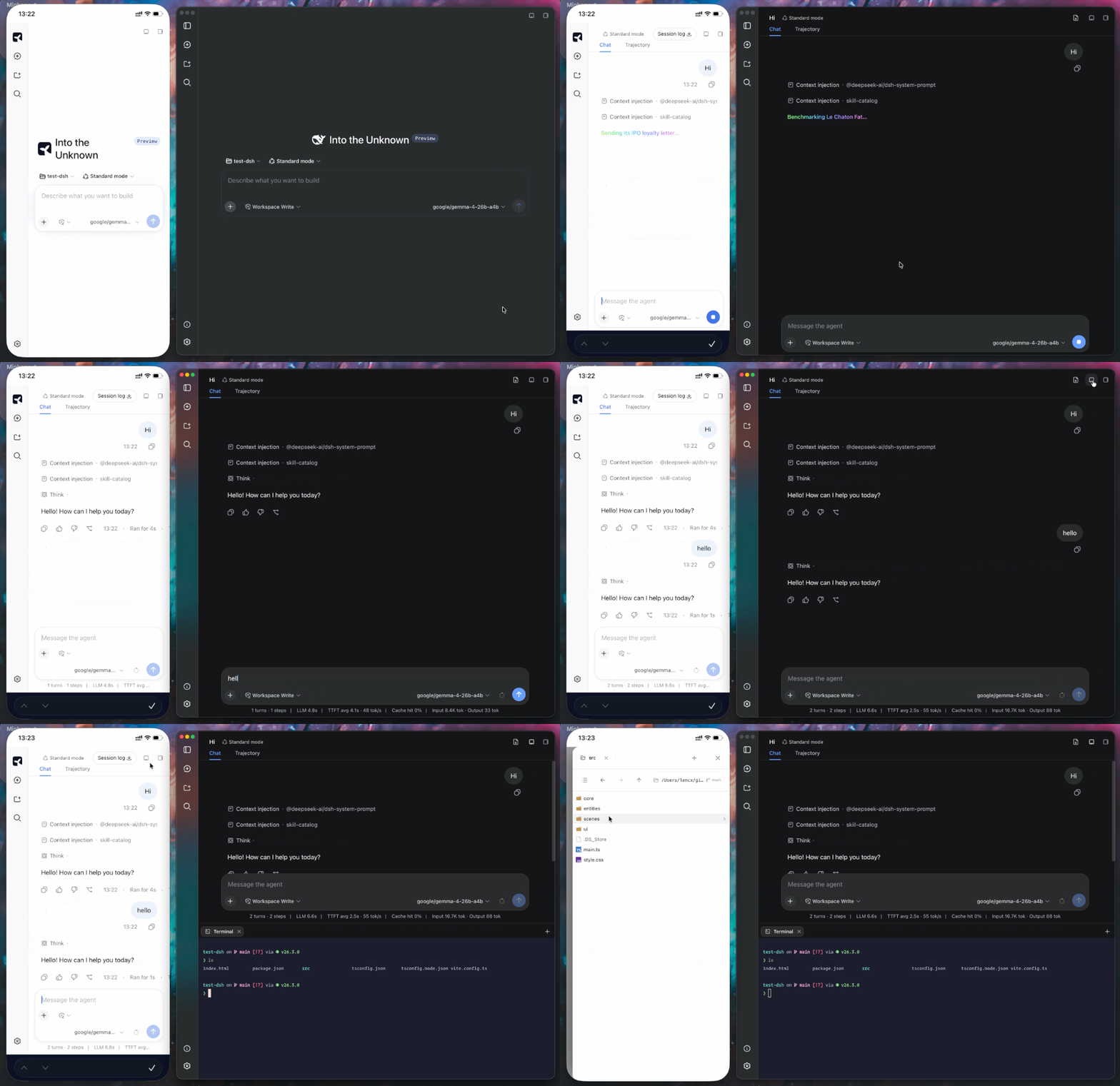
Minke remote access is a responsive Web client backed by Minke Host—not a
video stream or touch-controlled projection of the Electron window. From a
phone you can continue conversations, start agent tasks, manage project files,
and use a terminal that runs on the Minke computer.
> [!NOTE]
> **Tailscale Serve over HTTPS**, **Tailscale Direct IP**, and
> **Cloudflare Access** have all completed end-to-end regression testing and
> are currently available.
- **Tailscale Serve over HTTPS (recommended)** — Best for devices already joined to the same tailnet. It provides a secure HTTPS address and supports PWA installation.
- **Tailscale Direct IP (advanced)** — Binds only to the current device's Tailscale IPv4. Traffic remains end-to-end encrypted by Tailscale, but the address uses HTTP and is not a browser secure context.
- **Cloudflare Access** — Exposes a named tunnel protected by an identity policy, without requiring Tailscale on the phone. It requires a configured Cloudflare Tunnel, Access application, and an explicit allow policy.
### Recommended setup: Tailscale Serve
Minke can expose its Web UI privately through [Tailscale Serve](https://tailscale.com/docs/reference/tailscale-cli/serve). It keeps Harness on the local loopback address, does not bind it to the LAN, and does not enable the public Tailscale Funnel.
1. Install Tailscale on the Minke computer and the phone, sign both into the
same tailnet, and confirm the computer is connected.
2. In Minke, open **Connections → Device access → Remote access**, select
**HTTPS Serve**, and enable remote access. Minke connects in the
background; no restart is required.
3. Copy or open the displayed
`https://…ts.net` address on the phone.
### Install as a PWA
Open a Tailscale Serve or Cloudflare Access HTTPS address, choose
**Install Minke** in the sidebar, and accept the browser install prompt. On
iPhone or iPad, use **Share → Add to Home Screen**. The installed app launches
in standalone mode; when connectivity is poor it shows connection or offline
feedback instead of silently presenting cached workspace content.
Minke activates only one remote route at a time, owns its foreground proxy
while the app is running, and stops it on exit. The remote page can start
agent tasks and use local tools already authorized in Minke, so grant access
only to trusted tailnet members or Cloudflare Access identities.
## Installation
Download Minke only from the official [GitHub Releases](https://github.com/lencx/Minke/releases) page. The links below always point to the latest stable release.
| Platform | Architecture | Package |
| --- | --- | --- |
| macOS | Apple Silicon (`arm64`) | [Download `.dmg`](https://github.com/lencx/Minke/releases/latest/download/Minke-macos-arm64.dmg) |
| macOS | Intel (`x64`) | [Download `.dmg`](https://github.com/lencx/Minke/releases/latest/download/Minke-macos-x64.dmg) |
| Windows | `x64` | [Download `.exe`](https://github.com/lencx/Minke/releases/latest/download/Minke-windows-x64.exe) |
| Linux | Debian / Ubuntu (`x64`) | [Download `.deb`](https://github.com/lencx/Minke/releases/latest/download/Minke-linux-x64.deb) |
| Linux | Fedora / RHEL (`x64`) | [Download `.rpm`](https://github.com/lencx/Minke/releases/latest/download/Minke-linux-x64.rpm) |
| Linux | `x64` (portable AppImage) | [Download `.AppImage`](https://github.com/lencx/Minke/releases/latest/download/Minke-linux-x64.AppImage) |
Release checksums are available in [`SHA256SUMS`](https://github.com/lencx/Minke/releases/latest/download/SHA256SUMS).
Packaged macOS, Windows, and Linux builds check for stable updates
automatically. Minke selects the fixed DMG, EXE, DEB, RPM, or AppImage asset
for the running system, verifies the immutable GitHub Release, URL chain,
exact size, SHA-256 digest, and available OS provenance marker, then asks
before opening it. Disable background downloads under
**Settings → Minke → Preferences → Software updates** to require a
**Download update** confirmation first, or use **About Minke → Check for
updates** at any time. Installation always remains explicit. See
[desktop application updates](./docs/app-updates.md) for the user flow and
platform behavior.
### macOS
1. Download the `.dmg` file and open it.
2. Drag `Minke.app` into the Applications folder.
3. Current pre-release builds are not notarized. First try Apple's [Open Anyway](https://support.apple.com/en-us/102445) flow under **System Settings → Privacy & Security**.
4. If you explicitly accept the risk and the system flow is unavailable, remove quarantine only from the exact installed app:
```bash
xattr -dr com.apple.quarantine "/Applications/Minke.app"
```
5. Open Minke from the Applications folder.
> [!CAUTION]
> Removing the quarantine attribute bypasses a macOS security check. Minke's updater never runs this command automatically. Use it only as a last resort for `Minke.app` downloaded from the official Releases page, and never replace the path with a broad directory.
#### Authorize credential storage on macOS
Minke requests Keychain access only after you open **Connections** and click
**Authorize credential access**. If macOS prompts, enter your Mac login
password and choose **Always Allow**. If access is denied, click **Request
authorization again**.
If credential storage remains unavailable, one possible cause is an invalid or
modified app signature that prevents macOS from recognizing Minke's Keychain
identity. Verify the application:
```bash
codesign --verify --deep --strict --verbose=2 "/Applications/Minke.app"
```
If verification fails for an older pre-release build that you trust and
reinstalling is not practical, quit Minke completely, then repair and reopen
it:
```bash
/usr/bin/codesign --force --deep --sign - --timestamp=none "/Applications/Minke.app" \
&& /usr/bin/codesign --verify --deep --strict --verbose=2 "/Applications/Minke.app" \
&& /usr/bin/open "/Applications/Minke.app"
```
> [!WARNING]
> Re-signing replaces the installed app's signature. Do not run this command
> on a valid Developer ID-signed and notarized release; reinstall the official
> build instead. Do not delete `~/.minke/secrets` or the Minke Safe Storage
> item because existing channel credentials depend on them.
### Windows
1. Download the Windows x64 `.exe` installer.
2. Run the installer and follow the on-screen instructions.
3. Windows may show a reputation-based warning for a new pre-release build. Continue only after confirming that the installer came from the official Minke Releases page.
### Linux
Download the package for your distribution, then open it with your graphical package manager or install it from a terminal.
Debian / Ubuntu:
```bash
sudo apt install "/path/to/minke-package.deb"
```
Fedora / RHEL:
```bash
sudo dnf install "/path/to/minke-package.rpm"
```
Replace the example path with the downloaded package path.
## Build from source
Build Minke on the same operating system and CPU architecture as the package you need. The build produces distributables for the current host under `out/make`; this project does not support cross-platform packaging from a single host.
The current source uses **DSH v0.2.1-rc.2**. The source commit and applied patches are recorded in the [runtime configuration](./config/harness-runtime.json); see the [DSH upgrade notes (Chinese)](./docs/dsh-upgrade.md) for changes and migration details.
On macOS and Linux, Minke reads the login shell's environment once at startup so tools, model services, and plugin commands can use its PATH and proxy settings. Each shell attempt has a 10-second deadline; failures fall back to another system shell, then to the inherited environment. `MINKE_LOGIN_SHELL_TIMEOUT_MS` sets this deadline in milliseconds. Minke keeps the selected Data Home and its own runtime settings.
Prerequisites:
- Git with submodule support. The `vendor/deepseek-harness` submodule must be checked out.
- Node.js 24 or newer.
- pnpm 11.28.5, with the repository dependencies installed before running the scripts.
- macOS: an Apple Silicon or Intel Mac with Xcode Command Line Tools. The `.dmg` target can only be built on macOS.
- Windows: a Windows x64 host. Visual Studio 2022 Build Tools with the **Desktop development with C++** workload may be needed if a native dependency must be compiled locally.
- Linux: a Linux x64 host with a native build toolchain, `fakeroot`, `dpkg`, and either `rpm` or `rpm-build`.
On a fresh checkout, first install the repository dependencies, then prepare the Harness runtime:
```bash
pnpm run harness:stage
```
This command installs and builds the pinned DeepSeek Harness source, then stages the reusable desktop runtime under `runtime/host`. Run it after a fresh checkout, or whenever the pinned Harness source or runtime contract changes.
Start Minke in development mode with:
```bash
pnpm start
```
`pnpm start` refreshes the Minke integration in the prepared runtime and launches the development app. Unchanged product builds and runtime refreshes are skipped after validation; modified or missing build outputs are rebuilt or repaired.
Development uses `work/development/electron` for desktop settings and browser storage, and `work/development/harness` for Harness data. These directories are separate from installed Minke data and ignored by Git. An explicit `DSH_HOME` overrides the development Harness directory; use a dedicated test directory when setting it.
Create the distributable package for the current platform with:
```bash
pnpm make
```
`pnpm make` performs a full runtime stage again before writing the platform package to `out/make`.
Optional on macOS: reuse the same signing certificate to reduce repeated
Keychain authorization prompts after upgrades:
```bash
MINKE_MACOS_SIGN_IDENTITY="Developer ID Application: …" pnpm make
```
## 中国用户
如在使用中遇到问题,或希望进一步交流 Minke,可关注公众号「浮之静」,发送 `dsh` 获取进群码。也欢迎大家贡献 PR 或分享给更多朋友,您的每一次 Star 都是对开源项目的巨大支持,感恩。