# Playden for PS5
**Play your Steam library's Windows games on a jailbroken PS5.**
[](https://discord.gg/wd8UjExpPA)
[](https://www.reddit.com/r/Playden_PS5/)
Playden is a launcher that runs on the PS5, adapted from [Playden for macOS](https://github.com/leolobato/playden).
You sign in to Steam with a QR code or your account name and password, browse your library, download games, and play them. The Windows games run through
[prospero-win](https://github.com/mpereiraesaa/prospero-win), a port of Wine to the PS5. Each game gets its own
private Windows environment and its own tile on the PS5 Home screen.
> [!WARNING]
> **Alpha software.** Playden is an early, experimental project. It signs in to **your real Steam account**, downloads
> games with your licenses, and reads and writes your **Steam Cloud saves**. Read [Before you use it](#before-you-use-it).
> If you are not comfortable with these risks, do not use it.
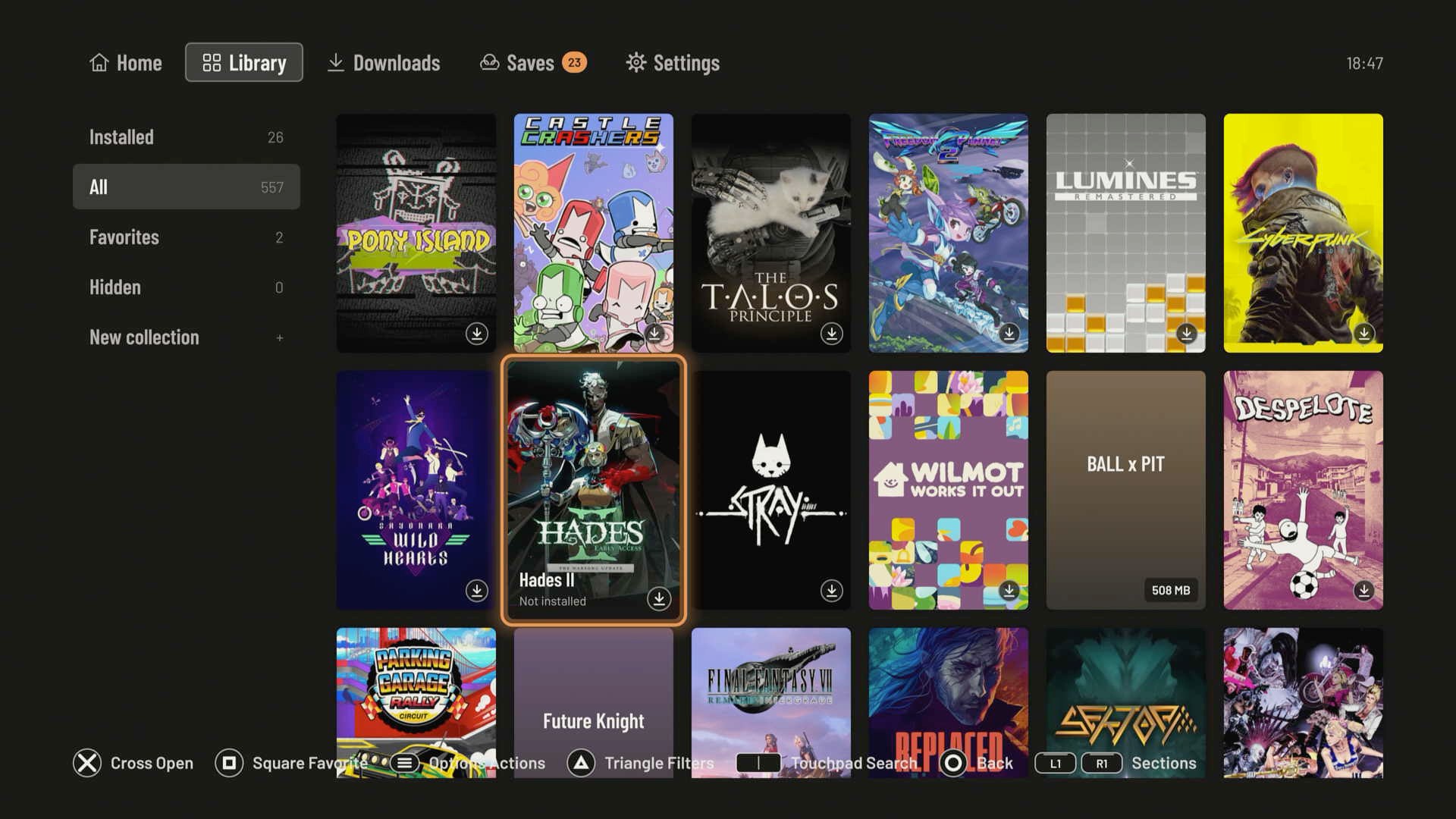
## Features
- **Steam sign-in with a QR code** (approve it in the Steam mobile app), **or with your account name and password.**
Steam Guard email codes, Steam Mobile app codes and approval in the app are supported. The sign-in screen opens on
the method you used last.
- **Your whole Steam library.** Search, sort, favorites, collections, ratings and notes, with cover art and store
details. The library works offline from a cache. Your Steam collections show under Steam in the Library, read-only.
- **Downloads from Steam.** Queue games and watch progress. The Queue screen also lists the games being prepared, in
the order they start; Prepare next moves a waiting game to the front.
- **Storage at a glance.** Settings › Downloads shows how much space is used, and Settings › Games › Manage installed
games lists installed games by size or last played. Select several games and uninstall them together; saves are kept unless you choose otherwise.
- **Each game is its own PS5 app.** It gets a tile on the Home screen, so you can start it without Playden.
- **A private Windows environment per game** ("bottle"), so games do not share settings or files.
- **Steam Cloud saves.** Playden checks your Cloud saves before a game starts and syncs them after it ends. If the
console and the Cloud disagree, you choose which one to keep. You can turn the automatic sync off in Settings and
sync by hand from the Saves tab.
- **Per-game settings.** Graphics, frame rate, resolution, controller mapping, and how the game starts: pick any
program from the game folder, edit its arguments and library overrides, or try a game Playden flagged anyway. A
game's settings can be exported as a community recipe for
[playden-ps5-recipes](https://github.com/leolobato/playden-ps5-recipes) ([format](docs/community-recipes.md)).
- **Graphics.** Direct3D 8–11 through [DXVK](https://github.com/doitsujin/dxvk), Direct3D 12 through
[vkd3d-proton](https://github.com/HansKristian-Work/vkd3d-proton) (kit 0.11 and later), OpenGL through Mesa's Zink, and
Vulkan, all on the PS5 GPU's Vulkan driver.
- **Gamepad support.** XInput, DirectInput, Raw Input, Windows.Gaming.Input and the Windows multimedia joystick API,
with rumble. Games see the DualSense as an Xbox controller, or, per game, as a PlayStation controller (a DualShock 4)
for games that show PlayStation buttons; that choice needs a runtime kit with it. Controller layouts map any button,
stick or trigger to a controller button, keys or the mouse, per game (runtime kit 0.33 or newer).
- **Local multiplayer.** Each signed-in PS5 user's DualSense is its own controller, up to four, for games with local
co-op or split screen, through XInput and the HID gamepad APIs (runtime kit 0.18 or newer). Player 2 must sign in to the PS5 as another user (or a guest) with their own DualSense.
- **Mouse and keyboard.** Plug a USB mouse and keyboard into the PS5, or use a controller preset: the left stick as a
mouse, or the D-pad as the arrow keys.
- **Online play (experimental).** Playden can run Valve's own Steam client beside a game, so the game reaches
Steam's servers, lobbies and friends as on a PC. You choose it per game. It is off by default and has risks of its
own. See [Online play](#online-play-experimental).
- **GOG games (experimental).** Sign in to GOG from your phone, and your GOG games join the Library next to your
Steam games. They install, update and play like Steam games. See [GOG store](docs/gog-store.md).
- **Rockstar games (experimental).** Grand Theft Auto IV and Grand Theft Auto V Legacy run through Rockstar's launcher
after you sign in to your Rockstar Games account in Settings › Accounts › Publishers. They need Steam features =
Offline emulation. Other Rockstar games don't work yet.
- **Import Windows games.** Add game folders you already have, from a USB drive, an M.2 SSD or over FTP. No Steam
account is needed. See [Import Windows games](#import-windows-games).
- **Install to internal or external disks.** Console storage, or an exFAT USB drive formatted on a Mac or PC. USB
drives can change places: Playden and your games find them again.
See the [compatibility list](COMPATIBILITY.md) for the games we have tested.
### Planned
- Steam game updates
- Other stores (Epic)
- Support for more game launchers (EA, Ubisoft) and more Rockstar games
- Community recipes in the preset chooser
See the [roadmap](https://github.com/users/leolobato/projects/1) for what's coming next.
## Before you use it
Playden is alpha software. It is not affiliated with, endorsed by, or supported by Valve. Know these points before
you sign in:
- **It is an unofficial Steam client.** Playden talks to Steam's servers directly, the way the Steam client does. Valve
does not support third-party clients. We know of no account problems from this, but the risk is yours to accept.
- **Your Steam session stays on the console.** Playden stores a Steam sign-in token on the PS5, **without encryption**.
On a jailbroken console, anyone with file access (for example through FTP) can read it. To keep it off the console, turn off "Stay
signed in", then sign in again each time Playden starts.
- **It replaces a game's Steam API.** When Playden prepares a game, it puts
[gbe_fork](https://github.com/Detanup01/gbe_fork), a Steamworks emulator, in place of the game's `steam_api.dll` and
`steam_api64.dll`. The original files are kept next to them as `.orig`. gbe_fork never reaches Steam's servers.
The game then runs without the Steam client and without Steam's checks. This is the default
for most games; Game settings › Online › Steam features › **Game's own files** puts the original files back. For a
game that checks its own Steam files, **Offline emulation, game's library** keeps the original files and gives the
game gbe_fork as Steam's client library instead, in the game's bottle. Replacing a
game's Steam API can be against the Steam Subscriber Agreement. In some countries, it can also count as getting
around a protection measure. Decide for yourself if you accept this.
- **Online play is off by default, and experimental.** Without it, online multiplayer does not work. With it, Valve's
Steam client runs on the console, signed in as you, and a game with Valve Anti-Cheat could get your account banned
from that game. Games with any other anti-cheat do not work. Read [Online play](#online-play-experimental) first,
and consider a separate Steam account.
- **It writes to your Steam Cloud saves.** Playden uploads saves after you play. A bug can overwrite good saves with
older or broken ones. Back up saves you care about. When Playden shows a conflict, read it before you choose.
- **It needs a jailbroken console with root-level helpers.** A running game can get elevated rights on the console.
Run only games you trust.
- **Things will break.** Expect games that fail to start, crashes, and the occasional console restart. Keep your
console's own data backed up.
## Requirements
- **A jailbroken PS5** (for example with the WebKit autoloader). We test on firmware 13.60. Playden does not block
other firmware versions, but they are untested. Please give your firmware in a test report.
- **These payloads loaded after each boot:**
- [kstuff](https://github.com/EchoStretch/kstuff-lite) — required. Without it, every game fails with error
CE-100008-9.
- [ShadowMountPlus](https://github.com/drakmor/ShadowMountPlus) **1.7-beta5fix1** — puts each game's tile on the
Home screen. 1.7beta2 also works.
- [elfldr](https://github.com/ps5-payload-dev/elfldr), the ELF loader on port 9021 — runs the root helper that
gives a game access to its files. Most jailbreak loaders start it for you.
- [nanoDNS](https://github.com/drakmor/nanoDNS), if your console's DNS is set to 127.0.0.1 (as many jailbreak
guides suggest) — without a local DNS server, Playden can't reach Steam.
- For installing and updating Playden: an FTP server such as [zftpd](https://github.com/seregonwar/zftpd)
(port 2120), and optionally [ps5-web-file-manager](https://github.com/owendswang/ps5-web-file-manager)
(port 8888).
- **Windows games:** a Steam account with games, or game folders you already have (see [Import Windows games](#import-windows-games)).
- **A computer on the same network as the PS5**, to copy Playden to it. Python 3 is needed only for the optional
install tools.
- **To build it yourself (optional):** a Mac with Apple Silicon. Linux should also work, but we have not tested it
yet. See [Build from source](#build-from-source).
Tested with kstuff-lite 1.11, ShadowMountPlus v1.7-beta5fix1 and v1.7beta2, elfldr v0.26, zftpd 1.6.0 and ps5-web-file-manager v1.9.
Other versions can work, but these are the ones we know.
## How it works
- **Playden does not run games itself.** It downloads a game, prepares it, and hands it to a separate PS5 app made
for that game. That app starts Wine with the game's settings. Because each game is its own app, it has its own tile
on the PS5 Home screen, and it is isolated: its files, settings and crashes stay inside it.
- **The runtime kit is separate from Playden.** The kit holds Wine for PS5, the graphics drivers, a clean Windows
environment and the per-game app shell. Playden checks that the installed kit is complete before it uses it.
- **Microsoft's MFC library.** Wine doesn't include it. When a game needs it, Playden downloads Microsoft's Visual C++
redistributable (about 25 MB, once per console) and installs only its MFC files into that game's Windows folder.
## Online play (experimental)
By default, games run offline: an emulator answers a game's Steam calls on the console, and it never reaches Valve.
Official servers, Steam lobbies and Steam friends are out of reach.
Online changes that for each game you choose it for:
- **It runs Valve's own Steam client.** Playden downloads Valve's unmodified Steam client from Valve (about 64 MB)
and runs it next to the game, signed in as you. The game keeps its original Steam files and talks to that
client as on a Windows PC. Tickets, friends, lobbies, relays and game coordinators all come from Valve's code.
- **It hands the game your Steam sign-in.** Playden puts your sign-in in a private file in the game's
Windows environment. The helper reads it once and deletes it.
What can go wrong, in short:
| Risk | How likely |
| --- | --- |
| An account ban, in a game without Valve Anti-Cheat | Unlikely |
| A kick or a permanent ban from a game that uses Valve Anti-Cheat (VAC) | Unknown |
| Someone on your home network takes your Steam sign-in from the console | Low |
These are judgements, not measurements. Games with kernel-level anti-cheat, or any anti-cheat other than Valve's,
are not supported.
Choose Game settings › Online › Steam features › **Online (experimental)** to enable it for each game.
**Read [docs/online-play.md](docs/online-play.md) if you'd like more information.** It explains how Steam online play works,
what each risk means and what Playden does about it, and how to turn Online on.
## Install
Download `playden-ps5-.zip` from the latest [release](../../releases): the Playden app (`FAKE77031`) and
the console tools used below. Unzip it into a folder of its own, `playden-ps5-` (most unzip tools make it;
with `unzip` on the command line, use `unzip playden-ps5-.zip -d playden-ps5-`). Installing takes one copy over the network, the app folder. Playden
downloads its runtime kit on its first start, and after that it updates itself (see [Update Playden](#update-playden)).
Like other PS5 homebrew, Playden is a folder in `/data/homebrew/`, and
ShadowMountPlus adds its tile to the Home screen.
### Install Playden
1. Copy the `FAKE77031` folder from `playden-ps5-` into `/data/homebrew/` on the console. Use any FTP client
(FileZilla, Cyberduck, etc.) or the web file manager in a browser. Create `/data/homebrew` first if it isn't there.
**After an FTP copy, set `eboot.bin` and `sce_module/libc.prx` to `777`.** FTP uploads usually lose the zip's
modes, and without the execute bit the PS5 shows CE-107750-0.
You do not need to `chmod` anything else: Playden checks the folders it writes to and fixes their permissions
before it writes. If it can't fix one, it names that folder. If your FTP client leaves out the empty `logs` and
`playden-data` folders, Playden makes them again when it starts.
Or, from a computer with Python 3, run this in the `playden-ps5-` folder. It creates the folders, copies
only what changed, keeps a backup of the files it replaces, and sets the modes itself:
```sh
python3 tools/console_title_deploy.py --host deploy --install FAKE77031 --backup backups/
```
From 0.6.0, Playden keeps its data outside the app folder and moves it there once, at startup:
- Your sign-in, settings and other user data: `/data/playden/user/`.
- Logs: `/data/playden/logs/`. The first startup lines, written before Playden gets its root access,
stay in `logs/` in the app folder.
- Downloaded games: `/data/playden-games/`. Each game's Windows folder, with its saves, stays under
`/data/playden/games/` (see [Saves and game configs](#saves-and-game-configs)).
The app folder keeps empty `playden-data` and `logs` folders, and a `MOVED.txt` in each old place says where
the data went.
2. Wait about 10 seconds. ShadowMountPlus adds the Playden tile to the Home screen.
3. Start Playden. It offers to download the runtime kit (next section); choose Download.
4. Sign in to Steam while the kit downloads.
### Update Playden
Since 0.3.0, Playden updates itself from this repository's GitHub releases:
- **Check:** at startup, and with Settings › System › Playden updates › Check now. When a newer release is out,
Playden offers it once, with its notes, its download size, and a QR code for its release page on GitHub.
- **Download:** Download and install fetches the new app and, when the release has a new one, the runtime kit. You
can follow the download on the Queue screen and keep using Playden meanwhile.
- **Restart:** when the update is ready, Restart Playden closes Playden, puts the new version and kit in place, and
opens Playden again. If it doesn't open by itself (the payload loader on port 9021 isn't running), open it from
the Home screen. On that first start Playden shows what's new in the version; Settings › System › Release notes
shows it again later.
Settings › System › **Beta updates** opts into test versions before their stable release. It is off by default;
betas can have new bugs and use the same app and data. Turning it off keeps an installed beta until a newer stable
version is available. Updates never downgrade Playden.
The previous app and kit are kept until the next update, in `/data/playden/self-update/backup/` and
`/data/playden/kits/.previous-*`. Settings › System › **Go back to Playden ** puts them back: Playden
closes, swaps the previous version and its kit in, and opens again. If the swap does not take and the previous
version opens again, it says so and puts its kit back. If the new version itself fails to start, nothing can report it: reinstall Playden over FTP as
described above (your games, sign-in and settings are kept), and, if the new kit is at fault, rename the previous
kit folder (`.previous--