# ima2-gen

[](https://www.npmjs.com/package/ima2-gen)
[](https://nodejs.org/)
[](LICENSE)
> 🌐 **Live site**: [lidge-jun.github.io/ima2-gen](https://lidge-jun.github.io/ima2-gen/) · [한국어](https://lidge-jun.github.io/ima2-gen/ko/)
>
> **Read in other languages**: [한국어](docs/README.ko.md) · [日本語](docs/README.ja.md) · [简体中文](docs/README.zh-CN.md)
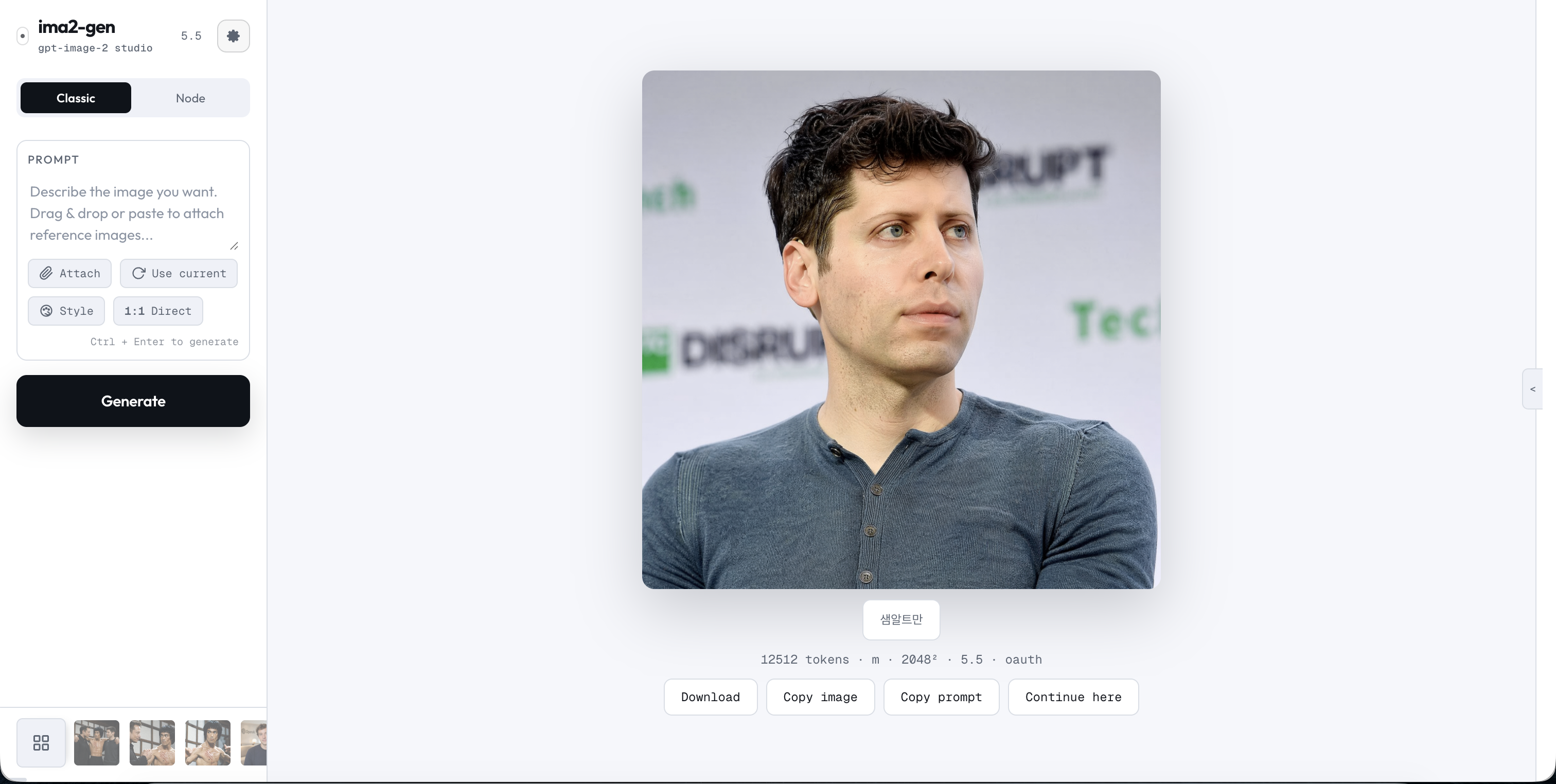
`ima2-gen` is a local image generation studio for people who want the ChatGPT/Codex image workflow in a small desktop-like web app.
Run it with `npx`, sign in with Codex OAuth, type a prompt, and keep iterating with history, references, node branches, multimode batches, and Canvas Mode cleanup. No OpenAI API key is required for the default path, but API-key generation is also supported when configured.
## Quick Start
```bash
npx ima2-gen serve
```
Then open `http://localhost:3333`.
If Codex is not logged in yet:
```bash
npx @openai/codex login
npx ima2-gen serve
```
If `3333` is already occupied, `ima2-gen` binds the next available port and writes the actual URL to `~/.ima2/server.json`. Use `ima2 open` or the URL printed in the terminal instead of assuming the port.
You can also install it globally:
```bash
npm install -g ima2-gen
ima2 serve
```
Before updating a global install on Windows, stop any running `ima2 serve`
process. If npm reports `EBUSY` or `resource busy or locked`, close ima2
terminals, end stale `node.exe` processes if needed, and retry. If the lock
persists, reboot and run the update before starting ima2 again.
## What It Does
- **Classic mode**: generate, edit, reuse the current image, paste references, and continue from history.
- **Node mode**: branch a good image into multiple directions without losing the original.
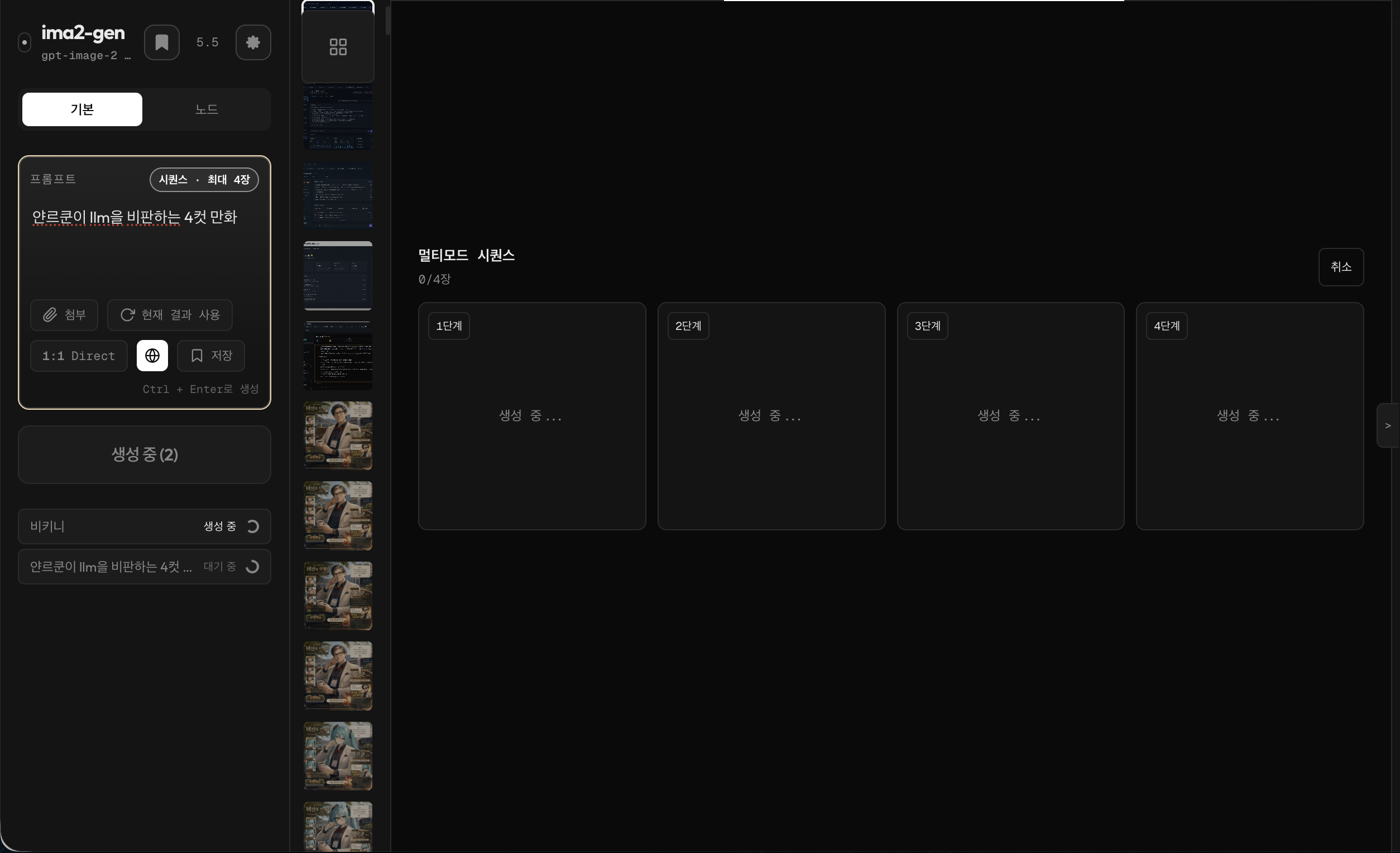
- **Multimode batches**: launch several Classic outputs from one prompt, watch slot-by-slot progress, and continue from the best result.
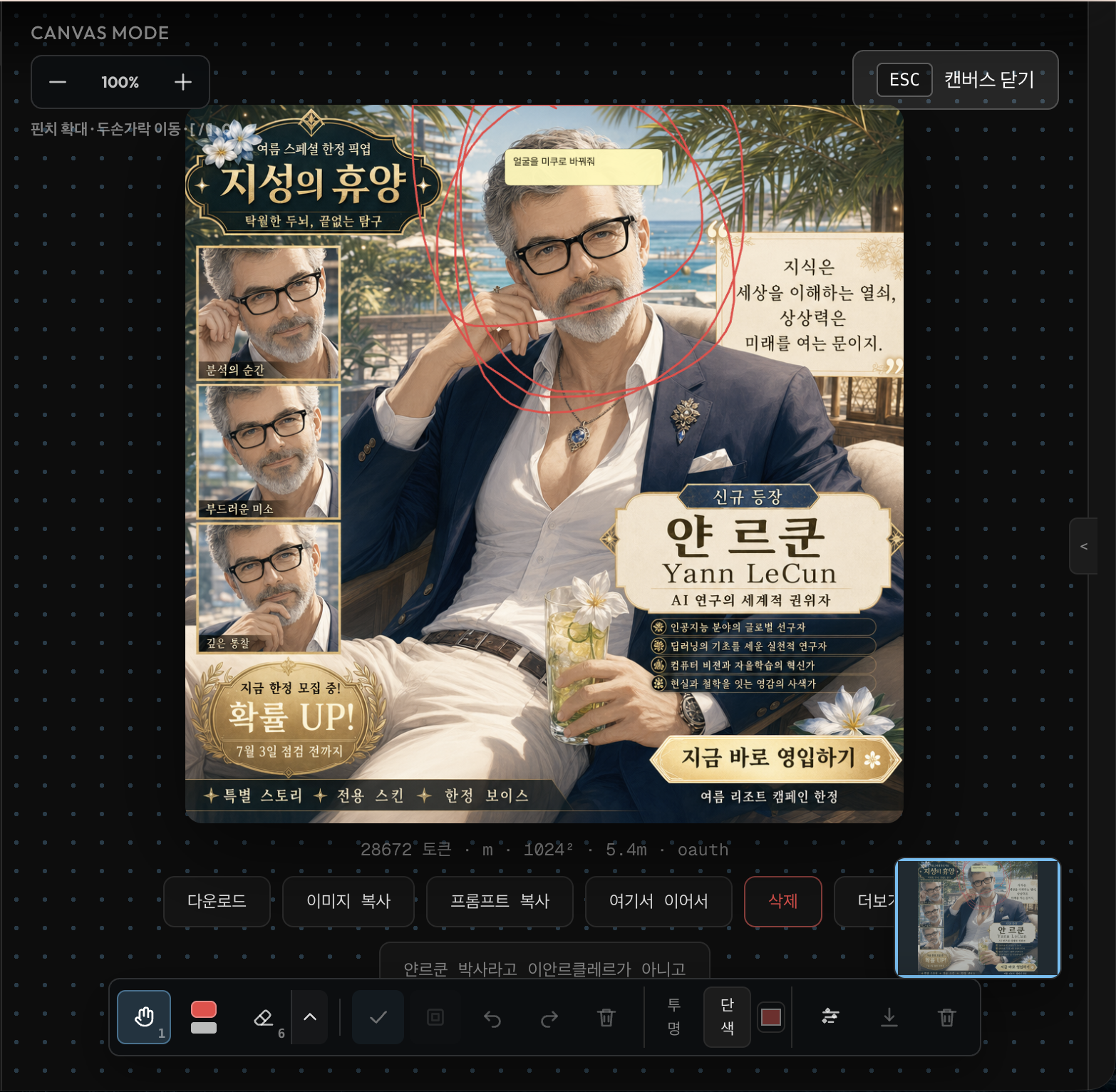
- **Canvas Mode**: zoom, pan, annotate, erase, clean backgrounds, keep transparent previews, and export either alpha or matte-backed versions.
- **Local gallery**: keep generated assets on your machine with session-aware history. By default the gallery shows the current session and an All Images toggle reveals the full history; the default scope is sticky across sessions.
- **Reference images**: drag, drop, paste, and attach up to 5 references; large images are compressed before upload.
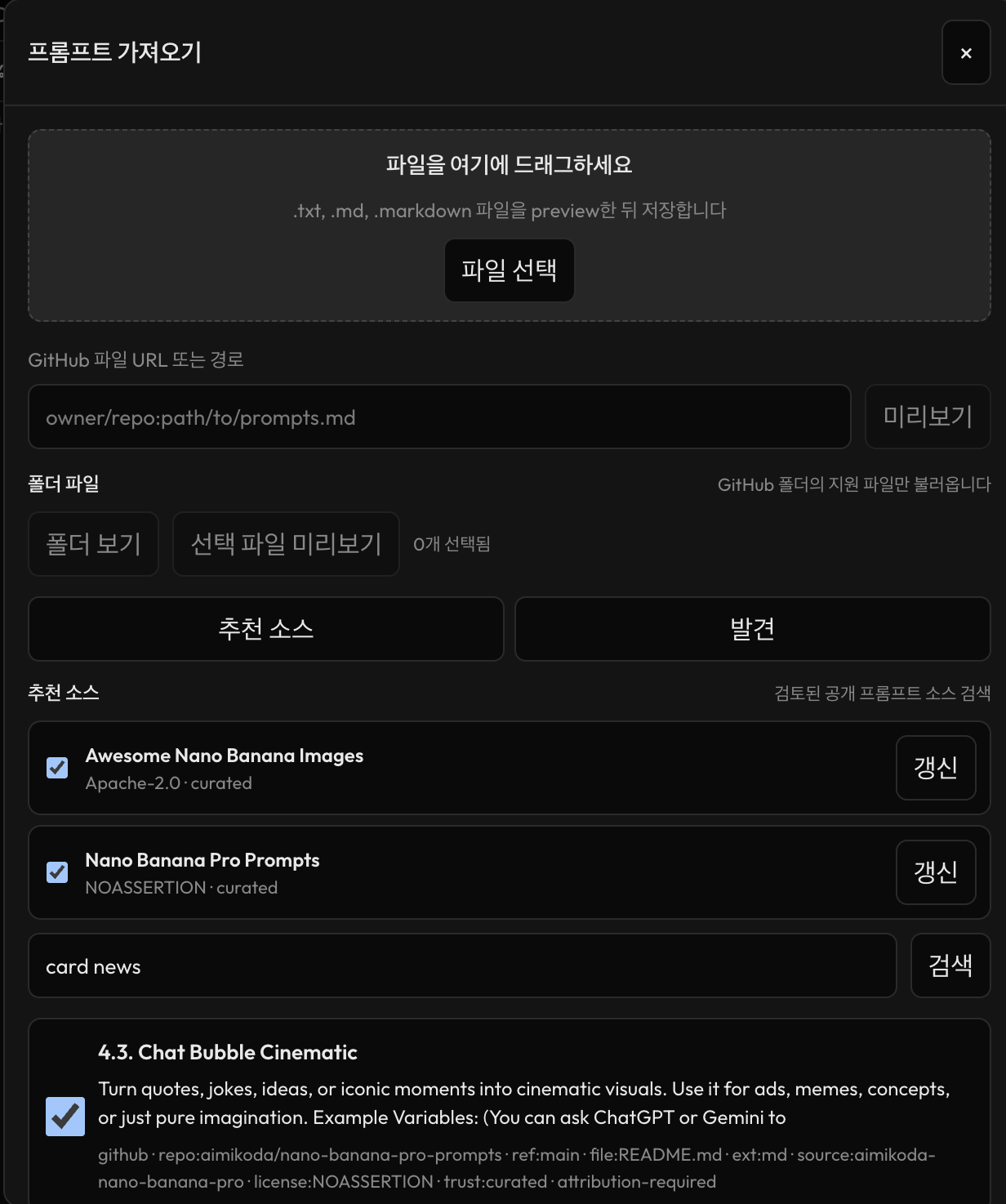
- **Prompt library imports**: import local prompt packs, GitHub folders, and curated GPT-image prompt hints into the built-in prompt library.
- **Mobile shell**: use the app bar, compose sheet, and compact settings toggle on smaller screens.
- **Observable jobs**: active and recent jobs are tracked with safe logs and request IDs.
## Provider Paths
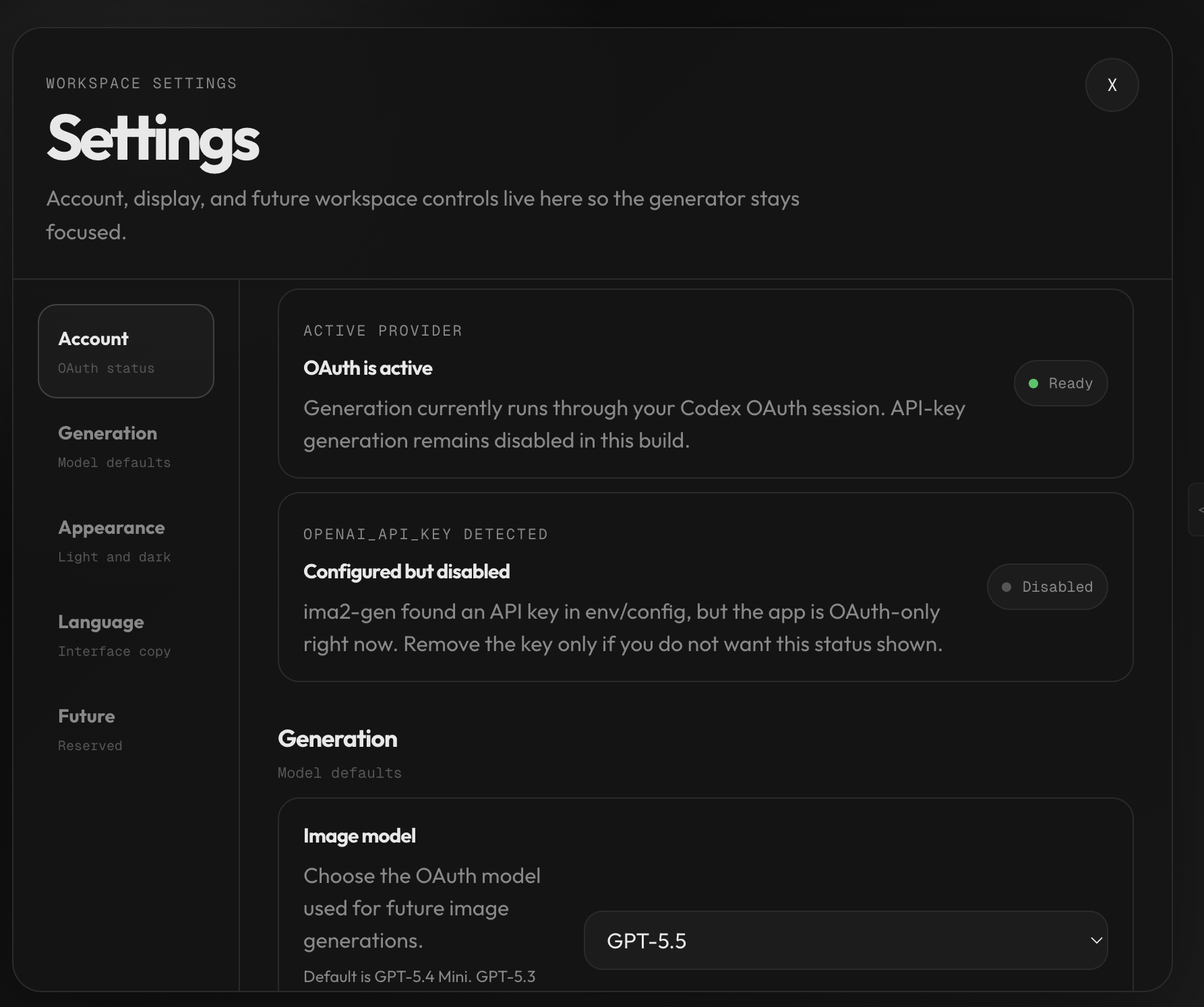
Image generation can run through either the local Codex/ChatGPT OAuth path or a configured OpenAI API key.
- `provider: "oauth"` uses the local Codex OAuth proxy.
- `provider: "api"` calls the OpenAI Responses API with the hosted `image_generation` tool.
- API-key generation supports classic generate, edit, mask-guided edit, multimode, and node generation.
If no provider is specified, the app keeps the current OAuth/default behavior. API-key generation defaults to `gpt-5.4-mini`, `low` reasoning, and `1024x1024` unless the request passes validated model, reasoning, size, or web-search options.
## Model Guidance
The app defaults to **`gpt-5.4-mini`** for fast local iteration. Switch to **`gpt-5.4`** when you want the safest balanced image workflow.
- `gpt-5.4` — recommended balanced choice.
- `gpt-5.4-mini` — current default and faster draft model.
- `gpt-5.5` — strongest quality option when your Codex CLI/OAuth backend supports it. It may use more quota, expose different tool capabilities, or require updating Codex CLI before it works reliably.
The app also exposes quality (`low`, `medium`, `high`) and moderation (`auto`, `low`) controls.
## Workflows
### Classic Mode
Use Classic when you want one strong result quickly.
1. Write a prompt.
2. Attach or paste references if needed.
3. Pick model, quality, size, format, and moderation.
4. Generate one image, or enable multimode to fan out several candidate slots from the same prompt.
5. Copy, download, continue from the result, or send it into Canvas Mode.
### Node Mode
Use Node mode when you want to explore branches.
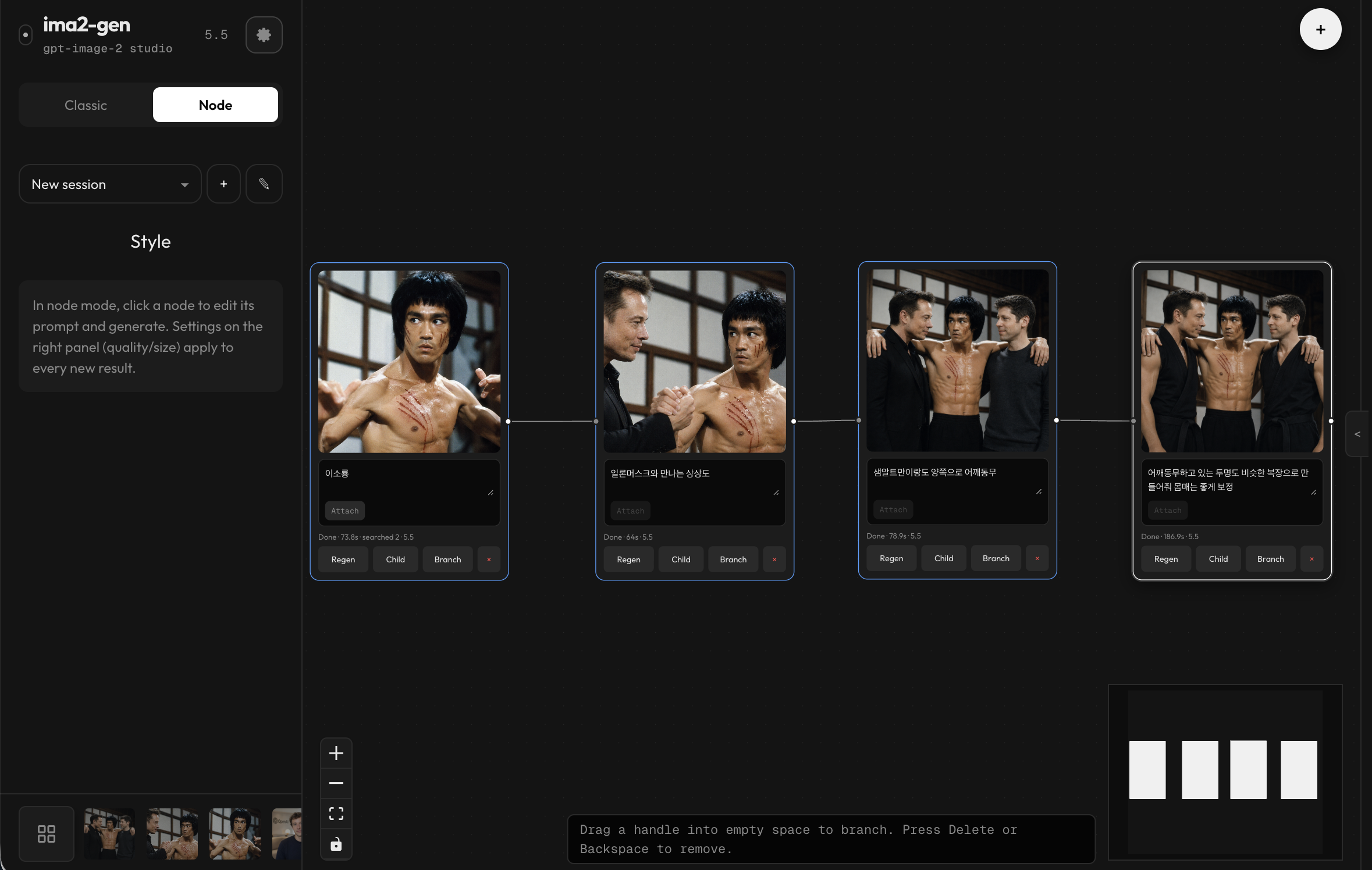
Each node keeps its own prompt and result. Root nodes can attach local references; child nodes use the parent image as their source. Completed jobs are matched back to nodes by request ID, so reloads and graph version conflicts can recover finished results.
### Canvas Mode
Use Canvas Mode when a generated image is close but needs targeted cleanup before the next prompt.
- Separate viewport panning from selection so you can move around a zoomed image without accidentally changing annotations.
- Use annotation, eraser, multiselect, grouping, undo/redo, and sticky notes while keeping the original gallery image available.
- Pick background-cleanup seeds, preview the mask, and save the cleanup as a canvas version.
- Detect transparent images and show a checkerboard preview; export with preserved alpha or with a chosen matte color.
- Saved canvas versions stay hidden from Gallery and HistoryStrip, but Canvas Mode can reuse them and attach a canvas version as the next reference.
### Prompt Library And Imports
The prompt library can now be filled from local files, GitHub folders, curated sources, and GPT-image hint packs. Imported prompts are indexed locally so search and ranking work without re-importing the same source every session.
### Experimental Card News Mode
Card News is still dev-only and experimental. It is hidden in the default
published runtime unless explicitly enabled for development, and it should not
be treated as a stable public feature yet.
### Settings
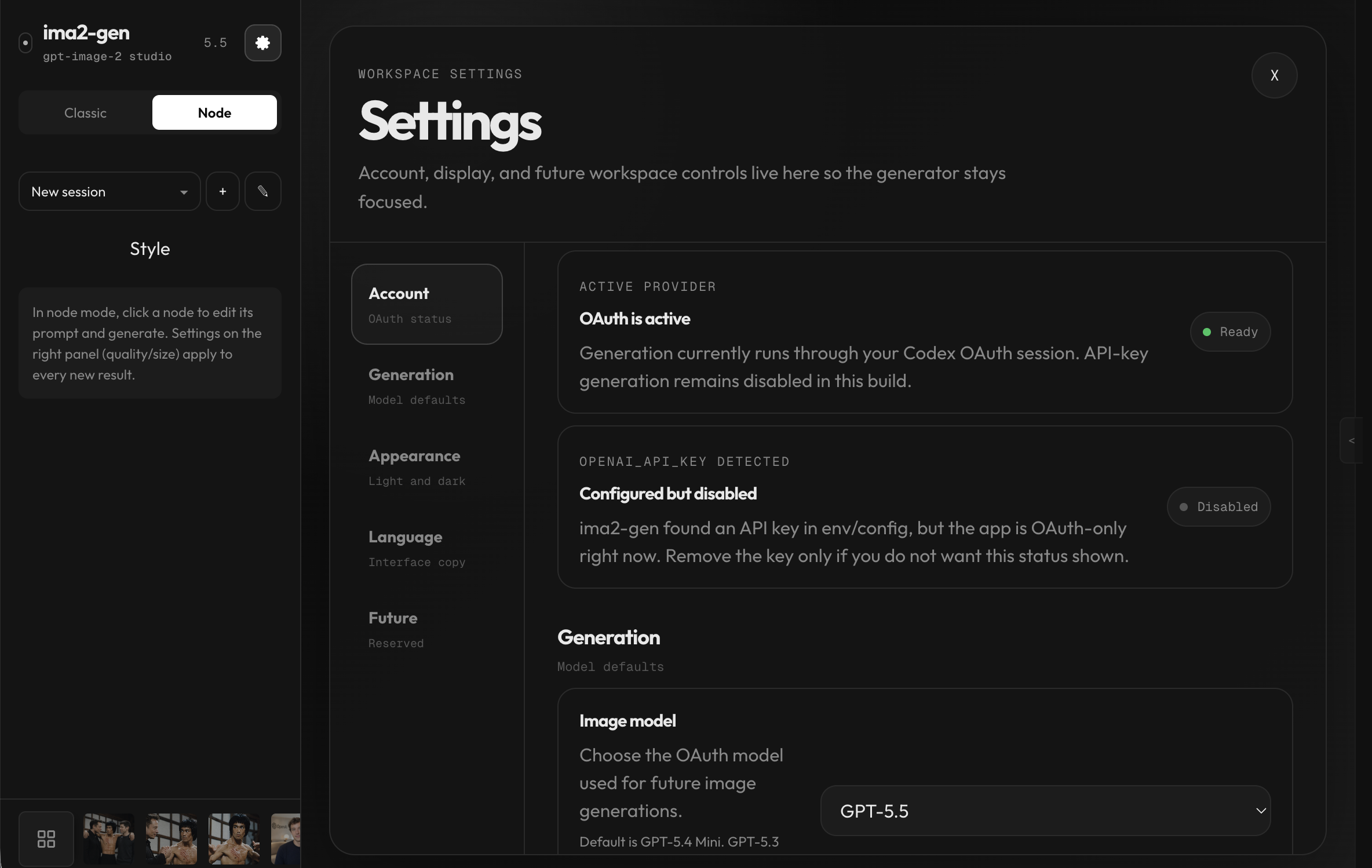
The settings workspace keeps account, model, appearance, and language controls away from the generation sidebar.
## CLI Commands
### Server
| Command | Description |
|---|---|
| `ima2 serve [--dev]` | Start the local web server; `--dev` enables verbose server diagnostics |
| `ima2 setup` | Reconfigure saved auth |
| `ima2 status` | Show config and OAuth status |
| `ima2 doctor` | Diagnose Node, package, config, and auth |
| `ima2 open` | Open the web UI |
| `ima2 reset` | Remove saved config |
### Client
These require a running `ima2 serve`. The CLI covers every server route. The most common ones are below — the [full CLI reference](docs/CLI.md) lists everything (generation, history, sessions, prompt library, annotations, Card News, observability, config).
| Command | Description |
|---|---|
| `ima2 gen ` | Generate from the CLI |
| `ima2 edit --prompt ` | Edit an existing image |
| `ima2 multimode ` | Multi-image SSE generation |
| `ima2 ls [--session ] [--favorites]` | List recent history |
| `ima2 show [--metadata]` | Reveal a generated asset |
| `ima2 prompt ls -q ` | Search the prompt library |
| `ima2 inflight ls [--terminal]` | List active and recent jobs (alias of `ps`) |
| `ima2 config set ` | Write to `~/.ima2/config.json` |
| `ima2 ping` | Health-check the running server |
The server advertises its actual port at `~/.ima2/server.json`. If `3333` is busy, the backend falls back to `3334+` and CLI commands follow the advertised URL. Override discovery with `--server ` or `IMA2_SERVER=http://localhost:3333`.
```bash
ima2 gen "poster" --model gpt-5.4 --reasoning-effort high
ima2 edit input.png --prompt "make it rainy" --web-search
ima2 multimode "two cats playing" -n 2
ima2 inflight ls --terminal
ima2 config set imageModels.reasoningEffort high
```
Full reference: [docs/CLI.md](docs/CLI.md).
## Configuration
Config priority:
```text
environment variables > ~/.ima2/config.json > built-in defaults
```
| Variable | Default | Description |
|---|---:|---|
| `IMA2_PORT` / `PORT` | `3333` | Web server port |
| `IMA2_HOST` | `127.0.0.1` | Web server bind host |
| `IMA2_OAUTH_PROXY_PORT` / `OAUTH_PORT` | `10531` | OAuth proxy port |
| `IMA2_SERVER` | — | CLI target override |
| `IMA2_CONFIG_DIR` | `~/.ima2` | Config and SQLite location |
| `IMA2_ADVERTISE_FILE` | `~/.ima2/server.json` | Runtime discovery file |
| `IMA2_GENERATED_DIR` | `~/.ima2/generated` | Generated image directory |
| `IMA2_IMAGE_MODEL_DEFAULT` | `gpt-5.4-mini` | Server fallback image model |
| `IMA2_NO_OAUTH_PROXY` | — | Set `1` to disable the auto-started OAuth proxy |
| `IMA2_LOG_LEVEL` | `warn` | Normal serve defaults to `warn`; dev mode defaults to `debug`; supports `debug`, `info`, `warn`, `error`, or `silent` |
| `IMA2_INFLIGHT_TERMINAL_TTL_MS` | `30000` | Recent terminal job retention for debug views |
| `OPENAI_API_KEY` | — | API key for the `provider: "api"` Responses API image path and auxiliary API-key features |
| `IMA2_API_IMAGE_MODEL_DEFAULT` | `gpt-5.4-mini` | Default image model for `provider: "api"` |
| `IMA2_API_REASONING_EFFORT` | `low` | Default reasoning effort for `provider: "api"` |
| `IMA2_API_IMAGE_SIZE` | `1024x1024` | Default size for `provider: "api"` |
| `IMA2_API_ALLOW_WEB_SEARCH` | `true` | Toggle web search for `provider: "api"` |
| `IMA2_OAUTH_MASKED_EDIT_ENABLED` | `false` | Opt-in feature flag for masked-edit requests on the OAuth path (#31, groundwork only) |
### Logging modes
`ima2 serve` keeps terminal output intentionally quiet: startup URLs, warnings, and errors stay visible, while request/node/OAuth structured logs are hidden by default.
Use `ima2 serve --dev`, `npm run dev`, or `IMA2_LOG_LEVEL=debug ima2 serve` when you need request IDs, node generation phases, OAuth stream diagnostics, or inflight state transitions. Explicit `IMA2_LOG_LEVEL` and `~/.ima2/config.json` values still override the built-in defaults.
## API Reference
The endpoint list moved to [docs/API.md](docs/API.md) so this README can stay focused on first-run use.
Useful references:
- [CLI Reference](docs/CLI.md)
- [API Reference](docs/API.md)
- [FAQ](docs/FAQ.md)
- [Recover old images](docs/RECOVER_OLD_IMAGES.md)
- [Korean README](docs/README.ko.md)
- [Japanese README](docs/README.ja.md)
- [Chinese README](docs/README.zh-CN.md)
## Troubleshooting
**`ima2 ping` says the server is unreachable**
Start `ima2 serve`, then check `~/.ima2/server.json`. You can also run `ima2 ping --server http://localhost:3333`.
**OAuth login does not work**
Run `npx @openai/codex login`, confirm `ima2 status`, then restart `ima2 serve`.
**`fetch failed` repeats on a proxy/VPN network**
Check that the local OAuth proxy is reachable. On networks that require a proxy, enable your proxy client's TUN/TURN-style mode, then retry `npx openai-oauth --port 10531`. If it still fails, set `HTTP_PROXY` and `HTTPS_PROXY` in the same terminal that runs `ima2 serve` or `openai-oauth`.
**Images fail with `API_KEY_REQUIRED`**
Set `OPENAI_API_KEY` or configure an API key before using `provider: "api"`. The default OAuth path still works without an API key.
**A large reference image fails**
The app compresses large JPEG/PNG references before upload. If a file still fails, convert it to JPEG or PNG at a lower resolution and try again. HEIC/HEIF files are not supported by the browser path.
**Old gallery images are missing after updating**
Recent versions moved generated images from the installed package folder to `~/.ima2/generated`. Run `ima2 doctor` and see [Recover old images](docs/RECOVER_OLD_IMAGES.md).
**`gpt-5.5` fails but other models work**
Update Codex CLI first, then retry. If it still fails, your account or backend route may not expose the same image capability or quota for `gpt-5.5` yet; use `gpt-5.4` as the stable fallback.
**The app opened on a different port**
If the requested server port is busy, `ima2-gen` falls back to the next available port and records it in `~/.ima2/server.json`. If the port is unexpectedly `3457`, your shell may also have inherited `PORT=3457` from another local tool. Run `unset PORT` or start with `IMA2_PORT=3333 ima2 serve`.
**Port `10531` is already used on Windows**
Some Windows security tools, including `AnySign4PC.exe`, may occupy the default OAuth proxy port. Current builds track the actual fallback OAuth port. If you still need a manual override, start with `IMA2_OAUTH_PROXY_PORT=11531 ima2 serve` and check `ima2 doctor`.
For more beginner-friendly answers, see the [FAQ](docs/FAQ.md).
## Development
```bash
git clone https://github.com/lidge-jun/ima2-gen.git
cd ima2-gen
npm install
npm run dev
npm run typecheck
npm test
npm run build
```
`npm run dev` builds the UI and starts the TypeScript server entry with `--watch` and verbose server diagnostics. `npm run typecheck`, `npm run build:server`, and `npm run build:cli` verify the TypeScript migration and package emit path. Node mode and Canvas Mode are part of the packaged UI by default.
## License
MIT