## MarkPilot 3.5.5 · Windows
Source pane navigation stays aligned when zooming. Returning from a table cell to body text preserves the rendered table. Saving also works from deeper installation folders, and closing waits for saves already in progress.
Short table cells wrap less often as column widths adapt to the available space. Press and drag in a cell to select immediately, with smoother forward, reverse, and Shift selection.
Emphasis formatting, rich image paste, and preferences across windows are more reliable. Reading mode and page layout changes preserve your reading position more consistently.
**[Download installer](https://github.com/ltmroberthk915/markpilot/releases/download/v3.5.5/markpilot-Setup-3.5.5.exe)** · **[Download portable](https://github.com/ltmroberthk915/markpilot/releases/download/v3.5.5/markpilot-3.5.5-portable.exe)** · [Release notes](docs/RELEASE-3.5.5.md)
## MarkPilot 3.5.4 · Windows
Choose “Paste as plain text” (Ctrl+Shift+V) from the body context menu to keep text, tabs and line breaks. Table menus and row insertion in the split source pane follow the clicked content.
**[Windows installer](https://github.com/ltmroberthk915/markpilot/releases/download/v3.5.4/markpilot-Setup-3.5.4.exe)** · **[Portable version](https://github.com/ltmroberthk915/markpilot/releases/download/v3.5.4/markpilot-3.5.4-portable.exe)** · [Release notes](docs/RELEASE-3.5.4.md)
## MarkPilot 3.5.3 · Windows
Ordinary bold text keeps its complete double-star delimiters visible at the end of a line. Continuous editing in large, richly formatted documents is smoother.
**[Windows installer](https://github.com/ltmroberthk915/markpilot/releases/download/v3.5.3/markpilot-Setup-3.5.3.exe)** · **[Portable version](https://github.com/ltmroberthk915/markpilot/releases/download/v3.5.3/markpilot-3.5.3-portable.exe)** · [Release notes](docs/RELEASE-3.5.3.md)
## MarkPilot 3.5.2 for Windows
The outline displays inline math in headings. Use Ctrl+Shift+E for inline math, Ctrl+Shift+M for block math, Ctrl+Shift+Q for quotes, and Ctrl+Shift+K for code blocks, with the caret ready for input.
**[Download installer](https://github.com/ltmroberthk915/markpilot/releases/download/v3.5.2/markpilot-Setup-3.5.2.exe)** · **[Download portable](https://github.com/ltmroberthk915/markpilot/releases/download/v3.5.2/markpilot-3.5.2-portable.exe)** · [Release notes](docs/RELEASE-3.5.2.md)
## MarkPilot 3.5.1 for Windows
More consistent table editing and undo/redo, outline navigation that follows page zoom, and coordinated saving during composition. The split source pane uses incremental updates to avoid rebuilding the entire source view on each edit.
Continuous composition in a split view can still add overhead on very long documents.
**[Download installer](https://github.com/ltmroberthk915/markpilot/releases/download/v3.5.1/markpilot-Setup-3.5.1.exe)** · **[Download portable](https://github.com/ltmroberthk915/markpilot/releases/download/v3.5.1/markpilot-3.5.1-portable.exe)** · [Release notes](docs/RELEASE-3.5.1.md)
# MarkPilot — AI-native Markdown editor for Windows, VS Code & Trae
## MarkPilot 3.4.0 for Windows
Open, edit, save, and export Markdown with stronger draft and document isolation. Large tables open smoothly, mixed text and image paste preserves Markdown, long filenames and repeated Save As operations remain usable, and Mermaid diagrams and inline images travel with exports.
Imported CSS is kept in MarkPilot's theme directory. Body text, H1–H6, italic text, and other font roles have separate preferences, with settings grouped by purpose.
[3.4.0 release notes](docs/RELEASE-3.4.0.md)
## MarkPilot 3.3.4 for Windows
Table cells render bold, italic, underline and strikethrough. HTML/PDF exports use the same inline formatting. Column widths update when the editor is resized or zoomed, keeping the view steadier while typing and the caret clear of the top toolbars.
**[Download installer](https://github.com/ltmroberthk915/markpilot/releases/download/v3.3.4/markpilot-Setup-3.3.4.exe)** · **[Download portable](https://github.com/ltmroberthk915/markpilot/releases/download/v3.3.4/markpilot-3.3.4-portable.exe)** · [Release notes](docs/RELEASE-3.3.4.md)
## MarkPilot 3.3.2 for Windows
Search and replace immediately use the latest text in their input fields. Right-clicking the split source view preserves the selection in the editor, so you can apply formatting and keep typing. Right-clicks in search fields and other panels no longer invoke document formatting commands.
Manual saving, configurable autosave intervals, independent document windows, and optional formula preview avoidance remain available. Formula previews use a 3px horizontal scrollbar.
**[Download installer](https://github.com/ltmroberthk915/markpilot/releases/download/v3.3.2/markpilot-Setup-3.3.2.exe)** · **[Download portable](https://github.com/ltmroberthk915/markpilot/releases/download/v3.3.2/markpilot-3.3.2-portable.exe)** · [Release notes](docs/RELEASE-3.3.2.md)
## MarkPilot 3.3.0 for Windows
Save manually with Ctrl+S, or enable autosave and choose its interval in Settings. Open additional documents in independent windows while retaining existing documents and undo histories. Large documents have steadier scrolling and less trailing space; panels with a close button also support Esc.
Formula previews avoid nearby content within 96 viewport pixels and use their original covering position when no nearby space is available. Scrolling no longer continuously repositions an open preview.
**[Download the 3.3.0 installer](https://github.com/ltmroberthk915/markpilot/releases/download/v3.3.0/markpilot-Setup-3.3.0.exe)** · **[Download the portable build](https://github.com/ltmroberthk915/markpilot/releases/download/v3.3.0/markpilot-3.3.0-portable.exe)**
**A free Typora alternative with inline AI completion, live math editing, and print-quality typography.**
[](https://github.com/ltmroberthk915/markpilot/releases/latest)
[](#license)
[](#install)
   
> **[⬇️ Download 3.2.5](https://github.com/ltmroberthk915/markpilot/releases/latest)** ·
> installer and portable build · no account, no sign-in
---
## ✨ What's new in 3.2.5
| | |
|---|---|
| **📊 Diagrams, right inside your document** | Write a mermaid code block (```mermaid) and get a real figure: **flowcharts, sequence, class, state, ER, Gantt, pie, quadrant, mindmap, timeline, architecture** and more. The caret inside the block shows the source, moving away renders the diagram, and edits re-render instantly. Renders **offline**, and exports to PDF / HTML / rich-text as clean vector graphics. |
| **💸 Completely free — source included** | App, extension **and the full source code** are free: use it, ship it, rebrand it, build your own editor on top. No separate licence needed — just fork. |
| **⌨️ Typora-style shortcuts** | `Ctrl+B` bold, `Ctrl+I` italic, **`Ctrl+U` underline**, `Alt+Shift+5` strikethrough. The caret lands **between** the markers so you keep typing inside them; press the same shortcut again to remove the markup. |
| **✍️ Underline looks like an underline** | Underline is stored as `…` in the file, and the tags are now hidden automatically while the text keeps a real underline (they used to show up as literal source). Click into the line to edit the source; move away and it is a clean underline again. |
| **📄 Print-ready export** | PDF export switches to black-on-white automatically, and diagrams are rendered in a light palette so they stay readable on paper. |
| **🪄 Handfeel fixes** | No more phantom gap after the first character in a code block; the quote toolbar button leaves the caret inside the quote; rebind any shortcut from **More → Shortcut settings**. |
| **🐎 Big documents stay smooth** | Continuous typing in a 100k-line document keeps up; a 3-million-character document opens in about a second. |
*[中文说明 / Chinese README →](README.md)*
MarkPilot is a Markdown editor built for people who write in Markdown every day: while you type one sentence, it is already drafting the next one, and underneath the text sits a real Chinese/Japanese/Korean typography engine. One editing core, two shapes — a native Windows desktop app, or an extension inside VS Code and Trae.
If you are looking for **a Typora alternative that is free**, keeps working offline, and can be extended into your AI IDE, this is the one to try.
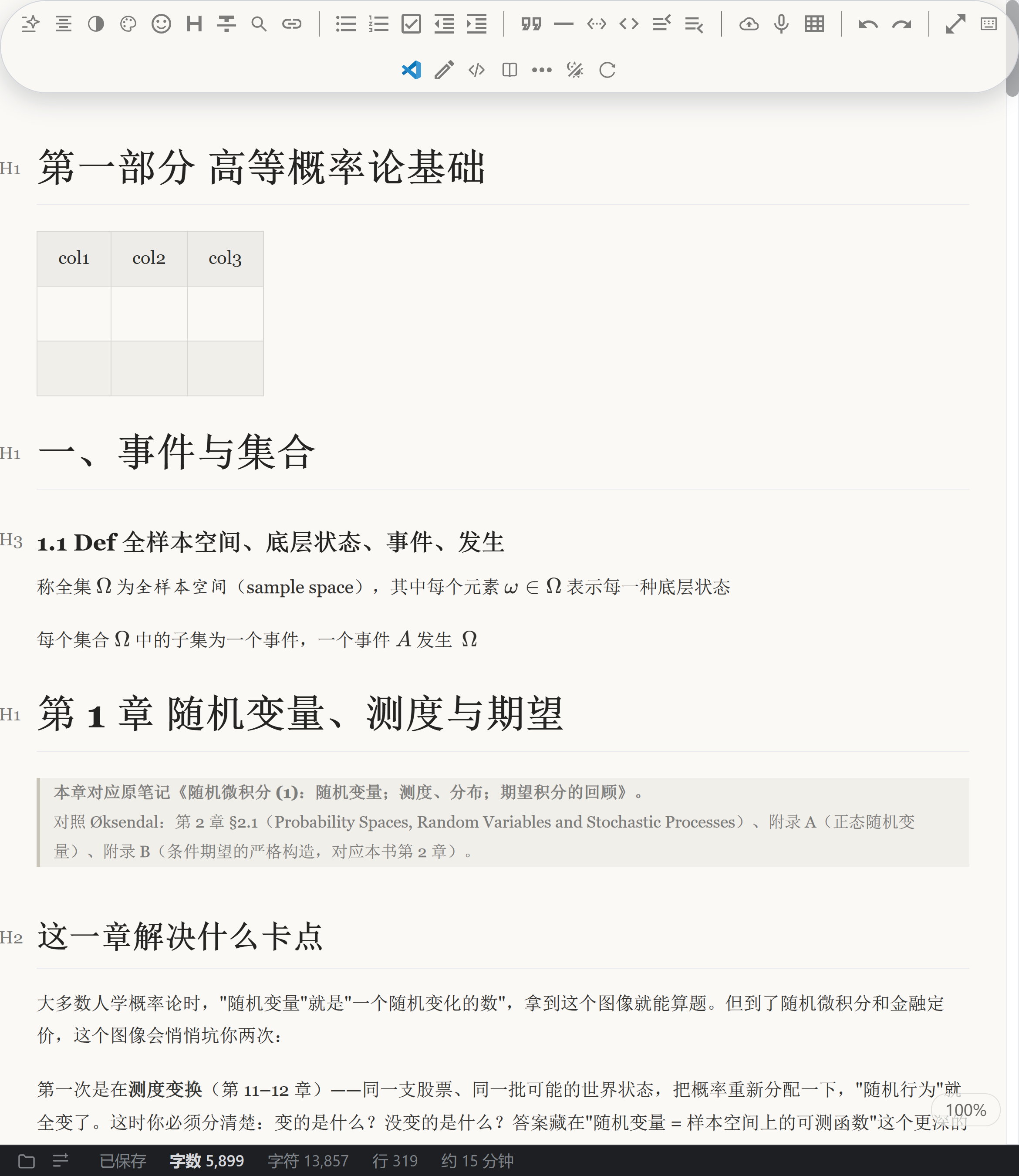
*A narrow window, dense wrapping, mixed Chinese/Latin text and live formulas — the serif theme (宋体-朙) with automatic CJK/Latin spacing.*
## How much faster than Typora? (measured)
Same machine, same window size, same Chinese-with-formulas document, both apps opening maximized; every row was run several times and is reported as the median. Two independent measurement methods were cross-checked and agree.
| Scenario | Measured |
| --- | --- |
| Opening a small document (1.7 KB) | MarkPilot is **~0.2 s faster** (0.51 s vs 0.71 s) |
| Opening a medium document (67 KB) | MarkPilot is **~0.14 s faster** (0.61 s vs 0.75 s) |
| Opening a large document (240 KB) | about the same (0.91 s vs 0.90 s) |
| Window appearing after a double-click | MarkPilot is **faster** (0.29 s vs 0.33 s) |
| Clicking a formula near the end of a long document to edit its LaTeX source | MarkPilot is **6.5× faster** (0.024 s vs 0.156 s) |
Compared against the current Typora of that week (1.14.10); MarkPilot numbers come from the Windows desktop build 2.0.18. Measured on 2026-09-10 — absolute times move with the machine and the document, but "opening a document is never slower, and clicking into a formula is an order of magnitude quicker" held on this machine.
## Screenshots
| | |
|---|---|
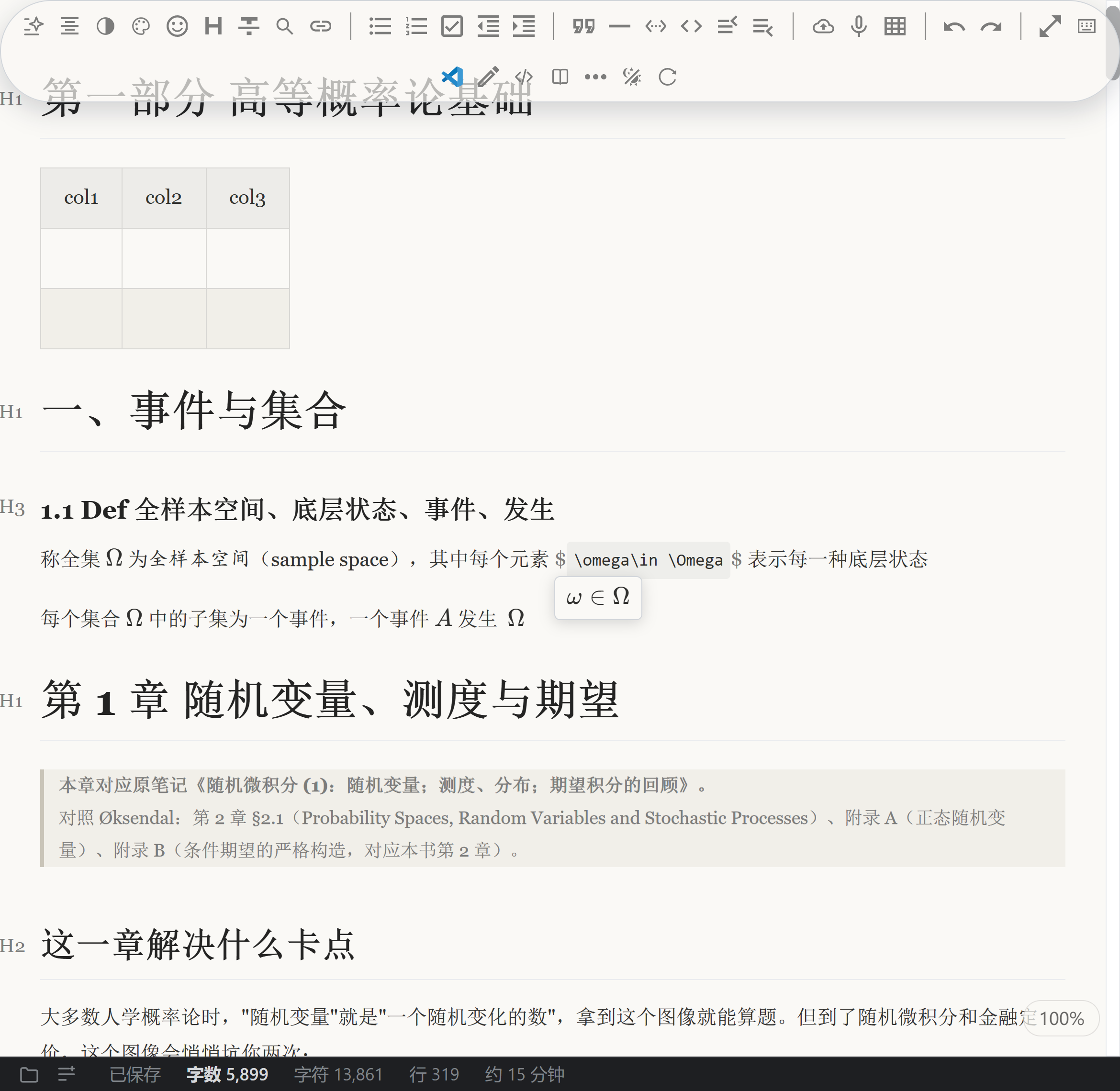
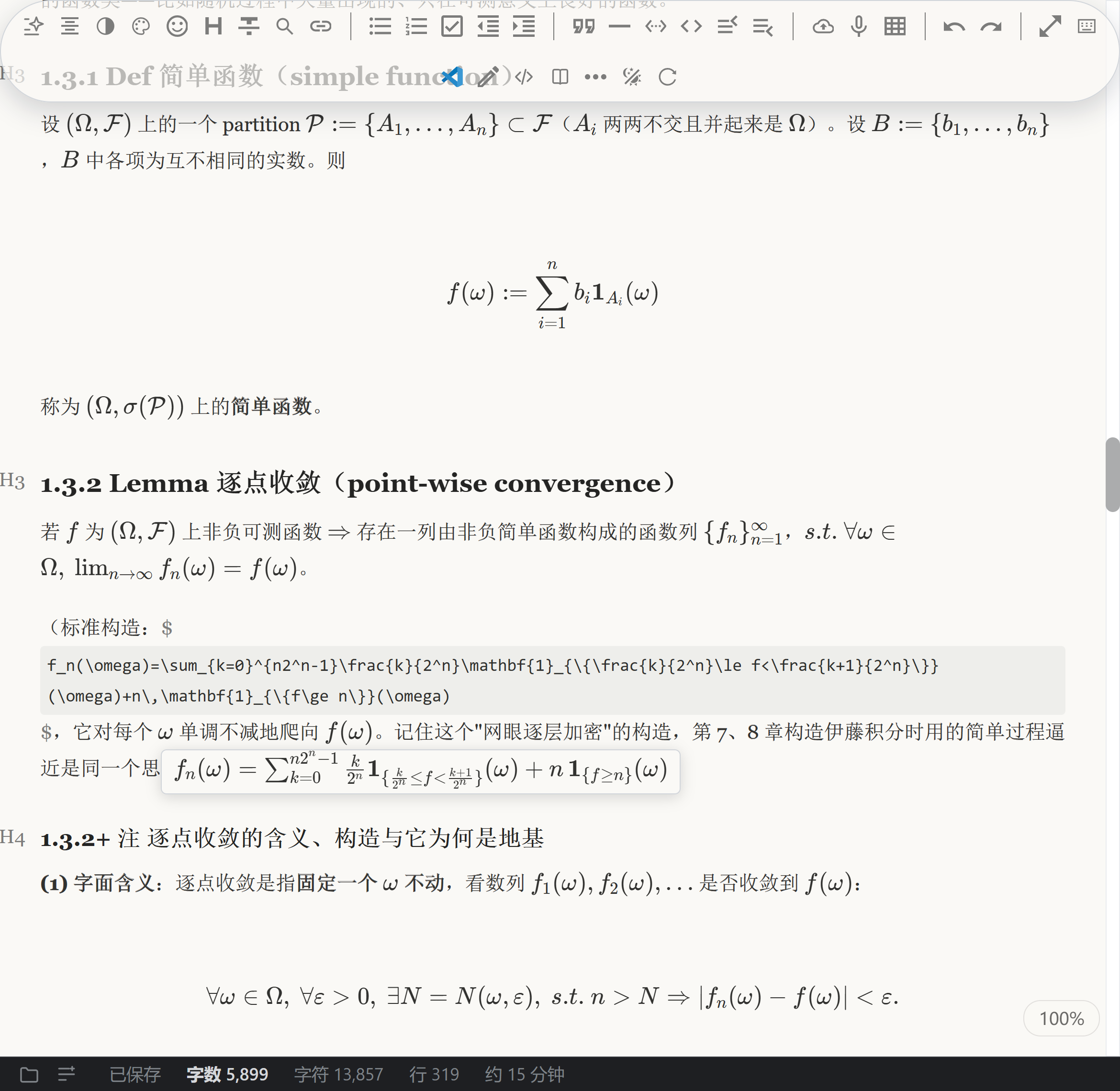
| **Click a symbol, edit its source** — click ω and the caret lands on the `o` of `\omega` | **…or click a subscript** — click the `n` of `f_n` and the caret lands on that very `n` |
|  |  |
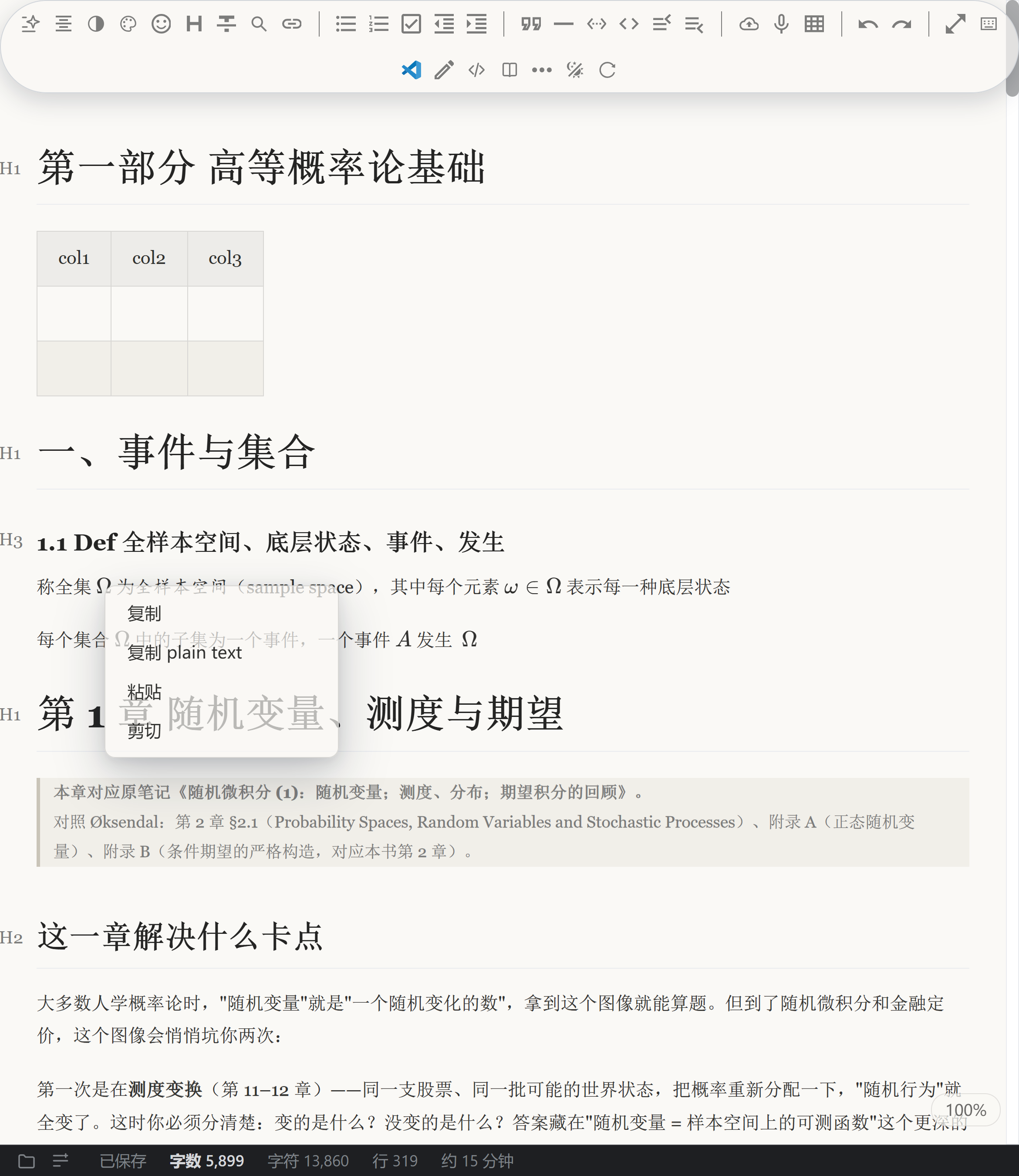
| **Interface opacity** — every popup and the toolbar are translucent, with separate sliders (10–100%) | **Typography** — serif themes, CJK/Latin spacing, optimal line breaking |
|  |  |
## Why people switch from Typora
| | MarkPilot | Typora |
| --- | --- | --- |
| Inline AI completion (cloud + local engine) | ✅ | ❌ |
| Click any symbol in a rendered formula to edit its source (works inside tables and nested blocks) | ✅ | partial |
| Print-quality CJK typography (CJK/Latin spacing, serif themes, Knuth–Plass line breaking on export) | ✅ | partial |
| Large-file performance (chunked rendering + source cache) | ✅ | ❌ |
| Runs inside VS Code / Trae as an extension | ✅ | ❌ desktop only |
| Price | **Free** | $14.99 |
## Five things you will not get from Typora
### ✦ Inline AI completion, the way you actually write
It knows which section you are in, what came before, and whether you are inside a formula — then shows a grey ghost suggestion right after the caret; press `Tab` to accept. Two engines: a cloud model (**DeepSeek / GLM by Zhipu**, plug in your own key) plus a local rule engine (formulas, templates, paths) that keeps working offline or without a key. Your API key is stored in local encrypted storage — never uploaded, never bundled into the installer.
### ✦ Formulas you can actually edit
Rendered math, Typora-style: you see the formula, and when the caret comes near, the relevant source appears for editing with instant preview. MarkPilot goes further and maps the rendered output back to the source — **click any symbol in a formula and the caret lands exactly on the source that produced it** (click ω → the caret sits on the `o` of `\omega`; click the subscript `n` → it sits on that `n`). The mapping survives formulas inside table cells and nested blocks, with precise undo/redo. Formulas stop being "pictures you can't touch" and become live, editable content.
### ✦ Translucent surfaces you control
Every popup, menu and the toolbar are translucent by default, and **Interface opacity** gives you independent sliders (10–100%) for popups and for the toolbar — 70% is a good starting point. Adjustable rather than baked in: readable when you want it, glassy when you don't.
### ✦ The editor moves into your AI IDE
The whole editing core ships as a standard extension: install the VSIX in VS Code or Trae and a Markdown workbench appears in the activity bar — full editor, outline tree, AI completion, all running natively inside the IDE. Write documentation in your AI IDE without switching windows.
### ✦ Large files that stay smooth
Chunked background rendering with source-cache reuse: open a big document, keep typing, undo, jump through the outline — it stays responsive even with thousands of formulas. In our own measurements, the CPU cost of editing dropped by 57–87%.
### ✦ Print-quality typography
The part of the 2.0 series we polished hardest:
- **Automatic CJK/Latin spacing** — breathing room between Chinese, Latin and digits, without disturbing pixel layout inside formulas and code;
- **Serif dual themes** (Song/Ming styles, light and dark) — Chinese serif body text paired with Georgia for Latin, hairline-stroke outlines, dark-mode tables that don't collapse into black stripes, Chinese italics rendered in Kai style;
- **1280 px reading measure** — no more reading a wide screen line-by-line to the edge;
- **Knuth–Plass optimal line breaking on export**, the same family of algorithm TeX has used for forty years of mathematical typesetting.
## Everything else
- Three modes — live preview / WYSIWYG / source — switch any time
- Outline tree in the sidebar, click a heading to jump
- Smart table editing, including formulas inside cells
- Mermaid diagrams, hundreds of code-highlight themes, paste-and-archive images
- Floating toolbar island: it tucks itself away, click any blank space to keep writing
- Export to Word / Excel / PowerPoint, with formulas delivered as **editable OMML** in DOCX — no Pandoc required
- Light and dark themes, reading palettes, Ctrl+wheel zoom
- Windows installer + portable build (no installation needed)
- **Edit images in place**: click an image to edit its source above the retained preview. Broken images keep an editable link; long embedded images fold on screen while copy and save preserve their full content.
- **Math and quotes**: edit formulas with a live preview. Formulas, images, code and diagrams inside quotes retain continuous shading, borders and indentation.
## Download and install
**IDE extension** — search `MarkPilot` in your editor's extension view:
- **VS Code** — install from the Marketplace (ID `Jinxi.markpilot`) →
- **Trae / Cursor / VSCodium** — from Open VSX (ID `jinxi.markpilot`) →
- If your editor does not show it yet, use the manual install below
- **Manual** — download `markpilot-x.x.x.vsix` from the **[Releases page](https://github.com/ltmroberthk915/markpilot/releases/latest)**
- VS Code / Trae: Extensions view → `⋯` menu → **Install from VSIX…** → pick the file → reload the window
- A MarkPilot icon appears in the activity bar; open it and add your own API key in settings for AI completion
**Windows desktop** — from the **[Releases page](https://github.com/ltmroberthk915/markpilot/releases/latest)**:
- `markpilot-Setup-x.x.x.exe` (installer) or `markpilot-vx.x.x-portable.exe` (portable, nothing to install)
## v2.1.29 update
- Press Shift+Enter at the end of a line and then type with a Chinese IME: the caret used to jump back to the previous line and the characters landed at the start of the paragraph. They now stay on the new line.
- Inline math (Ctrl+Shift+E): arrow out past the closing `$` and type — the characters used to be written into the formula source and the caret jumped back inside it. They now land outside the formula.
- Arrow keys no longer skip over inline math: moving towards a formula opens its source and puts the caret inside (as in Typora); inside the source the arrows step character by character and come out at either end.
- Shift+Enter right after a formula, then typing with an IME: both the line break and the characters land outside the formula.
## v2.1.28 update
- The toolbar can be folded away: click the new button at its right end and the whole bar becomes a single small button in the top-right corner, with the text moving up into the freed space. Click it again to bring the bar back. The folded state is remembered next time you open it.
- Narrow the window and the H1 / H2 level badge beside a heading no longer ends up pressed against the edge of the writing area — it keeps a margin on its left, just like the right-hand side.
## v2.1.27 update
- In a long document, an undo used to drop the placeholder heights of skipped content, inflating the document height to **8× its real size** and shifting both the scrollbar ratio and "read up to here" — permanently. It is now restored on the spot, in a way you will not notice.
- Typing in a long document used to silently drop the recorded height of the rebuilt part (the scrollbar drifted slightly). It is now topped up right away.
## v2.1.26 update
- Import your own Typora theme: in Themes, pick a theme’s CSS files (select several, including the ones pulled in by `@import`) or paste the CSS. It applies immediately, and you can switch it off or delete it any time.
- Fonts and images that ship with a theme do not come along (relative references are blocked instead of being requested), so text falls back to system fonts where the theme used its own font files.
- `@media`, `:has()`, `@import` and the theme’s own colour variables all keep working. It styles the document only, so the toolbar and menus stay as they are.
- After import you get one line of numbers: rules applied, rules dropped, local fonts not loaded — so you can see exactly where it differs from Typora.
- Fixed an interface defect: with several themes imported, the Themes dialog grew past the window and its bottom buttons could not be reached.
## v2.1.25 更新
- Clicking left of a heading’s `#` puts the caret there. It used to be pushed in front of the heading text; the marker no longer flickers and the line no longer shifts. Change a heading’s level by clicking the marker itself or walking in with the arrow keys — that still works.
- Backspace just before the `#` now means “delete at the start of the block”: it merges into the previous paragraph when that is text, and does nothing when the previous block is a table, code block or formula. The marker is no longer eaten and the heading no longer silently becomes a paragraph.
- The floating menus (edit mode, headings) now close as soon as the pointer leaves the toolbar instead of sitting on top of your text.
- The desktop toolbar no longer offers “open in VS Code’s default editor” — the desktop app edits everything itself. The extension keeps it: there it means returning to VS Code’s own text editor.
- The two theme dropdowns in the ⋮ menu that did nothing are gone. Colours are set from “Themes” and “Reading palette” on the toolbar.
## v2.1.24 update
- **Any reasonable address spelling works**: `https://api.deepseek.com`, `.../v1` and `.../anthropic` all resolve to the same endpoint, so you can paste what the provider gives you. Keys are stored per platform, and renaming a model never loses them.
- Changing the address no longer switches AI off; you are told which protocol the address implies and that the new address needs its key entered once (the old one keeps its key).
- Failures are diagnosable: the provider message and the **actual request URL** are shown together.
## v2.1.23 update
- **The AI suggestion box scrolls**: long suggestions scroll inside the box, and the window grows with the space around your caret, so you are not reading half a sentence. Clicking the box neither closes it nor moves the caret - read it, then press Tab to accept or Esc to dismiss.
- **Completion config is entirely yours**: no providers or models are preinstalled. Paste a Claude Code / cc-switch `settings.json`, a JSON object, or `KEY=VALUE` lines and you are set; delete any model entry whenever you want, and its stored key goes with it.
- Failures no longer collapse into a bare "no suggestion": the message distinguishes a missing key, a wrong address, a thinking-only model and a truncated generation, and includes the actual request URL.
- The public and self-use distribution lines are merged into one artifact; keys stay only in your own machine's encrypted store.
## v2.1.22 update
- ✦ **Clicking inside an inline formula's pre-render box no longer flashes.** The previous release wired "click the box = put the caret in the source"; that exposed an older behaviour: for the duration of every press, the formula being edited was **visually** folded back into its rendered form — the source disappeared, the floating box was flattened into the line, the paragraph reflowed, and it all snapped back on release: one flash per click (frame sampling during a 250 ms press: 16 of 43 frames had the source at `display:none` and the box at `position:static`, while the `--expand` class never changed and KaTeX never re-rendered — so looking only at classes cannot see it). Pressing a formula that is **already expanded** now excludes it from those rules: it stays expanded while you hold the button. Collapsed formulas keep the old behaviour (the drag-over rendering used by selection still applies).
- ✦ **The box no longer jumps to the previous line's end when the source wraps.** When an inline formula's source is too wide for one line it wraps, and the box used to be positioned against the node's **first line fragment** — the `$` at the end of the previous line: the box ended up pushed to the right and hung below the wrong line (the `f^*\in[f^{\inf},f^{\sup}]` case from the screenshot). The box is now anchored to **the source itself** (CSS anchor positioning): it sits at the source's left edge and 4 px under the source, wrapped or not.
## Fixes (v2.1.22)
- Clicking an inline formula's pre-render box (or its source) flashed the whole formula once: it was visually folded back into rendered form for the duration of the press.
- The floating pre-render box was pushed to the previous line's end when the formula's source wrapped across lines.
## v2.1.21 update
- ✦ **Clicking inside an inline formula's pre-render box now puts the caret where you clicked.** While you edit an inline formula, its rendered result floats in a box below the source. Clicking in that box used to send the caret to the **very start of the formula source** (even when you clicked the middle), and clicking the box's padding **collapsed the formula on the spot** and popped it back on release — two jumps per click. The box now uses the **same pixel-to-caret mapping** as clicking the collapsed rendered result: the glyph you click is the character the caret lands on, the last glyph follows the end-of-line rule (caret at the end of the formula), and padding clicks resolve to the nearest glyph. The formula is never collapsed while you hold the button (frame sampling: zero folded frames).
- ✦ The mapping reuses the same source-location data that is already emitted with the rendered output; the change is to compute the offset from the layout you aimed at **at press time** and place the caret ourselves, instead of letting the browser clamp the click (it resolves into KaTeX's subtree, which is why the old offset read as 0).
- ✦ Double-click (word selection) and modifier-clicks still go to the browser; dragging right from inside the box still produces a selection.
## Fixes (v2.1.21)
- Clicking inside an inline formula's pre-render box moved the caret to the start of the formula source (offset 0 for middle and right-side clicks alike).
- Clicking the box's padding collapsed the formula immediately and popped it back on release.
## What's new in v2.1.20
- ✦ **A plain click inside an expanded block formula no longer makes the whole block flicker.** With both the pre-render and the code editor expanded, a click in the **source area** or in the **rendered area** used to collapse the block and snap it back (block height 145 → 119 → 145; the 26px difference is exactly the source line) — that is the flicker you saw, and no character of the document was involved. A mouse press now **freezes an already-expanded block formula as-is** (neither expands nor collapses it); after release the normal "is the caret inside the formula?" rule takes over again.
- ✦ **The rendered result is no longer rebuilt**: during a click with no text change KaTeX does not run at all, the pre-render subtree is byte-identical with the same first child, and the formula source is unchanged. Keyboard movement and typing behave exactly as before (they never flickered).
## Fixes (v2.1.20)
- A single click inside an expanded block formula (source area or rendered area) re-laid-out and flashed the whole block: on press we stripped `--expand` ourselves and Vditor re-added it after release, with frames in between — i.e. the block collapsing and snapping back on screen.
## What's new in v2.1.19
- ✦ **The formula-command ranking was rebuilt** following mature practice (VS Code's model: **match quality decides the order**, declaration order only breaks ties between equally good matches). Tiers: **exact → prefix (within the tier, a longer share of the name ranks first) → siblings (right after the strong matches, ordered by longest common prefix with what you typed) → description → subsequence fuzzy**. So `\mathbb` gives `\mathbb`, **`\mathbf`**, `\mathcal`, `\mathrm`, **`\mathscr`**, `\mathfrak`…; `\frac` gives `\frac`, `\sqrt`, `\dfrac`, `\tfrac`, `\cfrac`; `\lr` gives the prefix matches followed by `\leftrightarrow`/`\Leftrightarrow` from the fuzzy tier.
- ✦ **"Already used in this formula" no longer promotes across tiers.** The old scoring added a bonus for commands present in the current formula, applied to every entry — so in a formula containing `\int`/`\mathbf`, typing `\` put `\int` and `\in` (a substring of `\int`) at the top. It is now only a secondary key *within* a tier: a bare `\` always lists the same twelve common commands in the same order.
- ✦ The table gained `\mathscr`/`\mathfrak`/`\mathsf`/`\mathtt`/`\mathit`/`\boldsymbol`/`\mathnormal`/`\operatorname` (42 → 215 entries, 13 groups); the number of candidates adapts (siblings only when fewer than four strong matches, capped at twelve).
## Fixes (v2.1.19)
- Typing `\` inside a formula that already contains `\int`/`\mathbf` moved `\int`/`\in` to the top of the list, displacing the common commands.
- Typing `\frac` lost `\sqrt` (the "enough matches already" rule counted the fuzzy matches as matches).
## Fixes (v2.1.18)
- The formula-command candidate list leaked internal group wording into the UI ("同一类(字体)"). The detail column now shows **only the command's own description**; sibling commands are still offered, just without the internal annotation.
## What's new in v2.1.17
- ✦ **Formula-command completion is smart again: sibling commands come with it.** Typing `\mathbb` now also offers the rest of the font family — `\mathbf`, `\mathcal`, `\mathscr`, `\mathfrak`, `\mathsf`, `\mathtt`, `\mathrm`, `\mathit`, `\boldsymbol`, `\mathnormal`, `\operatorname`; `\frac` brings `\sqrt`/`\dfrac`/`\tfrac`/`\cfrac`; `\sum` brings `\prod`/`\int`/`\iint`/`\oint`/`\lim`; `\alpha` brings the whole Greek family. Siblings are labelled "· 同一类(字体)" so it is obvious why they are there.
- ✦ **The number of candidates adapts to the query**: siblings are only appended when the prefix matches fewer than four commands (up to twelve entries); with many matches nothing is appended — so a bare `\` still lists the same twelve common commands in the same order (`\frac` → `\sqrt` → `\sum` → `\int` …). The table grew from 42 to 215 entries, ordered by usage and then grouped.
- ✦ **For the record: formula-command completion has always been offline.** The candidates come from a static table in the source (`render/js/completion-sources.js`) plus local matching — no network, no model call, and the panel is drawn before any host/AI round trip. The only networked feature is the optional AI continuation (ghost text), which needs your own API key and is absent entirely from the public/API-free build.
## Fixes (v2.1.17)
- Formula-command completion only offered the exact prefix match (typing `\mathbb` listed `\mathbb` alone), so sibling commands such as `\mathscr`/`\mathbf` were never suggested.
## What's new in v2.1.16
- ✦ **End-of-line clicking on display formulas now follows the behaviour you specified**: clicking the **last glyph** (either half) or **anywhere to its right on that line** puts the caret at the **end of the formula's source** (after the trailing comma). The previous build had it backwards (stopping before the comma), which is why it still looked wrong. Earlier glyphs keep the half-cell rule (left half → before it, right half → after it), and commands (`\sum`, `\int`, `\lim`) still land after the backslash.
- ✦ **Deleting an image now takes a single Ctrl+Z (second mechanism).** After rebuilding the document (`setValue`), Vditor schedules its own debounced history push; it records "markdown unchanged, but a formula re-rendered / reconcile moved nodes" as a real patch and parks it **on top of** the deletion patch — that is the entry the first Ctrl+Z used to hit (reproduced on your own document with the image placed right after a display formula). Undo/redo now **skips such no-op steps**; history recording itself is untouched.
- ✦ **Dragging upward across a `$$…$$` block formula no longer jitters.** The 2.1.11 fix covered inline formulas only; an expanded block formula inserts its source line into the layout (block height 91↔118), shifting the text under the pointer so the drag endpoint lands elsewhere and the formula flips again. While the mouse is down, block formulas are now **not expanded** — measured: `--expand` flips 4 → **0**, block height constant throughout.
- ✦ **The completion panel now treats the toolbar's bottom edge as a ceiling**: when the space above the line is taken by the toolbar, the panel shrinks on that side (it is scrollable) instead of parking across the toolbar.
## Fixes (v2.1.16)
- Clicking at the end of a display formula's rendered line (the trailing comma and anything after it) put the caret before the comma instead of after it.
- Deleting a selected image needed **two** Ctrl+Z presses (reproducible when the image sits right after a display formula; the extra entry comes from Vditor's own debounced push).
- Dragging upward across a `$$…$$` block formula made the editing area jitter (less pronounced when dragging downward).
## What's new in v2.1.15
- ✦ **Clicking at the end of a display formula's rendered line no longer skips the trailing comma.** Hit testing used to snap to the *start* of a glyph, and a digit cell is about 9px wide on screen — clicking its right half still put the caret *before* it, which reads as "the caret jumped one character too far left". The mapping is now half-cell aware: the left half lands before the glyph, the right half after it. The **last glyph of the formula** is the exception (clicking it still lands before it), so clicking the end of a line always stops before the final character instead of running past the formula. Commands (`\sum`, `\int`, `\lim`, `\frac`, …) always land after the backslash, matching inline formulas.
- ✦ **Clicking a display-mode ∑/∫/lim now puts the caret between `\` and the following letter** (it used to land inside the first argument of `\sum_{}`). Reason: in display mode KaTeX gives the big operator **no source mapping of its own** (the mapping sits on the outer `mop`), so the old fallback picked the *nearest mapped glyph* — the `=` inside the subscript. The mapping now uses the outer container's location when the point sits on an element that renders text but has no mapping, and it skips KaTeX's empty vlist/strut shells (measured: they overlap neighbouring glyphs by 1px).
- ✦ **The math hint panel (completion candidates) no longer covers the formula's pre-render box.** Panel placement only avoided the edited line and the mouse; it now also avoids the pre-rendered box, weighted above "show more items" — the panel gets shorter rather than hiding what you are editing.
- ✦ **Deleting an image now takes a single Ctrl+Z** (it used to take two, the first doing nothing). Vditor's history snapshots carry the caret position, so a pure caret move (clicking to select the image) counted as a difference and was frozen into a markdown-identical undo entry. History points are now only added when the markdown actually changed — this also applies to cut/paste/table/image-scale and everything else on that path.
- ✦ **Deleting an image whose top has scrolled above the top edge of the page now keeps the text below it in place and brings the content above down into view** (as requested). The condition is geometric (image box top above the visible top), and the compensation is measured from the change in total content height (image box 881px, its block 906px, content height actually 920px smaller — geometry alone would be off by 39px and the text below would still jump). When the image is fully inside the viewport the old behaviour is kept (text below moves up).
## Fixes (v2.1.15)
- Clicking at the end of a display formula's rendered line skipped the trailing comma and landed before the character preceding it (reproducible by clicking the right half of the last digit).
- Display formulas starting with `\sum`/`\int`/`\lim`: clicking the big operator put the caret inside the first argument of `\sum_{}`/`\int_{}` (inline formulas were already correct).
- The math hint panel covered the pre-render box of the formula being edited, hiding its rendered result.
- Deleting a selected image needed **two** Ctrl+Z presses (the first did nothing).
- Deleting an image whose top had scrolled past the top edge made the text below jump up one screen height.
## What's new in v2.1.14
- ✦ **Clicking the upper part of a character in a paragraph that sits directly under a display formula no longer throws the caret to the start of the line.** The user's diagnosis was exactly right ("it's about how the vertical position inside the line is decided"). The culprit is the *blank-space landing* translation: a point within ±10px of a folded block formula is treated as blank space beside it and the caret is moved to that formula's insertion point. But the display formula above and the paragraph below are **flush** (measured: formula box y=257..387, paragraph y=387..412), so the whole upper half of the first text line fell inside that band and the caret landed on the block boundary — i.e. the start of that line. The rule now also requires the point not to be inside **another** block's box, in which case the click goes back to the browser (Chromium's own answer was correct all along). Measured on the same line, 162 clicks: deviations at "top edge +2" dropped from **27/29** to 2/30.
- ✦ Recorded a methodology lesson: probes that judge "click point → caret position" must sample **top / centre / bottom** of a character; earlier rounds only clicked centres, which hid this bug entirely.
## Fixes (v2.1.14)
- Clicking the upper half of any character in a paragraph directly beneath a display formula moved the caret to that formula's insertion point (i.e. the start of the line).
## What's new in v2.1.13
- ✦ **Clicking an inline formula's rendered result now puts the caret where you clicked.** The click was mapped to a source offset only at `click` time — but by then the editor had already expanded the formula for editing (our own `selectionchange` → `refreshMathEditing`), so the rendered glyphs were no longer measurable, the map failed, and the fallback threw the caret to **offset 0 of the formula source**: click the middle of a formula and the caret jumps to its very beginning (the reported "caret runs to the start"). Measured on your document's `$f=f^+-f^-$`, 23 sample points every 4px across the rendered box: before, **6 points** (including one in the right half) landed at the formula start with 2 backward jumps; after, 0 backward jumps and none in the right half. The press-time offset is now computed at `mousedown`, when the layout is still the one you aimed at.
- ✦ **The gaps between glyphs are clickable too**: KaTeX leaves gaps between glyphs and strut padding above/below (13–26% of sampled points inside a rendered box), where the map used to fail. It now falls back to the nearest glyph — the same semantics as the browser's "clamp to the nearest position when you click empty space".
## Fixes (v2.1.13)
- Clicking an inline formula's rendered result put the caret at the very start of that formula's source for some pixels (including in the right half), with a non-monotonic offset sequence.
- Points landing between rendered glyphs failed to map and fell back to source offset 0.
## What's new in v2.1.12
- ✦ **HTML images (raw `![]() ` in the body) can be deleted again**: after click-selecting one, Delete/Backspace used to leave the image in place, **eat a character elsewhere in the document and leave the caret up on the heading** (Vditor collapses the DOM selection after such a click, so the old guard declined and the keystroke fell through to the browser). The delete now follows the explicit selection state: exactly the `
` in the body) can be deleted again**: after click-selecting one, Delete/Backspace used to leave the image in place, **eat a character elsewhere in the document and leave the caret up on the heading** (Vditor collapses the DOM selection after such a click, so the old guard declined and the keystroke fell through to the browser). The delete now follows the explicit selection state: exactly the `![]() ` tag goes away, nothing else is touched, the caret lands where the image was, and **one** Ctrl+Z restores it.
- ✦ Added a **real keyboard/mouse injection** harness (SendInput drag / keys / window targeting by PID) for gestures that only misbehave with a human hand.
## Fixes (v2.1.12)
- Selecting an HTML image and pressing Delete/Backspace deleted a character from the heading instead of the image, and moved the caret there.
## What's new in v2.1.11
- ✦ **The caret no longer falls into the "marker hole"**: clicking between the end of a bold/italic run and the following punctuation used to drop the caret inside the *invisible* `**` marker — Backspace then ate a marker asterisk (`导数**。` became `导数*。`), and Shift+arrow plus typing produced `*X*`. The caret is now returned to the text boundary; moving the caret into a marker *with the keyboard* (deliberate marker editing) is untouched.
- ✦ **No more twitching while dragging upward**: the real cause was Vditor swapping the formula under the selection endpoint for its source mid-drag (line width/height change), which shifted the text under the pointer, which moved the endpoint onto another formula — a feedback loop (formula tops oscillated 226↔247 in our measurements). Formulas now stay rendered for the whole press (visual suppression only; restored on release), so a drag causes **zero layout change**.
- ✦ **The release point is visible**: a selection has no caret, so after a drag you only saw a blue band. A 2px blinking bar now marks the point where you released (removed as soon as you type or clear the selection).
- ✦ The blue highlight **covers the formulas it spans** (verified on real window pixels for a paragraph containing four formulas).
## Fixes (v2.1.11)
- Backspace eating a `**` asterisk, and typing/shift-selecting producing `*X*`, when clicking between bold text and punctuation.
- Formula area twitching during upward drag-selection (invisible when dragging downward).
- No visible indication of where a drag-selection ended.
- Also repaired a regression introduced by 2.1.10: **clicking a display formula's rendered result did nothing** (the click mapping was gated to inline math only; block math now takes over only when the source offset can be resolved). The renderer suite is back to 354 passing / 0 failing.
## New in 2.1.10
- ✦ **Dragging backwards (from the paragraph end to its first word) now selects the whole paragraph**: a reversed anchor/focus pair used to collapse the range (per spec, `Range.setEnd` with an end before the start collapses it); switching the fallback to the Selection API's `setBaseAndExtent` makes direction irrelevant.
- ✦ **Works when the formula paragraph is the document's last block** (the user reported it only worked after adding a blank line below — the real cause is the press landing on the rendered formula, not the document end).
- ✦ Inline math previews are now selectable (`user-select:text`), which is what lets Chromium arm a selection drag from a press on a formula. Inline only; block math semantics untouched.
## Fixes (v2.1.10)
- Selecting backwards from the paragraph end copied only the last line and showed no highlight at all.
- A native drag confined inside a pressed formula (pointer moved far away) is replaced by our own selection.
## New in 2.1.9
- ✦ **Drag-select across a paragraph containing math** now works: drag from text across the paragraph, or press on a formula and drag out — every formula the selection crosses keeps its rendered form and shows the same blue selection highlight as normal text. On mouse-up the boundary formulas unfold to source and the endpoint snaps to the whole formula (Typora's expand() / includeTrailMeta), so copying yields `$…$` source instead of nothing.
- ✦ **Copy is no longer blank**: the collapsed formula source used to be a 0×0 box that neither contributed text to the selection nor painted a highlight.
- ✦ **Clicking a formula still unfolds it and puts the caret in the source** (the editing path is intact).
## Fixes (v2.1.9)
- Pressing on a formula and dragging did nothing at all (Chromium never arms a selection drag from a press on a user-select:none preview).
- "Only text gets the highlight, the formula area gets nothing."
- Caret at the end of the paragraph, select backwards: the copy came out blank.
- Also: the spurious click fired at the end of a drag collapsed the freshly made selection.
## What's new in 2.1.8
### ✦ Close every window one by one — they all come back next time
The previous version fixed session restore for the "File → Quit" path, but closing the windows
one at a time with the title-bar **X** (which is also "quitting the app") removed each window from
the restore list as it closed, leaving only the last one — exactly the "only the first file came
back" you saw, and which window survived was partly luck.
Closing a window is now only **pending**: if you close the rest within 5 seconds (i.e. you were
quitting the app), the removal is cancelled and every window comes back with its file; if you keep
working for more than 5 seconds after closing one, it is really dropped and won't reopen.
### ✦ No more shivering when a document opens
When you open a document you have read before, the app restores your reading position. That should
finish as soon as the content height stops changing and the anchor is on target (within a second),
but the "is it on target" formula had **its two terms subtracted in the wrong order**, reporting
exactly twice the real offset (1 px measured as 2, −11 px as 22), so it could never pass its own
±2 px line. Every open therefore rewrote the scroll position **every 0.12 s for the full 6 s
give-up window** (76 rewrites measured; under 10 is normal). Any layout change during those 6
seconds got re-yanked — that is the shivering you saw.
The check now uses the same formula as the repositioning: it settles within a second (13 rewrites
measured), and offsets below 1 px no longer touch the scroll position at all.
### ✦ Context menus no longer cover the pointer or the line you clicked
Your rule: the panel may go above or below, but must never cover the mouse or the line being acted
on. The previous version fixed this for the completion popup; the **context menus** still pinned
their top-left corner to the pointer, covering both the mouse and the clicked row — clicking "Image
settings…" or "Delete (recycle bin)" closed the menu on mouse-up and looked like nothing happened.
Both the file-tree menu and the in-editor menu now try below the line, then above, then beside the
pointer, and in all four placements cover neither the mouse nor the line.
## Fixes (2.1.8)
- **Only one window came back after quitting by closing windows** (each closed window was removed from
the session list; only the last survived). Now pending-for-5-seconds, with the list frozen when the
app starts exiting, and no re-computation on window destruction (that used to write an empty list,
depending on a 400 ms save debounce — hence the flaky behaviour).
- **A single closed window is really dropped from the restore list only after 5 seconds** of continued use.
- **The scroll position was rewritten for a full 6 seconds on open** (anchor error computed as 2× offset,
so convergence never triggered): same formula as the repositioning now, and no write below 1 px.
- **Context menus covered the mouse and the clicked row** (file tree + editor): four candidate placements,
none of which cover the pointer or the row.
## v2.1.7
### ✦ The buttons on the start screen actually work now
If you had ever collapsed the sidebar, clicking **Open Folder** on the start screen used to change nothing
on screen: the file tree was read, but it lived inside a collapsed panel. With the sidebar visible the welcome
page still gave no feedback at all. Now opening a folder expands the sidebar, shows the tree, and the welcome
page tells you where to look.
### ✦ Reopening the app brings back your windows and files
A normal exit used to forget which windows were open, so the next launch showed nothing but the start screen
(only a crash preserved the session). Now a normal exit — or closing the last window — keeps the session and
restores every window with its own file, position and size.
### ✦ Delete in the file tree really deletes
Right-click → **Delete (Recycle Bin)** used to do nothing at all: the confirmation never appeared and the file
never moved. It now asks once, sends the file to the Recycle Bin, and does nothing if you cancel.
### ✦ In-document anchors jump
`[jump to section 3](#section-3)` links did nothing. They now scroll to the heading and flash it briefly.
### ✦ Delete several images at once
After Ctrl-clicking several images, Backspace/Delete did nothing — and from that moment the keyboard stopped
reaching the document at all. Multiple selected images now delete in one action; undo brings them back.
### ✦ Completion popups no longer cover the line you are editing
With a short window the formula/snippet popup used to cover the very line you were typing on and the mouse
pointer itself, so a stray click inserted the wrong formula. It now stays below or above that line, fully
inside the window, and never overlaps the edited line or the pointer.
## Fixes (v2.1.7)
- **No feedback when opening a folder from the start screen** — collapsed sidebar: zero visible change;
visible sidebar: the welcome page never explained the next step. Opening a folder now reveals the sidebar
and shows the hint (a workspace restored at startup still respects your collapsed-sidebar preference).
- **A normal exit wiped the window session** — every window detached itself on close, so quitting emptied the
record and nothing came back on the next launch. Only closing one of several windows removes it now.
- **File-tree delete never worked** — `window.confirm` always returns false and shows nothing in the Electron
shell, so the confirmation never passed. It now uses the host's native dialog.
- **Create/rename failures were swallowed** — `window.alert` is equally invisible; failures now show a visible
error strip in the sidebar.
- **"Open file in this window…" opened a new window** — the menu item now really replaces the document in the
current window (asking first when there are unsaved changes).
- **In-document anchors did nothing** — the host ignored `#…` URLs and the renderer had no handler.
- **Ctrl+multi-selected images could not be deleted** — deletion only looked at the single-click selection, and
multi-selecting silently dropped keyboard focus to the shell. Focus is kept, and the selection deletes at once.
- **Completion popup covered the edited line and the pointer** in short windows — the panel is now capped to the
real space on one side (scrollable inside) so it never overlaps the edited line or the mouse.
## v2.1.6 update
### ✦ Right-clicking an image no longer sends the caret back to the top of the document
Open a document, scroll to an image, right-click it — the caret used to **jump straight back to the very beginning of the
document**. In a long file that is thousands of pixels away: nothing on screen tells you, and the next thing you type lands
at the top.
Now right-clicking an image, a formula or a code block — anything that is not text you can put a caret into — leaves the
caret where you clicked, and the beginning of your document stays untouched.
(This only happened when the document had **no caret at all** yet — a freshly opened file, or one you had not clicked into.
That is why a second right-click often looked fine: the caret was already sitting at the top.)
### ✦ The file tree’s new-file / rename box now catches your typing
After clicking **New Markdown** or pressing **F2**, the name box used to open **without focus**: typing went nowhere,
and clicking into it first put the caret at the end — so the file ended up named `未命名.md我的笔记.md`. Now you can
just type: the base name is replaced and the extension is kept.
### ✦ Line endings are no longer rewritten
A CRLF Markdown file used to be converted to LF wholesale on the first save (Notepad would show one long line, and git
would report the whole file as changed). Saving now restores the file’s original line endings — CRLF stays CRLF, a file
without a final newline does not get one, and a UTF-8 BOM survives.
### ✦ Content-zoom shortcuts work again
`Ctrl+=` / `Ctrl+-` / `Ctrl+0` did nothing in the desktop app (only `Ctrl+wheel` worked). All three work now.
### ✦ Markdown written elsewhere is no longer reshaped when you save
Two trailing spaces (a hard line break), a trailing backslash (the other hard break), a four-space
indented code block, fence info strings (```js {1,3-5}), and titles on reference definitions
(`[doc]: url "title"`) used to be dropped on save. They are preserved now — including in CRLF files.
## Fixes (v2.1.6)
- **Right-clicking an image/formula/code block threw the caret back to the top of the document:** with no caret in the
document, a right-click on an image, a rendered inline/display formula, a highlighted code block or a diagram was moved
to position 0 — thousands of pixels away in a long file, and the next keystroke landed at the top. Those right-clicks no
longer move the caret: it lands next to the block you clicked, and the top of the document is never touched. Right-clicks
on body text, headings, table cells and code source behave exactly as before (the caret goes to the click point).
- **The file tree’s inline name box never received focus**: typing right after "New Markdown" lost every keystroke, and
clicking into the box first appended to the default name (`未命名.md我的笔记.md`). The box now focuses itself and
pre-selects the base name (extension kept).
- **CRLF files were rewritten as LF on save**: one edit turned the whole file into LF. Saving now restores the original
line endings, keeps a missing final newline missing, and preserves a UTF-8 BOM.
- **Desktop content-zoom shortcuts were dead**: `Ctrl+=` / `Ctrl+-` / `Ctrl+0` now zoom (and reset) as expected.
- **Source forms were damaged on save**: trailing-space/backslash hard breaks were stripped, indented code
blocks were flattened into paragraphs, fence info strings were truncated, and reference-definition titles
were lost — and on CRLF files all of those fixes silently did nothing (lines were split on \r\n while the
comparison used LF). All fixed and covered by a regression scenario.
## v2.1.5 update
### ✦ Typing after clearing the document no longer turns into a formula
After you clear the document with `Ctrl+A` and one `Backspace`, the first thing you typed used to **become a formula**:
when the last block of the document is a display formula, the caret stayed inside the emptied `$$`, so your characters
went straight into the formula source — the screen showed italic, formula-typeset text (type `abc` and the document reads
`$$\nabc\n$$`). The cleared document is now an ordinary empty paragraph, and typing goes to the body.
## Fixes (v2.1.5)
- **Typing after clearing the whole document was written as a formula:** after `Ctrl+A` and one `Backspace`, if the last
block of the document is a display formula, the caret sat inside that empty `$$` source and everything typed afterwards
was written as TeX (typing `abc` produced `$$\nabc\n$$`). That "only an empty block formula is left" shape now falls
back to an empty paragraph, typing goes to the body, and **one** `Ctrl+Z` still restores the whole document byte for byte.
## v2.1.4 update
### ✦ Word-wise delete next to a formula no longer breaks it
`Ctrl+Backspace` / `Ctrl+Delete` used to bypass the formula boundary guard: with the caret in front of a display formula,
one press merged the whole `$$…$$` into the preceding paragraph and the formula dissolved into a line of text. Those
modified keys now run through the same guard; nothing else about them changes.
### ✦ Clicking the few pixels of blank space above or below a formula no longer eats its source
A click in the blank band just above or below a collapsed display formula used to resolve into the hidden TeX source, so
the Backspace that followed deleted one character of the formula. Such clicks are now mapped by geometry to just
before/after the formula, never inside it.
### ✦ Cheaper caret movement in large documents
Every caret move runs one pass of formula-state syncing, and inside it the "find the currently expanded formula" lookup
was by far the most expensive step — on a 490 KB document with 5,634 formulas it alone accounted for ~90% of the pass.
With a cheaper lookup the pass went from **0.289 ms to 0.099 ms** (about 3×).
## Fixes (v2.1.4)
- **Word-wise delete (`Ctrl+Backspace` / `Ctrl+Delete`) bypassed the boundary guard and merged a whole display formula
into the preceding paragraph:** measured on a real document, the `> (1)` line became
`> (1)\neg\,\exists x\in A, P(x)\;\Leftrightarrow…` (the formula dissolved into block-quote text). Those keys now run
through the same guard, with no other behaviour changed.
- **Clicking the few pixels of page margin above a formula block and pressing Backspace ate the last character of its
source:** a click in the blank band next to a collapsed formula is now mapped to before/after the formula.
## v2.1.3 update
### ✦ Clicking the blank space around a formula no longer drops the caret into hidden source
While a display formula is collapsed its source is a `0×0` shell, and Chromium resolves a click in the blank band below it
into a position *inside* that source — left side gives the source end, middle gives its start, depending on where you click.
So "click once, then Backspace" deleted one character of the formula (`x+y=1` → `x+y=`). A click in the blank area now lands
before/after the formula, while clicking the rendered formula itself still expands it and puts the caret in the source.
### ✦ How it behaves now
- **Clicking the blank space around a block formula** puts the caret before/after it: the block does not expand and the caret
never lands in hidden source. Clicking the rendered formula itself still expands it.
- **Clicking the `$$` fence** puts the caret **on the fence itself** — before the first `$`, between the two `$`, or after the
last one, wherever you click.
- **Backspace on a fence or right against a block** changes **not a single byte** and shows a one-line notice.
- **Typing / pasting / IME on a fence** sends the characters into the source on that side; fences and Markdown stay intact.
- **Additive only:** every earlier fix is kept.
### ✦ Why a single `$` cannot be deleted in the rendered view
The `$$` of a display formula and the `$` of an inline formula are markers the renderer regenerates on every re-parse, so
"delete one `$`" is not an editable action in the editor core (editing marker text is discarded rather than saved). The
choice here is therefore "the fence is a real caret position, Backspace changes nothing, and the reason is shown on the spot"
— rather than pretending to delete a `$` and leaving half a formula behind. To edit fences character by character, use the
toolbar's source view, where they are ordinary text; to delete a whole formula, select all of it and press `Backspace`/`Delete`.
## Fixes (v2.1.3)
- **A paragraph edge inside a different block quote was not protected:** with `> $$ … $$` followed by a blank line without
`>`, then `> (2)`, the two lines live in different block quotes and Backspace stripped the `>` prefixes of the whole quote
(`> (2)` → `(2)`), which reads exactly like "the formula got deleted". The edge test now walks up parent nodes.
- **Clicking the `$$` fence dropped the caret into the source** (not where you clicked): the opening fence now puts the caret
at the start of the source and the closing fence at its end, so characters typed afterwards land on the side you clicked.
- **Backspace at position 0 of an inline formula's source erased the formula:** it is now intercepted at the boundary too.
## v2.1.2 update
### ✦ Backspace next to a formula no longer changes a single byte
At the edge of a display formula, Backspace used to dissolve `$$…$$` into the previous paragraph; the previous release turned
that into "first press selects the whole formula, second deletes it", so two presses still destroyed it. Now the press only
moves the caret to the nearest text outside the formula — the document is untouched — and the next press deletes ordinary text.
### ✦ The `$$` fences put the caret where you click
Click the opening `$$` and the caret goes to the start of the source; click the closing one and it goes to the end. Characters
you then type really land on that side (before, typing with the caret parked on a fence silently appended to the end).
### ✦ The preview box can no longer linger at a line end
If the caret is not in the formula's source or preview, the expanded state is removed immediately — it no longer depends on
racing the renderer with a single retry, so it cannot behave differently on different attempts.
## Fixes (v2.1.2)
- **A caret landing on the formula body (element-level position) was not recognised as a boundary:** one Backspace dissolved
the whole `$$…$$` block into the previous paragraph. Those positions are now covered by the boundary test.
- **Boundary Backspace no longer "selects the whole formula first":** it moves the caret to the nearest text outside the
formula and leaves the document unchanged.
- **The expanded state is now enforced** (removed whenever the caret is not in the formula's source/preview), removing the
timing race behind the intermittent preview box.
- **Fence clicks have defined semantics:** opening `$$` → caret at source start, closing `$$` → caret at source end (before,
clicking the closing fence dropped the caret into the next paragraph).
- **Backspace at position 0 of an inline formula's source erased the formula** (the v2.0.4 shape was still reachable for
inline math): it is now intercepted as well.
- **Additive only:** every other fix from the previous release is kept (selecting a whole formula and deleting it leaves no
residue, and `Ctrl+B/I/U` or Enter inside TeX source no longer corrupts it).
## v2.1.1 update
### ✦ Editing next to a formula now behaves the way you expect
All of these come from reports made in real documents:
- **A line that ends with a formula no longer pops the preview box when you put the caret at the end of the line.** Before,
clicking at the line end (or pressing End) made the last formula's floating preview appear over the text below. Now only
**clicking the formula itself** expands its source for editing; before/after the formula are ordinary caret positions, and
typing there lands after the formula.
- **The `$$` of a `$$ … $$` block are real, clickable text now.** Previously, however you clicked, the caret could only land at
the very first position of the source. They can now be clicked, selected and edited character by character.
- **Backspace next to a formula no longer destroys it.** At a block's edge — its start, its end, or the paragraph right
before/after it — one Backspace used to dissolve `$$…$$` into a plain line of text, or silently eat characters out of the
source. The first press now only **selects the whole formula** (the document does not change); a second press deletes it as
one unit, so removing a formula is still two keystrokes.
### ✦ Three related problems found while testing
- **Ctrl+B / Ctrl+I / Ctrl+U inside formula source** no longer inserts `****`, `**` or `` into the TeX (which broke the
formula instantly). Clipboard, undo/redo and select-all are unaffected.
- **Enter inside an inline formula's source** no longer splits the TeX (it used to produce garbage such as `$a$a+1+1$`). The
caret simply moves out of the formula; display formulas keep their multi-line source, so Enter still inserts a newline there.
- **Deleting a whole formula** (whether you selected it yourself or the step above selected it) no longer leaves stray
`` text behind.
## Fixes (v2.1.1)
- **A line ending in a formula had its last formula auto-expanded**, floating the preview box over the text below: a boundary
caret no longer counts as editing the formula, and an expansion added automatically is now reclaimed.
- **Clicking a `$$` used to always land at source offset 0** (the fences were drawn, not real text taking part in hit testing):
the expanded state now uses the real `$$` text nodes, so the caret goes where you click, while the collapsed state still
shows only the rendered result.
- **With the caret as a direct child position of a node's start/end, Backspace ate the trailing `$`** and turned the formula
into literal text: such boundary positions now select the whole formula first.
- **Backspace at the start of a display formula's source removed the `$$` fence** (the whole block collapsed into one line of
text), and **Delete at the end of an inline formula's source erased the formula**: deletion towards a fence now selects the
whole formula first, while normal editing **inside** the source (Backspace at its end, Delete at its start) is untouched.
- **Delete with the caret at the start/end of the paragraph next to a display formula merged the formula into that paragraph:**
it now selects the whole formula first.
- **`Ctrl+B` / `Ctrl+I` / `Ctrl+U` inside formula source** no longer insert Markdown markers into the TeX.
- **Enter inside an inline formula's source** split the TeX and duplicated half of the formula: it now only moves the caret out
of the formula and leaves the document unchanged.
## v2.1.0 update
### ✦ Several documents at once: one file, one window
Opening a second file used to **replace** the one already open — the most important defect in the product. Every file now gets its own window: move, resize and maximise them independently, close one without disturbing the others, and only get asked about unsaved work when you close a window or quit — **one prompt per window**, and cancelling aborts the whole quit (nothing already confirmed is lost).
Also part of this:
- **One window per file** — opening a file that is already open brings that window forward instead of creating a second copy that fights over the same file.
- **Your session comes back** — which files were open, their folders, positions and sizes are remembered.
- **A folder tree per window** — windows can sit in different folders without dragging each other along, and a folder is watched once no matter how many windows show it.
- **Drop or select several files** — each opens in its own window; an empty welcome window is reused first instead of being wasted.
### ✦ The toolbar gets out of the way in a small window
Squeeze the window and the toolbar wraps until it eats a large share of the height. Once it takes 35% or more of the visible height it **tucks itself away**; move the pointer to the top edge and it slides back out, move away and it retracts, so the text always keeps the full height. Back at a normal size nothing changes. (In a very small window we measured 116%.)
The window can no longer be squeezed shorter than the toolbar either: the **minimum height follows the toolbar's real height after wrapping** (so the toolbar never takes more than 80% of the visible height). Narrow the window and the wrapped toolbar grows, which raises the minimum height; widen it again and the minimum drops back with it — it tracks the actual layout, not a hard-coded number.
### ✦ No more "one file at a time" in the IDE
- Tabs are **pinned by default** — a single click used to reuse the same preview tab; every file now gets its own tab.
- A new context-menu command, "**Open with MarkPilot (new tab)**", forces a new tab under any settings.
- Switching back to a tab re-syncs the editor with the latest content, so a tab that sat in the background no longer shows stale text.
### Fixed in v2.1.0
- **The toolbar could swallow half of a small window** — see above: it tucks away past 35%, slides out at the top edge, retracts on leave.
- **A background tab could show stale content** — hidden webviews are not guaranteed to receive updates; returning to a tab now re-syncs once, and does nothing when the content already matches, so undo history is not thrown away.
- **A dialog could stay behind and never reopen** — when a window is fully covered by another, a `
` tag goes away, nothing else is touched, the caret lands where the image was, and **one** Ctrl+Z restores it.
- ✦ Added a **real keyboard/mouse injection** harness (SendInput drag / keys / window targeting by PID) for gestures that only misbehave with a human hand.
## Fixes (v2.1.12)
- Selecting an HTML image and pressing Delete/Backspace deleted a character from the heading instead of the image, and moved the caret there.
## What's new in v2.1.11
- ✦ **The caret no longer falls into the "marker hole"**: clicking between the end of a bold/italic run and the following punctuation used to drop the caret inside the *invisible* `**` marker — Backspace then ate a marker asterisk (`导数**。` became `导数*。`), and Shift+arrow plus typing produced `*X*`. The caret is now returned to the text boundary; moving the caret into a marker *with the keyboard* (deliberate marker editing) is untouched.
- ✦ **No more twitching while dragging upward**: the real cause was Vditor swapping the formula under the selection endpoint for its source mid-drag (line width/height change), which shifted the text under the pointer, which moved the endpoint onto another formula — a feedback loop (formula tops oscillated 226↔247 in our measurements). Formulas now stay rendered for the whole press (visual suppression only; restored on release), so a drag causes **zero layout change**.
- ✦ **The release point is visible**: a selection has no caret, so after a drag you only saw a blue band. A 2px blinking bar now marks the point where you released (removed as soon as you type or clear the selection).
- ✦ The blue highlight **covers the formulas it spans** (verified on real window pixels for a paragraph containing four formulas).
## Fixes (v2.1.11)
- Backspace eating a `**` asterisk, and typing/shift-selecting producing `*X*`, when clicking between bold text and punctuation.
- Formula area twitching during upward drag-selection (invisible when dragging downward).
- No visible indication of where a drag-selection ended.
- Also repaired a regression introduced by 2.1.10: **clicking a display formula's rendered result did nothing** (the click mapping was gated to inline math only; block math now takes over only when the source offset can be resolved). The renderer suite is back to 354 passing / 0 failing.
## New in 2.1.10
- ✦ **Dragging backwards (from the paragraph end to its first word) now selects the whole paragraph**: a reversed anchor/focus pair used to collapse the range (per spec, `Range.setEnd` with an end before the start collapses it); switching the fallback to the Selection API's `setBaseAndExtent` makes direction irrelevant.
- ✦ **Works when the formula paragraph is the document's last block** (the user reported it only worked after adding a blank line below — the real cause is the press landing on the rendered formula, not the document end).
- ✦ Inline math previews are now selectable (`user-select:text`), which is what lets Chromium arm a selection drag from a press on a formula. Inline only; block math semantics untouched.
## Fixes (v2.1.10)
- Selecting backwards from the paragraph end copied only the last line and showed no highlight at all.
- A native drag confined inside a pressed formula (pointer moved far away) is replaced by our own selection.
## New in 2.1.9
- ✦ **Drag-select across a paragraph containing math** now works: drag from text across the paragraph, or press on a formula and drag out — every formula the selection crosses keeps its rendered form and shows the same blue selection highlight as normal text. On mouse-up the boundary formulas unfold to source and the endpoint snaps to the whole formula (Typora's expand() / includeTrailMeta), so copying yields `$…$` source instead of nothing.
- ✦ **Copy is no longer blank**: the collapsed formula source used to be a 0×0 box that neither contributed text to the selection nor painted a highlight.
- ✦ **Clicking a formula still unfolds it and puts the caret in the source** (the editing path is intact).
## Fixes (v2.1.9)
- Pressing on a formula and dragging did nothing at all (Chromium never arms a selection drag from a press on a user-select:none preview).
- "Only text gets the highlight, the formula area gets nothing."
- Caret at the end of the paragraph, select backwards: the copy came out blank.
- Also: the spurious click fired at the end of a drag collapsed the freshly made selection.
## What's new in 2.1.8
### ✦ Close every window one by one — they all come back next time
The previous version fixed session restore for the "File → Quit" path, but closing the windows
one at a time with the title-bar **X** (which is also "quitting the app") removed each window from
the restore list as it closed, leaving only the last one — exactly the "only the first file came
back" you saw, and which window survived was partly luck.
Closing a window is now only **pending**: if you close the rest within 5 seconds (i.e. you were
quitting the app), the removal is cancelled and every window comes back with its file; if you keep
working for more than 5 seconds after closing one, it is really dropped and won't reopen.
### ✦ No more shivering when a document opens
When you open a document you have read before, the app restores your reading position. That should
finish as soon as the content height stops changing and the anchor is on target (within a second),
but the "is it on target" formula had **its two terms subtracted in the wrong order**, reporting
exactly twice the real offset (1 px measured as 2, −11 px as 22), so it could never pass its own
±2 px line. Every open therefore rewrote the scroll position **every 0.12 s for the full 6 s
give-up window** (76 rewrites measured; under 10 is normal). Any layout change during those 6
seconds got re-yanked — that is the shivering you saw.
The check now uses the same formula as the repositioning: it settles within a second (13 rewrites
measured), and offsets below 1 px no longer touch the scroll position at all.
### ✦ Context menus no longer cover the pointer or the line you clicked
Your rule: the panel may go above or below, but must never cover the mouse or the line being acted
on. The previous version fixed this for the completion popup; the **context menus** still pinned
their top-left corner to the pointer, covering both the mouse and the clicked row — clicking "Image
settings…" or "Delete (recycle bin)" closed the menu on mouse-up and looked like nothing happened.
Both the file-tree menu and the in-editor menu now try below the line, then above, then beside the
pointer, and in all four placements cover neither the mouse nor the line.
## Fixes (2.1.8)
- **Only one window came back after quitting by closing windows** (each closed window was removed from
the session list; only the last survived). Now pending-for-5-seconds, with the list frozen when the
app starts exiting, and no re-computation on window destruction (that used to write an empty list,
depending on a 400 ms save debounce — hence the flaky behaviour).
- **A single closed window is really dropped from the restore list only after 5 seconds** of continued use.
- **The scroll position was rewritten for a full 6 seconds on open** (anchor error computed as 2× offset,
so convergence never triggered): same formula as the repositioning now, and no write below 1 px.
- **Context menus covered the mouse and the clicked row** (file tree + editor): four candidate placements,
none of which cover the pointer or the row.
## v2.1.7
### ✦ The buttons on the start screen actually work now
If you had ever collapsed the sidebar, clicking **Open Folder** on the start screen used to change nothing
on screen: the file tree was read, but it lived inside a collapsed panel. With the sidebar visible the welcome
page still gave no feedback at all. Now opening a folder expands the sidebar, shows the tree, and the welcome
page tells you where to look.
### ✦ Reopening the app brings back your windows and files
A normal exit used to forget which windows were open, so the next launch showed nothing but the start screen
(only a crash preserved the session). Now a normal exit — or closing the last window — keeps the session and
restores every window with its own file, position and size.
### ✦ Delete in the file tree really deletes
Right-click → **Delete (Recycle Bin)** used to do nothing at all: the confirmation never appeared and the file
never moved. It now asks once, sends the file to the Recycle Bin, and does nothing if you cancel.
### ✦ In-document anchors jump
`[jump to section 3](#section-3)` links did nothing. They now scroll to the heading and flash it briefly.
### ✦ Delete several images at once
After Ctrl-clicking several images, Backspace/Delete did nothing — and from that moment the keyboard stopped
reaching the document at all. Multiple selected images now delete in one action; undo brings them back.
### ✦ Completion popups no longer cover the line you are editing
With a short window the formula/snippet popup used to cover the very line you were typing on and the mouse
pointer itself, so a stray click inserted the wrong formula. It now stays below or above that line, fully
inside the window, and never overlaps the edited line or the pointer.
## Fixes (v2.1.7)
- **No feedback when opening a folder from the start screen** — collapsed sidebar: zero visible change;
visible sidebar: the welcome page never explained the next step. Opening a folder now reveals the sidebar
and shows the hint (a workspace restored at startup still respects your collapsed-sidebar preference).
- **A normal exit wiped the window session** — every window detached itself on close, so quitting emptied the
record and nothing came back on the next launch. Only closing one of several windows removes it now.
- **File-tree delete never worked** — `window.confirm` always returns false and shows nothing in the Electron
shell, so the confirmation never passed. It now uses the host's native dialog.
- **Create/rename failures were swallowed** — `window.alert` is equally invisible; failures now show a visible
error strip in the sidebar.
- **"Open file in this window…" opened a new window** — the menu item now really replaces the document in the
current window (asking first when there are unsaved changes).
- **In-document anchors did nothing** — the host ignored `#…` URLs and the renderer had no handler.
- **Ctrl+multi-selected images could not be deleted** — deletion only looked at the single-click selection, and
multi-selecting silently dropped keyboard focus to the shell. Focus is kept, and the selection deletes at once.
- **Completion popup covered the edited line and the pointer** in short windows — the panel is now capped to the
real space on one side (scrollable inside) so it never overlaps the edited line or the mouse.
## v2.1.6 update
### ✦ Right-clicking an image no longer sends the caret back to the top of the document
Open a document, scroll to an image, right-click it — the caret used to **jump straight back to the very beginning of the
document**. In a long file that is thousands of pixels away: nothing on screen tells you, and the next thing you type lands
at the top.
Now right-clicking an image, a formula or a code block — anything that is not text you can put a caret into — leaves the
caret where you clicked, and the beginning of your document stays untouched.
(This only happened when the document had **no caret at all** yet — a freshly opened file, or one you had not clicked into.
That is why a second right-click often looked fine: the caret was already sitting at the top.)
### ✦ The file tree’s new-file / rename box now catches your typing
After clicking **New Markdown** or pressing **F2**, the name box used to open **without focus**: typing went nowhere,
and clicking into it first put the caret at the end — so the file ended up named `未命名.md我的笔记.md`. Now you can
just type: the base name is replaced and the extension is kept.
### ✦ Line endings are no longer rewritten
A CRLF Markdown file used to be converted to LF wholesale on the first save (Notepad would show one long line, and git
would report the whole file as changed). Saving now restores the file’s original line endings — CRLF stays CRLF, a file
without a final newline does not get one, and a UTF-8 BOM survives.
### ✦ Content-zoom shortcuts work again
`Ctrl+=` / `Ctrl+-` / `Ctrl+0` did nothing in the desktop app (only `Ctrl+wheel` worked). All three work now.
### ✦ Markdown written elsewhere is no longer reshaped when you save
Two trailing spaces (a hard line break), a trailing backslash (the other hard break), a four-space
indented code block, fence info strings (```js {1,3-5}), and titles on reference definitions
(`[doc]: url "title"`) used to be dropped on save. They are preserved now — including in CRLF files.
## Fixes (v2.1.6)
- **Right-clicking an image/formula/code block threw the caret back to the top of the document:** with no caret in the
document, a right-click on an image, a rendered inline/display formula, a highlighted code block or a diagram was moved
to position 0 — thousands of pixels away in a long file, and the next keystroke landed at the top. Those right-clicks no
longer move the caret: it lands next to the block you clicked, and the top of the document is never touched. Right-clicks
on body text, headings, table cells and code source behave exactly as before (the caret goes to the click point).
- **The file tree’s inline name box never received focus**: typing right after "New Markdown" lost every keystroke, and
clicking into the box first appended to the default name (`未命名.md我的笔记.md`). The box now focuses itself and
pre-selects the base name (extension kept).
- **CRLF files were rewritten as LF on save**: one edit turned the whole file into LF. Saving now restores the original
line endings, keeps a missing final newline missing, and preserves a UTF-8 BOM.
- **Desktop content-zoom shortcuts were dead**: `Ctrl+=` / `Ctrl+-` / `Ctrl+0` now zoom (and reset) as expected.
- **Source forms were damaged on save**: trailing-space/backslash hard breaks were stripped, indented code
blocks were flattened into paragraphs, fence info strings were truncated, and reference-definition titles
were lost — and on CRLF files all of those fixes silently did nothing (lines were split on \r\n while the
comparison used LF). All fixed and covered by a regression scenario.
## v2.1.5 update
### ✦ Typing after clearing the document no longer turns into a formula
After you clear the document with `Ctrl+A` and one `Backspace`, the first thing you typed used to **become a formula**:
when the last block of the document is a display formula, the caret stayed inside the emptied `$$`, so your characters
went straight into the formula source — the screen showed italic, formula-typeset text (type `abc` and the document reads
`$$\nabc\n$$`). The cleared document is now an ordinary empty paragraph, and typing goes to the body.
## Fixes (v2.1.5)
- **Typing after clearing the whole document was written as a formula:** after `Ctrl+A` and one `Backspace`, if the last
block of the document is a display formula, the caret sat inside that empty `$$` source and everything typed afterwards
was written as TeX (typing `abc` produced `$$\nabc\n$$`). That "only an empty block formula is left" shape now falls
back to an empty paragraph, typing goes to the body, and **one** `Ctrl+Z` still restores the whole document byte for byte.
## v2.1.4 update
### ✦ Word-wise delete next to a formula no longer breaks it
`Ctrl+Backspace` / `Ctrl+Delete` used to bypass the formula boundary guard: with the caret in front of a display formula,
one press merged the whole `$$…$$` into the preceding paragraph and the formula dissolved into a line of text. Those
modified keys now run through the same guard; nothing else about them changes.
### ✦ Clicking the few pixels of blank space above or below a formula no longer eats its source
A click in the blank band just above or below a collapsed display formula used to resolve into the hidden TeX source, so
the Backspace that followed deleted one character of the formula. Such clicks are now mapped by geometry to just
before/after the formula, never inside it.
### ✦ Cheaper caret movement in large documents
Every caret move runs one pass of formula-state syncing, and inside it the "find the currently expanded formula" lookup
was by far the most expensive step — on a 490 KB document with 5,634 formulas it alone accounted for ~90% of the pass.
With a cheaper lookup the pass went from **0.289 ms to 0.099 ms** (about 3×).
## Fixes (v2.1.4)
- **Word-wise delete (`Ctrl+Backspace` / `Ctrl+Delete`) bypassed the boundary guard and merged a whole display formula
into the preceding paragraph:** measured on a real document, the `> (1)` line became
`> (1)\neg\,\exists x\in A, P(x)\;\Leftrightarrow…` (the formula dissolved into block-quote text). Those keys now run
through the same guard, with no other behaviour changed.
- **Clicking the few pixels of page margin above a formula block and pressing Backspace ate the last character of its
source:** a click in the blank band next to a collapsed formula is now mapped to before/after the formula.
## v2.1.3 update
### ✦ Clicking the blank space around a formula no longer drops the caret into hidden source
While a display formula is collapsed its source is a `0×0` shell, and Chromium resolves a click in the blank band below it
into a position *inside* that source — left side gives the source end, middle gives its start, depending on where you click.
So "click once, then Backspace" deleted one character of the formula (`x+y=1` → `x+y=`). A click in the blank area now lands
before/after the formula, while clicking the rendered formula itself still expands it and puts the caret in the source.
### ✦ How it behaves now
- **Clicking the blank space around a block formula** puts the caret before/after it: the block does not expand and the caret
never lands in hidden source. Clicking the rendered formula itself still expands it.
- **Clicking the `$$` fence** puts the caret **on the fence itself** — before the first `$`, between the two `$`, or after the
last one, wherever you click.
- **Backspace on a fence or right against a block** changes **not a single byte** and shows a one-line notice.
- **Typing / pasting / IME on a fence** sends the characters into the source on that side; fences and Markdown stay intact.
- **Additive only:** every earlier fix is kept.
### ✦ Why a single `$` cannot be deleted in the rendered view
The `$$` of a display formula and the `$` of an inline formula are markers the renderer regenerates on every re-parse, so
"delete one `$`" is not an editable action in the editor core (editing marker text is discarded rather than saved). The
choice here is therefore "the fence is a real caret position, Backspace changes nothing, and the reason is shown on the spot"
— rather than pretending to delete a `$` and leaving half a formula behind. To edit fences character by character, use the
toolbar's source view, where they are ordinary text; to delete a whole formula, select all of it and press `Backspace`/`Delete`.
## Fixes (v2.1.3)
- **A paragraph edge inside a different block quote was not protected:** with `> $$ … $$` followed by a blank line without
`>`, then `> (2)`, the two lines live in different block quotes and Backspace stripped the `>` prefixes of the whole quote
(`> (2)` → `(2)`), which reads exactly like "the formula got deleted". The edge test now walks up parent nodes.
- **Clicking the `$$` fence dropped the caret into the source** (not where you clicked): the opening fence now puts the caret
at the start of the source and the closing fence at its end, so characters typed afterwards land on the side you clicked.
- **Backspace at position 0 of an inline formula's source erased the formula:** it is now intercepted at the boundary too.
## v2.1.2 update
### ✦ Backspace next to a formula no longer changes a single byte
At the edge of a display formula, Backspace used to dissolve `$$…$$` into the previous paragraph; the previous release turned
that into "first press selects the whole formula, second deletes it", so two presses still destroyed it. Now the press only
moves the caret to the nearest text outside the formula — the document is untouched — and the next press deletes ordinary text.
### ✦ The `$$` fences put the caret where you click
Click the opening `$$` and the caret goes to the start of the source; click the closing one and it goes to the end. Characters
you then type really land on that side (before, typing with the caret parked on a fence silently appended to the end).
### ✦ The preview box can no longer linger at a line end
If the caret is not in the formula's source or preview, the expanded state is removed immediately — it no longer depends on
racing the renderer with a single retry, so it cannot behave differently on different attempts.
## Fixes (v2.1.2)
- **A caret landing on the formula body (element-level position) was not recognised as a boundary:** one Backspace dissolved
the whole `$$…$$` block into the previous paragraph. Those positions are now covered by the boundary test.
- **Boundary Backspace no longer "selects the whole formula first":** it moves the caret to the nearest text outside the
formula and leaves the document unchanged.
- **The expanded state is now enforced** (removed whenever the caret is not in the formula's source/preview), removing the
timing race behind the intermittent preview box.
- **Fence clicks have defined semantics:** opening `$$` → caret at source start, closing `$$` → caret at source end (before,
clicking the closing fence dropped the caret into the next paragraph).
- **Backspace at position 0 of an inline formula's source erased the formula** (the v2.0.4 shape was still reachable for
inline math): it is now intercepted as well.
- **Additive only:** every other fix from the previous release is kept (selecting a whole formula and deleting it leaves no
residue, and `Ctrl+B/I/U` or Enter inside TeX source no longer corrupts it).
## v2.1.1 update
### ✦ Editing next to a formula now behaves the way you expect
All of these come from reports made in real documents:
- **A line that ends with a formula no longer pops the preview box when you put the caret at the end of the line.** Before,
clicking at the line end (or pressing End) made the last formula's floating preview appear over the text below. Now only
**clicking the formula itself** expands its source for editing; before/after the formula are ordinary caret positions, and
typing there lands after the formula.
- **The `$$` of a `$$ … $$` block are real, clickable text now.** Previously, however you clicked, the caret could only land at
the very first position of the source. They can now be clicked, selected and edited character by character.
- **Backspace next to a formula no longer destroys it.** At a block's edge — its start, its end, or the paragraph right
before/after it — one Backspace used to dissolve `$$…$$` into a plain line of text, or silently eat characters out of the
source. The first press now only **selects the whole formula** (the document does not change); a second press deletes it as
one unit, so removing a formula is still two keystrokes.
### ✦ Three related problems found while testing
- **Ctrl+B / Ctrl+I / Ctrl+U inside formula source** no longer inserts `****`, `**` or `` into the TeX (which broke the
formula instantly). Clipboard, undo/redo and select-all are unaffected.
- **Enter inside an inline formula's source** no longer splits the TeX (it used to produce garbage such as `$a$a+1+1$`). The
caret simply moves out of the formula; display formulas keep their multi-line source, so Enter still inserts a newline there.
- **Deleting a whole formula** (whether you selected it yourself or the step above selected it) no longer leaves stray
`` text behind.
## Fixes (v2.1.1)
- **A line ending in a formula had its last formula auto-expanded**, floating the preview box over the text below: a boundary
caret no longer counts as editing the formula, and an expansion added automatically is now reclaimed.
- **Clicking a `$$` used to always land at source offset 0** (the fences were drawn, not real text taking part in hit testing):
the expanded state now uses the real `$$` text nodes, so the caret goes where you click, while the collapsed state still
shows only the rendered result.
- **With the caret as a direct child position of a node's start/end, Backspace ate the trailing `$`** and turned the formula
into literal text: such boundary positions now select the whole formula first.
- **Backspace at the start of a display formula's source removed the `$$` fence** (the whole block collapsed into one line of
text), and **Delete at the end of an inline formula's source erased the formula**: deletion towards a fence now selects the
whole formula first, while normal editing **inside** the source (Backspace at its end, Delete at its start) is untouched.
- **Delete with the caret at the start/end of the paragraph next to a display formula merged the formula into that paragraph:**
it now selects the whole formula first.
- **`Ctrl+B` / `Ctrl+I` / `Ctrl+U` inside formula source** no longer insert Markdown markers into the TeX.
- **Enter inside an inline formula's source** split the TeX and duplicated half of the formula: it now only moves the caret out
of the formula and leaves the document unchanged.
## v2.1.0 update
### ✦ Several documents at once: one file, one window
Opening a second file used to **replace** the one already open — the most important defect in the product. Every file now gets its own window: move, resize and maximise them independently, close one without disturbing the others, and only get asked about unsaved work when you close a window or quit — **one prompt per window**, and cancelling aborts the whole quit (nothing already confirmed is lost).
Also part of this:
- **One window per file** — opening a file that is already open brings that window forward instead of creating a second copy that fights over the same file.
- **Your session comes back** — which files were open, their folders, positions and sizes are remembered.
- **A folder tree per window** — windows can sit in different folders without dragging each other along, and a folder is watched once no matter how many windows show it.
- **Drop or select several files** — each opens in its own window; an empty welcome window is reused first instead of being wasted.
### ✦ The toolbar gets out of the way in a small window
Squeeze the window and the toolbar wraps until it eats a large share of the height. Once it takes 35% or more of the visible height it **tucks itself away**; move the pointer to the top edge and it slides back out, move away and it retracts, so the text always keeps the full height. Back at a normal size nothing changes. (In a very small window we measured 116%.)
The window can no longer be squeezed shorter than the toolbar either: the **minimum height follows the toolbar's real height after wrapping** (so the toolbar never takes more than 80% of the visible height). Narrow the window and the wrapped toolbar grows, which raises the minimum height; widen it again and the minimum drops back with it — it tracks the actual layout, not a hard-coded number.
### ✦ No more "one file at a time" in the IDE
- Tabs are **pinned by default** — a single click used to reuse the same preview tab; every file now gets its own tab.
- A new context-menu command, "**Open with MarkPilot (new tab)**", forces a new tab under any settings.
- Switching back to a tab re-syncs the editor with the latest content, so a tab that sat in the background no longer shows stale text.
### Fixed in v2.1.0
- **The toolbar could swallow half of a small window** — see above: it tucks away past 35%, slides out at the top edge, retracts on leave.
- **A background tab could show stale content** — hidden webviews are not guaranteed to receive updates; returning to a tab now re-syncs once, and does nothing when the content already matches, so undo history is not thrown away.
- **A dialog could stay behind and never reopen** — when a window is fully covered by another, a `