# DDV
[](https://crates.io/crates/ddv)
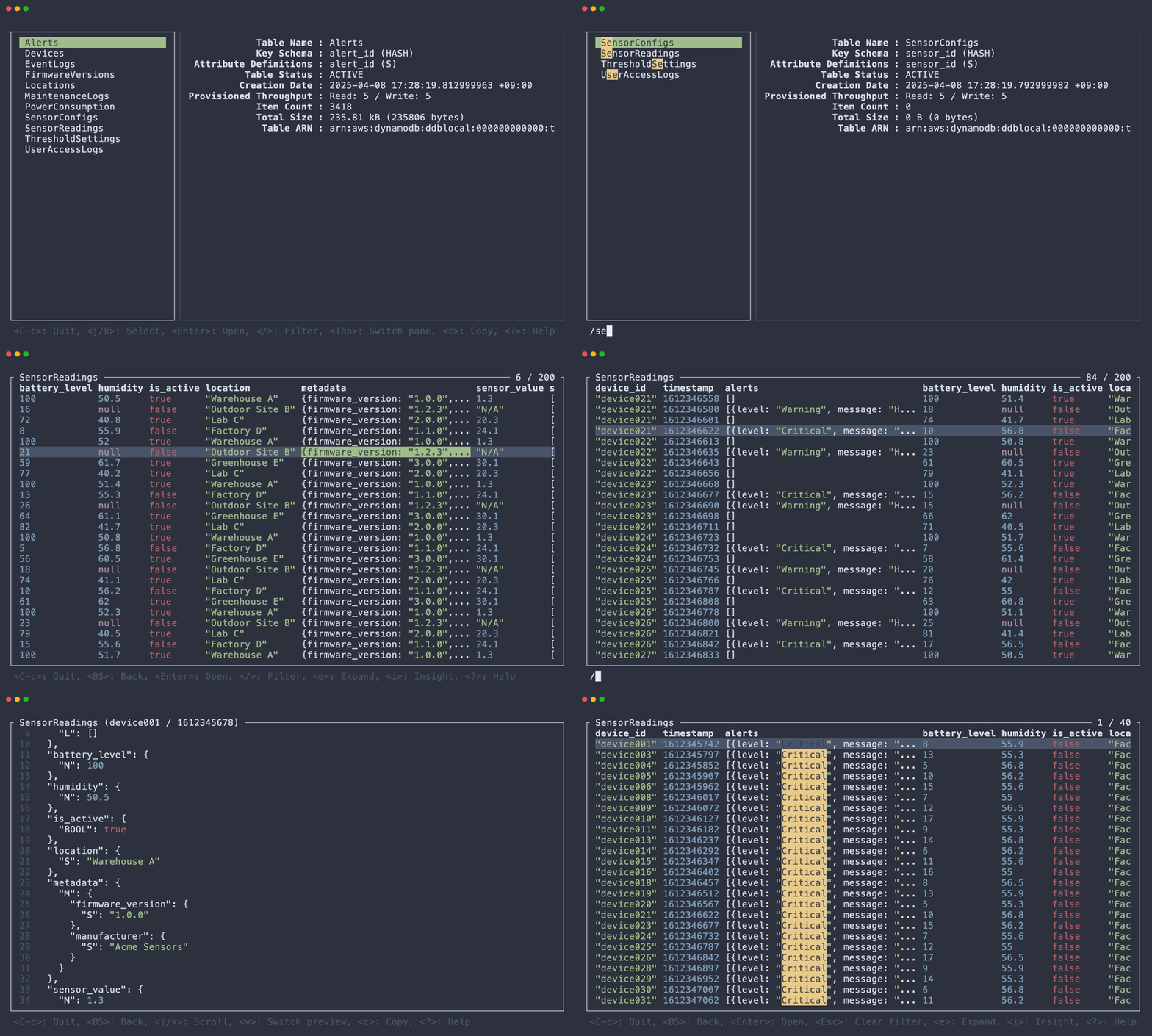
Terminal DynamoDB Viewer ⚡️
 ## About
> [!NOTE]
> This application is in early development. It is missing a lot of features and behaviors.
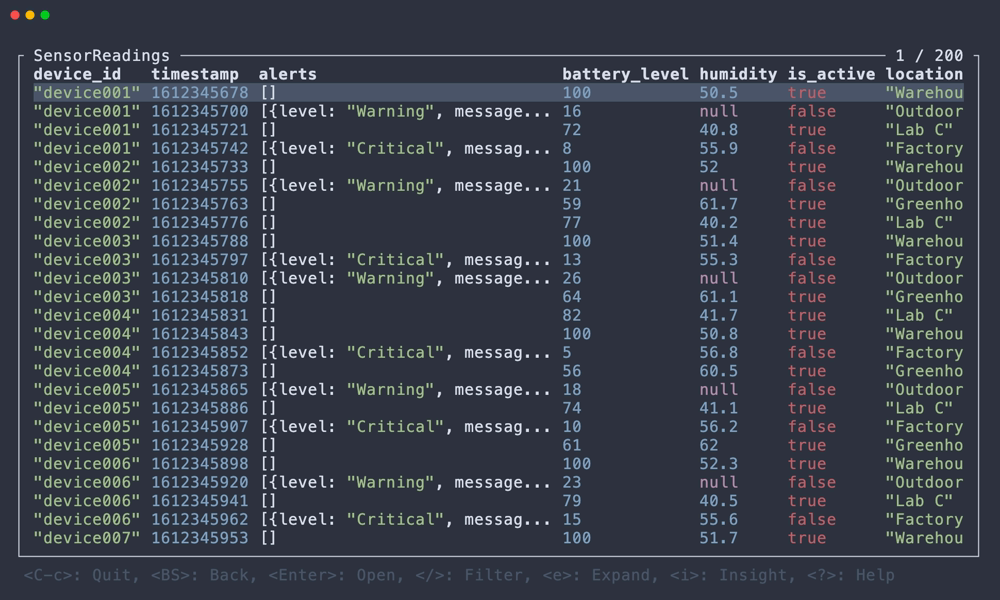
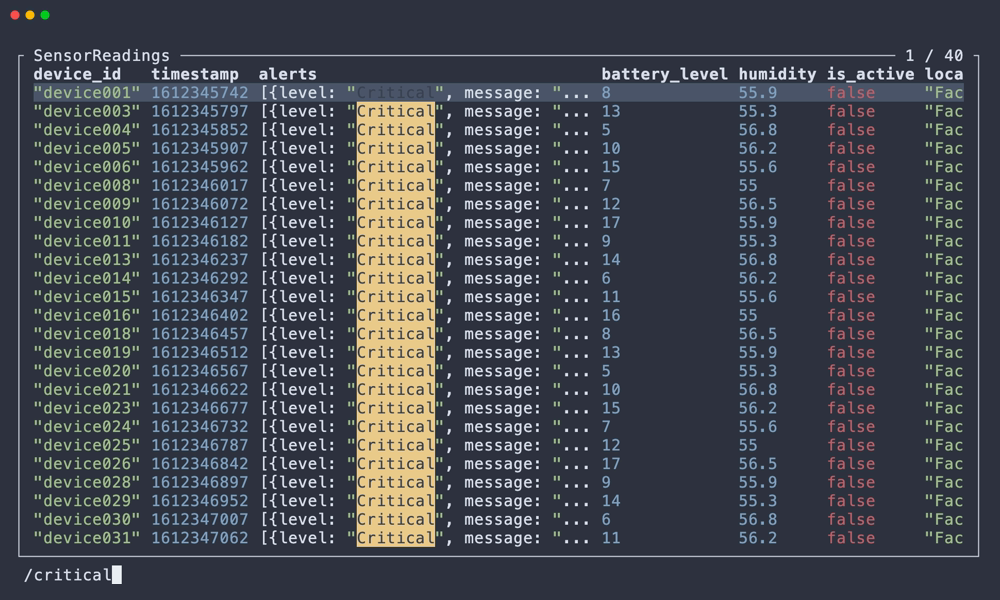
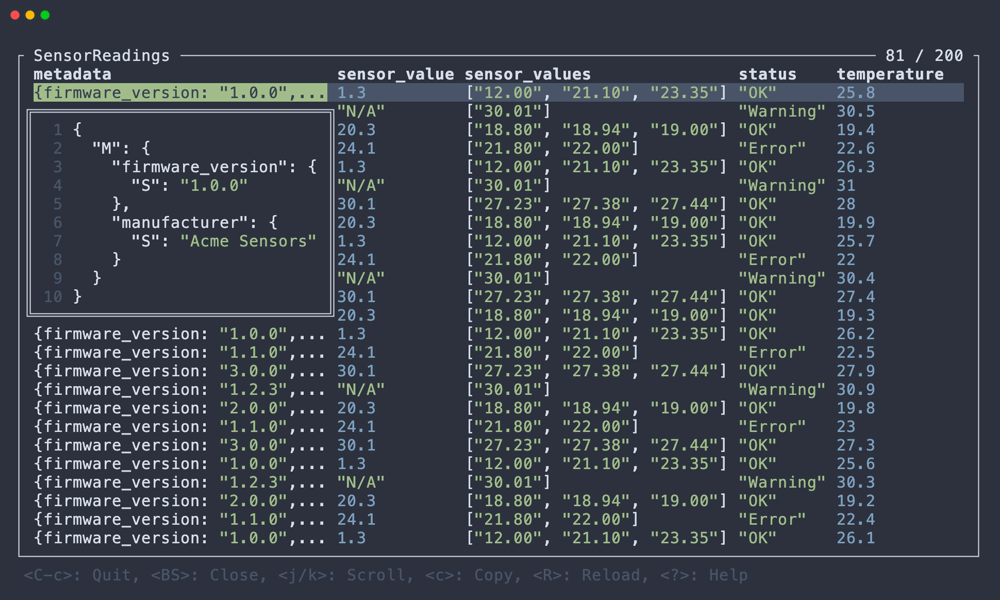
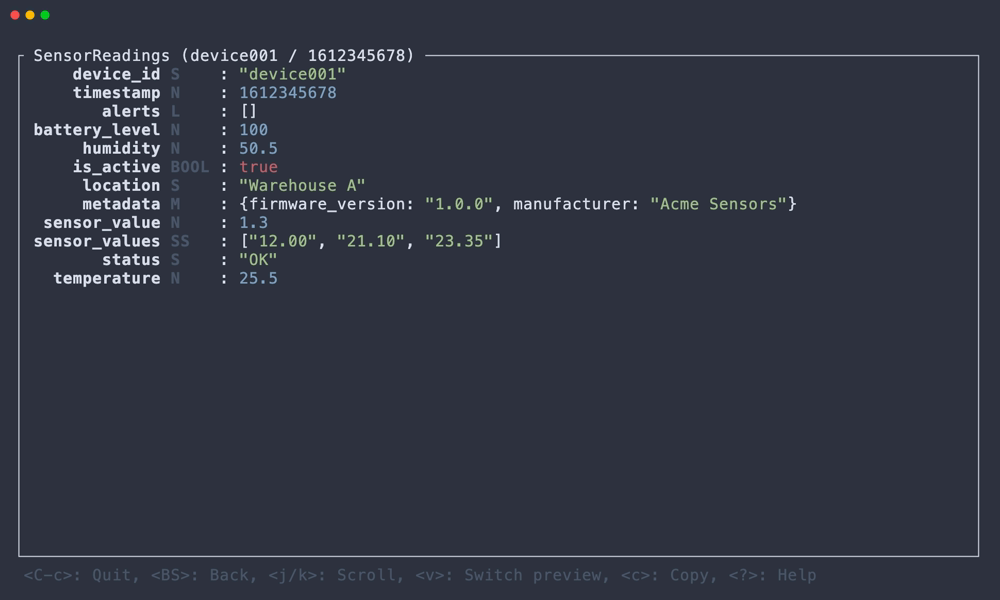
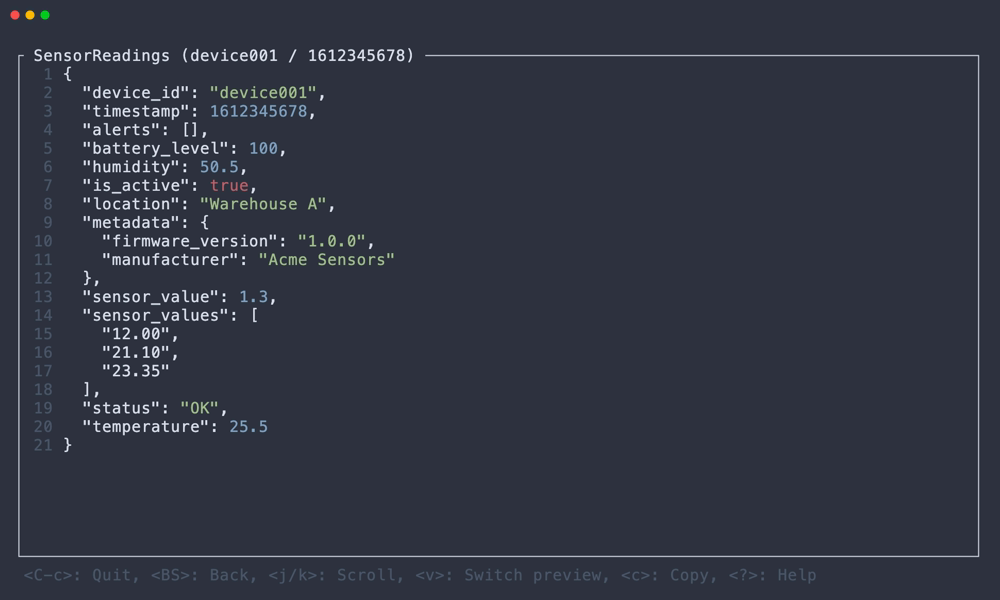
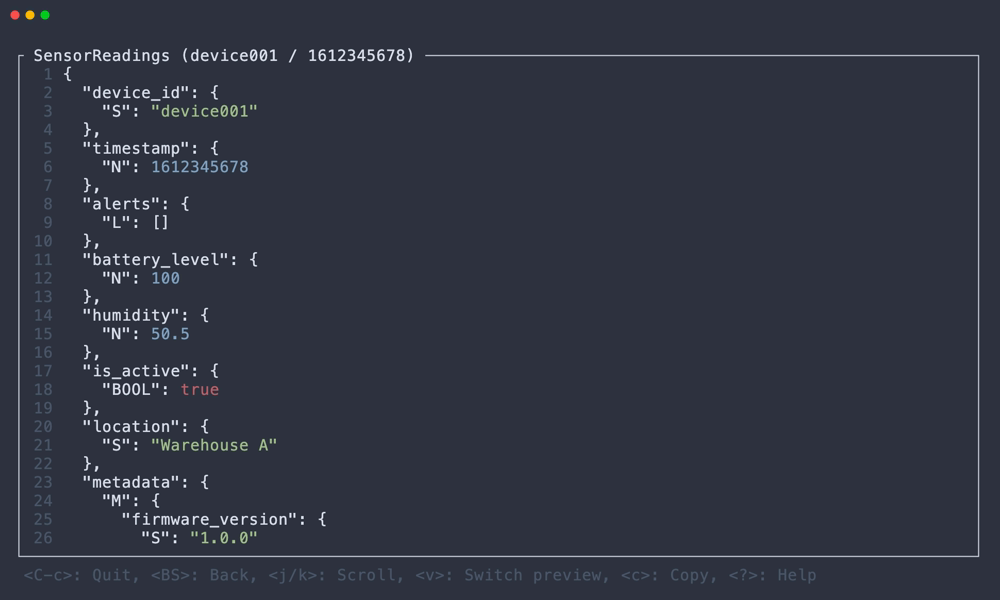
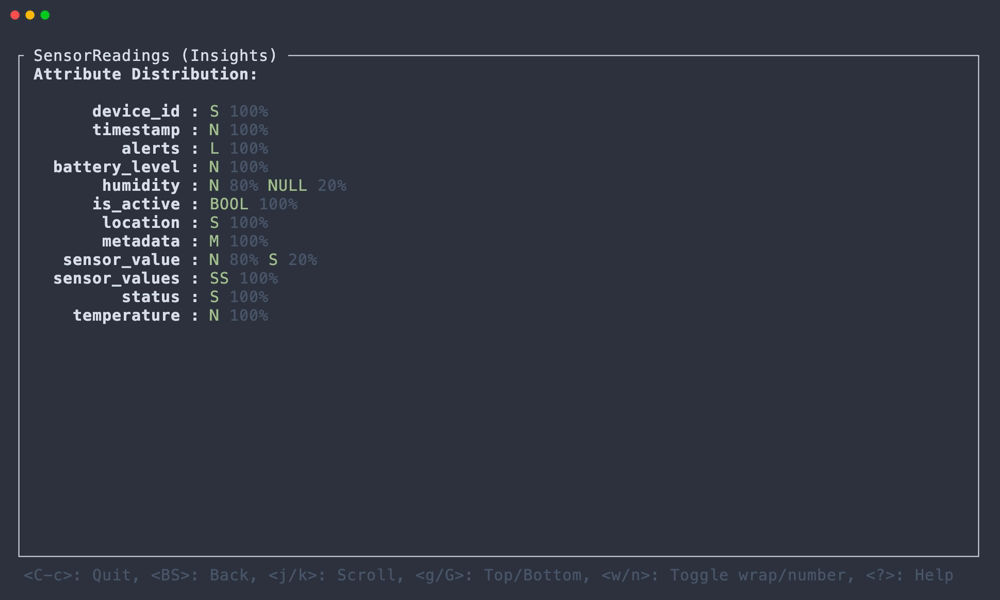
DDV is a TUI application to view Amazon DynamoDB in the terminal.
> [!WARNING]
> This application is designed to be used in a local environment or in a development environment with a small amount of data. It is not suitable for use in a production environment with large amounts of data.
### Goals
- Provide a simple way to view, search, update, and delete DynamoDB items in the terminal.
### Non-Goals
- Efficiently handling large tables for querying or updating.
- Offering full support for all DynamoDB API operations.
## Installation
### [Cargo](https://crates.io/crates/ddv)
```
$ cargo install --locked ddv
```
### [Homebrew (macOS)](https://github.com/lusingander/homebrew-tap/blob/master/ddv.rb)
```
$ brew install lusingander/tap/ddv
```
### [X-CMD](https://x-cmd.com/)
```
$ x install ddv
```
### Downloading binary
You can download pre-compiled binaries from [releases](https://github.com/lusingander/ddv/releases).
## Usage
After installation, run the following command:
```
$ ddv
```
Basically, you can use it in [the same way as the AWS CLI](https://docs.aws.amazon.com/cli/latest/userguide/cli-configure-files.html).
In other words, if the default profile settings exist or [the environment variables are set](https://docs.aws.amazon.com/cli/latest/userguide/cli-configure-envvars.html), you do not need to specify any options.
### Options
```
DDV - Terminal DynamoDB Viewer ⚡️
Usage: ddv [OPTIONS]
Options:
-r, --region AWS region
-e, --endpoint-url AWS endpoint url
-p, --profile AWS profile name
-h, --help Print help
-V, --version Print version
```
### Keybindings
The basic key bindings are as follows:
| Key | Description |
| ------------------------------------- | -------------------- |
| Ctrl-C | Quit app |
| Enter | Open selected item |
| Backspace | Go back to previous |
| j/k/h/l ↓/↑/←/→ | Select item / Scroll |
| ? | Show help |
Detailed operations on each view can be displayed by pressing `?` key.
### Config
If the `DDV_CONFIG` environment variable specifies the path to the config file, the config will be loaded.
The config file uses the following format:
```toml
# The default region to use if the region cannot be obtained from the command line options or AWS settings.
# type: string
default_region = "us-east-1"
[ui.table_list]
# The width of the table list.
# type: u16
list_width = 30
[ui.table]
# The maximum column width for each attributes.
# type: u16
max_attribute_width = 30
# The maximum width of the expansion.
# type: u16
max_expand_width = 35
# The maximum height of the expansion.
# type: u16
max_expand_height = 6
```
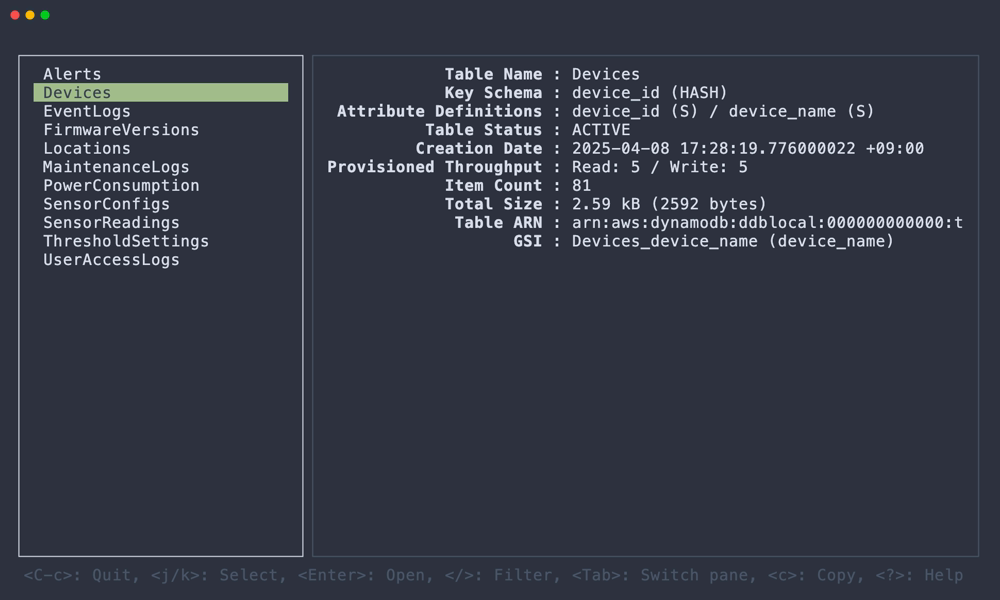
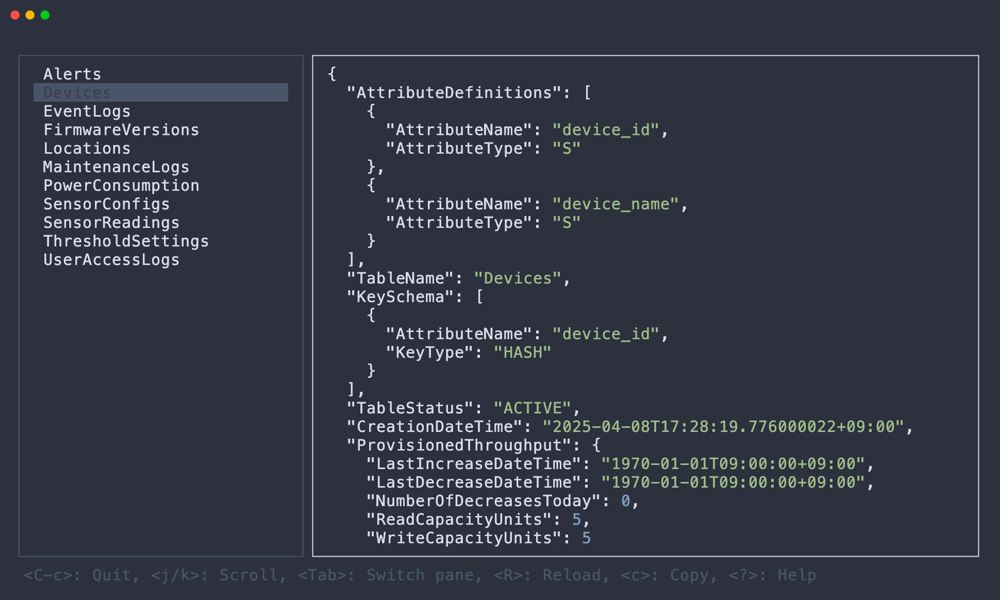
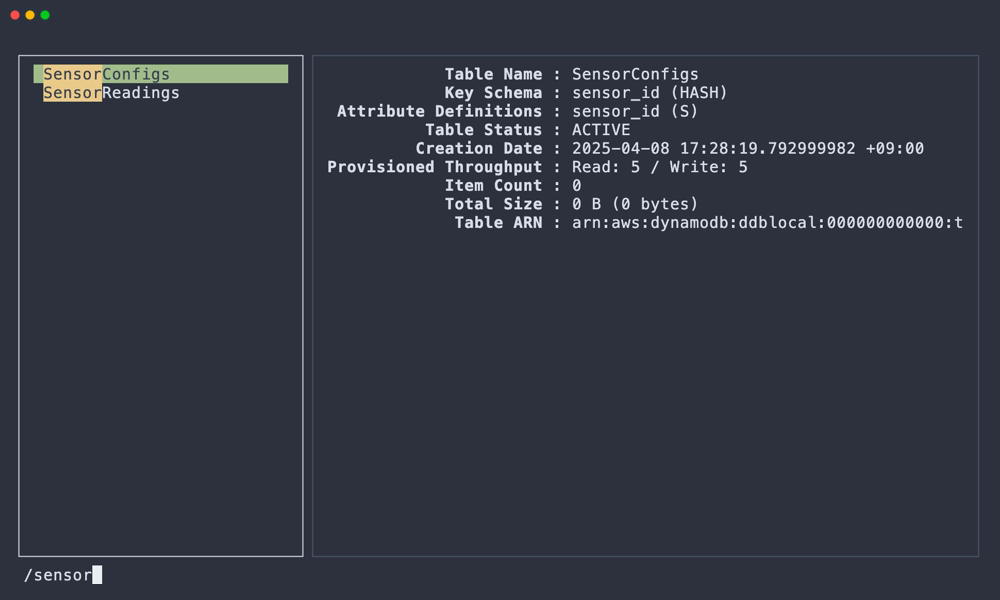
## Screenshots
## About
> [!NOTE]
> This application is in early development. It is missing a lot of features and behaviors.
DDV is a TUI application to view Amazon DynamoDB in the terminal.
> [!WARNING]
> This application is designed to be used in a local environment or in a development environment with a small amount of data. It is not suitable for use in a production environment with large amounts of data.
### Goals
- Provide a simple way to view, search, update, and delete DynamoDB items in the terminal.
### Non-Goals
- Efficiently handling large tables for querying or updating.
- Offering full support for all DynamoDB API operations.
## Installation
### [Cargo](https://crates.io/crates/ddv)
```
$ cargo install --locked ddv
```
### [Homebrew (macOS)](https://github.com/lusingander/homebrew-tap/blob/master/ddv.rb)
```
$ brew install lusingander/tap/ddv
```
### [X-CMD](https://x-cmd.com/)
```
$ x install ddv
```
### Downloading binary
You can download pre-compiled binaries from [releases](https://github.com/lusingander/ddv/releases).
## Usage
After installation, run the following command:
```
$ ddv
```
Basically, you can use it in [the same way as the AWS CLI](https://docs.aws.amazon.com/cli/latest/userguide/cli-configure-files.html).
In other words, if the default profile settings exist or [the environment variables are set](https://docs.aws.amazon.com/cli/latest/userguide/cli-configure-envvars.html), you do not need to specify any options.
### Options
```
DDV - Terminal DynamoDB Viewer ⚡️
Usage: ddv [OPTIONS]
Options:
-r, --region AWS region
-e, --endpoint-url AWS endpoint url
-p, --profile AWS profile name
-h, --help Print help
-V, --version Print version
```
### Keybindings
The basic key bindings are as follows:
| Key | Description |
| ------------------------------------- | -------------------- |
| Ctrl-C | Quit app |
| Enter | Open selected item |
| Backspace | Go back to previous |
| j/k/h/l ↓/↑/←/→ | Select item / Scroll |
| ? | Show help |
Detailed operations on each view can be displayed by pressing `?` key.
### Config
If the `DDV_CONFIG` environment variable specifies the path to the config file, the config will be loaded.
The config file uses the following format:
```toml
# The default region to use if the region cannot be obtained from the command line options or AWS settings.
# type: string
default_region = "us-east-1"
[ui.table_list]
# The width of the table list.
# type: u16
list_width = 30
[ui.table]
# The maximum column width for each attributes.
# type: u16
max_attribute_width = 30
# The maximum width of the expansion.
# type: u16
max_expand_width = 35
# The maximum height of the expansion.
# type: u16
max_expand_height = 6
```
## Screenshots
 ## Related projects
- [STU](https://github.com/lusingander/stu) - TUI explorer application for Amazon S3
## License
MIT
## Related projects
- [STU](https://github.com/lusingander/stu) - TUI explorer application for Amazon S3
## License
MIT