# Umami MCP Server
Connect your Umami Analytics to any MCP client - Claude Desktop, VS Code, Cursor, Windsurf, Zed, Smithery, and more.
 ## Prompts
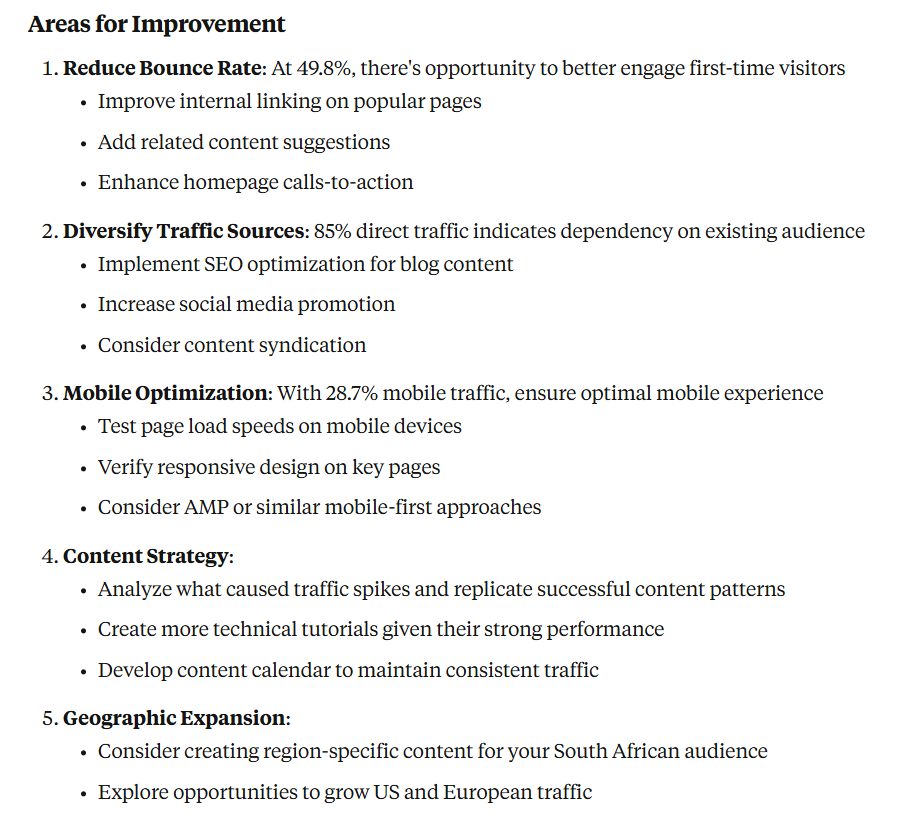
### Analytics & Traffic
- "Give me a comprehensive analytics report for my website over the last 30 days"
- "Which pages are getting the most traffic this month? Show me the top 10"
- "Analyze my website's traffic patterns - when do I get the most visitors?"
### User Insights
- "Where are my visitors coming from? Break it down by country and city"
- "What devices and browsers are my users using?"
- "Show me the user journey - what pages do visitors typically view in sequence?"
### Sessions & Replay
- "How many sessions were recorded last month? List the most active ones"
- "Walk me through what session did — the pages and events in order"
- "Which recorded sessions came from mobile in Sweden?"
### Real-time Monitoring
- "How many people are on my website right now? What pages are they viewing?"
- "Is my website experiencing any issues? Check if traffic has dropped significantly"
### Content & Campaign Analysis
- "Which blog posts should I update? Show me articles with declining traffic"
- "How did my recent email campaign perform? Track visitors from the campaign UTM"
- "Compare traffic from different social media platforms"
## Quick Start
### Option 1: Download Binary
Get the latest release for your platform from [Releases](https://github.com/Macawls/umami-mcp-server/releases)
### Option 2: Docker
```bash
docker run -i --rm \
-e UMAMI_URL="https://your-instance.com" \
-e UMAMI_USERNAME="username" \
-e UMAMI_PASSWORD="password" \
ghcr.io/macawls/umami-mcp-server
```
### Option 3: Go Install
```bash
go install github.com/Macawls/umami-mcp-server@latest
```
Installs to `~/go/bin/umami-mcp-server` (or `$GOPATH/bin`)
## Setup
Pick **one** of the two approaches below based on your preference.
### Remote (No Install)
A hosted instance is available at `https://umami-mcp.macawls.dev/mcp`. Connect directly from any MCP client that supports HTTP transport — no binary or Docker needed.
Credentials are passed via `X-Umami-*` headers on the `initialize` request.
## Prompts
### Analytics & Traffic
- "Give me a comprehensive analytics report for my website over the last 30 days"
- "Which pages are getting the most traffic this month? Show me the top 10"
- "Analyze my website's traffic patterns - when do I get the most visitors?"
### User Insights
- "Where are my visitors coming from? Break it down by country and city"
- "What devices and browsers are my users using?"
- "Show me the user journey - what pages do visitors typically view in sequence?"
### Sessions & Replay
- "How many sessions were recorded last month? List the most active ones"
- "Walk me through what session did — the pages and events in order"
- "Which recorded sessions came from mobile in Sweden?"
### Real-time Monitoring
- "How many people are on my website right now? What pages are they viewing?"
- "Is my website experiencing any issues? Check if traffic has dropped significantly"
### Content & Campaign Analysis
- "Which blog posts should I update? Show me articles with declining traffic"
- "How did my recent email campaign perform? Track visitors from the campaign UTM"
- "Compare traffic from different social media platforms"
## Quick Start
### Option 1: Download Binary
Get the latest release for your platform from [Releases](https://github.com/Macawls/umami-mcp-server/releases)
### Option 2: Docker
```bash
docker run -i --rm \
-e UMAMI_URL="https://your-instance.com" \
-e UMAMI_USERNAME="username" \
-e UMAMI_PASSWORD="password" \
ghcr.io/macawls/umami-mcp-server
```
### Option 3: Go Install
```bash
go install github.com/Macawls/umami-mcp-server@latest
```
Installs to `~/go/bin/umami-mcp-server` (or `$GOPATH/bin`)
## Setup
Pick **one** of the two approaches below based on your preference.
### Remote (No Install)
A hosted instance is available at `https://umami-mcp.macawls.dev/mcp`. Connect directly from any MCP client that supports HTTP transport — no binary or Docker needed.
Credentials are passed via `X-Umami-*` headers on the `initialize` request.
Claude Desktop
Add to your config (`%APPDATA%\Claude\claude_desktop_config.json` on Windows, `~/Library/Application Support/Claude/claude_desktop_config.json` on macOS):
```json
{
"mcpServers": {
"umami": {
"type": "http",
"url": "https://umami-mcp.macawls.dev/mcp",
"headersHelper": "echo X-Umami-Host: https://your-instance.com && echo X-Umami-Username: admin && echo X-Umami-Password: pass"
}
}
}
```
VS Code (GitHub Copilot)
Add to `.vscode/mcp.json`:
```json
{
"servers": {
"umami": {
"type": "http",
"url": "https://umami-mcp.macawls.dev/mcp",
"headers": {
"X-Umami-Host": "https://your-instance.com",
"X-Umami-Username": "${input:umami-username}",
"X-Umami-Password": "${input:umami-password}"
}
}
}
}
```
Claude Code
```bash
claude mcp add --transport http \
--header "X-Umami-Host: https://your-instance.com" \
--header "X-Umami-Username: admin" \
--header "X-Umami-Password: pass" \
umami https://umami-mcp.macawls.dev/mcp
```
Cursor
Add to `.cursor/mcp.json`:
```json
{
"mcpServers": {
"umami": {
"url": "https://umami-mcp.macawls.dev/mcp",
"headers": {
"X-Umami-Host": "https://your-instance.com",
"X-Umami-Username": "admin",
"X-Umami-Password": "pass"
}
}
}
}
```
Windsurf
Add to `~/.codeium/windsurf/mcp_config.json`:
```json
{
"mcpServers": {
"umami": {
"serverUrl": "https://umami-mcp.macawls.dev/mcp",
"headers": {
"X-Umami-Host": "https://your-instance.com",
"X-Umami-Username": "admin",
"X-Umami-Password": "pass"
}
}
}
}
```
OpenCode
Add to `opencode.json`:
```json
{
"mcp": {
"umami": {
"type": "remote",
"url": "https://umami-mcp.macawls.dev/mcp",
"headers": {
"X-Umami-Host": "https://your-instance.com",
"X-Umami-Username": "admin",
"X-Umami-Password": "pass"
}
}
}
}
```
Other Clients
Any MCP client that supports Streamable HTTP can connect to `https://umami-mcp.macawls.dev/mcp` with credentials in `X-Umami-Host`, `X-Umami-Username`, and `X-Umami-Password` headers.
### Local
Run the binary or Docker image locally. Credentials are set via environment variables.
Claude Desktop
Add to your config (`%APPDATA%\Claude\claude_desktop_config.json` on Windows, `~/Library/Application Support/Claude/claude_desktop_config.json` on macOS):
```json
{
"mcpServers": {
"umami": {
"command": "~/go/bin/umami-mcp-server",
"env": {
"UMAMI_URL": "https://your-umami-instance.com",
"UMAMI_USERNAME": "your-username",
"UMAMI_PASSWORD": "your-password"
}
}
}
}
```
VS Code (GitHub Copilot)
Create `.vscode/mcp.json`:
```json
{
"servers": {
"umami": {
"command": "~/go/bin/umami-mcp-server",
"env": {
"UMAMI_URL": "https://your-umami-instance.com",
"UMAMI_USERNAME": "your-username",
"UMAMI_PASSWORD": "your-password"
}
}
}
}
```
Claude Code
```bash
claude mcp add \
umami-mcp-server \
-e UMAMI_URL="https://your-umami-instance.com" \
-e UMAMI_USERNAME="your-username" \
-e UMAMI_PASSWORD="your-password" \
-- ~/go/bin/umami-mcp-server
```
Cursor
Add to `.cursor/mcp.json`:
```json
{
"mcpServers": {
"umami": {
"command": "~/go/bin/umami-mcp-server",
"env": {
"UMAMI_URL": "https://your-umami-instance.com",
"UMAMI_USERNAME": "your-username",
"UMAMI_PASSWORD": "your-password"
}
}
}
}
```
Windsurf
Add to `~/.codeium/windsurf/mcp_config.json`:
```json
{
"mcpServers": {
"umami": {
"command": "~/go/bin/umami-mcp-server",
"env": {
"UMAMI_URL": "https://your-umami-instance.com",
"UMAMI_USERNAME": "your-username",
"UMAMI_PASSWORD": "your-password"
}
}
}
}
```
Zed
Add to your Zed settings under `assistant.mcp_servers`:
```json
{
"umami": {
"command": "~/go/bin/umami-mcp-server",
"env": {
"UMAMI_URL": "https://your-umami-instance.com",
"UMAMI_USERNAME": "your-username",
"UMAMI_PASSWORD": "your-password"
}
}
}
```
Docker
For clients that use a `command` field (Claude Desktop, Cursor, etc.):
```json
{
"mcpServers": {
"umami": {
"command": "docker",
"args": [
"run", "-i", "--rm",
"-e", "UMAMI_URL",
"-e", "UMAMI_USERNAME",
"-e", "UMAMI_PASSWORD",
"ghcr.io/macawls/umami-mcp-server"
],
"env": {
"UMAMI_URL": "https://your-umami-instance.com",
"UMAMI_USERNAME": "your-username",
"UMAMI_PASSWORD": "your-password"
}
}
}
}
```
## Available Tools
| Tool | Description |
|---|---|
| `get_websites` | List all websites (call this first to get website IDs) |
| `get_stats` | Aggregated statistics — pageviews, visitors, bounces, total time |
| `get_pageviews` | Pageview and session counts grouped by time unit |
| `get_metrics` | Breakdown by page, referrer, browser, OS, device, country, etc. |
| `get_active` | Current active visitor count in real-time |
| `get_sessions` | List individual visitor sessions, with total count — the sessions session replay records |
| `get_session_stats` | Aggregated session totals — pageviews, visitors, visits, countries, events |
| `get_session_activity` | Ordered pageview/event timeline for a single session |
## Configuration
### Environment Variables
| Variable | Default | Description |
|---|---|---|
| `UMAMI_URL` | *required* | Your Umami instance URL (use `https://api.umami.is` for Umami Cloud) |
| `UMAMI_USERNAME` | *required for self-hosted* | Umami username |
| `UMAMI_PASSWORD` | *required for self-hosted* | Umami password |
| `UMAMI_API_KEY` | *required for Umami Cloud* | API key from your Umami Cloud account (alternative to username/password) |
| `UMAMI_TEAM_ID` | | Team ID for [team-based setups](#team-websites) |
| `TRANSPORT` | `stdio` | Transport mode (`stdio` or `http`) |
| `PORT` | `8080` | HTTP server port |
| `ALLOWED_ORIGINS` | `*` | Comma-separated CORS allowed origins |
| `MAX_SESSIONS` | `1000` | Maximum concurrent HTTP sessions |
### Config File
Instead of environment variables, create a `config.yaml` file next to the binary:
```yaml
umami_url: https://your-umami-instance.com
username: your-username
password: your-password
team_id: your-team-id # optional
```
For Umami Cloud, use an API key instead:
```yaml
umami_url: https://api.umami.is
api_key: your-api-key
```
Environment variables take priority over the config file.
### Umami Cloud
Umami Cloud (the hosted version at [cloud.umami.is](https://cloud.umami.is)) does not support username/password authentication. Use an API key from your Umami Cloud account settings and set `UMAMI_URL=https://api.umami.is` together with `UMAMI_API_KEY=...`. For HTTP transport, send the `X-Umami-Api-Key` header instead of `X-Umami-Username`/`X-Umami-Password`.
### Team Websites
If your Umami instance uses teams and your websites are assigned to a team rather than individual users, `get_websites` may return an empty list. Set `UMAMI_TEAM_ID` to fetch websites from your team instead. For HTTP transport, use the `X-Umami-Team-Id` header.
You can find your team ID in your Umami dashboard under **Settings > Teams**.
## Self-Hosting (HTTP Transport)
The server supports Streamable HTTP for remote deployments. Set `TRANSPORT=http` to expose a `/mcp` endpoint:
```bash
TRANSPORT=http PORT=9999 ./umami-mcp-server
```
Credentials are passed via `X-Umami-*` headers on the `initialize` request. The response includes a `Mcp-Session-Id` header for subsequent requests.
Docker defaults to HTTP mode:
```bash
docker run -p 8080:8080 ghcr.io/macawls/umami-mcp-server
```
## Build from Source
```bash
git clone https://github.com/Macawls/umami-mcp-server.git
cd umami-mcp-server
go build -o umami-mcp
```
## Troubleshooting
- **macOS binary won't run**: `xattr -c umami-mcp-server` to remove quarantine
- **Linux binary won't run**: `chmod +x umami-mcp-server`
- **Connection errors**: Verify your Umami instance is accessible and credentials are correct
- **Tools not showing up**: Check your MCP client logs, verify the binary path is absolute
## License
MIT


