# Slide transitions in `bespoke` template
Marp CLI's `bespoke` HTML template supports **slide transition animations**, that will be triggered when the slide page was changed, by setting the `transition` local directive.
- **[Prerequisite](#prerequisite)**
- **[`transition` local directive](#transition-local-directive)**
- **[Custom transitions](#custom-transitions)**
- **[Morphing animations](#morphing-animations)**
- **[Opt-out transitions](#opt-out-transitions)**
## Prerequisite
The slide transition depends on **[View Transition API][view transition]** in the using browser. _We never lock in a specific JavaScript library_, as same as other Marp ecosystem projects :)
To show transition animations, a viewer has to show HTML slide in the browser which have supported View Transition. Transitions will not be applied if the page is viewed in an unsupported browser.
[view transition]: https://www.w3.org/TR/css-view-transitions-1/
### Supported browsers
As of October 2025, View Transition is supported in all major browsers.
- **Chrome**: ✅ (111-)
- **Edge**: ✅ (111-)
- **Safari**: ✅ (18.2-)
- **Firefox**: ✅ (144-)
## `transition` local directive
You can choose a transition effect for slide(s) by defining `transition` local directive in your Markdown.
```markdown
---
transition: fade
---
# First page
---
# Second page
```
[As same as other local directives][local directives], you can change the kind of transition in the middle of slides by defining the transition directive through HTML comment, or apply a specific transition into a single slide by using a scoped local directive `_transition`.
[local directives]: https://marpit.marp.app/directives?id=local-directives-1
```markdown
---
transition: fade
---
# Fade transition
---
Changed the kind of transition to `cover`.
---
Disabled transition for this slide.
---
Got back cover transition.
```
`transition` directive means to set the animation to **"the next slide boundary (`---`)"**. So setting `transition` directive on the last slide would have no meaning.
### Built-in transitions
Marp CLI has provided useful [33 built-in transitions](../../src/engine/transition/keyframes/) out of the box.
| none |

clockwise
|

counterclockwise
|

cover
|

coverflow
|

cube
|

cylinder
|

diamond
|

drop
|

explode
|

fade
|

fade-out
|

fall
|

flip
|

glow
|

implode
|

in-out
|

iris-in
|

iris-out
|

melt
|

overlap
|

pivot
|

pull
|

push
|

reveal
|

rotate
|

slide
|

star
|

swap
|

swipe
|

swoosh
|

wipe
|

wiper
|

zoom
|
|
|
> [!NOTE]
>
> If the viewer has enabled the reduce motion feature on their device, the transition animation will be forced to a simple `fade` animation regardless of the specified transition. See also "[Reduce transitions by a viewer](#reduce-transitions-by-a-viewer)".
### Duration
The default duration of transition is `0.5s` in all built-in transitions, but you can set custom duration by adding a space-separated parameter to `transition` directive definition.
```yaml
transition: fade 1s
```
The custom duration accepts a unit `s` or `ms`.
## Custom transitions
You also can define the custom transitions and animations, both in theme CSS and Markdown inline style. We provide unlimited extensibility of your own transitions with your creativity.
For making custom transitions, all you have to know is only about CSS. Define animation [`@keyframes`](https://developer.mozilla.org/en-US/docs/Web/CSS/@keyframes), with a specific keyframe name ruled by Marp. There are no extra plugins and JavaScript codes.
Marp prefers the custom transition if defined the transition with same name as built-in transitions.
> [!TIP]
>
> See also our blog article: **"[Marp CLI: How to make custom transition](https://marp.app/blog/how-to-make-custom-transition)"**
### Simple keyframe declaration
Declare a disappearing animation with the keyframe name **`marp-transition-XXXXXXXX`**.
```css
/* Define `dissolve` transition */
@keyframes marp-transition-dissolve {
from {
opacity: 1;
}
to {
opacity: 0;
}
}
```
When this transition is triggered, the current slide is animated with this keyframe, and the new slide is animated in the opposite direction too.
### Split animation keyframes
For defining different animations into both slide pages, you can use the prefixed keyframe name **`marp-outgoing-transition-XXXXXXXX`** and **`marp-incoming-transition-XXXXXXXX`**.
```css
/* Define `slide-up` transition */
/* WARN: Incomplete example. See also "Backward navigation". */
@keyframes marp-outgoing-transition-slide-up {
from {
transform: translateY(0%);
}
to {
transform: translateY(-100%);
}
}
@keyframes marp-incoming-transition-slide-up {
from {
transform: translateY(100%);
}
to {
transform: translateY(0%);
}
}
```
The outgoing transition should declare a disappearing animation, and the incoming transition should declare an appearing animation.
### Backward navigation
If the transition should have the different moving for the backward navigation, we are providing several solutions for that.
#### `--marp-transition-direction` CSS variable
While the transition is playing, `--marp-transition-direction` [CSS custom property (CSS variables)](https://developer.mozilla.org/docs/Web/CSS/Using_CSS_custom_properties) will be available in keyframes.
It returns `1` for forward navigation, or `-1` for backward navigation. It's helpful to set keyframe declarations that have been calculated by the navigation direction using [`calc()`](https://developer.mozilla.org/en-US/docs/Web/CSS/calc).
```css
/* Define an improved `slide-up` transition, with better backward navigation */
@keyframes marp-outgoing-transition-slide-up {
from {
transform: translateY(0%);
}
to {
transform: translateY(calc(var(--marp-transition-direction, 1) * -100%));
}
}
@keyframes marp-incoming-transition-slide-up {
from {
transform: translateY(calc(var(--marp-transition-direction, 1) * 100%));
}
to {
transform: translateY(0%);
}
}
```
#### Custom animations for backward transition
Alternatively, you also can set extra animation keyframes that are specific for backward navigation.
Declare animation keyframes with the name that has prefixed `backward-` to the custom transition name, just like as **`marp-transition-backward-XXXXXXXX`**.
```css
/* Define `triangle` transition */
@keyframes marp-incoming-transition-triangle {
/* Wipe effect from left top */
from {
clip-path: polygon(0% 0%, 0% 0%, 0% 0%);
}
to {
clip-path: polygon(0% 0%, 200% 0%, 0% 200%);
}
}
@keyframes marp-incoming-transition-backward-triangle {
/* Wipe effect from right bottom */
from {
clip-path: polygon(100% 100%, 100% 100%, 100% 100%);
}
to {
clip-path: polygon(-100% 100%, 100% -100%, 100% 100%);
}
}
```
In backward navigation, each slide pages will try to use the backward keyframes first, and fall back to the normal keyframes if not declared.
You can avoid the unintended fallback by setting an empty `@keyframes` declaration for the backward animation.
```css
/* Define `zoom-out` transition */
@keyframes marp-outgoing-transition-zoom-out {
from {
transform: scale(1);
}
to {
transform: scale(0);
}
}
@keyframes marp-incoming-transition-zoom-out {
/* Send the layer for new slide to back (See also "Layer order") */
from,
to {
z-index: -1;
}
}
@keyframes marp-outgoing-transition-backward-zoom-out {
/****** Declare empty keyframes to disable fallback ******/
}
@keyframes marp-incoming-transition-backward-zoom-out {
from {
transform: scale(0);
}
to {
transform: scale(1);
}
}
```
### Set default duration
The custom transition has a `0.5s` duration by default.
If you want to set a different default duration for your custom transition, please set `--marp-transition-duration` property to the first keyframe (`from` or `0%`).
```css
/** Declare `gate` transition */
@keyframes marp-incoming-transition-gate {
from {
/* ⬇️ Set the default duration as 1 second. ⬇️ */
--marp-transition-duration: 1s;
clip-path: inset(0 50%);
}
to {
clip-path: inset(0);
}
}
@keyframes marp-outgoing-transition-backward-gate {
from {
/* You also can set a different duration for backward transition as necessary. */
/* --marp-transition-duration: 1.5s; */
clip-path: inset(0);
}
to {
clip-path: inset(0 50%);
}
}
@keyframes marp-incoming-transition-backward-gate {
from,
to {
z-index: -1;
}
}
```
Please note that [the slide author can override the default duration at any time, through the `transition` local directive in Markdown](#duration).
### Layer order
The incoming slide layer always will be stacked on the top of the outgoing slide layer.
According to the kind of transition, this order may be not suitable. So you can send the incoming slide to back by using [`z-index: -1`](https://developer.mozilla.org/en-US/docs/Web/CSS/z-index).
```css
@keyframes marp-incoming-transition-XXXXXXXX {
from,
to {
z-index: -1;
}
}
```
If you want to swap the order of layers during animation, try to animate `z-index` property.
```css
/** Declare `swap` transition */
@keyframes marp-incoming-transition-swap {
/* Incoming slide will swap from `back` to `front` at 50% of animation */
from {
z-index: -1;
}
to {
z-index: 0;
}
/* Declarations for moving animation */
0% {
transform: translateX(0);
}
50% {
transform: translateX(50%);
}
100% {
transform: translateX(0);
}
}
@keyframes marp-outgoing-transition-swap {
0% {
transform: translateX(0);
}
50% {
transform: translateX(-50%);
}
100% {
transform: translateX(0);
}
}
```
`z-index` is always taking an integer value, and interpolated `z-index` value by animation does not take any decimal points too.
## Morphing animations
View Transition API also provides smooth moving animation during the transition, for specific two elements before and after the transition. It gives a very similar effect to PowerPoint's Morph transition and Keynote's Magic Move, just by simple CSS declarations.
If there were marked elements with the same name by [`view-transition-name` CSS property][view-transition-name] in a old page and new page between transition, the `bespoke` template will apply morphing animation automatically.
[view-transition-name]: https://www.w3.org/TR/css-view-transitions-1/#view-transition-name-prop
The slide author can visualize the relationship between the different elements in the two different pages. It's helpful for creating a more engaging presentation for the audience.

If there were multiple pairs defined by `view-transition-name` CSS property with different names, each elements will morph at the same time. Elements that were not marked by `view-transition-name` still follow the selected animation by `transition` local directive.
> [!WARNING]
>
> Each morphable elements marked by `view-transition-name` must have uniquely named in a slide page. If there were multiple elements named by `view-transition-name` with the same name in a single page, View Transition API does not apply _the whole of transition animation_.
>
> The morphing animation has been confirmed working correctly on Chrome and Edge. Safari also supports this kind of animation, but the correct animation is not granted, due to the effect of [WebKit's a long-standing bug](https://bugs.webkit.org/show_bug.cgi?id=23113) (and [marpit-svg-polyfill](https://github.com/marp-team/marpit-svg-polyfill) to patch that).
### Example
In this example, the icon image of "1" on every page is marked as morphable elements named "one" by `view-transition-name` CSS property.
```markdown
---
theme: gaia
transition: fade
style: |
img[title~="step"] {
height: 64px;
position: relative;
top: -0.1em;
vertical-align: middle;
width: 64px;
/* ⬇️ Mark the image of "1" in every pages as morphable image named as "one" ⬇️ */
&[alt="1"] {
view-transition-name: one;
}
}
---
# Today's topics
-  Introduction
-  Features
-  Conclusion
---

# Introduction
---
#  Introduction
Marp is an open-sourced Markdown presentation ecosystem.
It provides a writing experience of presentation slides by Markdown.
```
#### Use HTML to mark morphable contents
This example is defining the style for `data-morph` attribute, to mark the inner elements as morphable.
```markdown
---
header: Bubble sort
transition: fade
style: |
/* Define the style of morphable elements (Requires Chrome 133 and later) */
[data-morph] {
view-transition-name: attr(data-morph type(), none);
}
/* Global style */
section {
font-size: 60px;
}
---
███████ 7
█████ 5
███ 3
█████████ 9
---
█████ 5
███████ 7
███ 3
█████████ 9
---
█████ 5
███ 3
███████ 7
█████████ 9
---
███ 3
█████ 5
███████ 7
█████████ 9
```
The name of morphable elements can set through `data-morph` attribute. Please note that this example is using [advanced `attr()` function](https://developer.chrome.com/blog/advanced-attr), that requires Chrome 133 and later.
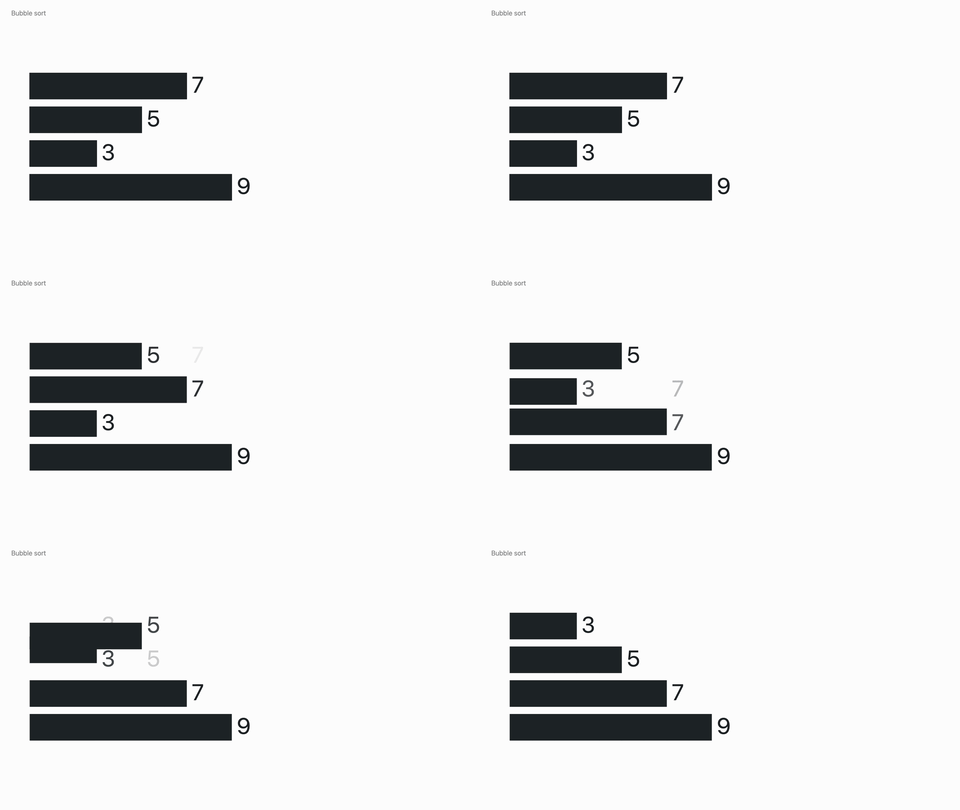
Due to the security reason, Marp CLI does not render `data-*` attributes in raw `` elements in Markdown by default. You have to should add `--html` option to use.
```bash
marp morphable.md --html
```
## Opt-out transitions
### Disable transitions by CLI option
The transition is an optional feature in bespoke template, and it's enabled by default. You can opt out the transition support by adding CLI option `--bespoke.transition=false`.
```sh
marp --bespoke.transition=false markdown.md
```
This option is also useful when using [a customized engine](../../README.md#functional-engine) that has supported `transition` custom local directive for another approach.
### Reduce transitions by a viewer
_Even if the slide author used transitions,_ every viewer do not always prefer to see dizzy animations. [Reducing motion is important especially for people with vestibular disorders.](https://www.w3.org/WAI/WCAG21/Understanding/animation-from-interactions.html)
If the browser detects that the viewer has an operating system preference to reduce motions and animations, all transition effects will be replaced with a simple `fade` animation.
If you want to know details about why required this, see the article "[`prefers-reduced-motion`: Sometimes less movement is more](https://web.dev/prefers-reduced-motion/)" by [web.dev](https://web.dev/).