
Quick Dash Launcher
English | 日本語
Open it by the name you call it, no second-guessing
A search launcher for what you've added
**A launcher where you add your apps, files, folders, and URLs, then open them by typing a keyword.**
Tired of searching the Start menu or another launcher, only to get a list full of files that have nothing to do with what you want? In Quick Dash Launcher, only what you've added shows up. A keyword can be any part of the name you gave it, and you can sort items into tabs such as "Daily" or one per project, so your launcher grows with you as you use it.


Installation ·
Adding and managing items ·
Workspace ·
Documentation (Japanese) ·
Releases
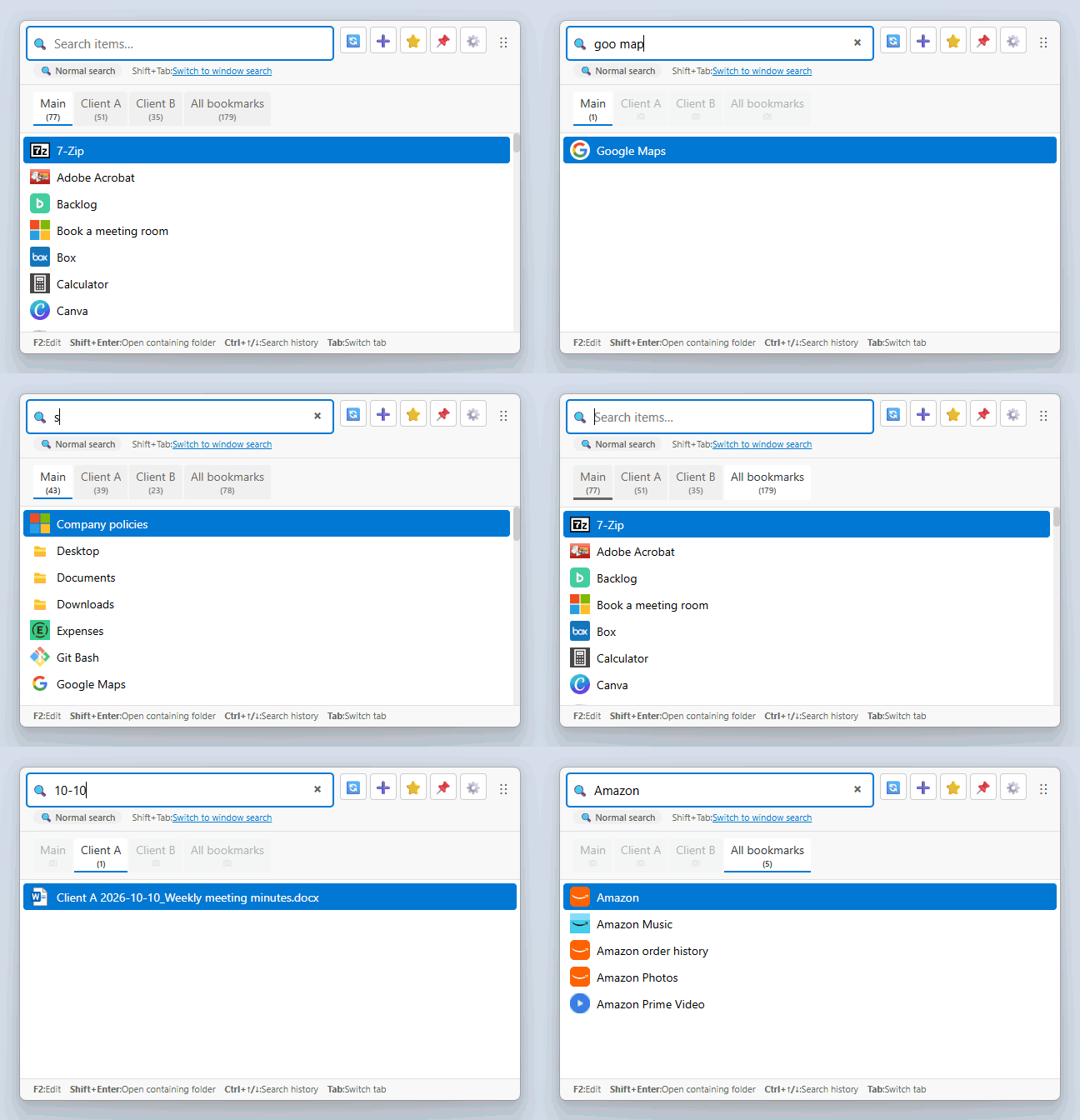
▶ Demo (about 30 seconds)
It's free and open source (MIT). Try it right away with winget (for other ways, see [Installation](#installation)).
```powershell
winget install masaodev.quick-dash-launcher
```
---
## Features
- **Open everything from one place**
- Open apps, folders, files, and websites, plus links such as Teams chats, from the same window.
- Save snippets of text or images. Select one, and it's copied to the clipboard, ready to paste.
- **Name items and sort them into tabs**
- Long paths and URLs open by the name you call them, such as "Timesheet" or "Expenses."
- Create whatever tabs you like, such as "Daily," one per project, or "Bookmarks."
- **Import many at once**
- Pick apps from the Start menu and your browser bookmarks from a list and import them.
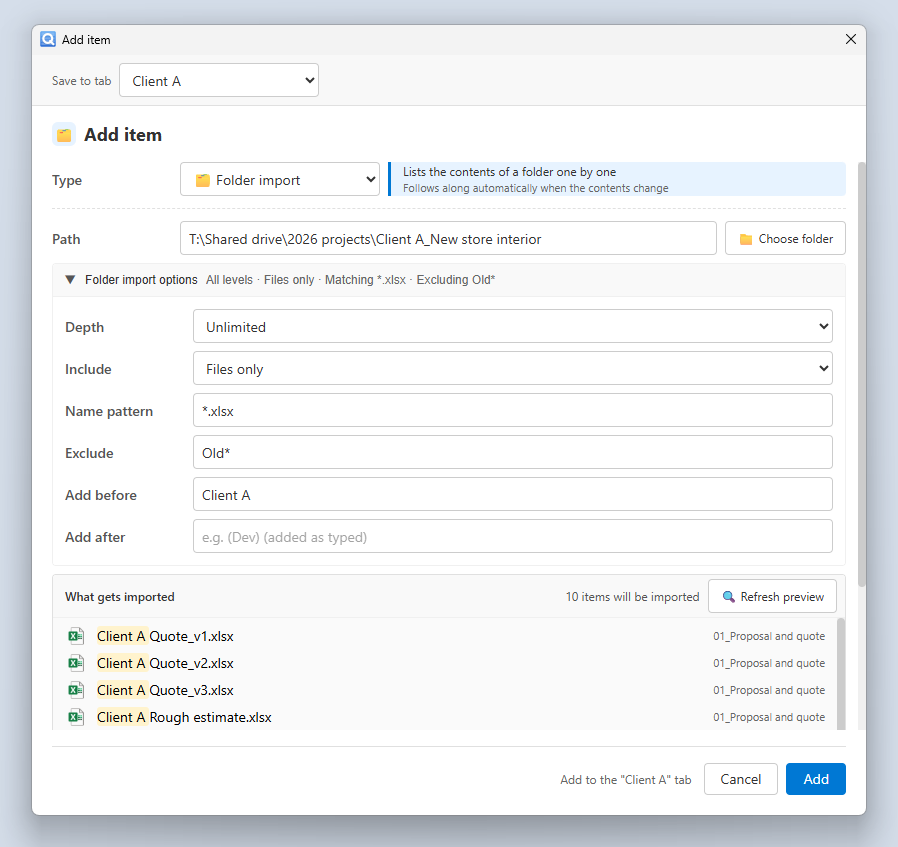
- Point to a folder, and the files in it show up in the list. When files are added later, there's no need to add them again (you can also choose, for example, "`*.xlsx` only" or "skip `Old*`").
- **Matches appear as you type, ready to open**
- Type part of a name, and the list narrows with each character. Press Enter to open it. Type "goo" to list your Google services, then add "map" after a space ("goo map") to narrow it to Google Maps.
- If a match is in another tab, press Tab to switch to it.
- **Keep your most-used items at the edge of the screen**
- Besides the launcher, there's the [workspace](#workspace), a window you can keep on screen.
---
## Why you add items yourself
Many launchers, such as PowerToys Run and Command Palette, index every installed app and file automatically, so things you never use end up in the results. The author built Quick Dash Launcher to get rid of that noise: you choose and add the things you use. Because only those items show up, a few keystrokes get you there. To keep the setup effort low, it comes with drag-and-drop adding, bulk import of apps, bookmarks, and folders, and a dedicated [settings window](#adding-and-managing-items) where you can edit everything you've added in a list.
| | Launchers that index everything (PowerToys Run and others) | Quick Dash Launcher |
| --- | --- | --- |
| What shows up | Everything installed | Only what you've added |
| Setup effort | None (added automatically) | Needed (drag and drop and bulk import keep it low) |
| Organization | None | Sort into tabs as you like |
| Names | App and file names as they are | Any name you like (or keep the file name) |
| Showing only a specific folder | Hard (mixed into the whole search) | Folder import shows just that folder's contents |
---
## Adding and managing items
### Item Manager
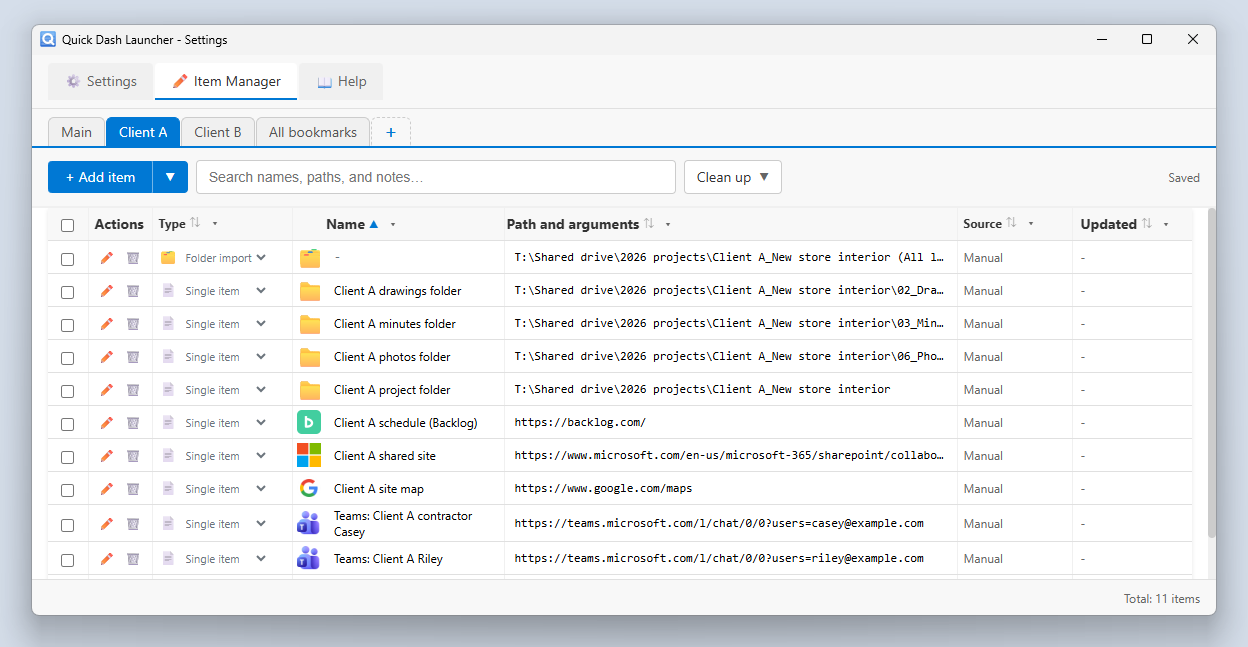
Edit everything you've added, tab by tab. To open it, select ⚙ > **Item Manager** in the launcher.
### Add item
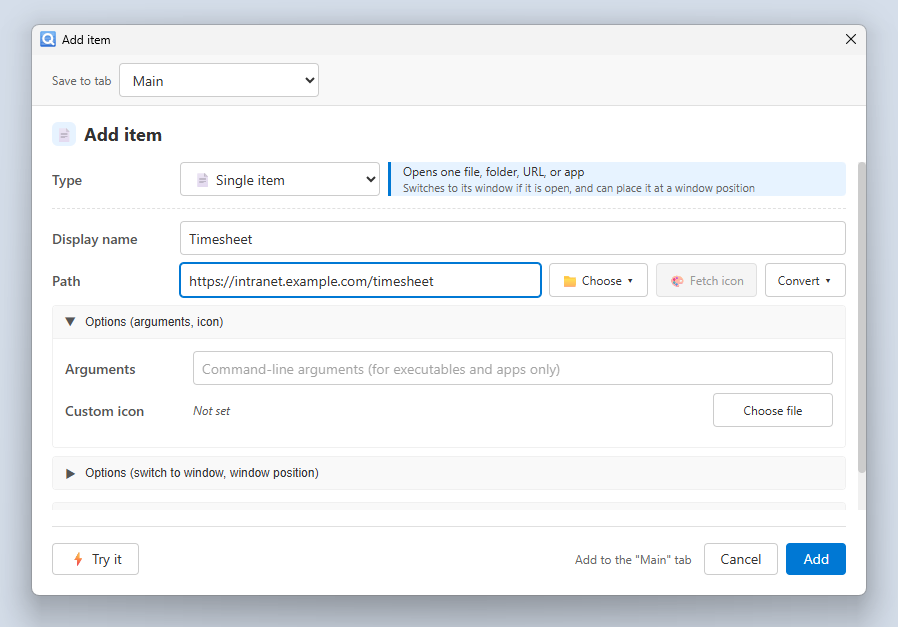
Add one item at a time. To open it, select ➕ > **Add item** in the launcher. You can also drag and drop a file or URL onto the launcher.
### Add item (folder import)
Set the type to **Folder import** to add all the files in a folder to the list.
---
## Workspace
Separate from the launcher, the workspace is a window that lines up the things you use most at the edge of your screen. Items open with just a click, and you can choose to keep it on screen all the time or have it appear together with the launcher.
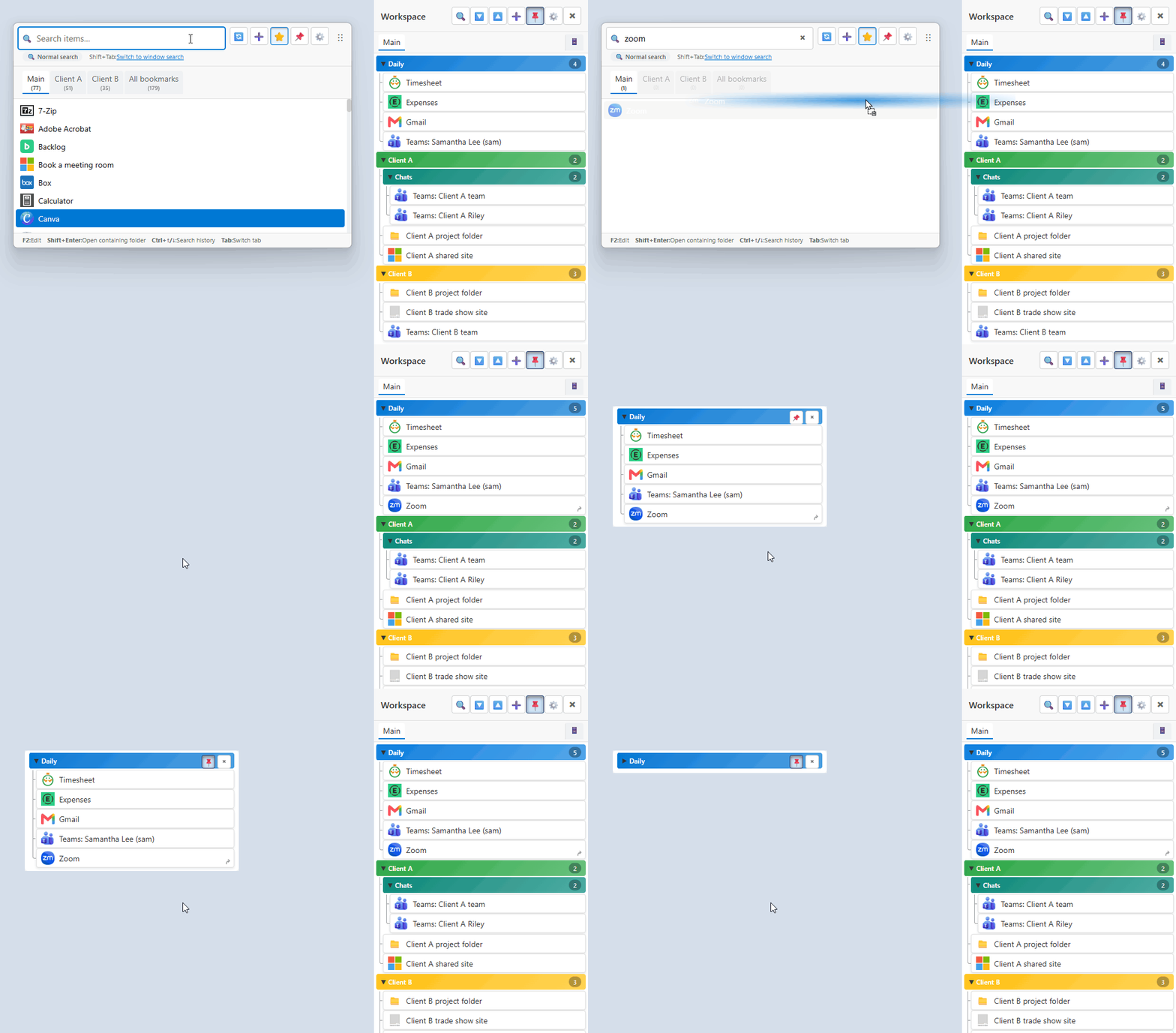
▶ Demo (about 25 seconds)
- **Drag to add**: Besides launcher items, you can add files, URLs, and open windows.
- **Organize with groups**: Sort items into color-coded groups, and create groups inside them. Collapse the groups you're not using.
- **Detach and place**: Drag a group out to open it in a window of its own, and put it anywhere on your screen.
---
## More you can do
Besides opening files and URLs, you can also do the following.
| Feature | What it does |
| --- | --- |
| Bookmark auto-import | Re-imports your Chrome and Edge bookmarks automatically as they change in the browser.
You can narrow it down, for example to just your "Work" folder. |
| Window search | Find an open window by name and switch to it (default key: `Ctrl+Alt+Space`).
It's faster than hunting through the taskbar, and takes you straight to windows on other virtual desktops. |
| Set | Open the things you start every morning, such as mail, calendar, and chat, in one go.
It can even arrange the windows, for example an editor on the left half and a browser on the right. |
| Quick Dash Launcher CLI | Add and change items and settings with the `qdl` command.
You can also ask an AI agent such as Claude Code to "add this folder to the launcher."
Turn it on in the settings to use it. |
| WS group | Search for a workspace group by name in the launcher and open it.
Select one to open just that group in a window of its own (works even when the workspace isn't shown). |
---
## Installation
Runs on Windows 10 or later. The display language follows Windows (English or Japanese), and you can change it in **Settings**.
### winget
```powershell
winget install masaodev.quick-dash-launcher
```
To update, run `winget upgrade masaodev.quick-dash-launcher`. Only stable releases are published to winget (beta versions are available as pre-releases on the Releases page).
### Installer and ZIP versions
Download them from [Releases](https://github.com/masaodev/quick-dash-launcher/releases).
- Installer: Run `QuickDashLauncher.Setup.x.x.x.exe`. The app starts when the installation finishes.
- ZIP: Extract `QuickDashLauncher-x.x.x-portable.zip` to any folder and run `QuickDashLauncher.exe` (no installation needed).
Where the ZIP version saves data, and portable mode
Settings and data are saved in `%APPDATA%\quick-dash-launcher`, the same place as the installer, so a new version extracted to another folder uses the same data.
To use portable mode, check the portable mode option on the first-run screen, or create a `QuickDashLauncher-data` folder next to the exe. Settings and data are then saved in that folder, so you can carry the whole folder on a USB drive (to update, move `QuickDashLauncher-data` into the new folder).
If you use both a stable version and a beta version on the same PC, run the beta in portable mode. Otherwise both read the same data and can't run at the same time.
The installer and ZIP versions aren't signed, so Windows SmartScreen may show a warning the first time you run them. If it does, select **More info** > **Run anyway**.
### Updates and backups
When a new version is out, Quick Dash Launcher checks once a day and lets you know with a toast and in the tray menu (it doesn't install anything automatically, and you can turn this off in **Settings**). Your settings and items carry over when you update.
Once a day at startup, Quick Dash Launcher saves a snapshot of your settings and items (only if something changed). You can restore one from **Settings** > **Backup** > **Snapshots**. To move to another PC, use **Export…** on the same screen to save everything as a single zip, then use **Import…** on the new PC.
### Getting started
1. On the first-run screen, choose the launch hotkey that opens the launcher (Alt+Space by default).
2. Drag and drop a file or URL onto the launcher, or select ➕ > **Add item** to add it.
3. Press the launch hotkey to open the launcher, type part of a name, and press Enter to open it.
For keyboard operations, see [Keyboard shortcuts](docs/features/keyboard-shortcuts.md) (Japanese).
If something isn't working, see [Troubleshooting](docs/features/troubleshooting.md) (Japanese).
---
## Bug reports and contributing
Please report bugs and request features in [GitHub Issues](https://github.com/masaodev/quick-dash-launcher/issues). For questions about how to use it, use [Discussions](https://github.com/masaodev/quick-dash-launcher/discussions). Issues in English are welcome, and so are pull requests.
Quick Dash Launcher is built with Electron, React, and TypeScript (the `qdl.exe` CLI is written in Rust). To build from source, you need Node.js, plus Visual Studio Build Tools (C++) and Python to compile native modules. For details, see the [development guide](docs/setup/development.md). For design and testing, see the [docs](docs/README.md). The documentation is in Japanese.
```bash
git clone https://github.com/masaodev/quick-dash-launcher.git
cd quick-dash-launcher
npm install
npm run dev # Start in development mode
npm run test:unit # Run unit tests
```
---
## Privacy
Quick Dash Launcher does not send your information to the author or anyone else. All data is stored on your PC. For details, see the [Privacy Policy](./PRIVACY.md).
## License
Released under the [MIT License](./LICENSE).
## Support
If you like Quick Dash Launcher, you can support its development through [GitHub Sponsors](https://github.com/sponsors/masaodev).