



Scope is a multi-platform serial monitor with user-extensible features.
Why Scope •
Installation •
Quickstart •
Features •
Commands •
Shortcuts •
CLI •
Config •
Plugins •
Comparison •
Troubleshooting
## Why Scope
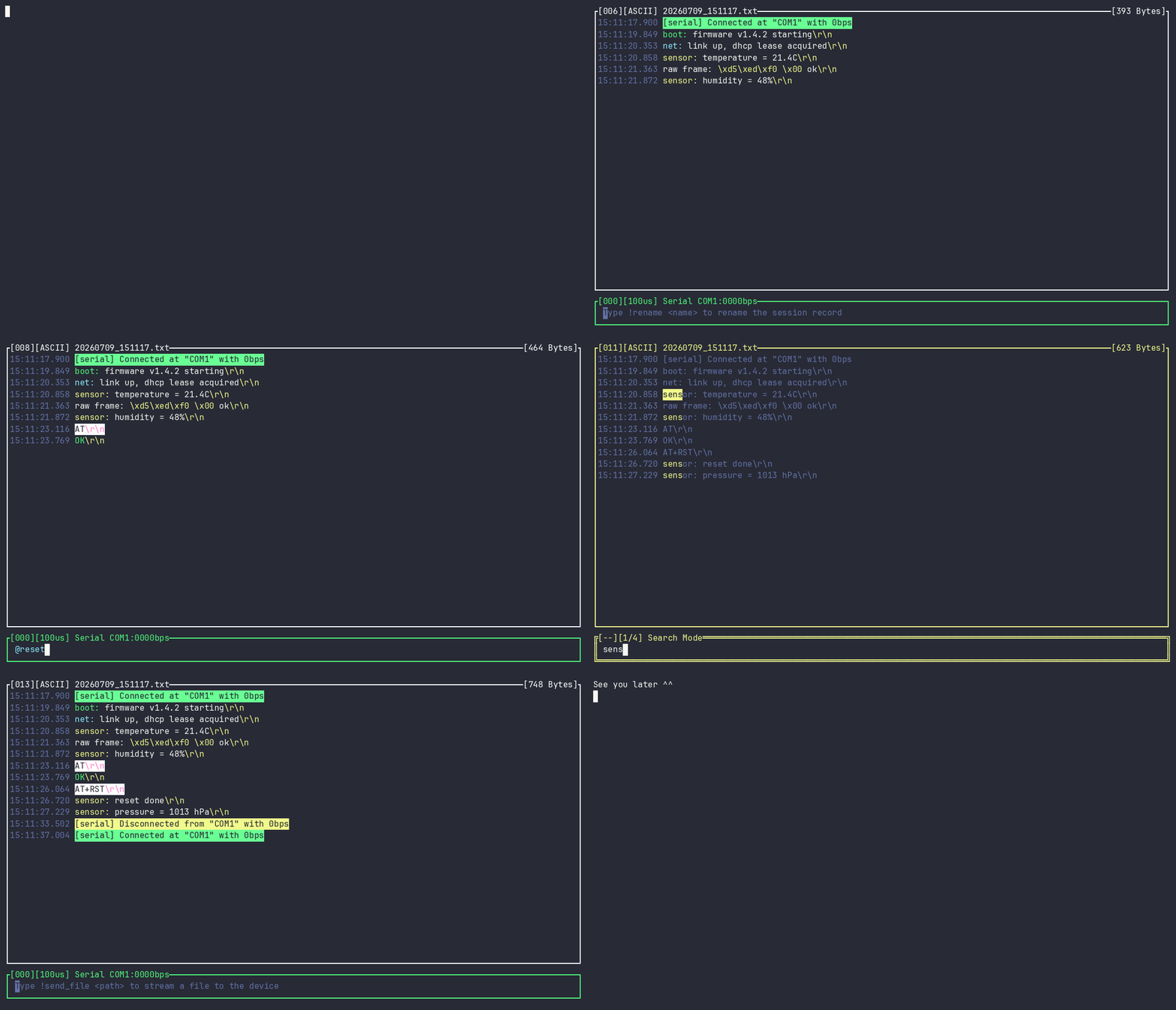
Embedded and hardware work means living in a serial monitor — and most of them either do too little (`screen`, `cat /dev/tty*`) or lock the useful parts behind a paid GUI. `Scope` is a fast, keyboard-driven terminal serial monitor that puts the everyday essentials in one place: colored send/receive with timestamps, reusable `@tags` and hex input, search, session recording, auto-reconnect, an RTT interface for embedded targets, and Lua plugins when you need to script it. It runs the same on Linux, Windows, and macOS.
## Installation
You can install `Scope` with `cargo`, download a pre-built binary, or build it from source.
### Requirements
- **Platforms:** Linux, Windows, and macOS (Apple Silicon).
- **Building from source / `cargo install`:** Rust **1.92.0** or newer.
- **RTT interface:** a debug probe supported by [`probe-rs`](https://probe.rs/) (e.g. J-Link, ST-Link, CMSIS-DAP).
### Using `cargo`
```shell
cargo install scope-monitor
```
### Pre-built binary and installers
Every release ships pre-built binaries, a Windows installer, and one-line install scripts on the [Releases](https://github.com/matheuswhite/scope-rs/releases) page.
- **Windows:** run the `scope-monitor-x86_64-pc-windows-msvc.msi` installer. It puts `scope` on your `PATH` and adds Start-Menu shortcuts — **scope Serial**, **scope Serial (headless)**, **scope RTT** and **scope RTT (headless)** — each opening an interactive picker so you can choose a port/baud (or RTT target) with no command line (see [Icon mode](#icon-mode)).
- **Linux / macOS** (shell installer, places the binary on your `PATH`):
```shell
curl --proto '=https' --tlsv1.2 -LsSf https://github.com/matheuswhite/scope-rs/releases/latest/download/scope-monitor-installer.sh | sh
```
- **Windows** (PowerShell installer):
```powershell
powershell -c "irm https://github.com/matheuswhite/scope-rs/releases/latest/download/scope-monitor-installer.ps1 | iex"
```
- Or download the raw binary/archive for your platform and place it on your `PATH`.
### From source
```shell
git clone https://github.com/matheuswhite/scope-rs
cd scope-rs
cargo build --release
# the binary is at target/release/scope
```
### Shell completions
`scope completions ` prints a native completion script to stdout, so that `scope se` + Tab completes to `scope serial` using your shell's own completion engine. `bash`, `zsh`, `fish`, `powershell` and `elvish` are supported. No installer sets this up for you — install it once:
- **bash (Linux)** — drop it in the user completion directory (needs the `bash-completion` package):
```shell
mkdir -p ~/.local/share/bash-completion/completions
scope completions bash > ~/.local/share/bash-completion/completions/scope
```
- **bash (macOS)** — the system bash is 3.2 and Terminal starts it as a *login* shell, so that directory is never read. Write the script somewhere and source it from **`~/.bash_profile`** (not `~/.bashrc`):
```shell
scope completions bash > ~/.scope-completion.bash
echo 'source ~/.scope-completion.bash' >> ~/.bash_profile
```
- **zsh** — the file must be named `_scope`, and `fpath` must be extended **before** `compinit` runs:
```shell
mkdir -p ~/.zfunc
scope completions zsh > ~/.zfunc/_scope
```
then, in `~/.zshrc`:
```shell
fpath=(~/.zfunc $fpath)
autoload -Uz compinit && compinit
```
- **fish** — nothing else to configure, fish autoloads it:
```shell
mkdir -p ~/.config/fish/completions
scope completions fish > ~/.config/fish/completions/scope.fish
```
- **PowerShell (Windows)** — write the script next to your profile and dot-source it:
```powershell
if (!(Test-Path $PROFILE)) { New-Item -ItemType File -Path $PROFILE -Force | Out-Null }
$comp = Join-Path (Split-Path $PROFILE) '_scope.ps1'
scope completions powershell > $comp
Add-Content $PROFILE ('. "' + $comp + '"')
```
`$PROFILE` is `Documents\PowerShell\Microsoft.PowerShell_profile.ps1` on PowerShell 7 and `Documents\WindowsPowerShell\Microsoft.PowerShell_profile.ps1` on Windows PowerShell 5.1, which also defaults to a `Restricted` execution policy that blocks profile scripts entirely — allow them once with `Set-ExecutionPolicy -ExecutionPolicy RemoteSigned -Scope CurrentUser`. `cmd.exe` has no completion engine and is not supported.
Restart your shell afterwards (zsh: or re-run `compinit`). `scope completions --help` prints the same commands, so you don't need this page on the machine you are installing on.
## Quickstart
Open a serial port by passing it to the `serial` subcommand together with the baud rate:
```shell
scope serial COM3 115200 # Windows
scope serial /dev/ttyUSB0 115200 # Linux
scope list # not sure of the port? list the available ones
```
When the command bar at the bottom turns **green**, `Scope` is connected: it starts capturing incoming messages and lets you type and send data. Type a message and press `Enter` to send it. That's it — everything below builds on this loop.
### Icon mode
If you run `serial` (or `rtt`) **without** the positional arguments, `Scope` opens an interactive picker to choose the serial port and baud rate (or the RTT target and channel) before it starts — handy when launching from a Windows shortcut, or when you don't remember the port name:
```shell
scope serial # pick a port, then a baud rate, from a menu
scope --headless rtt # same idea for RTT, in headless mode
```
For RTT the picker asks for the target and channel, then the probe speed and where the RTT control block is — the same menus, with the defaults (`4000` kHz, scanning) pre-selected, so `Enter` twice takes them.
Use `↑`/`↓` to move and `Enter` to confirm; press `s` to start without connecting (as `serial`/`rtt` with no picker used to), and `q`/`Esc` to quit. Any argument already on the command line is kept and its step skipped, so `scope rtt --speed 8000` only asks what is missing. When stdin/stdout isn't an interactive terminal (a pipe, or a script), the picker is skipped and `Scope` starts disconnected as before.
## Features
### Sending data
#### Send Data
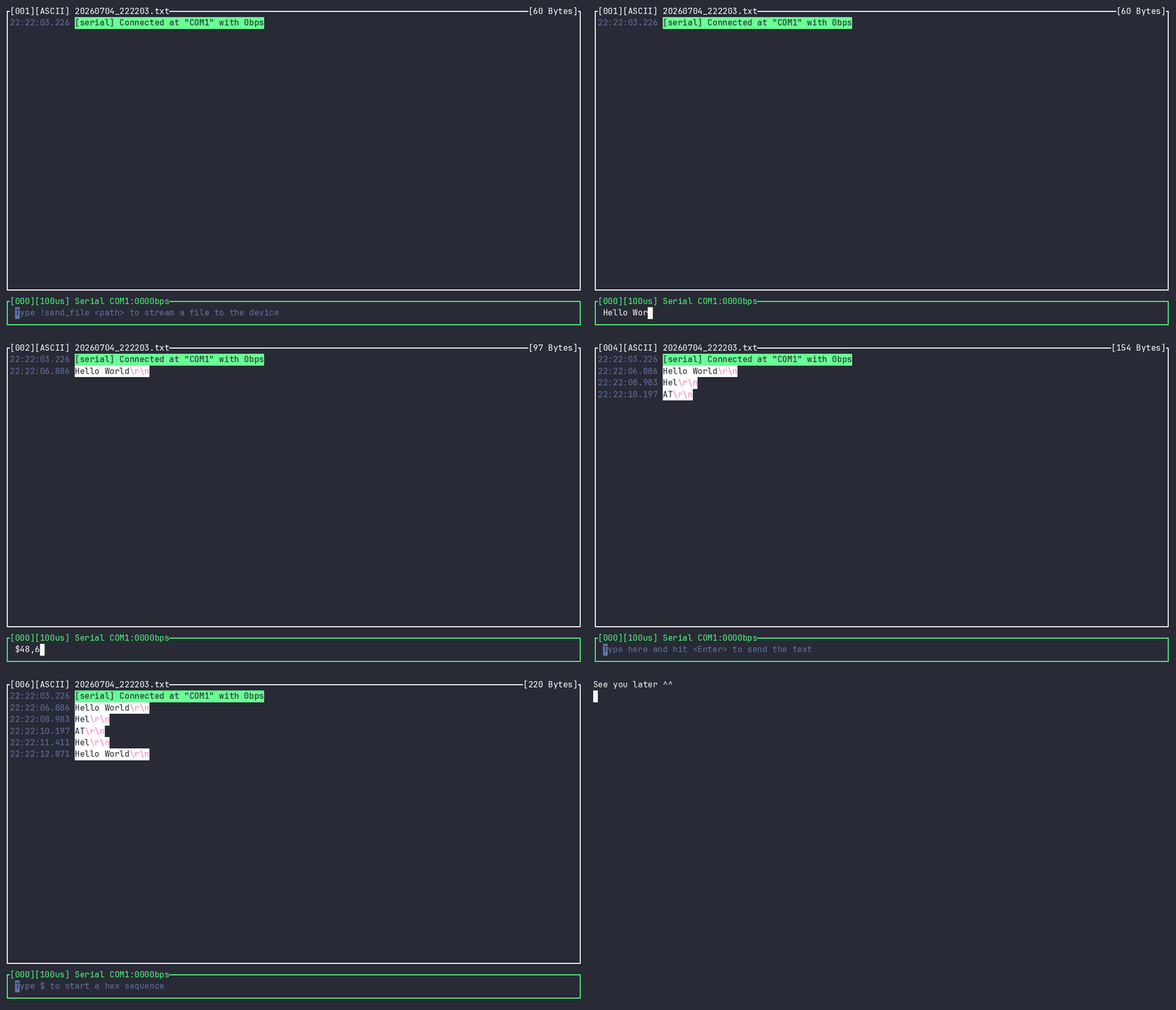
Type a message on the command bar (at the bottom) and press `Enter` to send it through the serial port. Every message is terminated with `\r\n`; hold `Alt` while pressing `Enter` to send the text **without** the trailing `\r\n`.
#### Send in Hexadecimal
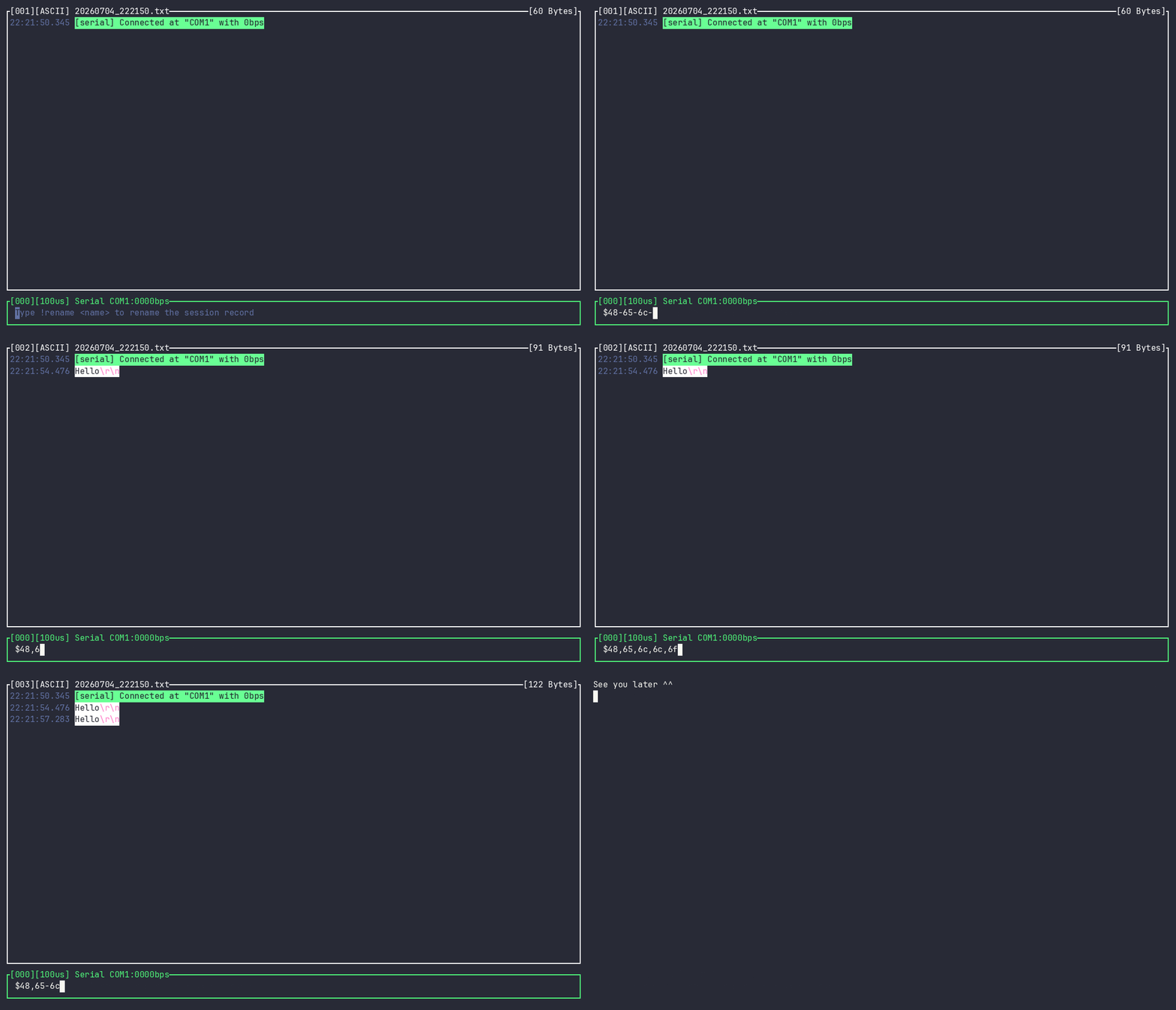
You can also send raw bytes in hexadecimal. Type `$` and write your bytes in a hexadecimal format. Inside a `$` sequence you may use `,`, `_`, `-`, `.` and spaces as separators between bytes (they are ignored when the bytes are sent), and a new `$` starts another sequence. For example, `$48 65 6c 6c 6f`, `$48,65,6c,6c,6f` and `$48$65$6c$6c$6f` all send `Hello`.
Because a lone `$` always opens a hex sequence, a **literal dollar sign is written `$$`**: `$$` sends a single `$` and leaves hex mode, so `cost: $$5.00` sends the text `cost: $5.00` (without the escape, `$5.00` would be read as the bytes `0x05 0x00`). This works inside a sequence too — `$41$$41` sends `A` followed by the text `$41`.
#### Tags
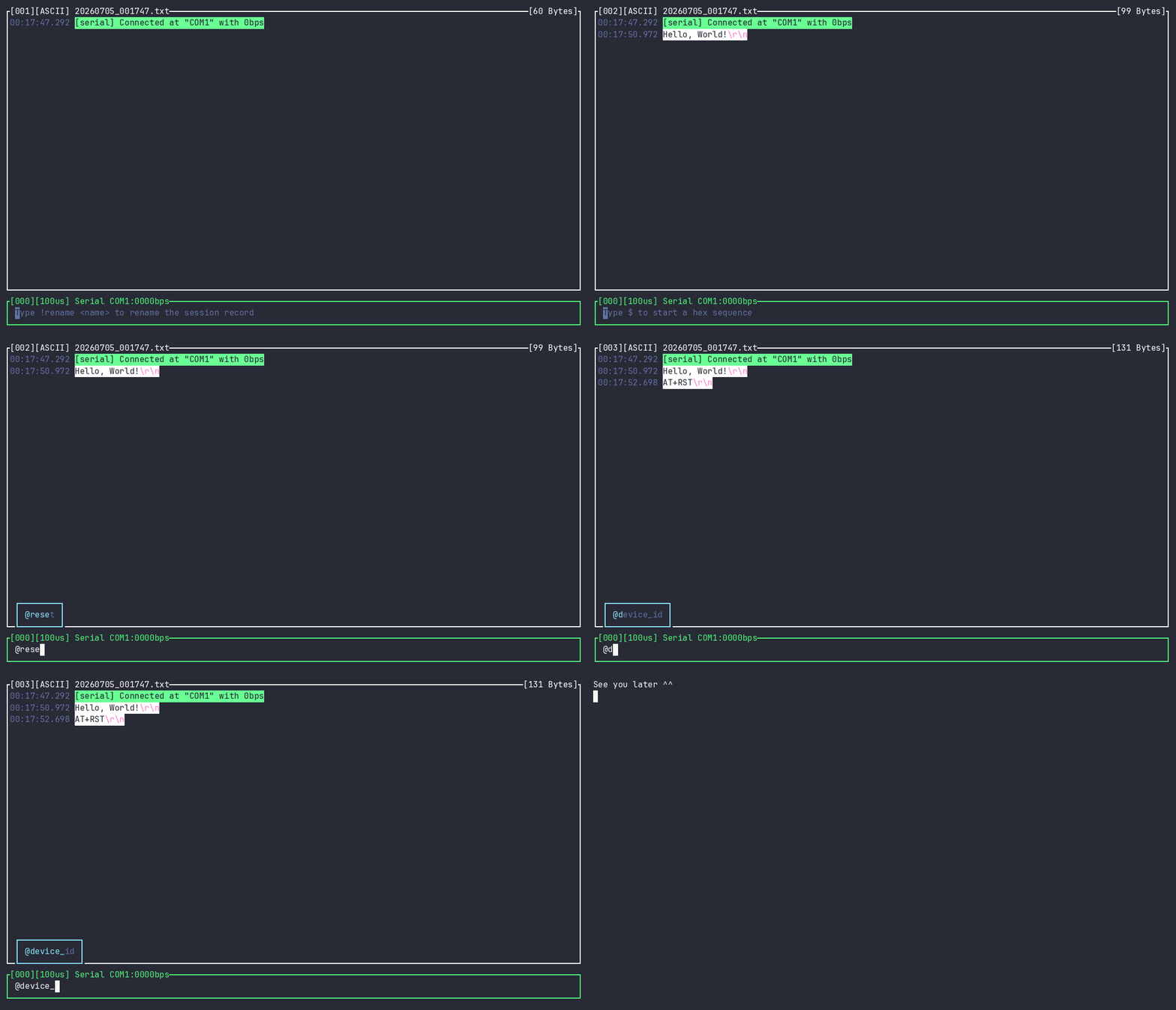
Instead of retyping the same values over and over, you can define **tags** and reference them with `@`. Tags live in a YAML tag file (`tags.yml` by default, or the file passed with `-t/--tag-file`), written as a simple `name: value` map:
```yaml
reset: $01 02 03
greeting: Hello, World!
```
Typing `@reset` or `@greeting` on the command bar expands the tag to its value before sending. A tag name is delimited by whitespace, another `@`, or a `"`. Press `Tab` to autocomplete a tag name from the tag file, and the list is filtered as you type. The tag file is watched and hot-reloaded, so edits take effect without restarting `Scope`.
> [!NOTE]
> Tag values are used verbatim. Prior to v0.3.0 `Scope` had a fixed "command" syntax; it was removed and superseded by these user-defined tags.
#### Command History
You can recall data you sent earlier: press `Up Arrow` and `Down Arrow` to navigate through the history of sent messages. Press `Ctrl`+`G` to open a searchable history picker, type a fuzzy query, use the arrow keys to select a result, and press `Enter` to put it back in the command bar. The history is persisted between runs in a `.scope_history` file, so it survives restarts.
#### Send a File
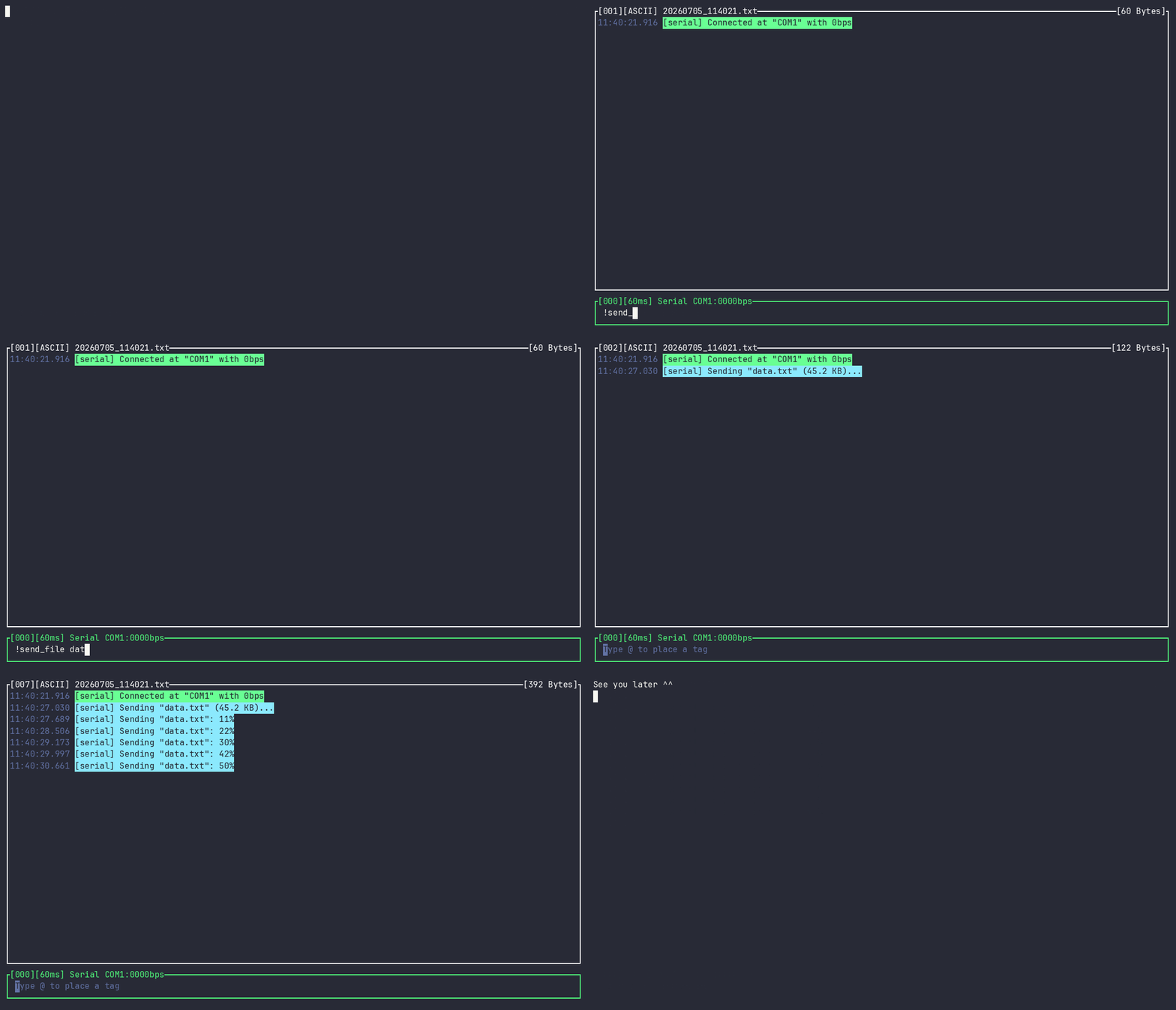
Use `!send_file ` to stream the contents of a file to the target over the active interface (serial or RTT). `Scope` reports the transfer progress and a final confirmation on the history box.
### Reading and display
#### Colorful Output
`Scope` colors the command bar to signal the status of the serial connection: red when disconnected, green when connected. The content read and written is colored too — received data follows the ANSI terminal color standard.
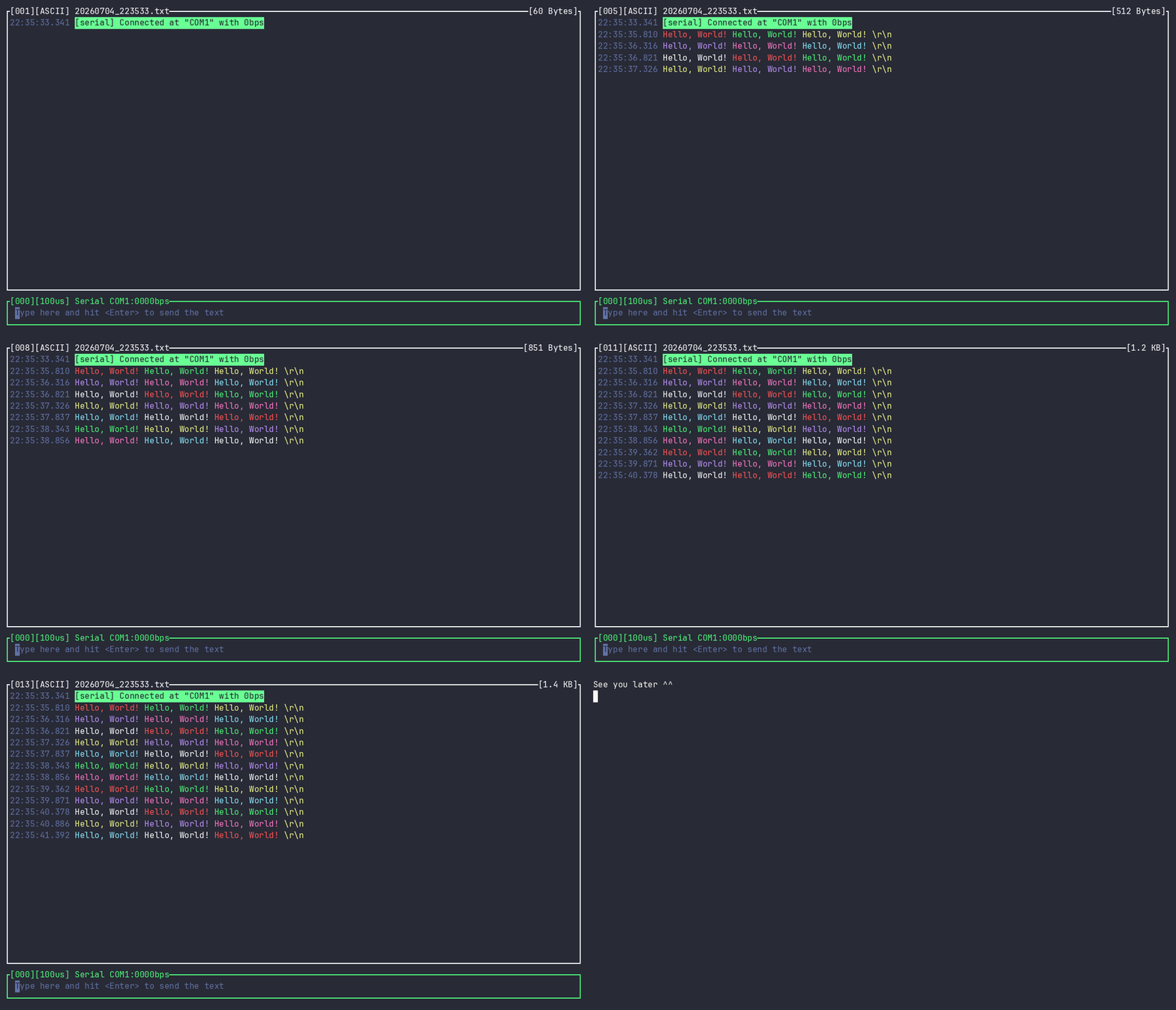
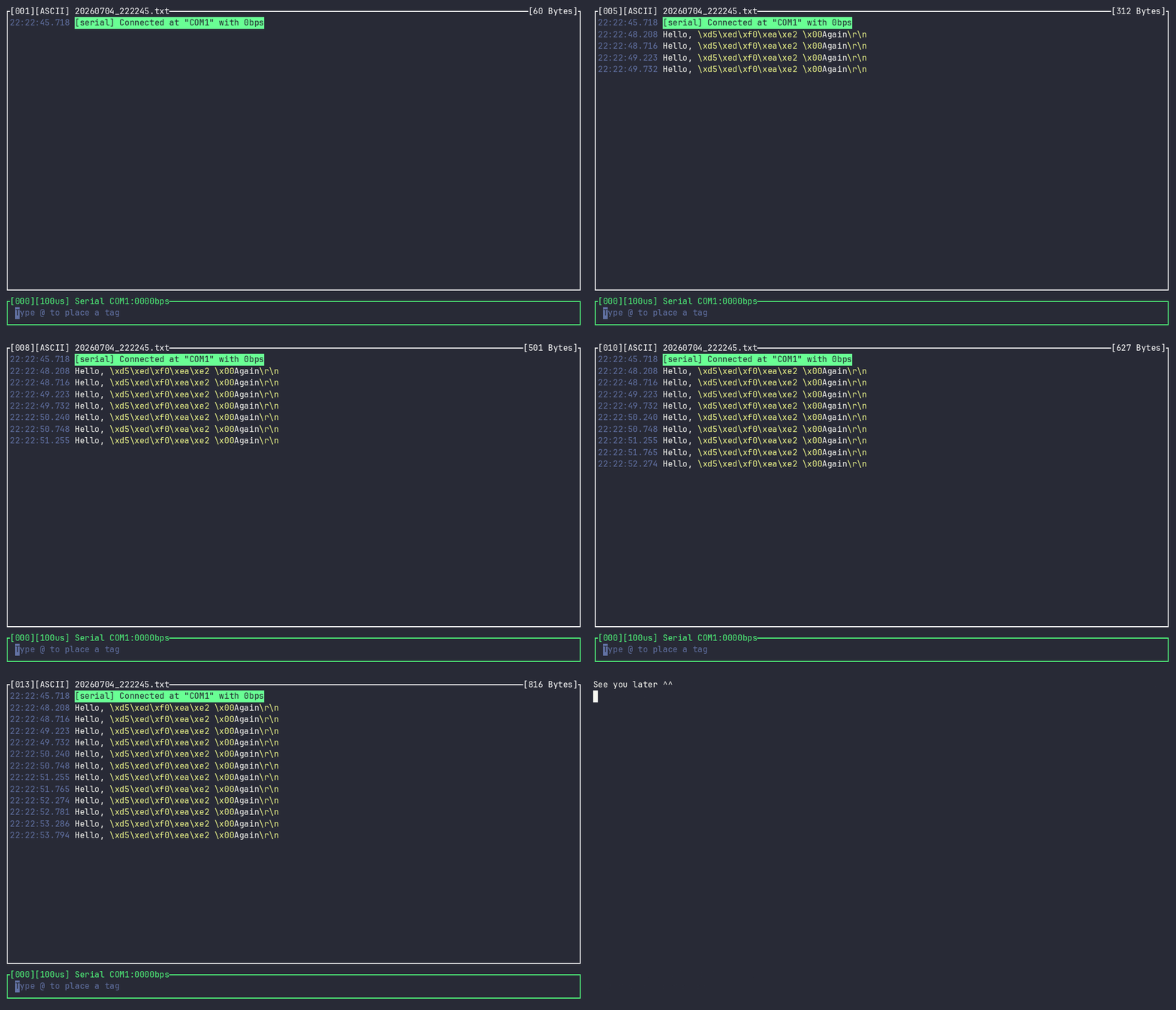
Data sent to the serial port always has a background to distinguish it from received data. Characters outside the printable ASCII range are shown in magenta and in hexadecimal, and a few common characters are printed as their escape representation, such as `\n`, `\r` and `\0`.
#### Freezing the output
While data is streaming in, the view follows the newest line. **Scroll up and the output freezes**: `PageUp`, the mouse wheel, or `Alt`+`PageUp` (`Ctrl` on Windows) to jump to the start of the history — the border switches from a **thick** to a **double** line to show the view is no longer live. New data keeps being received and recorded, it just doesn't move the screen, so you can read, select and copy in peace.
To go **back to live**, press `Alt`+`PageDown` (`Ctrl`+`PageDown` on Windows) or simply scroll back down to the bottom; the border turns thick again and the view resumes following the newest line.
The one thing a frozen view cannot hold on to is history that no longer exists: the scrollback keeps the last `-c/--capacity` lines (20000 by default), and once it is full each new line drops the oldest one. While there is history above the view, the view stays on the lines you are reading; if you have scrolled all the way to the top, the lines on screen are the ones being dropped and the content has to move. Raise `--capacity` if you need a deeper freeze.
#### Message Timestamp
All data written or read carries a gray timestamp on the left, in the format `HH:MM:SS.ms`.
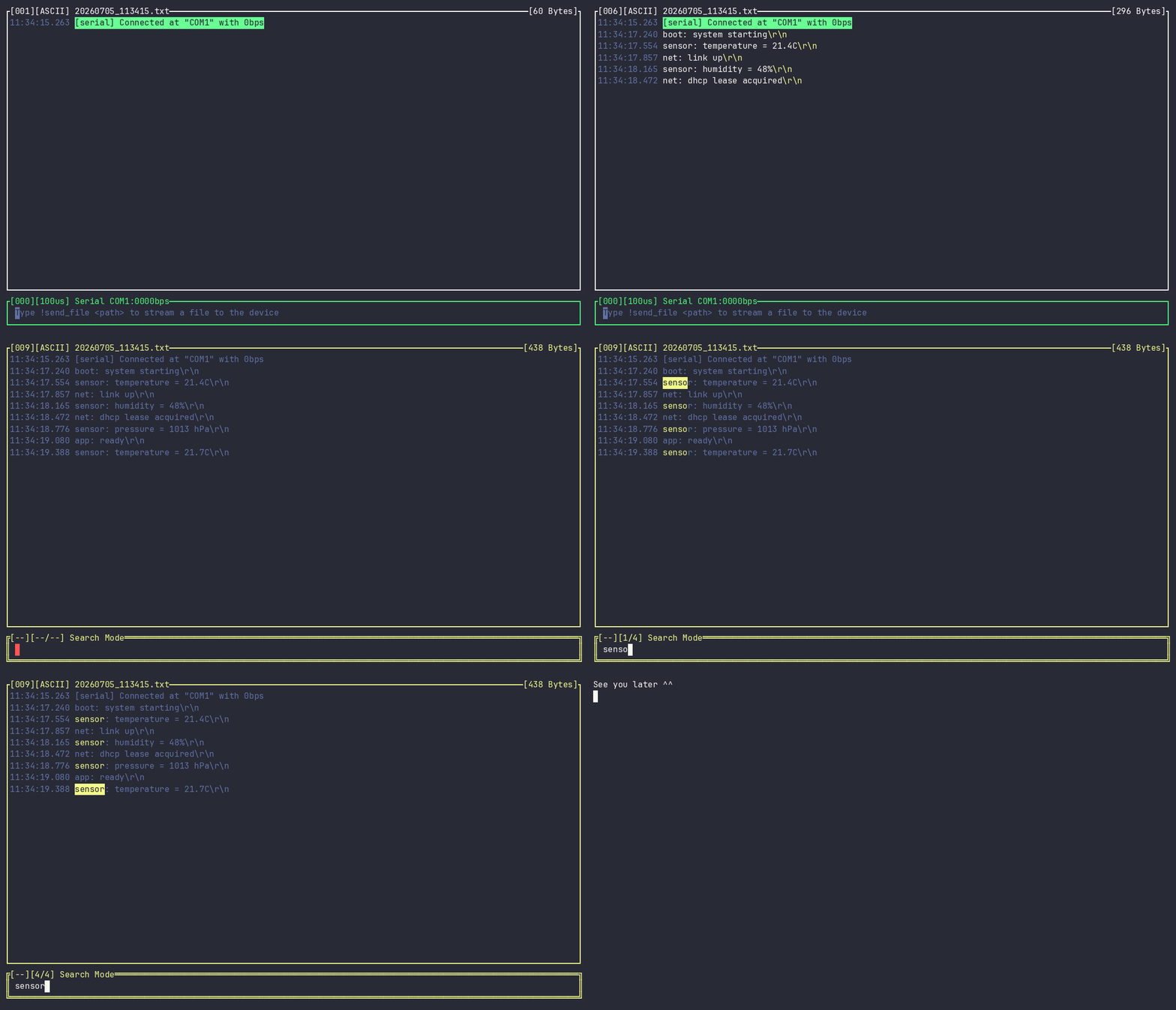
#### Search
Press `Ctrl+F` to enter **search mode** and type a query to find it in the captured history. Press `Enter` or `Down Arrow` to jump to the next match and `Up Arrow` for the previous one. `Ctrl+W` toggles case sensitivity, and `Esc` leaves search mode.
Jumping to a match freezes the view on it, and it stays there while data keeps arriving: the match list is refreshed as new lines land, so incoming matches are added to the count, but the match you are on stays the match you are on — the `n/total` counter simply counts down as older matches drop out of the scrollback above you. Only when the line you are on is itself dropped does the view move on, to the next match after it.
#### Bookmarks
Jumping to a specific line in a long history is tedious. **Right-click** a line to bookmark it (right-click again to remove the bookmark); a bookmarked line is marked by a **yellow timestamp**. Press `Tab` to jump to the next bookmark and `Shift+Tab` for the previous one, cycling around the ends — the same navigation feel as search. Bookmarks follow their line as the history scrolls and survive changing the filter (a bookmark hidden by a filter reappears once the line is shown again); `Ctrl+L` clears them along with the screen.
#### Message Filter
When received data floods the history — for example a stream of `dbg` lines — use the `!filter` and `!mute` commands to control which received messages are shown. The current filter is shown between square brackets at the top-right of the command bar (e.g. `[.*]`). The two commands share that slot, so setting one replaces the other.
- `!filter ` — **show only** received lines matching the regex `` (like `grep`).
- `!filter` — show every received message again (reset to the default `.*`).
- `!mute ` — **hide** received lines matching `` (the inverse of `!filter`, like `grep -v`); everything else is shown. The indicator is prefixed with `!`, e.g. `![^dbg]`.
- `!mute` — mute *every* received message (a warning is logged to make the state obvious).
Behavior to keep in mind:
- **The pattern is a regex applied per line, and matching is *not anchored*.** It succeeds when the pattern is found *anywhere* in the line, so `!filter dbg` shows every line that contains `dbg`, not only those that start with it. Anchor with `^` / `$` to match the start / end of a line — e.g. `!mute ^dbg` hides only lines that *begin* with `dbg`, and `!mute "^\[00"` hides lines beginning with `[00`.
- **Regex metacharacters must be escaped.** `[` opens a character class, so to match a literal `[` write `\[` (e.g. `^\[` matches a line starting with `[`). An invalid pattern is reported as an error and the previous filter is kept.
- **These commands only affect received (RX) data.** Data you send and system log messages (errors, warnings, connection notices…) are always shown, regardless of the filter.
- **Filtering is display-only.** Every message is still written to the session record, the crash backup and any active recording — it hides lines from the live view, it does not drop them from disk. (So checking the saved `.txt` will show hidden lines; look at the live TUI to see the effect.) Removing the filter (`!filter`) brings hidden lines back into the view.
- **The filter resets to the default `.*` at the start of each session.** It is not persisted.
#### Select, Copy and Clear
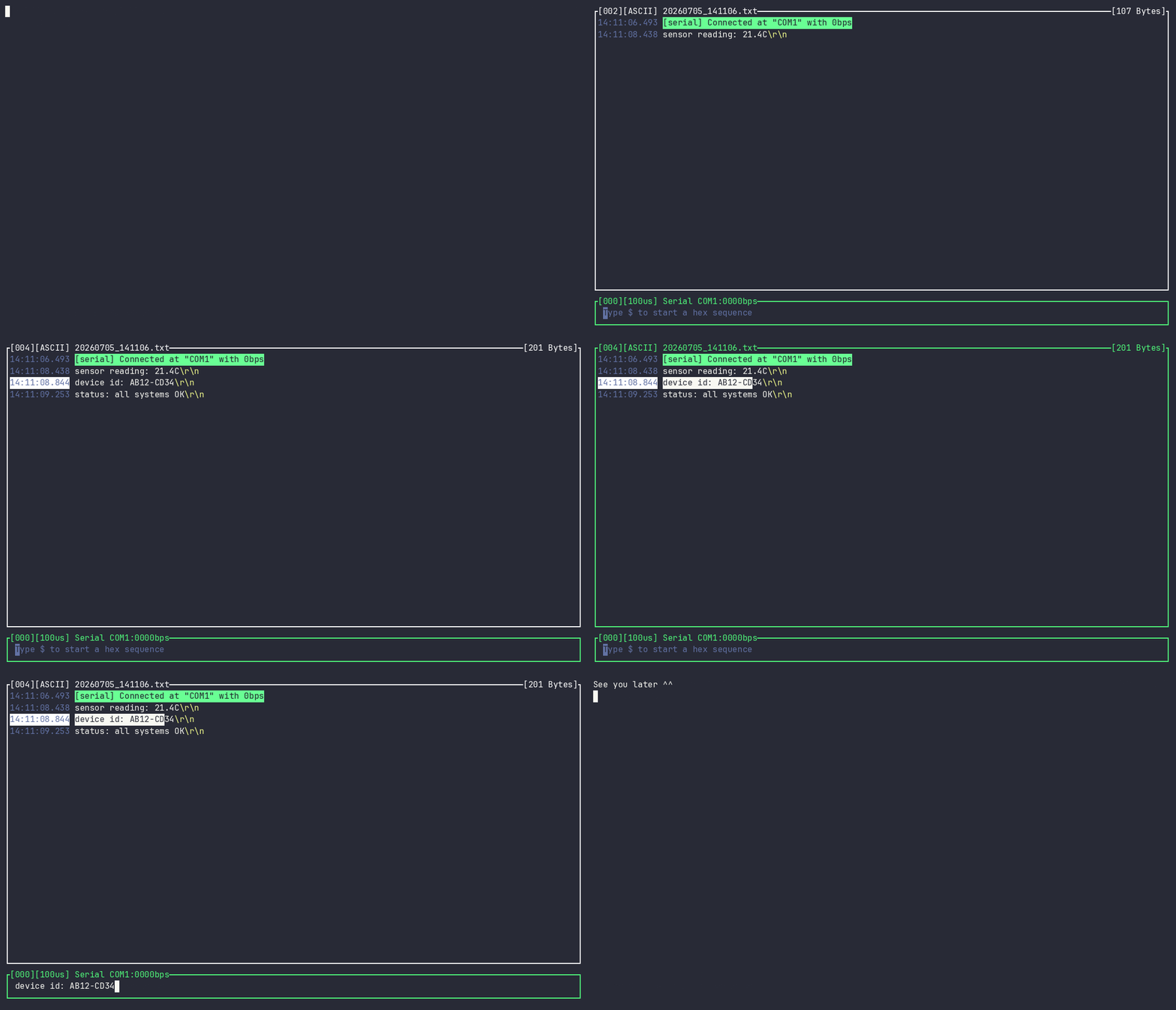
Click and drag with the mouse to select text in the history, then press `Ctrl+C` to copy the selection to the system clipboard. You can paste text into the command bar with your terminal's paste shortcut (`Scope` supports bracketed paste). `Ctrl+L` clears the screen.
### Interfaces
#### Setup Serial Port
You can change the serial port and its baud rate while the tool is open. Type `!serial connect COM4 9600` to set the serial port to `COM4` and the baud rate to `9600`. You can also omit the port to change only the baud rate (`!serial connect 9600`) or omit the baud rate to change only the port (`!serial connect COM4`). To release the serial port, type `!serial disconnect`.
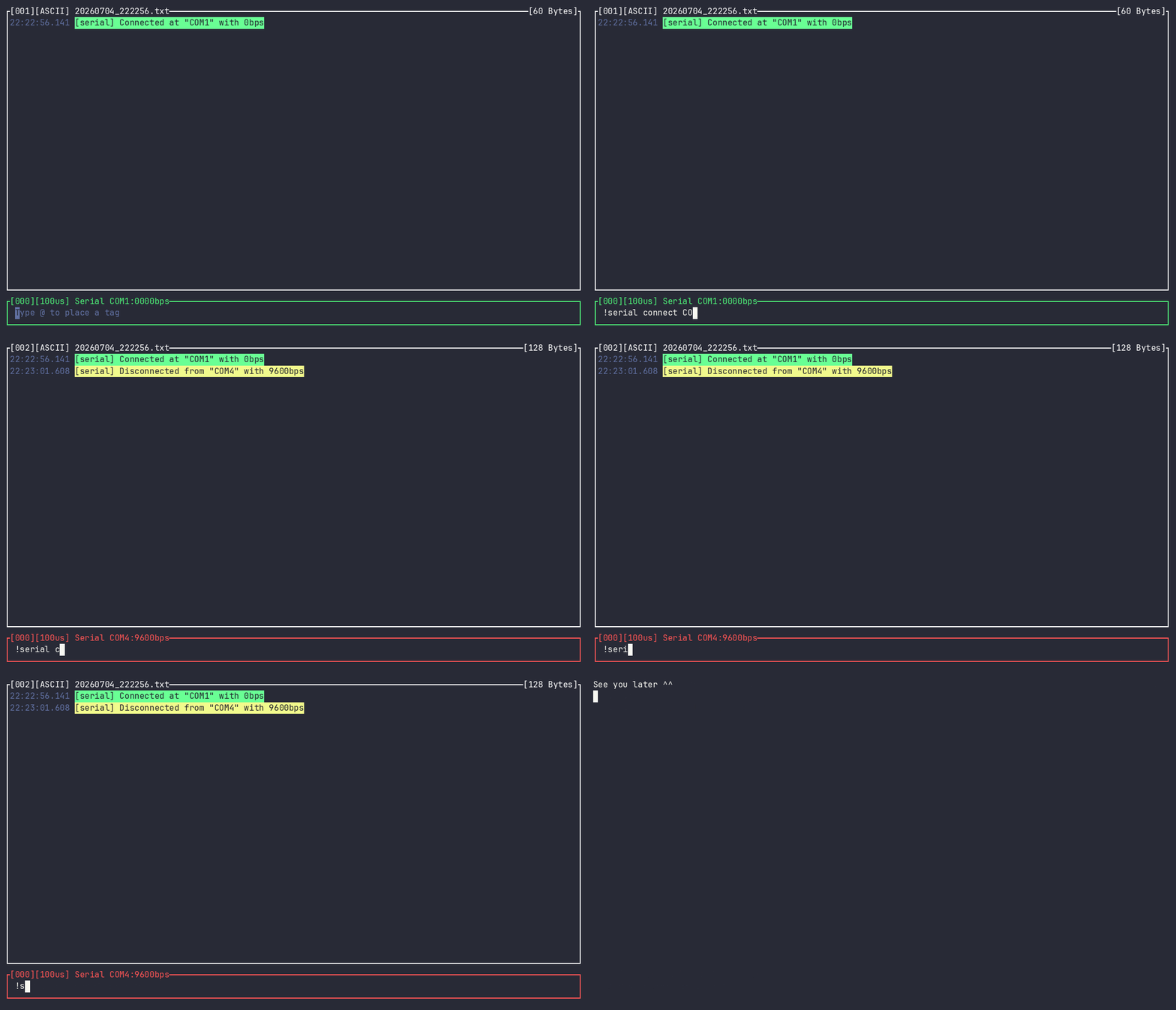
You can also set hardware/software flow control with `!serial flow ` (flow control applies to serial only). When you don't want to type the interface name, the generic `!connect` and `!disconnect` commands act on whichever interface is currently active.
#### RTT Interface
Besides a serial port, `Scope` can talk to an embedded target over [RTT](https://wiki.segger.com/RTT) using [`probe-rs`](https://probe.rs/). Start it from the CLI with `scope rtt ` (for example `scope rtt STM32F303 0`).
While connected you can:
- `!rtt connect [] []` — connect or reconfigure the RTT session (same omit-arguments rules as `!serial connect`).
- `!rtt disconnect` — detach from the target.
- `!rtt read []` — read `size` bytes (default `4`) from the target's memory. The address may be hexadecimal (`0x...`) or decimal.
##### Finding the control block
Attaching means finding SEGGER's RTT control block in the target's RAM, and `Scope` works that out from the target itself: it probes the first 32 KiB of **each RAM region in the chip's memory map** (or the scan windows the `probe-rs` target description names, when it names them), because the block conventionally sits at the start of a RAM region. Only if that misses does it fall back to sweeping the whole RAM.
That needs no flags and no firmware changes. Two options pin it down exactly when you want to skip scanning altogether:
```shell
scope rtt MIMXRT1020 0 --elf build/zephyr/zephyr.elf # read _SEGGER_RTT from the ELF
scope rtt MIMXRT1020 0 --addr 0x20200410 # or give the address yourself
```
- `--elf ` reads the `_SEGGER_RTT` symbol out of a firmware ELF — usually the very build you just flashed. It is re-read on every attach, so re-flashing a build that moved the block needs no restart. An unreadable or stale ELF is reported and attaching falls back to scanning, so it costs speed, not the connection.
- `--addr ` attaches at exactly that address (`0x...` or decimal). It is taken at face value: there is no fallback scan, since that would spend the time you asked to save.
`--speed ` sets the probe clock (default `4000`), if you would rather trade link speed against scan cost.
#### Auto Reconnect
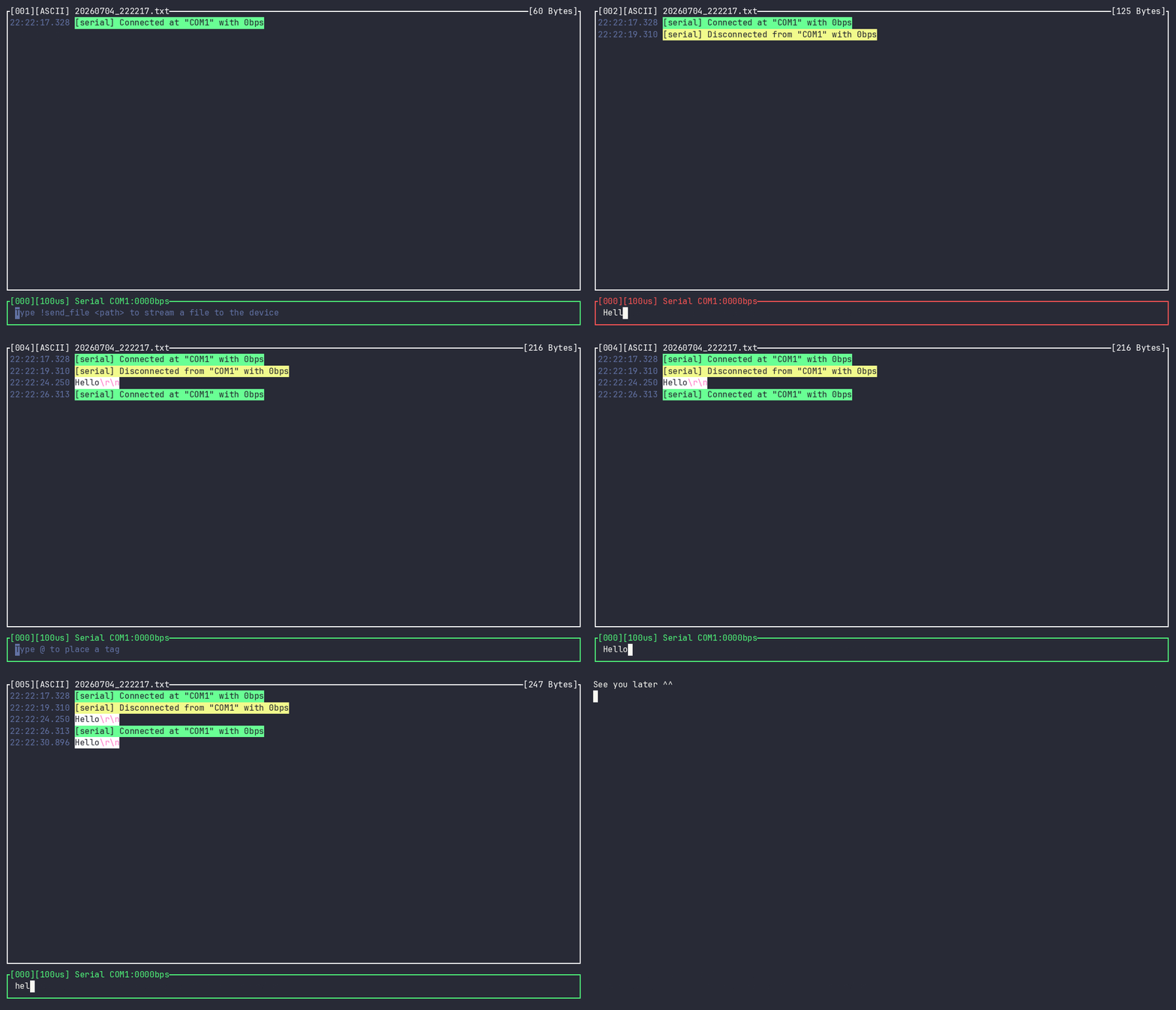
`Scope` has an auto-reconnect feature: when the serial port isn't available, it keeps trying to reconnect until the port comes back.
> [!NOTE]
> Auto-reconnect has some known issues on the Windows version.
### Capture and sessions
#### Save and Record
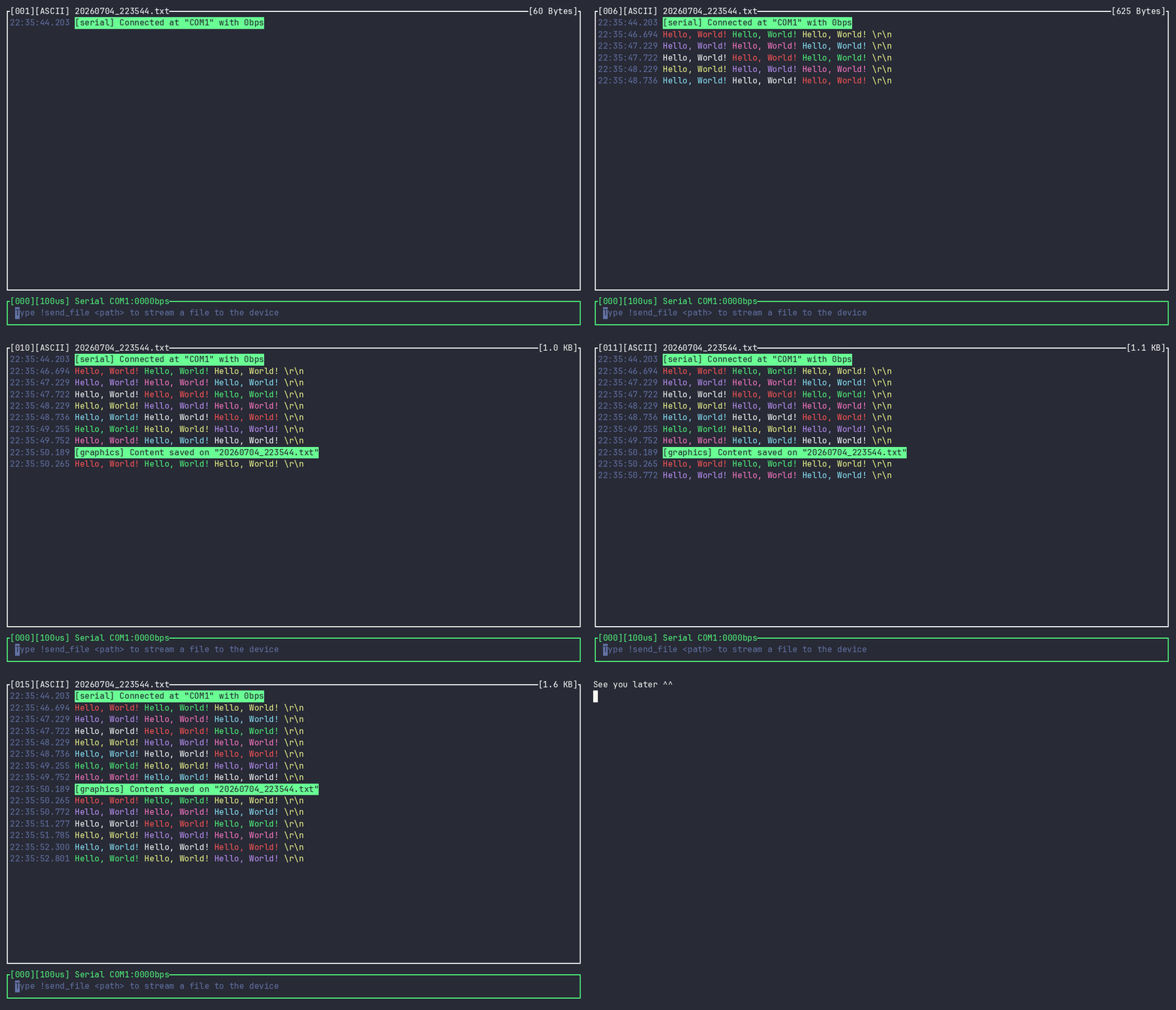
To save all the messages captured (and sent) since the start, press `Ctrl+S`. The history box blinks and a message is shown in the history. The filename appears at the top of the history box with a `.txt` extension, and the top-right corner shows the total size of the captured messages.
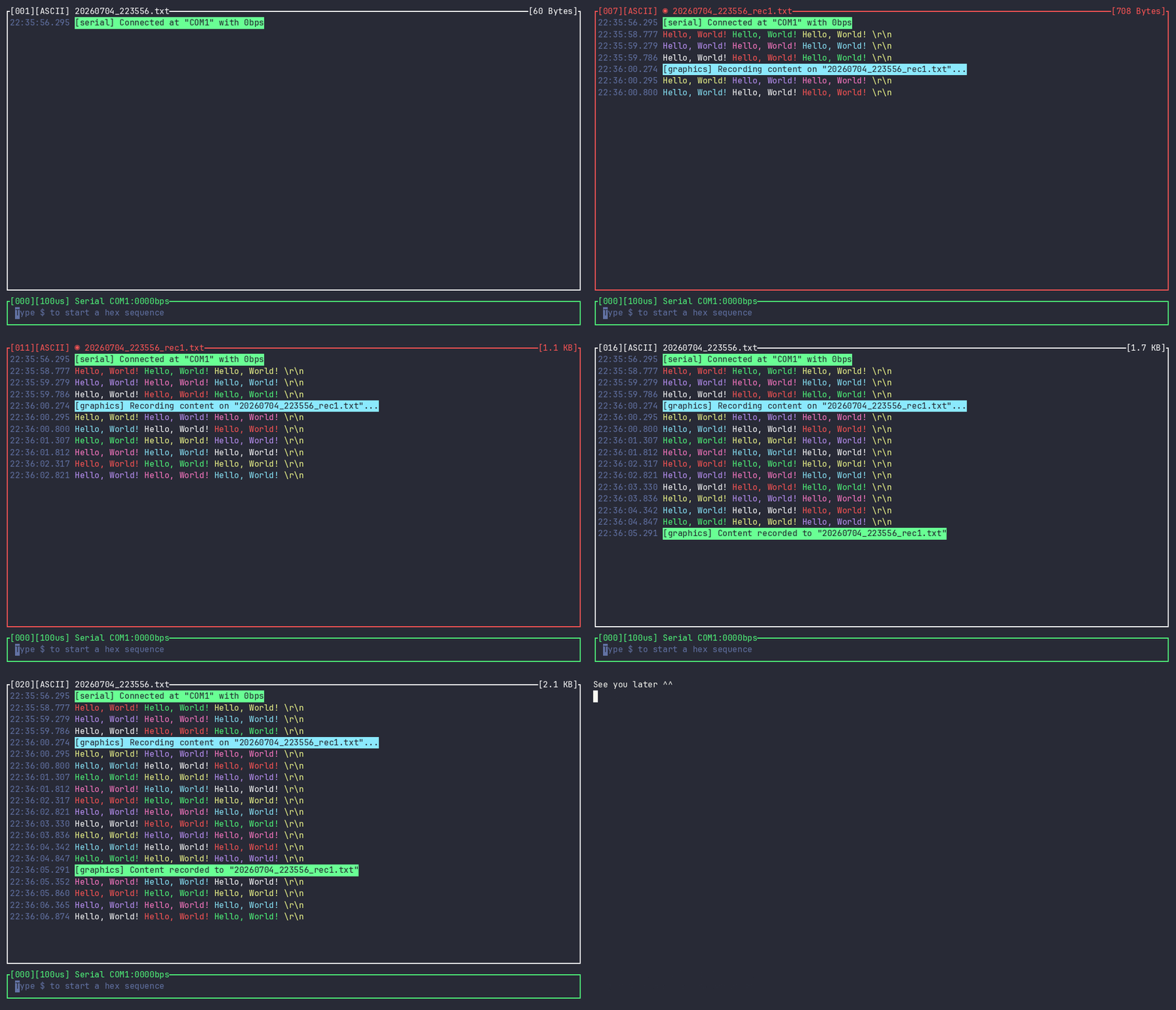
If you instead want to save only the messages captured *from now on*, use the record feature. Press `Ctrl+R` to start a record session: while recording, the history block turns yellow and `Scope` stores every message captured from that point. Press `Ctrl+R` again to stop. The right-corner indicator shows the size of the record session, and a new filename is created each time a record session starts. Both starting and stopping a session print a message in the history box marking when it happened.
You can rename the current session at runtime with `!rename `; the save file (and any crash-recovery backup) follows the new name. To guard against an accidental close or a crash, `Scope` also mirrors the running session to a `.bkp` file under the user config directory (e.g. `~/.config/scope/backup/`), keeping the most recent backups.
### Headless mode
Passing `--headless` (e.g. `scope --headless serial /dev/ttyUSB0 115200`) drops the TUI and turns `Scope` into a transparent bridge between your terminal and the wire — like `screen`/`minicom` in raw mode. This is the mode to use when you are driving a shell over the link (so keystrokes and ANSI escapes go through untouched) or piping the output to another program (an AI assistant, a log file) that would otherwise choke on the TUI's box-drawing.
In headless mode:
- **Received bytes are written straight to stdout**, verbatim and immediately — no timestamps, no scrollback, no colouring. The device's own ANSI sequences control your terminal directly.
- **Every key you type is sent raw to the device** the moment you press it (no command-bar buffering, no local echo — the device echoes, as with any serial terminal).
- **Log messages** (connection notices, errors…) still appear inline, with a coloured background so they stand out from device output; they are never sent to the wire.
- **Scroll, search and copy are delegated to your terminal emulator** — they don't exist inside `Scope` here.
- **Nothing is written to disk** — no session record, backup, or `!record`. Redirect stdout yourself if you want a capture.
To reach the normal `Scope` commands (`!plugin`, `!connect`, `@tags`, `$hex`, history, …), press **`Ctrl+K`**: a blinking `> ` prompt (black on yellow) appears and incoming output is held back while you type. Press **Enter** to run the command (or **Esc** / an empty Enter to cancel) and return to the raw bridge. Every command available in the normal command bar works here. To **quit**, press **`Ctrl+K`** then **`Ctrl+Q`**, or run the **`!exit`** (alias `!quit`) command.
> **Driving headless mode from an AI agent?** [`matheuswhite/scope-skill`](https://github.com/matheuswhite/scope-skill) is a Claude Code skill that wraps this bridge — it connects, sends text / `$hex` / `@tags` / commands, and reads the device's replies over serial or RTT, all without the TUI.
### Cross-platform
`Scope` runs on Linux, Windows, and macOS (Apple Silicon), with the same interface and behavior on each.
## Command Reference
Anything typed on the command bar that starts with `!` is a command. A line without `!` is sent as data (after expanding `@tags` and `$hex`).
| Command | Description |
|---------|-------------|
| `!serial connect [] []` | Connect/reconfigure the serial port. A numeric argument is the baud rate, otherwise it's the port; omit either to keep the current value. |
| `!serial disconnect` | Release the serial port. |
| `!serial flow ` | Set flow control: none, software (`sw`) or hardware (`hw`). |
| `!rtt connect [] []` | Connect/reconfigure the RTT session (numeric argument is the channel). |
| `!rtt disconnect` | Detach from the RTT target. |
| `!rtt read []` | Read `size` bytes (default `4`) from target memory. Address is hex (`0x..`) or decimal. |
| `!connect` / `!disconnect` | Connect / disconnect whichever interface is currently active. |
| `!rename ` | Rename the current session record file (and its backup). |
| `!filter ` | Show only received messages matching the regex `` (applied line by line, unanchored), like `grep`. Call with no argument to show everything again (reset to the default `.*`). Display-only — the session record keeps every message. |
| `!mute ` | Hide received messages matching the regex `` (the inverse of `!filter`, like `grep -v`). Call with no argument to mute every received message (a warning is logged). Display-only — the session record keeps every message. |
| `!send_file ` | Stream a file to the target over the active interface. |
| `!log ` | Set the log level. `` is `system` (`sys`) or a plugin name; `` is one of `debug`, `info`, `success`, `warning`, `error`. |
| `!plugin load ` | Load a Lua plugin from a file (for this session only). |
| `!plugin reload ` | Reload a plugin from a file. |
| `!plugin install ` | Load a plugin **and** install it, so every subsequent `Scope` session auto-loads it. |
| `!plugin uninstall ` | Uninstall a plugin: remove it from the auto-load set and delete its staged copy (a running instance stays loaded for the session — use `!plugin unload` to stop it now). |
| `!plugin list` | List the installed (auto-loaded) plugins. |
| `!plugin unload ` | Unload a plugin by name (for this session; does not uninstall). |
| `! [args...]` | Call a command exported by a loaded plugin (see [Plugins](#plugins)). |
## Keyboard & Mouse Shortcuts
Rows with a **Config action** name are remappable via the `[shortcuts]` table in
`config.toml` (see [Configuration File](#configuration-file)). The rest — typing,
`Enter`, `Esc`, arrows, `Home`/`End`, `Backspace`/`Delete`, and the headless
`Ctrl`+`K` / `Ctrl`+`Q` chords — are fixed and cannot be rebound.
| Shortcut | Action | Config action |
|----------|--------|---------------|
| `Enter` | Send the message / run the command. In search mode: next match. | — |
| `Alt`+`Enter` | Send without the trailing `\r\n`. | — |
| `Alt`+`Enter` (`Ctrl`+`Enter` on Windows) | In search mode: previous match. | — |
| `Up` / `Down` | Navigate the command history. In search mode: previous / next match. | — |
| `Ctrl`+`F` | Toggle search mode. | `search_toggle` |
| `Ctrl`+`W` | In search mode: toggle case sensitivity. | `toggle_case` |
| `Ctrl`+`E` | In search mode: toggle regular-expression matching. | `toggle_regex` |
| `Ctrl`+`H` | Toggle visibility of special characters. | `toggle_special_characters` |
| `Tab` | Autocomplete a `@tag` from the tag file (while the pop-up is up); otherwise jump to the next bookmark. | `next_bookmark` |
| `Shift`+`Tab` | Jump to the previous bookmark. | `prev_bookmark` |
| `Ctrl`+`P` | Advance the display mode: ASCII → UTF-8 → HEX. | `toggle_display_mode` |
| `Ctrl`+`S` | Save the whole session to a `.txt` file. | `save` |
| `Ctrl`+`R` | Start / stop a record session. | `record` |
| `Ctrl`+`G` | Open the searchable command-history picker. | `history_search` |
| `Ctrl`+`C` | Copy the current selection to the clipboard. | `copy` |
| Terminal paste shortcut | Paste text into the command bar (via bracketed paste). | — |
| `Ctrl`+`L` | Clear the screen. | `clear` |
| `Esc` | Leave search mode, or quit `Scope` when in normal mode. | — |
| `PageUp` / `PageDown` | Scroll the history one page up / down. | `page_up` / `page_down` |
| `Alt`+`PageUp` / `Alt`+`PageDown` (`Ctrl` on Windows) | Jump to the start / end of the history. | `jump_start` / `jump_end` |
| `Home` / `End` | Move the cursor to the start / end of the input. | — |
| `Ctrl`+`Left` / `Ctrl`+`Right` (`Alt` on macOS) | Move the cursor one word left / right. | `word_left` / `word_right` |
| `Backspace` / `Delete` | Delete the character before / at the cursor. | — |
| Mouse wheel | Scroll the history (hold `Ctrl` to scroll horizontally). | — |
| Mouse drag | Select text (copy it with `Ctrl`+`C`). | — |
| Mouse right-click | Toggle a bookmark on the clicked line (navigate with `Tab` / `Shift`+`Tab`). | — |
## Command-Line Options
`Scope` is invoked as `scope [OPTIONS] `.
Commands:
| Command | Description |
|---------|-------------|
| `serial [] []` | Open a serial port (e.g. `scope serial COM3 115200`). |
| `rtt [] []` | Attach to an RTT target via `probe-rs` (e.g. `scope rtt STM32F303 0`). Options: `--elf `, `--addr `, `--speed ` — see [Finding the control block](#finding-the-control-block). |
| `list [-v\|--verbose]` | List the available serial ports. |
| `ble ` | *(Not yet implemented.)* |
| `completions ` | Print a shell completion script for `scope` (`bash`, `zsh`, `fish`, `powershell`, `elvish`) — see [Shell completions](#shell-completions). |
Global options (given before the command):
| Option | Default | Description |
|--------|---------|-------------|
| `-c, --capacity ` | `20000` | Number of scrollback lines kept in memory. Once full, each new line drops the oldest one. |
| `-t, --tag-file ` | `tags.yml` | Path to the tag file (see [Tags](#tags)). |
| `-l, --latency ` | `100` | Polling latency in microseconds (clamped to `0..=100000`). |
| `-n, --name ` | timestamp | Base name for the session record file. |
| `--headless` | off | Run without the TUI as a raw terminal↔wire bridge (see [Headless mode](#headless-mode)). |
## Configuration File
The options above can also be set in an optional `config.toml` placed in your platform config directory under `scope/` (for example `~/.config/scope/config.toml` on Linux). It supports the `capacity`, `tag_file` and `hex_format` fields and the optional `[shortcuts]` and `[history]` tables:
```toml
capacity = 5000
tag_file = "/home/user/.config/scope/tags.yml"
hex_format = "prefixed_upper" # how non-printable bytes are shown (0xAA)
[shortcuts]
record = "Ctrl+R" # record's default binding
next_bookmark = "F2"
prev_bookmark = "F3"
# every other action keeps its default
[history]
save_commands = false # don't persist the command-bar history
save_backup = false # don't write the crash-recovery backup
```
Values resolve as **CLI flag > `config.toml` > built-in default**, so a flag always wins over the file, and the file wins over the defaults. A missing file (or a missing field) just falls back to the defaults; a malformed file or an unknown key is reported as an error. Paths are used verbatim — `~` and environment variables are **not** expanded, so use an absolute path.
### Hex format
A byte that has no printable form (outside `0x20`–`0x7e`, apart from `\n`, `\r` and tab) is shown as an escaped hex value, highlighted in an accent colour. `hex_format` picks one of four named styles:
| `hex_format` | Style | The bytes `A5 A6` show as |
|---|---|---|
| `"escaped"` (default) | `\xaa` | `\xa5\xa6` |
| `"prefixed_upper"` | `0xAA` | `0xA50xA6` |
| `"prefixed_lower"` | `0xaa` | `0xa50xa6` |
| `"bare"` | `AA` | `A5A6` |
Only these names are accepted — the style is not a template, so a value like `"0xAA"` is rejected, and the error points at the line in `config.toml` and lists the valid names. The format also applies to search, `!filter`/`!mute` patterns and copied text, since they all work on what is on screen. Saved session files (`Ctrl+S`, `!record`) always keep the `\xaa` form. There is no CLI flag.
### Disabling history autosave
Besides the session record you save explicitly (`Ctrl+S`, `!record`), scope writes two files on its own. The `[history]` table turns each one off; both default to `true`, and there is no CLI flag, so they resolve as `config.toml` > built-in default:
| Key | File | When `false` |
|---|---|---|
| `save_commands` | `/scope/.scope_history` (e.g. `~/.local/share/scope/.scope_history`) | The command-bar history is neither loaded nor written; `Up`/`Down` still recall what you typed during the current run. |
| `save_backup` | `/scope/backup/.txt.bkp` | The session (RX, TX and logs) is no longer mirrored for crash recovery, so anything you didn't save explicitly is lost when scope exits. |
### Custom shortcuts
The `[shortcuts]` table remaps any of the action/navigation keys listed in the [Keyboard & Mouse Shortcuts](#keyboard--mouse-shortcuts) table — the entries with a **Config action** name. Each entry is `action = "Key+Combo"`; there is no CLI flag, so a shortcut resolves as `config.toml` > built-in default, and every action you don't list keeps its default. The valid action names are:
`copy`, `clear`, `save`, `record`, `search_toggle`, `toggle_case`, `toggle_regex`, `toggle_special_characters`, `toggle_display_mode`, `page_up`, `page_down`, `jump_start`, `jump_end`, `word_left`, `word_right`, `next_bookmark`, `prev_bookmark`.
A key combo is zero or more modifiers followed by a key, joined with `+` (case-insensitive): modifiers `Ctrl`, `Alt`, `Shift`; keys are a single character (`c`, `/`, `.`), a named key (`Space`, `Tab`, `Enter`, `Esc`, `Backspace`, `Delete`, `Insert`, `Home`, `End`, `PageUp`, `PageDown`, `Up`, `Down`, `Left`, `Right`) or a function key (`F1`–`F12`). `Shift+Tab` means the "back-tab" key. Examples: `"Ctrl+G"`, `"F2"`, `"Alt+Home"`, `"Ctrl+Alt+End"`.
Modifiers are **logical** and translated to what your terminal actually delivers, so a config file is portable: `Ctrl+Left` keeps working on macOS (where the terminal sends it as `Alt+Left`), and the `jump_start` / `jump_end` defaults are `Ctrl+PageUp` / `Ctrl+PageDown` on Windows but `Alt+PageUp` / `Alt+PageDown` elsewhere. An unknown action name, an unparseable combo, a binding onto a fixed key (e.g. `Enter`, an arrow, a bare character, or the headless `Ctrl+K` / `Ctrl+Q`), or two actions bound to the same key are all reported as errors on startup.
> **Note:** terminals send `Ctrl+I`, `Ctrl+J`, and `Ctrl+M` as `Tab`, `Enter`, and `Enter` respectively, so those three combos can't be used as shortcuts — they parse without error but the keystroke never reaches the app as `Ctrl+`. Pick another key (e.g. `Ctrl+G`).
## Plugins
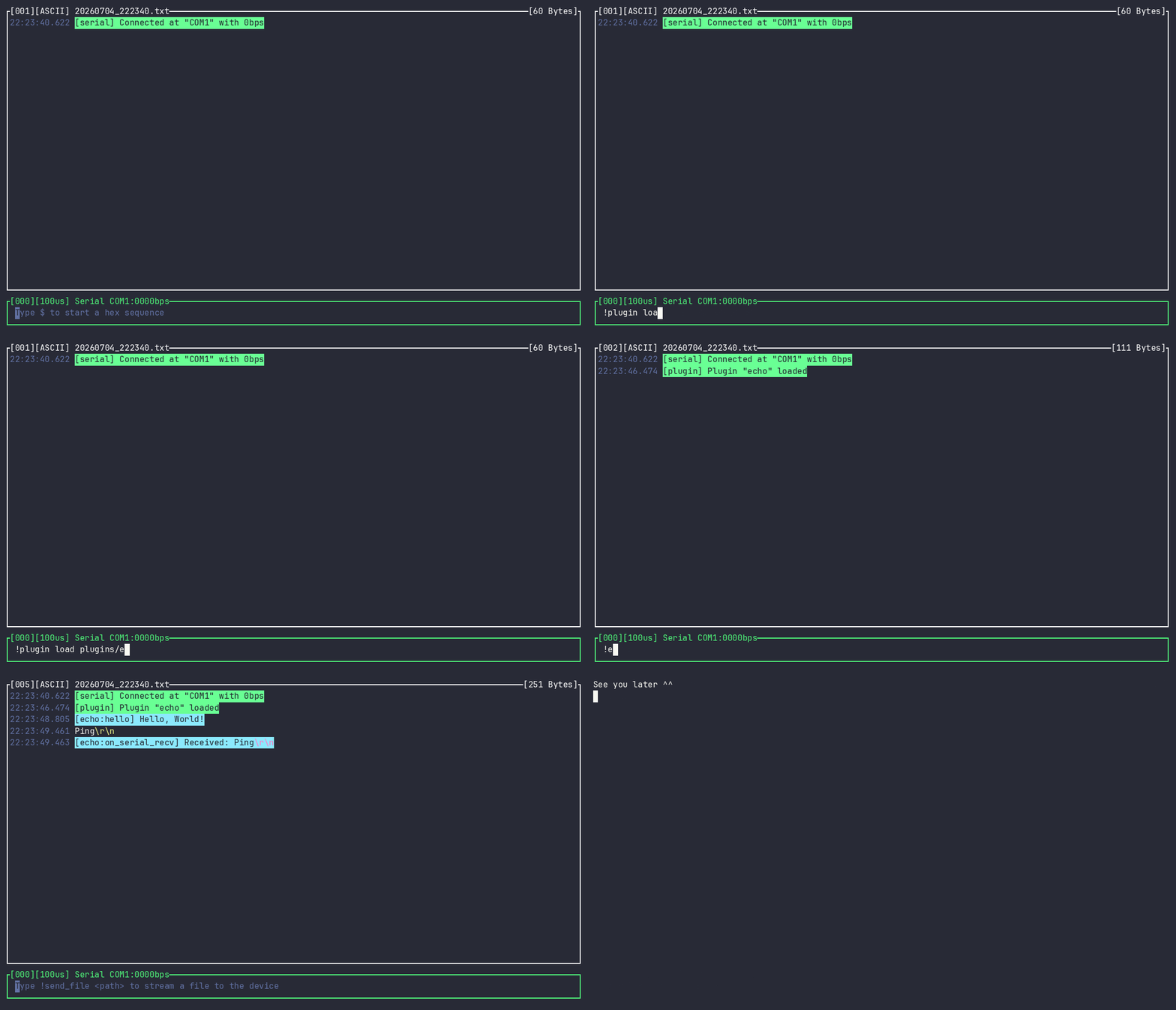
You can extend the basic functions of `Scope` with plugins! Plugins are scripts written in the `lua` language. The code below shows a plugin that prepends `Received:` to every received message. It also prints `Hello, World!` when the user types `!echo hello` (if the plugin file is `echo.lua`).
```lua
local log = require("scope").log
local fmt = require("scope").fmt
local M = {}
function M.on_serial_recv(msg)
log.info("Received: " .. fmt.to_str(msg))
end
function M.hello()
log.info("Hello, World!")
end
return M
```
Load a plugin with `!plugin load ` (and `!plugin reload ` / `!plugin unload ` to reload or unload it). To keep a plugin across sessions, use `!plugin install `: it loads the plugin now and records it so every subsequent `Scope` session auto-loads it at start-up (see `!plugin list` to review the installed set, and `!plugin uninstall ` to remove one from it). To call one of your plugin's commands, type `!` followed by the plugin name, the command name and its arguments — for example `!echo hello`. Inside a plugin you can react to lifecycle and I/O events (`on_load`, `on_unload`, `on_serial_recv`/`on_serial_send`, `on_rtt_recv`/`on_rtt_send`) and interact with `Scope` and the target: connect/disconnect, send data, read RTT memory, print messages, run shell commands and more. For the full guide see the [Plugins Developer Guide](plugins/README.md).
## Scope vs Others
`Scope` combines many features that are otherwise scattered across different tools. The table below compares them:
| Features | Scope (Free) | Docklight | Arduino | Tera Term | screen | esp-idf |
|-----------------------------|--------------|-----------|---------|-----------|----------|----------|
| Send Data | ✅ | ✅ | ✅ | ✅ | ✅ | ✅ |
| Send in Hexadecimal | ✅ | ✅ | x | x | x | x |
| Tags / Macros | ✅[^1] | ✅ | x | x | x | x |
| Written History | ✅ | ✅[^2] | x | x | x | x |
| Auto Reconnect | ✅ | ✅ | x | ✅ | x | x |
| Colorful | ✅ | x | x | ✅ | ✅ | ✅ |
| Message Timestamp | ✅ | ✅ | x | x | x | x |
| Display non-printable chars | ✅ | ✅ | x | x | x | x |
| Plugins | ✅ | ✅ | x | x | x | x |
| Multiplatform | ✅ | Windows | ✅ | Windows | Linux | ✅ |
| Interface | TUI | GUI | GUI | GUI | Terminal | Terminal |
| Price | Free | €69 | Free | Free | Free | Free |
[^1]: User-defined `@tags` replaced the old fixed command syntax that was removed at v0.3.0
[^2]: The Docklight has a list of commands in lateral panel, so it doesn't need a command history
## Troubleshooting
**No serial ports are listed.** Run `scope list` (or `scope list -v`) to see what `Scope` detects. If your device is missing, check the cable and drivers, and make sure you have permission to access the port — on Linux your user usually needs to be in the `dialout` group (`sudo usermod -aG dialout $USER`, then log out and back in).
**Auto-reconnect misbehaves on Windows.** This is a known limitation of the Windows build; reconnect works reliably on Linux and macOS.
**RTT won't connect.** The RTT interface needs a debug probe supported by [`probe-rs`](https://probe.rs/) and the correct target chip name and channel — for example `scope rtt STM32F303 0`. Make sure the probe is connected and not held by another debugger.
**RTT attaches, but slowly.** `Scope` probes the start of each RAM region first and only sweeps the whole RAM if the control block is not there (the `No control block at the start of a RAM region` debug line). A firmware that parks the block in the middle of a region will hit that sweep every time — point at it directly with `--elf ` or `--addr ` (see [Finding the control block](#finding-the-control-block)).
**My `tag_file` / config path isn't found.** Path values are used verbatim: `~` and environment variables are **not** expanded. Use an absolute path (for example `/home/user/.config/scope/tags.yml`).
**Tab completion doesn't work.** Completions are not installed automatically — run `scope completions ` as described in [Shell completions](#shell-completions), then start a new shell. Two mistakes fail silently: on zsh, `fpath` must be extended *before* `compinit` runs (oh-my-zsh calls `compinit` for you, so the `fpath=(~/.zfunc $fpath)` line has to come above the `oh-my-zsh.sh` source); on macOS bash, the `source` line has to be in `~/.bash_profile`, since Terminal starts a login shell that never reads `~/.bashrc`.
## Project Goals
This project has 5 pillars that direct the development of this tool:
I. **Intuitive Usage:** The usage of the tool must be intuitive. This means the usability should follow the common behaviors of other popular tools. For example, the history navigation (`Up Arrow` and `Down Arrow`) follows the history navigation of an OS terminal like the Unix shell or Windows PowerShell.
II. **Compactness and Orthogonality:** The features must follow the [compactness and orthogonality](http://www.catb.org/esr/writings/taoup/html/ch04s02.html) principles of Unix.
III. **User-Centric Development:** The development of this tool must deliver value to the user first, instead of pleasing the developers. For example, the scripting language used to extend the tool is a consolidated programming language rather than a new one, and critical bugs reported by users are prioritized over shipping new features.
IV. **Multiplatform:** All releases must work on Windows, Linux (zsh, bash and fish) and macOS.
V. **Extensible:** Support user scripts to extend the base functionality. These scripts are called plugins. For more information about plugins see the [Plugins Developer Guide](plugins/README.md).
The roadmap, with upcoming releases, can be found in the [GitHub project](https://github.com/users/matheuswhite/projects/5) for this tool.
## Contributing
Contributions are welcome — take a look at the [CONTRIBUTING](CONTRIBUTING.md) guide.
## Community
For new feature requests and to report a bug, feel free to open a new [issue](https://github.com/matheuswhite/scope-rs/issues) on GitHub.
## Maintainers
+ [Matheus T. dos Santos](https://github.com/matheuswhite)
## Acknowledgements
+ [Emilio Bottoni](https://github.com/MilhoNerfado) and [José Gomes](https://github.com/JoseGomesJr) for the ideas that push this tool forward, for the testing that finds hidden bugs, and for good feature implementations.
## License
`Scope` is distributed under the terms of both the MIT license and the Apache
License (Version 2.0), at your option.
See [LICENSE-MIT](LICENSE-MIT) and [LICENSE-APACHE](LICENSE-APACHE) for details.
Unless you explicitly state otherwise, any contribution intentionally submitted
for inclusion in `Scope` by you, as defined in the Apache-2.0 license, shall be
dual licensed as above, without any additional terms or conditions.