
Lumae
A free Mac screen recorder and screenshot tool for polished software demos,
with an MCP server built in so AI agents can record, edit and export them too.






Download for macOS ·
Website ·
MCP guide ·
Changelog ·
Feedback
---
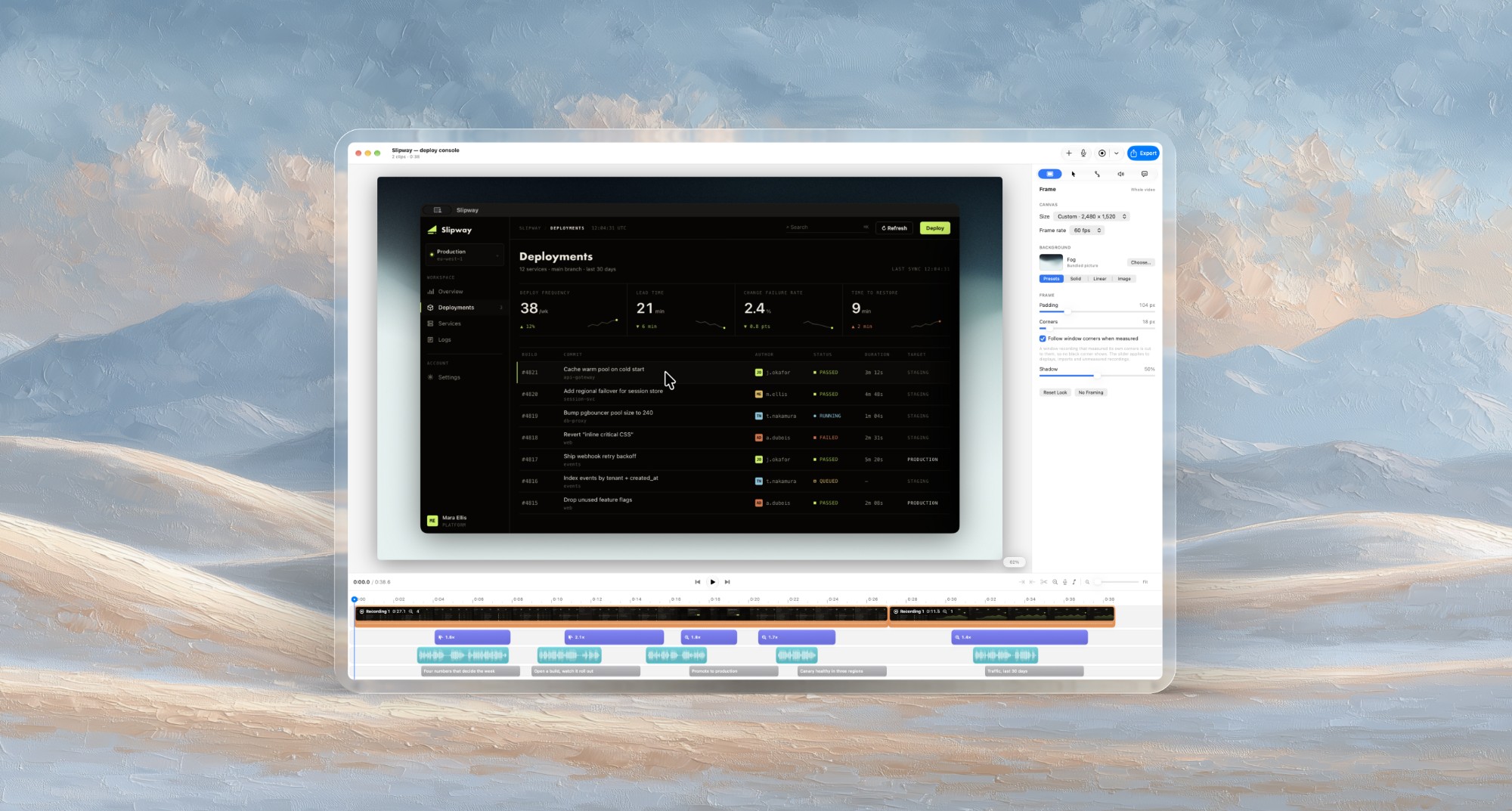
**Lumae** turns a raw screen recording into a product demo that looks edited by hand. Record a
display, a window or an area of your Mac; Lumae zooms in where you clicked, redraws the cursor so
it glides, frames the video on a background, and transcribes your voice into captions. Add your
camera, a voiceover, music and title cards on one timeline, then export MP4, MOV, ProRes or GIF.
Screenshots get the same treatment: capture, annotate, frame, copy.
It is native (SwiftUI, AppKit, ScreenCaptureKit, AVFoundation), everything runs on your Mac,
and it is free: no account, no watermark, no export limits.
And because Lumae is also a [Model Context Protocol](https://modelcontextprotocol.io) server,
**Claude Code, Claude Desktop, Codex, Cursor or any MCP client can film a demo, cut it, zoom it,
caption it and export it for you**, working live in the same editor you use.
## Contents
- [Install](#install)
- [Features](#features)
- [Let an AI agent record and edit your demos (MCP)](#let-an-ai-agent-record-and-edit-your-demos-mcp)
- [Privacy](#privacy)
- [Keyboard shortcuts](#keyboard-shortcuts)
- [FAQ](#faq)
- [Feedback and support](#feedback-and-support)
## Install
**Disk image.** Download `Lumae-.dmg` from the
[latest release](https://github.com/matlegault/lumae-releases/releases/latest), open it and drag
Lumae into Applications. Every build is signed with a Developer ID and notarized by Apple.
**Homebrew.**
```bash
brew install --cask matlegault/lumae/lumae
```
**Requirements.** macOS 26.0 or later, on Apple silicon or Intel (Lumae is a universal app).
On first launch Lumae asks once for the Screen Recording permission. The microphone and camera are
asked for only when you first record with them.
**Updates** arrive inside the app through [Sparkle](https://sparkle-project.org): Lumae checks once a
day, downloads a small signed delta, and installs when you say so. **Lumae › Check for Updates…**
checks right away. Homebrew leaves an installed copy alone, so the app stays the one updater.
## Features
### Screen recording
- **Record a display, a window or an area** with Lumae's own selector: drag an area, press Space to
pick a window, or take the whole display. Start from the menu bar, the library or a global
shortcut in any app.
- **Frame an area exactly.** Its size and shape read out as you drag; the arrow keys nudge it a
point at a time (ten with ⇧), ⇧ keeps the canvas's shape and ⌥ draws from the centre. The next
recording starts on the area you used last.
- **A countdown you can skip or call off.** Return or a click starts recording at once, Esc
cancels, and neither reaches the app you are about to record.
- **Lumae steps out of the way.** Its windows hide while you record and come back with the new
clip when you stop, and the recording controls show your microphone's level.
- **Restart or discard a take** from the recording controls: a fumbled take is thrown away and the
countdown starts again on the same window or area.
- **System audio and the microphone** are one toggle each, and you choose the microphone.
- **Film your camera at the same time.** It lands on a lane of its own as a bubble: circle,
squircle, square or widescreen, any corner, with a ring, a shadow and mirroring. A floating
preview shows you on screen while you record, and fades when the pointer comes near it so you
can see what you are clicking.
- **Keep the recording controls out of your way.** The recording pill opens beside what you
record rather than on it; drag it anywhere and the next recording opens it there, unless that
would cover what you record.
- **Retake one clip** on the same area without touching the rest of the project, or record a new
clip onto the end.
- **Your camera and voice stay with their recording.** What the camera and microphone record beside
a clip moves, trims, splits, speeds up and deletes with it, in sync, the way Final Cut keeps a
clip's sound with its picture. A voice can still start before its picture or run on after it, and
any take can be linked to a clip or unlinked by hand (⌘L).
### Automatic zoom, smooth cursor, motion blur
- **Automatic zoom** reads the clicks in your recording and zooms in on them. Clicks close together
become one move, leading in before the first and holding after the last. Every zoom stays
editable: move it, resize it, change its scale, or add your own.
- **Zooms can follow the cursor**, panning to keep the pointer in view, or be aimed by hand on a
focus map of the frame. Set the scale new zooms start at, how long they ease and the shape of
the ease (Gentle, Standard or Snappy) once for the whole video.
- **A cursor worth watching.** Lumae hides the real pointer and redraws it from macOS's own vector
artwork: a smoothed path, sharp at any zoom, with a ripple on every click. Choose per clip
between that arrow, a touch circle for showing taps, the pointer as recorded, or none.
- **Crisp text up close.** Exports and paused frames redraw a zoomed-in recording with Lumae's own
upscaling model, trained on software interfaces, so text and controls stay sharp under a zoom.
- **Motion blur** on zooms and pans, sampled across a virtual shutter the way a camera lens blurs.
### Timeline editing
- **One timeline for everything**: clips, zooms, camera takes, narration, music and captions. Every
lane moves, trims, splits (⌘B) and snaps by the same rules.
- **Cut, copy and paste** anything on the timeline, across lanes and between projects. A pasted
recording keeps its drawn cursor and its clicks.
- **Title cards.** Press T for a title with its own font (Default, Rounded, Serif or Mono), weight,
colour and alignment, revealed all at once or by line, word or letter with Fade, Slide, Rise,
Focus, Pop or Type, and an exit of its own.
- **Pictures on the timeline** for an opening or closing card, framed, zoomed and faded like any
clip.
- **Fades between clips**, one at a time or on every cut at once.
- **Annotate the video** (A) with the screenshot editor's arrows, lines, rulers, boxes, pen, highlights,
spotlight, blur, labels, numbered steps and emoji stickers. Marks sit in blocks on their own lane, fade in and out, and zoom with
what they point at.
- **Watch it full screen** (F) with a player's controls, to judge the cut as your viewers will.
- **Crop a clip after recording it** (C): free, to the canvas, the original shape, 16:9, 4:3 or
square. Its zooms keep looking at the same thing, and one click gives the same crop to the other
clips of that recording.
- **Clip speed from 0.25× to 24×** with the pitch kept, for turning a long wait into a few seconds.
- **Nondestructive.** Edits never touch your media; nothing is re-encoded until you export, every
change is one step in Undo, and projects save as you go.
### Backgrounds and framing
- **Put the recording on a colour, a gradient, one of more than fifty bundled pictures, or an image
of your own.** Lumae remembers the one you used last, keeps the pictures you add, and saves the
colours and gradients you mix so every project and screenshot can use them again.
- **Padding, shadow and corner radius**, with corners matched to the recorded window's own, so the
frame lands exactly on its edges. A full-screen recording fills the frame with square corners.
- **A look per video or per clip.** Any clip can depart from the video's look and come back to it
in one click.
- **Canvas sizes** for every destination: 1080p, 720p, 4K, square, vertical 1080 × 1920 for
Shorts, Reels and TikTok, or a custom size.
### Voiceover, music and captions
- **Narrate over the timeline while it plays.** The clips' own sound ducks under your voice, and a
take lines up with the picture it was recorded against. It punches in from the playhead, replacing
what it covers, and stays with the picture it was recorded over. Each narration segment has its own
level and fades.
- **A music track** with its own level, fades and ducking under narration, so the voice stays on
top without riding a slider.
- **Captions transcribed on your Mac** with Apple's on-device speech recognition, split into lines
people can read, every word editable inline. Or write a caption by hand at the playhead (⌥⌘T).
### Screenshots and annotation
- **Capture a display, a window or an area** from a global shortcut, the menu bar or the File
menu. Add ⌃ to the shortcut to send the picture straight to the clipboard.
- **A thumbnail after every capture**, in a corner of the screen: drag it into any app, copy it,
save it to a folder you choose, look at it with Quick Look, open it to annotate, rename it or
swipe it away. Thumbnails stack until you dismiss them or close on their own after a while, and
can follow the pointer to another display. Or have every capture open straight in the editor.
- **Freeze the screen while you choose**, to catch a tooltip or a hover state that would vanish
as soon as you moved.
- **Annotate** with arrows, lines, rectangles, ellipses, a pen, highlights, a spotlight, blur, text,
numbered steps and emoji stickers, measure anything with a ruler that clings to edges, and crop. None of it is painted onto the pixels, so every mark stays editable later.
- **Frame a screenshot like a video**, on the same backgrounds, with padding, corners and shadow.
- **Copy Image** (⇧⌘C) or **export a PNG** (⌘E) at the picture's own pixel density.
### Your projects
- **A library that works like Finder.** Select several projects or screenshots at once, rename
them in place, search them by name and make the cards bigger or smaller. Moving something to
the Trash asks nothing, and Undo puts it back.
- **Skim a project** by moving the pointer across its card.
- **Drop a video** on the library to start a project with it, or a picture to annotate it, and
drag a screenshot out into any app.
- **New projects name themselves** after what their first recording filmed.
### Export
- **H.264 or HEVC** in MP4 or MOV, with a Quality of Good, High or Best that means the same look at
720p as at 4K.
- **ProRes 422 LT, 422, 422 HQ and 4444** for handing the video to an editor such as Final Cut Pro
or Premiere.
- **Animated GIF** for READMEs, docs and chat, with its own frame rate, palette, dithering and
looping.
- The preview and the export share one renderer, so what you see is what you get.
## Let an AI agent record and edit your demos (MCP)
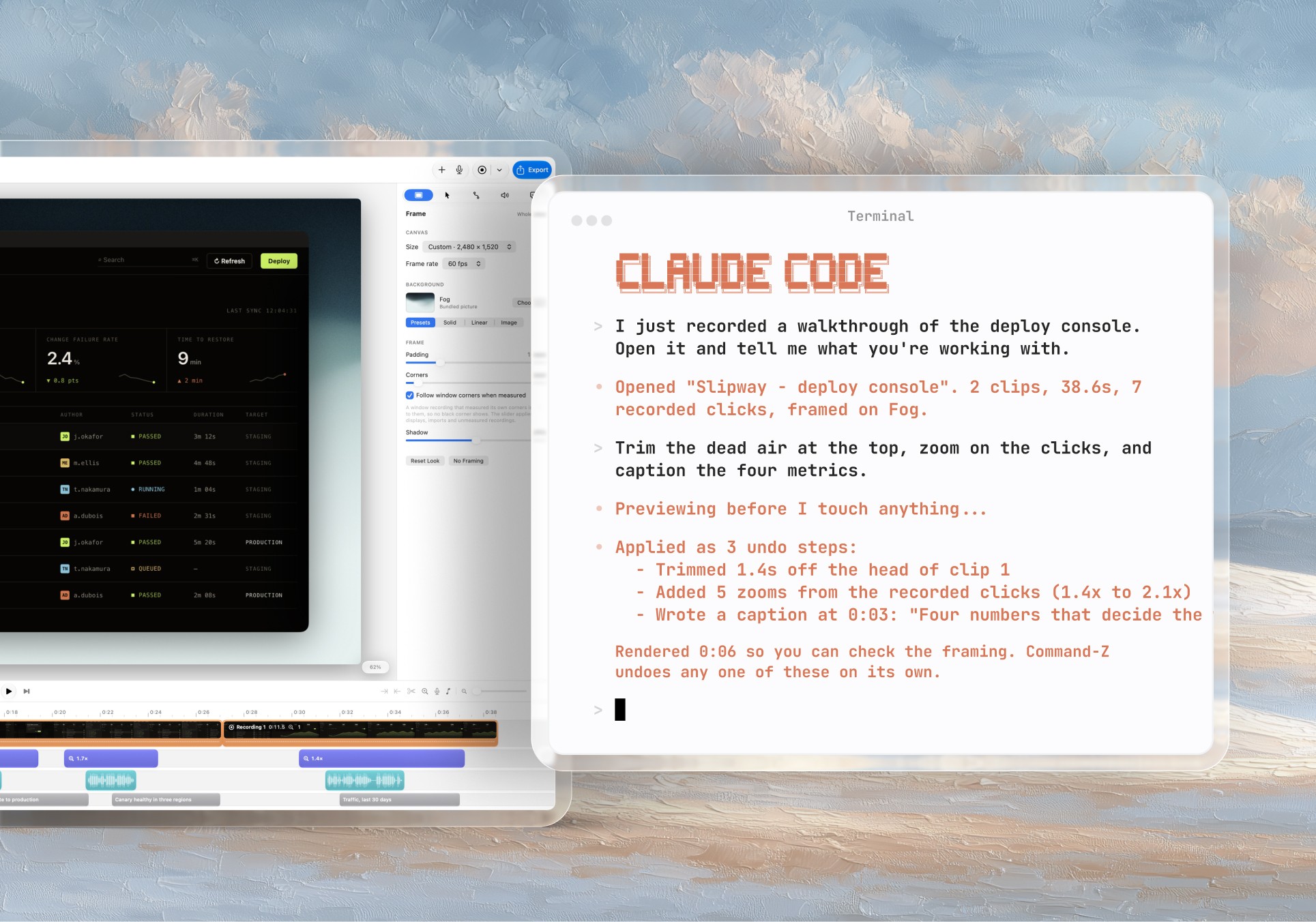
Lumae has an MCP server built into the app, so a coding agent or AI assistant can work on your
videos directly. Everything an agent does goes through the same editing engine as your own clicks:
it happens live in the editor window, it is one step in **Edit › Undo**, and it saves like anything
else.
Things you can ask for:
> *"Record the Safari window while you walk through our sign-up flow, then cut the dead air and zoom
> in on each click."*
>
> *"Transcribe my narration, write the captions, and put a title card at the start."*
>
> *"Fade between every clip, make the background the dark gradient, and export a 1080p MP4."*
**Connect Claude Code** in one line:
```bash
claude mcp add lumae -- /Applications/Lumae.app/Contents/MacOS/lumae-mcp
```
**Claude Desktop** and **Cursor** take the same entry in their MCP config:
```json
{
"mcpServers": {
"lumae": { "command": "/Applications/Lumae.app/Contents/MacOS/lumae-mcp" }
}
}
```
**Codex CLI**, in `~/.codex/config.toml`:
```toml
[mcp_servers.lumae]
command = "/Applications/Lumae.app/Contents/MacOS/lumae-mcp"
```
**Settings › MCP Server** in the app prints each of these with a Copy button, and Lumae does not
need to be running first: it launches when a client connects. Lumae is also listed in the
[official MCP Registry](https://github.com/modelcontextprotocol/registry) as `io.github.matlegault/lumae`.
### What an agent can do
| | Tools |
|---|---|
| **Record** | `list_capture_targets`, `start_recording`, `recording_state`, `stop_recording` (optionally trimmed to what happened), `perform_gesture` (moves, clicks, drags, scrolls and types with a person's pacing, on camera), `mark_moment` (labels a beat as it happens) |
| **Edit** | `edit_project` (every edit the app can make, applied as one undo step), `remove_range`, `split_at`, `move_item`, `trim_item`, `add_zoom_at`, `auto_zoom`, `copy_items`, `import_media`, `undo`, `redo` |
| **See** | `get_project` (the timeline with every click and mark), `render_frame`, `sample_frames`, `preview_edit` (what a change *would* look like, before it is made) |
| **Finish** | `transcribe` (on-device, with word timings), `export_project` (H.264, HEVC, ProRes or GIF) |
| **Projects** | `list_projects`, `open_project`, `create_project` |
| **Guides** | `get_skill` (demo direction, recording and editing guides written for agents), `describe_commands` |
### Built so you stay in charge
- A recording an agent starts shows the same countdown and floating controls as yours, and you can
stop, restart or discard it from them; it is never invisible on the Mac it runs on.
- `perform_gesture` works only while a recording is running and stops with it. It needs the
Accessibility permission, which only you can grant.
- The microphone and camera stay off in an agent's recording unless it asks for them.
- An agent's exports are written under `~/Movies`, and replace an existing file only when asked
to, once the new one is complete.
- Nothing about your projects leaves your Mac through MCP except what your client asks for and
shows you.
The full guide, with every tool, the recording loop and troubleshooting, is
**[docs/MCP.md](https://github.com/matlegault/lumae-releases/blob/main/docs/MCP.md)**.
## Privacy
Recording, rendering, captions and transcription all run on your Mac; none of your work is uploaded.
Lumae makes two kinds of network request: the daily update check, which reads a small feed from this
repository, and anonymous usage statistics (counts, durations and choices, never names, paths,
text or pixels), which you can turn off in **Settings › Privacy**. While an agent is connected they
also note which tools it called and the one-line reason it gave for each; the
[MCP guide](https://github.com/matlegault/lumae-releases/blob/main/docs/MCP.md#privacy) lists
exactly what.
Projects live in `~/Movies/Lumae` as `.lumae` packages, and screenshots as `.lumaeshot` packages
in its Screenshots folder: your original media plus a small description of the edits. Older
projects move forward to each new version automatically; a project opened by a newer version
cannot be opened by an older one.
## Keyboard shortcuts
| Shortcut | Does |
|---|---|
| ⌥⌘3 | Screenshot of the display |
| ⌥⌘4 | Screenshot of an area or a window (Space picks a window) |
| ⌥⌘5 | Start or stop a recording |
| ⌥⌘6 | Record an area |
| ⌃ added to ⌥⌘3 or ⌥⌘4 | Copy the screenshot to the clipboard |
| Space, ⌘C, ⌘S, ⌘E, ⌘⌫ | On a screenshot's thumbnail: Quick Look, copy, save, edit, move to the Trash |
| Arrows (⇧ for ten) | Nudge a recording's area before Record |
| Return / Esc | During the countdown: start now / cancel |
| T | Add a title card |
| A | Annotate the video at the playhead |
| F | Full-screen preview |
| C | Crop the selected clip |
| ⌘B | Split at the playhead |
| ⌥⌘T | Add a caption at the playhead |
The global shortcuts can be changed in **Settings › Shortcuts**, which can also hand macOS's own
⇧⌘3, ⇧⌘4 and ⇧⌘5 to Lumae.
## FAQ
**Is Lumae free?**
Yes. No account, no card, no watermark and no export limits.
**Is Lumae a Screen Studio alternative?**
It does the same kind of work: screen recordings with automatic zoom, a smoothed cursor,
backgrounds and motion blur, for product demos, tutorials and launch videos. It also has on-device
captions, a camera lane, a music track, title cards, annotated screenshots and an MCP server for AI
agents, and it is free. [lumae.app](https://lumae.app) compares it feature by feature with Screen
Studio, Screen Charm and Tight Studio.
**Which Macs does it run on?**
Any Mac with macOS 26.0 or later, Apple silicon or Intel.
**Can an AI agent really record a demo by itself?**
It can drive the recording, working the app on camera with a person's pacing, and then edit and
export the result. What to demonstrate is still up to you, and the permissions stay yours to grant.
See [the MCP section](#let-an-ai-agent-record-and-edit-your-demos-mcp).
**Is Lumae open source?**
No. This repository holds Lumae's signed releases, its update feed and its MCP guide; the source is
private.
## Feedback and support
Report a bug, ask a question or suggest a feature at [lumae.app/feedback](https://lumae.app/feedback),
or open an [issue here](https://github.com/matlegault/lumae-releases/issues). Your Lumae and macOS
versions, and what you expected to happen, make most bugs quick to fix.
Follow new releases with the [release feed](https://github.com/matlegault/lumae-releases/releases.atom),
or watch this repository for releases.
---
This repository holds the disk images, the Sparkle update archives and deltas, the
appcast.xml feed and the .mcpb MCP bundle attached to each
release.