#### :closed_book: [canvas-sketch](../README.md) → [Documentation](./README.md) → Installation
---
## Installation
The recommended way to use `canvas-sketch` and its tooling is with its _command-line interface_. This will run a local development server that handles browser reload on file save, high-quality PNG exporting, and other features.
Requirements:
- [Node.js](https://nodejs.org/en/) 15 or higher
- [npm](https://www.npmjs.com/) 7 or higher
- A command-line terminal (such as the default `Terminal.app` in macOS, or [cmder](http://cmder.net/) in Windows)
If you don't have these tools, or would rather not use them, see the following:
- [Installing Node.js, npm and a terminal](./troubleshooting.md#installing-nodejs-npm-and-a-terminal)
- [Using `canvas-sketch` with Webpack and Other Bundlers](./troubleshooting.md#using-canvas-sketch-with-webpack-and-other-bundlers)
- [Using `canvas-sketch` without Node.js and npm](./troubleshooting.md#using-canvas-sketch-without-nodejs-and-npm)
## How to Install the CLI
You can choose between three ways to install and use the CLI tool:
- Option 1: Quick-start with `npx`
- Option 2: Installing globally with `--global`
- Option 3: Installing locally with `--save-dev`
### Option 1: Quick-Start with `npx`
A simple way to use the tool is with [`npx`](https://docs.npmjs.com/cli/v7/commands/npx) which comes built-in to npm. Run it like this:
```sh
# Make a new folder to hold all your generative sketches
mkdir my-sketches
# Move into that folder
cd my-sketches
# Scaffold a new sketch file and open the browser
npx canvas-sketch-cli --new --open
```
> :bulb: Using `npx`, instead of the `canvas-sketch` command, you will use `npx canvas-sketch-cli` (notice the `-cli` suffix).
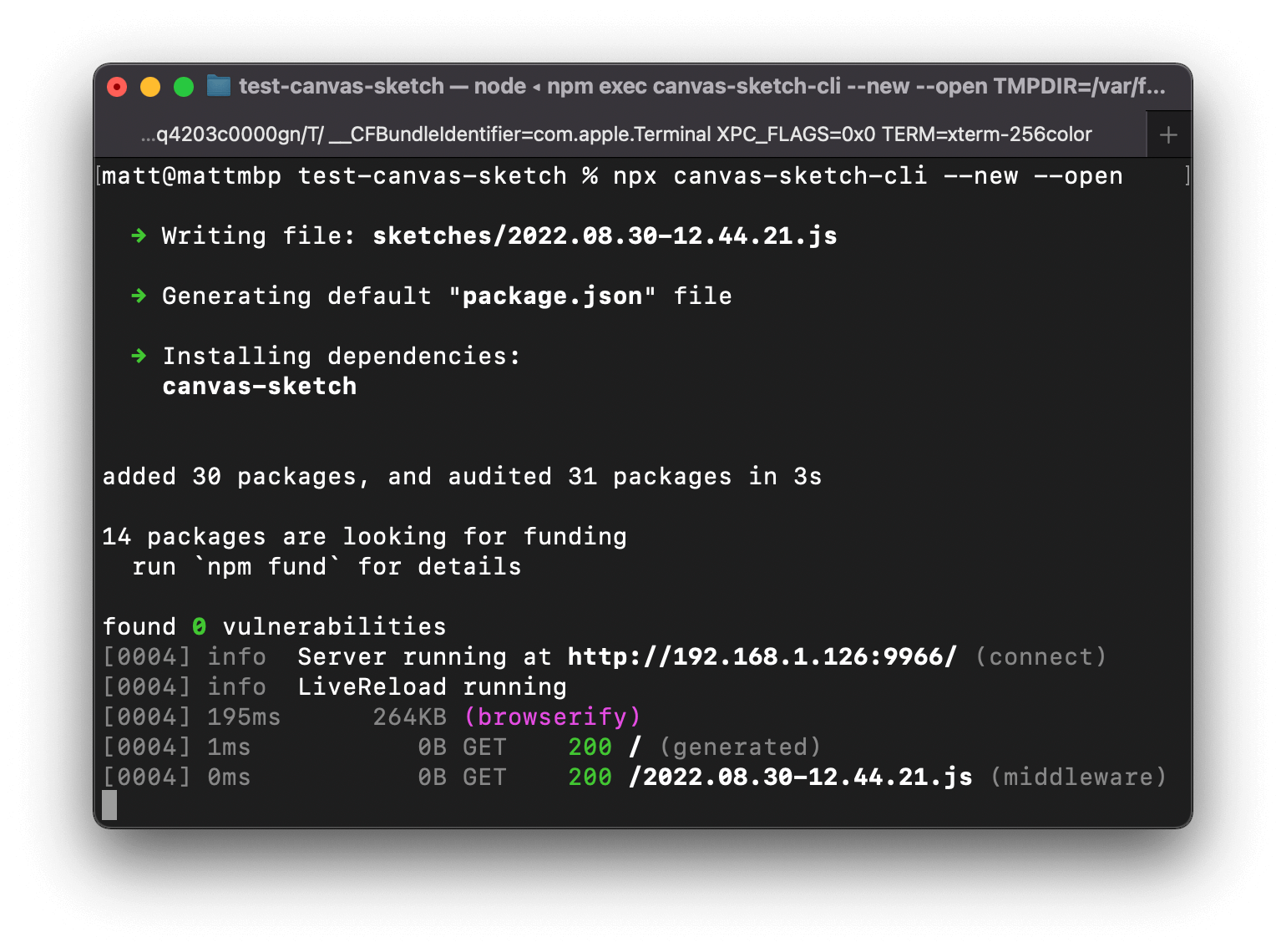 The above command does a few things:
- Stub out a new sketch into `sketches/[current-timestamp].js`
- Generate a default `package.json` for your dependencies
- Install any required dependencies (in this case, `canvas-sketch`)
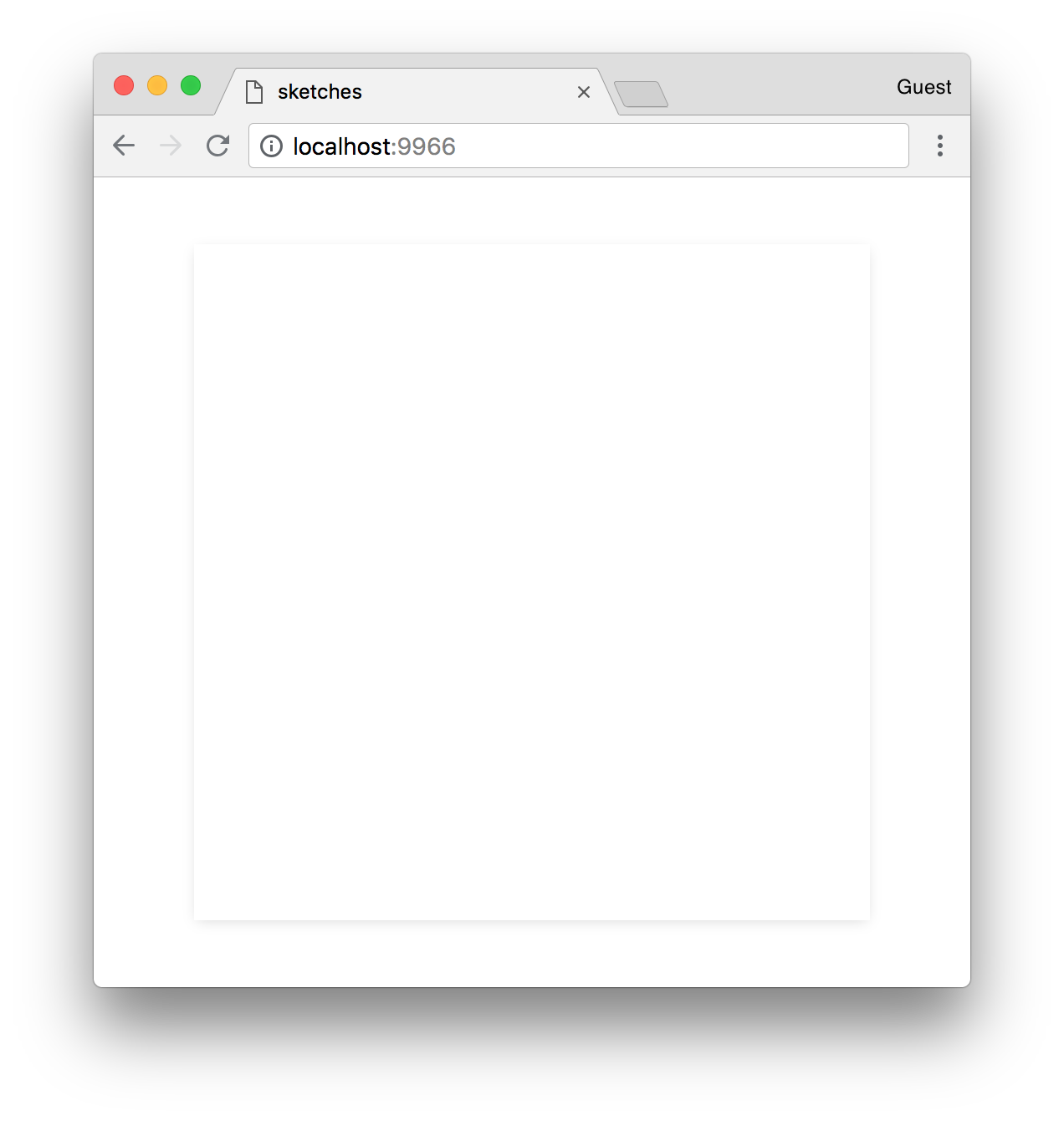
It also launches your default browser to [http://localhost:9966/](http://localhost:9966/) (the development server), showing a blank white canvas:
The above command does a few things:
- Stub out a new sketch into `sketches/[current-timestamp].js`
- Generate a default `package.json` for your dependencies
- Install any required dependencies (in this case, `canvas-sketch`)
It also launches your default browser to [http://localhost:9966/](http://localhost:9966/) (the development server), showing a blank white canvas:
 Now you can edit the newly created JavaScript file in the `sketches/` folder. When you save changes, the browser will reload immediately.
For example, try changing the `'white'` fill style to `'red'`.
```js
const canvasSketch = require("canvas-sketch");
const settings = {
dimensions: [2048, 2048],
};
const sketch = () => {
return ({ context, width, height }) => {
context.fillStyle = "red"; // <-- Try changing the color
context.fillRect(0, 0, width, height);
};
};
canvasSketch(sketch, settings);
```
### Option 2: Installing the CLI Globally (`--global`)
You might want to install the CLI tool globally, so that you can just type `canvas-sketch` into your terminal. This is the command that a lot of the documentation will assume.
You can use the following to install it globally:
```sh
npm install canvas-sketch-cli --global
```
> :bulb: If you run into errors, see [Troubleshooting](./troubleshooting.md#fixing-eaccess-error-on-npm-install--g).
After installing, you may need to quit and re-open your terminal app.
Example usage:
```sh
# Make a new folder to hold all your sketches
mkdir my-sketches
# Move into that folder
cd my-sketches
# Start a new sketch and open the browser
canvas-sketch sketch.js --new --open
```
### Option 3: Installing the CLI Locally (`--save-dev`)
If you prefer not to install your CLI tools globally, you can install the CLI locally in each project that you need it by saving it as a `devDependency`:
```sh
npm install canvas-sketch-cli --save-dev
```
Now, to run it in each project, you can add `canvas-sketch` commands to your [`npm run` scripts](https://docs.npmjs.com/cli/run-script), or use [`npx`](https://blog.npmjs.org/post/162869356040/introducing-npx-an-npm-package-runner) which will try to run the locally-installed version first:
```sh
npx canvas-sketch my-sketch.js --open
```
> :bulb: If you've installed `canvas-sketch-cli` locally, you can then use `npx` to run the command in that project folder without needing to include the `-cli` suffix.
## More Tips
#### 💾 Exporting as PNG
In the browser, hit `Cmd + S` or `Ctrl + S` to export your canvas as a PNG file. It will be saved to your `~/Downloads` folder (and similar across other platforms).
#### :bulb: A Few More Examples to Try
Now that you've got it running, you could try out a few different commands:
```sh
# Run the development server on an existing file
canvas-sketch src/foobar.js
# Start a new sketch from the Three.js template
canvas-sketch --new --template=three --open
# Build your sketch to a sharable HTML + JS website
canvas-sketch sketches/my-sketch.js --build
# Paste the clipboard contents & run a new sketch at './foo.js'
pbpaste | canvas-sketch foo.js --new
```
## Updating
There are two separate packages, so you might need to update them separately:
- The `canvas-sketch` JavaScript API and library
- The `canvas-sketch-cli` CLi tool and application
### Updating `canvas-sketch` (JavaScript API and Library)
When you run `canvas-sketch-cli` in a folder, it will often install the library locally as a `dependency` in your `package.json` for that folder. To update this, you can re-install the library (not the CLI) locally in each project folder that uses it:
```sh
npm install canvas-sketch@latest
```
### 1. Updating the CLI using the Quick-Start `npx`
If you're just using `npx` Quick-Start, you will need to clear the npx cache. Run the following:
```sh
npx clear-npx-cache@1.0.1
```
Then you can re-run your command with `npx` and it will pick up the latest version, such as:
```sh
npx canvas-sketch-cli sketch.js
```
### 2. Updating a Globally Installed CLI (`--global`)
If you've previously installed the tool globally (Option 2), you can update it just by re-installing:
```sh
npm install canvas-sketch-cli@latest --global
```
### 3. Updating a Locally Installed CLI (`--save-dev`)
If you've previously installed the tool locally (Option 3), you can update it just by re-installing:
```sh
npm install canvas-sketch-cli@latest --save-dev
```
##
Now that you're set up, you might like to read [A "Hello, World" Sketch](./hello-world.md).
#### [← Back to Documentation](./README.md)
Now you can edit the newly created JavaScript file in the `sketches/` folder. When you save changes, the browser will reload immediately.
For example, try changing the `'white'` fill style to `'red'`.
```js
const canvasSketch = require("canvas-sketch");
const settings = {
dimensions: [2048, 2048],
};
const sketch = () => {
return ({ context, width, height }) => {
context.fillStyle = "red"; // <-- Try changing the color
context.fillRect(0, 0, width, height);
};
};
canvasSketch(sketch, settings);
```
### Option 2: Installing the CLI Globally (`--global`)
You might want to install the CLI tool globally, so that you can just type `canvas-sketch` into your terminal. This is the command that a lot of the documentation will assume.
You can use the following to install it globally:
```sh
npm install canvas-sketch-cli --global
```
> :bulb: If you run into errors, see [Troubleshooting](./troubleshooting.md#fixing-eaccess-error-on-npm-install--g).
After installing, you may need to quit and re-open your terminal app.
Example usage:
```sh
# Make a new folder to hold all your sketches
mkdir my-sketches
# Move into that folder
cd my-sketches
# Start a new sketch and open the browser
canvas-sketch sketch.js --new --open
```
### Option 3: Installing the CLI Locally (`--save-dev`)
If you prefer not to install your CLI tools globally, you can install the CLI locally in each project that you need it by saving it as a `devDependency`:
```sh
npm install canvas-sketch-cli --save-dev
```
Now, to run it in each project, you can add `canvas-sketch` commands to your [`npm run` scripts](https://docs.npmjs.com/cli/run-script), or use [`npx`](https://blog.npmjs.org/post/162869356040/introducing-npx-an-npm-package-runner) which will try to run the locally-installed version first:
```sh
npx canvas-sketch my-sketch.js --open
```
> :bulb: If you've installed `canvas-sketch-cli` locally, you can then use `npx` to run the command in that project folder without needing to include the `-cli` suffix.
## More Tips
#### 💾 Exporting as PNG
In the browser, hit `Cmd + S` or `Ctrl + S` to export your canvas as a PNG file. It will be saved to your `~/Downloads` folder (and similar across other platforms).
#### :bulb: A Few More Examples to Try
Now that you've got it running, you could try out a few different commands:
```sh
# Run the development server on an existing file
canvas-sketch src/foobar.js
# Start a new sketch from the Three.js template
canvas-sketch --new --template=three --open
# Build your sketch to a sharable HTML + JS website
canvas-sketch sketches/my-sketch.js --build
# Paste the clipboard contents & run a new sketch at './foo.js'
pbpaste | canvas-sketch foo.js --new
```
## Updating
There are two separate packages, so you might need to update them separately:
- The `canvas-sketch` JavaScript API and library
- The `canvas-sketch-cli` CLi tool and application
### Updating `canvas-sketch` (JavaScript API and Library)
When you run `canvas-sketch-cli` in a folder, it will often install the library locally as a `dependency` in your `package.json` for that folder. To update this, you can re-install the library (not the CLI) locally in each project folder that uses it:
```sh
npm install canvas-sketch@latest
```
### 1. Updating the CLI using the Quick-Start `npx`
If you're just using `npx` Quick-Start, you will need to clear the npx cache. Run the following:
```sh
npx clear-npx-cache@1.0.1
```
Then you can re-run your command with `npx` and it will pick up the latest version, such as:
```sh
npx canvas-sketch-cli sketch.js
```
### 2. Updating a Globally Installed CLI (`--global`)
If you've previously installed the tool globally (Option 2), you can update it just by re-installing:
```sh
npm install canvas-sketch-cli@latest --global
```
### 3. Updating a Locally Installed CLI (`--save-dev`)
If you've previously installed the tool locally (Option 3), you can update it just by re-installing:
```sh
npm install canvas-sketch-cli@latest --save-dev
```
##
Now that you're set up, you might like to read [A "Hello, World" Sketch](./hello-world.md).
#### [← Back to Documentation](./README.md)