oxi

Your Claude Code, Codex and Cursor subscriptions in one conversation.
Switch agents mid-chat and the context comes along. Or run open models on your own machine.
One Rust binary. No Electron, no account, around 70 MB of RAM.

Install · Website · Features · Latest release

Latest release macOS, Linux and Windows CI MIT license

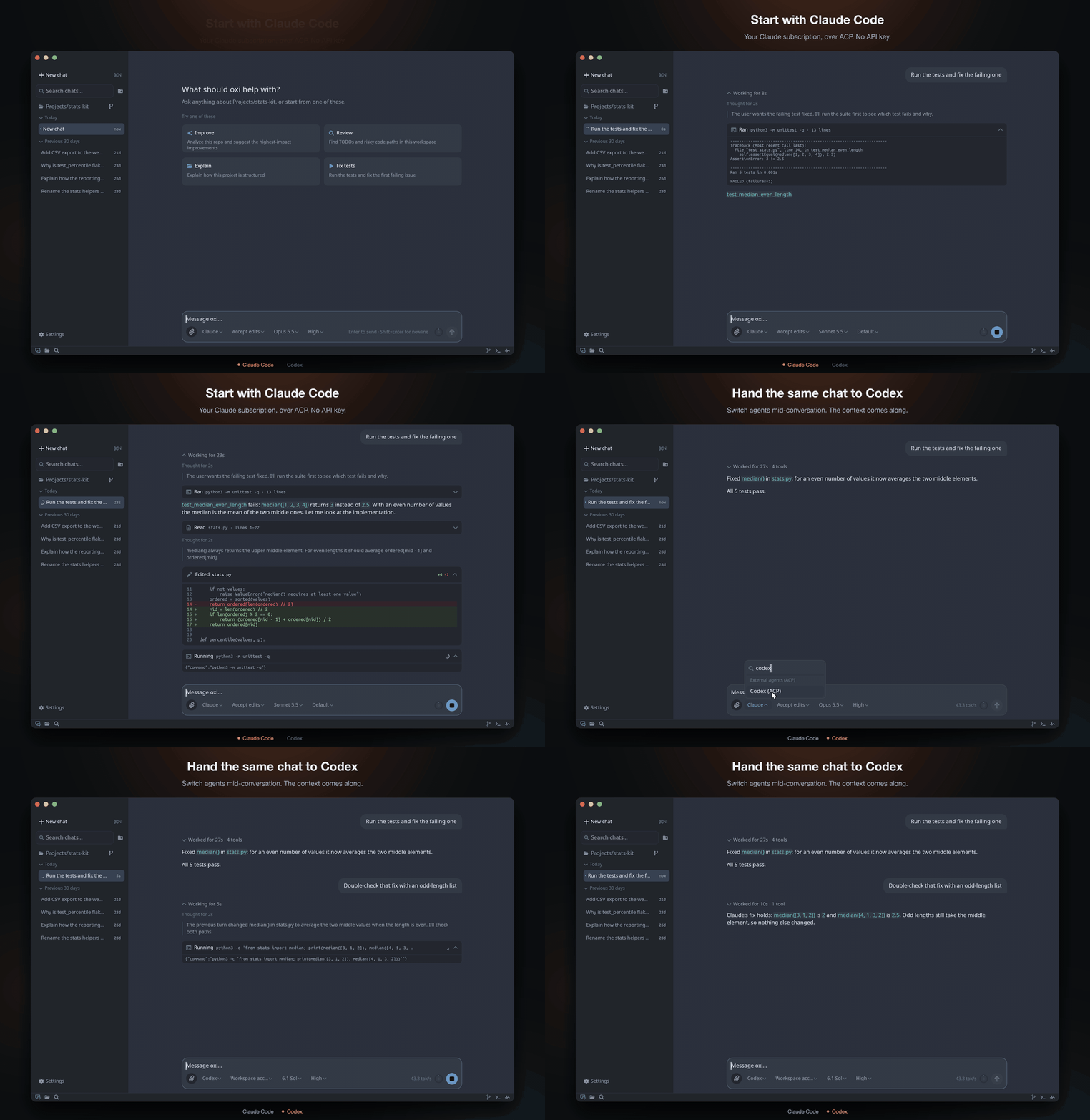
Claude Code fixes a failing test, then the same chat is switched to Codex, which checks the fix knowing what Claude did
Recorded from the real app. More in the one-minute tour.
## Install **macOS (Apple Silicon) and Linux (x86_64):** ```bash curl -fsSL https://maziluiosif.github.io/oxi/install.sh | sh ``` **Windows (x86_64), in PowerShell:** ```powershell irm https://maziluiosif.github.io/oxi/install.ps1 | iex ``` Then run `oxi` inside a project folder, or open it from your apps menu. To update, run `oxi update` or the same command again. If Sublime Text is installed, the same command adds oxi's [Sublime Text package](editors/sublime/README.md) too.
Homebrew, manual download, install options ### Homebrew (macOS, Linux) ```bash brew tap maziluiosif/tap brew install --cask oxi xattr -cr /Applications/oxi.app # macOS only, once after installing ``` ### Manual download Get the archive for your platform from [Releases](https://github.com/maziluiosif/oxi/releases) and extract it. On macOS, move `oxi.app` to `/Applications` and run `xattr -cr /Applications/oxi.app` once, because the app is not notarized by Apple. On Windows, click **More info → Run anyway** the first time. ### Install options | Variable | Effect | |---|---| | `OXI_VERSION` | Install a specific release, e.g. `v1.8.0` | | `OXI_BIN_DIR` | macOS/Linux: where the `oxi` command goes (default `~/.local/bin`) | | `OXI_APP_DIR` | macOS: where `oxi.app` goes (default `/Applications`) | | `OXI_INSTALL_DIR` | Windows: install folder (default `%LOCALAPPDATA%\Programs\oxi`) | | `OXI_SUBLIME` | `1` always installs the Sublime Text package, `0` never does |
Build from source You need **Rust 1.92+** ([rustup](https://rustup.rs)) and C/C++ build tools. ```bash git clone https://github.com/maziluiosif/oxi cd oxi cargo run --release ``` #### Windows prerequisites ```powershell winget install --id LLVM.LLVM -e winget install --id Kitware.CMake -e ``` Also install Visual Studio Build Tools with the **Desktop development with C++** workload. If the build can't find `libclang`, set: ```powershell [Environment]::SetEnvironmentVariable("LIBCLANG_PATH", "C:\Program Files\LLVM\bin", "User") ```
## Your first five minutes 1. **Open a project.** Run `oxi` in its folder, or use **Open folder…** in the sidebar. 2. **Pick a model** in Settings → Models & providers: - **Free and private:** choose **Local HF**, click **Install runtime**, download a model (the usual choice is marked) and click **Run**. - **Already have Claude Code, Codex or Cursor?** Choose it under External agents and click **Make active**. It uses your existing login. - **Have an API key?** Paste it under OpenAI, OpenRouter, Anthropic-compatible and others. 3. **Ask for something real:** *"Run the tests and fix the failing one."* For bigger changes, type `/plan` first. ## What you get
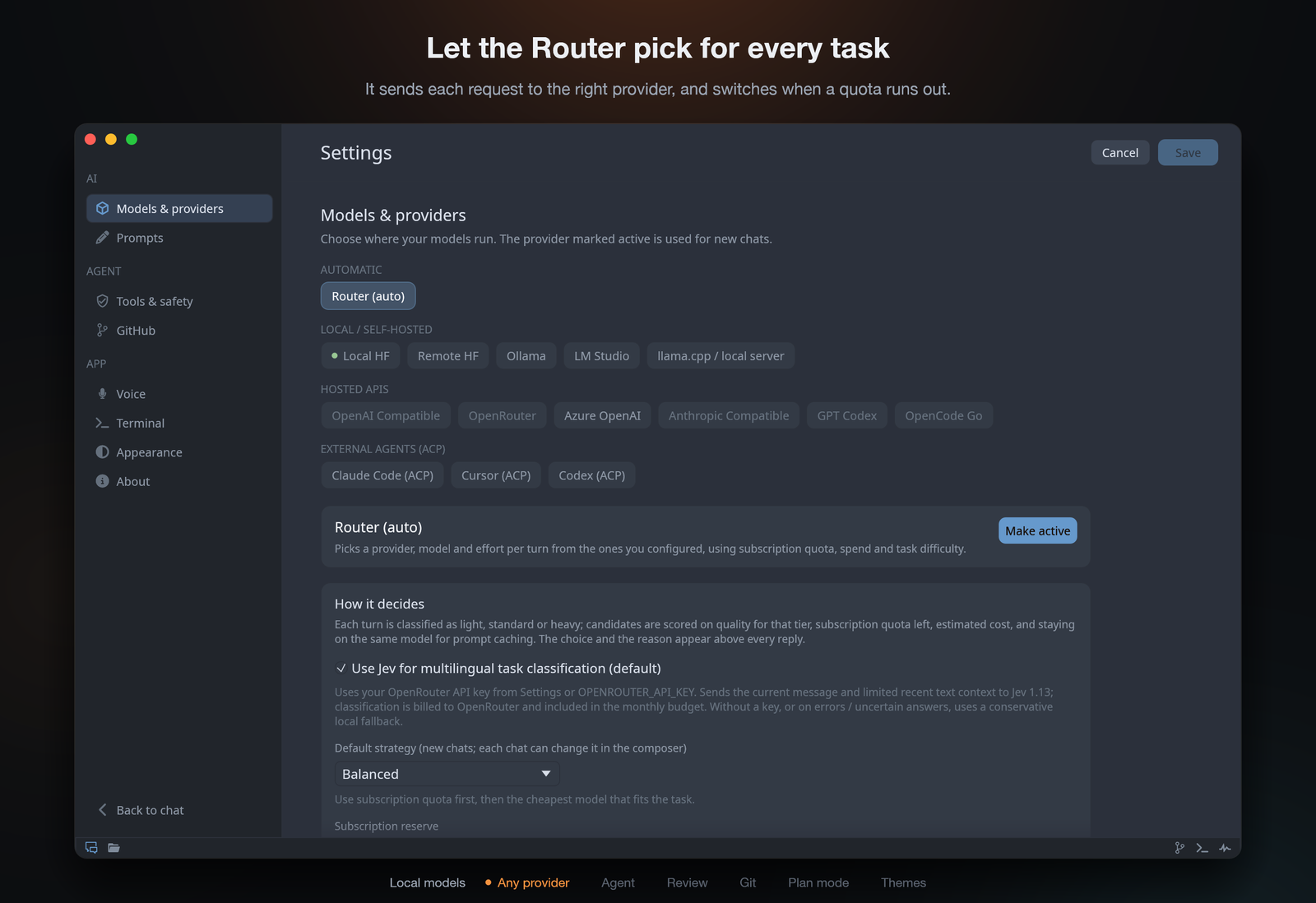
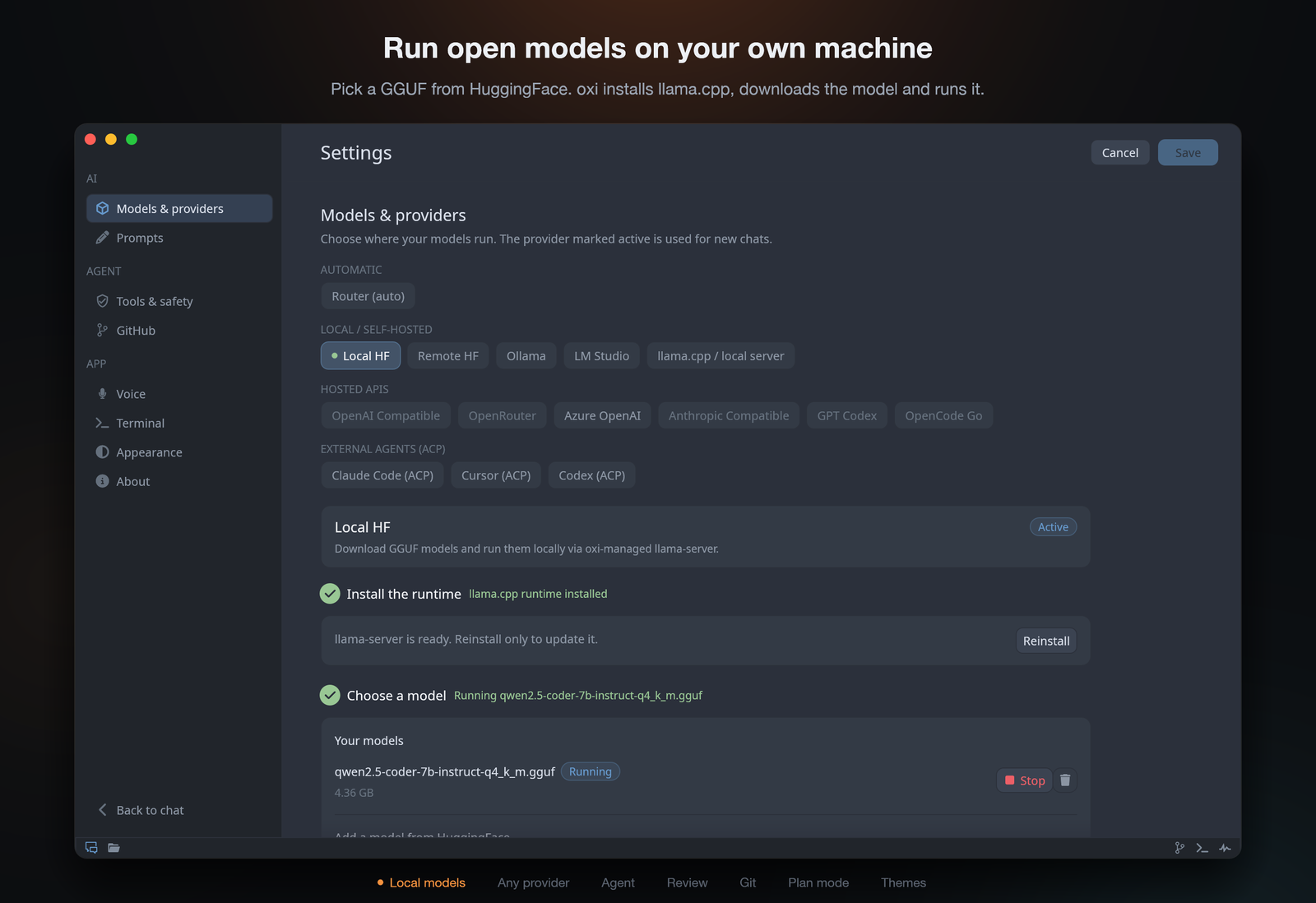
Local HF setup with the runtime installed and a Qwen model running Local models, set up for you. Pick a GGUF from HuggingFace and oxi installs llama-server, downloads it and runs it, here or on a GPU box over SSH. LM Studio and Ollama work too. Router settings Any provider, or all of them. Claude Code, Codex and Cursor over ACP, ChatGPT sign-in, or any API. The Router picks one per task and switches when a quota runs out.
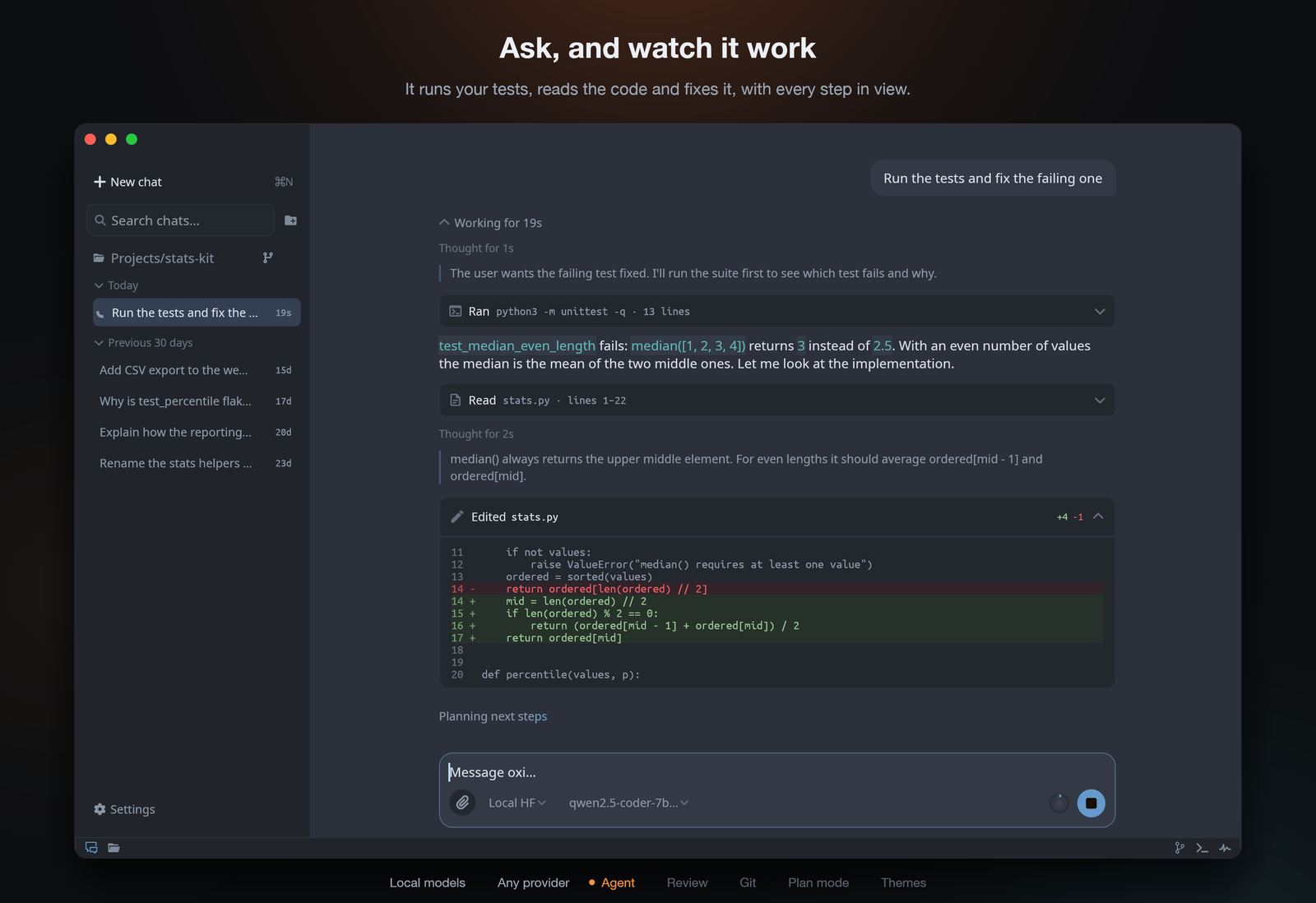
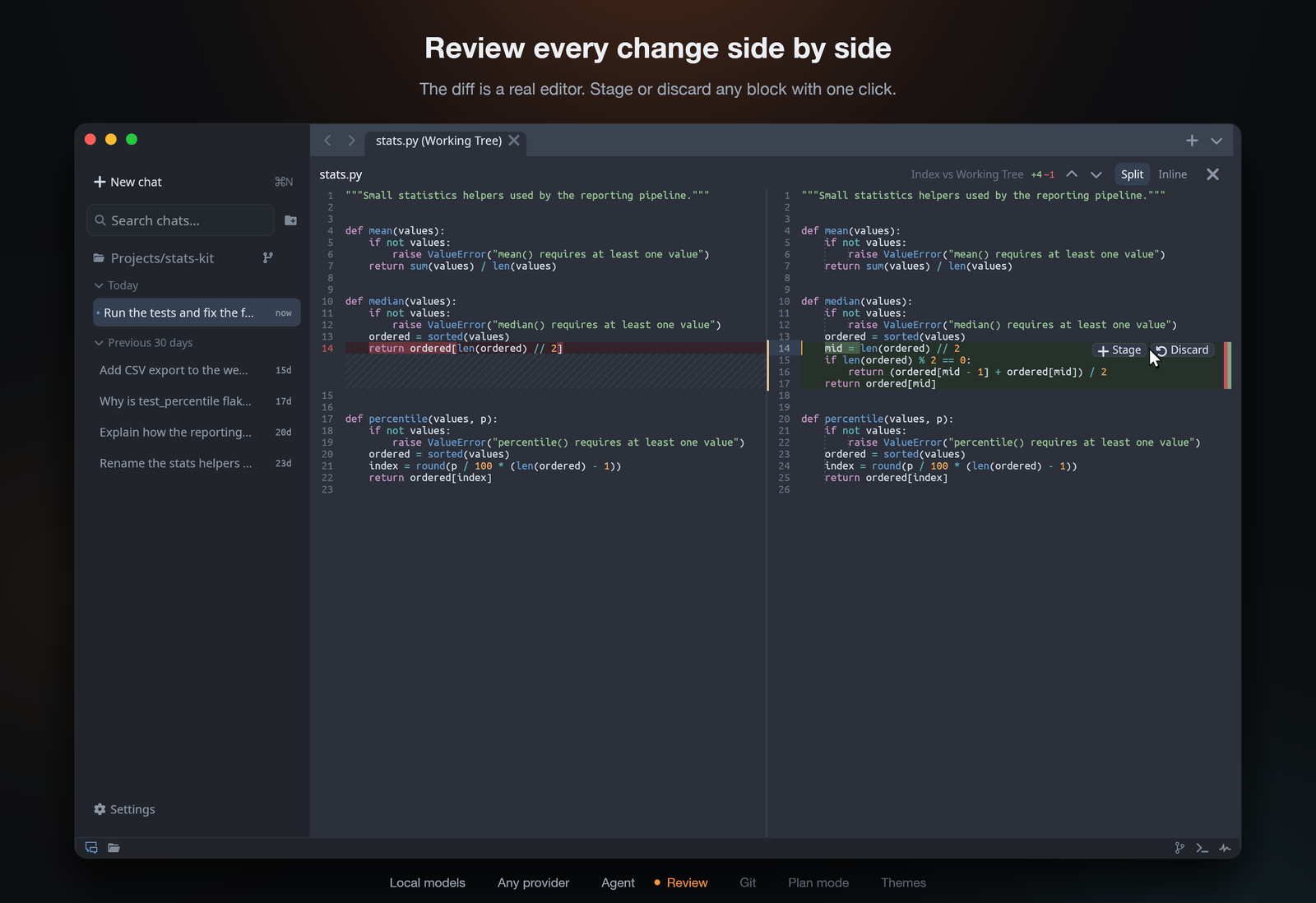
The agent running tests, reading a file and editing it An agent that shows its work. It reads, searches and edits code, runs commands, searches the web and calls your MCP servers. Edits and commands can ask for approval first. Side-by-side diff with Stage and Discard buttons on a change Review in a real diff editor. Side by side or inline, editable, with Stage and Discard on every block. Go to definition, find and replace, minimap and tabs.
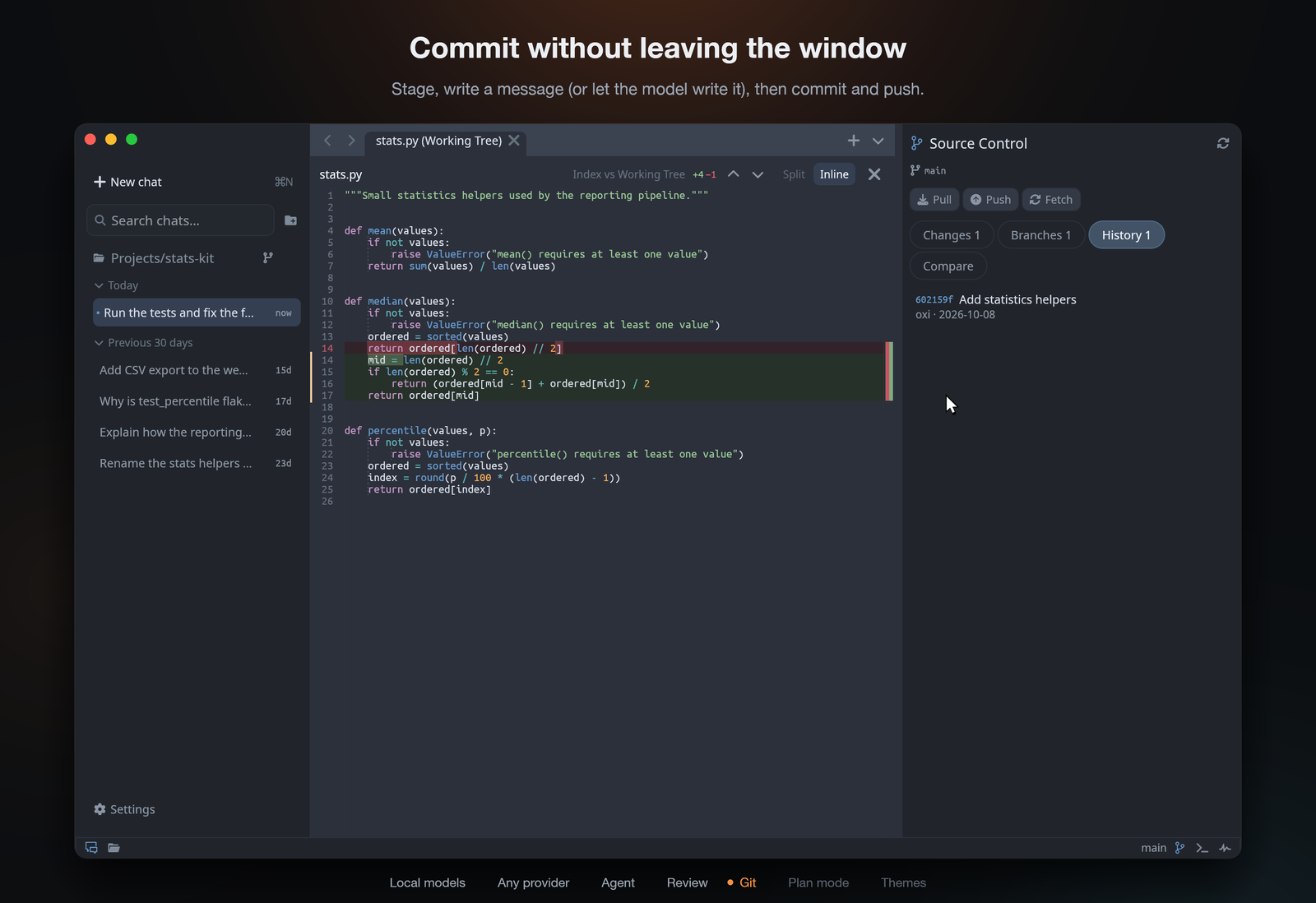
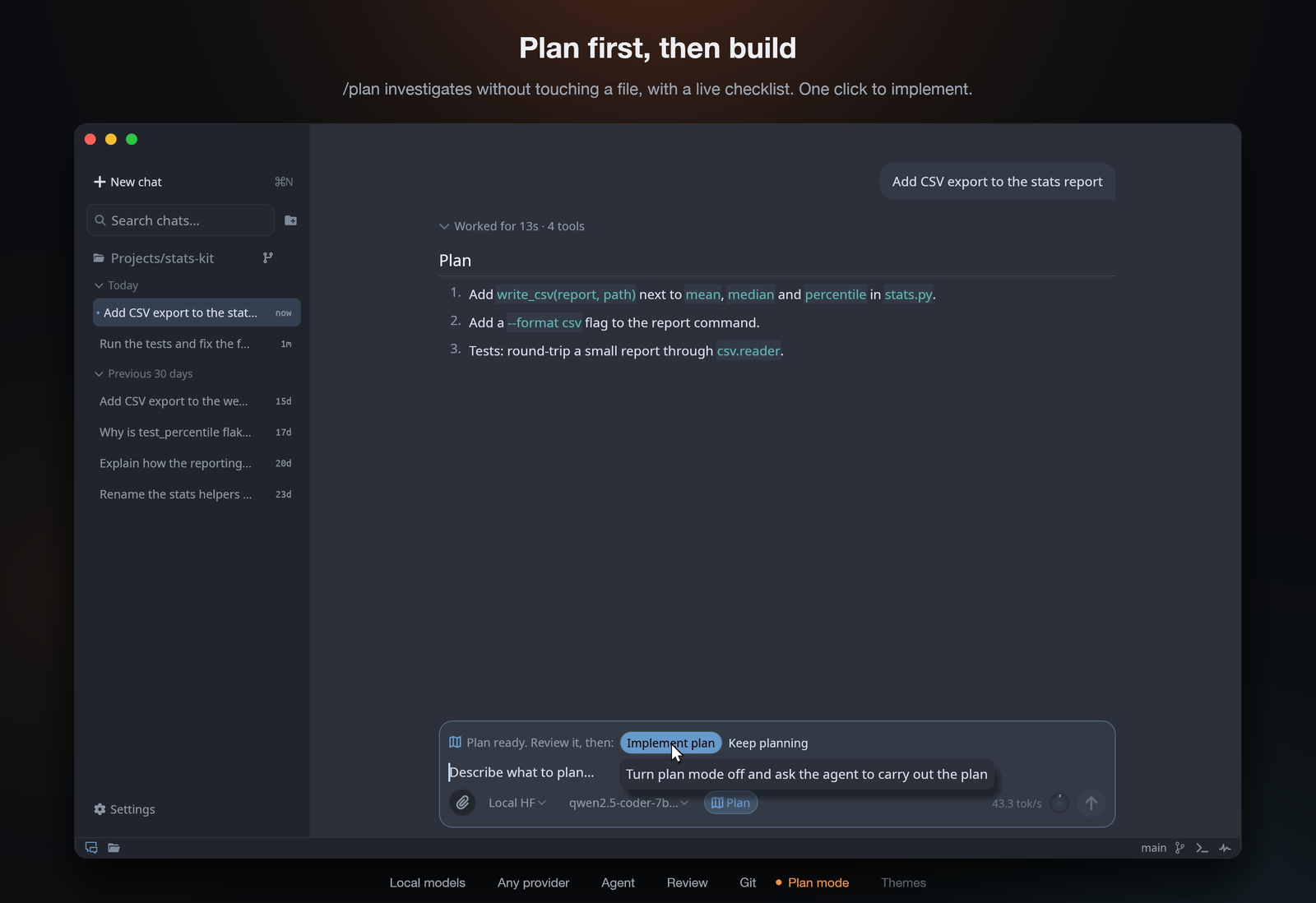
Git panel with a new commit in the history Git built in. Stage, commit, branch, compare, pull and push, with AI-written commit messages. A terminal rooted in your workspace sits one click away. A plan with the Implement plan button Plan first, then build. /plan investigates without changing a file, with a live checklist. One click implements it.
Also: chats saved per workspace, local Whisper voice dictation, web search without an API key (DuckDuckGo, Bing or your SearXNG), custom system prompts, `AGENTS.md` support, and five themes (Dark, Light, Midnight, Sublime, Sublime 4). **Evidence mode.** Click the camera in the composer or send `/evidence` to toggle it; `/evidence ` enables it and sends the task. ACP agents and API/local models that support tool calls can capture before/after images or recordings, run checks, and cite them in a report beneath their response. oxi records check results and flags missing or contradicted claims, requesting missing evidence at most twice. You can enable or disable it while the agent is answering: the live choice applies when that response finishes. Informational replies with no workspace changes do not trigger automatic verification. Unverified edits from earlier in the conversation can still need proof. Existing reports in the same chat are reused when their cited checks/captures cover the exact current workspace state; later changes invalidate that proof. Older reports without workspace version information are not assumed to cover the current state. Commands use the usual shell approvals and, for API/local providers, the configured command timeout. Plan mode takes precedence. Capturing a URL needs a Chromium browser; screen/window capture depends on OS support and permissions. A model can produce captures without vision, but cannot inspect their contents unless images are supplied to a vision-capable model. Headless clients can set `evidence: true` or `false` on `prompt.send`; subsequent turns in that chat retain the choice until it is changed or the chat is reloaded. ## Models and providers Pick a provider in Settings or from the model picker in the composer. | Provider | | |---|---| | **Local HF** | oxi downloads a GGUF and runs `llama-server` for you | | **Remote HF** | Same, on another machine over SSH | | **LM Studio, Ollama, llama.cpp** | Your own local or LAN server, optionally over SSH | | **Claude Code, Cursor, Codex, GitHub Copilot** | Uses your existing subscription through ACP | | **Antigravity** | Official ACP server, downloaded on first use; Google sign-in or a Gemini key | | **GPT Codex** | Sign in with ChatGPT, or use an OpenAI key | | **OpenAI, Azure, OpenRouter, OpenCode Go, Anthropic-compatible** | Hosted APIs with your key | | **Router** | Picks one of your providers per task, and switches if one runs out of quota | With Router you can also just say it in the chat: *"use Codex for this"* or *"from now on use Claude Code"*.
Default URLs and environment variables | Provider | Default base URL | Key from environment | |---|---|---| | OpenAI | `https://api.openai.com/v1` | `OPENAI_API_KEY` | | Azure OpenAI | `https://YOUR_RESOURCE.openai.azure.com/openai/deployments/YOUR_DEPLOYMENT` | `AZURE_OPENAI_API_KEY` | | OpenRouter | `https://openrouter.ai/api/v1` | `OPENROUTER_API_KEY` | | GPT Codex | OAuth, or `https://api.openai.com/v1` with a key | `OPENAI_API_KEY` | | OpenCode Go | `https://opencode.ai/zen/go` | `OPENCODE_GO_API_KEY`, `OPENCODE_API_KEY` | | Custom Anthropic | `http://localhost:8000` | `CUSTOM_ANTHROPIC_API_KEY`, `ANTHROPIC_API_KEY` | | LM Studio | `http://localhost:1234/v1` | `LMSTUDIO_API_KEY` (optional) | | llama.cpp | `http://localhost:8080/v1` | `LLAMA_API_KEY` (optional) | | Ollama | `http://localhost:11434/v1` | `OLLAMA_API_KEY` (optional) | | Local HF / Remote HF | `http://127.0.0.1:18080/v1` | none | ChatGPT sign-in needs port `1455` free for the login callback. The Router's task classifier uses OpenRouter if a key is set, and falls back to local rules otherwise; you can turn it off in Settings → Providers → Router.
## Remote workspaces over SSH Connect the desktop app to another machine with **File → Connect to Remote Host…** or the server icon above the chat list. Choose an SSH host and a folder on it; agents, files, Git and the terminal run on that host, and chats are saved there. Install the same oxi build on both machines. On a macOS host, run `oxi server install` once from its logged-in desktop session. The client uses your existing SSH keys or ssh-agent; first check that `ssh -o BatchMode=yes your-host true` succeeds. See [Remote SSH setup](docs/remote-ssh.md) for installation, credentials and troubleshooting. ## Your agents on your phone Run `oxi server` on a machine you keep on (Settings → **Server & phone**, or `oxi server install`), then pair the oxi Android app (`oxi-android.apk` in each release) by scanning the QR code. Phones connect over Tailscale; the app updates itself. See [oxi server](docs/server.md). ## Your data Local workspaces keep their data on your machine; remote workspaces keep chats and project files on their SSH host. Settings live in your config folder (e.g. `~/.config/oxi/settings.json` on Linux), next to the diagnostics log `oxi.log` and, if oxi ever crashes, `crash.log` (Settings → About opens them). The desktop app stores API keys, sign-in tokens and SSH passwords in the system keychain (macOS Keychain, Windows Credential Manager, Secret Service on Linux), never in the settings file. The managed server (`oxi server install`) uses an owner-only `server-secrets.json` file in its config folder to avoid keychain prompts after updates; see [server credentials](docs/remote-ssh.md#credentials). If a workspace has an `AGENTS.md` at its root, oxi adds it to the agent's instructions. ## Good to know - Approval prompts are the real safety boundary. Shell commands and MCP tools are not sandboxed. - Only point SSH tunnels at machines you control. - Image input depends on whether your model supports images. ## Contributing See [CONTRIBUTING.md](CONTRIBUTING.md) for building, tests, code layout and PR conventions.