i3lock-fancy
============
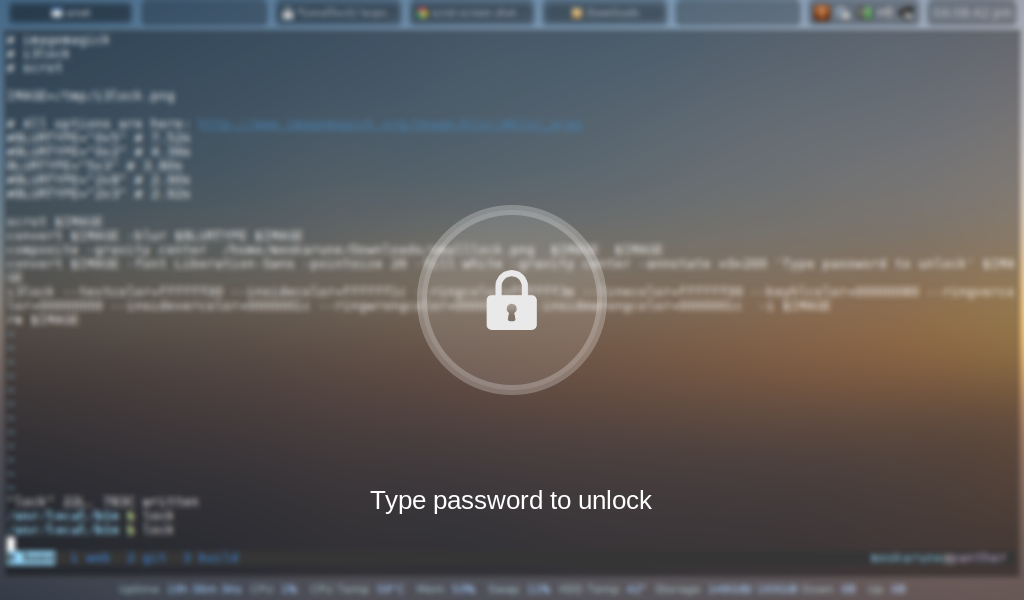
This is an i3lock bash script that takes a screenshot of the desktop, blurs the background and adds a lock icon and text
website: [github pages website](http://meskarune.github.io/i3lock-fancy/)
Dependencies
------------
* [i3lock-color-git](https://github.com/eBrnd/i3lock-color)
* [i3lock-color-git](https://github.com/Raymo111/i3lock-color) - this is a fork of i3lock-color that is kept up to date with i3lock
* imagemagick
* bash
* awk
* util-linux
Optional Dependencies
---------------------
* wmctrl
* a screenshot utility such as scrot or maim.
Installation
------------
To install i3lock-fancy manually, git clone the repository:
git clone https://github.com/meskarune/i3lock-fancy.git
Then change to the directory and run make.
cd i3lock-fancy
sudo make install
**IMPORTANT NOTE: the way to install i3lock-fancy has changed! If you are a
package maintainer or previously installed manually you may have to review
and update your configurations. The new change simplifies a lot of
things so updates will be easier in the future.**
### The following distro's have packages you can use to install:
* Arch Linux: https://aur.archlinux.org/packages/i3lock-fancy-git/
* GNU Guix: Run `guix package --install i3lock-fancy`
* Debian: https://packages.debian.org/sid/i3lock-fancy
Usage
-----
i3lock-fancy [options]
Options:
-h, --help This help menu.
-d, --desktop Attempt to minimize all windows before locking. Requires wmctrl.
-g, --greyscale Set background to greyscale instead of color.
-p, --pixelate Pixelate the background instead of blur, runs faster.
-f , --font Set a custom font.
-t , --text Set a custom text prompt.
-l, --listfonts Display a list of possible fonts for use with -f/--font.
Note: this option will not lock the screen, it displays
the list and exits immediately.
-n, --nofork Do not fork i3lock after starting.
-- Must be last option. Set command to use for taking a
screenshot. Default is 'import -window root'. Using 'scrot'
or 'maim' will increase script speed and allow setting
custom flags like having a delay.
example: ```i3lock-fancy -gpf Comic-Sans-MS -- scrot -z```
Extras
------
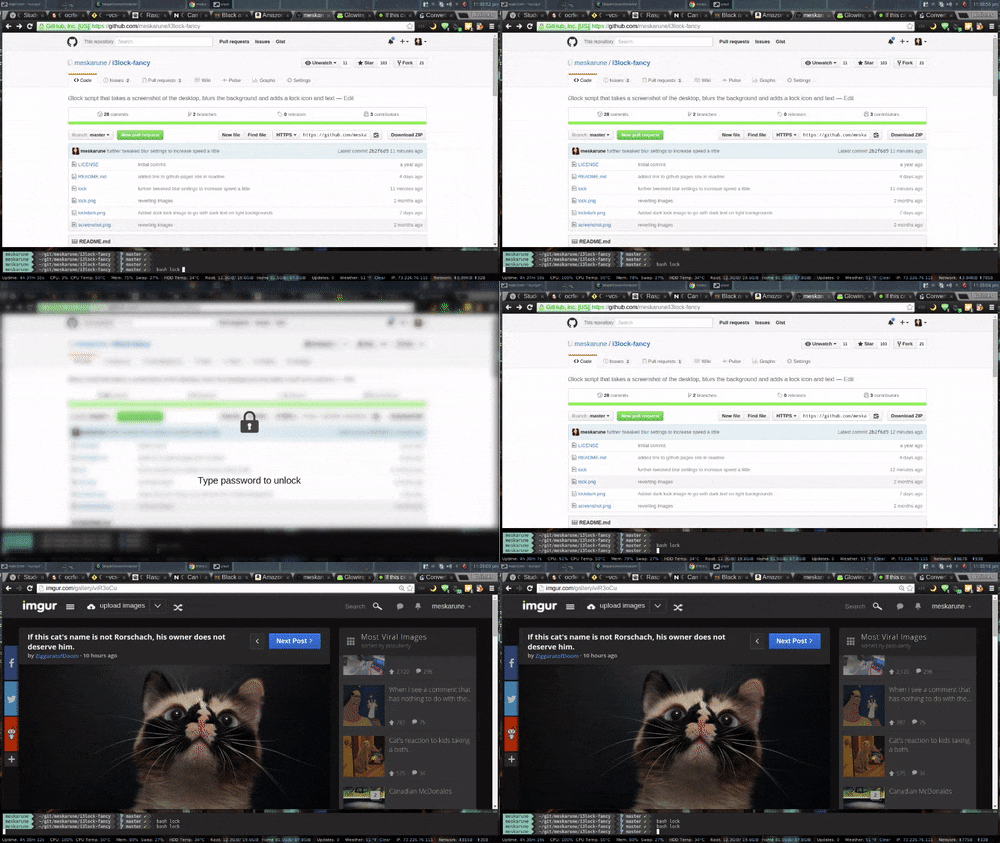
The lock screen in action:
To use this script you can set a hotkey in your window manager to run the lock command,
set xautolock to run at boot, or use a systemd script to either lock on suspend or run xautolock.
xautolock is a utility to automatically lock the screen after a set time. It also
supports hot corners.
Systemd Unit file example (edit for your own use):
[Unit]
Description=Lock the screen automatically after a timeout
[Service]
Type=simple
User=meskarune
Environment=DISPLAY=:0
ExecStart=/usr/bin/xautolock -time 5 -locker /usr/bin/i3lock-fancy -detectsleep
[Install]
WantedBy=graphical.target
Multiple Monitors
-----------------
There is a branch called dual monitor with support for multiple monitors.
(it is currently out of date compared to the main locker, I need to update
it with all the new features) This branch uses a grey icon and text with
outlines to make it visible on light and dark backgrounds (though it looks
better on dark backgrounds). I am still working to get it looking just right
right. The script is usable now, but it's under developement and things may change.
Static image
------------
If you would like to run `i3lock-color` with a static image in the style of
i3lock-fancy, run `convert` from image magick directly on the background image
you want to use. Then specify the result `newimage.png` to `i3lock -i`:
```
#!/bin/sh
# Add a lock icon and text to the center of an image
convert /path/to/background.png -font Liberation-Sans \
-pointsize 26 -fill white -gravity center \
-annotate +0+160 "Type Password to Unlock" lock.png \
-gravity center -composite newimage.png
```
```
i3lock -i newimage.png
```