# DSH Easy Hotkey
**Hold a key. Bring your shortcuts into view.**
A lightweight, window-local shortcut guide for DeepSeek Harness Desktop.
Ctrl · Hold to open · Three search modes · Light & dark · Chinese & English
[简体中文](README.md) · **English**
[Preview](#preview) · [Quick start](#quick-start) · [Three search modes](#three-search-modes) · [Installation](#installation) · [Development & verification](#development--verification)
---
Inspired by the hold-to-open interaction of the PowerToys shortcut guide, DSH Easy Hotkey brings **the shortcuts actually registered in your current DSH window** into a glanceable overlay. Stay with your work instead of navigating away or memorizing an entire keymap.
> Hold **Ctrl for 650 ms** to open by default. The plugin works only in application windows where it is mounted; it does not register system-wide shortcuts.
## Preview
Light
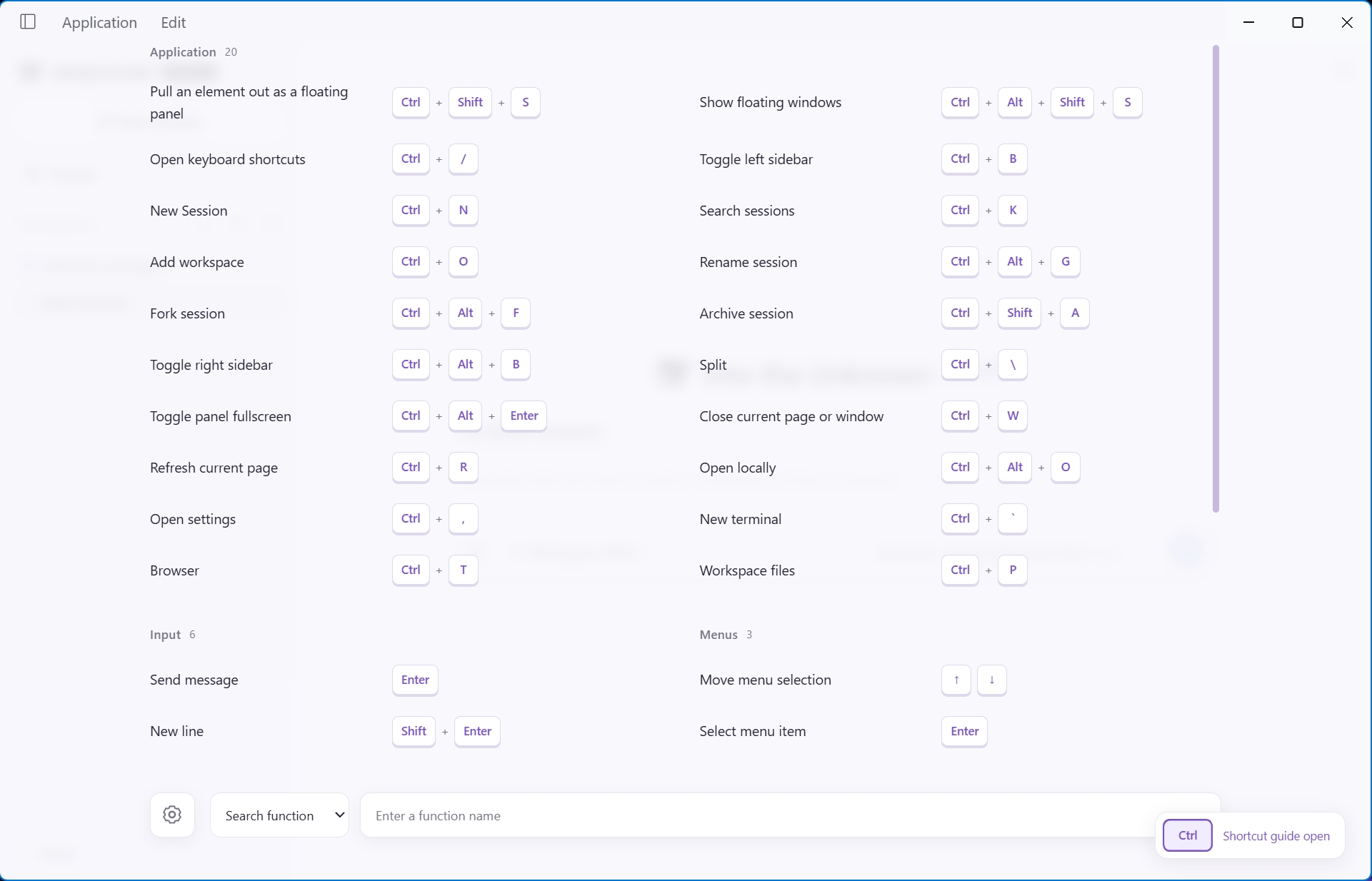 |
Dark
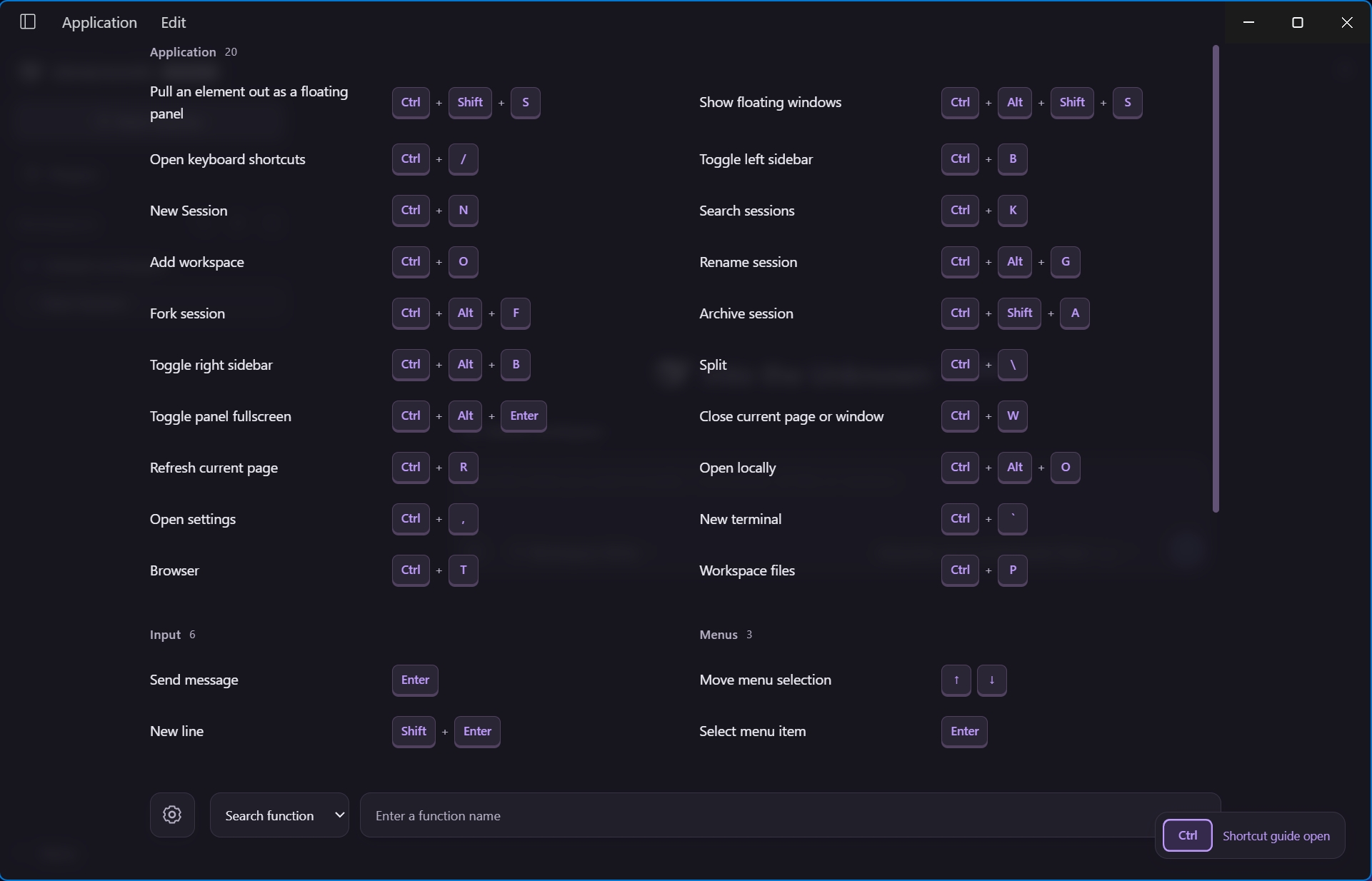 |
These are actual DSH Desktop screenshots. Click an image to view it at full size. Shortcuts and counts reflect the host configuration at capture time, not a fixed list; they may vary with settings, plugins, and versions.
## Why use it
- **The real shortcut catalog**: reads the host's configurable and fixed shortcuts, updating with catalog, label, and language changes rather than maintaining a second keymap.
- **Open when needed, dismiss naturally**: choose Toggle or Hold; click Settings or Search to temporarily pin the guide instead of losing it on release.
- **Find an action or a key**: search function names, record physical keys directly, or combine both conditions.
- **Readable without a heavy panel**: a translucent, blurred backdrop reduces visual interference; descriptions sit on the left, keycaps align on the right, and controls float independently.
- **Small details that stay out of your way**: the list receives focus on opening, wheel scrolling works immediately, and the corner hint avoids the pointer without ever intercepting clicks.
## Quick start
1. Hold **Ctrl** inside a DSH window. The corner keycap's border gradually fills.
2. After the default **650 ms**, the guide opens. Either left or right Ctrl works.
3. Search at the bottom, or click the Settings button on the left to change the display mode, delay, activation keys, and theme.
4. Click a non-interactive area or a shortcut description, or press **Esc**, to dismiss.
Opening focuses **the shortcut list**, not an input, so it does not automatically start searching or temporarily pin the guide. Wheel input over the backdrop also scrolls the list; holding Ctrl does not turn it into page zoom.
### Two display modes
| Mode | After releasing activation keys | How to dismiss |
| --- | --- | --- |
| **Toggle** | Stays open | Click a non-interactive area, press Esc, or complete another hold |
| **Hold** | Closes immediately, unless temporarily pinned | Release the activation keys, click a non-interactive area, or press Esc |
Inputs, buttons, and selectors are interactive controls; clicking them is not treated as dismissal. A backdrop click dismisses the guide without also activating the application control underneath.
### Temporary pinning
In Hold mode, **opening Settings or clicking the search area pins the guide immediately**—no typing required. Moving between controls within Settings or Search keeps it pinned. Collapsing Settings or moving focus away restores normal Hold behavior.
- Activation keys already released: the guide closes when normal Hold behavior resumes.
- Activation keys still held: the guide remains open until release.
- Window loses focus or becomes hidden: the Hold guide still closes. Esc remains an explicit way to dismiss it.
The corner keycaps communicate the current state:
| State | Keycap appearance | Description |
| --- | --- | --- |
| Waiting | Default | View shortcuts |
| Charging | Border fills progressively | View shortcuts |
| Ordinary Hold, open | Soft highlight | Shortcut guide open |
| Toggle, open | **Primary-color background, white text** | Shortcut guide open |
| Hold, temporarily pinned | **Primary-color background, white text** | Temporarily pinned |
The hint fades out when the pointer comes within **48 px** of its bounds and returns when the pointer leaves. In narrow windows, it stays hidden while the guide is open to avoid covering the bottom controls.
## Three search modes
**Search function** is the default. Change modes using the bottom selector; switching modes or collapsing Settings preserves your existing search conditions.
| Mode | Input | Matching |
| --- | --- | --- |
| **Search function** | Type a function name | Matches descriptions only, not key names |
| **Search keys** | Click the key field and press a key or combination | Shows recorded keycaps and finds shortcuts containing those keys |
| **Function + keys** | Enter a function name and record keys | Both conditions must match; an empty condition leaves the other active |
For example:
- Want to create a session? Search for `New Session` without knowing its shortcut.
- Looking for Enter-related actions? Press **Enter** in key mode instead of typing the letters `Enter`.
- Need to narrow the results? Enter a function keyword in combined mode, then press **Ctrl** or a more specific combination.
Recorded keys appear as **keycaps**. A new gesture replaces the previous one instead of accumulating released keys. The key-field clear button removes only the recorded keys and leaves the function text intact. Placeholders and control labels follow both the search mode and the host language.
> While key search is recording, host application shortcuts are suppressed to avoid executing a command accidentally. Recording is released on focus loss, Tab navigation, dismissal, or unmount. Esc remains reserved for closing the guide.
## Customization
Click the **Settings button** to the left of Search. Four independent controls expand to the right while Search is hidden; click it again to restore Search.
| Setting | Options and defaults |
| --- | --- |
| Display mode | Toggle / Hold; default: **Toggle** |
| Hold duration | **0–5000 ms**; default: **650 ms**. Zero opens immediately |
| Activation keys | One key, a modifier combination, or modifiers plus one ordinary key; default: **Ctrl** |
| Theme | Light / Dark / System; default: **System** |
- Activation keys are recorded from keyboard input. Esc and Tab are reserved; conflicting host bindings and system-reserved combinations are rejected.
- Ordinary-key triggers do not activate inside inputs, editable regions, or terminals, avoiding accidental activation while typing.
- Changing the activation keys or duration cancels the current charge and applies on the next press. Out-of-range durations are clamped to 0 or 5000.
- Chinese and English text follow the host locale. System theme changes take effect live.
- Preferences are stored in the application's origin-scoped `localStorage` and survive reloads. If persistence fails, a notice appears and the settings still apply for the current session.
## Installation
This repository provides **source builds and Desktop profile installation** without modifying the DSH application itself. You need an initialized DSH Desktop profile, Node.js, and npm capable of running this project's scripts. The current verified development environment uses **Node.js 25.9.0**.
Run from the repository root:
```sh
npm install
npm run check
npm run install:dsh
```
The installer targets `profiles/desktop` under `DSH_HOME`, or `~/.dsh/profiles/desktop` if `DSH_HOME` is unset. To specify a profile explicitly:
```sh
node scripts/install-dsh.mjs ""
```
Installation:
1. Backs up `cordis.patch.yml` and any existing plugin to the profile's `.plugin-backups/` directory.
2. Copies the client and host bundles to `node_modules/dsh-easy-hotkey/`.
3. Appends only this plugin's roster entry, preserving other settings; reinstalling does not duplicate registration.
4. Verifies that the installed files exactly match the build.
**The installer does not restart DSH automatically.** Fully quit and reopen Desktop when convenient to load an installation or update. Check for running tasks before restarting.
Disabling the plugin and using backups
Remove only this plugin's insert entry from the target profile's `cordis.patch.yml`, then reopen DSH. Leave other plugin entries and settings untouched:
```yaml
- insert:
- id: easy-hotkey
name: dsh-easy-hotkey
```
Backups live in `.plugin-backups/easy-hotkey-/`, including the patch, the previous plugin package when present, and an installation receipt. Restoring an entire old patch can also revert unrelated settings; compare changes before doing so.
## Development & verification
| Command | Purpose |
| --- | --- |
| `npm run typecheck` | TypeScript checks |
| `npm test` | Controller, search, interaction, loader, and installation regressions |
| `npm run build` | Build the Desktop plugin and local preview |
| `npm run check` | Run typechecks, tests, and build in sequence |
| `npm run demo` | Start a local preview at `http://127.0.0.1:8743` by default |
| `node scripts/browser-smoke.mjs` | Real-browser interaction checks and screenshots |
The preview uses **demo data**, not the current host's shortcut catalog. Browser checks use an installed Edge browser with an isolated temporary profile and a loopback-only server. Set `DSH_HOTKEY_BROWSER` to use another browser executable. Screenshots and reports are written to `.artifacts/`.
Development scripts prefer this repository's dependencies. When unavailable locally, they can reuse existing tools from adjacent `dsh-floating-ball` / `dsh-better-float` checkouts without modifying them. For a standalone checkout, install this project's declared dependencies.
**Verification snapshot — October 3, 2026:** typechecks and build passed; **98 automated tests and 61 real-browser checks** passed. The user also confirmed **manual verification in DSH Desktop**. This records acceptance of that version, not validation of every platform or future revision.
## Scope & limitations
- **Application windows only**: not a system-wide guide; it does not intercept keys for other applications.
- **The plugin's top-level window only**: raw hold and release events from cross-origin iframes and Electron webviews are not forwarded. Other windows need their own plugin mount.
- **Normal shortcuts remain normal**: Ctrl+C, for example, cancels a pending Ctrl charge until the trigger is fully released. Keyboard input is owned only during explicit recording.
- **Registered shortcuts only**: the plugin does not discover operating-system bindings, unregistered plugin shortcuts, or shortcuts in third-party applications.
- **Acceptance is scoped honestly**: user manual verification covers Windows DSH Desktop. Platform-aware key labels do not imply physical macOS or Linux acceptance testing.
Host integration and project structure
The client registers through `window.__ModuleLoader__.load` and mounts into `shell.overlay`. React comes from the host; service dependencies are declared in both the manifest and the client `inject` export. Unmounting releases focus listeners, catalog subscriptions, timers, and recording ownership.
```text
assets/ Actual Desktop screenshots in both languages and themes
src/guide.ts Overlay, focus, hint, and recording interactions
src/controller.ts Hold and temporary-pinning state machine
src/search.ts Matching for the three search modes
src/locales.ts Chinese and English strings
src/styles.css Themes, floating controls, keycaps, and scrollbars
scripts/ Build, install, preview, and browser verification
tests/ Automated regression checks
cordis.patch.yml DSH bundle roster insert entry
```