---
title: How do I create a manufacturing order?
layout: default
tags:
- Workflow
- Manufacturing
lang: en
sequence: 10
ref: newmanufacturingorder
---
## Requirements
- [Create a bill of materials (BOM)](Create_BOM) for the product to be manufactured with the [required components](add_bom_components) and [verify it](verify_bom).
## Steps
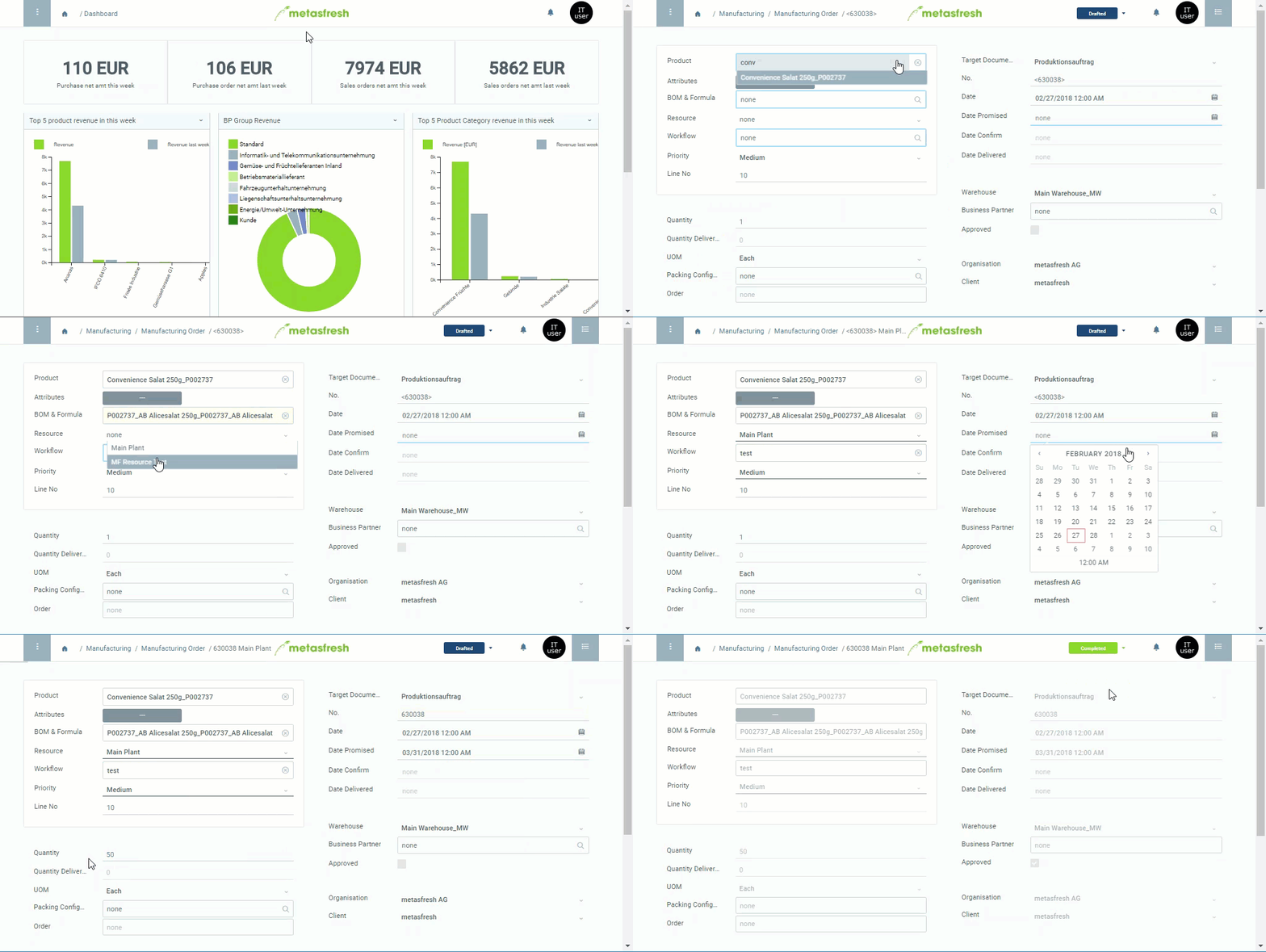
1. Open "Manufacturing Order" from the [menu](Menu).
1. [Create a new manufacturing order](New_Record_Window).
1. In the field **Product**, enter part of the name or number of the [product](NewProduct) to be manufactured and click on the matching result in the drop-down list.
1. The [**BOM & Formula Version**](create_bom_version) linked to the manufacturing product, and thus the respective [bill of materials](Create_BOM), is automatically applied.
1. In the field **Resource**, pick the designated production facility/line.
1. In the field **Workflow**, set the required manufacturing work steps.
1. Enter the **Quantity** of the product to be manufactured.
1. Pick the **UOM** of the product to be manufactured.
>**Note:** If the unit of measurement selected here differs from that of the manufacturing product, a [UOM conversion](Convert_UOMs) must be defined.
1. Pick the **Target Document Type** *Produktionsauftrag* (Manufacturing Order).
1. In the field **Date Promised**, set the date and time of product completion.
1. Pick a **Warehouse** where the product will be received after manufacturing.
1. [Complete the manufacturing order](DocumentProcessingComplete).
>**Note:** Now the [action](StartAction#actions-menu) "Issue/Receipt" becomes available in the menu and the manufacturing order receives the **Planning status** *Planned* (in the [list view](ViewModes#list-view)).
| **Note:** |
| :--- |
| Once all mandatory fields are filled in, the [components](add_bom_components) from the specified BOM are imported to the manufacturing order and listed under the record tab "Components of the Manufacturing Order" at the bottom of the page, where they can then be edited and additional components added individually as well. |
## Next Steps
- [Start manufacturing the product](ProductionCompletion).
## Example