---
title: How do I produce a product?
layout: default
tags:
- Workflow
- Manufacturing
lang: en
sequence: 20
ref: productioncompletion
---
## Requirements
1. [Create a manufacturing order](NewManufacturingOrder) for the manufacturing product and [complete it](DocumentProcessingComplete).
1. Prior to production, make sure via the [material cockpit](Material-Cockpit) that the required [manufacturing components](add_bom_components) are in stock **in sufficient quantity** for consumption. To replenish stocks, you can either:
**a)** [create a goods receipt](CreateGoodsReceipt) or
**b)** [add new handling units via physical inventory](Physical_inventory_create_HUs).
## Steps
1. Open "Manufacturing Order" from the [menu](Menu).
1. Open the entry of a [completed manufacturing order](NewManufacturingOrder).
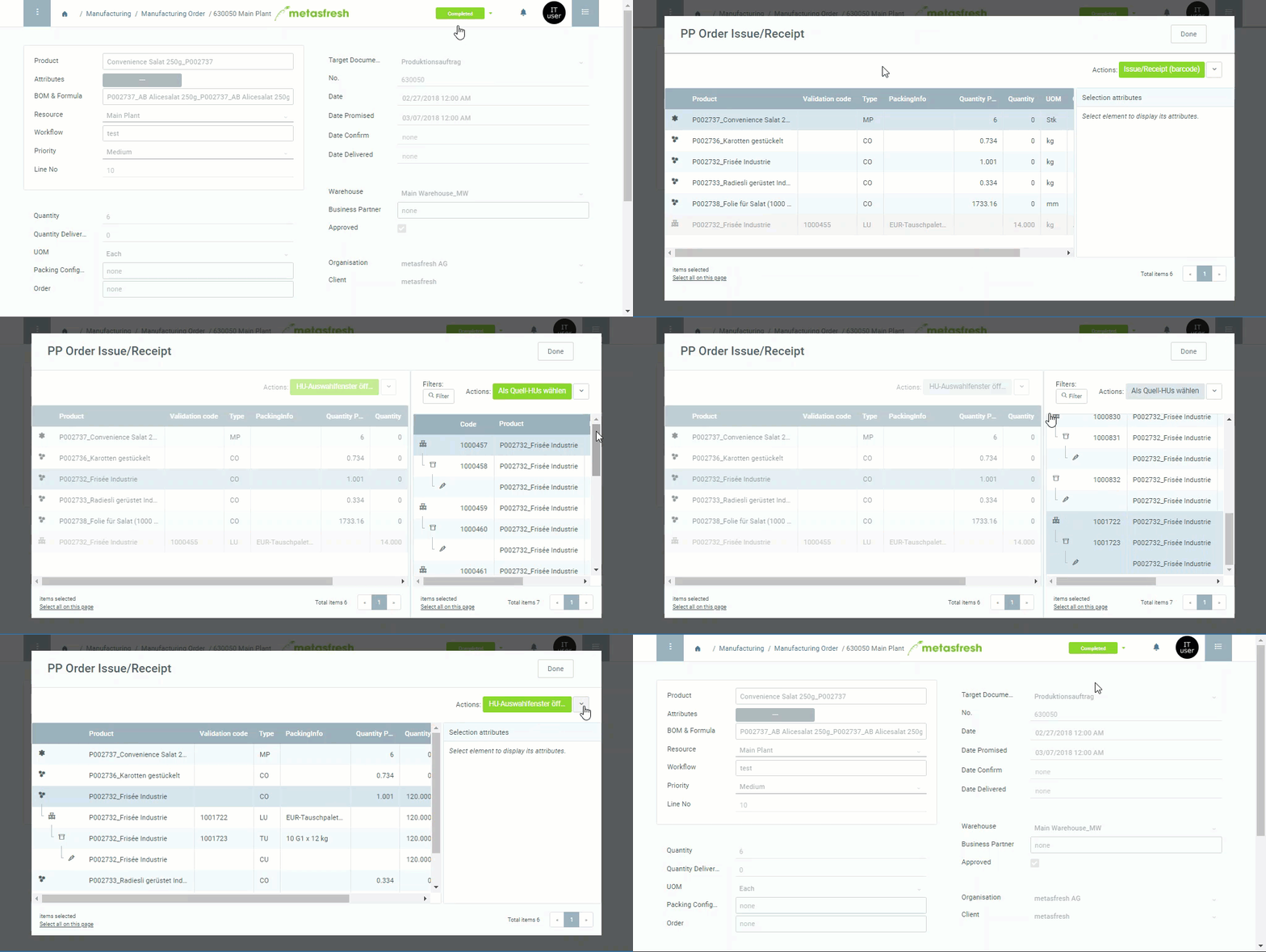
1. [Start the action](StartAction#actions-menu) "Issue/Receipt". An overlay window, the production window "PP Order Issue/Receipt", opens up.
>**Note:** If you have selected the manufacturing order while in [list view](ViewModes#list-view), you can also go to the [quick actions](StartAction#quick-actions) button at the top right to start the action .
### Record consumed manufacturing components
1. In the production window, [select](RecordSelection) the BOM component  (**Type** *CO*) to be allocated and deducted from stock, e.g., "Carrots unwashed".
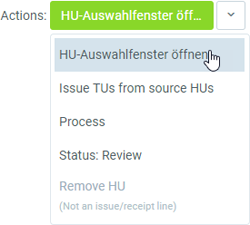
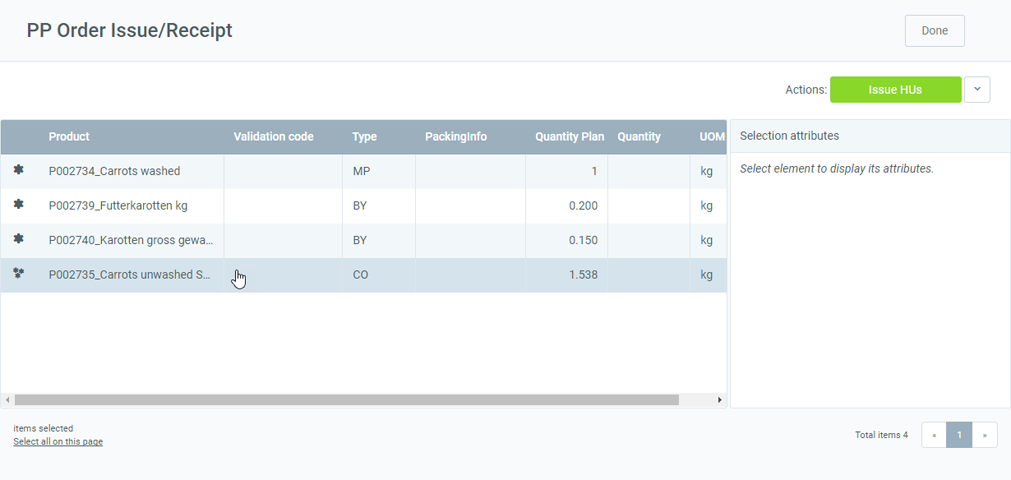 1. [Start the quick action](StartAction#quick-actions) "Open HU Selection Window".
 1. An overview of the matching handling units (HU) from stock opens up on the right-hand side.
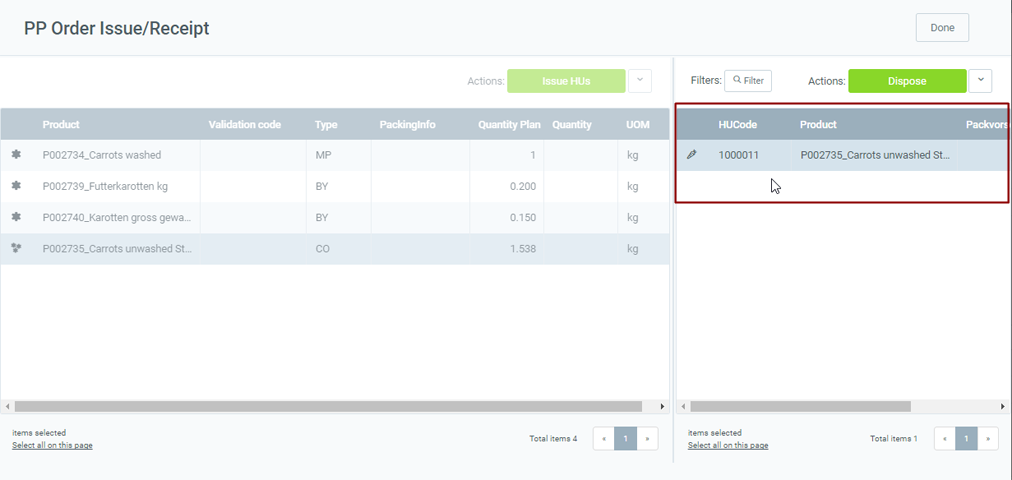 1. [Select](RecordSelection) the HU that was consumed during production.
#### Consume entire HUs
1. Select "Issue complete HUs" via the [actions button](StartAction#quick-actions).
1. When the allocation was successful, you will find the issued HU below the component.
1. [Select](RecordSelection) the HU that was consumed during production.
#### Consume entire HUs
1. Select "Issue complete HUs" via the [actions button](StartAction#quick-actions).
1. When the allocation was successful, you will find the issued HU below the component.
 >**Note:** If you want to undo the deduction, simply select the added HU and start the quick action "Remove HU".
### Receive the manufactured product
1. In the production window, [select](RecordSelection) the manufactured product
>**Note:** If you want to undo the deduction, simply select the added HU and start the quick action "Remove HU".
### Receive the manufactured product
1. In the production window, [select](RecordSelection) the manufactured product  (**Type** *MP*) you want to receive, e.g., "Carrots chopped".
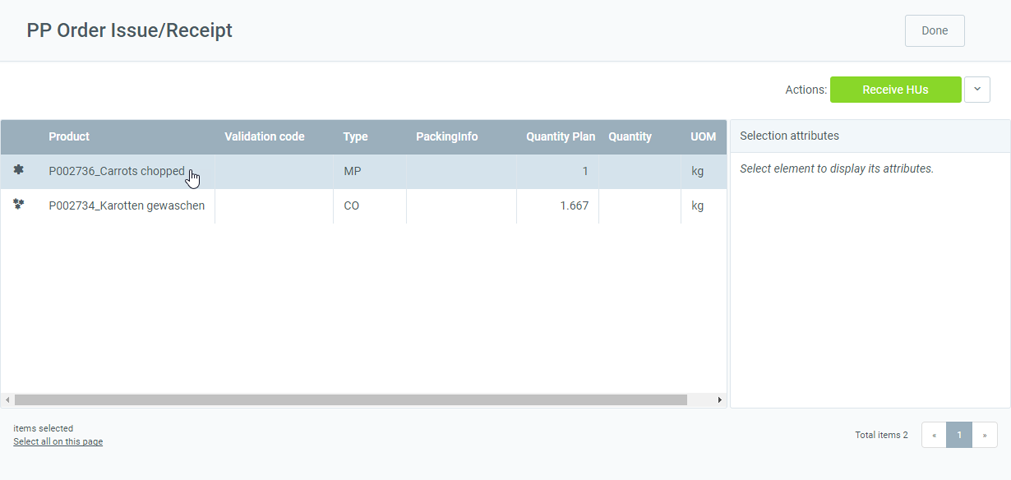 1. [Start the quick action](StartAction#quick-actions) "Receive HUs".
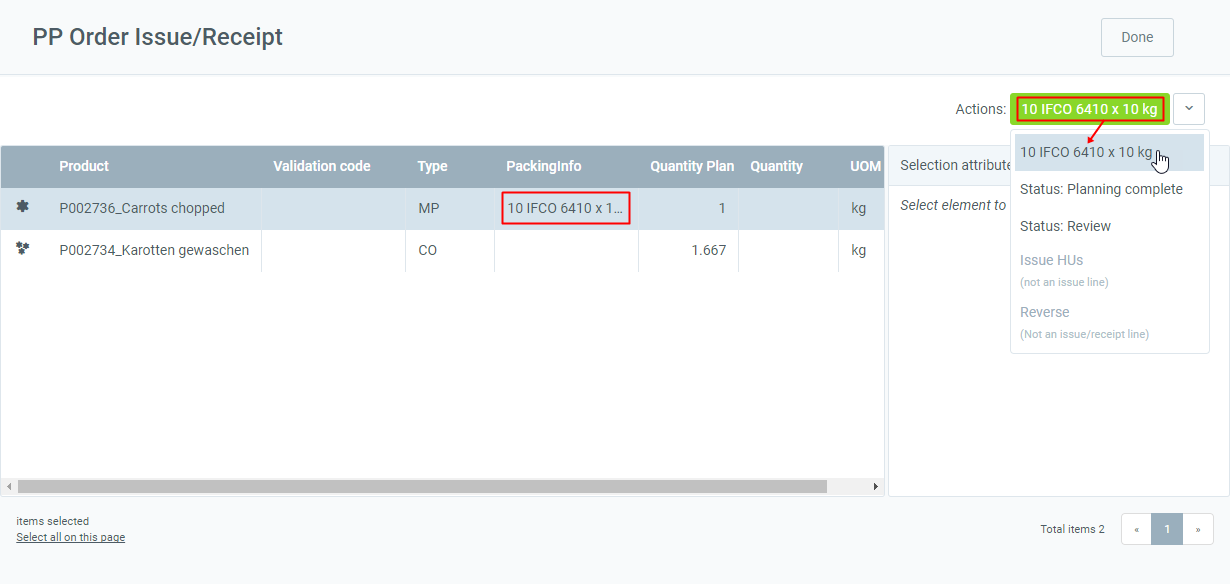
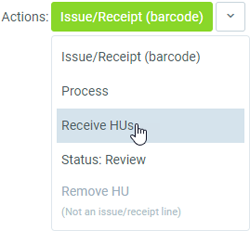 >**Note:** If the product has packing instructions, these will appear on the quick actions button instead of "Receive HUs".
 1. Another overlay window opens up.
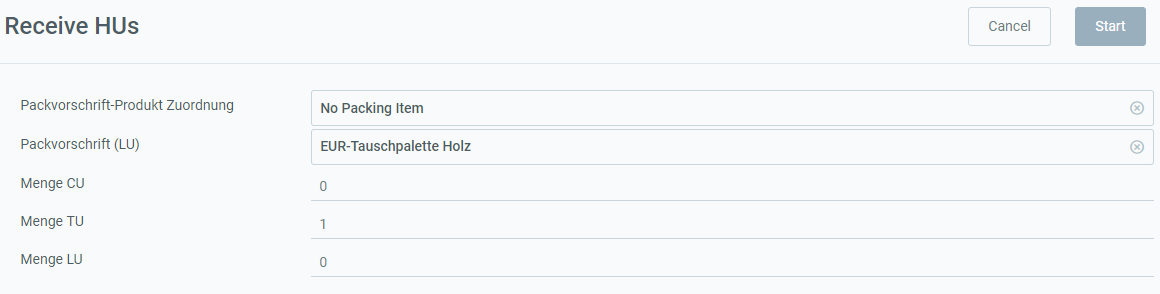 1. ***Optional:*** Select **TU Packing Instructions**.
>**Note:** [More information about HU components such as LU, TU and CU](Handling_Unit_System).
1. ***Optional:*** Select **LU Packing Instructions**.
1. In the field **CU Quantity**, enter the received quantity of the product.
1. In the field **TU Quantity**, enter the number of transport units.
>**Note 1:** The field **TU Quantity** appears only if **TU Packing Instructions** are available.
1. ***Optional:*** Select **TU Packing Instructions**.
>**Note:** [More information about HU components such as LU, TU and CU](Handling_Unit_System).
1. ***Optional:*** Select **LU Packing Instructions**.
1. In the field **CU Quantity**, enter the received quantity of the product.
1. In the field **TU Quantity**, enter the number of transport units.
>**Note 1:** The field **TU Quantity** appears only if **TU Packing Instructions** are available.
>**Note 2:** The TU Quantity must be ***at least 1***.
1. In the field **LU Quantity**, enter the number of loading units.
>**Note 1:** The field **LU Quantity** appears only if **LU Packing Instructions** are available.
>**Note 2:** The field **LU Packing Instructions** appears only if **TU Packing Instructions** are available.
>**Note 3:** The LU Quantity must be ***at least 1***.
1. Click "Start" to record the received HUs and close the overlay window.
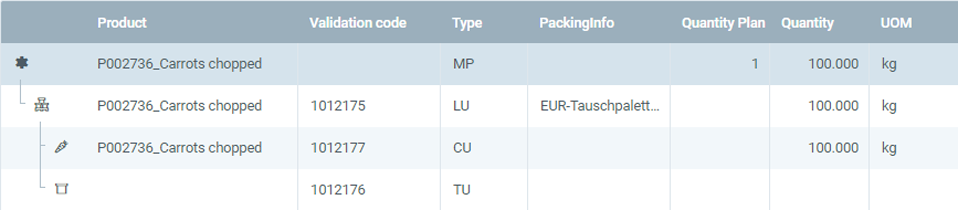
1. When the allocation was successful, the received HUs will be listed below the product to be manufactured:
 >**Note:** If you want to undo the allocation, simply [select](RecordSelection) the added HU, go to the quick actions button and click "Remove HU".
#### Enter serial numbers for HUs manually (optional)
1. In the production window, [select](RecordSelection) the HU for which you want to enter the serial number.
1. On the right-hand side under "Selection attributes" in the field **S/N** (SerialNo), enter the serial number of the HU.
1. [metasfresh saves the progress automatically](Saveindicator).
### Process manufacturing order and trigger stock postings
1. [Start the quick action](StartAction#quick-actions) "Process" to perform the material posting. This makes the lines read-only:
>**Note:** If you want to undo the allocation, simply [select](RecordSelection) the added HU, go to the quick actions button and click "Remove HU".
#### Enter serial numbers for HUs manually (optional)
1. In the production window, [select](RecordSelection) the HU for which you want to enter the serial number.
1. On the right-hand side under "Selection attributes" in the field **S/N** (SerialNo), enter the serial number of the HU.
1. [metasfresh saves the progress automatically](Saveindicator).
### Process manufacturing order and trigger stock postings
1. [Start the quick action](StartAction#quick-actions) "Process" to perform the material posting. This makes the lines read-only:
 1. Click "Done" to close the production window.
1. The manufacturing order now receives the **Planning status** *Complete*.
| **Note:** |
| :--- |
| The newly created HU is now listed under the record tab "Handling Unit Assignment" at the bottom of the page of the respective manufacturing order and linked to the [Handling Unit Editor](Menu) via the column **Handling Unit** of the HU line. [Zoom into](Zoom_into_table_field) the field to open the entry.
1. Click "Done" to close the production window.
1. The manufacturing order now receives the **Planning status** *Complete*.
| **Note:** |
| :--- |
| The newly created HU is now listed under the record tab "Handling Unit Assignment" at the bottom of the page of the respective manufacturing order and linked to the [Handling Unit Editor](Menu) via the column **Handling Unit** of the HU line. [Zoom into](Zoom_into_table_field) the field to open the entry.
In turn, in the Handling Unit entry you will find the respective manufacturing order linked under the record tab "Handling Unit Assignment" at the bottom of the page. |
## Example