---
title: How do I add BOM components?
layout: default
tags:
- Master Data
- Bill of Materials (BOM)
lang: en
sequence: 30
ref: add_bom_components
---
## Requirements
1. [Create a BOM for the product to be manufactured](Create_BOM).
1. [Create a BOM version](create_bom_version).
## Steps
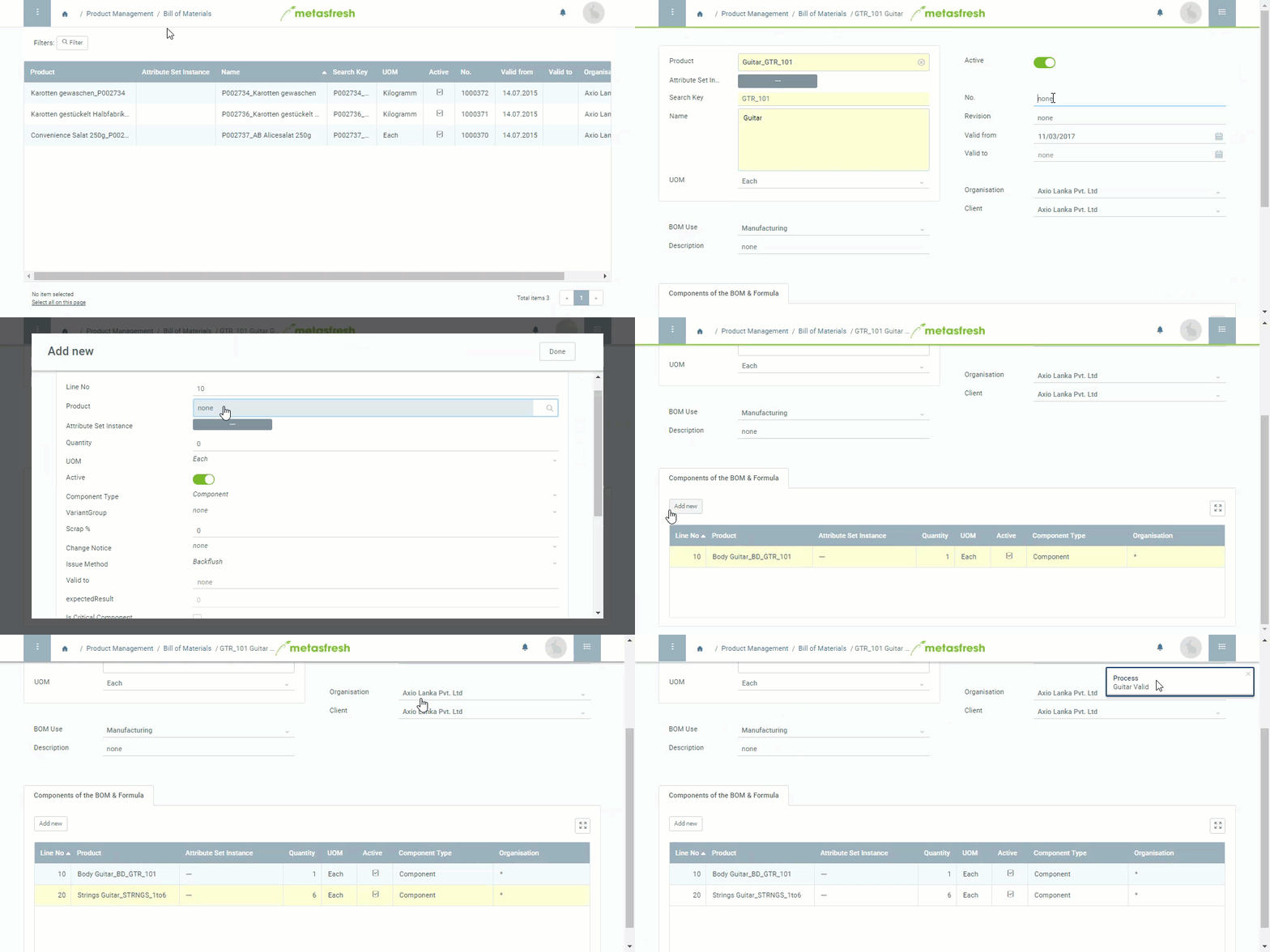
1. Open "Bill of Material Version" from the [menu](Menu).
1. Open the entry of an existing BOM version or [add a new one](...).
1. Go to the record tab "Components of the BOM & Formula" at the bottom of the page and click . An overlay window opens up.
1. In the field **Product**, enter part of the name or number of the [product](NewProduct) you want to add as a component to the BOM and click on the matching result in the drop-down list.
1. Pick a **Component Type**, e.g., *Component*.
>**Note:** The *Co-Product* is a joint product from the production of the main product and can subsequently be added to stock as a finished product itself.
1. In the field **Qty**, enter a quantity.
To record the quantity as a percentage, tick the checkbox **Is %** and enter the amount in the field **% Qty** that then appears. (The **Qty** field is consequently hidden and deactivated.)
>**Note:** A BOM contains the specifications for a **single finished product**. When the BOM is used, the quantity specified here will be multiplied by the quantity ordered in each case.
1. In the field **% Scrap**, enter the percentage that is to be automatically added as scrap to the quantity specified above.
1. Pick a **UOM** (unit of measure) for the component.
>**Note:** If the unit of measurement selected here differs from that of the component product, a [UOM conversion](Convert_UOMs) must be defined.
1. Pick an **Issue Method** for how to deduct the consumed materials, e.g., *Backflush* (completion confirmation) or *Issue only for what was received*.
>**Note 1:** To deduct the quantity of material per BOM component individually, pick "Backflush".
>**Note 2:** For automatic issuing, i.e. deducting only the quantity of materials actually consumed, pick "Issue only for what was received".
1. Click "Done" to close the overlay window and add the component to the list.
>**Note:** You can add any number of components to a BOM in this way.
| **Note:** |
| :--- |
| You can also view the individual BOM components in detail under "[Components of the BOM & Formula](Menu)" in the menu. |
## Next Steps
- [Verify the bill of materials and complete the BOM version](verify_bom).
## Example