---
title: Dashboard tour
description: Learn where to publish content, edit channel details, configure settings, and reach public feeds.
---
The Admin dashboard is the private control room for one microfeed channel. Its
left navigation stays consistent while the main panel changes for each task.
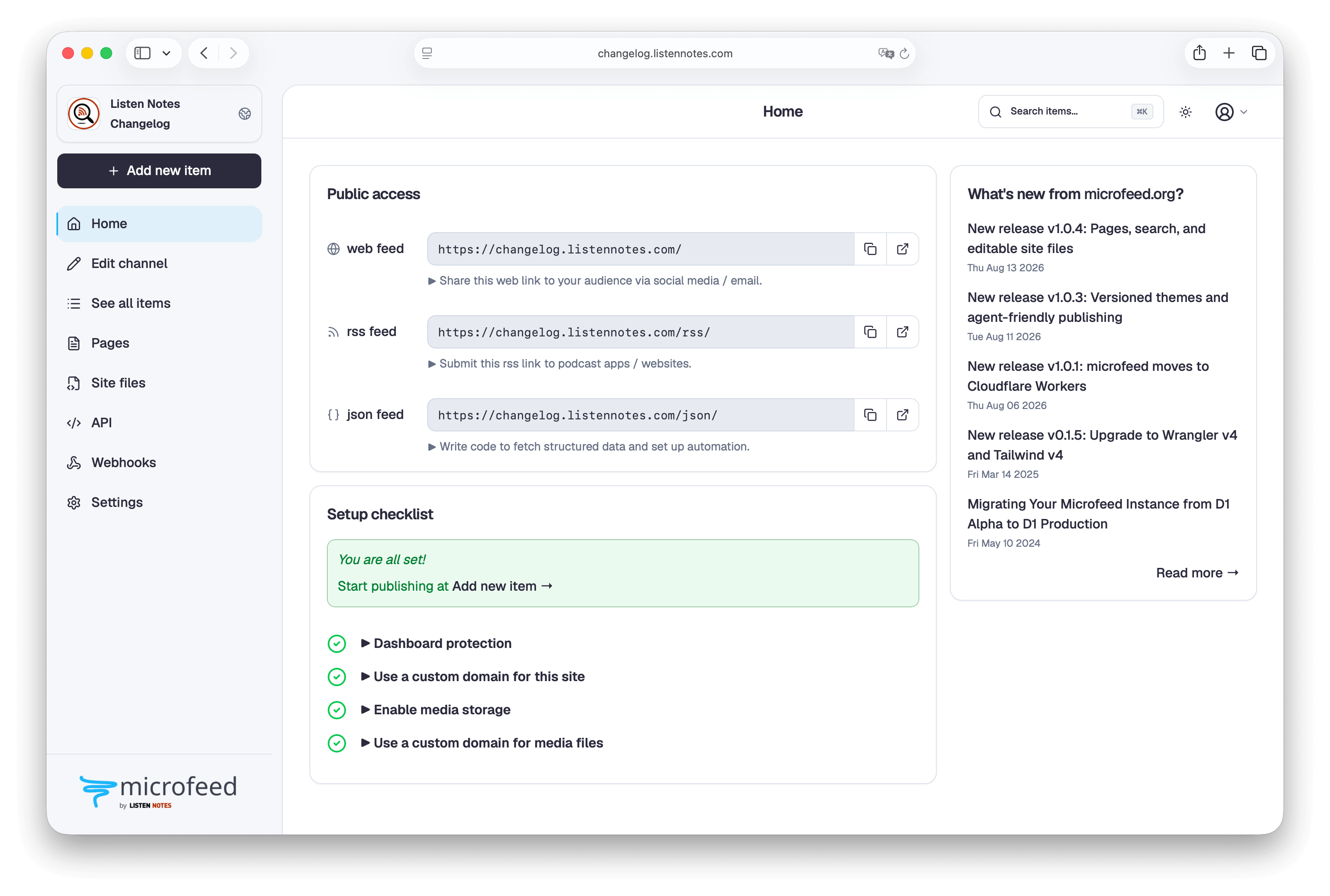
## Main areas
**Add item** opens the publishing form. Use it for a post, external URL, image,
audio, video, or document.
**See all items** lists everything in the channel. Sort the list, open a public
page, or edit an existing item.
**Edit channel** manages the channel image, title, publisher, website,
categories, language, and description.
**API** opens a dedicated area for availability, API keys, an interactive
browser explorer, and public API documentation formats.
**Webhooks** opens Overview, Endpoints, Event explorer, and Deliveries. It shows
whether infrastructure was never provisioned, is enabled, or is disabled with
its Queue preserved. It summarizes configured endpoints, daily
delivery usage, Queue operations, and failures. Endpoints manages destination
URLs, subscriptions, status, and signing secrets. Event explorer previews exact
payloads and sends signed tests. Deliveries shows attempts, response
diagnostics, suppression reasons, and redelivery controls. Start with
[Webhooks and integrations](/webhooks/) before connecting an endpoint, and use
[webhook operations](/webhooks/operations/) for retries, budgets, recovery, and
cost accounting.
**Settings** manages website themes and shared code, tracking URLs, subscribe
methods, site access, media storage, feed ordering, and favicon. It does not
contain the **Edit channel** form. See [Themes and website code](/dashboard/themes/)
and [Site access](/dashboard/customize/) for the two appearance and availability
workflows.
The channel control at the top of the sidebar links directly to the public
website, RSS feed, and JSON feed. The top bar also contains item search, theme,
and user menus. Select **Search** or press Command+K on a
Mac or Ctrl+K elsewhere. The dialog first shows the five
most recently updated items; type at least two characters to search titles.
[**Account settings**](/manage/domains-and-access/#change-your-built-in-login)
in the user menu manages login identity, passkeys, dashboard sessions, and
microfeed CLI computer connections. On small screens, the menu button opens
the sidebar as a drawer.
## Light and dark dashboard themes
The theme menu offers Light, Dark, and System. This changes only the Admin,
login, and password-setup experience; the public website uses the public theme
chosen under **Settings**.
Every procedure in these docs names the control to use and the result to
expect, so you can follow it without needing a screenshot.