# NB: Leader Key has been surpassed by [Tuna](https://tunaformac.com)
Tuna is a complete launcher – much more capable, and with **Leader Key built in!**
[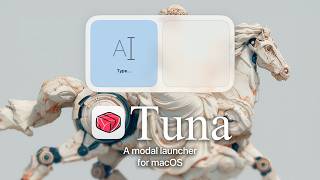](https://www.youtube.com/watch?v=vkm-ZFlivyI)
[Leader Key will stay free and open source](https://github.com/mikker/LeaderKey/discussions/314#discussioncomment-15939059) but my focus will be on Tuna going forward.
---
 **The \*faster than your launcher\* launcher**
A riff on [Raycast](https://www.raycast.com), [@mxstbr's multi-key Karabiner setup](https://www.youtube.com/watch?v=m5MDv9qwhU8&t=540s), and Vim's `` key.
Watch the intro video on YouTube:
*Yes, I only have that one thumbnail face.*
## Install
**Download**
📦 [Download latest version](https://github.com/mikker/LeaderKey.app/releases)
or
**Homebrew**
```sh
$ brew install leader-key
```
### Post-Install setup
- Open the settings menu with the menu bar icon
**The \*faster than your launcher\* launcher**
A riff on [Raycast](https://www.raycast.com), [@mxstbr's multi-key Karabiner setup](https://www.youtube.com/watch?v=m5MDv9qwhU8&t=540s), and Vim's `` key.
Watch the intro video on YouTube:
*Yes, I only have that one thumbnail face.*
## Install
**Download**
📦 [Download latest version](https://github.com/mikker/LeaderKey.app/releases)
or
**Homebrew**
```sh
$ brew install leader-key
```
### Post-Install setup
- Open the settings menu with the menu bar icon  - Choose your [`leader`](#what-do-i-set-as-my-leader-key) (`Shortcut` that will open the app)
 - Add your [shortcuts](#example-shortcuts) to the `Config` settings
## Why Leader Key?
### Problems with traditional launchers:
1. Typing the name of the thing can be slow and give unpredictable results.
2. Global shortcuts have limited combinations.
3. Leader Key offers predictable, nested shortcuts -- like combos in a fighting game.
### Example Shortcuts:
- leaderom → Launch Messages (`open messages`)
- leadermm → Mute audio (`media mute`)
- leaderwm → Maximize current window (`window maximize`)
## URL Scheme
Leader Key supports URL scheme automation for integration with tools like Alfred, Raycast, shell scripts, and more.
### Available URL Schemes
#### Configuration Management
```bash
# Reload configuration from disk
open "leaderkey://config-reload"
# Show config.json in Finder
open "leaderkey://config-reveal"
```
#### Window Control
```bash
# Show Leader Key window
open "leaderkey://activate"
# Hide Leader Key window
open "leaderkey://hide"
# Clear navigation state (return to root)
open "leaderkey://reset"
```
#### Settings & Info
```bash
# Open settings window
open "leaderkey://settings"
# Show about dialog
open "leaderkey://about"
```
#### Navigation
```bash
# Navigate through keys and execute actions
open "leaderkey://navigate?keys=a,b,c"
# Navigate without executing (preview mode)
open "leaderkey://navigate?keys=a,b,c&execute=false"
```
### Example Use Cases
- **Alfred/Raycast workflows**: Trigger Leader Key shortcuts programmatically
- **Shell scripts**: Automate configuration reloads after editing config.json
- **Keyboard maestro**: Chain Leader Key actions with other automations
- **External triggers**: Open specific action sequences from other applications
## FAQ
#### What do I set as my Leader Key?
Any key can be your leader key, but **only modifiers will not work**.
**Examples:**
- F12
- ⌘ + space
- ⌘⌥ + space
- ⌘⌥⌃⇧ + L (hyper key)
**Advanced examples:**
Using [Karabiner](https://karabiner-elements.pqrs.org/) you can do more fancy things like:
- right ⌘ + left ⌘ at once (bound to F12) my personal favorite
- caps lock (bound to hyper when held, F12 when pressed)
See [@mikker's config](https://github.com/mikker/LeaderKey.app/wiki/@mikker's-config) in the wiki for akimbo cmds example.
#### I disabled the menubar item, how can I get Leader Key back?
Activate Leader Key, then cmd + ,.
#### Command action is failing with "Command not found"
You need to make sure your shell environment is correctly set up for non-interactive mode, and exports the `PATH` variable.
**For zsh** make sure you have your `PATH` variable exported in `~/.zshenv`
**For bash** make sure you have your `PATH` variable exported in `~/.bash_profile`
## License
MIT
- Add your [shortcuts](#example-shortcuts) to the `Config` settings
## Why Leader Key?
### Problems with traditional launchers:
1. Typing the name of the thing can be slow and give unpredictable results.
2. Global shortcuts have limited combinations.
3. Leader Key offers predictable, nested shortcuts -- like combos in a fighting game.
### Example Shortcuts:
- leaderom → Launch Messages (`open messages`)
- leadermm → Mute audio (`media mute`)
- leaderwm → Maximize current window (`window maximize`)
## URL Scheme
Leader Key supports URL scheme automation for integration with tools like Alfred, Raycast, shell scripts, and more.
### Available URL Schemes
#### Configuration Management
```bash
# Reload configuration from disk
open "leaderkey://config-reload"
# Show config.json in Finder
open "leaderkey://config-reveal"
```
#### Window Control
```bash
# Show Leader Key window
open "leaderkey://activate"
# Hide Leader Key window
open "leaderkey://hide"
# Clear navigation state (return to root)
open "leaderkey://reset"
```
#### Settings & Info
```bash
# Open settings window
open "leaderkey://settings"
# Show about dialog
open "leaderkey://about"
```
#### Navigation
```bash
# Navigate through keys and execute actions
open "leaderkey://navigate?keys=a,b,c"
# Navigate without executing (preview mode)
open "leaderkey://navigate?keys=a,b,c&execute=false"
```
### Example Use Cases
- **Alfred/Raycast workflows**: Trigger Leader Key shortcuts programmatically
- **Shell scripts**: Automate configuration reloads after editing config.json
- **Keyboard maestro**: Chain Leader Key actions with other automations
- **External triggers**: Open specific action sequences from other applications
## FAQ
#### What do I set as my Leader Key?
Any key can be your leader key, but **only modifiers will not work**.
**Examples:**
- F12
- ⌘ + space
- ⌘⌥ + space
- ⌘⌥⌃⇧ + L (hyper key)
**Advanced examples:**
Using [Karabiner](https://karabiner-elements.pqrs.org/) you can do more fancy things like:
- right ⌘ + left ⌘ at once (bound to F12) my personal favorite
- caps lock (bound to hyper when held, F12 when pressed)
See [@mikker's config](https://github.com/mikker/LeaderKey.app/wiki/@mikker's-config) in the wiki for akimbo cmds example.
#### I disabled the menubar item, how can I get Leader Key back?
Activate Leader Key, then cmd + ,.
#### Command action is failing with "Command not found"
You need to make sure your shell environment is correctly set up for non-interactive mode, and exports the `PATH` variable.
**For zsh** make sure you have your `PATH` variable exported in `~/.zshenv`
**For bash** make sure you have your `PATH` variable exported in `~/.bash_profile`
## License
MIT

