
# KDCalendar
A month calendar for iOS. Drop it in, give it a start and an end date, and it scrolls one month per page, horizontally or vertically, with today marked, weekends coloured, days selected by tap and events shown as dots.
- **UIKit and SwiftUI.** `CalendarView` for UIKit, `KDCalendarView` for SwiftUI with a two-way selection binding.
- **Any calendar.** The user's current calendar and time zone by default; Gregorian, Persian, Hebrew or anything else through `Style.calendar`, with the week starting on the day the locale says.
- **System events.** The optional `KDCalendarEventKit` product loads events from the user's calendars and adds new ones.
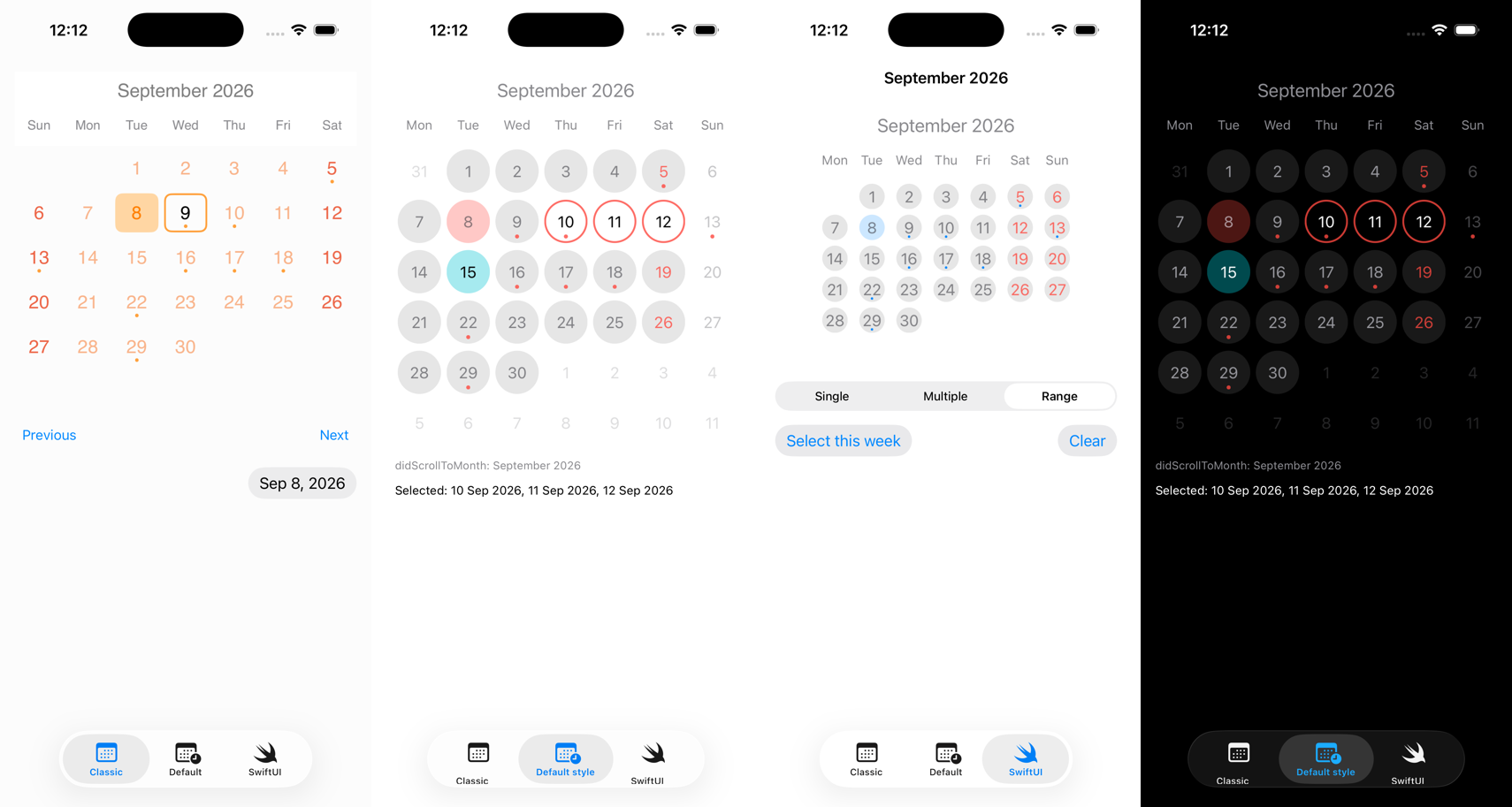
- **Single, multiple or range selection.** Two taps select every day between them, across months.
- **Styled by value.** `CalendarView.Style` is a struct; change a property and the view follows. Dynamic system colours and Dynamic Type by default, and a per-day style hook for holidays and disabled days.
- **Swift 6, iOS 17+.** Main-actor isolated, `Sendable` where it matters, VoiceOver labels on every day.
## Installation
### Swift Package Manager
In Xcode choose File, then Add Package Dependencies, and enter:
```
https://github.com/mmick66/CalendarView
```
Or in `Package.swift`:
```swift
.package(url: "https://github.com/mmick66/CalendarView", from: "2.1.0")
```
Add the `KDCalendar` product to your target, and `KDCalendarEventKit` as well if you want system calendar events.
### CocoaPods
2.0.1 is the final CocoaPods release; later fixes ship through Swift Package Manager only. Prefer Swift Package Manager.
```ruby
pod 'KDCalendar', '~> 2.0' # the calendar
pod 'KDCalendar/EventKit', '~> 2.0' # plus system events
```
## Usage
### Setup
`CalendarView` is a `UIView`. Create it in code or in a storyboard (set the module to `KDCalendar`), then give it a data source and a delegate:
```swift
import KDCalendar
let calendarView = CalendarView(frame: .zero)
calendarView.dataSource = self
calendarView.delegate = self
calendarView.direction = .horizontal
calendarView.selectionMode = .single
```
The data source returns the first and last selectable day. Every month those days touch is shown; days before the start or after the end are greyed out. Without a data source the view shows the current month.
```swift
extension ViewController: CalendarViewDataSource {
func startDate() -> Date { Calendar.current.date(byAdding: .month, value: -1, to: Date())! }
func endDate() -> Date { Calendar.current.date(byAdding: .month, value: 12, to: Date())! }
}
```
The delegate hears about scrolling and selection. Only the first two methods are required.
```swift
extension ViewController: CalendarViewDelegate {
func calendar(_ calendar: CalendarView, didScrollToMonth date: Date) { }
func calendar(_ calendar: CalendarView, didSelectDate date: Date, withEvents events: [CalendarEvent]) { }
func calendar(_ calendar: CalendarView, canSelectDate date: Date) -> Bool { true }
func calendar(_ calendar: CalendarView, didDeselectDate date: Date) { }
func calendar(_ calendar: CalendarView, didLongPressDate date: Date, withEvents events: [CalendarEvent]?) { }
}
```
The view holds both weakly, so keep them alive yourself. A view controller that owns the calendar is the usual arrangement.
### Dates
Every date the view computes or hands out is the start of a day in `calendarView.calendar`, which is `style.calendar` (given `style.locale` when it has no locale of its own) and defaults to `Calendar.autoupdatingCurrent`, so it follows the device when its time zone changes. `didScrollToMonth` receives the first day of the month. To work in another time zone or calendar, set one on the style:
```swift
var style = CalendarView.Style()
style.calendar = Calendar(identifier: .persian)
style.firstWeekday = .automatic // the calendar's, or style.locale's if it has no locale
calendarView.style = style
```
### Scrolling
```swift
calendarView.setDisplayDate(Date()) // jump to a month
calendarView.setDisplayDate(date, animated: true) // scroll to it
calendarView.goToNextMonth()
calendarView.goToPreviousMonth()
calendarView.isScrollEnabled = false // buttons only
calendarView.displayDate // the first day of the month on screen
```
Call `setDisplayDate` from `viewDidAppear` or later; before that the view has no size to scroll.
### Selection
```swift
calendarView.selectionMode = .multiple // .single, .multiple or .range
calendarView.selectDate(date) // same rules as a tap: in range, canSelectDate allows it
calendarView.deselectDate(date)
calendarView.selectRange(monday...friday)
calendarView.selectedDates // in selection order
calendarView.clearAllSelectedDates() // no delegate callbacks
calendarView.enableDeselection = false // taps cannot deselect; deselectDate still can
```
In `.single` mode selecting a day deselects the previous one and reports it. In `.range` mode the first tap picks one end, the second picks the other and every selectable day between them is selected, in either order and across months; the delegate then receives `didSelectRange`. A third tap starts a new range and tapping a selected day clears it. `multipleSelectionEnable` still works and maps to `.single` and `.multiple`.
The selection is kept as days. When `reloadData()` or a new style rebuilds the grid, the same days stay selected wherever they land; days that are no longer in range are deselected and reported with `didDeselectDate`.
### Styling
`CalendarView.Style` is a value. Change what you need and assign it, or mutate the view's style in place.
```swift
var style = CalendarView.Style()
style.cellShape = .round // .round, .square or .bevel(radius)
style.cellColorToday = .systemOrange.withAlphaComponent(0.3)
style.cellSelectedBorderColor = .systemOrange
style.cellEventColor = .systemOrange
style.firstWeekday = .sunday // .sunday, .monday, .saturday or .automatic
style.weekdayCasing = .uppercase // the weekday labels: .capitalized or .uppercase
style.showAdjacentDays = true // the neighbouring months' days in the empty cells
style.locale = Locale(identifier: "en_US")
calendarView.style = style
calendarView.style.headerFont = .preferredFont(forTextStyle: .title2) // also restyles
calendarView.marksWeekends = true
```
The defaults are dynamic system colours, so a calendar follows dark mode, and fonts scaled for Dynamic Type. Custom colours and fonts are used as given.
The data source can replace the month title:
```swift
func title(forMonth month: Date) -> String? { month.formatted(.dateTime.month(.wide)) }
```
The delegate can style single days. Return `nil` for the calendar's own style. Together with `canSelectDate` this greys out days the user must not pick:
```swift
func calendar(_ calendar: CalendarView, canSelectDate date: Date) -> Bool {
!Calendar.current.isDateInWeekend(date)
}
func calendar(_ calendar: CalendarView, styleForDate date: Date) -> CalendarView.Style? {
guard Calendar.current.isDateInWeekend(date) else { return nil }
var disabled = calendar.style
disabled.cellTextColorWeekend = disabled.cellColorOutOfRange
disabled.cellColorDefault = .clear
return disabled
}
```
### Events
`events` is an array of `CalendarEvent`; a day gets a dot for every event that covers it, and `didSelectDate` receives that day's events.
```swift
calendarView.events = [
CalendarEvent(title: "Launch", startDate: launch, endDate: launch.addingTimeInterval(3600))
]
```
To show the user's system calendars, add the `KDCalendarEventKit` product and declare `NSCalendarsFullAccessUsageDescription` in your Info.plist. The first call asks for access.
```swift
import KDCalendarEventKit
try await calendarView.loadEvents() // or the completion form
calendarView.addEvent("Dinner", date: date, duration: 2) // hours; false if access is missing
try calendarView.saveEvent(event) // throws the reason instead
```
These go through `calendarView.eventsManager`, which is `EventsManager.shared`, around the system event store, by default. To test without calendar access, give the view a manager around your own `CalendarEventStore`: `calendarView.eventsManager = EventsManager(store: fakeStore)`.
### SwiftUI
```swift
import KDCalendar
struct ContentView: View {
@State private var selection: [Date] = []
var body: some View {
KDCalendarView(range: start...end, selection: $selection)
.calendarStyle(style)
.selectionMode(.range)
.styleForDate { date in holidays.contains(date) ? holidayStyle : nil }
.events(events)
.displayDate(Date())
.onScrollToMonth { month in print(month) }
.aspectRatio(1, contentMode: .fit)
}
}
```
Taps update the binding; assigning to it selects or deselects days. An assigned value takes the shape of the selection mode: `.single` keeps the last day and `.range` selects every day from the earliest to the latest. When the calendar cannot show the value as given, the binding is set to the days it shows.
## Example app
`Example/KDCalendarDemo.xcodeproj` has three tabs: the classic styled calendar with system events, the default style in a vertical calendar with disabled Sundays and a holiday, and the SwiftUI wrapper with the three selection modes. Launch with `-sampleEvents` to seed events without calendar access and `-tab 1` or `-tab 2` to open a tab.
## Development
```
xcodebuild -scheme KDCalendar-Package -destination 'platform=iOS Simulator,name=iPhone 17 Pro' test
xcodebuild -project Example/KDCalendarDemo.xcodeproj -scheme KDCalendarDemo -destination 'platform=iOS Simulator,name=iPhone 17 Pro' build
xcrun swift-format lint --strict --recursive Sources Tests Example/KDCalendarDemo
scripts/lint-open-documentation.sh # swift-format skips `open` declarations
```
Requires Xcode 26. Documentation is a DocC catalog in `Sources/KDCalendar/KDCalendar.docc`, including a guide for migrating from 1.x.
## License
MIT. See [LICENSE](LICENSE).