[English](./README.md) | [中文](./README_CN.md)
# Mango Finder
**🥭 Awake your data**
[](https://github.com/moyangzhan/mango-finder/releases) [](https://pan.baidu.com/s/1k2WDDzV7v5L86P-Uyup6yw?pwd=8jk1)
## What is Mango Finder?
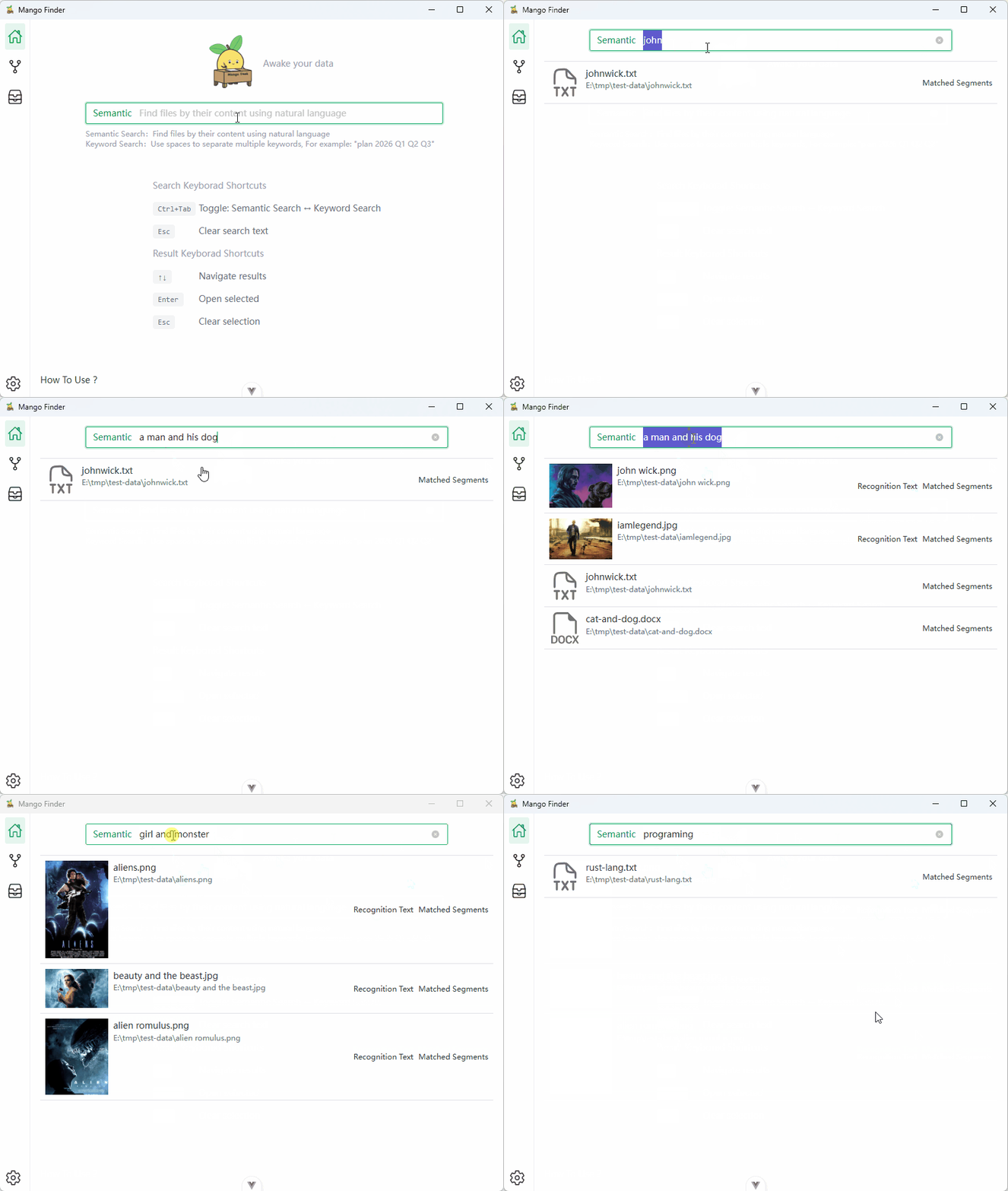
Mango Finder (formerly MangoDesk) is a local-first desktop app for searching your local documents with natural language, with cross-device search support.
It helps you find information based on what you remember, not file names or folder structures.
### 📌 Use Cases
Intelligent search for documents, images, and audio files across multi-device environments.
- 📝 **Personal Document Libraries** - PDFs, Word, Markdown and other accumulated files
- 🔗 **Multi-Device Environment** - Search across NAS, Mac, Linux, Windows on local network
- 🏢 **Team Knowledge Base** - Internal documents, project docs, meeting notes, etc.
### ✨ Features
- 💭 **Search by meaning**
- Find documents by describing what you remember, even if you don’t recall exact titles or locations
- 📍 **Exact Keyword Match**
- Instantly locate files using precise terms from file paths or content, ideal for finding specific phrases or technical strings.
- 🔍 **Find Similar Files**
- Find visually similar images using perceptual hashing, semantically similar documents, or audio files with matching content
- One click to discover related files based on visual, semantic, or audio fingerprint similarity
- 🔗 **Cross-Device Search**
- Connect multiple devices on your local network to search across all connected devices
- Find files from your other computers without manually transferring them
- 🌐 **Multilingual & Cross-language Search**
- Search across **100+ languages** seamlessly. Find English documents using Chinese queries, or vice versa, with zero configuration required
- 🔒 **Private by default**
- All data stays on your device, ensuring your privacy
- 🖥️ **Self-Hosted Model Support**
- Integration with **Ollama** and **vLLM** for deploying private model services
- Ideal for team or enterprise intranet environments, data stays within internal network
- ⚡ **Fast and efficient**
- Instant search results with optimized indexing system
- 👀 **Real-time file & directory watching**
- Automatically detects file and folder changes (add / modify / delete) and keeps index and search results up to date
- 📂 **Works with your existing local files**
- No need to reorganize folders or rename files — Mango Finder works with what you already have
- 🤖 **AI Agent Friendly**
- Documents are automatically parsed into structured Markdown — ready for tools like Claude Code, Cursor, and OpenClaw
- CLI *(coming soon)*
### 🏗️ Architecture
**Indexing**
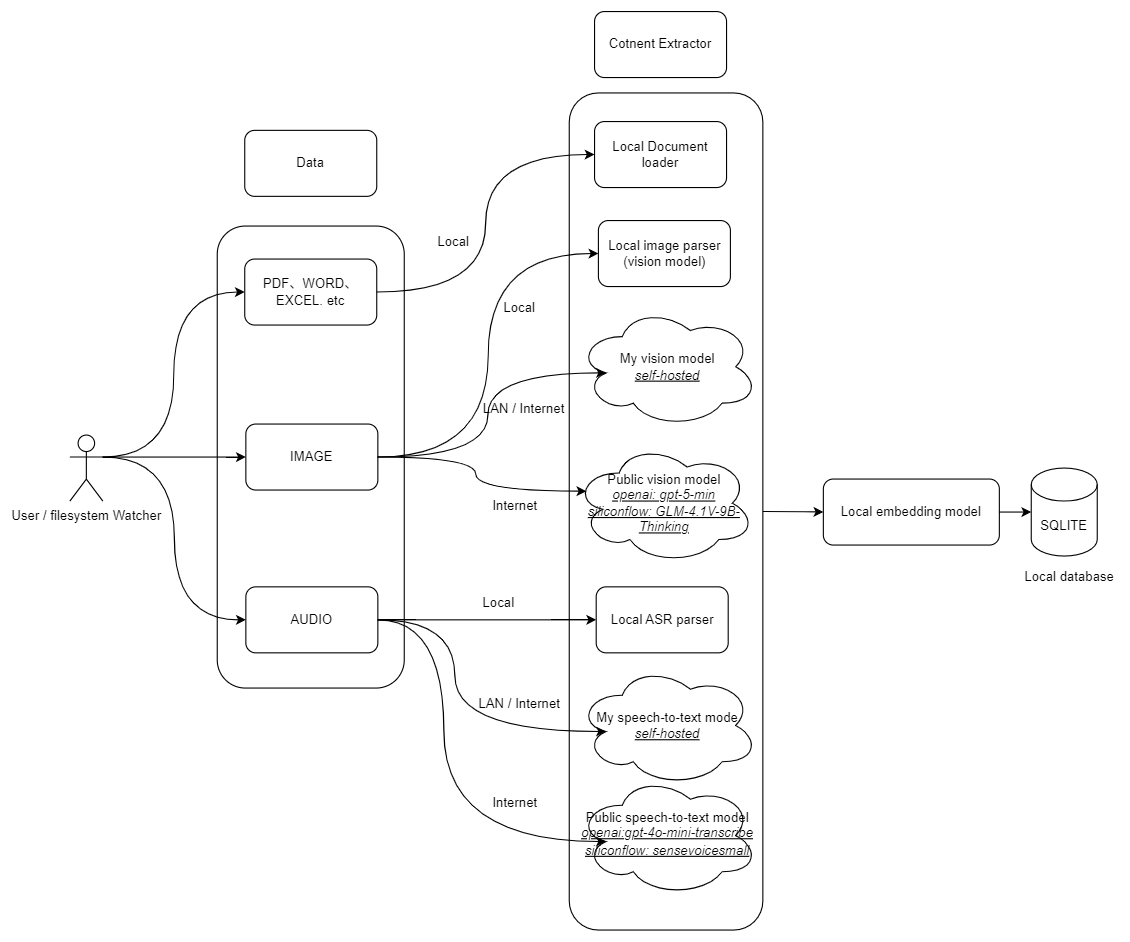
Supports three processing modes: **Local** (fully offline), **Self-Hosted** (Ollama/vLLM), and **Cloud** (remote AI services).
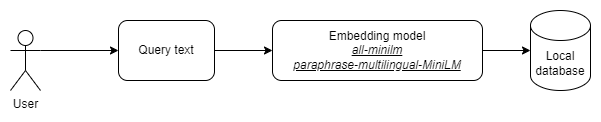
**Search**
### 🛠️ Technology Stack
- Frontend
- WebView(Tauri)
- PNPM
- Node.js
- Backend
- Rust
- Tauri Core
## 🚀 Setting Up
### 1. Frontend
#### Node
`node` v20+ required
It is recommended to use [nvm](https://github.com/nvm-sh/nvm) to manage multiple `node` versions.
#### PNPM
`pnpm` v9+ required
If you haven't installed `pnpm`, you can install it with the following command:
```shell
npm install pnpm -g
```
#### Install dependencies
```sh
pnpm i
```
### 2. Backend(Rust)
`rust` v1.94.0+ required
Install tools:
### 3. Tauri
Install Tauri Prerequisites:
### 4. Download Model Files
Download the required model files from one of the following sources:
1. **GitHub Release**: [model.zip](https://github.com/moyangzhan/mango-finder/releases/download/v0.1.0/model.zip) - Contains all required files
2. **Hugging Face**: [moyangzhan/mango-finder](https://huggingface.co/moyangzhan/mango-finder/tree/main) - Manually download the following files:
- \*.onnx model files
- \*\_tokenizer.json tokenizer files
- whisper-small-q8\_0.bin
After downloading, extract the files to the `src-tauri/assets/model` directory.
**Required Files**:
- embedding.onnx
- embedding\_tokenizer.json
- vision.onnx
- vision\_tokenizer.json
- whisper-small-q8\_0.bin
### 5. Whisper.cpp Dependencies
The audio transcription feature uses [whisper.cpp](https://github.com/ggerganov/whisper.cpp). Different operating systems require different dependencies.
#### Windows
Compiling on Windows requires **CMake** and **LLVM/Clang 18** (Note: LLVM 19/20/22 have compatibility issues, please use LLVM 18).
1. **Install CMake 4.3**
Download from [cmake-4.3.0](https://github.com/Kitware/CMake/releases/tag/v4.3.0-rc2)
2. **Download and Install LLVM 18**
- Visit [LLVM 18.1.8 Release](https://github.com/llvm/llvm-project/releases/tag/llvmorg-18.1.8)
- Download `LLVM-18.1.8-win64.exe`
- Check **"Add LLVM to the system PATH for all users"** during installation
3. **Verify installation**
```sh
cmake --version
clang --version
```
The clang version should show `18.1.8`
4. **Set environment variables (permanent)**
- Press `Win + R`, type `sysdm.cpl`, press Enter
- Click **"Advanced"** tab → **"Environment Variables"**
- Under **"User variables"**, click **"New"** and add:
| Variable name | Value |
| ------------- | -------- |
| `CXXFLAGS` | `/utf-8` |
| `CFLAGS` | `/utf-8` |
- Click OK and **restart your terminal** for changes to take effect
5. **Build the project (first time only)**
Open **"x64 Native Tools Command Prompt for VS 2022"** (search from Start Menu), then build:
```cmd
cd your-project-path\src-tauri
cargo build
```
> ⚠️ **Important Notes**:
>
> - The `/utf-8` flag is required to resolve encoding issues
> - If previous build failed, run `cargo clean -p whisper-rs-sys` to clear cache first
> - After whisper is compiled successfully, subsequent builds can use `pnpm tauri dev` directly in any terminal
> - VSCode's rust-analyzer plugin auto-checks code on startup. Without MSVC environment, whisper-rs-sys build will fail and show as red in `target/debug/build` directory. If you've successfully built in "x64 Native Tools Command Prompt for VS 2022", you can ignore this error
#### macOS
1. **Install Xcode Command Line Tools** (if not already installed):
```sh
xcode-select --install
```
2. **Install CMake**:
```sh
brew install cmake
```
3. **Set environment variables** (required for Apple Silicon):
For Apple Silicon Macs (M1/M2/M3), you need to set the following environment variables:
| Variable | Value | Purpose |
| -------------------------- | ----------------------------- | ---------------------------------------------- |
| `CFLAGS` | `-U__ARM_FEATURE_MATMUL_INT8` | Avoid whisper.cpp compilation issues on ARM |
| `MACOSX_DEPLOYMENT_TARGET` | `10.15` | Set minimum supported macOS version (Catalina) |
**Temporary (current terminal session):**
```sh
export CFLAGS="-U__ARM_FEATURE_MATMUL_INT8"
export MACOSX_DEPLOYMENT_TARGET="10.15"
```
**Permanent (add to your shell config):**
```sh
# For zsh (default on macOS)
echo 'export CFLAGS="-U__ARM_FEATURE_MATMUL_INT8"' >> ~/.zshrc
echo 'export MACOSX_DEPLOYMENT_TARGET="10.15"' >> ~/.zshrc
source ~/.zshrc
# For bash
echo 'export CFLAGS="-U__ARM_FEATURE_MATMUL_INT8"' >> ~/.bash_profile
echo 'export MACOSX_DEPLOYMENT_TARGET="10.15"' >> ~/.bash_profile
source ~/.bash_profile
```
4. **Add Rust target**:
```sh
rustup target add aarch64-apple-darwin
```
5. **Build**:
```sh
pnpm tauri build
# Or explicitly specify target
pnpm tauri build --target aarch64-apple-darwin
```
> **Note**: The minimum supported macOS version is 10.15 (Catalina).
#### Linux
Most Linux distributions require C/C++ build tools:
**Ubuntu/Debian:**
```sh
sudo apt update
sudo apt install build-essential cmake
```
**Fedora/RHEL:**
```sh
sudo dnf install gcc-c++ make cmake
```
**Arch Linux:**
```sh
sudo pacman -S base-devel cmake
```
## 🚀 Getting Started
## ▶️ Development Run
A Tauri app has at least [two processes](https://tauri.app/concept/process-model/):
- the Core Process (`backend`)
- the WebView process (`frontend`)
Both backend and frontend start with a single command:
```sh
pnpm tauri dev
```
## 📦 Building
```sh
pnpm tauri build
```
After building, the executable file is usually located in `src-tauri/target/release/`.
windows: `src-tauri/target/release/bundle/msi/Mango Finder_0.1.0_x64_en-US.msi`
## ❓ FAQ
### Q: How does Mango Finder ensure data privacy?
A: Mango Finder follows a local-first architecture to ensure data privacy:
#### Local Data Processing
- All document indexing and search operations are performed locally on your device
- By default, all features run completely offline without network dependency
- Remote models are only used for image and audio processing when users **manually enable remote model services**
#### Data storage
- All user data remains on the local device by default
#### Architecture Details
As shown in the architecture diagram above, the entire processing pipeline is designed to keep data local, ensuring maximum privacy and security.
### Q: Why are so many models used in the code?
A: The codebase includes multiple models serving different purposes:
#### 1. Active Local Models (Enabled by Default)
- `src-tauri/assets/model/*`
- These models run locally on users' computers for document, image, and audio processing
- Prioritized for privacy and performance
#### 2. Self-Hosted Models (Optional)
- Deploy private model services via **Ollama** or **vLLM**
- Ideal for teams or enterprises sharing models internally
- Data stays within the internal network, ensuring enterprise-level privacy
#### 3. Remote Models (Optional)
- `gpt-5-mini` and `gpt-4o-mini-transcribe`
- Designed for image and audio parsing
- Disabled by default, can be enabled if needed
- Note: We plan to replace these with local alternatives when available
#### 3. Reserved Models (Future Features)
- `qwen-turbo`, `deepseek-chat`, and `deepseek-reasoner`
- Prepared for upcoming features like:
- Knowledge graph generation
- Advanced document analysis
- Also serves as a foundation for developers who want to customize with these models
- Maintains flexibility for future feature expansion
### Q: Why can't I discover other devices on my local network when using the multi-device feature?
A: Prerequisites for using the multi-device feature:
- All devices are connected to the **same local network**
- All devices have **Mango Finder running** with the multi-device feature enabled
The multi-device feature relies on the mDNS protocol for device discovery. The following situations may prevent devices from being discovered:
#### Common Causes
1. **Network Isolation**
- Some routers or network environments have "AP Isolation" or "Client Isolation" enabled
- This blocks direct communication between devices on the same network
- Solution: Log into your router's admin interface and disable "AP Isolation" or similar options
2. **Firewall Restrictions**
- Windows Firewall or third-party security software may block inbound connections
- Solution: Allow Mango Finder through the firewall, or temporarily disable the firewall for testing
3. **Different Subnets**
- Devices connected to different subnets (e.g., 2.4GHz and 5GHz bands sometimes get assigned different subnets)
- Solution: Ensure all devices are connected to the same subnet
4. **Port Already in Use**
- The default port 15678 is occupied by another program
- Solution: Change to a different port in Multi-Device Settings
#### Diagnostic Steps
1. **Test Network Connectivity**
```sh
# On device A, ping device B's IP address
ping 192.168.1.xxx
```
If ping fails, there's a network isolation issue.
2. **Check Port**
```sh
# Test if the target device's HTTP service is reachable
curl http://192.168.1.xxx:7890/ping
```
3. **Check Firewall**
- Windows: Control Panel → Windows Defender Firewall → Allow an app through firewall
- macOS: System Preferences → Security & Privacy → Firewall
4. **Add Device Manually**
- If auto-discovery still doesn't work, you can click "Add Device" in the device list and manually enter the IP and port
## 📝 License
see the [LICENSE](LICENSE) file for details.
## 🤝 Contributing
Contributions of all kinds are welcome, including but not limited to:
- 🐛 Reporting bugs
- 💡 Suggesting new features or improvements
- 📖 Improving documentation
- 🔧 Submitting code (pull requests)
Before submitting a pull request, please consider:
1. Fork this repository
2. Create a new branch (git checkout -b feature/xxx)
3. Ensure pnpm tauri dev runs successfully locally
4. Commit changes (git commit -m 'feat: xxx')
5. Push the branch (git push origin feature/xxx)
6. Submit a Pull Request
## ⭐ Support the Project
Support Mango Finder if you find it helpful:
- Starring the repository on GitHub
- Recommending it to others
- Sharing your experience