Looking for help!
=================
I don't have too much time recently to take care of the project. If you would be interested in helping, please comment on https://github.com/muammar/mkchromecast/issues/398
Mkchromecast
============
[](https://raw.githubusercontent.com/muammar/mkchromecast/master/LICENSE)
[](https://github.com/muammar/mkchromecast/)
[](https://github.com/muammar/mkchromecast/blob/master/nodejs/)
[](https://github.com/muammar/mkchromecast/releases)
[](https://github.com/muammar/mkchromecast/releases/latest)
This is a program to cast your **macOS** audio, or **Linux** audio to your
Google Cast devices or Sonos speakers. It can also [cast video files](#video).
It is written for Python3, and it can stream via `node.js`, `parec` (**Linux**),
or `ffmpeg`. **Mkchromecast** is capable of using lossy and lossless audio
formats provided that `ffmpeg` or `parec` (**Linux**) are installed. It also
supports [Multi-room group
playback](https://support.google.com/chromecast/answer/6329016?hl=en), and
[24-bit/96kHz high audio resolution](https://github.com/muammar/mkchromecast#high-quality-audio).
Additionally, a system tray menu is available.
By default, **Mkchromecast** streams with `node.js` (or `parec` in **Linux**)
together with `mp3` audio coding format at a sample rate of `44100Hz` and
average bitrate of `192k`. These defaults can be changed using the
`--sample-rate` and `-b` flags. It is useful to modify these parameters when
your wireless router is not very powerful, or in the case you don't want to
degrade the sound quality. For more information visit the
[wiki](https://github.com/muammar/mkchromecast/wiki/), and the
[FAQ](https://github.com/muammar/mkchromecast/wiki/FAQ).
You can optionally install `ffmpeg` [more information
here](https://github.com/muammar/mkchromecast#using-the-ffmpeg-backend-with-mkchromecast-installed-from-sources)).
**Linux** users also can configure [ALSA to capture
audio](https://github.com/muammar/mkchromecast/wiki/ALSA). Note that sometimes
the lag between playing a song and hearing may be up to 8 seconds for certain
backends.
Tell me more about it
----------------------
To have an idea of using **Mkchromecast** from console [check this
gif](https://github.com/muammar/mkchromecast#usage).
**Mkchromecast** provides a **beta** system tray menu. It requires you to
install `PyQt5`. For more information check the
[Requirements](https://github.com/muammar/mkchromecast#requirements) and
[Install](https://github.com/muammar/mkchromecast#install) sections.
This is what the system tray menu looks like:
#### macOS
[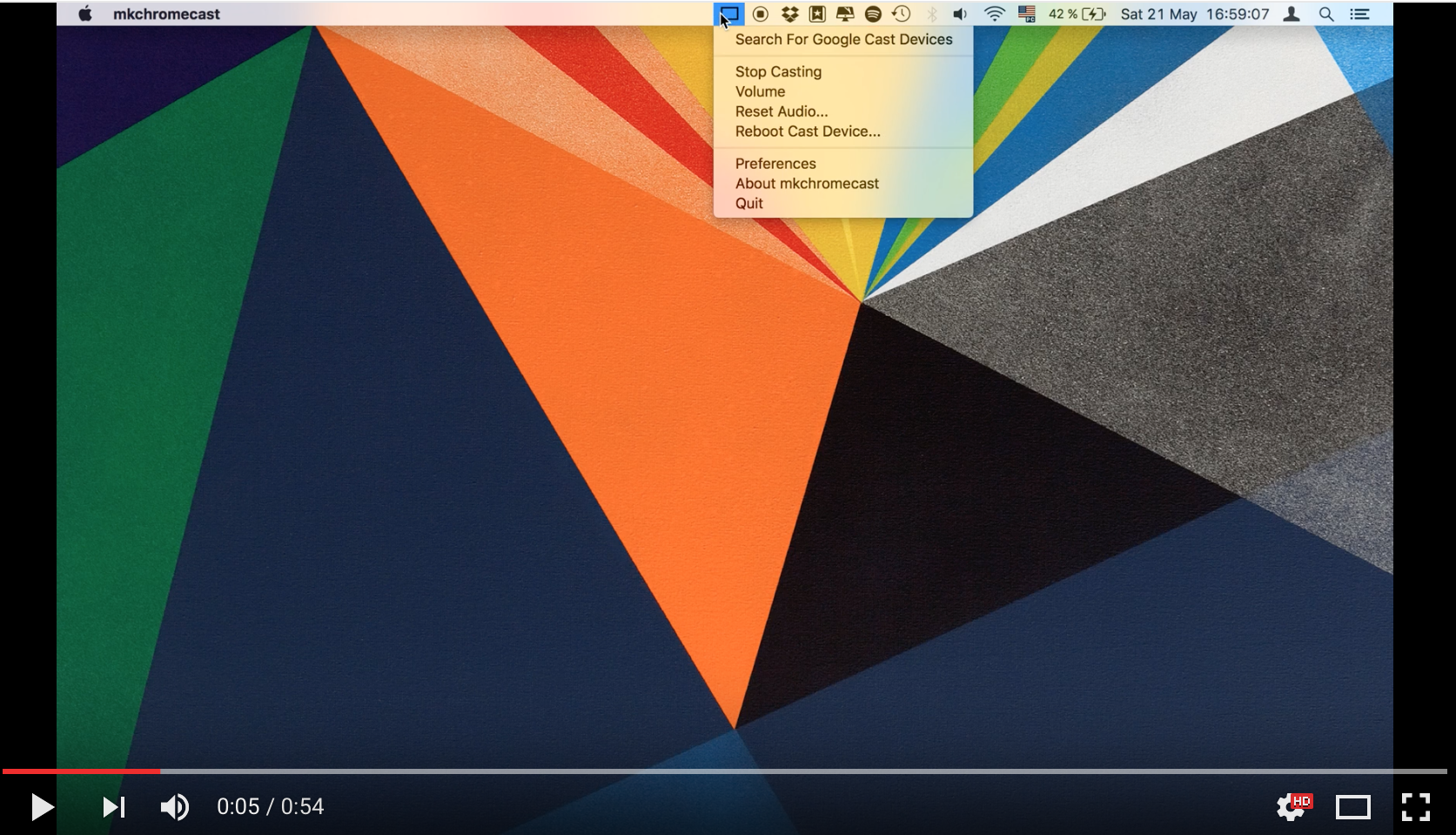](https://www.youtube.com/embed/d9Qn_LltOjU)
#### Linux
Check these images:
* [Gnome 1](https://raw.githubusercontent.com/muammar/mkchromecast/master/images/Gnome1.png)
* [Gnome 2](https://raw.githubusercontent.com/muammar/mkchromecast/master/images/Gnome2.png)
* [KDE5 1](https://raw.githubusercontent.com/muammar/mkchromecast/master/images/Kde5_1.png)
* [KDE5 2](https://raw.githubusercontent.com/muammar/mkchromecast/master/images/Kde5_2.png)
* [Awesome WM with Blue icons](https://raw.githubusercontent.com/muammar/mkchromecast/master/images/Awesome_BI.png)
Sonos support
--------------
If you have Sonos speakers, you can play whatever you are listening to in your
computer with **Mkchromecast**. To add Sonos support, install the `soco` python
module:
```
pip3 install soco
```
Contribute
----------
If you want to contribute, you can help by [reporting
issues](https://github.com/muammar/mkchromecast/issues) or by [creating pull
requests](https://github.com/muammar/mkchromecast/pulls) with your
developments/improvements. If your case is the latter, visit
[Development](https://github.com/muammar/mkchromecast/wiki/development) section
in the Wiki.
Requirements:
------------
#### macOS
In order to use **Mkchromecast** you need the following software to stream with
`node.js`:
* Python3.
* pychromecast.
* psutil.
* mutagen.
* [BlackHole](https://github.com/ExistentialAudio/BlackHole )
* PyQt5 (optional if you want to use the system tray menu).
For more control, you need `ffmpeg` as backend. In that case install the
following:
* flask (optional).
* ffmpeg (optional).
* yt-dlp (option if you plan to cast youtube URLs or [supported
websites](https://github.com/yt-dlp/yt-dlp/blob/master/supportedsites.md)).
#### Linux
* Pulseaudio.
* Pavucontrol.
* Python3 (if using the official debian package).
* pychromecast.
* psutil.
* mutagen.
* flask.
* vorbis-tools.
* sox.
* lame.
* flac.
* faac.
* ffmpeg (optional).
* PyQt5 (optional if you want to use the system tray menu).
* yt-dlp (option if you plan to cast youtube URLs or [supported
websites](https://github.com/yt-dlp/yt-dlp/blob/master/supportedsites.md)).
* soco (this module adds Sonos support to Mkchromecast).
For those who don't like Pulseaudio, it is possible to [cast using
ALSA](https://github.com/muammar/mkchromecast/wiki/ALSA). In that case the
requirements are:
* alsa-base
* alsa-utils
* alsa-utils
* Python3 (if using the official debian package).
* pychromecast.
* psutil.
* mutagen.
* flask.
* vorbis-tools.
* sox.
* lame.
* flac.
* faac.
* ffmpeg.
* PyQt5 (optional if you want to use the system tray menu).
* yt-dlp (option if you plan to cast youtube URLs or [supported
websites](https://github.com/yt-dlp/yt-dlp/blob/master/supportedsites.md)).
* soco (this module adds Sonos support to Mkchromecast).
Install
-------
There are two ways of installing this application:
1. Using the [binaries](https://github.com/muammar/mkchromecast#binaries).
2. From [sources](https://github.com/muammar/mkchromecast#from-sources).
#### Binaries
##### macOS
There is a standalone application for **macOS** users. You need to drag it to your
`/Applications/` folder.
[Download the latest dmg
here](https://github.com/muammar/mkchromecast/releases/latest/).
You need also to [install
BlackHole](https://github.com/muammar/mkchromecast#BlackHole-macos-users-only).
###### Homebrew Cask
If you are using homebrew, it is possible to install the binary as follows:
```
brew install --cask mkchromecast
```
If you find any problem with the application, please [report it
here](https://github.com/muammar/mkchromecast/issues).
##### Linux
* Debian (.deb): [https://packages.debian.org/mkchromecast](https://packages.debian.org/mkchromecast).
* Ubuntu (.deb): [http://packages.ubuntu.com/search?keywords=mkchromecast](http://packages.ubuntu.com/search?keywords=mkchromecast).
**Mkchromecast** is available in the [official Debian
repositories](https://packages.debian.org/mkchromecast). To install
it, just do:
```
apt install mkchromecast
```
Download the latest [deb package
here](https://github.com/muammar/mkchromecast/releases/), and install it as
follows:
```
sudo apt -f install ./mkchromecast_$VERSION_all.deb
```
where `$VERSION = X.Y.Z-Rev`, _e.g._: `0.2.6-1`.
This should work in Debian Unstable and Testing. I would appreciate Ubuntu
testers as well. If you find any problems, please [report it
here](https://github.com/muammar/mkchromecast/issues).
If you experience other problems related to dependencies, please [discuss them
here](https://github.com/muammar/mkchromecast/issues/9) or open a new issue.
Additionally, there are two dependency packages for pulling pulseaudio or ALSA
dependencies:
```
apt-get install mkchromecast-alsa (ALSA users)
```
or
```
apt-get install mkchromecast-pulseaudio (Pulseaudio users)
```
#### From sources
To install **Mkchromecast**, clone this repository:
```
git clone https://github.com/muammar/mkchromecast.git --depth 1
```
Or you may download one of the [stable releases
here](https://github.com/muammar/mkchromecast/releases), and unzip the file.
##### Arch Linux
Mkchromecast is available at the AUR :
- Release version: [https://aur.archlinux.org/packages/mkchromecast/](https://aur.archlinux.org/packages/mkchromecast/).
- Development version: [https://aur.archlinux.org/packages/mkchromecast-git/](https://aur.archlinux.org/packages/mkchromecast-git/).
```bash
#install with aurman
aurman -S mkchromecast
```
```bash
#install with aurutils
aur sync mkchromecast
```
If you get the error `cannot import name 'DependencyWarning'` in Arch Linux,
please check issue [#31](https://github.com/muammar/mkchromecast/issues/31).
##### Python
To install python requirements use the `requirements.txt` file shipped in
this repository:
```
pip install -r requirements.txt
```
**Note**: if this step fails, maybe you need to run the installation with
`sudo` as shown below. However, before installing using this method verify why
a regular user cannot install these requirements.
```
sudo pip install -r requirements.txt
```
**Linux** users can try to install these python requirements using the package
managers coming with their distributions.
Example for Debian based distros:
```
sudo apt-get install python3.6 python3-pip python3-pychromecast python3-flask python3-psutil python3-setuptools python3-mutagen python3-gi vorbis-tools sox lame flac faac opus-tools
```
**Note**: if `python3-pychromecast` is not available in your repository,
follow instructions in [#9](https://github.com/muammar/mkchromecast/issues/9).
##### BlackHole (macOS users only)
For installing BlackHole you can check
[https://github.com/ExistentialAudio/BlackHole ](https://github.com/ExistentialAudio/BlackHole)
and just download the [latest dmg
file](https://github.com/ExistentialAudio/BlackHole/releases).
If you have [Homebrew](http://brew.sh/) you can use [brew
cask](https://caskroom.github.io/) as follows:
```
brew install --cask blackhole
```
By default, the sample rate in BlackHole is set to `44100Hz`. If you desire
to stream at higher sample rates follow the [instructions in the
wiki](https://github.com/muammar/mkchromecast/wiki/Sample-rates).
**Note**: re-sampling to higher sample rates is not a good idea. It was indeed
an issue in chromecast audio devices. See [this thread](https://goo.gl/yNVODZ).
Therefore, if you want to go beyond `44100Hz` you have to [capture the sound at
a higher sample rate](https://github.com/muammar/mkchromecast/wiki/Sample-rates).
##### ffmpeg
The easiest way of installing `ffmpeg` is using a package manager, *e.g.*: brew,
macports or fink. Or in the case of **Linux**, *e.g.*: apt, yum, or pacman.
###### macOS
I will briefly describe the case of Homebrew here. First, you will need
Homebrew installed in your machine:
```
/usr/bin/ruby -e "$(curl -fsSL https://raw.githubusercontent.com/Homebrew/install/master/install)"
```
Once Homebrew is ready, you can install `ffmpeg`. As stated in the [ffmpeg
website](https://trac.ffmpeg.org/wiki/CompilationGuide/MacOSX), and for being
able to use all audio coding formats in **Mkchromecast**, it is better to
install `ffmpeg` with the following options enabled:
```
brew install ffmpeg --with-fdk-aac --with-tools --with-freetype --with-libass --with-libvorbis --with-libvpx --with-x265 --with-opus
```
###### Linux
As I use Debian, the way of installing `ffmpeg` is:
```
apt-get install ffmpeg
```
**Audio coding formats available with `parec` and `ffmpeg` backends**
**Audio coding format** | **Description** | **Notes**
------------------------| ----------------------------------|------------------
`mp3` | MPEG Audio Layer III (default) | Lossy compression format (default bitrate: 192k)
`ogg` | Ogg Vorbis | Lossy compression format (default bitrate: 192k)
`aac` | Advanced Audio Coding (AAC) | Lossy compression format (default bitrate: 192k)
`opus` | Opus | Lossy compression format (default bitrate: 192k)
`wav` | Waveform Audio File Format | Lossless format (HQ sound)
`flac` | Free Lossless Audio Codec | Lossless format (HQ sound)
##### PyQt5
These Python bindings are needed if you intend to use the system tray menu.
Sometimes `pip` is able to install `PyQt5` and`pip install pyqt5` is enough.
If this does not work for you, I suggest you to install it using a package
manager.
###### macOS
Example with Homebrew:
```
brew install pyqt5 --with-python3
```
###### Linux
* **Debian**
```
apt-get install python3-pyqt5
```
or if you desire it you can do it yourself from the sources.
Updating
--------
To update **Mkchromecast** sources, just get into the cloned directory and:
```
git pull
```
or if you prefer it, you can just pass the `--update` argument to
**Mkchromecast**:
```
bin/mkchromecast --update
```
If you are using the **macOS** application:
1. Click on `Check For Updates`.
2. If there are new versions, you will be prompted to [download the latest
dmg](https://github.com/muammar/mkchromecast/releases/latest).
3. Replace the `mkchromecast.app` in your `/Applications/` directory.
**Linux** users need to either perform a `apt-get upgrade` or [download the
latest deb here](https://github.com/muammar/mkchromecast/releases/), and `dpkg
-i mkchromecast_$VERSION_all.deb`.
Usage
-----
#### Audio
Get into the cloned **Mkchromecast** directory and execute:
```
bin/mkchromecast
```
This will launch **Mkchromecast** using `node.js` (or `parec` for **Linux**
users), and will do the streaming part together with the `mp3` audio coding
format. `node.js` works decently but the server may tend to _fail_ under certain
circumstances. In such a case, **Mkchromecast** is able to restart the
_streaming/casting_ process automatically. So, some hiccups are expected.
**Note**: most of the steps described herein are the same for **macOS** and **Linux**
users. However, if you launch the command above in **Linux**, the process is
less automatized. In **Linux**, you need to select with `pavucontrol` the sink
called `Mkchromecast` to stream unless you are using [ALSA](https://github.com/muammar/mkchromecast/wiki/ALSA).
See the [wiki for more information](https://github.com/muammar/mkchromecast/wiki/Linux). tl;dr?, just
check the gif below.
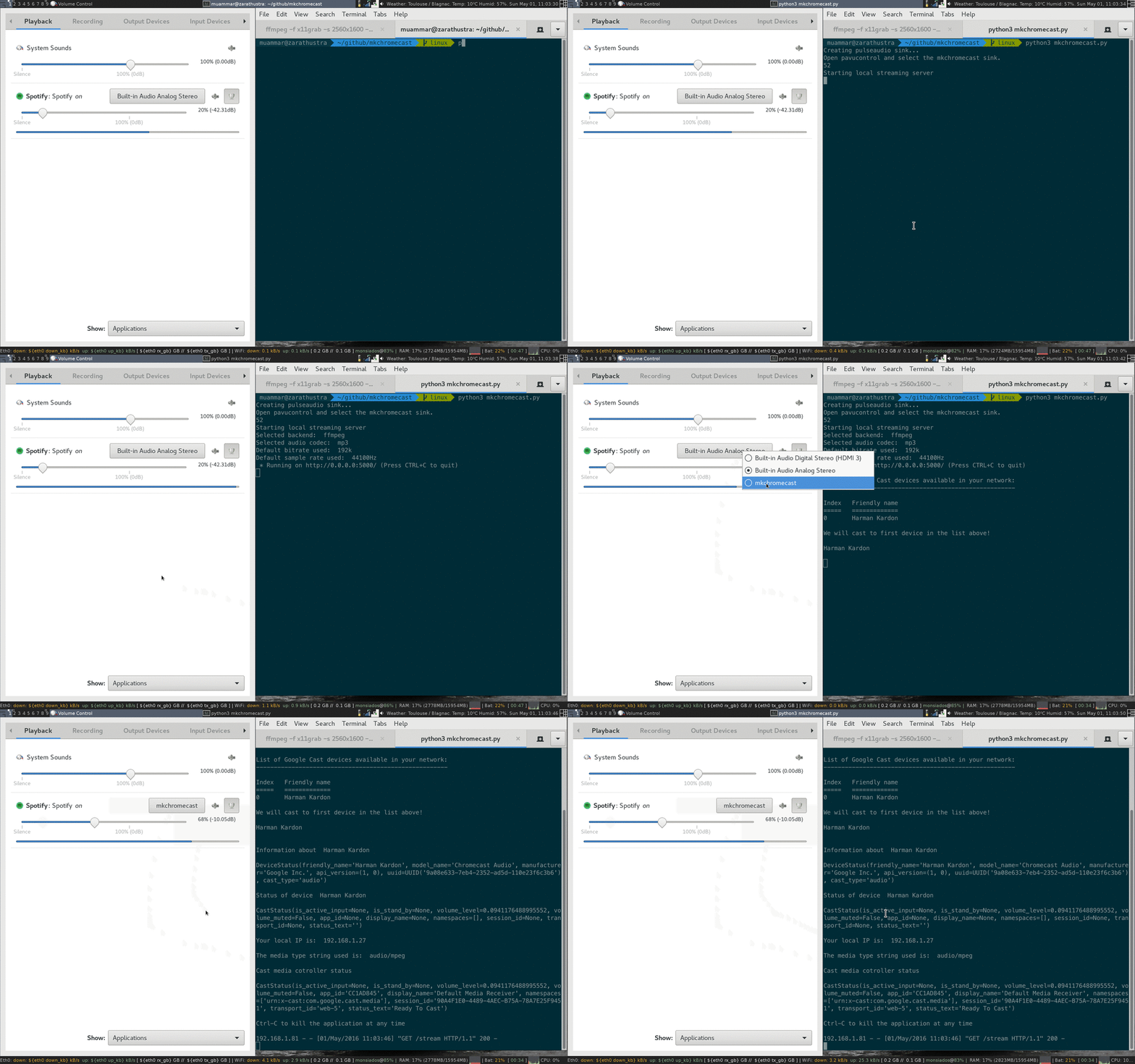
**Note**: the cast process is independent from the selection of the pulseaudio
sink. This means that **Mkchromecast** will tell the cast device to listen your
computer but no sound will be heard until you select the sink. For ALSA users, this
does not apply.
##### Using the `ffmpeg` backend with **Mkchromecast** installed from sources
Below an example using `mp3`:
```
bin/mkchromecast --encoder-backend ffmpeg
```
With `ffmpeg` you can modify the codec:
```
bin/mkchromecast --encoder-backend ffmpeg -c aac
```
change the bitrate and sample rate:
```
bin/mkchromecast --encoder-backend ffmpeg -c mp3 -b 128 --sample-rate 31000
```
check the section [BlackHole (macOS users
only)](https://github.com/muammar/mkchromecast#BlackHole-macos-users-only)
for more about sample rates.
You also can set the host ip manually which is a useful option when having more
than one active network connection or when the automatically ip detection fails:
```
bin/mkchromecast --host 192.168.1.1
```
##### Other examples with **Mkchromecast** installed using the debian package
To cast using `parec` and `wav` audio coding format:
```
mkchromecast -c wav
```
There is also an option to change the `bitrate`, and in this case with `ffmpeg`:
```
mkchromecast --encoder-backend ffmpeg -c ogg -b 128
```
and another one to change the sampling rate:
```
mkchromecast --encoder-backend ffmpeg -c ogg -b 128 --sample-rate 48000
```
##### Using **Mkchromecast** from the system tray
To launch it:
```
bin/mkchromecast -t
```
or
```
mkchromecast -t
```
The system tray application can perform all the actions from the aforementioned
commands. To get an idea, please check the [Youtube video
here](https://github.com/muammar/mkchromecast#macos).
#### Playing Youtube URLs in Google Cast devices
You can play Youtube URLs (or [other
sites](https://github.com/yt-dlp/yt-dlp/blob/master/supportedsites.md)) headlessly from
the command line:
```
bin/mkchromecast -y https://www.youtube.com/watch\?v\=NVvAJhZVBT
```
To use this function, you need to install `yt-dlp`. In macOS, this can be
done with homebrew: `brew install yt-dlp`. In Debian based distros:
`apt-get install yt-dlp`.
**Note**: you may need to enclose the URL between quotation marks, and only
URLs over `https` are supported.
#### Playing source URLs in Google Cast devices
You can play any source URLs headlessly from the command line:
```
bin/mkchromecast --source-url SOURCE_URL
```
This option is useful for:
1. Casting using MPD in the case you have already a `http` streaming source.
2. Casting a radio station. A list of stations to try: https://ponyvillefm.com/servers
Example:
```
bin/mkchromecast --source-url http://192.99.131.205:8000/pvfm1.ogg -c ogg --control
```
As it can be seen above, **the codec has to be specified with the `-c` flag**.
**Note**: `.m3u` or `.pls` are not yet supported.
#### Controlling the Google Cast's volume and pause/resume options
You can control the volume of your Google Cast device by launching
**Mkchromecast** with the option `--control`:
```
bin/mkchromecast --encoder-backend ffmpeg -c ogg -b 320 --control
```
This will allow you to press u and d keys for `volume up`
and `volume down` respectively.
The system tray has a window with a volume slider to do `volume up` and `volume down`.
#### High quality audio
**Mkchromecast** lets you cast using `24-bit/96kHz` high audio resolution. This
is the *maximum chromecast audio capability*. The supported codecs are: `wav`
and `flac`. In spite of the fact that `aac` can use `96000Hz` sample rate, the
bitrate corresponds to that of a lossy data compression format. Therefore, the
following combinations can achieve this `24-bit/96kHz` capability:
* `wav` + `96000Hz` sample rate.
* `flac` + `96000Hz` sample rate.
References:
* [#11](https://github.com/muammar/mkchromecast/issues/11).
* [Lossless formats](https://github.com/muammar/mkchromecast/wiki/Audio-Quality#lossless-formats).
#### Video
You can now cast videos to your Google cast using **Mkchromecast**. This feature works both with `node`
and `ffmpeg` backends and from command line. In the future, they may be a graphical interface
for this process. [See this project](https://github.com/muammar/mkchromecast/projects/1).
* Cast a file from your computer to your chromecast:
```
bin/mkchromecast --video -i "/path/to/file.mp4"
```
```
bin/mkchromecast --video -i "/path/to/file.mp4" --encoder-backend node
```
**Note**: the format of the file can be whatever is supported by `ffmpeg` and not exclusively mp4.
* Subtitles
```
bin/mkchromecast --video -i "/tmp/Homeland.S06E01.Fair.Game.1080p.AMZN.WEBRip.HEVC.DD5.1.x265.mkv" --subtitles /tmp/Homeland.S06E01.Fair\ Game.HDTV.x264-BATV.en.HI.srt
```
* Set the resolution
```
bin/mkchromecast --video --resolution 4k -i /path/to/myvideo.something --subtitles /path/to/my.srt
```
* Cast from a source url:
```
bin/mkchromecast --source-url http://commondatastorage.googleapis.com/gtv-videos-bucket/sample/BigBuckBunny.mp4 -c mp4 --volume --video
```
* Youtube Video
```
bin/mkchromecast -y https://www.youtube.com/watch\?v\=VuMBaAZn3II --video
```
Killing the application
-----------------------
To kill **Mkchromecast** when you run it from console, just press
Ctrl-C or q key to quit (when `--control` flag is passed).
When launching from system tray, use the `Quit` button in the system tray.
More help
---------
To get more help:
```
bin/mkchromecast -h
```
or when installing the debian package:
```
mkchromecast -h
```
Known issues
------------
##### General
* **Mkchromecast**'s versions lower than 0.3.7 cannot operate with newer
versions of pychromecast.
* When casting videos using the `node` backend, it is not possible to
use neither the `--subtitle` nor the `--seek` flags.
* When casting to Sonos the only codecs supported are: `mp3`, and `aac`.
I won't give `wma` support. Apparently there is a way to play `wav`, and
`ogg` that I will try to implement later.
##### macOS
* **Mkchromecast** v0.3.6 cannot connect to selected chromecast when there are
more than one available. In that case, you need to use the application from
sources or build the application as shown
[here](https://github.com/muammar/mkchromecast/wiki/macOS-standalone-app).
##### Linux
* When using `parec` and `lame` encoder, the delay between audio played and
listened can be up to 8 seconds. I suggest you to use something different
than mp3.
You can also check the [FAQ](https://github.com/muammar/mkchromecast/wiki/FAQ)
for more information.
TODO
----
* Verify all exceptions when the system tray menu fails.
* **Sonos**: add support to different available flags.
* **Sonos**: add Equalizer in the controls.