[← README](../../README.md) · [Docs index](../README.md) · [Panels and keys](README.md)
# Git branches and worktrees
**Alt+B** in a folder of a git repository lists its branches as folders: the local ones first,
then the remote-tracking ones. **Enter** on a branch shows its files as they are at its last
commit, read-only, as in a [history](git-history.md). **Alt+S** switches to the branch under
the cursor, after asking; *New branch here* makes one. **Alt+W** lists the repository's
worktrees, and **Enter** on one opens its folder. Both apps do this.
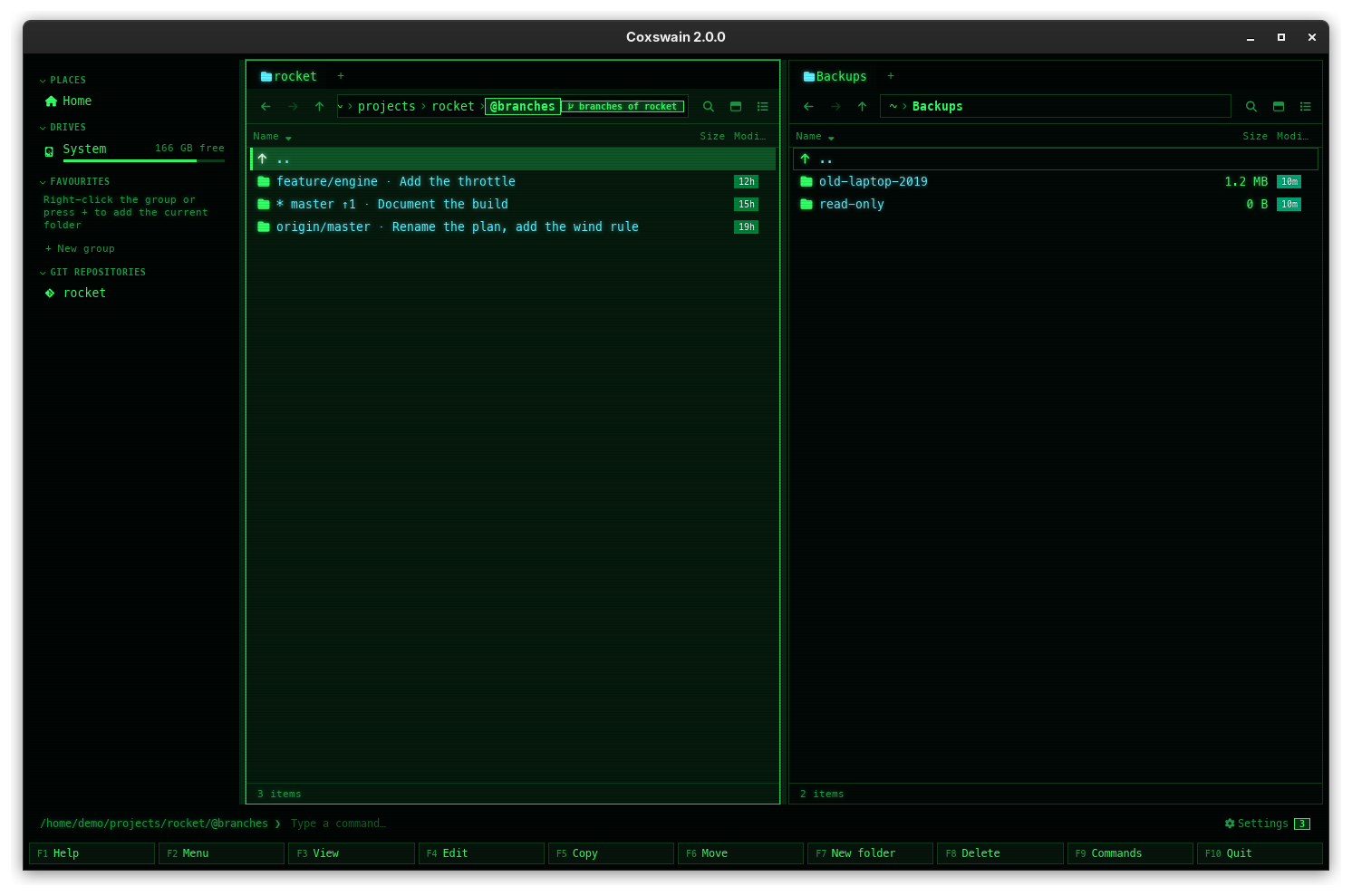
![The terminal app in Classic blue, the left panel titled /home/demo/projects/rocket/@branches [branches], the cursor on * master ↑1 and the info line with its commit id, date and author](../screenshots/tui-git-branches.png)
*The branches folder in the terminal app: **Alt+B**, then **Enter** on a branch to browse its files.*
## Contents
- [How to use it](#how-to-use-it)
- [What you see](#what-you-see)
- [Switching to a branch](#switching-to-a-branch)
- [A new branch](#a-new-branch)
- [Worktrees](#worktrees)
- [What works in the lists](#what-works-in-the-lists)
- [Paths](#paths)
- [Limits](#limits)
- [Settings and config.toml](#settings-and-configtoml)
- [In the terminal app](#in-the-terminal-app)
- [Questions](#questions)
## How to use it
1. In a folder of a git work tree, press **Alt+B**. It is in **F9** as *Git branches* too; in
the desktop app, a click on the git line in the pane's footer does the same, and the
preview pane has *Git branches* and *Git worktrees* buttons under *Git* (with *Git config*
and *Open in your git tool* next to them).
2. The pane lists the branches: the local ones by name, then the remote-tracking ones
(`origin∕main`). The one you are on starts with `*`.
3. **Enter** on a branch: its files as they are at its last commit. Preview a file, see what
that commit changed in it (**Diff** in the desktop app's preview pane), **F3** to view it and
**F5** to copy it out, as in a [history](git-history.md#what-works-in-a-history).
4. **Alt+S** on a branch: a dialog asks *Switch rocket to the branch feature/engine?*, with
*Enter Switch · Esc Cancel* under it; **Enter** (or **y**, or the *Switch* button) runs
`git switch`. The status line says what git said (*Switched to branch
'feature/engine'*), and the git line follows.
5. **F9** › *New branch here*: a prompt asks for the name; the new branch starts from the
branch under the cursor, or from the current commit when you are in a folder of the
repository (or on `..`), and git switches to it.
6. **Alt+W**: the worktrees. **Enter** on one opens its folder on disk.
7. **Backspace** (or `..`) goes back: from a branch's files to the list, from the list to the
repository's folder.
## What you see
| | Desktop app | Terminal app |
|---|---|---|
| The pane | Tinted, as inside an archive or a history | – |
| The path | `…/rocket/@branches`, `…/rocket/@branches/a1b2c3d4e5f6/…`, `…/rocket/@worktrees`, the marker part highlighted | The same path in the panel's title |
| A badge | *branches of rocket*, *worktrees of rocket*; inside a branch *commit a1b2c3d* (hover it for the id, author, date and subject) | `[branches]`, `[worktrees]`, `[commit a1b2c3d]` after the title |
| A branch | `* main ↑1 ↓2 · Fix the fuel valve`: `*` when you are on it, how far it is ahead (`↑`) and behind (`↓`) its upstream, and the subject of its last commit. That commit's date in *Modified*, its author in *Last commit* (hover for the id and subject) | The same name; the info line shows the commit id, date and author |
| A worktree | `rocket-feature [feature∕engine] dirty locked`: its folder's name, its branch (or *detached at a1b2c3d*), *dirty* or *clean*, and *locked* or *folder gone* when git says so; `*` before the one you came from. Its folder's date in *Modified* | The same |
A `/` in a branch's name shows as `∕`, since a name in a listing is one path segment.
## Switching to a branch
**Alt+S** (*Switch to branch*) works in the list of branches, with the cursor on a branch. The
desktop app also has *Switch to branch* under *Git* in the preview pane. In a
[Jujutsu](jujutsu.md) repository **Alt+S** and *New branch here* are refused: the status line says
*Coxswain only reads Jujutsu repositories: move to a bookmark with jj new or jj edit.* In a
[Mercurial](mercurial.md) repository **Alt+S** runs `hg update --check` and *New branch here* makes
a bookmark. In a [Subversion](subversion.md) or [CVS](cvs.md) working copy the branches are on the
server: **Alt+B** and **Alt+S** say so.
- A **local branch** is switched to with `git switch `.
- A **remote-tracking branch** (`origin∕feature`) gets a local branch of the same name that
tracks it: `git switch --track origin/feature`. When a local branch of that name exists
already, git says so and nothing changes: switch to the local one instead.
- **Your changes are safe.** Changes that do not touch the files the switch changes come
along, as with git itself. When the switch would overwrite a change, git refuses, and a dialog titled *Could not switch to
feature/engine* gives the cause in one line, with git's own message under *Details* (*Your local changes to the following files would be overwritten by
checkout: a.txt. Please commit your changes or stash them before you switch branches.*).
Coxswain never forces a switch.
- A branch that is checked out in another worktree is refused by git, with its message.
## A new branch
*New branch here* (in **F9**; the desktop app also has it under *Git* in the preview pane of a
branch) asks *Name of the new branch, from feature/engine:* in the list of branches, or *Name of
the new branch, from the current commit:* in a folder of the repository. It runs
`git switch -c []`, so you are on the new branch at once. A name git does not
take (with a space, starting with `-`, ending in `.lock`, …) is refused before git runs:
*"a b" is not a name git takes for a branch*.
## Worktrees
**Alt+W** (*Git worktrees*) lists every worktree of the repository, from
`git worktree list --porcelain`: the main one first, then the linked ones. Each row is the
worktree's folder; **Enter** opens it in the pane, as any folder, with its own git line. A
worktree whose folder is gone shows *folder gone* (`git worktree prune` would forget it); one
that is locked shows *locked*.
There is no adding or removing of worktrees here: use `git worktree add` and
`git worktree remove` on the command line.
## What works in the lists
| Key | In the list of branches | In the list of worktrees |
|---|---|---|
| **Enter** | The branch's files at its last commit | Opens the worktree's folder |
| **Alt+S** | Switch to the branch, after asking | The status line says to switch from the list of branches |
| **F9** › *New branch here* | A new branch from the one under the cursor | – |
| **Backspace**, `..` | Back to the repository's folder | The same |
| **F5** | Copies the branch's files out, named `rocket-a1b2c3d` | Copies the worktree's folder, as any folder |
| **F4**, **F6**, **F7**, **F8** | Refused: the list is read-only | **F8** deletes the folder under the cursor, as anywhere (git then calls the worktree prunable) |
Inside a branch everything works as inside a commit of a
[history](git-history.md#what-works-in-a-history).
## Paths
The lists are paths, as a history is: `/@branches` is the list of branches,
`/@branches//` a branch's files (the commit is the first 12
characters of its last commit's id), and `/@worktrees` the worktrees. You can type
one in the path bar (**Ctrl+L**) or **Alt+F1**. A real folder named `@branches` or `@worktrees`
is just a folder.
## Limits
- **Only switch and new branch change anything.** No delete, rename, push, pull, fetch or merge:
**Alt+G** opens your own git tool for those ([Open in your git tool](git.md#open-in-your-git-tool)),
or use git on the command line or the [user menu](../commands/user-menu.md).
- **No hooks set in the repository's config, and no work tree elsewhere.** git also runs hooks
named in config (`hook..command` with `hook..event`), which turning hooks off does
not stop, so a switch or a new branch is refused when the repository's own config has any
`hook.*` key: *Not switched: this repository's own config sets hook.…, a hook git would run on
the switch*. It is refused too when the repository's config puts its files somewhere else
(`core.worktree`), so a switch would write outside the folder you see: *Not switched: this
repository's config puts its files in …, not in …*. A submodule's own `core.worktree`, which
points at its folder, is fine.
- **No hooks and no filters of the repository run.** Coxswain runs git with the repository's own
hooks, file system monitor and filter drivers turned off, as it does for the status. A
repository that defines filters of its own (git-crypt, say) would have its files written
wrong, so a switch there is refused: *This repository has filters of its own (git-crypt,
say), which Coxswain never runs: switch branches with git itself*. Filters set up in your own
git config (git-lfs) run as usual, but git-lfs reads the repository's own config: when you
have git-lfs set up and the repository's config names a transfer agent or an extension
(`lfs.customtransfer.*`, `lfs.standalonetransferagent`, `lfs.extension.*`), an ssh or askpass
program, a credential helper that is a command, a proxy or certificate setting, or its
`.lfsconfig` names an LFS server that is not https, the switch is refused too: *Not
switched: this repository's own config sets …, which git-lfs would follow while writing the
files*. A repository from elsewhere could otherwise run a program, or send your login to
someone else, as its files are written.
- **The switch runs while you wait** in the terminal app; in a very big work tree the keys wait
for git.
- **Remote-tracking branches are as the last fetch left them:** Coxswain never fetches.
- It needs `git` on your `PATH` (2.36 or newer for the worktrees).
## Settings and config.toml
| What | config.toml | Default |
|---|---|---|
| The list of branches | `branches` in `[keys]` | `["Alt+B"]` |
| The list of worktrees | `worktrees` in `[keys]` | `["Alt+W"]` |
| Switch to branch | `switch_branch` in `[keys]` | `["Alt+S"]` |
| New branch here | `new_branch` in `[keys]` | none (in **F9**) |
| The *Last commit* column and line | `[git] last_commit` | `true` |
Bound to these actions, **Alt+B**, **Alt+W** and **Alt+S** no longer start a
[quick search](quick-search.md); set the action to `[]` to free one.
## In the terminal app
Everything above works the same, keys included. The title says `[branches]` or `[worktrees]`,
the info line under the panel shows a branch's commit id, date and author, the switch asks
*Switch … to the branch …?* with *Enter Switch · Esc Cancel* (**y** / **n** work too), and git's
refusal opens in a message box, its cause first and git's words below *Details:*.
There is no git line to click: use **Alt+B**.
## Questions
#### How do I switch to another branch?
**Alt+B**, the cursor on the branch, **Alt+S**, then **Enter**. The status line says
*Switched to branch '…'* and the git line shows the new branch.
#### Why did the switch say my changes would be overwritten?
A file you changed differs between the two branches, so the switch would replace your change.
git refuses, and so does Coxswain. Commit or stash your change first (the
[user menu](../commands/user-menu.md) or the command line), then switch again.
#### How do I get a branch that is only on the server?
Fetch it first (`git fetch` on the command line); it then shows as `origin∕name` in the list.
**Alt+S** on it makes a local branch that tracks it and switches to it.
#### How do I look at another branch's files without switching?
**Enter** on it in the list of branches: its files at its last commit, read-only. **F5** copies
one out.
#### Where do I see which worktree or what operation I am in?
On the git line: `worktree: rocket-feature` in a linked worktree, *detached at a1b2c3d* when
HEAD is not on a branch, and *merging*, *rebasing*, *cherry-picking*, *reverting* or *bisecting*
while git is in the middle of one ([The git line](git.md#the-git-line)).
#### Can I delete, push or merge a branch here?
Not in this version. Use git on the command line, or put the command in the
[user menu](../commands/user-menu.md) (**F2**).
#### Why is the switch refused with "filters of its own"?
The repository sets up a filter driver in its own config (git-crypt, for one). Coxswain never
runs programs a repository names, so it would write the files without the filter, and wrong.
Switch with `git switch` on the command line there.
#### Why is a switch refused because of a hook?
The repository's own config sets a hook (`hook..command`): git would run that program
when the branch changes, and a repository you downloaded could name anything there. If you
trust it, switch with `git switch`, or remove the hook with `git config --remove-section
hook.`.
#### Why is a switch refused because of git-lfs?
You have git-lfs set up, so it writes the repository's large files during a switch, and it
reads the repository's own config. That config names something git-lfs would run or send your
login through (the key is in the message), or the branch's `.lfsconfig` names an LFS server
that is not https. A repository you downloaded could set these to run a program. If you trust
the repository, switch with git itself (`git switch`), or remove the key with
`git config --unset`. A credential helper by name (`store`, `manager`) is fine.
#### Why does Alt+B not jump to names with a "b" any more?
It is bound to *Git branches*. Set `branches = []` in `[keys]` to give it back to quick search,
or start the quick search with another letter.
---
[← Previous: Git history as folders](git-history.md) · [Next: Git config →](git-config.md)
![The terminal app in Classic blue in ~/projects/rocket: Alt+B lists feature/engine, * master and origin/master in @branches; Down puts the cursor on feature/engine and the info line shows its commit; Enter shows the branch's files, read-only, titled [commit 584d26d]; Enter on src lists engine.rs, main.rs and throttle.rs](../screenshots/branches.png)