[← README](../../README.md) · [Docs index](../README.md) · [Panels and keys](README.md)
# Git in the panels
Inside a git repository every panel shows where you stand, oh-my-posh style: the branch,
commits ahead of and behind the upstream, and counts of what changed. Each file and folder
gets a glyph for its own state, and the date and author of the last commit that changed it.
Both apps do this; the desktop app adds a diff in the preview pane and a list of the
repositories you visited. **Ctrl+G** opens a file's or folder's history:
[Git history as folders](git-history.md); **Alt+B** the branches and **Alt+W** the worktrees:
[Git branches and worktrees](git-branches.md). Commit, push and pull are for your own git tool:
**Alt+G** opens it in the repository ([Open in your git tool](#open-in-your-git-tool)).
**Alt+C** shows the git config as git uses it, read-only: [Git config](git-config.md).
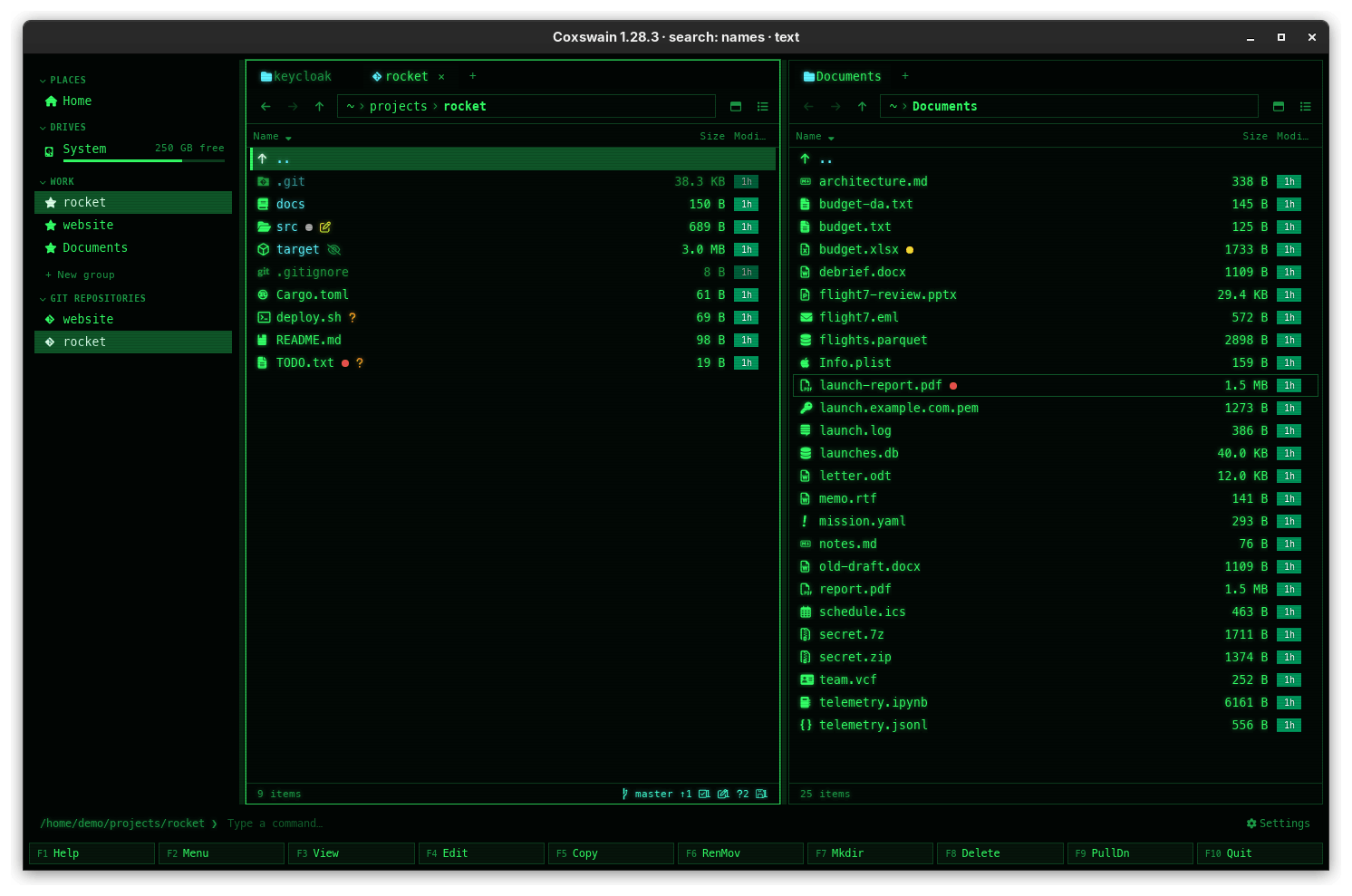
*`src` carries the pencil of a modified file inside it, `target` the crossed-out eye of an ignored folder, `TODO.txt` the question mark of an untracked file. The footer reads `master ↑1` and the counts.*
## Contents
- [How to use it](#how-to-use-it)
- [The git line](#the-git-line)
- [Upstream, remote and last fetch](#upstream-remote-and-last-fetch)
- [File and folder glyphs](#file-and-folder-glyphs)
- [Last commit per file](#last-commit-per-file)
- [When it updates](#when-it-updates)
- [The diff of a file (desktop app)](#the-diff-of-a-file-desktop-app)
- [Recent repositories (desktop app)](#recent-repositories-desktop-app)
- [Open in your git tool](#open-in-your-git-tool)
- [Git commands from the user menu](#git-commands-from-the-user-menu)
- [Settings and config.toml](#settings-and-configtoml)
- [In the terminal app](#in-the-terminal-app)
- [Questions](#questions)
## How to use it
1. Go into a folder of a git work tree. The git line and the glyphs appear as soon as git
answers; there is nothing to switch on.
2. Press **Ctrl+R** after committing or pulling in another terminal, so the line is read again.
3. Desktop app: with the cursor on a changed file, open the preview pane (**Space**) and pick
**Diff** at its top.
4. Look at the *Last commit* column (desktop app) or the line under the panel (terminal app):
who last changed the entry under the cursor, and when.
5. Press **Ctrl+G** for the history of the file or folder under the cursor
([Git history as folders](git-history.md)), **Alt+B** for the branches and **Alt+W** for the
worktrees ([Git branches and worktrees](git-branches.md)).
6. Press **Alt+G** to commit, push or pull in your own git tool
([Open in your git tool](#open-in-your-git-tool)).
7. Press **Alt+C** to see the git config as git uses it here, secrets hidden
([Git config](git-config.md)).
8. Press **F2** for the user menu's git commands (see below).
It needs `git` on your `PATH`. Coxswain reads: it runs `git status` (with
`GIT_OPTIONAL_LOCKS=0`, so it never takes a lock that could get in the way of your own git
commands), for the diff `git diff`, and for the last commits and the history `git log`,
`git ls-tree` and `git cat-file`. The only things it changes are the ones you ask for in the
list of branches: a switch to a branch and a new branch (`git switch`). It never commits or
stages: **Alt+G** hands that to your own git tool. The repository's own hooks, file system monitor and filter drivers never run.
```mermaid
flowchart LR
repo[("Your repository")]
subgraph reads["Coxswain reads"]
r1["Status and branch"]
r2["Upstream: ahead, behind"]
r3["Last fetch and remote"]
r4["Last commit per file"]
r5["History, branches, worktrees, config"]
end
subgraph writes["Coxswain writes, when you ask"]
w1["Switch branch: Alt+S"]
w2["New branch here"]
end
tool["Your git tool: Alt+G
commit, stage, push, pull, fetch, merge"]
repo --> reads
writes --> repo
tool --> repo
```
## The git line
In the terminal app it is at the bottom left of the panel's border; in the desktop app at the
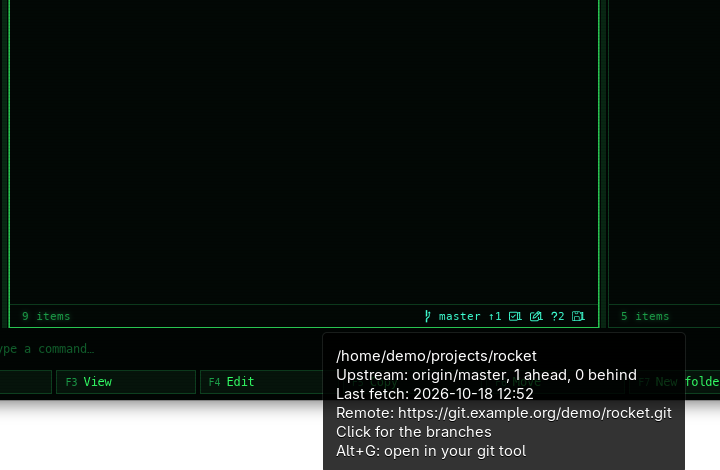
right of the pane's footer (hover it for the repository's folder, upstream, remote and last
fetch, see [below](#upstream-remote-and-last-fetch); click it for the
[branches](git-branches.md)). A folder's preview in the desktop app shows it too, as *Git*.
In a [Jujutsu](jujutsu.md) repository the same line names `jj`, the change and its bookmark; in a
[Mercurial](mercurial.md) one `hg` and the bookmark or branch; in a [Subversion](subversion.md) or
[CVS](cvs.md) working copy `svn` or `cvs` and the branch.
With plain characters (`glyphs = "ascii"`) a line reads:
```
git: master ^1 v2 +3 ~1 -2 ?4 !1 $1
```
| Part | Nerd Font glyph | ASCII | Means |
|---|---|---|---|
| Branch | branch (U+E0A0) | `git:` | The branch, or *detached at a1b2c3d* when HEAD is on no branch; in a Jujutsu repository `jj`, the change id and the nearest bookmark ([Jujutsu](jujutsu.md#what-you-see)); in a Mercurial one `hg` and the bookmark or branch ([Mercurial](mercurial.md#what-you-see)) |
| Ahead | `↑` | `^` | Commits not yet pushed to the upstream |
| Behind | `↓` | `v` | Commits on the upstream not yet pulled |
| Staged | ticked box (U+F046) | `+` | Files with changes in the index, or added with `git add -N` (as Jujutsu adds new files next to git) |
| Modified | pencil (U+F044) | `~` | Files changed in the work tree |
| Deleted | bin (U+F014) | `-` | Files deleted in the work tree |
| Untracked | question mark (U+F128) | `?` | Files git does not track |
| Conflicts | warning sign (U+F071) | `!` | Files with merge conflicts |
| Stash | box (U+EB4B) | `$` | Entries in the stash |
| Clean | tick (U+F00C) | `=` | Shown when nothing is staged, changed, deleted, untracked or in conflict |
A count of zero is left out. After the counts, the line says what else is going on:
| Part | Shown when |
|---|---|
| `· worktree: rocket-feature` | The folder is in a linked worktree (not the main one); the name is the worktree's folder ([Worktrees](git-branches.md#worktrees)) |
| `· merging`, `· rebasing`, `· cherry-picking`, `· reverting`, `· bisecting` | git is in the middle of one: a merge or rebase that stopped on a conflict, a bisect not yet reset |
| `· conflicts in this change` | Jujutsu: the working-copy commit has a conflict ([Jujutsu](jujutsu.md)) |
```
git: feature ~1 !1 · worktree: rocket-feature · merging
```
These come from the files git keeps in the repository's git folder while it works
(`MERGE_HEAD`, `rebase-merge`, `CHERRY_PICK_HEAD`, `REVERT_HEAD`, `BISECT_LOG`), read with the
status; no extra git runs for them. The line is drawn in the theme's `git_branch` colour (bold
magenta in NC).
## Upstream, remote and last fetch
How far behind is this branch, and how old is that number? The git line counts the commits
ahead and behind, but only as of the last fetch: Coxswain never fetches. **Alt+Y** lists those
commits themselves ([Against upstream](git-history.md#against-upstream)). These facts tell you
where you stand:
| Fact | Example | From |
|---|---|---|
| The git line | `git: master ^1 ~1 +1 ?1 $1` | `git status`, as above |
| Upstream | *Upstream: origin/master, 1 ahead, 0 behind* (or *No upstream*) | the branch's upstream, as git records it |
| Last fetch | *Last fetch: 2026-10-17 14:02* (or *Never fetched*) | the time of the repository's `FETCH_HEAD` |
| Remote | *Remote: https://github.com/demo/rocket.git* | `git ls-remote --get-url`, which reads the config and never the network |
The remote is the one the branch follows, or `origin`. A user name and password or a token in
its URL (`https://token@host/…`) are left out; the user of an ssh address (`git@host:…`) stays.
| | Desktop app | Terminal app |
|---|---|---|
| The repository you are in | Hover the git line in the pane's footer: the tooltip lists the repository's folder, the upstream, the last fetch and the remote, then *Click for the branches*, *Alt+C: the git config* and *Alt+G: open in your git tool*; a right-click opens the git line's menu: Git branches, Git worktrees, Git config, Open in your git tool | Put the cursor on `..` (where it is when a folder opens): the line under the panel reads `.. Upstream: origin/master, 1 ahead, 0 behind · Last fetch: … · Remote: …` |
| A repository's folder in the list (a project in `~/projects`, a submodule, a repository inside another) | Hover its row (any view): the tooltip has its git line, upstream, last fetch and remote | Put the cursor on it: the line under the panel reads `rocket git: master ^1 ~1 · Upstream: … · Last fetch: … · Remote: …` |
They are read only when you point at them, on a thread of their own: never for every folder of
a listing. A folder in the list costs one look for its `.git` when the cursor or the mouse comes
to it; only a repository's own folder runs git (its `git status` and `git ls-remote --get-url`).
The desktop app keeps the answer for ten seconds, so moving the mouse back and forth runs
nothing new; the terminal app reads it again when the cursor comes to it anew, and after
**Ctrl+R**. A narrow panel cuts the terminal app's line at its right end, so the remote, last
on the line, is the first to go; a wider terminal shows all of it.

## File and folder glyphs
Each entry in a repository gets a glyph before its name (terminal app) or after it (desktop
app, details view), in the colour of its state:
| State | Glyph (Nerd / ASCII) | Colour slot | NC colour |
|---|---|---|---|
| Modified | pencil / `~` | `git_modified` | yellow |
| Added (staged new file) | ticked box / `+` | `git_added` | green |
| Untracked | question mark / `?` | `git_untracked` | red |
| Deleted | bin / `-` | `git_deleted` | dark red |
| Renamed | arrow (U+F45A) / `>` | `git_renamed` | blue |
| Conflict | warning sign / `!` | `git_conflict` | bold red |
| Ignored | crossed-out eye (U+F070) / `.` | `git_ignored` | grey |
**Folders take the loudest state of what is inside them**, so a changed file deep in `src/`
marks `src` too. From quiet to loud: ignored, untracked, added, renamed, deleted, modified,
conflict. Everything inside an untracked or ignored folder shows that state. In the desktop
app, hovering a glyph names the state (*modified*), with *(staged)* when the change is in the
index.
Deleted files are no longer on disk, so they have no row; they only count in the git line.
## Last commit per file
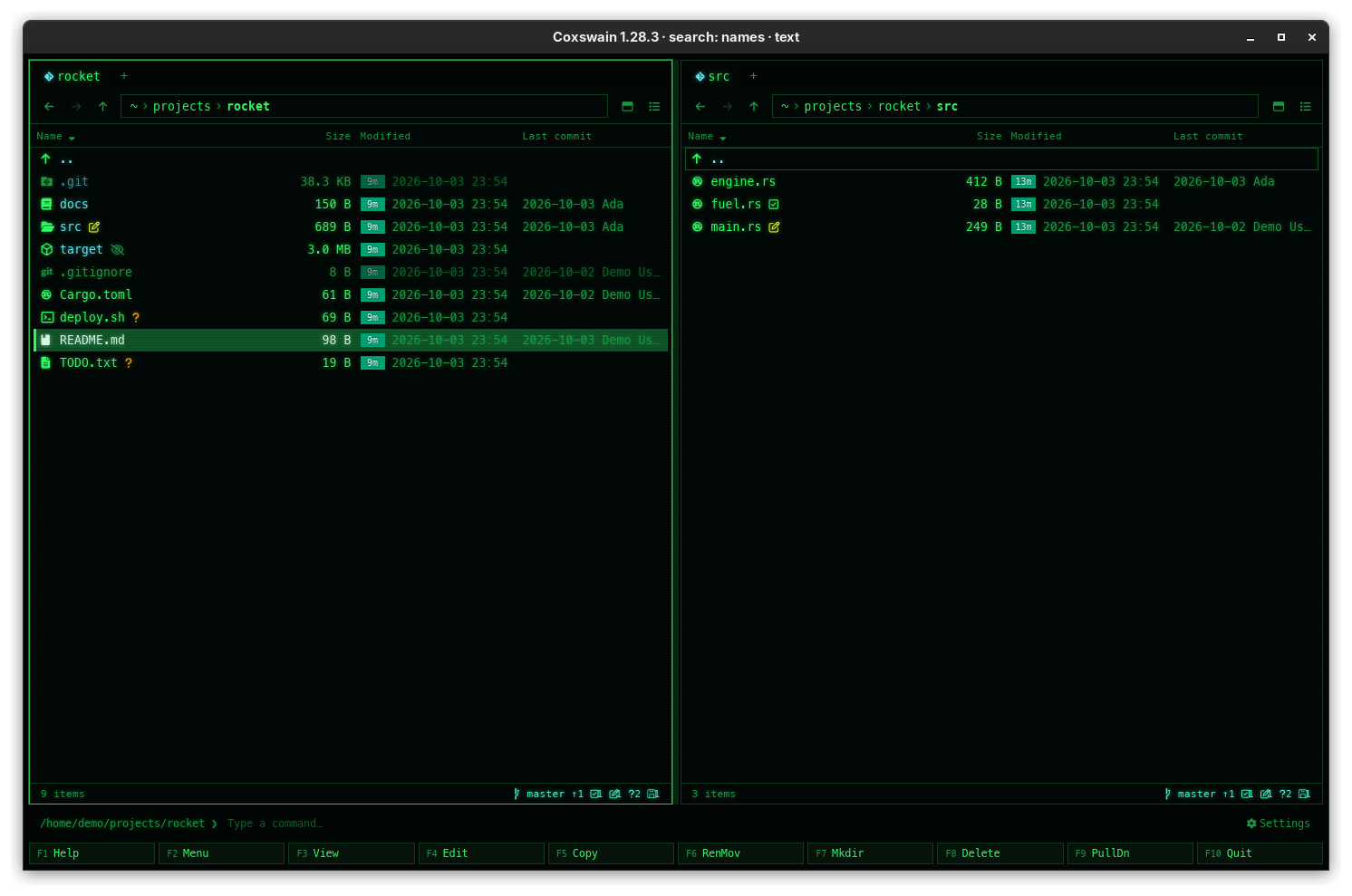
Every file and folder git tracks gets the date and author of the last commit that changed it
(for a folder: the newest commit that changed anything inside it).
| | Desktop app | Terminal app |
|---|---|---|
| Where | The *Last commit* column of the details view (`2026-09-30 Ada`; hover it for the commit id, its subject and the time), and *Last commit* in the preview pane with the subject | The line under the panel, for the entry under the cursor: `main.rs a1b2c3d 2026-09-30 14:02 Ada 412` |
| Sorting | Click the *Last commit* header: newest first, again for oldest first. The folder shows at once, by name, and sorts itself when git's walk is done; from then on it comes sorted | – |
| Turning the column off | Untick *Last commit* in the columns menu (right-click a header) | – |
**What you see in it:**
- **A date and a name:** the last commit that changed it, up to HEAD.
- ***older*:** it has not changed in the newest 5000 commits that touched the folder, so the walk
stopped before reaching it. Open its history (**Ctrl+G**) to see when.
- **Nothing:** git does not track it (untracked or ignored), or git has not answered yet.
It takes one `git log` for the whole folder, in the background, and the answer is kept until
HEAD moves: a folder you come back to fills in at once, and a new commit is seen on the next
refresh (**Ctrl+R**). In a big repository it fills in a moment after the folder shows; a run that
takes longer than four seconds stops, and what it did not reach says *older*. In a
[history](git-history.md), the column shows the last commit as of the commit you are looking at.
## When it updates
| | Terminal app | Desktop app |
|---|---|---|
| Read | When the panel changes folder, after an operation or a command, on **Ctrl+R**, and when the watcher sees a change in the panel's folder or the repository's `.git` (a commit, a checkout, a `git add`) | Every time the folder is loaded: opening it, a change the watcher sees in it, **Ctrl+R**, and after operations. The repository's `.git` is watched too: a commit, a checkout or a `git add` from the command line brings the status, the branch and the *Last commit* column up to date within a moment |
| Runs | In the background; the line appears when git answers. A change is read again only for the panels it concerns (their folder, or their repository), and one run per folder at a time: changes while it runs, such as a build writing on, ask for one more run when it ends | In the background; the line appears when git answers |
## The diff of a file (desktop app)
With the cursor on a file git sees as changed (modified, added, renamed or in conflict; not
untracked or ignored), the [preview pane](../previews/README.md) (**Space**) gets a **File /
Diff** switch at the top. **Diff** (*Changes against HEAD*) shows `git diff HEAD` for that
file: staged and unstaged changes together, added lines green, removed lines red. The choice
sticks for the next changed file and across restarts. A file with nothing against HEAD shows
*(no changes against HEAD)*.
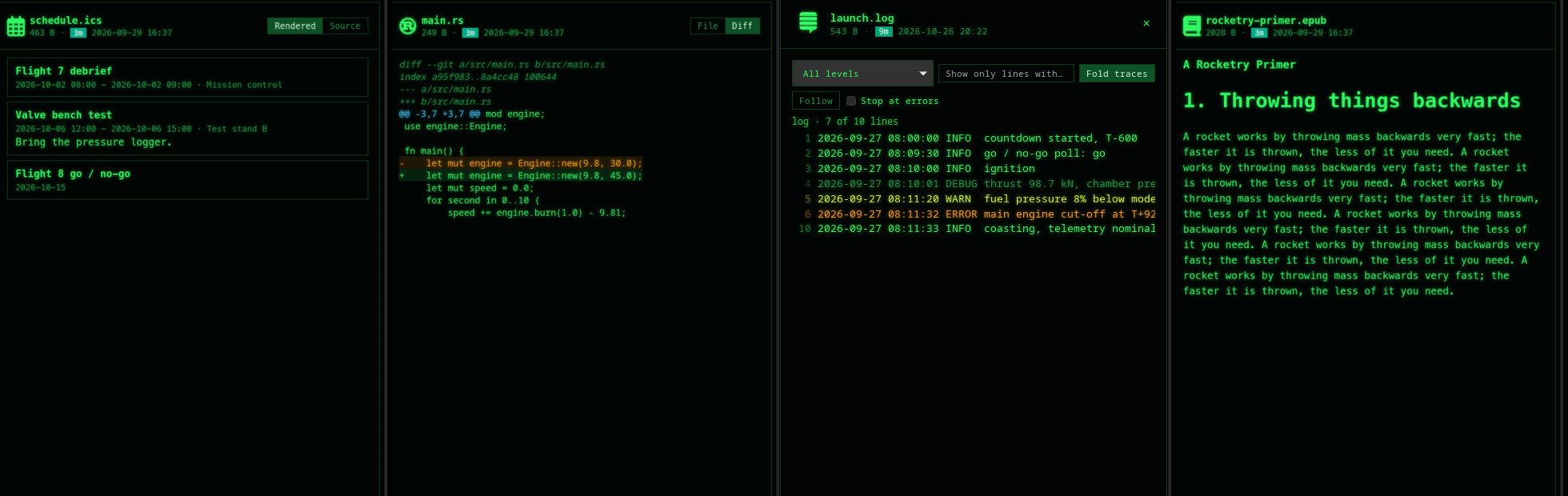
*The second panel is the diff of `main.rs`: the line changed from `30.0` to `45.0`.*
## Recent repositories (desktop app)
Every repository you open a folder of is remembered, most recent first, up to twelve. They are
listed under **Git repositories** in the [sidebar](../organise/sidebar.md); click one to go
there. A tab whose folder is in a repository shows the git icon instead of the folder icon.
## Open in your git tool
Coxswain shows version control and writes to a repository only to switch branch or make a new
one (never to a [Jujutsu](jujutsu.md) repository, which it only reads; in a [Mercurial](mercurial.md)
one with `hg update --check` and new bookmarks; never to a [Subversion](subversion.md) or
[CVS](cvs.md) working copy, where **Alt+G** opens a terminal). Everything else (commit, stage, push, pull, fetch, merge, setting an upstream, editing the
config) is a handoff. The config itself can be looked at: **Alt+C** shows it as git uses it,
read-only ([Git config](git-config.md)). For the rest, **Alt+G** (*Open in your git tool*) opens the repository in your own git
tool, in the repository's top folder, wherever in it the panel is.
| | Terminal app | Desktop app |
|---|---|---|
| Key | **Alt+G** | **Alt+G** |
| Menus | **Shift+F10** (the [action menu](action-menu.md), under *Git*), **F9** | **Shift+F10**, **F9**, a right-click on the git line, and *Open in your git tool* under *Git* in the preview pane |
| A terminal tool (lazygit, gitui, tig) | Runs in this terminal, as **F4**'s editor does: the panels go, the tool takes the screen, and when you quit it the panels come back with the git line read again | Opens in a new terminal window: `$TERMINAL`, else the first terminal installed (Terminal on a Mac; Windows Terminal, else a console, on Windows) |
| A desktop client | Starts in a window of its own; the panels stay | The same |
| No tool installed | Your shell, in this terminal, in the repository; `exit` brings the panels back | A terminal window in the repository |
The status line says *Opened lazygit in the repository*, or *No git tool found: a terminal
opened in the repository*. When a terminal tool is installed but no terminal is (the desktop
app), it says so by name: *tig runs in a terminal, and no terminal was found: install one, or
choose a git tool with a window of its own in Settings → Behaviour*. After that, a notice says once what to install, with the line to
copy (lazygit, else tig, for your system's package manager), and where to name a tool. The key
is also on the git line's tooltip (desktop app) and in **F1**. Outside a repository the action
is not in the menus, and the key says *Not in a git repository*.
### Which tool
With no tool named (*Settings → Behaviour → Git tool*: *Automatic*), the first one installed,
in this order:
| System | Tried, in order |
|---|---|
| Every system | lazygit, gitui, tig (they run in a terminal) |
| FreeBSD, the other BSDs, illumos, Linux | then GitHub Desktop (`github-desktop`), GitKraken, Sublime Merge (`smerge`), gitg, git-cola, git gui, gitk |
| Android (Termux) | only the three terminal tools |
| macOS | then GitHub Desktop, GitKraken, Sublime Merge, Fork, Sourcetree (in `/Applications` or `~/Applications`), git gui, gitk |
| Windows | then GitHub Desktop, GitKraken, Sublime Merge, Fork, Sourcetree (where their installers put them), git gui, gitk |
Without a desktop (over ssh, on a console) the desktop clients are passed over. Nothing is
looked for when Coxswain starts: only when you press **Alt+G**, and when *Settings →
Behaviour* shows the tools installed to choose from.
### A tool of your own
*Settings → Behaviour → Git tool* lists the tools installed; *Another command…* (terminal app)
or typing in the field (desktop app) takes a command. In `config.toml`:
```toml
[git]
tool = "Sublime Merge" # a tool's name, as Settings lists it
# tool = "gitui -d %d" # or a command: %d is the repository's folder, quoted (on Windows `.`, the folder the command runs in)
```
A command runs in the repository's top folder. In the terminal app it runs in the terminal, and
the panels wait until it ends; in the desktop app it starts on its own, unless its first word is
lazygit, gitui or tig, which open in a terminal window. A tool named that is not installed says
*… was not found* on the status line.
## Git commands from the user menu
The default [user menu](../commands/user-menu.md) (**F2**) has *git status* (`s`), offered only
inside a repository. The log, a file's diff and its commits are built in: **Ctrl+G** (history)
and **Alt+B** (branches). Other git commands can be added as your own entries (**F2**, **+**).
## Settings and config.toml
| Setting | config.toml | Default |
|---|---|---|
| *Settings → Looks → Icons and git glyphs*: *Nerd Font* or *Plain characters (ASCII)* | `glyphs` (`"nerd"` / `"ascii"`) | `"nerd"` |
| Each glyph yourself | `[glyph_set]` table | – |
| The colours | theme slots `git_branch`, `git_modified`, `git_added`, `git_untracked`, `git_deleted`, `git_renamed`, `git_conflict`, `git_ignored` | per theme |
| The user menu's git commands | `[[user_menu]]` | *git status* |
| *Settings → Behaviour → Last commit of each file* | `[git] last_commit` | `true` |
| The *Last commit* column | the columns menu (the session) | on |
| The history's key | `history` in `[keys]` | `Ctrl+G` |
| A history of all branches ([The graph](git-history.md#the-graph)) | `history_all` in `[keys]` | `Alt+A` |
| A history against the upstream ([Against upstream](git-history.md#against-upstream)) | `history_upstream` in `[keys]` | `Alt+Y` |
| The branches', the worktrees' and the switch's keys | `branches`, `worktrees`, `switch_branch` in `[keys]` | `Alt+B`, `Alt+W`, `Alt+S` |
| *Settings → Behaviour → Git tool* | `[git] tool` (a tool's name or a command; empty: the first installed) | `""` |
| *Open in your git tool* | `git_tool` in `[keys]` | `Alt+G` |
| *Git config* | `git_config` in `[keys]` | `Alt+C` |
See [Glyphs and fonts](../customise/glyphs-and-fonts.md) and [Your own theme](../customise/own-theme.md).
## In the terminal app
The same git line (bottom left of the border) and the same glyphs (in a column before the
name). The last commit of the entry under the cursor is in the line under the panel, the
[upstream, remote and last fetch](#upstream-remote-and-last-fetch) too when the cursor is on
`..` or on a repository's folder, and
**Ctrl+G** opens the [history](git-history.md). **Alt+G** runs a terminal git tool right
there, in place of the panels ([Open in your git tool](#open-in-your-git-tool)), and **Alt+C**
shows the git config full screen ([Git config](git-config.md#in-the-terminal-app)). No diff, no list of repositories and no git icon on tabs, since it has no preview pane,
sidebar or tabs; the user menu's `git diff (file)` shows the diff instead.
## Questions
#### Why is there no git line?
The folder is not inside a git work tree, or `git` is not on your `PATH`. On macOS, the desktop
app started from the Dock reads `PATH` from your login shell; a `git` installed elsewhere is
not found. Inside an archive there is no git line either.
#### Why are the counts different from `git status`?
They are the same counts, taken from `git status --porcelain=v2`, but grouped: a file both
staged and modified counts in both. Ignored files are never counted.
#### Why is `target` shown with a crossed-out eye?
It is ignored by your `.gitignore`. Ignored files and folders get that glyph so you can tell
build output from sources.
#### I see boxes or question marks instead of glyphs.
The font has no Nerd Font glyphs. In the terminal, use a Nerd Font as the terminal's font. In
the desktop app, install one of the fonts listed in `[gui] icon_font` (for example *Symbols
Nerd Font Mono*), or set *Settings → Looks → Icons and git glyphs* to *Plain characters
(ASCII)*. The config key is `glyphs = "ascii"`, for both apps.
#### I committed in a terminal and the git line did not change.
Both apps watch the repository's `.git`, so the line follows a commit within a moment. Where
the file system sends no change events (some network shares, some mounts in WSL), nothing tells
Coxswain: press **Ctrl+R**.
#### Is it slow in a huge repository?
`git status` runs in the background, so browsing is not held up; the line and glyphs appear
when it finishes. Its speed is git's own.
#### Why is there no Diff switch for a new file?
An untracked file has nothing to compare with. Stage it (`git add`) and it becomes *added*:
the switch appears, and the diff shows the whole file as new.
#### Why does a file say *older* in Last commit?
Its last change is further back than the newest 5000 commits that touched the folder (or than
four seconds of git's time), where the walk stops so that a big repository stays quick.
**Ctrl+G** on it lists its own commits, newest first.
#### Why is the Last commit column empty for some files?
Git does not track them: untracked and ignored files have no commits. A folder of only such
files has none either.
#### Why is there no Last commit column?
It shows in a repository, in the details view of a pane at least 620 pixels wide, when it is
ticked in the columns menu and *Last commit of each file* is on in
Settings → *Behaviour* (`[git] last_commit`).
#### How far behind is my branch, and is that up to date?
Hover the git line (desktop app) or put the cursor on `..` (terminal app): *Upstream:
origin/master, 1 ahead, 2 behind* counts the commits as of *Last fetch*. Coxswain never
fetches, so a fetch you have not made is not counted. Run `git fetch` in a terminal (or from
the [user menu](../commands/user-menu.md), **F2**), and the counts and the time follow within a
moment, or on **Ctrl+R**.
#### Why does it say "Never fetched"?
The repository has no `FETCH_HEAD`: nothing has been fetched into it since it was cloned
(`git clone` does not write one) or made. The first `git fetch` or `git pull` writes it.
#### Why does it say "No upstream"?
The branch follows no branch on a remote, so there is nothing to be ahead of or behind: a new
local branch, before `git push -u` or `git branch -u origin/`. Coxswain does not set one;
that is for your own git.
#### Where is the password in the remote's URL?
Left out on purpose: a URL like `https://user:secret@host/repo.git` or `https://token@host/…`
shows as `https://host/repo.git`, so a token never ends up on the screen or in a screenshot.
git still uses the URL as it is written in the config.
#### Why does a folder show no tooltip, or nothing under the panel?
It is not a repository's own folder (it has no `.git`), or it is in the cloud only, in an
archive or in a [history](git-history.md). A folder inside a repository shares its
repository's facts: hover the git line, or go to `..`.
#### Can Coxswain commit or stage?
No. It switches branches and makes new ones when you ask ([Git branches and
worktrees](git-branches.md)), and otherwise only reads; even the config (**Alt+C**) is shown
read-only ([Git config](git-config.md)). **Alt+G** opens your own git tool
(lazygit, gitui, tig or a desktop client) in the repository for the rest
([Open in your git tool](#open-in-your-git-tool)). Single commands can also go in the
[user menu](../commands/user-menu.md) (**F2**) or a [script](../commands/scripts.md).
#### Why does Coxswain not commit or push itself?
A file manager that does half a git client's job feels broken next to a real one, and every
write brings conflicts, credentials, hooks and signing with it. So Coxswain shows where you
stand (the branch, ahead and behind, what changed) and hands the writing to a tool made for it:
**Alt+G**.
#### Alt+G opened a terminal, not my git tool.
No tool Coxswain knows was found ([the list](#which-tool)), so it opened a terminal in the
repository instead; the status line says *No git tool found*. The terminal app opens a shell in
its own terminal instead (*a shell opened in the repository*), and when the desktop app finds no
terminal either, nothing opens and the notice says so. Install one (the notice has the
line to copy), or name yours in *Settings → Behaviour → Git tool*: a tool's name, or a command.
#### My desktop client opens, but not on this repository.
Coxswain passes the repository's folder to the clients that take one (GitHub Desktop, GitKraken,
Sublime Merge, Fork, Sourcetree) and starts the others (gitg, git-cola, git gui, gitk) in it. A
client that ignores both needs its own way of naming a folder: write it as a command in
*Settings → Behaviour → Git tool*, with `%d` for the repository.
#### Does the git line follow what I did in the tool?
Yes. The terminal app reads the panels again when a terminal tool quits. The desktop app
watches the repository's `.git`, so the git line and the glyphs change as you commit or pull,
and **Ctrl+R** reads them again at any time.
#### Alt+G used to start a quick search for "g".
**Alt+G** belongs to *Open in your git tool* now. To have the quick search back, give the action
another key or none: `git_tool = []` in `[keys]` ([Changing keys](../customise/keys.md)).
#### What does "merging" (or "rebasing") on the git line mean?
git is in the middle of that operation: a merge or rebase stopped on a conflict, or a bisect was
not reset. Finish it or abort it with git (`git merge --abort`, `git rebase --continue`,
`git bisect reset`), and the word goes.
#### The git line says "detached at a1b2c3d". What is that?
HEAD is on a commit, not on a branch: after `git checkout `, during a rebase or a
bisect. **Alt+B** and **Alt+S** switch back to a branch.
---
[← Previous: Space: where the space goes](space.md) · [Next: Git history as folders →](git-history.md)