# truss
[](https://github.com/nao1215/truss/actions/workflows/rust.yml)
[](https://github.com/nao1215/truss/actions/workflows/integration-cli.yml)
[](https://github.com/nao1215/truss/actions/workflows/integration.yml)
[](https://crates.io/crates/truss-image)
[](https://crates.io/crates/truss-image)
[](LICENSE)
[](https://www.rust-lang.org/)

truss is an image transformation tool with a shared Rust core for a CLI, an HTTP server, and a browser/WASM build.
Use the CLI for local files and shell pipelines, run the server behind a CDN or reverse proxy, process files in the browser with [`@nao1215/truss-wasm`](https://www.npmjs.com/package/@nao1215/truss-wasm), or sign public URLs from Node.js with [`@nao1215/truss-url-signer`](./packages/truss-url-signer).
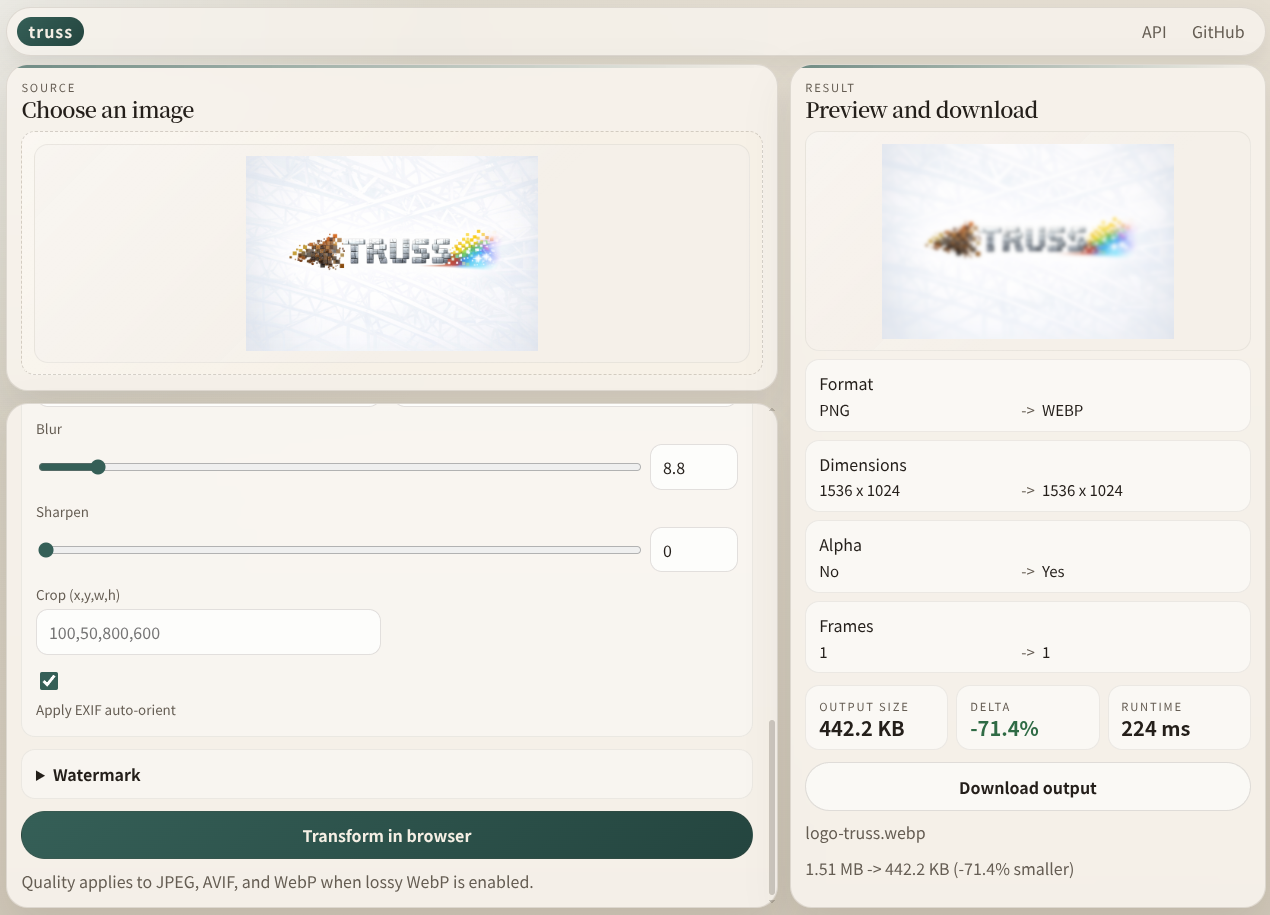
[Try the WASM demo in your browser](https://nao1215.github.io/truss/) - no install, no upload, runs 100 % client-side.
## Start Here
| If you want to... | Start with | Read next |
|-------------------|------------|-----------|
| Convert local files from the shell | `brew install nao1215/tap/truss` or `cargo install truss-image`, then `truss photo.png -o photo.jpg` | [CLI](#cli), [Commands](#commands) |
| Run an HTTP image server | `TRUSS_BEARER_TOKEN=changeme truss serve --bind 0.0.0.0:8080 --storage-root ./images` | [HTTP Server](#http-server), [API Reference](docs/api-reference.md), [Deployment Guide](docs/deployment.md) |
| Process files in a browser app | `npm install @nao1215/truss-wasm` | [WASM](#wasm), [WASM Integration](docs/wasm.md) |
| Generate signed public URLs from Node.js | `npm install @nao1215/truss-url-signer` | [TypeScript URL Signing](#typescript-url-signing), [Signed URL Specification](docs/signed-url-spec.md) |
## Why truss?
- One Rust core across the CLI, the HTTP server, and the browser/WASM build.
- Signed URLs, SSRF protections, and SVG sanitization are built in.
- Supports JPEG, PNG, WebP, AVIF, BMP, TIFF, and SVG.
- Runs on Linux, macOS, and Windows.
- CLI behavior is covered by [ShellSpec](https://github.com/shellspec/shellspec), and the HTTP API by [runn](https://github.com/k1LoW/runn).
## Installation
### CLI
#### Homebrew
```sh
brew install nao1215/tap/truss
```
#### Cargo
```sh
cargo install truss-image
```
Need S3, GCS, or Azure storage backend support at install time? See the [Deployment Guide](docs/deployment.md#installing-with-storage-backend-support).
Prebuilt binaries are available on the [GitHub Releases](https://github.com/nao1215/truss/releases) page. See [Deployment Guide](docs/deployment.md) for all targets and Docker images.
### JavaScript Packages
Install only the package you need:
```sh
# Browser/WASM package
npm install @nao1215/truss-wasm
# Node.js URL signer
npm install @nao1215/truss-url-signer
```
Package source and package-specific READMEs live in [`packages/truss-wasm`](./packages/truss-wasm) and [`packages/truss-url-signer`](./packages/truss-url-signer).
### Container Image
```sh
docker pull ghcr.io/nao1215/truss:latest
```
## Quick Start
### CLI
The `convert` subcommand can be omitted: `truss photo.png -o photo.jpg` is equivalent to `truss convert photo.png -o photo.jpg`. Run `truss convert --help` to see the full set of options.
```sh
# Convert format
truss photo.png -o photo.jpg
# Resize + convert
truss photo.png -o thumb.webp --width 800 --format webp --quality 75
# Optimize in place with the shared pipeline
truss optimize photo.jpg -o photo-optimized.jpg --mode auto
# Convert from a remote URL
truss --url https://example.com/img.png -o out.avif --format avif
# Sanitize SVG (remove scripts and external references)
truss diagram.svg -o safe.svg
# Inspect metadata
truss inspect photo.jpg
```
#### Format conversion & quality
truss supports **JPEG, PNG, WebP, AVIF, BMP, TIFF, and SVG**. The output format is inferred from the file extension, or you can specify it explicitly with `--format`.
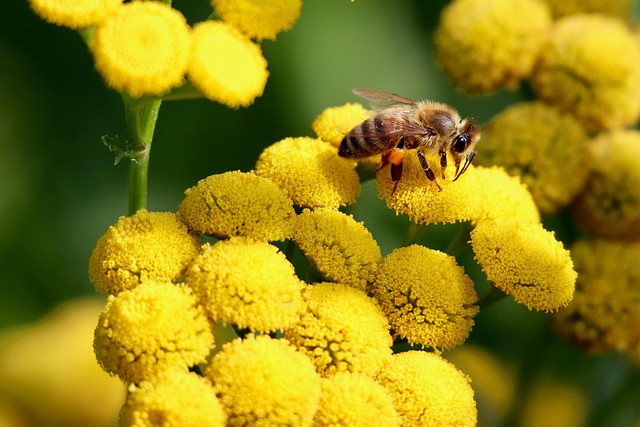
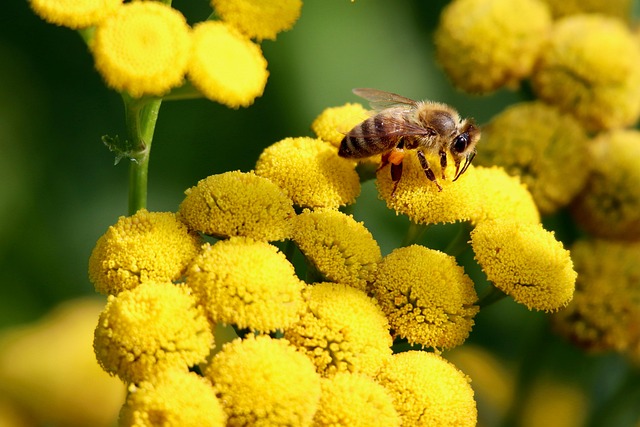
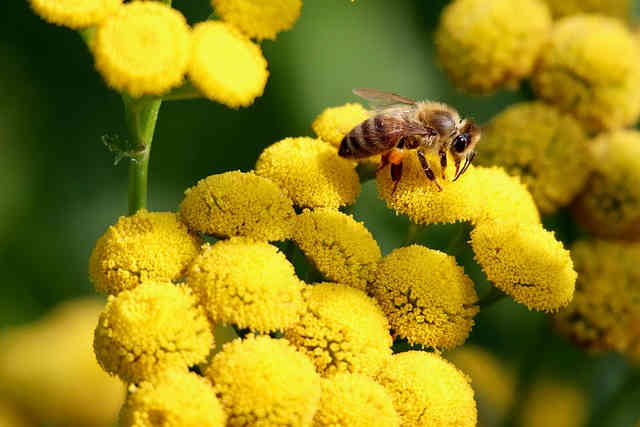
| Format | File size (640 x 427) | Notes |
|--------|----------------------:|-------|
| JPEG (original) | 80 KB | Lossy, widely supported |
| WebP (`--quality 80`) | 38 KB | ~52 % smaller than JPEG |
| AVIF (`--quality 50`) | 17 KB | ~79 % smaller than JPEG |
| PNG | 480 KB | Lossless |
```sh
# JPEG -> WebP (smaller file, same visual quality)
truss photo.jpg -o photo.webp --quality 80
# JPEG -> AVIF (best compression)
truss photo.jpg -o photo.avif --quality 50
# Explicit format override (ignore extension)
truss photo.jpg -o output.bin --format png
```
Use `--quality <1-100>` to control lossy encoding. Lower values produce smaller files at the cost of visual quality.
Use `--optimize auto|lossless|lossy` on `truss convert`, or the dedicated `truss optimize` subcommand, to reduce output size with format-aware encoding choices. Add `--target-quality ssim:0.98` or `--target-quality psnr:42` when you want lossy optimization to aim for a specific perceptual threshold.
| Quality 90 (95 KB) | Original (80 KB) | Quality 30 (27 KB) |
|---|---|---|
|  |  |  |
#### Resize & fit modes
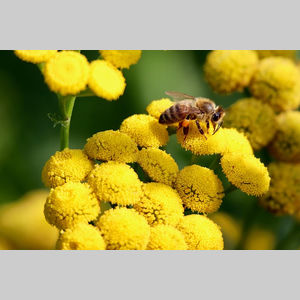
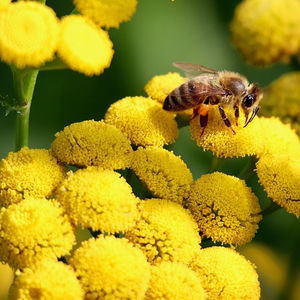
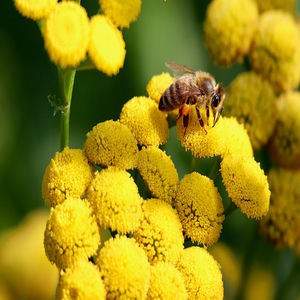
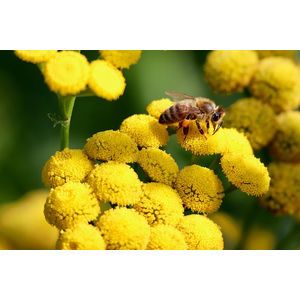
Specify `--width` and/or `--height` to resize. When both are given, `--fit` controls how the image fits the target box:
| Mode | Behavior |
|------|----------|
| `contain` (default) | Scale down to fit entirely inside the box, preserving aspect ratio. Padding is filled with `--background`. |
| `cover` | Scale to fill the box completely, cropping excess. Use `--position` to choose the crop anchor. |
| `fill` | Stretch to exact dimensions (ignores aspect ratio). |
| `inside` | Like `contain`, but never upscales a smaller image. |
| Original (640 x 427) | contain 300 x 300 | cover 300 x 300 | fill 300 x 300 | inside 300 x 300 |
|---|---|---|---|---|
|  |  |  |  |  |
```sh
# contain -- fit inside the box, pad with gray background
truss photo.jpg -o out.jpg --width 300 --height 300 --fit contain --background CCCCCC
# cover -- fill the box, crop the excess
truss photo.jpg -o out.jpg --width 300 --height 300 --fit cover
# fill -- stretch to exact dimensions
truss photo.jpg -o out.jpg --width 300 --height 300 --fit fill
# inside -- like contain, but never upscale
truss photo.jpg -o out.jpg --width 300 --height 300 --fit inside
# Width only -- height is calculated to preserve aspect ratio
truss photo.jpg -o out.jpg --width 800
```
#### Cover position
When using `--fit cover`, `--position` controls which part of the image is kept:
| `--position top-left` | `--position center` (default) | `--position bottom-right` |
|---|---|---|
| 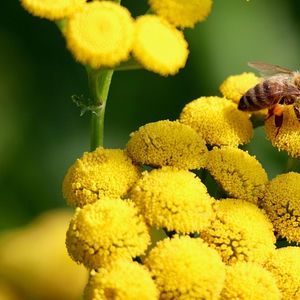 |  | 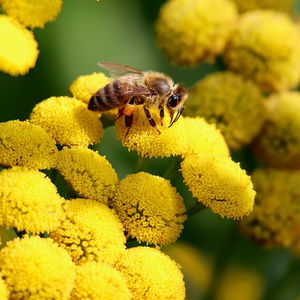 |
Available positions: `center`, `top`, `right`, `bottom`, `left`, `top-left`, `top-right`, `bottom-left`, `bottom-right`.
```sh
truss photo.jpg -o thumb.jpg --width 300 --height 300 --fit cover --position top-left
```
#### Crop, rotate & background
```sh
# Crop a region (x, y, width, height) -- applied before resize
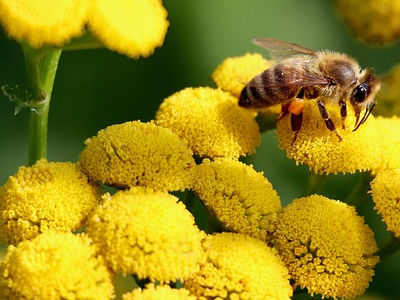
truss photo.jpg -o cropped.jpg --crop 100,50,400,300
# Rotate 270 degrees clockwise (accepts 0, 90, 180, 270)
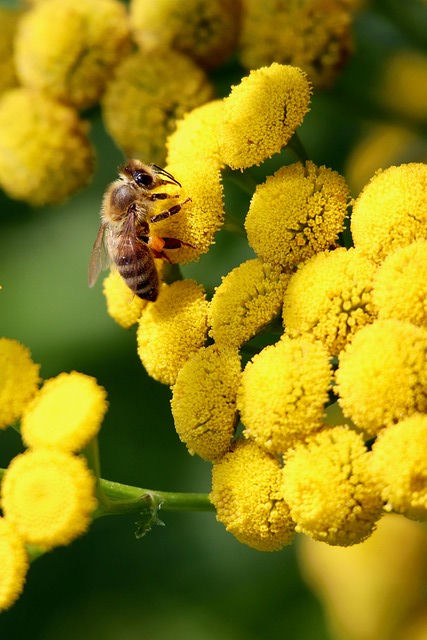
truss photo.jpg -o rotated.jpg --rotate 270
# Background color as RRGGBB or RRGGBBAA hex (useful with contain or PNG alpha)
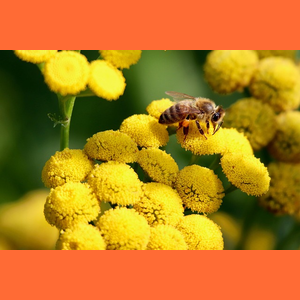
truss photo.jpg -o out.png --width 300 --height 300 --fit contain --background FF6B35FF
```
| Original | Crop (`--crop 100,50,400,300`) | Rotate (`--rotate 270`) | Background (`--background FF6B35FF`) |
|---|---|---|---|
|  |  |  |  |
#### Blur, sharpen & watermark
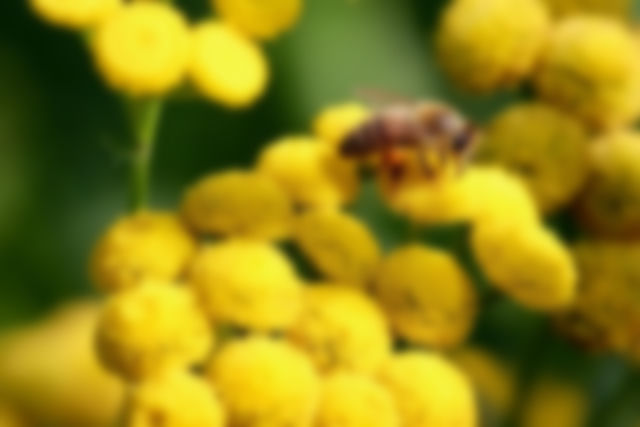
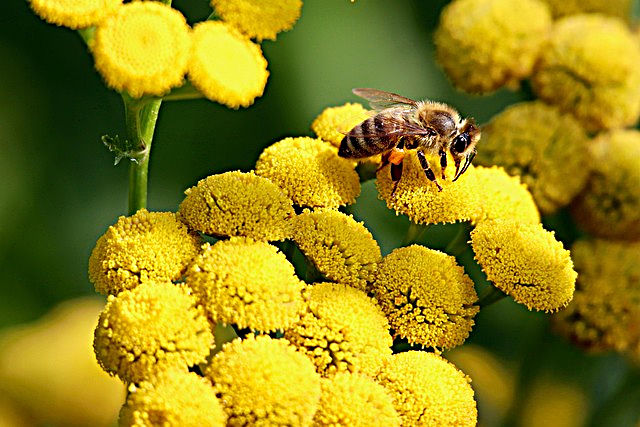
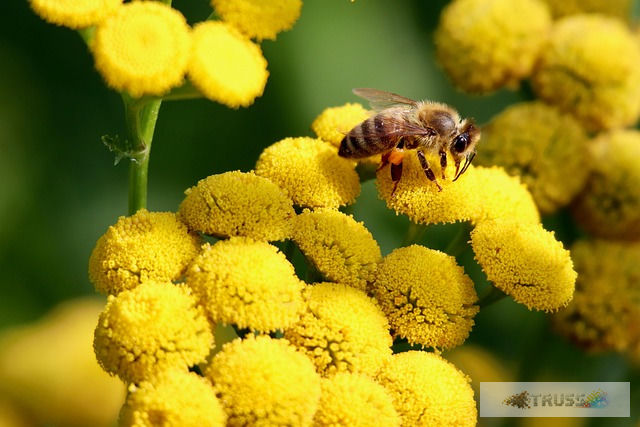
| Original | Gaussian Blur (`--blur 5.0`) | Sharpen (`--sharpen 3.0`) | Watermark |
|---|---|---|---|
|  |  |  |  |
```sh
# Gaussian blur (sigma 0.1 - 100.0)
truss photo.jpg -o blurred.jpg --blur 5.0
# Sharpen (sigma 0.1 - 100.0)
truss photo.jpg -o sharpened.jpg --sharpen 3.0
# Watermark with full control
truss photo.jpg -o watermarked.jpg \
--watermark logo.png \
--watermark-position bottom-right \
--watermark-opacity 50 \
--watermark-margin 10
```
Watermark positions are the same as cover positions: `center`, `top`, `right`, `bottom`, `left`, `top-left`, `top-right`, `bottom-left`, `bottom-right`.
> **Note:** `--blur`, `--sharpen`, and `--watermark` are raster-only and not supported for SVG inputs.
#### Metadata control
By default, truss strips all metadata for smaller and safer output.
| Flag | Behavior |
|------|----------|
| `--strip-metadata` (default) | Remove all EXIF, ICC, and other metadata |
| `--keep-metadata` | Preserve EXIF, ICC, and all other supported metadata |
| `--preserve-exif` | Keep EXIF only, strip ICC and others |
| `--auto-orient` (default) | Apply EXIF orientation tag and reset it |
| `--no-auto-orient` | Skip EXIF orientation correction |
```sh
# Keep all metadata (useful for archival)
truss photo.jpg -o out.jpg --keep-metadata
# Keep EXIF only (strip ICC profiles)
truss photo.jpg -o out.jpg --preserve-exif
# Disable auto-orientation
truss photo.jpg -o out.jpg --no-auto-orient
```
#### Stdin / stdout piping
Use `-` for input and/or output to integrate truss into shell pipelines. When reading from stdin, `--format` is required for output.
```sh
# Pipe from stdin to stdout
cat photo.png | truss - -o - --format jpeg > photo.jpg
# Download, convert, and upload in one pipeline
curl -s https://example.com/img.png | truss - -o - --format webp --width 800 | \
aws s3 cp - s3://bucket/thumb.webp
# Optimize after converting
truss photo.jpg -o - --format webp --optimize auto | cat > optimized.webp
```
#### SVG handling
truss sanitizes SVG files by removing scripts and external references, making them safe for user-generated content.
```sh
# Sanitize SVG (remove scripts, external refs)
truss diagram.svg -o safe.svg
# Rasterize SVG to PNG at a specific width
truss diagram.svg -o diagram.png --width 1024
```
#### Filenames starting with `-`
Use `--output=` (or `--output`) to avoid ambiguity with filenames that start with a dash:
```sh
# Dash-prefixed output: use --output= to assign the value unambiguously
truss convert input.png --output=-output.jpg
# Dash-prefixed input: use a path prefix
truss convert ./-input.png -o out.jpg
```
### HTTP Server
Start the server from an installed binary or a local build:
```sh
TRUSS_BEARER_TOKEN=changeme truss serve --bind 0.0.0.0:8080 --storage-root ./images
```
Or run the published container image:
```sh
docker run -p 8080:8080 \
-e TRUSS_BIND_ADDR=0.0.0.0:8080 \
-e TRUSS_BEARER_TOKEN=changeme \
-e TRUSS_STORAGE_ROOT=/data \
-v "$(pwd)/images:/data:ro" \
ghcr.io/nao1215/truss:latest
```
Resize a local image to 400 px wide WebP in one request:
```sh
curl -X POST http://localhost:8080/images \
-H "Authorization: Bearer changeme" \
-F "file=@photo.jpg" \
-F 'options={"format":"webp","width":400}' \
-o thumb.webp
```
If you also want public signed URLs, start the server with signing keys and generate URLs with `truss sign`:
```sh
TRUSS_BEARER_TOKEN=changeme \
TRUSS_SIGNING_KEYS='{"mykey":"s3cret"}' \
truss serve --bind 0.0.0.0:8080 --storage-root ./images
truss sign --base-url http://localhost:8080 \
--path photos/hero.jpg \
--key-id mykey \
--secret s3cret \
--expires 1900000000 \
--width 800 \
--format webp
```
Use `truss validate` to check server configuration without starting the process. See the [API Reference](docs/api-reference.md) for endpoint details and the [Deployment Guide](docs/deployment.md) for Docker, storage backends, and production setup.
### TypeScript URL Signing
Node.js only. The signer uses `node:crypto` and should stay on the server side; do not ship the signing secret to browsers or Edge/browser runtimes.
```sh
npm install @nao1215/truss-url-signer
```
```ts
import { signPublicUrl } from "@nao1215/truss-url-signer";
const signedUrl = signPublicUrl({
baseUrl: "https://images.example.com",
source: {
kind: "path",
path: "hero.jpg",
},
transforms: {
width: 1200,
format: "webp",
},
keyId: "public-demo",
secret: process.env.TRUSS_SIGNING_SECRET ?? "",
expires: Math.floor(Date.now() / 1000) + 300,
});
```
See [`packages/truss-url-signer`](./packages/truss-url-signer) for the full API and examples for both `/images/by-path` and `/images/by-url`.
### WASM
truss also ships a browser-oriented WASM adapter for local, client-side image processing. The generated package exposes a small JS-facing API over the same Rust core used by the CLI and HTTP server.
For bundler-based browser apps, the repository includes the source for the official npm package in [`packages/truss-wasm`](./packages/truss-wasm). It uses the fixed feature set `wasm,svg,avif`, so AVIF is available and WebP stays lossless in the package build.
```sh
npm install @nao1215/truss-wasm
```
If you want a minimal consumer you can run immediately, see [`examples/vite-truss-wasm`](./examples/vite-truss-wasm).
```js
import {
getCapabilitiesJson,
inspectImageJson,
transformImage,
} from "@nao1215/truss-wasm";
const inputBytes = new Uint8Array(await file.arrayBuffer());
const capabilities = JSON.parse(getCapabilitiesJson());
const inspected = JSON.parse(inspectImageJson(inputBytes, undefined));
const result = transformImage(
inputBytes,
undefined,
JSON.stringify({
format: "jpeg",
width: 1200,
quality: 80,
}),
);
```
The official npm package wraps the raw browser bindings and initializes the Wasm module at import time, so consumer code does not call `init()` explicitly.
For maintainers:
- `node ./scripts/run-wasm-consumer-smoke.mjs` packs the local npm artifact, installs it into a throwaway consumer, and runs one real transform through the published JS surface.
- `node ./scripts/run-wasm-vite-example-smoke.mjs` rewires the Vite example to the local tarball and verifies that a real bundler build still succeeds.
- `node ./scripts/run-wasm-vite-example-runtime-smoke.mjs` verifies the checked-in Vite example and confirms the browser runtime path in headless Chrome.
The example below assumes your page is served from a directory that also contains `pkg/truss.js`. When using `./scripts/build-wasm-demo.sh`, that means `web/dist/index.html` importing `./pkg/truss.js`.
```js
import init, {
getCapabilitiesJson,
inspectImageJson,
transformImage,
} from "./pkg/truss.js";
await init();
const inputBytes = new Uint8Array(await file.arrayBuffer());
const capabilities = JSON.parse(getCapabilitiesJson());
const inspected = JSON.parse(inspectImageJson(inputBytes, undefined));
const result = transformImage(
inputBytes,
undefined,
JSON.stringify({
format: "jpeg",
width: 1200,
quality: 80,
}),
);
const response = JSON.parse(result.responseJson);
const outputBlob = new Blob([result.bytes], {
type: response.artifact.mimeType,
});
```
The GitHub Pages demo is intentionally built with `wasm,svg`. The official npm package uses `wasm,svg,avif`. Check capabilities at runtime and see [WASM Integration](docs/wasm.md) for package and raw-build usage, feature differences, import-path assumptions, API shapes, constraints, limits, and error handling.
## Commands
| Command | Description |
|---------|-------------|
| `convert` | Convert and transform an image file (can be omitted; see above) |
| `optimize` | Optimize an image with format-aware auto/lossless/lossy modes (`truss optimize photo.jpg -o photo-optimized.jpg --mode auto`) |
| `inspect` | Show metadata (format, dimensions, alpha) of an image |
| `serve` | Start the HTTP image-transform server (implied when server flags are used at the top level) |
| `validate` | Validate server configuration without starting the server (useful in CI/CD) |
| `sign` | Generate a signed public URL for the server |
| `completions` | Generate shell completion scripts |
| `help` | Show help for a command (for example `truss help convert`) |
Top-level shortcuts:
- `truss -o