# Home Assistant Map Card
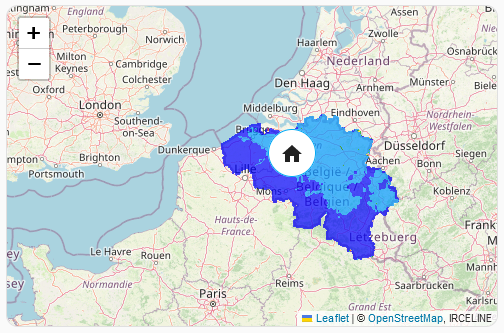
Take a look at the blog post [introducing the custom:map-card for Home Assistant](https://nathan.gs/2024/01/06/ha-map-card-a-new-and-alternative-leaflet-based-map/).
### Installation
#### HACS
[](https://my.home-assistant.io/redirect/hacs_repository/?owner=nathan-gs&repository=ha-map-card&category=plugin)
#### Manual
1. Copy `map-card.js` to your `/var/lib/hass/www` folder.
2. Click on `Edit Dashboard`, `Manage resources` add `/local/map-card.js` as `JavaScript Module`.
### Usage
> #### TIP
>
> Home Assistant contains a [native map](https://www.home-assistant.io/dashboards/map/) feature, if you don't need advanced features like WMS layers it might be a better choice.
#### Minimal
```yaml
type: custom:map-card
x: 51.23
y: 3.652
```
#### More advanced
> ##### TIP
>
> Take a look at:
> https://nathan.gs/2024/01/06/ha-map-card-a-new-and-alternative-leaflet-based-map/#a-more-advanced-example-measuring-pm25-air-quality-for-my-home
### Options
| name | Default | note |
|--------------------------|------------------------------------------------------------------------------------------------------------------------------|----------------------------------------------|
| `x` | | Longitude |
| `y` | | Latitude |
| `history_start` | | Date: `2022-03-01T12:00:00Z`
Time code: `5 hours ago`
Entity: `input_number.example_number`
See [History options](#history-options) for full details. |
| `history_end` | `now` | Date: `2022-03-01T12:00:00Z`
Time code: `5 hours ago`
Entity: `input_number.example_number`
See [History options](#history-options) for full details. |
| `focus_entity` | | Entity to focus on. Map will default to show all markers if this and X/Y are not set. |
| `title` | | If empty, don't show a title |
| `zoom` | 12 | The zoom level. Ignored unless focus_entity or X & Y coords are set. |
| `card_size` | 5 | The Home Assistant card size |
| `entities` | [] | Array of entities, will be listed as markers |
| `wms` | [] | WMS Layers, an array of `WMS` see below |
| `tile_layers` | [] | Tile Layers, an array of `Tile Layers` see below |
| `tile_layer_url` | https://tile.openstreetmap.org/{z}/{x}/{y}.png or `https://tile.example.com/{{states('sensor.test') }}/{z}/{x}/{y}.png` | Override the default map source, the url supports entity lookups. See [URL Entity lookup](#url-entity-lookup). |
| `tile_layer_attribution` | © <a href="http://www.openstreetmap.org/copyright">OpenStreetMap</a> | Set the correct map attribution |
| `tile_layer_options` | {} | The `options` for the default [TileLayer](https://leafletjs.com/reference.html#tilelayer) |
| `history_date_selection` | false | Will link with a `energy-date-selection` on the page to provide an interactive date range picker. |
| `theme_mode` | auto | `auto`, `light` or`dark` |
| `focus_follow` | none | `none`, `refocus`, `contains`, reset the map focused entity's, on each update. Some people call this the `Autofit` feature. |
| `focus_follow_pause` | 0 | Number of seconds to suspend `focus_follow` after the user pans (mouse down/drag) or zooms the map. `0` disables pausing (default, existing behavior). |
| `map_options` | {} | The `options` for the default [Leaflet Map](https://leafletjs.com/reference.html#map) |
| `cluster_markers` | false | Enable marker clustering to group nearby entities together. Click the group icon button to toggle clustering on/off. |
| `debug` | false | Enable debug messages in console.
| `plugins` | [] | An array of plugin definitions, see: [Plugin Options](#plugin-options), [Available plugins](#available-plugins) and [Developing plugins](#developing-plugins) |
For non-geographic maps, set `map_options.crs` to `simple`. The card will translate that into Leaflet's `L.CRS.Simple`, so you can use image/floor-plan style coordinates and pair them with entity `fixed_x` / `fixed_y` values.
```yaml
type: custom:map-card
x: 0
y: 0
zoom: 0
map_options:
crs: simple
minZoom: -5
tile_layer_url: ""
entities:
- entity: sensor.room_temperature
fixed_x: 320
fixed_y: 180
```
If `x` & `y` or `focus_entity` is not set it will take the lat/long from the __first entity__.
### URL Entity lookup
You can add dynamic url's, for example to use a sensor value in the url. When the parameter changes, the map will redraw with the new tile layer.
```
tile_layer_url: https://tile.example.com/{{states('sensor.test') }}/{z}/{x}/{y}.png
```
> ##### TIP
>
> It only supports `states` without any filters, this is a crude javascript regex based implementation, not the Jinja2 templating engine from Home Assistant.
### Entity options
Either the name of the `entity` or:
| name | Default | note |
|------------------------|---------------------------------------|-----------------------------------------------------------------------------------------------|
| `entity` | | The entity id |
| `display` | `marker` | `icon`, `state`, `attribute`, `marker` or `pill`.
`marker` will display the picture if available.
`icon` will display the icon if available, otherwise a label composed of first letters of the entity's name.
`pill` shows the entity's **current zone icon + its initials** together when it is inside a Home Assistant zone, and the normal initials marker otherwise. See [Place pill](#place-pill-display-pill). |
| `picture` | | Set a custom picture to use on the marker. |
| `icon` | | Set a custom icon to use if `display` is set to `icon`. e.g. `mdi:cake` |
| `label` | | Set a custom text label to display on the marker (overrides auto-generated initials). On picture markers, `label` / `prefix` / `suffix` overlay the photo; auto-generated initials do not. |
| `attribute` | | Set an attribute to use if `display` is set to `attribute`. e.g. `speed` |
| `prefix` | | Optional prefix for a value if `display` is set to `attribute` |
| `suffix` | | Optional suffix for a value if `display` is set to `attribute` |
| `size` | 48 | Size of the icon |
| `color` | Random Color | Can defined as `red`, `rgb(255,0,0)`, `rgba(255,0,0,0.1)`, `#ff0000`, `var(--red-color)` |
| `css` | `text-align: center; font-size: 60%;` | CSS for the marker (only for `state` and `marker`) |
| `history_start` | | Will inherit from map config if not set.
Date: `2022-03-01T12:00:00Z`
Time code: `5 hours ago`
Entity: `input_number.example_number`
See [History options](#history-options) for full details. |
| `history_end` | `now` | Will inherit from map config if not set.
Date: `2022-03-01T12:00:00Z`
Time code: `5 hours ago`
Entity: `input_number.example_number`
See [History options](#history-options) for full details. |
| `history_line_color` | Random Color | Can defined as `red`, `rgb(255,0,0)`, `rgba(255,0,0,0.1)`, `#ff0000`, `var(--red-color)` |
| `history_show_lines` | true | Show the path |
| `history_show_dots` | true | Show little dots on the path |
| `fixed_x` | | Display a fixed marker, this will ignore the latitude/longitude attributes |
| `fixed_y` | | Display a fixed marker, this will ignore the latitude/longitude attributes |
| `fallback_x` | | If the latitude/longitude is missing, use these fixed attributes |
| `fallback_y` | | If the latitude/longitude is missing, use these fixed attributes |
| `tap_action` | {"action": "more-info"} | Allow custom action to be triggered when this entity is clicked. Actions include `more-info`, `call-service`, `navigate`, `url`, `assist`, `none`. Some actions require additional paramaters. `navigate` requires a `navigation_path`. `url` requires a `url_path`. `call-service` requires `service` and an optional `data`|
| `gradual_opacity` | | The total amount of opacity will be gradually distributed across the paths. `gradual_opacity` is divided by the number of paths to calculate the opacity step for each path. The base opacity is generated by (1 - `gradual_opacity`), and as each path progresses, its opacity gradually darkens by the step amount.|
| `focus_on_fit` | true | If this variable is set to false, This entity will be excluded when the map fits the included entities on the screen.|
| `z_index_offset` | 1 | z-index value that determines what is displayed on top when markers overlap. (Setting a gap of at least 20 between the values assigned to each entity is recommended.) |
| `use_base_entity_only` | false | When set to `true`, the tracking will use only the base entity without including any associated device trackers. This is useful for scenarios where you want to track the base entity directly and ignore any associated trackers. |
| `position_update_threshold` | 10 | Distance threshold in meters. Marker position only updates if the entity has moved more than this distance. Prevents unnecessary map updates from GPS drift. Useful for clustered markers. |
| `pill_callout_min_zoom` | 15 | Only for `display: pill`. Map zoom at/above which the pill is drawn as an offset callout (up-left of the point, with a thin leader line to a dot on the exact location). Below this zoom the pill simply centres on the point with no leader, so it isn't obtrusive when the whole region is in view. |
| `circle` | | Display a circle around the marker.
More details [Circle options](#circle-options) |
| `geojson` | | Display GeoJSON data from an entity attribute.
More details [GeoJSON options](#geojson-options) |
### Place pill (`display: pill`)
A `pill` marker answers "who is where" in a single glance. When a tracked entity
is inside a Home Assistant zone, its marker is drawn as a small stadium ("pill")
holding two circles: the **zone's icon** on the left and the entity's **initials**
on the right — for example a church icon next to `ML`, or a home icon next to
`MG`. When the entity is not in any zone it falls back to the normal initials
marker. It is opt-in per entity and changes nothing for entities that don't set
`display: pill`.
#### Why
With the stock marker you can see *that* someone is on the map, but to learn
*which named place* they're at you have to recognise the spot or click through.
And when a person sits on top of their home/zone, you either get two overlapping
markers or a cluster bubble showing a count. The pill folds identity and place
into one marker — "Mom is at the church" is readable without interaction — using
data Home Assistant already has (zones + the entity's state).
#### How it resolves the person and the place
There is no extra configuration linking a person to a place; it is derived live:
1. **The entity is the person.** You list a `person.*` or `device_tracker.*` on
the map as usual. The card already places it at its GPS position and derives
its **initials** from the entity's `friendly_name` (first letter of each word,
e.g. `Mom Location` → `ML`). `label:` still overrides the initials if set.
2. **Zones are the named places.** Each HA `zone.*` has a `friendly_name`, an
`icon`, a latitude/longitude and a radius. These already exist whenever you
create a zone (Settings → Areas & Zones).
3. **Home Assistant links them via state.** When a `device_tracker`/`person` is
inside a zone, HA sets that entity's **state to the zone's name** (the Home
zone reports `home`). This is the join between person and place, maintained by
HA core — the card doesn't compute geometry.
4. **The card reads it back.** For a `pill` entity it takes the entity's raw
state, finds the `zone.*` whose `friendly_name` matches it (case-insensitive;
`home` → the Home zone), and uses that zone's `icon` for the left circle. If
the state is `not_home`/`away`/unknown — or matches no zone — there is no
place, so the normal initials marker is shown instead.
5. **Tooltip.** Hovering shows ` is at `, e.g. *Mom is at
Extended Family*. The person name is the entity's `friendly_name` with a
trailing `Location`/`Tracker`/`Device`/`Phone`/`GPS` stripped, so
`Mom Location` reads as `Mom`. (This uses a Leaflet tooltip, which opens
immediately, rather than the browser's delayed native `title`.)
The marker is rebuilt automatically when the entity enters or leaves a zone, so
the pill appears, swaps icon, or collapses to initials as the person moves.
#### Zoom-aware callout
At/above `pill_callout_min_zoom` (default `15`) the pill is offset up-and-left of
the exact position and connected by a thin **leader line** to a small dot on the
real location, so the pill doesn't cover what's underneath. Below that zoom — when
the whole town or region is in view and a leader line would just be clutter — the
pill simply centres on the point with no leader. Set `pill_callout_min_zoom` lower
to engage the callout sooner, or very high to effectively disable it.
#### Appearance
The pill reuses the entity's existing `color` (the same per-entity colour the
normal marker uses, or whatever you set with `color:`) for the outline, icon,
initials and leader, and `size` for each circle. Dark mode is honoured.
#### Requirements
- The places must be real HA **zones** with an `icon` and a `friendly_name`
(icons like `mdi:home`, `mdi:church`, `mdi:account-group`).
- The entity must report its zone in its **state** — GPS `device_tracker`s and
`person`s do this automatically; the Home zone reports `home`.
#### Example
```yaml
type: custom:map-card
entities:
- entity: device_tracker.mom_location
display: pill
- entity: person.matt
display: pill
pill_callout_min_zoom: 14 # show the offset callout a bit sooner
```
With `device_tracker.mom_location` in the *Extended Family* zone this renders a
pill of `mdi:account-group` + `ML`, tooltip "Mom is at Extended Family"; when she
leaves it becomes a plain `ML` marker.
### History options
If `history_date_selection:true`, any entities that do not define their own `history_start` and `history_end` configuration will be automatically linked to this. Please ensure a card of `type: energy-date-selection` exists on the page before enabling this.
This can be added via the "Add Card" dialog by selecting Manual and entering the text `type: energy-date-selection`.
Alternatively `history_start` and `history_end` can be set to
* A specific date such as `2022-03-01T12:00:00Z`
* A time code such as `10 days ago` `4 hours ago` `1 week ago` etc.
* An entity that will provide either a `date` or `number` (which will be used as the amount of hours ago to show). e.g. `input_number.example_number_value`
If you want to specify your own unit, configure the `history_start`/`history_end` as the below.
```
history_start:
entity: input_number.example_number_value
suffix: days ago
```
Each entity can individually override the base config by setting its own `history_start`/`history_end`, using any of the options above.
Any entity without its own settings will inherit the map level config.
### Circle options
Display a circle around the marker. It can either be called with the string `auto` or following options.
`circle: auto`
| name | Default | note |
|--------------|---------|----------------------------------------------------------------------------------------------|
| `source` | | Where to get the radius from, see below for options. |
| `attribute` | | The attribute to use for the radius (in case of `source: attribute`). |
| `radius` | | Radius in meters (in case of `source: config`)(optional) |
| `color` | | Color of the circle (will use the entity color if not set) |
| `fill_opacity`| 0.2 | Opacity of the fill color |
Source
* `auto` - Will use the `gps_accuracy`, then the `radius` attribute from the entity if available, otherwise will use the `radius` set in the config.
* `gps_accuracy` - Will use the `gps_accuracy` attribute from the entity.
* `radius` - Will use the `radius` attribute from the entity.
* `config` - Will use the `radius` set in the config.
* `attribute` - Will use the `attribute` set in the config.
### GeoJSON options
Display GeoJSON data from an entity attribute. This is useful for displaying zones, areas, routes, or any geographic data stored as GeoJSON in your Home Assistant entities.
The `geojson` option can be configured in several ways:
**Simple usage (uses default attribute name `geo_location`):**
```yaml
geojson: true
```
**Specify a custom attribute name:**
```yaml
geojson: zone_geojson
```
**Full configuration:**
```yaml
geojson:
attribute: zone_geojson
color: '#FF5733'
weight: 3
opacity: 1.0
fill_opacity: 0.2
hide_marker: false
```
| name | Default | note |
|----------------|----------------|----------------------------------------------------------------------------------------------|
| `attribute` | `geo_location` | The entity attribute containing the GeoJSON data |
| `color` | Entity color | Color for the GeoJSON features (lines and fills) |
| `weight` | 3 | Line weight for GeoJSON features |
| `opacity` | 1.0 | Opacity of lines |
| `fill_opacity` | 0.2 | Opacity of filled areas |
| `hide_marker` | false | When set to `true`, hides the default entity marker and only displays the GeoJSON |
**Supported GeoJSON types:**
- Point, MultiPoint
- LineString, MultiLineString
- Polygon, MultiPolygon
- GeometryCollection
- Feature, FeatureCollection
**Example entity configuration:**
```yaml
entities:
- entity: sensor.my_zone
geojson:
attribute: zone_data
color: '#3388ff'
fill_opacity: 0.3
hide_marker: true
```
The GeoJSON data in the entity attribute can be either:
- A JSON string: `'{"type": "Polygon", "coordinates": [[[0,0], [1,0], [1,1], [0,1], [0,0]]]}'`
- A parsed JSON object (if your integration provides it that way)
**Interactive Features:**
- GeoJSON zones are **clickable** - clicking on any GeoJSON feature will show the entity's more-info dialog (or trigger the configured `tap_action`)
- If the GeoJSON Feature or FeatureCollection includes properties, they will be displayed in tooltips when hovering over the features
### WMS and tile_layers options
| name | note |
|-----------|-------------------------------------------------------------------------------------------------------------------------------------------------------------|
| `url` | The url of the layer, see [URL Entity lookup](#url-entity-lookup). |
| `options` | The leaflet layer [WMS options](https://leafletjs.com/reference.html#tilelayer-wms) or [Tile Layer options](https://leafletjs.com/reference.html#tilelayer) |
| `history` | The name of the layer option which controls the dat, if it supports a date or time option. Set history to the name of this property. The `history_start` value, state or date range picker will then set this property on the layer and update it as necessary. |
#### Zooming & `tile_layer_options.maxZoom`
By default the map-card will not zoom beyond [default property of the `maxZoom`](https://leafletjs.com/reference.html#tilelayer-maxzoom) of the tilelayer, the default is `18`, but it can be overriden as follows:
```
type: custom:map-card
tile_layer_options:
maxZoom: 20
```
Keep in mind that the tile layer source also has a maximum zoom level, which is `20` for most OSM maps.
#### OSM & `tile_layer_options.referrerPolicy`
OpenStreetMap tile servers may block tile requests that lack a valid `Referer` header. By default, `referrerPolicy` is set to `"origin-when-cross-origin"`, which ensures the browser sends the origin with cross-origin tile requests as required by OSM's [Tile Usage Policy](https://operations.osmfoundation.org/policies/tiles/). You can override this if needed:
```
type: custom:map-card
tile_layer_options:
referrerPolicy: "no-referrer"
```
#### Advanced WMS/Tile layer options
More complex use of the WMS/Tile history property can be configured within the history property of the layer.
* `property` is the option this should control (often named `time` or `date`)
* `source` defaults to auto (which means it will inherit from the main map settings). Set this to a date or number entity if this is different.
* `suffix` days ago/weeks ago as with other history entities
* `force_midnight` some WMS/Tile layers only work if the date is set as midnight.
```
history:
property: time
source: input_number.test_number_value
suffix: months ago
force_midnight: true
```
### Plugin options
| name | note |
|-----------|-------------------------------------------------------------------------------------------------------------------------------------------------------------|
| `name` | Mandatory, a helpful name for this instance of the plugin. Useful for debugging issues. |
| `url` | The url of the plugin, if the plugin is in the file `/var/lib/hass/www/SomePlugin.js` , then this would be `./local/SomePlugin.js`. |
| `hacs.module` | The HACS module from which the plugin must be loaded if `url` is not set. |
| `hacs.file` | The file within the module from which the plugin must be loaded if `url is not set. |
| `options` | Options for configuring the plugin |
The `url` option is used when set.
If the `url` is not set and the `hacs` object is, the plugin will be loaded from the [HACS plugin](https://hacs.xyz/docs/publish/plugin/) with the given name and given filename.
#### Example config with plugin
```yaml
type: custom:map-card
x: -25.3744
y: 133.7751
plugins:
- name: plugin
url: /local/my-plugin.js
options:
some_option: true
- name: another_instance
url: /local/my-plugin.js
options:
some_option: false
```
#### Available Plugins
| name | description |
|-----------|-----------------------------------------------------------------------------------------------------|
| [`bom-radar`](https://github.com/bezmi/ha-map-card-plugin-bom-radar) | Displays the Australian BoM rainfall radar for the past 90 minutes and the radar forecast for the next 90 minutes as an overlay on the map. |
| [`buienradar`](https://github.com/Kevinjil/ha-map-card-buienradar) | Displays `buienradar.nl` as an overlay on the map |
You can find more plugins using the [ha-map-card-plugin](https://github.com/topics/ha-map-card-plugin) topic.
## Extra Tile Layers
The [leaflet-extras](https://github.com/leaflet-extras/leaflet-providers) has a nice list of available [tile layer providers](https://leaflet-extras.github.io/leaflet-providers/preview/).
## Development
`git clone git@github.com:nathan-gs/ha-map-card.git`
This project uses [devenv.sh](https://devenv.sh/).
1. Install devenv
2. `devenv shell` and then `watch` or `devenv shell watch` to immediatly drop into a watched shell.
### NPM alternatives
* `npm install`
* `npm run build` (`npm run watch` to update on change)
### Developing Plugins
* All plugins should implement the `Plugin` class. See [`Plugin.js`](./src/models/Plugin.js) and [`Plugin.d.ts`](./src/models/Plugin.d.ts).
* The Home Assistant `hass` object is available as `this.hass`. It is set before `init()` and refreshed before every `update()`, which runs whenever the card receives new state.
* For a concrete example, see [`CircleTestPlugin.js`](./plugins/CircleTestPlugin.js).
* Typescript example: see [bezmi/ha-map-card-plugin-bom-radar](https://github.com/bezmi/ha-map-card-plugin-bom-radar).
* For an example HACS plugin installation: see [`buienradar`](https://github.com/Kevinjil/ha-map-card-buienradar).
Tag your Github repo with [ha-map-card-plugin](https://github.com/topics/ha-map-card-plugin) for discoverability.
## Mentions & Discussions
* [home-assistant community: map-card: a slightly improved map-card](https://community.home-assistant.io/t/map-card-a-slightly-improved-map-card/693088), this topic should be used for general discussions.
* [nathan.gs: Map Card, a new leaflet based map with WMS and other advanced features](https://nathan.gs/2024/01/06/ha-map-card-a-new-and-alternative-leaflet-based-map/)
* [nathan.gs: Map Card, displaying Weather and Other Tile Layers](https://nathan.gs/2024/02/25/ha-map-card-displaying-weather-and-other-tilelayers/)
* [userbag.co.uk: Home Assistant Exploring location history](https://userbag.co.uk/development/home-assistant-exploring-location-history/)
* [leaflet.js: third party plugins](https://leafletjs.com/plugins.html#3rd-party-integration)
### Showcase
We have a gallery of nice examples at [nathan.gs/ha-map-card](https://nathan.gs/ha-map-card/), contributions are welcome, check the [showcase/README.md](showcase/README.md).