# zotero-llm-wiki: ask Claude about your papers, right inside Zotero
**Zotero + Claude** · ask about a paper inside Zotero, with citations highlighted in the PDF · search the literature · a self-updating literature wiki in Obsidian
**English** | [繁體中文](README.zh-TW.md)
Tools that let Claude work with the papers in your Zotero library. The main one is **Paper Chat**, a Zotero plugin: open a PDF and ask Claude about it in the side pane; every passage the answer quotes is highlighted in the PDF, and clicking the page number jumps there. There are also two skills for [Claude Code](https://claude.com/claude-code) (ask about papers, search the literature) and a full version that builds a literature database in Obsidian.
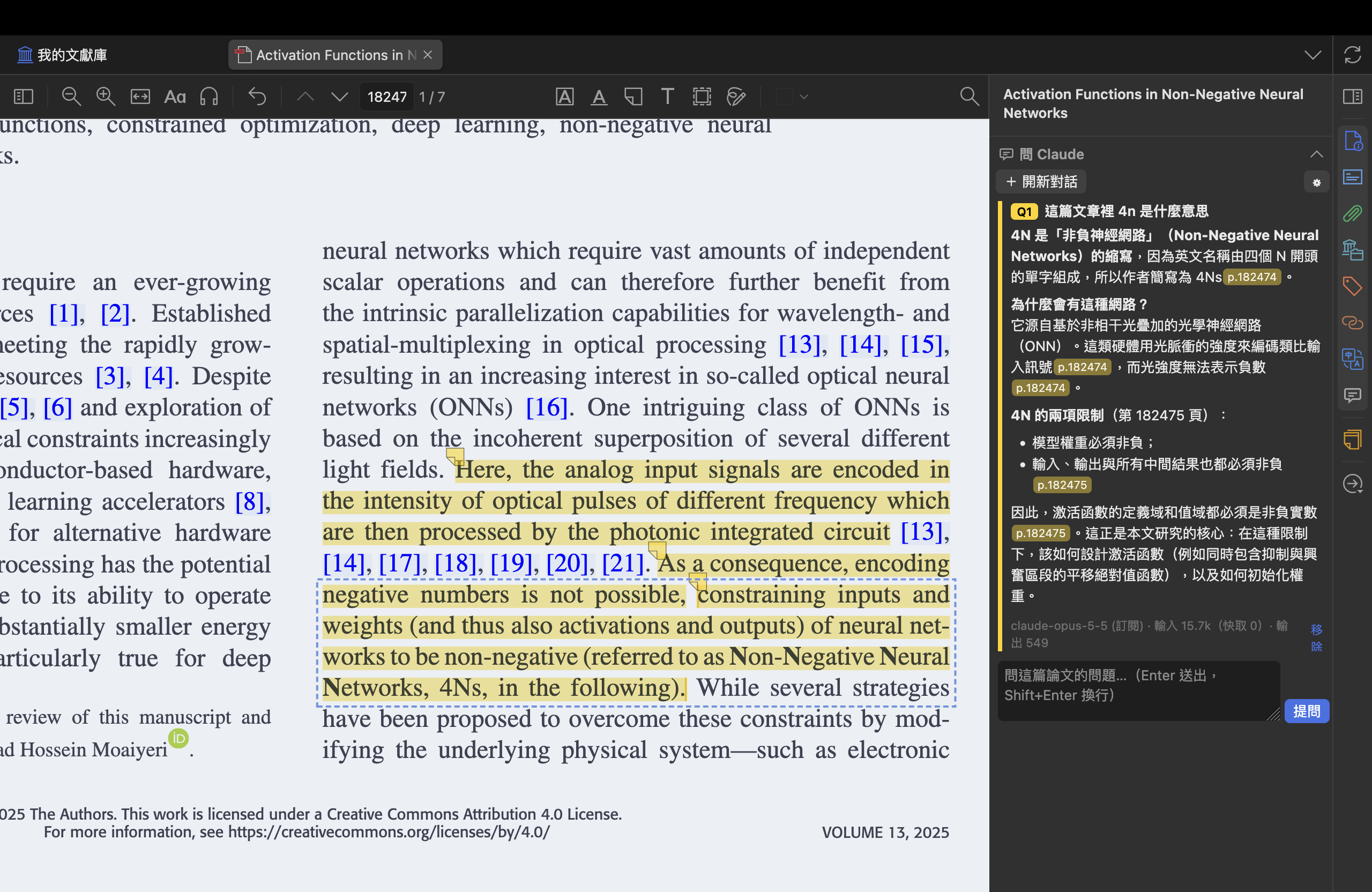
Example paper: Becker et al., “Activation Functions in Non-Negative Neural Networks,” *IEEE Access* 13 (2025), [doi:10.1109/ACCESS.2025.3622408](https://doi.org/10.1109/ACCESS.2025.3622408), [CC BY 4.0](https://creativecommons.org/licenses/by/4.0/). Screenshot cropped; highlights added by Paper Chat.
---
## Choose where to start
| | What it does | What you need | How to install |
|---|---|---|---|
| **[Paper Chat](#paper-chat-ask-claude-inside-zotero)** (main tool) | Ask about the open PDF in Zotero's side pane; quoted passages become highlights, click `p.5` to jump there; the Q&A is saved as a note | Zotero, plus Claude Code or an Anthropic API key | Download an `.xpi`, install it in Zotero |
| **[paper-ask](#skill-paper-ask-ask-about-papers-in-zotero)** (skill) | Ask Claude Code about any paper in your Zotero; answers with page numbers and quotes, leaves grey highlights in the PDF | Claude Code, Zotero, Python | Download a zip |
| **[paper-search](#skill-paper-search-find-literature)** (skill) | Searches OpenAlex for papers, marks the ones you already have, adds the ones you pick to Zotero | Claude Code, Python (Zotero optional) | Download a zip |
| **[Full version](#the-full-version-zotero-llm-wiki-with-obsidian)** | Both skills, plus a literature database in Obsidian: one page per paper, search logs, reading progress, AI notes | Claude Code, Zotero, Better BibTeX, Obsidian, Python | Claude Code plugin |
**Not sure? Start with Paper Chat.** It only needs Zotero: no terminal, no Python. When you want Claude to work across several papers or find new ones, add the skills or the full version.
- Paper Chat works alongside any of the others.
- paper-ask and paper-search work well together. The full version already includes both, so install either the skills or the full version, not both.
- Everything except Paper Chat with an API key needs a paid Claude subscription (Pro or Max) and Claude Code. If you don't have Claude Code yet, the [Claude Code part of Step 1](#step-1-install-the-software) shows how to install it.
---
## Paper Chat: ask Claude inside Zotero
A Zotero plugin. Open a PDF and ask Claude about it in the right-hand pane:
- **Each question gets its own highlight color**: Q1 yellow, Q2 blue, Q3 green…
- **Answers quote the paper**: every quoted passage is highlighted in the PDF, in the question's color.
- **Click `p.5` in an answer to jump there**: the PDF scrolls to that page and selects the highlight.
- **The Q&A is kept**: reopen the PDF and the past questions are back in the pane; a child note "AI Q&A" holds them too, with links that jump into the PDF.
- **Ask about a selection**: select text in the PDF and choose "Ask Claude" in the popup.
**You need** Zotero 7–9, plus one of:
- **Claude Code (your subscription)**: [Claude Code](https://claude.com/claude-code) installed and logged in; usage counts against your Pro/Max plan. See the last item of [Step 1](#step-1-install-the-software) to install it.
- **An Anthropic API key (pay as you go)**: create one at [platform.claude.com](https://platform.claude.com/settings/keys); no subscription needed.
**Install** (step-by-step for Windows and macOS, including Claude Code: **[installation guide](docs/paper-chat-install.md)**)
1. Download [paper-chat.xpi](https://github.com/nebula0/zotero-llm-wiki/releases/latest/download/paper-chat.xpi). (If Safari unzips it automatically, download it with Chrome or Firefox instead.)
2. In Zotero: Tools → Plugins → gear icon → **Install Plugin From File**, and pick the `.xpi`.
3. Open any PDF. An "Ask Claude" section appears at the bottom of the right-hand pane; **click the chat bubble in the strip of icons beside it to pin it to the top**.
4. With Claude Code installed, just ask. To pick one of several Claude Code accounts, or to use an API key, click ⚙︎ in the section.
**Good to know**
- **The whole PDF text is sent to Anthropic**, either way. Don't use it on documents that must not leave your computer.
- Only text is sent, so Claude can't see figures; scanned PDFs need OCR first.
- Tested on **macOS**. Windows should work but hasn't been tested yet; there, Claude Code also needs [Git for Windows](https://git-scm.com/downloads/win). If something breaks on Windows, please [open an issue](https://github.com/nebula0/zotero-llm-wiki/issues).
Settings, how it works and where data is stored: see the [Paper Chat guide](zotero-addon/README.md).
---
## Skill: paper-ask, ask about papers in Zotero
Ask Claude about any paper in your Zotero library. It finds the PDF, reads the relevant pages and answers with page numbers and quotes. It never searches the web and never answers from memory: if the paper isn't in Zotero, it asks you to add it.
How it differs from Paper Chat: Paper Chat asks about the paper you have open, inside Zotero; paper-ask works in a Claude Code chat, so you can compare several papers or ask across your whole library.
- **Grey highlights:** with a Zotero API key set up, Claude highlights the passages it quoted, in grey, so you can check them in Zotero.
- **Notes, if you want them:** say "save that as a note" once, or "always save notes to " to keep every answer as a Markdown file.
- **Your language:** ask in English and it answers in English; ask in Chinese and it answers in Chinese.
**Install**
1. Download [paper-ask.zip](https://github.com/nebula0/zotero-llm-wiki/releases/latest/download/paper-ask.zip) to your Downloads folder.
2. Unzip it into your Claude Code skills folder:
- macOS (Terminal):
```
mkdir -p ~/.claude/skills/paper-ask && unzip -o ~/Downloads/paper-ask.zip -d ~/.claude/skills/paper-ask
```
- Windows (PowerShell):
```
Expand-Archive -Force "$HOME\Downloads\paper-ask.zip" "$HOME\.claude\skills\paper-ask"
```
`SKILL.md` should now sit directly inside `.claude/skills/paper-ask/`.
3. Start Claude Code and say:
> set up paper-ask
Claude checks Python and finds your Zotero folder. The API key for grey highlights is optional; Claude opens an [illustrated guide](docs/zotero-api-key.md) for it.
**Use it**
> What is the main contribution of the Smith 2023 paper in my Zotero?
To update, download the zip again and run the same unzip command. The `VERSION` file in the skill folder shows which version you have.
---
## Skill: paper-search, find literature
Ask Claude to find papers on a topic. Every title, author, year, venue and DOI comes from [OpenAlex](https://openalex.org), never from memory, and Claude reads the abstracts before recommending anything.
- **Knows what you have:** it checks your Zotero first, marks papers already there (★) and skips ones you excluded before (✗).
- **Citation tracking:** "what does this paper cite?" and "what cites it?", the fastest way to find newer work in your niche.
- **Adds to Zotero:** say "add #1 and #3 to Zotero" and they go into the collection selected in Zotero, with the open-access PDF when there is one. Zotero just needs to be open; no API key.
- **Optional log:** set a folder and every search and paper is kept in a CSV file, so later searches don't repeat themselves.
Zotero is optional: without it, paper-search still searches and answers in the chat.
**Install**
1. Download [paper-search.zip](https://github.com/nebula0/zotero-llm-wiki/releases/latest/download/paper-search.zip) to your Downloads folder.
2. Unzip it into your Claude Code skills folder:
- macOS (Terminal):
```
mkdir -p ~/.claude/skills/paper-search && unzip -o ~/Downloads/paper-search.zip -d ~/.claude/skills/paper-search
```
- Windows (PowerShell):
```
Expand-Archive -Force "$HOME\Downloads\paper-search.zip" "$HOME\.claude\skills\paper-search"
```
3. Start Claude Code and say:
> set up paper-search
**Use it**
> Find recent papers on thermal tuning of silicon microring resonators. Start with reviews.
paper-search and paper-ask work well together: find papers with one, then ask about them with the other.
---
## The full version: zotero-llm-wiki with Obsidian
A Claude Code plugin that turns your Zotero library into an **LLM-maintained wiki in Obsidian**. Ask Claude "find literature on X" or "how did this paper run the experiment?" and it searches the literature, reads the PDFs in your Zotero library, answers with page numbers and quotes, and files everything into a literature database that keeps itself up to date.
It follows Andrej Karpathy's [LLM Wiki idea](https://gist.github.com/karpathy/442a6bf555914893e9891c11519de94f), applied to academic literature. Good fit if you are a grad student or researcher doing a **literature review** and want an AI research assistant whose work you can check.
> **Language note:** the full version was built for Traditional Chinese users, so generated pages, folder names and record fields are currently in Chinese. You can talk to Claude in English and it answers in English. A full English version is planned; if you'd use it, please open an issue so I know.
### What problems it solves
| Before | After |
|---|---|
| Every time you ask an AI to find papers, it searches from scratch, formats results differently, and recommends the same papers again | Every query and every paper found is logged. Later searches mark papers already in your library ★ and papers you rejected ✗ |
| AI sometimes makes up DOIs, years or journals | Bibliographic data always comes from the OpenAlex database. The scripts reject records without a source |
| Papers you've read, downloaded and never opened are all mixed together | One page per paper. A table shows how far the AI has read, how far *you* have read (inferred from your Zotero highlights), and whether you have the PDF |
| When you ask an AI about a paper, you can't tell if it read the text or is guessing | Answers cite page numbers and quote the original sentences. Claude also highlights those passages in grey in the PDF, so you can check them in Zotero |
| Discussions with the AI are buried in old chats | Each paper gets an AI note, and every Q&A about it is appended there |
| You forget why you saved a paper | Each paper records why it was collected, its main contribution, and what that judgment is based on (full text, abstract, or bibliography only) |
### How it fits together
```
You: save papers and highlight in Zotero You: talk to Claude
│ │
▼ ▼
Zotero (PDFs + highlights) ◀── reads, adds grey highlights ── Claude Code + zotero-llm-wiki
│ │
└─────────────────┬──────────────────────────┘
▼ rebuilt automatically
Obsidian literature database (one page per paper + tables)
├─ Paper pages: bibliography, main contribution, why collected, reading progress
├─ Task pages: what each search looked for, what it kept, what it rejected and why
└─ AI notes: Claude's Q&A on each paper, with page numbers
```
Day to day you only open two apps:
- **Zotero**: store PDFs and highlight them (you may already use it)
- **Obsidian**: browse the organized database, and talk to Claude there through the Claudian plugin, which adds a chat panel on the right
---
## Installing the full version
> 💡 **No download needed.** The full version is a Claude Code plugin: the command in Step 3 installs it straight from GitHub. Just follow the steps below.
Step 1 has separate instructions for Windows and macOS. Steps 2–4 are the same on both.
### What you need
- A paid Claude subscription (Pro or Max)
- A Zotero account (free), used to sync the AI highlights
### What each piece of software does
| Software | What it does | Will you use it directly? |
|---|---|---|
| **Zotero** | Reference manager: stores PDFs and bibliographic data, lets you highlight and take notes. All your papers live here | ✅ Daily: reading and highlighting |
| **Zotero Connector** | Browser extension: one click on a journal page saves the paper and its PDF to Zotero | ✅ When saving new papers |
| **Better BibTeX** | Zotero add-on: gives every paper a stable key (e.g. `smithThermalTuning2023`). File names and links use it, and you can use it for LaTeX citations | ❌ Set it up once and forget it |
| **Obsidian** | Note-taking app: shows the organized database (tables, card wall, paper pages). You can also write your own notes | ✅ Daily |
| **Claudian** | Obsidian plugin: adds a chat panel on the right where you talk to Claude | ✅ Daily: talking to Claude |
| **Claude Code** | Claude's agent program. It does the actual work: searching, reading PDFs, writing notes, maintaining the database. Claudian calls it in the background | ❌ Used once in PowerShell (Windows) or Terminal (macOS) to log in, then never opened |
| **Python** | Programming language. The plugin's tools (reading Zotero, rebuilding the database, adding highlights) are Python scripts | ❌ Claude runs them; you don't need to learn Python |
| **Git for Windows** | Windows only. Claude Code needs it to run commands on Windows | ❌ Install once and forget it |
### Step 1: Install the software
Install in this order, and skip anything you already have.
#### Windows
1. **Git for Windows**: https://git-scm.com/downloads/win (keep all default options)
2. **Python**: https://www.python.org/downloads/
⚠️ On the first installer screen, **check "Add python.exe to PATH"**
3. **Zotero 7** and the browser **Zotero Connector**: https://www.zotero.org/download/
4. **Better BibTeX**:
Download the `.xpi` file from https://retorque.re/zotero-better-bibtex/installation/ → in Zotero, Tools → Plugins → gear icon (top right) → Install Plugin From File
5. **Obsidian**: https://obsidian.md/download
6. **Claude Code**. You only need PowerShell here and when saving your API key in Step 4:
1. Press the Start key, search for "PowerShell" and open it.
2. Paste this line, press Enter and wait for the install to finish:
```
irm https://claude.ai/install.ps1 | iex
```
3. Type `claude`, press Enter, and follow the prompts to log in to your Claude account.
4. When you reach the input prompt, the login worked. Type `/exit` and close PowerShell.
#### macOS
1. **Python**: download the macOS installer from https://www.python.org/downloads/ and run it.
When it finishes, a Finder window opens. Double-click **Install Certificates.command** in it (this lets Python make secure connections).
(macOS has a built-in `python3`, but it may be too old. The python.org version avoids problems.)
2. **Zotero 7** and the browser **Zotero Connector**: https://www.zotero.org/download/
3. **Better BibTeX**:
Download the `.xpi` file from https://retorque.re/zotero-better-bibtex/installation/ → in Zotero, Tools → Plugins → gear icon (top right) → Install Plugin From File
(If Safari unzips the `.xpi` automatically, download it with Chrome or Firefox instead.)
4. **Obsidian**: https://obsidian.md/download
5. **Claude Code**. You only need Terminal here and when saving your API key in Step 4:
1. Press `Cmd+Space`, type "Terminal" and open it.
2. Paste this line, press Enter and wait for the install to finish:
```
curl -fsSL https://claude.ai/install.sh | bash
```
3. Type `claude`, press Enter, and follow the prompts to log in to your Claude account. (If it says `command not found`, close Terminal, open a new window and try again.)
4. When you reach the input prompt, the login worked. Type `/exit` and close Terminal.
### Step 2: Create your vault and install Claudian
1. Create a folder for your research notes, e.g. `Documents\research-notes`.
2. Open Obsidian → "Open folder as vault" → choose that folder.
3. Settings (gear, bottom left) → Community plugins → turn off Restricted mode → Browse → search for **Claudian** → Install → Enable.
(If it isn't listed, install it manually by following the instructions on its GitHub page: https://github.com/YishenTu)
4. Click the Claudian icon in the left sidebar to open the chat panel and say "hello". If Claude replies, everything is working.
### Step 3: Ask Claude to install the plugin
1. In the Claudian panel, say:
> Install a Claude Code plugin for me: run `claude plugin marketplace add nebula0/zotero-llm-wiki`, then run `claude plugin install zotero-llm-wiki@zotero-llm-wiki`
2. When Claude reports success, **quit Obsidian completely and reopen it** so the plugin loads.
Can't reach GitHub? Install from a ZIP
On this page, click Code → Download ZIP. Unzip it somewhere permanent (e.g. `C:\Users\you\zotero-llm-wiki`, and don't move it afterwards). In the command above, replace `nebula0/zotero-llm-wiki` with that folder path, in quotes.
### Step 4: Run the setup wizard
In the Claudian panel, say:
> Set up zotero-llm-wiki
Claude walks you through the rest one step at a time: checking Python and Zotero, saving your Zotero API key, creating the folders, describing your research topic and tag vocabulary, and configuring Obsidian. Partway through it asks you to restart Obsidian. After the restart, open Claudian and say "continue setting up zotero-llm-wiki".
> 🔑 **An API key is a password.** During setup Claude opens an [illustrated guide](docs/zotero-api-key.md) to creating the key, then gives you a one-line command to paste into PowerShell (Windows) or Terminal (macOS); it saves the key straight to your computer. **Never paste the key into the chat.**
---
## Using the full version
**Open Obsidian and talk to Claude in the Claudian panel on the right.** Use plain language; there are no commands to memorize.
### Finding literature
> Find literature on "X". This is a new topic, so start with reviews.
Claude first reads a few review articles and maps out the main approaches in the field, then searches one approach at a time. It reads every paper's abstract before keeping it and gives a reason for every paper it rejects. At the end it gives you a "pending import" page. **Papers go into your database only after you've looked at that page and said which ones you want.**
### Asking about a paper
> In my Zotero there's Smith 2023. How did they prepare the samples?
Claude reads the PDF and answers with page numbers and quotes. It also:
- highlights the passages it quoted in **grey** in the PDF (each comment starts with the question it answers)
- saves the Q&A to that paper's AI note
### Changing a paper's status
> Exclude this one, it's unrelated to my topic.
> I want to cite Chen 2024 in my introduction.
### Updating the database
After saving new papers to Zotero or highlighting:
> Rebuild the literature database
Claude updates the paper pages, then reads the abstracts of new papers, writes their main contribution and tags them.
---
## Highlighting in Zotero
Use these colors. The system counts highlights by color, and the Obsidian reading cards group them by color:
| Color | Meaning |
|---|---|
| 🟡 Yellow | Core argument, a sentence you'd cite |
| 🔴 Red | Doubtful, you disagree |
| 🟢 Green | Method worth borrowing |
| 🔵 Blue | Key data |
| 🟣 Purple | Needs follow-up (a to-do) |
| ⚪ Grey | **Reserved for Claude.** Don't use grey yourself |
**When you see a grey AI highlight:**
- Agree → change it to one of your colors (this counts as adopting it)
- Disagree → delete it
- Or just leave it
**Write a one-sentence claim on the first line of your Zotero note** (e.g. "This paper shows X"). It becomes the one-line summary on the reading card.
**You don't record your reading progress yourself.** The system infers it from how many pages you've highlighted. If it gets it wrong, add one of these Zotero tags to the paper: `閱讀/沒看` (not read), `閱讀/看過摘要` (read abstract), `閱讀/略讀` (skimmed), `閱讀/精讀` (read closely).
---
## Browsing in Obsidian
Open `2_paper/文獻庫.base` (the literature database) and switch views in the top-left corner:
| View | Shows |
|---|---|
| 總表 (All) | Every paper |
| 最近新增 (Recent) | Newest additions first |
| 卡片牆 (Card wall) | Cards with cover images, auto-cropped from the PDF. To pick your own, draw an area selection in Zotero and start its comment with `cover` |
| 你還沒讀 (Unread) | Papers you haven't read, with the ones the AI read most deeply at the top. Handy for choosing what to read next |
| 需要你下載 (Need download) | Papers not in Zotero or without a PDF |
| 有待查項 (Has to-dos) | Papers with purple highlights |
| 候選與排除 (Candidates & excluded) | Papers Claude found that you haven't decided on, plus the ones you excluded |
| 本團隊 (Our lab) | Papers by your advisor or collaborators |
To turn your Zotero highlights into a reading card: in Obsidian press `Ctrl+P` (macOS: `Cmd+P`) → "Zotero Integration: 文獻卡片" → choose the paper.
⚠️ **Don't edit the pages in `2_paper/文獻庫/` or `2_paper/任務/` by hand.** The scripts generate them, and the next rebuild overwrites your changes. Tell Claude what you want changed, and keep your own thoughts in Zotero notes or the reading cards.
---
## Folder layout
```
research-notes/
├─ 2_paper/
│ ├─ 文獻庫/ paper pages (generated, don't edit)
│ ├─ 任務/ one page per search task (generated, don't edit)
│ ├─ AI筆記/ Claude's notes on each paper
│ ├─ notes/ your reading cards (imported from Zotero)
│ ├─ 文獻庫資料/ all records and settings (設定.json: research topic, tags, lab members)
│ └─ 文獻庫.base table views
├─ 1_attachment/封面/ cover images for the card wall
└─ 筆記/ other notes (e.g. field maps Claude writes)
```
Back up the `research-notes` folder with Git or a cloud drive. `文獻庫資料/` is the only part that can't be rebuilt.
---
## FAQ
**Q: Claudian says it can't find Claude Code.**
Claudian doesn't know where the Claude Code program is. Find the path, then paste it into the Claude CLI path field under Obsidian Settings → Claudian:
- Windows: open PowerShell and run `where.exe claude`
- macOS: open Terminal and run `which claude` (usually `/Users//.local/bin/claude`)
**Q: Claude says it can't find Python.**
- Windows: "Add python.exe to PATH" wasn't checked during installation. Run the installer again, choose Modify and check it (or uninstall and reinstall), then restart Obsidian.
- macOS: install Python from python.org (see Step 1), then quit Obsidian completely (`Cmd+Q`) and reopen it.
**Q: On macOS, searches fail with a certificate error (`CERTIFICATE_VERIFY_FAILED`).**
Open Finder → Applications → the Python 3.x folder, and double-click **Install Certificates.command**.
**Q: Grey highlights fail with "attachment not found".**
That paper's PDF attachment hasn't synced to zotero.org yet. Click the sync button at the top right of Zotero, wait for it to finish, and try again.
**Q: A paper page warns that it has no proper citekey.**
Better BibTeX isn't installed correctly, or that paper doesn't have a key yet. In Zotero, right-click the paper → Better BibTeX → Refresh BibTeX key.
**Q: I want to change the tags.**
Tell Claude something like "add topic/xxx to the tag vocabulary, meaning …". It updates `設定.json`.
**Q: Can I install paper-ask or paper-search together with the full version?**
No. The full version already reads papers and searches the literature, and with both installed Claude can't tell which one to use. If you move up to the full version, delete the `.claude/skills/paper-ask` and `.claude/skills/paper-search` folders.
**Q: I installed zotero-ask earlier. What changed?**
It's the same skill, renamed paper-ask. Install paper-ask as in [its section](#skill-paper-ask-ask-about-papers-in-zotero), then delete the old `.claude/skills/zotero-ask` folder so Claude doesn't see two copies.
**Q: How do I update the full version?**
In Claudian, say "update the zotero-llm-wiki plugin: run `claude plugin marketplace update zotero-llm-wiki`, then `claude plugin update zotero-llm-wiki@zotero-llm-wiki`", then restart Obsidian. (If you installed from a ZIP, replace the old folder with a fresh download first.)
**Q: Can I use Paper Chat with the full version?**
Yes. Paper Chat's highlights and its "AI Q&A" note carry the `paper-chat` tag, and the full version skips them when it infers your reading progress, so they never count as your own highlights. To tell them apart in Zotero: a Paper Chat highlight's comment starts with "Q1: question".
**Q: Does it cost extra?**
No. It uses your own Claude subscription. Reading a whole paper closely uses more of your quota, so for everyday questions, ask about specific sections. Paper Chat reads the whole paper for every question (often 20–40k tokens), so a Pro plan runs down faster; with an API key you pay per use instead, and each answer shows its token count.
---
## Feedback wanted
This is a solo project from a master's student, and I'd love to hear from you: what worked, what broke during installation, what you wish it did. Open an [issue](https://github.com/nebula0/zotero-llm-wiki/issues), or just leave a ⭐ if you find the idea useful.
---
## License
MIT License, see [LICENSE](LICENSE). Feel free to adapt it to your own research.
Zotero is a registered trademark of the Corporation for Digital Scholarship. This project is not affiliated with or endorsed by Zotero or the Corporation for Digital Scholarship.