# CXFiles
[](LICENSE)
[](https://dotnet.microsoft.com/)
[]()
**A cross-platform terminal file explorer built on [SharpConsoleUI](https://github.com/nickprotop/ConsoleEx).**
### If you find CXFiles useful, please consider giving it a star!
It helps others discover the project and motivates continued development.
[](https://github.com/nickprotop/cxfiles/stargazers)
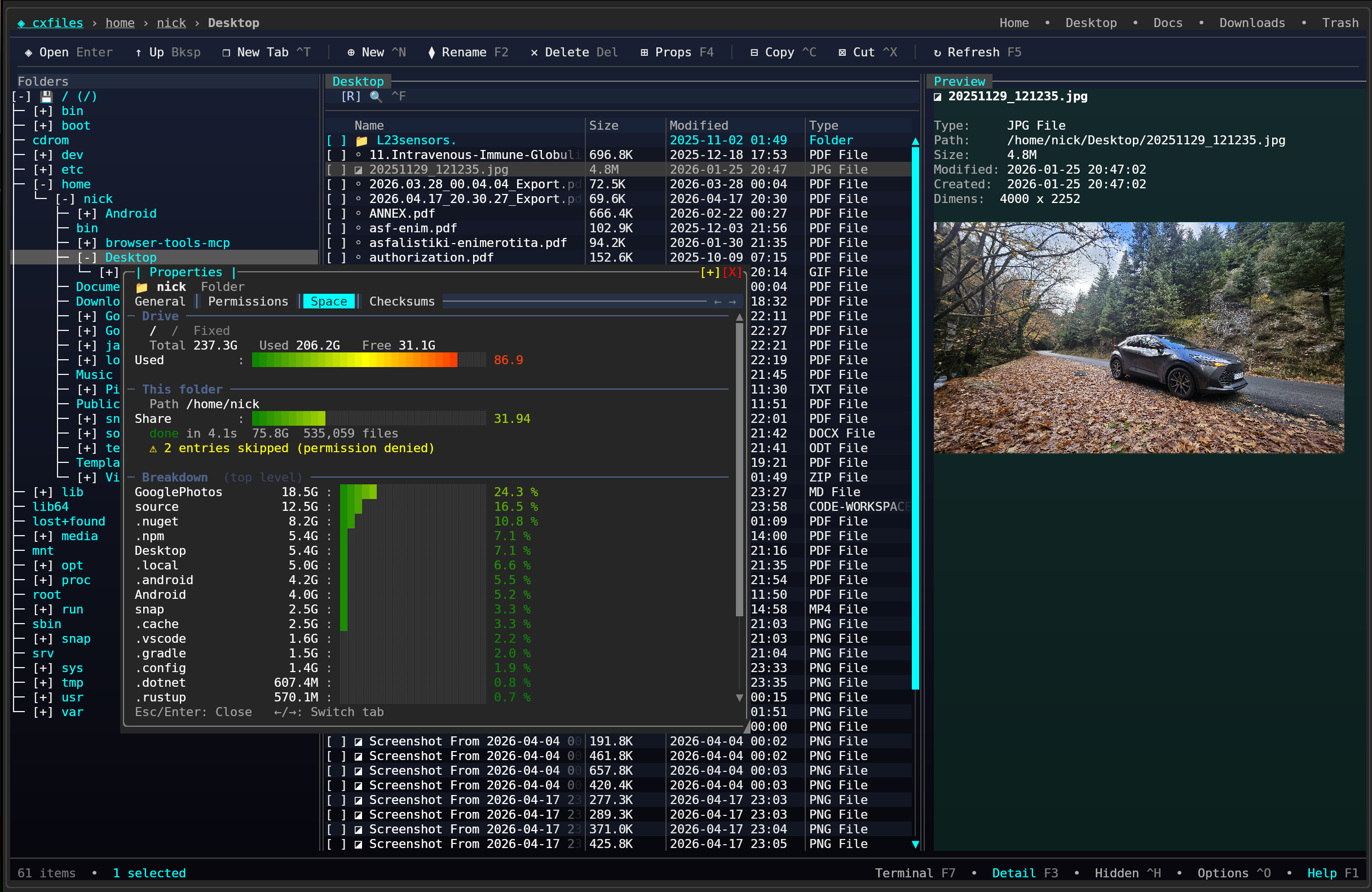
CXFiles brings a polished, Windows Explorer-style file manager to the terminal. Three-pane layout with folder tree, file list, and detail panel. Tabs, full file operations with background progress tracking, a rich tabbed Properties dialog with live disk-usage breakdown, trash support, context menus, and keyboard-driven navigation.
**Browse. Copy. Manage.**
## Quick Start
**Option 1: One-line install** (Linux/macOS, no .NET required)
```bash
curl -fsSL https://raw.githubusercontent.com/nickprotop/cxfiles/master/install.sh | bash
cxfiles
```
**Windows** (PowerShell)
```powershell
irm https://raw.githubusercontent.com/nickprotop/cxfiles/master/install.ps1 | iex
```
**Option 2: Build from source** (requires .NET 10)
```bash
git clone https://github.com/nickprotop/cxfiles.git
cd cxfiles
./build-and-install.sh
cxfiles
```
### Usage
```bash
cxfiles # open at the configured default path (home by default)
cxfiles ~/Downloads # open at a specific folder (supports ~, relative, absolute)
cxfiles ./ # open at the current working directory
```
## Features
| | |
|---|---|
| 🗂️ **Three-Pane Layout** | Folder tree, sortable file list with checkboxes, toggleable detail panel |
| 🧭 **Tabs** | Multiple open folders per window; `Ctrl+T` to open, `Ctrl+W` to close, `Alt+←/→` to cycle, `Ctrl+1..5` to jump |
| 📋 **File Operations** | Copy, cut, paste, delete, rename with background progress tracking; files with spaces handled correctly |
| 🗑️ **Trash Support** | Cross-platform trash (XDG on Linux, ~/.Trash on macOS, Recycle Bin on Windows) with restore and empty |
| 📎 **Clipboard Portal** | View, manage, and remove individual clipboard items (`Ctrl+B`) |
| 🌳 **Folder Tree** | Lazy-loading tree with single-click navigation, two-way sync, drive-type icons, smart Linux mount filtering (hides virtual/pseudo filesystems) |
| ⭐ **Favorites** | Pin folders with `Ctrl+D`; appear as a "Favorites" section at the top of the folder tree with a quick-access `⭐` dropdown button on the breadcrumb right-bar. Rename, remove (`Del` on a bookmark node), and session-persistent. Right-click "Add to Favorites" on any folder in tree or file list. Missing targets render dim with a click warning |
| 🔍 **Filter & Sort** | Fuzzy filtering (`/`), click-to-sort columns, column resize |
| 🔎 **Recursive Search** | `Ctrl+F` opens a per-tab search bar; results stream live as a background walker finds matches, dirs first, with a `Path` column. Cancellable, cross-filesystem aware (skips `/proc`, `/sys`, foreign mounts), 200k entry cap. Lazy metadata hydration keeps the walker fast on huge trees. `./` prefix forces non-recursive; `Esc` restores the previous listing |
| ❓ **Help & About** | `F1` opens a tabbed modal: categorized keyboard cheatsheet plus an About tab with figlet, environment info, and live home-volume usage |
| 📊 **Operations Portal** | Live progress bars, per-file status, cancel buttons, dismiss completed (`Ctrl+P`) |
| 🖱️ **Context Menus** | Right-click on files or tree folders for contextual actions; tree right-click highlights the target node and operates on the right-clicked item, not the selection |
| 📁 **Breadcrumb Bar** | Clickable path segments with quick-access locations (Home, Desktop, Docs, Downloads, Trash) |
| 🧭 **Go to Path** | `Ctrl+L` (or the `❯ Go to` button) turns the breadcrumb into an editable input with filesystem tab-completion. Candidates appear in a dropdown portal after a short pause, or on demand with `Tab` / `Ctrl+Space`. Handles `~`, absolute, and relative paths. `Esc` cancels |
| 👁️ **Detail Panel** | Selection preview with text content, rendered **Markdown** (headings, lists, code blocks, links), **PDF** text extract with page count, image preview (half-block or Kitty protocol), and a folder card when nothing is selected (toggle with `F3`) |
| 🖼️ **Image Preview** | PNG, JPG, GIF, BMP, WebP rendered in the detail panel with dimensions; native Kitty graphics protocol on supported terminals for full-resolution preview |
| 🎵 **Media Metadata** | Audio/video files show duration, bitrate, codec, title, artist, album via TagLibSharp; images show EXIF (camera, lens, exposure, GPS) |
| 🖱️ **Null-Selection UX** | Click empty space to deselect; `F4` then shows properties for the current folder |
| 📐 **Properties Dialog** | Tabbed modal: General, Permissions (`rwxr-xr-x` + owner/group), Space, Checksums, and a Media tab for images/audio/video with full metadata |
| 💽 **Space Tab** | Live drive usage + a **breakdown** of the folder's immediate children as sorted bar graphs — answers "where's my disk going?" without leaving the app |
| 🔐 **Checksums Tab** | On-demand MD5 / SHA256 with progress bar; cancel by closing the dialog |
| ✅ **Multi-Select** | Checkbox selection with bulk copy, cut, delete |
| 🖥️ **Embedded Terminal** | Full PTY-backed terminal (`F7`/`Ctrl+``); dock to right panel or center column (`F8`); auto-resize with prompt redraw |
| ✏️ **Embedded Editor** | `Ctrl+E` opens files in `$EDITOR` (or nano) inside the embedded terminal |
| 🔑 **Sudo Elevation** | Automatic sudo prompt on permission-denied for delete, rename, copy, move, create, and trash restore (Linux/macOS) |
| ⚙️ **Options Dialog** | NavigationView-based settings with per-OS config storage |
| 👻 **Hidden Files** | Toggle visibility with `Ctrl+H` |
| 📡 **File Watcher** | Auto-refresh on external filesystem changes |
| ⚙️ **Layout Persistence** | Tree and detail panel column widths saved across sessions; detail panel visibility persisted immediately |
| 🎨 **Polished UI** | Gradient background, smooth-gradient bar graphs, alternating row tints, truncation fade, column separators, panel headers, underlined breadcrumb links |
## Keyboard Shortcuts
| Key | Action |
|-----|--------|
| `Enter` | Open file/folder |
| `Backspace` | Navigate to parent |
| `Delete` | Delete selected (trash or permanent) |
| `F1` | Help & About |
| `F2` | Rename |
| `F3` | Toggle detail panel |
| `F4` | Properties (selection, or current folder if nothing selected) |
| `F5` | Refresh |
| `Ctrl+E` | Open file in embedded editor |
| `Ctrl+`` / `F7` | Toggle embedded terminal |
| `F8` | Dock/undock terminal (right panel / center column) |
| `F6` | Toggle focus between file list and terminal |
| `Ctrl+N` | New file |
| `Ctrl+Shift+N` | New folder |
| `Ctrl+T` | New tab |
| `Ctrl+W` | Close tab |
| `Alt+←` / `Alt+→` | Previous / next tab |
| `Ctrl+1`…`Ctrl+5` | Jump to tab |
| `Ctrl+C` | Copy |
| `Ctrl+X` | Cut |
| `Ctrl+V` | Paste |
| `Ctrl+B` | Clipboard portal |
| `Ctrl+P` | Operations portal |
| `Ctrl+H` | Toggle hidden files |
| `Ctrl+D` | Add current folder to Favorites |
| `Ctrl+O` | Options |
| `Ctrl+F` | Recursive search in current folder |
| `Ctrl+L` | Go to path (editable breadcrumb with completion) |
| `/` | Filter file list (current folder only) |
| `Ctrl+Q` | Quit (confirms if terminal or operations active) |
## The Properties dialog
Press `F4` on a file, folder, or drive (or click **Folder Props** in the toolbar when nothing is selected). You get a tabbed modal with up to five sections:
- **General** — name, type, location, size, modified / created / accessed, attributes, symlink target.
- **Permissions** — Unix mode formatted as `rwxr-xr-x` plus numeric (`0755`), owner and group resolved via `stat`. On Windows, `FileAttributes` flags.
- **Space** — a live view of where disk space is going:
- Drive totals (total / used / free) with a smooth-gradient `Used` bar.
- For the current folder or drive, a **breakdown** of its immediate children, each rendered as its own bar graph. Sizes accumulate live while the scan runs in the background; on completion, rows reorder descending by size and anything beyond the top 20 collapses into an `(others: N)` bucket.
- Cross-filesystem children (`/proc`, `/sys`, foreign mounts) are detected via `DriveInfo`, skipped by the walker, and marked `(other fs)` in their row.
- Permission-denied entries are counted live and surfaced as a yellow warning so you know the total is a lower bound.
- The entire scan cancels instantly when the dialog closes.
- **Checksums** — on-demand MD5 / SHA256 for files, computed in 64 KB chunks with a throttled progress bar.
- **Media** *(images, audio, video only)* — technical properties (duration, resolution, bitrate, codecs), tags (title, artist, album, year, genre, track, BPM), and EXIF data for images (camera make/model, focal length, aperture, shutter speed, ISO, GPS, date taken).
## Architecture
CXFiles uses Microsoft.Extensions.DependencyInjection with a clean service layer:
- **IFileSystemService** — File system abstraction (listing, copy, move, delete, watch)
- **ITrashService** — Cross-platform trash with XDG (Linux/macOS) and Windows Recycle Bin implementations
- **SudoService** — Privilege elevation via sudo on Linux/macOS
- **IConfigService** — Per-OS configuration (XDG on Linux, AppData on Windows, Library on macOS)
- **OperationManager** — Background operation tracking with throttled progress events
- **LauncherService** — Cross-platform file/editor opening with proper argument quoting
- **UI Components** — Modular panels (BreadcrumbBar, FileListPanel, FolderTreePanel, DetailPanel with image preview, StatusLine)
- **Modals** — Async `TaskCompletionSource`-based dialogs (DeleteConfirm, Rename, NewItem, Properties with Media tab, Options, Sudo)
- **Portals** — Operations portal, clipboard portal, context menus (portal-based overlays)
## Requirements
- .NET 10 SDK (for building from source)
- A terminal with Unicode support (Kitty, WezTerm, Ghostty, Windows Terminal, iTerm2)
- Kitty-compatible terminal recommended for full-resolution image preview (falls back to half-block rendering elsewhere)
## License
[MIT](LICENSE)