# LazyDotIDE
[](LICENSE)
[](https://www.nuget.org/packages/LazyDotIDE)
[](https://dotnet.microsoft.com/)
[]()
### ⭐ If you find LazyDotIDE useful, please consider giving it a star! ⭐
It helps others discover the project and motivates continued development.
[](https://github.com/nickprotop/lazydotide/stargazers)
**A console-based .NET IDE built on [SharpConsoleUI](https://github.com/nickprotop/ConsoleEx).**
**Edit. Build. Ship.**
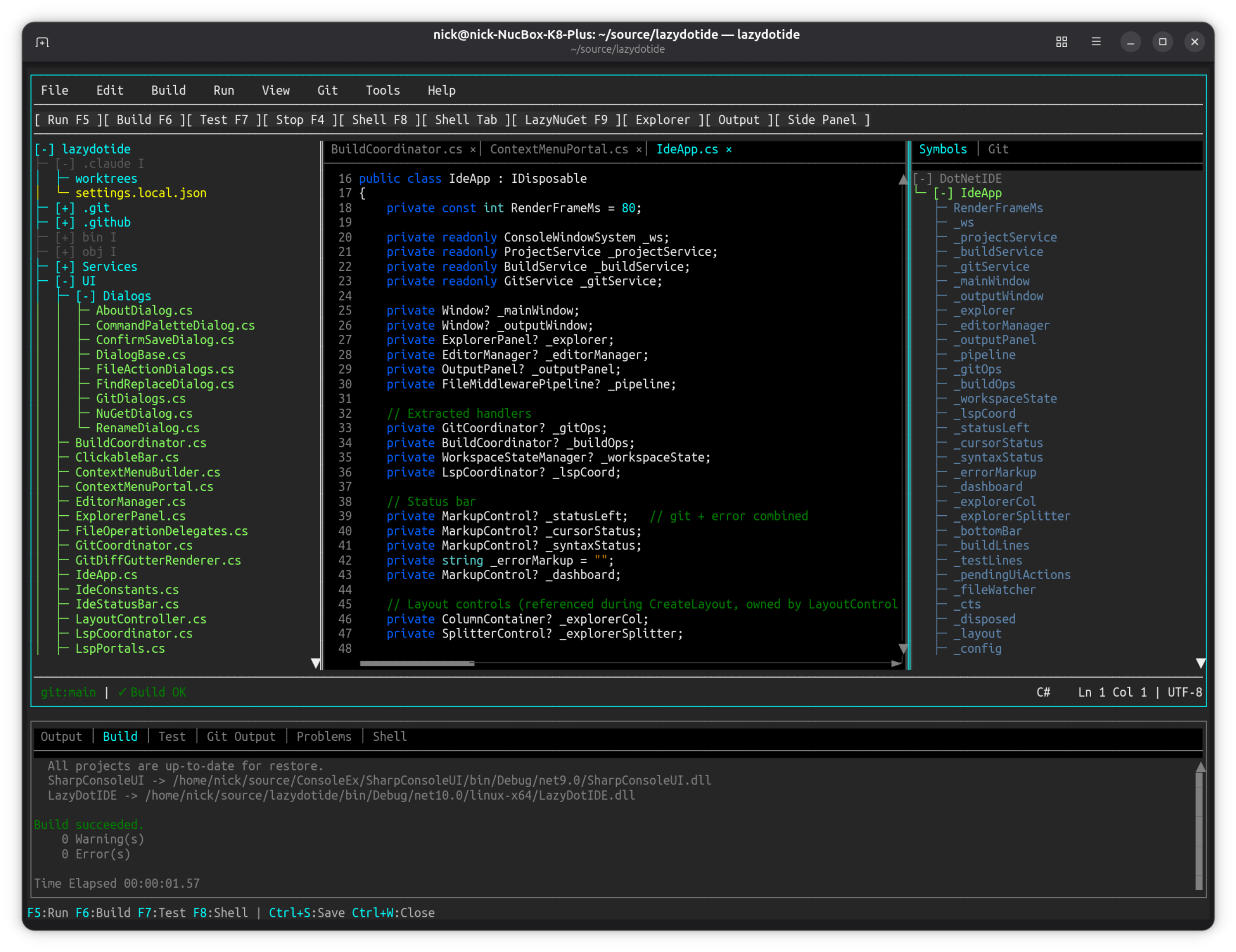
**[View more screenshots](docs/SCREENSHOTS.md)**
## Why LazyDotIDE?
Sometimes you just want to stay in the terminal. Install it as a dotnet tool, and you get C# IntelliSense, git, build, test, and a shell — zero config, works anywhere you have a console.
## Highlights
- **LSP IntelliSense** — completions, go to definition, rename, code actions, diagnostics
- **Multi-tab editor** — syntax highlighting for C#, JSON, XML, YAML, JS/TS, Razor, and more
- **Built-in terminal** — full PTY shell in tabs, bottom panel, or side panel
- **Git integration** — stage, commit, push, pull, diff, blame, branch management
- **Build & test** — one-key build/run/test with click-to-navigate errors
- **Zero config** — just `dotnet tool install` and go
For the full feature list, see [Features](#features) below.
## Quick Start
```bash
dotnet tool install --global LazyDotIDE
lazydotide /path/to/your/project
```
Or from source:
```bash
git clone https://github.com/nickprotop/lazydotide.git
cd lazydotide
dotnet run -- /path/to/your/project
```
Run without arguments to open in the current directory.
## Features
### Editor
- Multi-tab editing with dirty tracking and unsaved-changes prompts
- Syntax highlighting for 12+ languages (C#, JSON, XML, YAML, Markdown, HTML, CSS, JavaScript/TypeScript, Razor, Dockerfile, Solution files, Diff)
- Manual syntax override via menu
- Find and replace (`Ctrl+F` / `Ctrl+H`)
- Word wrap modes (no wrap, word wrap, char wrap)
- Binary file detection (shown as non-editable)
- External file change detection with reload prompt
### IntelliSense / LSP
- Auto-completions triggered on `.`, `(`, `,`, and after typing (also `Ctrl+Space`)
- Go to definition (`F12`), go to implementation (`Ctrl+F12`), find all references (`Shift+F12`)
- Rename symbol across files (`Ctrl+F2`)
- Code actions (`Ctrl+.`)
- Format document (`Alt+Shift+F`)
- Hover / type info (`Ctrl+K`)
- Signature help (`F2`, auto-triggers on `(` and `,`)
- Real-time diagnostics (errors/warnings in status bar and problems panel)
- Document symbols in side panel (`Alt+O`)
- Navigation history with navigate back (`Alt+Left`)
### Git
- Stage, unstage, commit, push, pull, stash (with message), stash pop
- Branch listing, create branch, switch branch
- Diff (working directory, staged, full)
- Blame (per-line: SHA, author, date)
- Repository log and per-file log with commit detail view
- Gutter diff markers in editor (green/yellow/red for added/modified/deleted)
- Real-time status bar (branch, ahead/behind, M/A/D counts)
- Explorer badges per file (`M`, `A`, `D`, `U`, `R`, `!`, `I`)
- Gitignore support (add/remove paths, dimmed display in explorer)
- Discard changes
- Source control side panel with interactive staged/unstaged file list
### Build & Run
- Build (`F6`), test (`F7`), clean, run (`F5`) with colorized output
- Stop running process (`F4`)
- Problems panel with click-to-navigate on build errors/warnings
- Auto-detects `.csproj`, `.fsproj`, `.sln` build targets
### Terminal
- Bottom shell in output panel (`F8`)
- Editor tab shell (via menu)
- Side panel shell (`Shift+F8`)
- Full PTY support for interactive programs
- Multiple concurrent shell instances
### File Explorer
- Tree view with expand/collapse
- Git status badges and directory change indicators
- Gitignore dimming for ignored files
- Context menus (new file/folder, rename, delete, git operations)
- File watcher for automatic refresh on external changes
### NuGet
- [LazyNuGet](https://github.com/nickprotop/LazyNuGet) integration (`F9`) when installed
- Built-in add package dialog as fallback
### Workspace Persistence
Saved to `.lazydotide.workspace` in the project root on exit, restored on startup:
- Open files with cursor positions
- Panel visibility and column widths
- Split ratios and word wrap mode
- Explorer expanded nodes and selected path
### Custom Tools
Configure external tools in `config.json` — each tool appears in the Tools menu and command palette with options to open in a tab, bottom shell, or side panel.
### Command Palette
`Ctrl+P` opens a searchable palette of all commands, organized by category (File, Edit, Build, Run, View, Git, LSP, Terminal, NuGet, Tools, Help). Custom tools are included dynamically.
---
## Keyboard Shortcuts
### File
| Key | Action |
|-----|--------|
| `Ctrl+S` | Save current file |
| `Ctrl+W` | Close current tab |
| `Ctrl+N` | New file |
| `Ctrl+Shift+N` | New folder |
| `F2` | Rename (explorer focused) |
| `Delete` | Delete (explorer focused) |
| `Alt+Shift+R` | Reload file from disk |
| `Alt+F4` | Exit |
### Build & Run
| Key | Action |
|-----|--------|
| `F5` | Run project |
| `F6` | Build |
| `F7` | Run tests |
| `F4` | Stop |
### View
| Key | Action |
|-----|--------|
| `Ctrl+B` | Toggle file explorer |
| `Ctrl+J` | Toggle output panel |
| `Alt+;` | Toggle side panel |
| `Ctrl+P` | Command palette |
### Search
| Key | Action |
|-----|--------|
| `Ctrl+F` | Find / Replace |
| `Ctrl+H` | Find / Replace |
### LSP / IntelliSense
| Key | Action |
|-----|--------|
| `Ctrl+Space` | Show completions |
| `F12` | Go to definition |
| `Ctrl+F12` | Go to implementation |
| `Shift+F12` | Find all references |
| `Ctrl+F2` | Rename symbol |
| `Ctrl+.` | Code actions |
| `Ctrl+K` | Hover / type info |
| `F2` | Signature help |
| `Alt+Shift+F` | Format document |
| `Alt+O` | Document symbols |
| `Alt+Left` | Navigate back |
### Git
| Key | Action |
|-----|--------|
| `Alt+G` | Source control panel |
| `Ctrl+Enter` | Commit |
### Terminal
| Key | Action |
|-----|--------|
| `F8` | Shell in output panel |
| `Shift+F8` | Shell in side panel |
| `F9` | LazyNuGet (or NuGet dialog) |
---
## Syntax Highlighting
| Language | Extensions |
|----------|-----------|
| C# | `.cs` |
| JSON | `.json` |
| XML | `.xml`, `.csproj`, `.fsproj`, `.vbproj`, `.props`, `.targets` |
| YAML | `.yml`, `.yaml` |
| Markdown | `.md` |
| HTML | `.html`, `.htm` |
| CSS | `.css` |
| JavaScript / TypeScript | `.js`, `.jsx`, `.mjs`, `.cjs`, `.ts`, `.tsx`, `.mts`, `.cts` |
| Razor | `.razor`, `.cshtml` |
| Dockerfile | `Dockerfile`, `Dockerfile.*` |
| Solution | `.sln` |
| Diff | (used in git diff views) |
Syntax can be manually overridden via the Edit menu.
---
## Configuration
Config file location:
- **Linux/macOS**: `~/.config/lazydotide/config.json`
- **Windows**: `%APPDATA%\lazydotide\config.json`
A default config is created on first run. Edit it via **Tools > Edit Config** — changes reload automatically on save.
```json
{
"lsp": null,
"tools": [
{
"name": "htop",
"command": "htop",
"args": null,
"workingDir": null
},
{
"name": "Lazygit",
"command": "lazygit",
"args": null,
"workingDir": null
},
{
"name": "Git Log",
"command": "bash",
"args": ["-c", "git log --oneline --graph --all --color=always; exec bash"],
"workingDir": null
}
]
}
```
### Custom Tools
Each tool entry has:
- `name` — display name in menus and command palette
- `command` — executable to run
- `args` — optional argument array
- `workingDir` — optional working directory (null = project root)
### LSP Override
Set the `lsp` field to use a specific language server:
```json
{
"lsp": {
"command": "csharp-ls",
"args": []
}
}
```
---
## LSP Setup
LazyDotIDE auto-detects a C# language server in this order:
1. `lsp` field in `config.json`
2. `DOTNET_IDE_LSP` environment variable
3. `csharp-ls` in PATH
4. OmniSharp in known locations (`~/.omnisharp/`, `/opt/omnisharp/`)
5. `OmniSharp` in PATH
**Recommended**: install [csharp-ls](https://github.com/razzmatazz/csharp-language-server):
```bash
dotnet tool install --global csharp-ls
```
---
## Requirements
- .NET 10.0
- A terminal that supports ANSI escape codes
- Optional: `xclip`, `xsel`, or `wl-copy`/`wl-paste` for clipboard support on Linux
---
## Status
LazyDotIDE is in active early development. It works and is used daily, but expect rough edges. Contributions, feedback, and bug reports are welcome.
---
## Built on
[**SharpConsoleUI**](https://github.com/nickprotop/ConsoleEx) — a console windowing and UI framework for .NET.