A protocol for seamless integration between LLM applications and external data sources
Documentation | Specification | Discussions
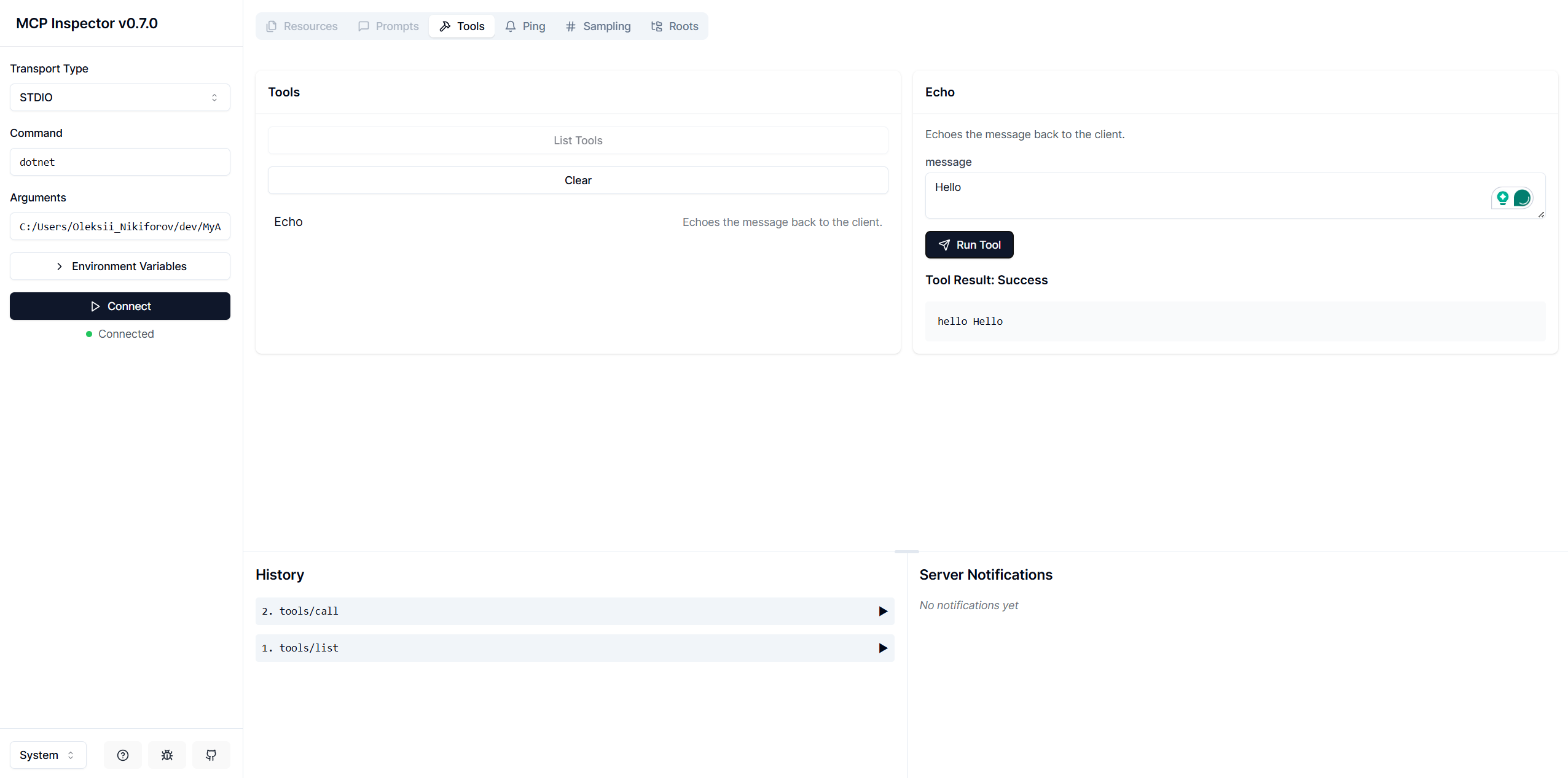
This repository contains a [template](https://www.nuget.org/packages/Nall.ModelContextProtocol.Template) for creating a Model Context Protocol (MCP) application in .NET. It provides a basic structure and example code to help you get started with building your own MCP-enabled applications. | Package | Version | Description | | ---------------------------------------------------- | -------------------------------------------------------------------------------------------------------------------------------------------------------------------------------- | -------------------------- | | `Nall.ModelContextProtocol.Template` | [](https://nuget.org/packages/Nall.ModelContextProtocol.Template) | Templates | | `Nall.ModelContextProtocol.Inspector.Aspire.Hosting` | [](https://nuget.org/packages/Nall.ModelContextProtocol.Inspector.Aspire.Hosting) | Aspire Hosting Integration | ## Getting Started ### Install: ```bash dotnet new install Nall.ModelContextProtocol.Template # dotnet new install ./Artefact/Nall.ModelContextProtocol.Template ``` Verify installation: ```bash dotnet new list mcp # These templates matched your input: 'mcp' # Template Name Short Name Language Tags # ----------------- ----------------- -------- ------------- # Template Name Short Name Language Tags # -------------------- -------------------- -------- ------------- # MCP Server mcp-server [C#] dotnet/ai/mcp # MCP Server HTTP mcp-server-http [C#] dotnet/ai/mcp # MCP Server HTTP Auth mcp-server-http-auth [C#] dotnet/ai/mcp # MCP Server Hybrid mcp-server-hybrid [C#] dotnet/ai/mcp ``` > [!TIP] > Practically, you want to switch between modes, so I recommend using the `mcp-server-hybrid` template. It allows you to run the server in both *Stdio* and *HTTP* modes. Verify output: ```bash dotnet new mcp-server -o MyAwesomeMCPServer -n MyAwesomeMCPServer --dry-run # File actions would have been taken: # Create: MyAwesomeMCPServer\.vscode\launch.json # Create: MyAwesomeMCPServer\MyAwesomeMCPServer.csproj # Create: MyAwesomeMCPServer\Program.cs # Create: MyAwesomeMCPServer\Properties\launchSettings.json # Create: MyAwesomeMCPServer\README.md # Create: MyAwesomeMCPServer\appsettings.Development.json # Create: MyAwesomeMCPServer\appsettings.json ``` Create from template: ```bash dotnet new mcp-server -o MyAwesomeMCPServer -n MyAwesomeMCPServer ``` Here is a content of `Program.cs`: ```csharp using Microsoft.Extensions.Hosting; var builder = Host.CreateApplicationBuilder(args); builder.Services .AddMcpServer() .WithStdioServerTransport() .WithToolsFromAssembly(); await builder.Build().RunAsync(); [McpServerToolType] public static class EchoTool { [McpServerTool, Description("Echoes the message back to the client.")] public static string Echo(string message) => $"hello {message}"; } ``` It is a simple echo server that listens for incoming messages and responds with a greeting. You can add more tools by creating additional methods with the `[McpServerTool]` attribute. The `WithToolsFromAssembly()` method automatically registers all tools in the assembly. ### Run Locally Build from the project directory: ```bash dotnet build -o Artefacts -c Release ``` Run the inspector: ```bash npx @modelcontextprotocol/inspector -e DOTNET_ENVIRONMENT=Production dotnet "$(PWD)/Artefacts/MyAwesomeMCPServer.dll" ``` Open inspector in your browser and test the server: