# Rift
**The fast terminal for coding agents.**
Vertical tabs that switch instantly, the status of every agent on its tab, and every session back exactly where you left it.
[](https://github.com/o0Zz/Rift/actions/workflows/ci.yml)
[](LICENSE)

[**Download**](https://github.com/o0Zz/Rift/releases/latest) · [Features](#features) · [Shortcuts](#keyboard-shortcuts) · [Build from source](#build-from-source)
## Why Rift
You run several coding agents at once (Claude Code, Codex, Gemini CLI, Copilot CLI), and you jump between them all day. Rift is built for exactly
that, and **speed beats features**: every feature has to keep switching tabs and opening tabs instant.
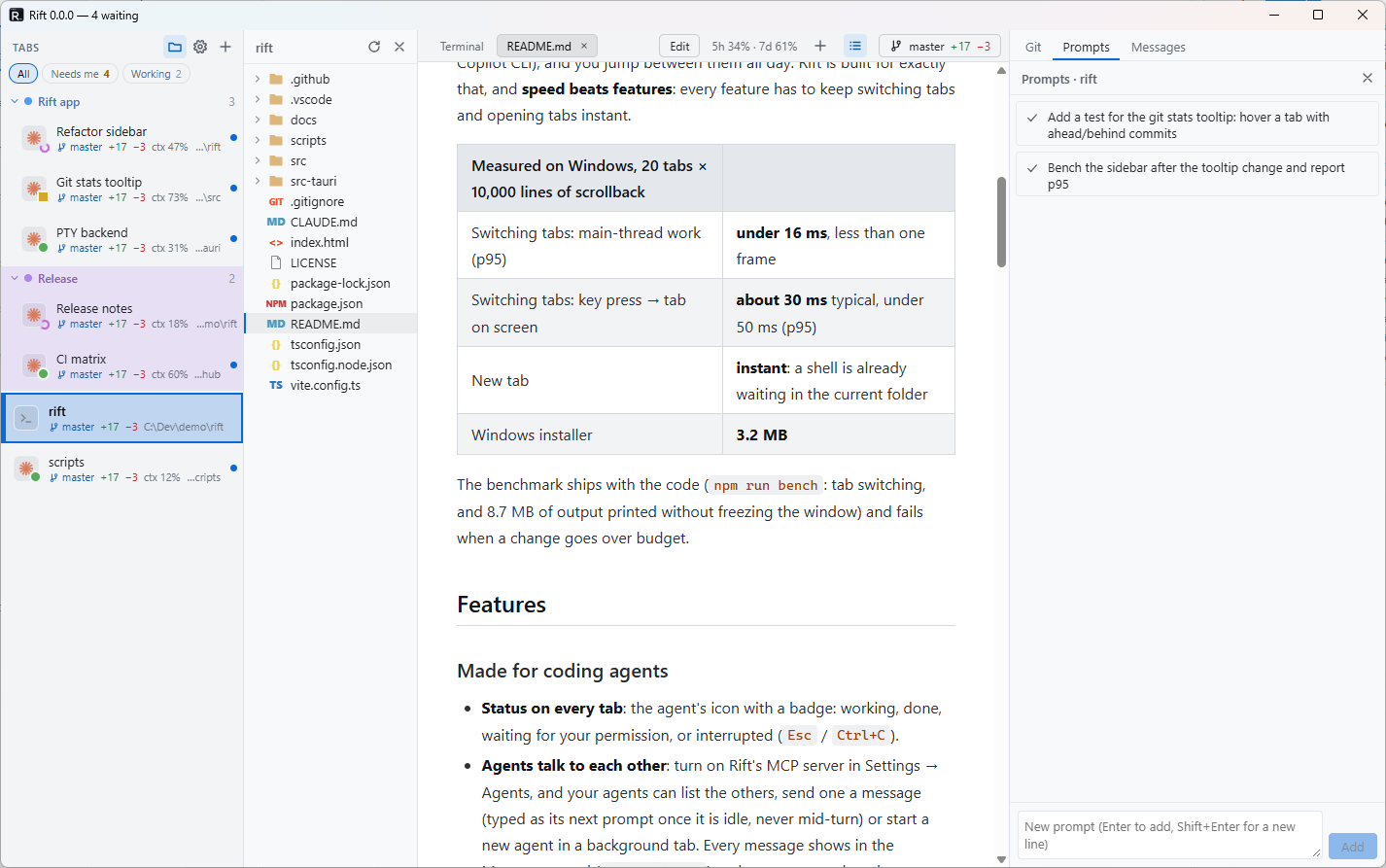
| Measured on Windows, 20 tabs × 10,000 lines of scrollback | |
|---|---|
| Switching tabs: main-thread work (p95) | **under 16 ms**, less than one frame |
| Switching tabs: key press → tab on screen | **about 30 ms** typical, under 50 ms (p95) |
| New tab | **instant**: a shell is already waiting in the current folder |
| Windows installer | **3.2 MB** |
The benchmark ships with the code (`npm run bench`: tab switching, and 8.7 MB of output printed without
freezing the window) and fails when a change goes over budget.
## Features
### Made for coding agents
- **Status on every tab**: the agent's icon with a badge: working, done, waiting for your permission, or
interrupted (`Esc` / `Ctrl+C`).
- **Agents talk to each other**: turn on Rift's MCP server in Settings → Agents, and your agents can list the
others, send one a message (typed as its next prompt once it is idle, never mid-turn) or start a new agent in a
background tab. Every message shows in the Messages panel (`Ctrl+Shift+M`) and as counts on the tabs.
- **Usage at a glance** (Claude Code): each Claude tab shows how full its context window is, and the top bar your 5-hour and
weekly plan usage (Pro/Max), with reset times on hover.
- **Notifications** when a session finishes or needs you while you are elsewhere. Click one to jump to its tab;
the taskbar icon flashes too.
- **Never lose track**: `Ctrl+Shift+U` jumps to the next tab that needs you, the sidebar filters *Needs me* /
*Working*, and the window title counts the sessions waiting for you.
- **Parallel agents without conflicts**: *New Claude Code in a worktree…* (or Codex, Gemini CLI, Copilot CLI)
creates a branch and a git worktree next to the repo and starts the agent there, in one click.
- **Each tab resumes its own session.** Close Rift, reopen it: every tab comes back in its folder, and each
agent session resumes where it was. Not the last one: the one that ran in that tab.
- **Paste screenshots into Claude Code**: `Alt+V` on Windows, `Ctrl+V` on macOS and Linux.
- **AI commit messages**: select files, click ✨ Generate, get a Conventional Commit written from the diff by
the agent you use (its name is on the button's tooltip).
- Works with **Claude Code, Codex, Gemini CLI and GitHub Copilot CLI**. Context and plan usage, `Shift+Enter`
and screenshot paste are Claude Code features.
### Tabs that stay out of your way
- **Vertical tabs** with **named groups**: color them, tint their background, collapse them, drag tabs between
and around them.
- The tab shows what matters: the agent's conversation title, the **git branch** with its changes
(`+12 −3`, commits ahead/behind), the folder.
- New tabs open **in the current tab's folder**, in its group.
- Instant switching with `Ctrl+PgUp` / `Ctrl+PgDn`. `F2` renames, menus work from the keyboard.
- **Your scrollback comes back** after a restart, colors included.
- Find in the scrollback, `Ctrl`+click links, zoom (`Ctrl`+wheel over a terminal, the files, git or prompts panel or a document resizes just that), `Shift+Enter` for a new line in Claude Code, drag a file
from the files panel to type its path.
### Everything around the terminal
- **Files panel** with file-type icons, opened only when you want it. Delete a file or folder with the Delete key
or its right-click menu: it goes to the Recycle Bin / Trash. Right-click a folder to open it in your file manager.
- **Open files right in the tab**: a click shows the file above your terminal, as a sub-tab. Edit code with syntax
highlighting, save with `Ctrl+S`. Markdown opens in a reader made for reading: large text, clear headings,
striped tables. One document at a time, or a new sub-tab per file (Settings).
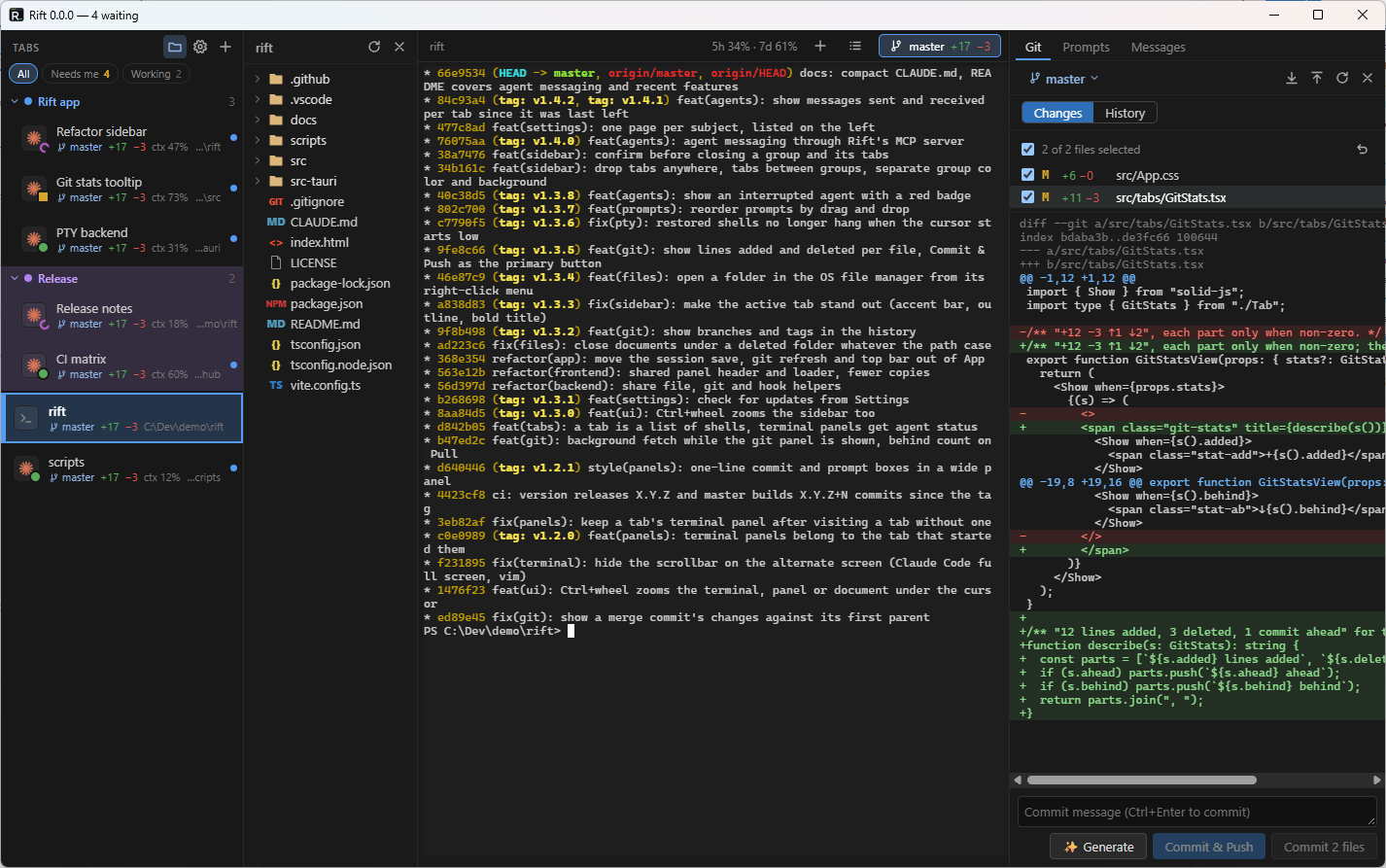
- **Git panel**, one click away on the top right: changed files with their `+added −deleted` lines, colored diff,
commit or discard exactly the files you check (or commit and push), pull (it shows how many commits are waiting),
push, switch or create a branch, and a history with branches and tags: click a commit to see its author, full
message and changes, Shift+click another one to see the changes of the whole range. Right-click any file, in the git panel or
the files panel, for its own history. Drag the lists' bottom edge to resize them.
- **Prompts panel**: write your next prompts ahead of time, one list per repo. Click one to edit it (Enter saves,
Shift+Enter for a new line); its ✓ Apply button, or dragging it onto the terminal, pastes it there (you press Enter) and it leaves the list. Drag prompts up or down to reorder them.
- **Terminals panel**: extra shells for the current tab (a dev server, logs), as many as you want. `+` in the top bar
opens one in the tab's folder; other tabs show a \"Start a terminal here\" button in the same panel.
- Arrange the panels and the terminal like in VS Code, the same for every tab: drag a panel by its header or tab, and
the spot under the cursor lights up. Drop it on a side of any panel to split it there, on its middle to make it a tab,
or on the window's edge for a full side. Drag the lines between them to resize; Alt+arrows move the focus.
- **Settings**: dark, light or system theme, terminal font, tab size, and every shortcut can be rebound.
- **Open in Rift** from the Windows File Explorer right-click menu.
- **Auto-update** from GitHub Releases: downloads in the background, installs when you close Rift (or check now
from Settings).
- **Your shells**: PowerShell, Command Prompt, Git Bash or WSL on Windows; your `$SHELL` and the others
installed on macOS and Linux. Pick the default in Settings, or right-click `+` for a one-off. Your config
stays untouched.