Agentic browsers give agents a new browser. Coding agents need yours.
MCP + Chrome extension for the Chrome you already have open:
cookies, SSO, staging sessions, the bug you already reproduced.
---
Everyone is building "agentic browsers." Most of them hand the agent a **new** browser: headless Chromium, a cloud VM, a clean profile with no cookies.
That is the wrong tool for the coding loop.
You ship a fix. The agent says "done, please verify."
You already have Chrome open on staging, past SSO, on the exact page that breaks.
The agent wrote the code. It could verify it there. It just cannot see that browser.
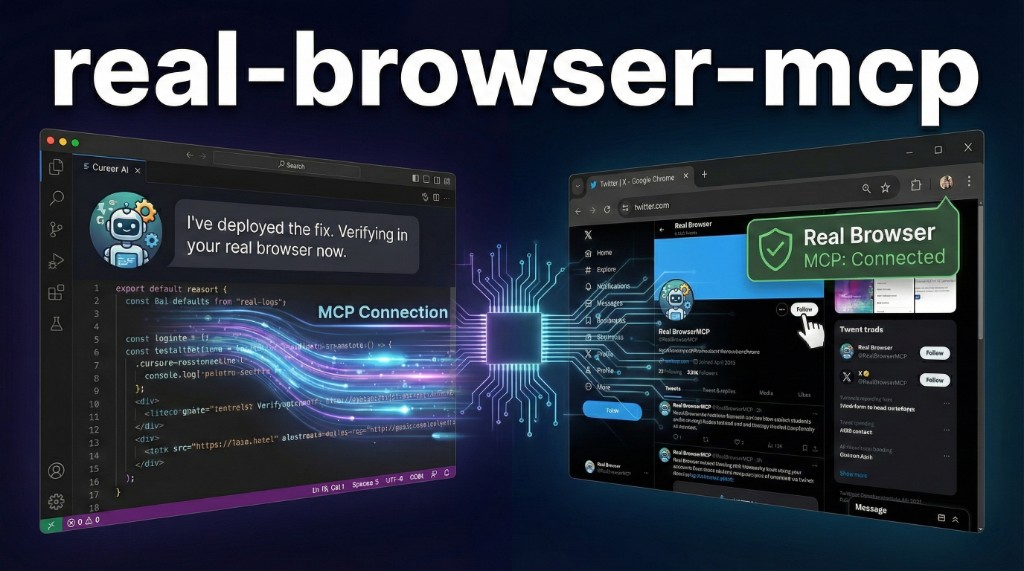
**real-browser-mcp** is the bridge: a local MCP server plus a Chrome extension over localhost WebSocket. Your agent talks MCP. Your real Chrome executes. Sessions stay on your machine.
This is not Playwright with a fresh profile. Not a hosted agent browser. Not CDP remote-debugging bolted onto your default Chrome profile (Chrome 136+ blocks that path for good security reasons).
---
## Quick Start
Two parts:
- **MCP server** - runs on your machine, talks to your AI agent (Cursor, Claude Code, VS Code, …)
- **Chrome extension** - runs inside your real Chrome and executes the tools
### 1. Add the MCP server
**Cursor (one click):**
[](cursor://anysphere.cursor-deeplink/mcp/install?name=real-browser&config=eyJjb21tYW5kIjoibnB4IiwiYXJncyI6WyIteSIsInJlYWwtYnJvd3Nlci1tY3AiXX0=)
Or add manually in Cursor Settings > MCP > "Add new MCP server":
```json
{
"mcpServers": {
"real-browser": {
"command": "npx",
"args": ["-y", "real-browser-mcp"]
}
}
}
```
Claude Desktop, Windsurf, or other MCP clients
**Claude Desktop:** Edit `~/Library/Application Support/Claude/claude_desktop_config.json` (macOS) or `%APPDATA%\Claude\claude_desktop_config.json` (Windows). Add the same JSON block.
**Windsurf:** Settings > MCP. Same config.
Any MCP-compatible client works.
### 2. Install the Chrome extension
[](https://chromewebstore.google.com/detail/real-browser-mcp/fkkimpklpgedomcheiojngaaaicmaidi)
**Or load from source:**
```bash
git clone https://github.com/ofershap/real-browser-mcp.git
```
1. Open `chrome://extensions` and enable **Developer mode** (toggle in the top right)
2. Click **Load unpacked** and select the `extension/` folder from the cloned repo
Click the Real Browser MCP icon in your toolbar.
Green dot = connected. Gray = waiting for server.
Done. Your agent can see your browser.
---
## Agent Plugins
This repo ships as an [Agent Plugins](https://agent-plugins.org) **1.0.0** package: root `plugin.json`, `mcp.json`, and `skills/real-browser-control/` teach agents when to pick **real Chrome** over headless / cloud agentic browsers.
Claude Code `.claude-plugin/` and `agent-config/` remain for rules and marketplace flows. Agent Plugins is the cross-client layout (MCP + skill in one tree).
**Cursor (local plugin):** clone the repo, then copy or symlink it to `~/.cursor/plugins/local/real-browser-mcp` and reload the window. You still need the Chrome extension connected. One-click MCP install below adds only the server unless you also install the local plugin folder.
Spec and tooling: [agent-plugins.org](https://agent-plugins.org).
---
## Why this exists (the agentic browser gap)
| Stack | What the agent gets | Where it fails for coding agents |
|---|---|---|
| Playwright MCP / Puppeteer | New browser, clean state | No SSO cookies, no "the tab I already opened" |
| Cloud agentic browsers | Remote browser / VM | Separate login, not your IDE-local Chrome |
| Chrome DevTools MCP (CDP / autoConnect) | DevTools-oriented attach | Chrome 136+ refuses `--remote-debugging-port` on the **default** profile, so everyday logged-in Chrome is hard to attach without a throwaway profile |
| **Real Browser MCP** | **Your** Chrome via MV3 extension + localhost MCP | Not for CI parallel clean runs (use Playwright there) |
If you want repeatable automation in CI, use Playwright. If you want the agent inside the browser you already authenticated, use this.
---
## How Others Compare
| | Real Browser MCP | Playwright MCP | Chrome DevTools MCP | Cloud agentic browser |
|---|---|---|---|---|
| Browser | Your real Chrome | Launches new Chromium (usually) | Attach via CDP | Hosted / remote |
| Cookies / SSO already there | Yes | No (inject or replay) | Fragile on default profile after Chrome 136 | Separate session |
| Connection model | Extension ↔ localhost WebSocket | Playwright driver | Remote debugging / autoConnect | Vendor cloud |
| Best fit | Live verify in IDE | CI + repeatable runs | Performance / DevTools debugging | Unattended remote browse |
| Leaves your machine? | No control plane | Local (unless you add cloud) | Local | Yes |
---
## 🧠 Teach Your Agent
The agent can use all 18 tools out of the box, but it works better when it knows _when_ and _how_ to chain them. A config file teaches the right workflow - snapshot first, then act, then verify.
Run one command:
```bash
npx real-browser-mcp --setup cursor
```
This installs:
- `~/.cursor/rules/real-browser-mcp.mdc` - teaches the snapshot-first workflow, how to handle dropdowns, when to use screenshots vs snapshots
- `~/.cursor/commands/check-browser.md` - adds `/check-browser` to your Cursor chat
After that, type `/check-browser` in any chat. Or just say "check the result in my browser" and the agent knows what to do.
Claude Code setup
```bash
npx real-browser-mcp --setup claude
```
Adds an `AGENTS.md` to your project root. Claude Code auto-discovers it.
See [`agent-config/`](agent-config/) for manual installation or to customize the rules.
---
## What It Can Do
18 tools. Grouped by purpose.
**See**
| Tool | What it does |
|------|-------------|
| `browser_snapshot` | Accessibility tree with element refs. Compact mode (default) returns only interactive elements |
| `browser_screenshot` | Capture what's on screen |
| `browser_text` | Extract raw text from page or element |
| `browser_find` | Query elements by CSS selector |
**Interact**
| Tool | What it does |
|------|-------------|
| `browser_click` | Click by ref or CSS selector |
| `browser_click_text` | Click by visible text. Works through React portals and overlays |
| `browser_type` | Type into inputs and contenteditable fields |
| `browser_press_key` | Key combos (Enter, Escape, Ctrl+A) |
| `browser_scroll` | Scroll pages and virtual containers |
| `browser_hover` | Trigger tooltips and dropdowns |
| `browser_select` | Pick from native `












 ](cursor://anysphere.cursor-deeplink/mcp/install?name=real-browser&config=eyJjb21tYW5kIjoibnB4IiwiYXJncyI6WyIteSIsInJlYWwtYnJvd3Nlci1tY3AiXX0=)
Or add manually in Cursor Settings > MCP > "Add new MCP server":
```json
{
"mcpServers": {
"real-browser": {
"command": "npx",
"args": ["-y", "real-browser-mcp"]
}
}
}
```
](cursor://anysphere.cursor-deeplink/mcp/install?name=real-browser&config=eyJjb21tYW5kIjoibnB4IiwiYXJncyI6WyIteSIsInJlYWwtYnJvd3Nlci1tY3AiXX0=)
Or add manually in Cursor Settings > MCP > "Add new MCP server":
```json
{
"mcpServers": {
"real-browser": {
"command": "npx",
"args": ["-y", "real-browser-mcp"]
}
}
}
```
 ](https://chromewebstore.google.com/detail/real-browser-mcp/fkkimpklpgedomcheiojngaaaicmaidi)
**Or load from source:**
```bash
git clone https://github.com/ofershap/real-browser-mcp.git
```
1. Open `chrome://extensions` and enable **Developer mode** (toggle in the top right)
2. Click **Load unpacked** and select the `extension/` folder from the cloned repo
Click the Real Browser MCP icon in your toolbar.
Green dot = connected. Gray = waiting for server.
Done. Your agent can see your browser.
---
## Agent Plugins
This repo ships as an [Agent Plugins](https://agent-plugins.org) **1.0.0** package: root `plugin.json`, `mcp.json`, and `skills/real-browser-control/` teach agents when to pick **real Chrome** over headless / cloud agentic browsers.
Claude Code `.claude-plugin/` and `agent-config/` remain for rules and marketplace flows. Agent Plugins is the cross-client layout (MCP + skill in one tree).
**Cursor (local plugin):** clone the repo, then copy or symlink it to `~/.cursor/plugins/local/real-browser-mcp` and reload the window. You still need the Chrome extension connected. One-click MCP install below adds only the server unless you also install the local plugin folder.
Spec and tooling: [agent-plugins.org](https://agent-plugins.org).
---
## Why this exists (the agentic browser gap)
| Stack | What the agent gets | Where it fails for coding agents |
|---|---|---|
| Playwright MCP / Puppeteer | New browser, clean state | No SSO cookies, no "the tab I already opened" |
| Cloud agentic browsers | Remote browser / VM | Separate login, not your IDE-local Chrome |
| Chrome DevTools MCP (CDP / autoConnect) | DevTools-oriented attach | Chrome 136+ refuses `--remote-debugging-port` on the **default** profile, so everyday logged-in Chrome is hard to attach without a throwaway profile |
| **Real Browser MCP** | **Your** Chrome via MV3 extension + localhost MCP | Not for CI parallel clean runs (use Playwright there) |
If you want repeatable automation in CI, use Playwright. If you want the agent inside the browser you already authenticated, use this.
---
## How Others Compare
| | Real Browser MCP | Playwright MCP | Chrome DevTools MCP | Cloud agentic browser |
|---|---|---|---|---|
| Browser | Your real Chrome | Launches new Chromium (usually) | Attach via CDP | Hosted / remote |
| Cookies / SSO already there | Yes | No (inject or replay) | Fragile on default profile after Chrome 136 | Separate session |
| Connection model | Extension ↔ localhost WebSocket | Playwright driver | Remote debugging / autoConnect | Vendor cloud |
| Best fit | Live verify in IDE | CI + repeatable runs | Performance / DevTools debugging | Unattended remote browse |
| Leaves your machine? | No control plane | Local (unless you add cloud) | Local | Yes |
---
## 🧠 Teach Your Agent
The agent can use all 18 tools out of the box, but it works better when it knows _when_ and _how_ to chain them. A config file teaches the right workflow - snapshot first, then act, then verify.
Run one command:
```bash
npx real-browser-mcp --setup cursor
```
This installs:
- `~/.cursor/rules/real-browser-mcp.mdc` - teaches the snapshot-first workflow, how to handle dropdowns, when to use screenshots vs snapshots
- `~/.cursor/commands/check-browser.md` - adds `/check-browser` to your Cursor chat
After that, type `/check-browser` in any chat. Or just say "check the result in my browser" and the agent knows what to do.
](https://chromewebstore.google.com/detail/real-browser-mcp/fkkimpklpgedomcheiojngaaaicmaidi)
**Or load from source:**
```bash
git clone https://github.com/ofershap/real-browser-mcp.git
```
1. Open `chrome://extensions` and enable **Developer mode** (toggle in the top right)
2. Click **Load unpacked** and select the `extension/` folder from the cloned repo
Click the Real Browser MCP icon in your toolbar.
Green dot = connected. Gray = waiting for server.
Done. Your agent can see your browser.
---
## Agent Plugins
This repo ships as an [Agent Plugins](https://agent-plugins.org) **1.0.0** package: root `plugin.json`, `mcp.json`, and `skills/real-browser-control/` teach agents when to pick **real Chrome** over headless / cloud agentic browsers.
Claude Code `.claude-plugin/` and `agent-config/` remain for rules and marketplace flows. Agent Plugins is the cross-client layout (MCP + skill in one tree).
**Cursor (local plugin):** clone the repo, then copy or symlink it to `~/.cursor/plugins/local/real-browser-mcp` and reload the window. You still need the Chrome extension connected. One-click MCP install below adds only the server unless you also install the local plugin folder.
Spec and tooling: [agent-plugins.org](https://agent-plugins.org).
---
## Why this exists (the agentic browser gap)
| Stack | What the agent gets | Where it fails for coding agents |
|---|---|---|
| Playwright MCP / Puppeteer | New browser, clean state | No SSO cookies, no "the tab I already opened" |
| Cloud agentic browsers | Remote browser / VM | Separate login, not your IDE-local Chrome |
| Chrome DevTools MCP (CDP / autoConnect) | DevTools-oriented attach | Chrome 136+ refuses `--remote-debugging-port` on the **default** profile, so everyday logged-in Chrome is hard to attach without a throwaway profile |
| **Real Browser MCP** | **Your** Chrome via MV3 extension + localhost MCP | Not for CI parallel clean runs (use Playwright there) |
If you want repeatable automation in CI, use Playwright. If you want the agent inside the browser you already authenticated, use this.
---
## How Others Compare
| | Real Browser MCP | Playwright MCP | Chrome DevTools MCP | Cloud agentic browser |
|---|---|---|---|---|
| Browser | Your real Chrome | Launches new Chromium (usually) | Attach via CDP | Hosted / remote |
| Cookies / SSO already there | Yes | No (inject or replay) | Fragile on default profile after Chrome 136 | Separate session |
| Connection model | Extension ↔ localhost WebSocket | Playwright driver | Remote debugging / autoConnect | Vendor cloud |
| Best fit | Live verify in IDE | CI + repeatable runs | Performance / DevTools debugging | Unattended remote browse |
| Leaves your machine? | No control plane | Local (unless you add cloud) | Local | Yes |
---
## 🧠 Teach Your Agent
The agent can use all 18 tools out of the box, but it works better when it knows _when_ and _how_ to chain them. A config file teaches the right workflow - snapshot first, then act, then verify.
Run one command:
```bash
npx real-browser-mcp --setup cursor
```
This installs:
- `~/.cursor/rules/real-browser-mcp.mdc` - teaches the snapshot-first workflow, how to handle dropdowns, when to use screenshots vs snapshots
- `~/.cursor/commands/check-browser.md` - adds `/check-browser` to your Cursor chat
After that, type `/check-browser` in any chat. Or just say "check the result in my browser" and the agent knows what to do.