# Cameras
[Docs](README.md) · [Printers](printers.md) · **Cameras** · [Monitoring](monitoring.md) · [Notifications](notifications.md) · [Training frames](feedback.md) · [Hardware](hardware.md) · [Deployment](deployment.md) · [API & MCP](api.md) · [Plugins](plugins.md) · [Writing plugins](plugin-development.md) · [Architecture](architecture.md) · [Troubleshooting](troubleshooting.md)
Where PrintGuard gets video from, and how to add each kind of camera.
- [Camera sources](#camera-sources)
- [Printer cameras](#printer-cameras)
- [Stream URLs](#stream-urls)
- [Cameras plugged into the hub](#cameras-plugged-into-the-hub)
- [This browser](#this-browser)
- [After a camera is added](#after-a-camera-is-added)
## Camera sources
Open **Cameras** in the header. Printer webcams have their own tab, and **Register new** adds
the other three.
| Source | What it is | Keeps watching with every window closed |
|---|---|---|
| **Printer cameras** | The webcam a registered printer exposes | Yes |
| **Stream URL** | RTSP, RTMP, HTTP/MJPEG or WHEP | Yes |
| **This machine** | A camera plugged into the machine PrintGuard runs on | Yes |
| **This browser** | The camera of the phone or laptop you have the dashboard open on | Only while that page stays open |
A device or a stream URL registers once. Adding one that's already a camera, including a
printer's own webcam, is refused, and a printer's webcam you registered by hand isn't added a
second time. An address is the same camera however it's written, so capitals in its scheme or host, a port that is the
scheme's own, a trailing slash, the order of its query, its credentials and spellings of the
same host such as `127.1` make no difference. A device you registered by hand and later declared
in the compose file stays that one camera, and you can still remove it.
## Printer cameras
If a registered printer exposes a webcam, PrintGuard registers it as a camera for you, with no
stream URL to copy. **Refresh** picks up a camera attached after the printer was registered, and PrintGuard also
checks each printer's cameras once after it first answers at start. Neither moves a camera that is
delivering frames or that no monitor watches. A
webcam that won't open raises a warning on the dashboard and isn't added, so press **Refresh**
once it's reachable. So does a service that can't be asked for its webcams, but OctoPrint and
Moonraker answering with an error just list none, so no camera appears and nothing says why.
[Where a printer's webcam is read from](printers.md#where-a-printers-webcam-is-read-from) covers
how a relative stream path from OctoPrint or Moonraker becomes an address.
These cameras belong to their printer, so they can't be removed on their own and they're dropped
when the printer is. One the printer stops exposing stays registered until then. [Supported print services](printers.md#supported-print-services) lists which
services expose one.
## Stream URLs
Paste the URL and PrintGuard pulls RTSP, RTMP and WHEP streams through the MediaMTX server
bundled into it. It reads an MJPEG stream itself and re-encodes it for the dashboard. Detection
runs on the frames it read, so a re-encode that fails costs the live view and nothing else.
| Scheme | Typical source |
|---|---|
| `rtsp://`, `rtsps://` | IP cameras and most NVRs |
| `rtmp://` | Cameras and encoders that serve RTMP |
| `http://`, `https://` | MJPEG, such as `http:///webcam/?action=stream` from mjpg-streamer or Crowsnest. An address whose path ends in `/whep` is pulled as WHEP |
| `whep://`, `wheps://` | WebRTC sources with a WHEP endpoint, such as go2rtc at `whep://:1984/api/webrtc?src=` |
Cameras with their own WebRTC signalling, including camera-streamer and Creality feeds, have no
WHEP endpoint. Use their MJPEG URL, or put [go2rtc](https://github.com/AlexxIT/go2rtc) in front.
A camera that pushes a stream instead of serving one can publish to the hub on port `8554` for
RTSP or `1935` for RTMP. The dashboard doesn't list pushed streams, so add one through the
[REST API](api.md#rest-api), where `POST /cameras/discover` names it. A path named after a
registered camera, including a printer's webcam, is the hub's own stream and isn't listed. Those two ports only need
publishing for this, as [deployment](deployment.md#what-listens-where) explains, and the
compose file publishes only `8554`.
A pushed stream can also be added as a stream URL, as `rtsp://localhost:8554/` or with
any other address of the machine the hub runs on. In Docker with bridge networking the container
can't tell the host's address is its own, so use `localhost` there.
The URL has to be one the hub can reach. In Docker, `localhost` is the container, covered under
[networking](printers.md#networking-caveats).
A stream registers only once it has delivered a frame, which the hub waits 25 seconds for.
Otherwise adding it fails with `no frames from camera` and the reason, with any credentials
removed, and `no decoder for this stream` means the address serves something that isn't video,
such as an SVG. A saved camera that can't be opened shows offline with the same reason on its entry, and keeps trying. A camera's address can't be edited afterwards, so remove it and add it again to
change it. An address the bundled MediaMTX refuses fails with `PrintGuard can't use that address`
and its reason.
## Cameras plugged into the hub
The desktop app lists the computer's cameras under **This machine**, ready to add. On Windows
two cameras of the same model are listed as `(1)` and `(2)` and can both be added. One you added by name in 2.5.0 is the first, so the list leaves it out. On macOS a
camera is opened by its name, so only the first of two that share one can be used.
In Docker a USB camera reaches the container only if you pass it in, and once you have, it
registers itself. List the ones attached with `ls /dev/v4l/by-id/`, whose names still point at
the same camera after a reboot renumbers the devices, and map each one in.
```yaml
devices:
- /dev/v4l/by-id/usb-046d_HD_Pro_Webcam_C920_A1B2C3-video-index0:/dev/nozzle-cam
```
A camera arrives named after itself, so rename it in the registry. There's no Remove button on
it while the container has the device, since the compose file is what decides it exists.
Docker may refuse to start a container whose `devices:` entry names a path that isn't there. When
it does start, a camera whose device is missing stays registered and reads as offline, and its
monitor warns that it is not being monitored. It keeps its name, crop and
tuning, so plugging it back in and restarting is all it needs. To remove one for good, drop its
`devices:` entry, restart and use the Remove button it now has.
Docker can't hand a running container a camera plugged in after it started, so a new camera
means another `devices:` entry and `docker compose up -d`.
To leave passed-in cameras unregistered and add them by hand, add `PRINTGUARD_CAMERAS=off` to
the environment. Cameras it had already registered go at the next start, unless their device was
missing at the time.
## This browser
A phone or an old laptop can be the camera. Open the dashboard on it, add **This browser** and
leave the page open. It publishes to the hub over a WebSocket and reconnects after a hub
restart, on that browser only. A browser that can only record VP8 is monitored but has
no live view, since the dashboard's HLS player can't carry VP8. Chrome, Edge and Safari record H.264. The desktop app's own window doesn't offer it, since **This machine** covers that
computer's cameras.
> [!IMPORTANT]
> Browsers only grant camera access on secure pages, so this needs the hub served over HTTPS or
> opened on `localhost`. [Deployment](deployment.md) covers HTTPS with Tailscale or a tunnel.
## After a camera is added
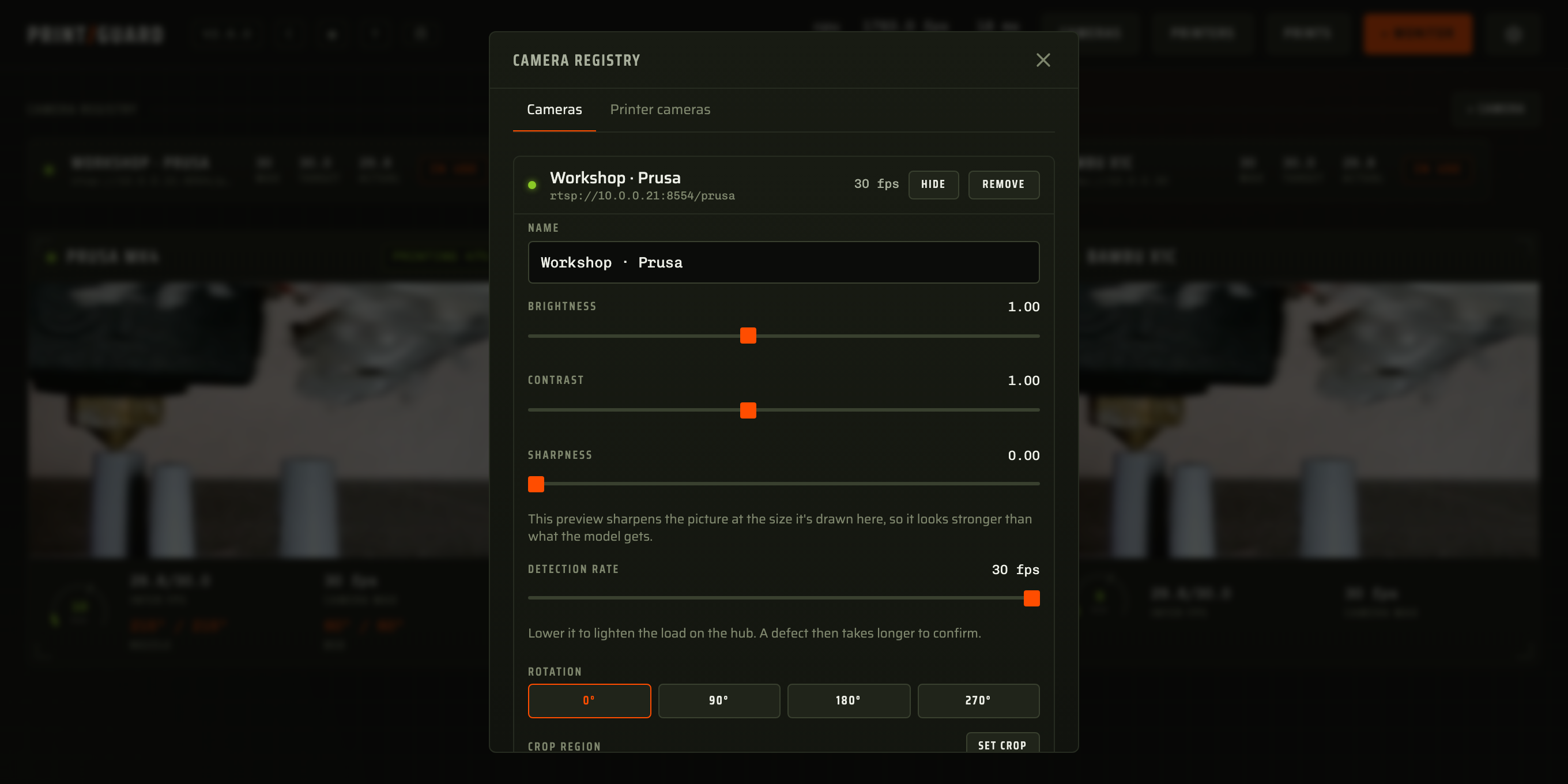
Rename it from **Edit**, then set it up for the model. Rotation, the square crop, brightness,
contrast, sharpness and the detection rate are all in
[tuning the camera](monitoring.md#tuning-the-camera). Then bind it to a monitor.
A camera that no monitor is watching and nobody is viewing goes into standby after about ten
seconds and stops being decoded. That covers an idle printer, a monitor you switched off and a
camera with no monitor. It resumes when a print starts or someone opens the feed.