---
title: Building Voice Agents
description: Learn how to build voice agents using the OpenAI Agents SDK, how session behavior works, and which realtime features are available.
---
import { Aside, Code } from '@astrojs/starlight/components';
import multiAgentsExample from '../../../../../../examples/docs/voice-agents/multiAgents.ts?raw';
import configureSessionExample from '../../../../../../examples/docs/voice-agents/configureSession.ts?raw';
import handleAudioExample from '../../../../../../examples/docs/voice-agents/handleAudio.ts?raw';
import defineToolExample from '../../../../../../examples/docs/voice-agents/defineTool.ts?raw';
import toolApprovalEventExample from '../../../../../../examples/docs/voice-agents/toolApprovalEvent.ts?raw';
import guardrailsExample from '../../../../../../examples/docs/voice-agents/guardrails.ts?raw';
import guardrailSettingsExample from '../../../../../../examples/docs/voice-agents/guardrailSettings.ts?raw';
import audioInterruptedExample from '../../../../../../examples/docs/voice-agents/audioInterrupted.ts?raw';
import sessionInterruptExample from '../../../../../../examples/docs/voice-agents/sessionInterrupt.ts?raw';
import updateHistoryExample from '../../../../../../examples/docs/voice-agents/updateHistory.ts?raw';
import transportEventsExample from '../../../../../../examples/docs/voice-agents/transportEvents.ts?raw';
import toolHistoryExample from '../../../../../../examples/docs/voice-agents/toolHistory.ts?raw';
import sendMessageExample from '../../../../../../examples/docs/voice-agents/sendMessage.ts?raw';
import addImageExample from '../../../../../../examples/docs/voice-agents/addImage.ts?raw';
import serverAgentExample from '../../../../../../examples/docs/voice-agents/serverAgent.ts?raw';
import delegationAgentExample from '../../../../../../examples/docs/voice-agents/delegationAgent.ts?raw';
import turnDetectionExample from '../../../../../../examples/docs/voice-agents/turnDetection.ts?raw';
## Session setup
### Audio handling
Some transport layers like the default `OpenAIRealtimeWebRTC` handle audio input and output automatically for you. For other transport mechanisms like `OpenAIRealtimeWebSocket` you have to handle session audio yourself:
When the underlying transport supports it, `session.muted` reports the current mute state and `session.mute(true | false)` toggles microphone capture. `OpenAIRealtimeWebSocket` does not implement muting: `session.muted` returns `null` and `session.mute()` throws, so for websocket setups you should pause capture on your side and stop calling `sendAudio()` until the microphone should be live again.
### Session configuration
Configure the session itself when you create [`RealtimeSession`](/openai-agents-js/openai/agents-realtime/classes/realtimesession/), usually through the `model` option and the `config` object. `connect(...)` is for connection-time concerns such as credentials, endpoint URL, and existing Realtime call attachment rather than arbitrary session fields.
Under the hood, the SDK normalizes this configuration into the Realtime [`session.update`](https://developers.openai.com/api/reference/resources/realtime/client-events/#session.update) shape. If you need a raw session field that does not have a matching property in [RealtimeSessionConfig](/openai-agents-js/openai/agents-realtime/type-aliases/realtimesessionconfig/), use `providerData` or send a raw `session.update` through `session.transport.sendEvent(...)`.
Prefer the newer SDK config shape with `outputModalities`, `audio.input`, and `audio.output`. Older SDK aliases such as `modalities`, `inputAudioFormat`, `outputAudioFormat`, `inputAudioTranscription`, and `turnDetection` are still normalized for backwards compatibility, but new code should use the nested `audio` structure shown here.
For reasoning-capable Realtime models such as `gpt-realtime-2.1`, set `reasoning.effort` on the session config. Higher reasoning effort can increase latency and token usage. You can also set `parallelToolCalls` when you want to control whether the model may call multiple tools in parallel.
For input transcription, `audio.input.transcription` accepts the GA transcription models and their context options. Use `gpt-live-transcribe` for low-latency streaming transcription; its `delay` setting trades faster partial transcripts against final transcript quality. Both `gpt-live-transcribe` and `gpt-transcribe` accept a free-form `prompt`, literal `keywords`, and a `languages` array. These models use `languages`; older transcription models that accept one language hint continue to use the singular `language` field. See the official [transcription context guidance](https://developers.openai.com/api/docs/guides/transcription/#improve-transcription-quality) and [Realtime transcription guide](https://developers.openai.com/api/docs/guides/realtime-transcription/) for model-specific workflows.
For speech-to-speech sessions, the usual choice is `outputModalities: ['audio']`, which gives you audio output plus transcripts. Switch to `['text']` only when you want text-only responses.
For parameters that are new and do not have a matching parameter in [RealtimeSessionConfig](/openai-agents-js/openai/agents-realtime/type-aliases/realtimesessionconfig/), you can use `providerData`. Anything passed in `providerData` is forwarded as part of the raw `session` object.
Additional `RealtimeSession` options you can set at construction time:
| Option | Type | Purpose |
| --- | --- | --- |
| `context` | `TContext` | Extra local context merged into the session context. |
| `historyStoreAudio` | `boolean` | Store audio data in the local history snapshot (disabled by default). |
| `outputGuardrails` | `RealtimeOutputGuardrail[]` | Output guardrails for the session (see [Guardrails](#guardrails)). |
| `outputGuardrailSettings` | `{ debounceTextLength?: number }` | Guardrail cadence. Defaults to `100`; use `-1` to only run once full text is available. |
| `tracingDisabled` | `boolean` | Disable tracing for the session. |
| `groupId` | `string` | Group traces across sessions or backend runs. Requires `workflowName`. |
| `traceMetadata` | `Record` | Custom metadata to attach to session traces. Requires `workflowName`. |
| `workflowName` | `string` | Friendly name for the trace workflow. |
| `automaticallyTriggerResponseForMcpToolCalls` | `boolean` | Auto-trigger a model response when an MCP tool call completes (default: `true`). |
| `toolErrorFormatter` | `ToolErrorFormatter` | Customize tool approval rejection messages returned to the model. |
| `toolExecution` | `RealtimeToolExecutionConfig` | SDK-side execution settings for local realtime function tools. Set `preApprovalInputGuardrails: true` to run input guardrails before pending approval requests. |
`connect(...)` options:
| Option | Type | Purpose |
| --- | --- | --- |
| `apiKey` | `string \| (() => string \| Promise)` | API key (or lazy loader) used for this connection. |
| `model` | `OpenAIRealtimeModels \| string` | Present in the transport-level options type. For `RealtimeSession`, set the model in the constructor; raw transports can also use a model at connect time. |
| `url` | `string` | Optional custom Realtime endpoint URL. |
| `callId` | `string` | Attach the WebSocket transport as a sideband connection to an existing Realtime call, including calls established with WebRTC or SIP. |
### Conversation lifecycle
`RealtimeSession` sits on top of a long-lived Realtime connection. It keeps a local copy of conversation history, listens for transport events, runs tools and output guardrails, and keeps the active agent configuration synchronized with the transport.
The underlying API behavior still matters:
- A successful connection starts with a `session.created` event, and later config changes produce `session.updated`.
- Most session properties can be changed over time, but `model` cannot change mid-conversation, `voice` can only change before the session has produced audio output, and tracing should be decided up front because the Realtime API does not let you modify tracing after it is enabled.
- The Realtime API currently limits a single session to 60 minutes.
- Input audio transcription is asynchronous, so the transcript for the latest utterance can arrive after response generation has already started.
At the SDK layer, `await session.connect()` means "the transport is ready enough to start the conversation", but the exact point differs by transport:
- In the default browser WebRTC transport, the SDK sends the initial `session.update` as soon as the data channel opens and tries to wait for the corresponding `session.updated` event before resolving `connect()`. The WebRTC transport waits for this acknowledgement to avoid audio reaching the server before your instructions, tools, and modalities are applied. If that acknowledgement never arrives, `connect()` falls back to resolving after a short timeout.
- In the default server-side WebSocket transport, `connect()` resolves once the socket is open and the initial config has been sent. The matching `session.updated` event can therefore arrive after `connect()` has already resolved.
If you need the raw event model, read the official [Realtime conversations guide](https://developers.openai.com/api/docs/guides/realtime-conversations/) alongside this page.
## Interaction flow
### Turn detection and voice activity detection
By default, Realtime sessions use built-in voice activity detection (VAD) so the API can decide when the user has started or stopped speaking and when to create a response. The SDK exposes this through `audio.input.turnDetection`.
Two common modes are:
- `semantic_vad`, which aims for more natural turn boundaries and can wait a little longer when the user sounds like they are not finished yet.
- `server_vad`, which is more threshold-driven and exposes settings such as `threshold`, `prefixPaddingMs`, `silenceDurationMs`, and `idleTimeoutMs`.
Set `audio.input.turnDetection` to `null` if you want to manage turn boundaries yourself. The official [voice activity detection guide](https://developers.openai.com/api/docs/guides/realtime-vad/) and [Realtime conversations guide](https://developers.openai.com/api/docs/guides/realtime-conversations/#voice-activity-detection) describe the underlying behavior in more detail.
### Interruptions
When VAD is enabled, speaking over the agent can interrupt the current response. On the WebSocket transport, the SDK listens for `input_audio_buffer.speech_started`, truncates the assistant audio to what the user actually heard, and emits an `audio_interrupted` event. That event is especially useful when you manage playback yourself in WebSocket setups.
If you want to expose a manual stop button, call `interrupt()` yourself:
WebRTC and WebSocket both stop the in-progress response, but the low-level mechanics differ by transport. WebRTC clears buffered output audio for you. In WebSocket setups you still need to stop local playback yourself, and the local history updates when the corresponding truncation and conversation events come back from the transport.
### Text input
Use `sendMessage()` when you want to send typed input or additional structured user content into the live conversation.
This is useful for mixed text and voice UIs, out-of-band context injection, or pairing spoken input with explicit typed clarifications.
### Image input
Realtime speech-to-speech sessions can also include images. In the SDK, use `addImage()` to attach an image to the current conversation.
Passing `triggerResponse: false` lets you batch the image with a later text or audio turn before asking the model to respond. This lines up with the official [Realtime conversations image input guidance](https://developers.openai.com/api/docs/guides/realtime-conversations/#image-inputs).
### Manual response control
At the higher SDK layer, `sendMessage()` and `addImage()` trigger a response for you by default. Manual response control matters when you are working with raw transport events, push-to-talk flows, or custom moderation / validation steps.
There are two common cases:
1. If you disable VAD entirely with `audio.input.turnDetection = null`, you are responsible for committing audio turns and then sending `response.create`.
2. If you keep VAD enabled but set `turnDetection.interruptResponse = false` and `turnDetection.createResponse = false`, the API still detects turns but leaves response creation up to you.
Keeping VAD enabled while setting both `turnDetection.interruptResponse` and `turnDetection.createResponse` to `false` is useful when you want to inspect or moderate user input before the model responds. This configuration matches the official [Realtime conversations guidance on disabling automatic responses](https://developers.openai.com/api/docs/guides/realtime-conversations/#keep-vad-but-disable-automatic-responses).
## Agent capabilities
### Handoffs
Similarly to regular agents, you can use handoffs to break your agent into multiple agents and orchestrate between them to improve performance and better scope the problem.
Unlike regular agents, handoffs behave slightly differently for Voice Agents. When a handoff is performed, the ongoing session is updated with the new agent configuration in place. Because of this, the new agent automatically has access to the ongoing conversation history and input filters are currently not applied.
Because the session stays live, the model for that session does not change during a handoff. Voice changes follow the underlying Realtime API rule: they only work before the session has produced audio output. Realtime handoffs are primarily for swapping between `RealtimeAgent` configurations on the same session; if you need to use a different model, for example a reasoning model like `gpt-5.4`, or delegate to a non-realtime backend agent, use [delegation through tools](#delegation-through-tools).
### Tools
Just like regular agents, Voice Agents can call tools to perform actions. Realtime supports **function tools** (executed locally) and **hosted MCP tools** (executed remotely by the Realtime API). You can define a function tool using the same `tool()` helper you would use for a regular agent.
Responses-only tool options do not carry over to Voice agents. Function tool `outputSchema` and `allowedCallers` values that include `'programmatic'` are rejected, as are programmatic callers on hosted MCP tools. Use directly callable function or hosted MCP tools in a Realtime session, or delegate work that needs Programmatic Tool Calling to a Responses agent.
#### Function tools
Function tools run in the same environment as your `RealtimeSession`. This means if you are running your session in the browser, the tool executes in the browser. If you need to perform sensitive actions, call your backend from inside the tool and let the server do the privileged work.
This lets a browser-side tool act as a thin backchannel to server-side logic. For example, [`examples/realtime-next`](https://github.com/openai/openai-agents-js/tree/main/examples/realtime-next) defines a `refundBackchannel` tool in the browser that forwards the request and current conversation history to `handleRefundRequest(...)` on the server, where a separate `Runner` can use a different agent or model to evaluate the refund before returning the result to the voice session.
#### Hosted MCP tools
Hosted MCP tools can be configured with `hostedMcpTool` and are executed remotely. When MCP tool availability changes the session emits `mcp_tools_changed`. To prevent the session from auto-triggering a model response after MCP tool calls complete, set `automaticallyTriggerResponseForMcpToolCalls: false`.
The current filtered MCP tool list is also available as `session.availableMcpTools`. Both that property and the `mcp_tools_changed` event reflect only the hosted MCP servers enabled on the active agent, after applying any `allowed_tools` filters from the agent configuration.
Hosted MCP setup is easiest to reason about if you treat secure server selection, headers, and approvals as pre-connect configuration. Before `RealtimeSession.connect()` opens the transport, the SDK resolves the active agent's hosted MCP tool definitions and includes the supported MCP fields in the initial session config it sends to the Realtime API.
Providing secure hosted MCP configuration before `connect()` matters most in browser WebRTC apps. The ephemeral client secret is always minted on your server, so any hosted MCP credentials or custom `headers` that must stay secret should be attached in that server-side `POST /v1/realtime/client_secrets` request as part of the initial `session` payload. Do not put long-lived credentials in browser code and plan to add them later after `connect()` starts.
At the Realtime API level, later `session.update` calls can still change tools and other mutable session fields, and the SDK itself sends `session.update` when the active agent changes. In browser apps, though, you should treat secure Hosted MCP initialization as a server-side, pre-connect concern and keep the browser-side `RealtimeSession` config aligned with what your server minted.
#### Background results
While the tool is executing the agent will not be able to process new requests from the user. One way to improve the experience is by telling your agent to announce when it is about to execute a tool or say specific phrases to buy the agent some time to execute the tool.
If a function tool should finish without immediately triggering another model response, return `backgroundResult(output)` from `@openai/agents/realtime`. This sends the tool output back to the session while leaving response triggering under your control.
#### Timeouts
Function tool timeout options (`timeoutMs`, `timeoutBehavior`, `timeoutErrorFunction`) work the same way in Realtime sessions. With the default `error_as_result`, the timeout message is sent as tool output. With `raise_exception`, the session emits an `error` event with [`ToolTimeoutError`](/openai-agents-js/openai/agents-core/classes/tooltimeouterror) and does not send tool output for that call.
#### Accessing the conversation history
In addition to the arguments that the agent called a particular tool with, you can also access a snapshot of the current conversation history tracked by the Realtime Session. This can be useful if you need to perform a more complex action based on the current state of the conversation or are planning to use [tools for delegation](#delegation-through-tools).
#### Approval before tool execution
If you define your tool with `needsApproval: true` the agent emits a `tool_approval_requested` event before executing the tool.
By listening to this event you can show a UI to the user to approve or reject the tool call.
Resolve the request with `await session.approve(request.approvalItem)` or `await session.reject(request.approvalItem)`. For function tools you can pass `{ alwaysApprove: true }` or `{ alwaysReject: true }` to reuse the same decision for repeated calls during the rest of the session, and `session.reject(request.approvalItem, { message: '...' })` to send a custom rejection message back to the model for that specific call. Hosted MCP approvals do not support sticky approve/reject; restrict those tools with the hosted MCP `allowedTools` configuration instead.
If you do not pass a per-call rejection `message`, the session falls back to `toolErrorFormatter` (if configured) and then to the SDK default rejection text.
By default, function-tool input guardrails run after approval, immediately before the tool executes. If you pass `toolExecution: { preApprovalInputGuardrails: true }` to `new RealtimeSession(...)`, local function-tool input guardrails also run before the session emits `tool_approval_requested`. A guardrail rejection sends the rejection message back as the tool output and skips the approval event. If the guardrail allows the call, the approval event is still emitted, and the guardrails run again after `session.approve(...)` before execution.
### Guardrails
Guardrails offer a way to monitor whether what the agent has said violated a set of rules and immediately cut off the response. These checks run against the output stream of the agent's response. In text-only sessions, the SDK evaluates output text deltas. In audio sessions, it uses output audio transcripts and transcript deltas, so the important prerequisite is transcript availability rather than a separate text output modality.
The guardrails you provide run asynchronously as a model response is returned, allowing you to cut off the response based on a predefined classification trigger, for example "mentions a specific banned word".
When a guardrail trips the session emits a `guardrail_tripped` event. The event also provides a `details` object containing the `itemId` that triggered the guardrail.
By default guardrails run every 100 characters and again when the final transcript is available. Because speaking the text usually takes longer than generating the transcript, this often lets the guardrail cut off unsafe output before the user hears it.
If you want to modify this behavior you can pass an `outputGuardrailSettings` object to the session.
Set `debounceTextLength: -1` when you only want to evaluate the fully generated transcript once, at the end of the response.
## Conversation state and delegation
### Conversation history management
`RealtimeSession` automatically maintains a local `history` snapshot that tracks user messages, assistant output, tool calls, and truncation state. You can render it in the UI, inspect it inside tools, or update it when you need to correct or remove items.
As the conversation changes the session emits `history_updated`. If you need to request history changes, use `updateHistory()`. It asks the transport to diff the current history and send the necessary delete/create events; the local `session.history` view updates as the corresponding conversation events come back.
#### Limitations
1. You cannot currently edit function tool calls after the fact.
2. Assistant text in history depends on available transcripts, including `output_audio.transcript`.
3. Responses truncated by interruption do not retain a final transcript.
4. Input audio transcription is best treated as a rough guide to what the user said, not an exact copy of how the model interpreted the audio.
### Delegation through tools
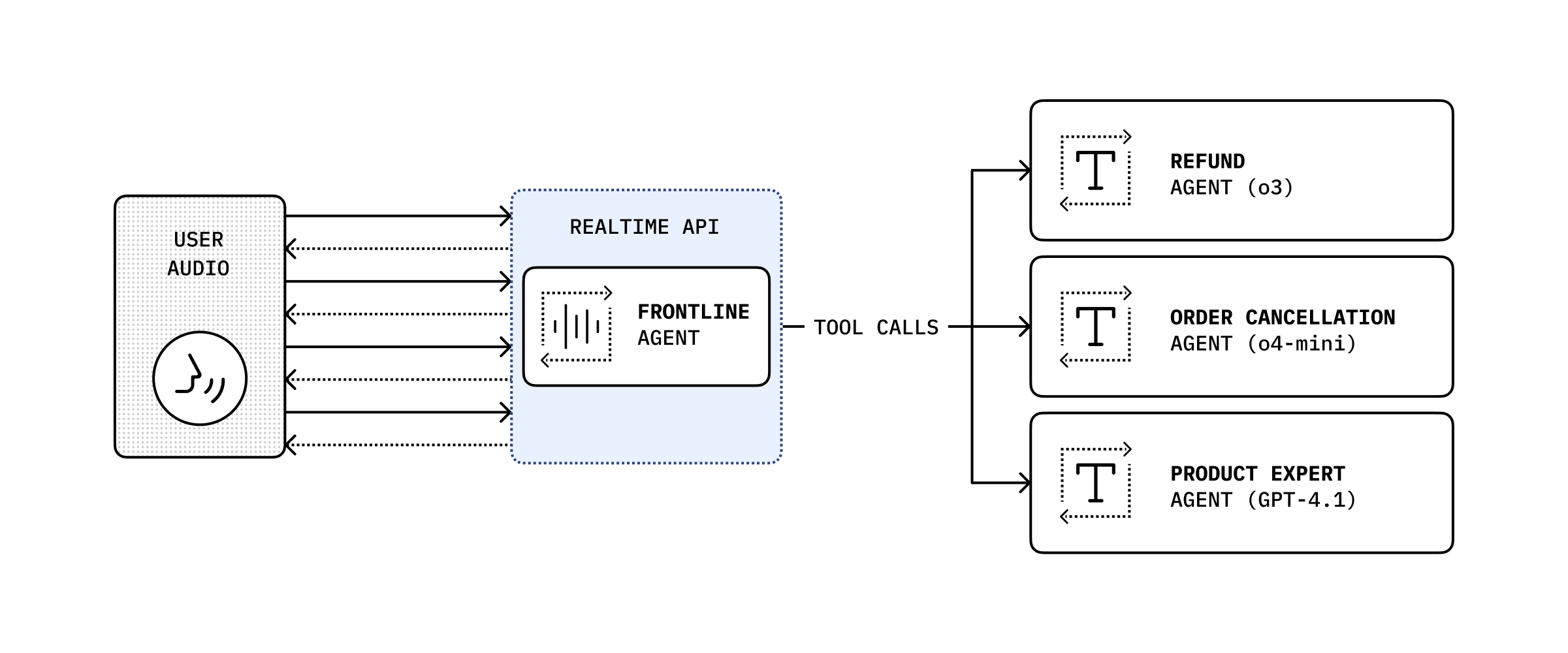
By combining the conversation history with a tool call, you can delegate the conversation to another backend agent to perform a more complex action and then pass it back as the result to the user.
The code below then runs on the server, in this example via a Next.js Server Action.