
[](https://aur.archlinux.org/packages/vidcutter-git)
[](https://ci.appveyor.com/project/ozmartian/vidcutter/build/artifacts)
[](https://ci.appveyor.com/project/ozmartian/vidcutter-osx/build/artifacts)
[](https://www.codacy.com/gh/ozmartian/vidcutter/dashboard?utm_source=github.com&utm_medium=referral&utm_content=ozmartian/vidcutter&utm_campaign=Badge_Grade)
[](https://cdn.rawgit.com/ozmartian/vidcutter/gh-pages/images/vidcutter-01.png)
[](https://cdn.rawgit.com/ozmartian/vidcutter/gh-pages/images/vidcutter-02.png)
[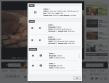](https://cdn.rawgit.com/ozmartian/vidcutter/gh-pages/images/vidcutter-03.png)
[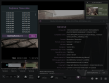](https://cdn.rawgit.com/ozmartian/vidcutter/gh-pages/images/vidcutter-04.png)
### flatpak (Linux)
 or via the terminal:
```
$ flatpak remote-add --if-not-exists flathub https://dl.flathub.org/repo/flathub.flatpakrepo
(to enable the flathub repo if not already)
$ flatpak install flathub com.ozmartians.VidCutter
$ flatpak run com.ozmartians.VidCutter
```
### snap (Linux)
or via the terminal:
```
$ flatpak remote-add --if-not-exists flathub https://dl.flathub.org/repo/flathub.flatpakrepo
(to enable the flathub repo if not already)
$ flatpak install flathub com.ozmartians.VidCutter
$ flatpak run com.ozmartians.VidCutter
```
### snap (Linux)
 or via the terminal:
```
$ sudo snap install vidcutter
```
### Arch Linux (incl. Manjaro/etc.)
Users can install the stable version directly from the Arch Linux community repo packages or via AUR for the development version.
LATEST STABLE RELEASE:
$ sudo pacman -S vidcutter
Using an AUR helper like yay (replace yay with any other AUR helper):
LATEST DEVELOPMENT RELEASE:
$ yay -S vidcutter-git
### Ubuntu (incl. Mint/Debian/KDE Neon/etc.)
Users can install the latest release via:
ppa:ozmartian/apps
The following set of commands will get you up and running:
$ sudo add-apt-repository ppa:ozmartian/apps
$ sudo apt update
$ sudo apt install vidcutter
### openSUSE
VidCutter is available from openSUSE's official repos for Tumbleweed, Leap versions will be supported soon. Community built packages can be found @ https://software.opensuse.org/package/vidcutter.
VidCutter is also available from the popular Packman repository. Instructions to enable it can be found @ https://en.opensuse.org/Additional_package_repositories#Packman.
### Fedora
Fedora 34 & Rawhide builds via copr @ https://copr.fedorainfracloud.org/coprs/suspiria/VidCutter
```
$ dnf copr enable suspiria/VidCutter
```
Also available at United RPMs at https://unitedrpms.github.io and https://github.com/UnitedRPMs/unitedrpms
***
### Microsoft Windows
Download the latest Windows installer by clicking the button below.
[](https://github.com/ozmartian/vidcutter/releases/latest)
#### Chocolatey package
VidCutter is available from [Chocolatey](https://chocolatey.org) (its a package manager like in Linux but
for Windows).
To install VidCutter, run the following command from the command line or PowerShell:
```
C:\> choco install vidcutter
```
To upgrade VidCutter, run the following command from the command line or PowerShell:
```
C:\> choco upgrade vidcutter
```
***
### macOS
**Only macOS Catalina and below is currently supported. Big Sur is unstable until further notice.**
Download the latest macOS installer by clicking the button below.
[](https://github.com/ozmartian/vidcutter/releases/latest)
#### Homebrew package
VidCutter is available from [Homebrew](https://brew.sh) as a cask.
To install VidCutter, run the following command in a terminal:
```
$ brew install --cask vidcutter
```
***
### Running from Python source
In order to run from source code you need to first build a Python extension and then run the app as follows, from within the source code folder:
```
$ python3 setup.py build_ext -i
$ python3 -m vidcutter
```
Working installations of **libmpv** and **ffmpeg** must be pre-installed for your specific OS. For Linux, package names are usually named **libmpv1** or **mpv** and **ffmpeg**. For the media information option to work you'll also need a working install of **mediainfo**.
You will need Python packages **pyopengl** and **simplejson** pre-installed, via **pip install pyopengl simplejson** or distro packages, and a working PyQt5 + Qt5 libraries installation. Windows users can simply **pip install PyQt5** to be up and running, Linux users should install a relevant PyQt5 package from their Linux distribution's package manager. Linux package names for PyQt5 are usually named **python-pyqt5** or **python3-pyqt5** and will take care of the Qt5 side of things too.
***
## Command-line for debugging (Linux/macOS only)
```
$ vidcutter --help
Usage: vidcutter [options] [video] [project]
VidCutter - the simplest + fastest video cutter & joiner
Options:
--debug debug mode; verbose console output & logging. This will
basically output what is being logged to file to the console
stdout. Mainly useful for debugging problems with your system
video and/or audio stack and codec configuration.
--dev developer mode; disables the use of compiled resource files so
that all app resources & assets are accessed directly from the
file system allowing you to see UI changes immediately. this
typically relates to changes made to Qt stylesheets (.qss),
layout/templates, content includes and images. basically all
assets defined in .qrc files throughout the codebase.
-v, --version Displays version information.
-h, --help Displays this help.
Arguments:
video Preload video file
project Open VidCutter project file (.vcp)
```
or via the terminal:
```
$ sudo snap install vidcutter
```
### Arch Linux (incl. Manjaro/etc.)
Users can install the stable version directly from the Arch Linux community repo packages or via AUR for the development version.
LATEST STABLE RELEASE:
$ sudo pacman -S vidcutter
Using an AUR helper like yay (replace yay with any other AUR helper):
LATEST DEVELOPMENT RELEASE:
$ yay -S vidcutter-git
### Ubuntu (incl. Mint/Debian/KDE Neon/etc.)
Users can install the latest release via:
ppa:ozmartian/apps
The following set of commands will get you up and running:
$ sudo add-apt-repository ppa:ozmartian/apps
$ sudo apt update
$ sudo apt install vidcutter
### openSUSE
VidCutter is available from openSUSE's official repos for Tumbleweed, Leap versions will be supported soon. Community built packages can be found @ https://software.opensuse.org/package/vidcutter.
VidCutter is also available from the popular Packman repository. Instructions to enable it can be found @ https://en.opensuse.org/Additional_package_repositories#Packman.
### Fedora
Fedora 34 & Rawhide builds via copr @ https://copr.fedorainfracloud.org/coprs/suspiria/VidCutter
```
$ dnf copr enable suspiria/VidCutter
```
Also available at United RPMs at https://unitedrpms.github.io and https://github.com/UnitedRPMs/unitedrpms
***
### Microsoft Windows
Download the latest Windows installer by clicking the button below.
[](https://github.com/ozmartian/vidcutter/releases/latest)
#### Chocolatey package
VidCutter is available from [Chocolatey](https://chocolatey.org) (its a package manager like in Linux but
for Windows).
To install VidCutter, run the following command from the command line or PowerShell:
```
C:\> choco install vidcutter
```
To upgrade VidCutter, run the following command from the command line or PowerShell:
```
C:\> choco upgrade vidcutter
```
***
### macOS
**Only macOS Catalina and below is currently supported. Big Sur is unstable until further notice.**
Download the latest macOS installer by clicking the button below.
[](https://github.com/ozmartian/vidcutter/releases/latest)
#### Homebrew package
VidCutter is available from [Homebrew](https://brew.sh) as a cask.
To install VidCutter, run the following command in a terminal:
```
$ brew install --cask vidcutter
```
***
### Running from Python source
In order to run from source code you need to first build a Python extension and then run the app as follows, from within the source code folder:
```
$ python3 setup.py build_ext -i
$ python3 -m vidcutter
```
Working installations of **libmpv** and **ffmpeg** must be pre-installed for your specific OS. For Linux, package names are usually named **libmpv1** or **mpv** and **ffmpeg**. For the media information option to work you'll also need a working install of **mediainfo**.
You will need Python packages **pyopengl** and **simplejson** pre-installed, via **pip install pyopengl simplejson** or distro packages, and a working PyQt5 + Qt5 libraries installation. Windows users can simply **pip install PyQt5** to be up and running, Linux users should install a relevant PyQt5 package from their Linux distribution's package manager. Linux package names for PyQt5 are usually named **python-pyqt5** or **python3-pyqt5** and will take care of the Qt5 side of things too.
***
## Command-line for debugging (Linux/macOS only)
```
$ vidcutter --help
Usage: vidcutter [options] [video] [project]
VidCutter - the simplest + fastest video cutter & joiner
Options:
--debug debug mode; verbose console output & logging. This will
basically output what is being logged to file to the console
stdout. Mainly useful for debugging problems with your system
video and/or audio stack and codec configuration.
--dev developer mode; disables the use of compiled resource files so
that all app resources & assets are accessed directly from the
file system allowing you to see UI changes immediately. this
typically relates to changes made to Qt stylesheets (.qss),
layout/templates, content includes and images. basically all
assets defined in .qrc files throughout the codebase.
-v, --version Displays version information.
-h, --help Displays this help.
Arguments:
video Preload video file
project Open VidCutter project file (.vcp)
```