# Developing a Spring AI Enhanced Restaurant Booking System Employing an API-first Approach
[](https://img.shields.io/badge/Release-Alpha-darkred)  [](https://snyk.io/test/github/pacphi/spring-ai-resos)
This multi-module project hosts a client code-generated from an OpenAPI derivative of the ResOs API combined with a Spring AI implementation.
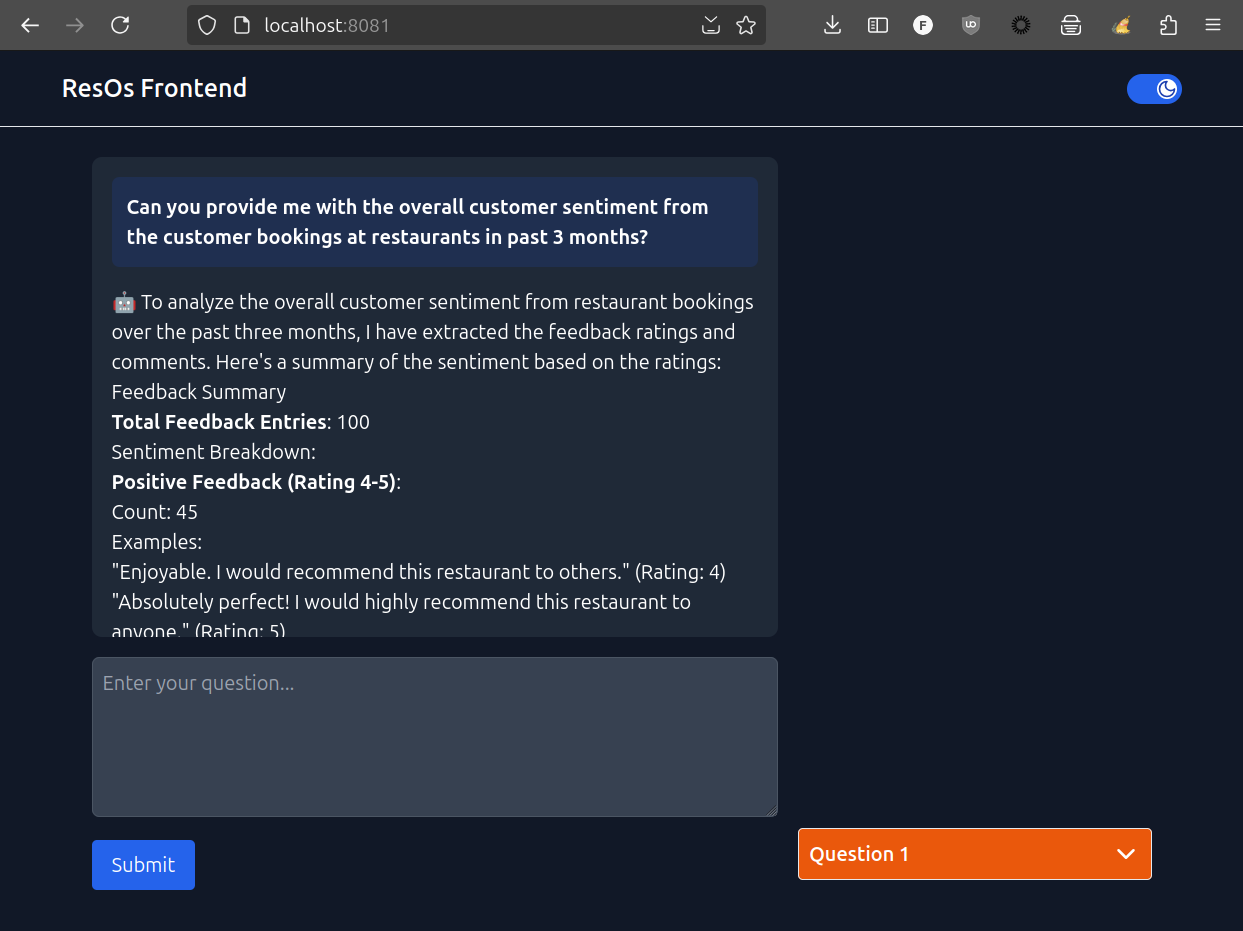
It also includes an MCP server, MCP client configuration for use with Claude and a standalone ReactJS powered chatbot UI.
- [Background](#background)
- [Getting started](#getting-started)
- [Prerequisites](#prerequisites)
- How to
- [Clone](#how-to-clone)
- [Build](#how-to-build)
- [Consume](#how-to-consume)
- [Run](#how-to-run)
- Documentation
- [Architecture](docs/architecture/) - Comprehensive architecture documentation
- [Planning](docs/planning/) - Roadmap and future work
- [Project Origin](docs/archives/mvp/SPARK.md) - How this project started
- Also see
- [ResOS API](https://documenter.getpostman.com/view/3308304/SzzehLGp?version=latest) - External API reference
## Background
As a Spring Boot and Spring AI developer, I want
to consume libraries that make it convenient to add capabilities to my application(s)
as for the following
Use-case:
- Imagine instead of using OpenTable or Tock you could converse with a chatbot to search for restaurant(s) and make reservation(s) on your behalf.
## Technologies
- Spring Boot 4.0.1
- Spring AI 2.0.0-M1
- Spring Cloud 2025.1.0
- Spring Security 7.0.2
- Java 25
- Maven 3.9.11
## Getting started
Start with:
- A Github [account](https://github.com/signup)
- (Optional) An [API key](https://resos.com/support/how-to-use-resos-rest-api/) from ResOS
- you only need one if you intend to register as a restaurateur!
- we will spin up a [backend](backend) that is API-compatible, implemented with Spring Boot Starter Data JDBC
- An LLM provider
- e.g., Groq Cloud, OpenRouter, or OpenAI
## Prerequisites
- Git CLI (2.43.0 or better)
- Github CLI (2.65.0 or better)
- httpie CLI (3.2.2 or better)
- Java SDK (25 or better)
- Maven (3.9.11 or better)
- an LLM provider account (if using public cloud or commercially hosted models)
## How to clone
with Git CLI
```bash
git clone https://github.com/pacphi/spring-ai-resos
```
with Github CLI
```bash
gh repo clone pacphi/spring-ai-resos
```
## How to build
Open a terminal shell, then execute:
```bash
cd spring-ai-resos
mvn clean install
```
## How to consume
If you want to incorporate any of the starters as dependencies in your own projects, you would:
### Add dependency
Maven
```maven
me.pacphi
spring-ai-resos-client
{release-version}
```
Gradle
```gradle
implementation 'me.pacphi:spring-ai-resos-client:{release-version}'
```
> Replace occurrences of {release-version} above with a valid artifact release version number
### Add configuration
Following Spring Boot conventions, you would add a stanza like this to your:
application.properties
```properties
default.url=${RESOS_API_ENDPOINT:https://api.resos.com/v1}
```
application.yml
```yaml
default:
url: ${RESOS_API_ENDPOINT:https://api.resos.com/v1}
```
> To activate the client, specify an API key (if required), and tune other associated configuration.
Consult the [chatbot](mcp-client) module's configuration for alternative `dependencies` and `configuration` that are available to add.
Configuration will be found in labeled `spring.config.activate.on-profile` sections of the [application.yml](mcp-client/src/main/resources/application.yml) file.
## How to run
You're going to need to launch the [backend](backend) module first, unless you're a restaurateur, and you have a valid API key for interacting with the ResOS v1.2 API.
To launch the backend, open a terminal shell and execute
```bash
cd backend
mvn clean spring-boot:run -Dspring-boot.run.profiles=dev -Dspring-boot.run.jvmArguments="--add-opens java.base/java.net=ALL-UNNAMED"
```
There's the [chatbot](mcp-client) module.
But there's also a way to integrate with Claude desktop via MCP client configuration that will consume the [MCP server](mcp-server) implementation.
### with Claude Desktop
Claude Desktop can connect to the MCP server using STDIO transport. This allows Claude to directly invoke restaurant management tools.
#### Prerequisites
1. Get the STDIO variant of the MCP server:
- **Option A: Download from Releases** - Download `spring-ai-resos-mcp-server-stdio-{VERSION}.jar` from the [Releases](https://github.com/pacphi/spring-ai-resos/releases) page.
- **Option B: Build from Source** - Run `cd mcp-server && mvn clean package -Pstdio`
2. Ensure the backend is running (if using local development):
```bash
cd backend
mvn spring-boot:run -Dspring-boot.run.profiles=dev -Dspring-boot.run.jvmArguments="--add-opens java.base/java.net=ALL-UNNAMED"
```
#### Configuration
Add the following to your Claude Desktop configuration file:
- **macOS**: `~/Library/Application Support/Claude/claude_desktop_config.json`
- **Windows**: `%APPDATA%\Claude\claude_desktop_config.json`
- **Linux**: `~/.config/claude/claude_desktop_config.json`
**If using downloaded release JAR:**
```json
{
"mcpServers": {
"spring-ai-resos": {
"command": "java",
"args": [
"-Dspring.profiles.active=stdio",
"-jar",
"/spring-ai-resos-mcp-server-stdio-{VERSION}.jar"
],
"env": {
"RESOS_API_ENDPOINT": "http://localhost:8080/api/v1/resos"
}
}
}
}
```
**If built from source:**
```json
{
"mcpServers": {
"spring-ai-resos": {
"command": "java",
"args": [
"-Dspring.profiles.active=stdio",
"-jar",
"/mcp-server/target/spring-ai-resos-mcp-server-1.0.0-SNAPSHOT.jar"
],
"env": {
"RESOS_API_ENDPOINT": "http://localhost:8080/api/v1/resos"
}
}
}
}
```
> Replace `` or `` with the absolute path to your JAR file or project directory.
#### Available Tools
Once connected, Claude Desktop will have access to these tools:
| Tool | Description |
| --------------------- | ------------------------------------------------ |
| `getTables` | Fetch all restaurant tables |
| `getCustomers` | Fetch customer records with filtering/pagination |
| `getCustomerById` | Fetch a specific customer |
| `getFeedback` | Fetch customer feedback and reviews |
| `getFeedbackById` | Fetch specific feedback |
| `getOpeningHours` | Fetch opening hours for the next two weeks |
| `getOpeningHoursById` | Fetch specific opening hours |
#### Verification
1. Restart Claude Desktop after updating the configuration
2. Look for the tools icon (hammer) in the Claude interface
3. You should see "spring-ai-resos" listed with available tools
4. Try asking: "Show me all customers" or "What tables are available?"
#### Troubleshooting
**Server not connecting:**
- Verify the JAR path is absolute and correct
- Ensure Java 25+ is installed and in PATH
- Check that the backend server is running on port 8080
**Tools not appearing:**
- Verify the configuration JSON syntax is valid
- Check Claude Desktop logs for errors
- Restart Claude Desktop completely (not just the chat)
**Backend connection errors:**
- Ensure `RESOS_API_ENDPOINT` environment variable is correct
- Verify the backend is accessible at the configured URL
### with Chatbot
Follow these instructions.
To launch the [server](mcp-server) module, open a terminal shell and execute
```bash
cd mcp-server
export RESOS_API_ENDPOINT=http://localhost:8080/api/v1/resos
mvn spring-boot:run -Dspring-boot.run.profiles=cloud,dev
```
Next, we'll store an API key in a credential file that will allow the chatbot to interact with an LLM service provider.
```bash
cd ../mcp-client
```
#### leveraging OpenAI
Build and run a version of the chatbot that is compatible for use with [OpenAI](https://openai.com). You will need to [obtain an API key](https://platform.openai.com/settings/profile?tab=api-keys).
Before launching the app:
- Create a `config` folder which would be a sibling of the `src` folder. Create a file named `creds.yml` inside that folder. Add your own API key into that file.
```yaml
spring:
ai:
openai:
api-key: { REDACTED }
```
> Replace `{REDACTED}` above with your OpenAI API key
Next, to launch the chatbot, open a terminal shell and execute
```bash
mvn spring-boot:run -Dspring-boot.run.profiles=openai,dev
```
### leveraging Groq Cloud
Build and run a version of the chatbot that is compatible for use with [Groq Cloud](https://groq.com). You will need to [obtain an API key](https://console.groq.com/keys).
Note that Groq does not currently have support for text embedding. So if you intend to run with the `groq-cloud` Spring profile activated, you will also need to provide additional credentials
Before launching the app:
- Create a `config` folder which would be a sibling of the `src` folder. Create a file named `creds.yml` inside that folder. Add your own API key into that file.
```yaml
spring:
ai:
openai:
api-key: { REDACTED-1 }
embedding:
api-key: { REDACTED-2 }
```
> Replace `{REDACTED-1}` and `{REDACTED-2}` above with your Groq Cloud API and OpenAI keys respectively.
Next, to launch the chatbot, open a terminal shell and execute
```bash
mvn spring-boot:run -Dspring-boot.run.profiles=groq-cloud,dev
```
#### leveraging OpenRouter
Build and run a version of the chatbot that is compatible for use with [OpenRouter](https://openrouter.ai/docs/quick-start). You will need to [obtain an API key](https://openrouter.ai/settings/keys).
Note that OpenRouter does not currently have support for text embedding. So if you intend to run with the `openrouter` Spring profile activated, you will also need to provide additional credentials
Before launching the app:
- Create a `config` folder which would be a sibling of the `src` folder. Create a file named `creds.yml` inside that folder. Add your own API key into that file.
```yaml
spring:
ai:
openai:
api-key: { REDACTED-1 }
embedding:
api-key: { REDACTED-2 }
```
> Replace `{REDACTED-1}` and `{REDACTED-2}` above with your OpenRouter API and OpenAI keys respectively.
Next, to launch the chatbot, open a terminal shell and execute
```bash
mvn spring-boot:run -Dspring-boot.run.profiles=openrouter,dev
```
Now, visit http://localhost:8081 in your favorite web-browser.