# 📸 termframe [![Build Status][ci-img]][ci] [![Coverage Status][cov-img]][cov] [![Release][release-img]][release]
Terminal output SVG screenshot tool.
This tool is a non-interactive terminal emulator that executes a single command, renders its output in an internal virtual session, and exports a screenshot as an SVG file.
## Key features
* Comprehensive ANSI style support:
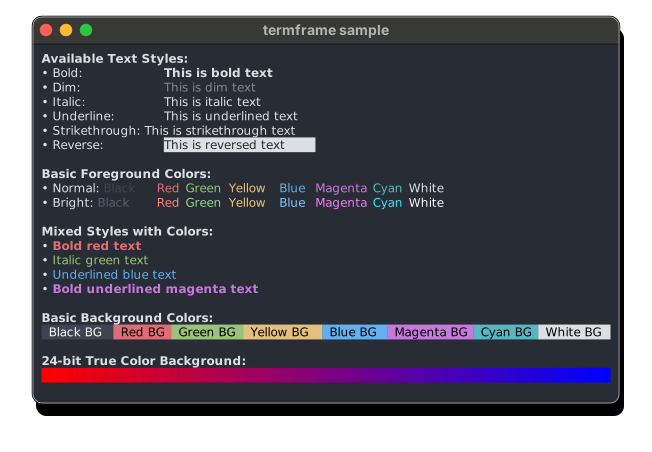
* Bold, dimmed (faint), italic, underlined, and strikethrough text.
* Text with reversed background/foreground colors.
* Full range of colors: basic 16 palette, 256 xterm palette, and 24-bit truecolor.
* Optional font embedding for enhanced customization.
* Dark and light mode compatibility.
* Extensive theme collection from [iTerm2-Color-Schemes](https://github.com/mbadolato/iTerm2-Color-Schemes).
* Support for custom themes, refer to [custom themes](#custom-themes).
* Flexible configuration system, see [configuration files](#configuration-files).
* Customizable [window styles](assets/window-styles/macos.toml), see [custom window styles](#custom-window-styles).
## Sample
PNG images: [sample-dark.png](https://github.com/user-attachments/assets/5fe3fcf6-446a-49cf-a447-0120a04bd8f3) and [sample-light.png](https://github.com/user-attachments/assets/85b080b0-59b4-45ae-9ba2-7eebe0d4d09c)
## Installation
### macOS
* Install using [homebrew](https://brew.sh) on macOS
```sh
brew install termframe
```
### Linux
* Download and extract using `curl` and `tar` on Linux (x86_64)
```sh
curl -sSfL -o /usr/local/bin/termframe https://github.com/pamburus/termframe/releases/latest/download/termframe-linux-x86_64-musl.tar.gz | tar xz
```
* Download and extract using `curl` and `tar` on Linux (arm64)
```sh
curl -sSfL -o /usr/local/bin/termframe https://github.com/pamburus/termframe/releases/latest/download/termframe-linux-arm64-musl.tar.gz | tar xz
```
* Install using [cargo](https://www.rust-lang.org/tools/install)
```sh
cargo install --locked --git https://github.com/pamburus/termframe.git
```
### Windows
* Install using [scoop](https://scoop.sh)
```sh
scoop bucket add pamburus https://github.com/pamburus/scoop-bucket.git
scoop install termframe
```
* Download latest release from [download page](https://github.com/pamburus/termframe/releases/latest)
## Usage
* Run a command and save the output to an SVG file
```sh
termframe -o hello.svg -- echo "Hello, World"
```
* Redirect output of a command to termframe
```sh
echo "Hello, World" | termframe -o hello.svg
```
* Use auto-sizing to determine optimal dimensions based on command output
```sh
# Auto-detect both width and height
termframe --width auto --height auto -o output.svg -- command
# Width between 80 and 120 columns, height auto-detected
termframe -W 80..120 -H auto -o output.svg -- command
# Width between 80 and 200 columns, step of 4, initial 120
# Height auto-detected, initial 40
termframe -W 80..200:4@120 -H @40 -o output.svg -- command
```
> [!NOTE]
> It is recommended to set proper initial values for commands that may use
> terminal capabilities to scale their output or interface depending on the terminal size.
## Configuration
### Configuration files
* Configuration files are automatically loaded if found in predefined platform-specific locations.
| OS | System-Wide Location | User Profile Location |
| ------- | ----------------------------------------------- | -------------------------------------------------------------- |
| macOS | /etc/termframe/config.{yaml,toml,json} | ~/.config/termframe/config.{yaml,toml,json} |
| Linux | /etc/termframe/config.{yaml,toml,json} | ~/.config/termframe/config.{yaml,toml,json} |
| Windows | %PROGRAMDATA%\termframe\config.{yaml,toml,json} | %USERPROFILE%\AppData\Roaming\termframe\config.{yaml,toml,json} |
* The path to the configuration file can be overridden using the `TERMFRAME_CONFIG` environment variable or the `--config` command-line option.
The order in which the configuration files are searched and loaded is as follows:
* The system-wide location.
* The user profile location.
* The location specified by the `TERMFRAME_CONFIG` environment variable (unless the `--config` option is used).
* The locations specified by the `--config` option (can be specified multiple times).
If a configuration file is found in multiple locations, the file in each subsequent location overrides only the parameters it contains.
If `TERMFRAME_CONFIG` or `--config` specifies `-` or an empty string, all default locations and any locations specified by previous `--config` options are discarded. The search for the configuration file locations starts over.
To disable loading of configuration files and use the built-in defaults, `--config -` can be used.
* All parameters in the configuration file are optional and can be omitted. In such cases, default values will be used.
#### Default configuration file
* [config.toml](assets/config.toml)
#### Terminal Configuration
The `[terminal]` section supports flexible dimension configuration with auto-sizing capabilities:
```toml
[terminal]
# Simple fixed dimensions
width = 80
height = 24
# Auto-detection
width = "auto"
height = "auto"
# Range constraints with auto-detection
width = { min = 80, max = 200 }
height = { min = 24, max = 60 }
# Step alignment (round to nearest multiple)
width = { min = 80, max = 200, step = 10 }
# Initial values (preferred size with fallback to auto-detection)
width = { initial = 120 }
height = { initial = 30 }
# Full specification with all options
width = { min = 80, max = 240, step = 4, initial = 180 }
height = { min = 24, max = 60, initial = 48 }
```
The `initial` value in dimension configuration:
* Serves as the initial/preferred size when no CLI override is provided
* Acts as a fallback when auto-detection fails or produces unreasonable results
* Gets clamped to `min`/`max` constraints if they are also specified
* Enables consistent sizing across different commands and environments
if the commands scale their output based on terminal size
### Custom Themes
You can create custom themes by placing theme files in the `themes` subfolder of your configuration directory.
#### Theme file locations
Create a `themes` folder in your configuration directory:
| OS | Theme Directory Location |
| ------- | ----------------------------------------------------------------- |
| macOS | `~/.config/termframe/themes/` |
| Linux | `~/.config/termframe/themes/` |
| Windows | `%USERPROFILE%\AppData\Roaming\termframe\themes\` |
#### Theme file formats
Theme files can be in TOML, YAML, or JSON format. Use the appropriate file extension (`.toml`, `.yaml`, `.yml`, or `.json`).
#### Theme examples
* **Dual mode theme** (supports both dark and light modes): [`assets/themes/One Double.toml`](assets/themes/One%20Double.toml)
* **Single mode theme** (dark mode only): [`assets/themes/One Double Dark.toml`](assets/themes/One%20Double%20Dark.toml)
### Custom Window Styles
You can create custom window styles by placing window style files in the `window-styles` subfolder of your configuration directory.
#### Window style file locations
Create a `window-styles` folder in your configuration directory:
| OS | Window Styles Directory Location |
| ------- | ----------------------------------------------------------------- |
| macOS | `~/.config/termframe/window-styles/` |
| Linux | `~/.config/termframe/window-styles/` |
| Windows | `%USERPROFILE%\AppData\Roaming\termframe\window-styles\` |
#### Window style file formats
Window style files can be in TOML, YAML, or JSON format. Use the appropriate file extension (`.toml`, `.yaml`, `.yml`, or `.json`).
#### Window style examples
* **macOS style**: [`assets/window-styles/macos.toml`](assets/window-styles/macos.toml)
* **Compact style**: [`assets/window-styles/compact.toml`](assets/window-styles/compact.toml)
### Environment variables
* Many parameters that are defined in command-line arguments and configuration files can also be specified by environment variables.
#### Precedence of configuration sources (from lowest priority to highest priority)
* Configuration file
* Environment variables
* Command-line arguments
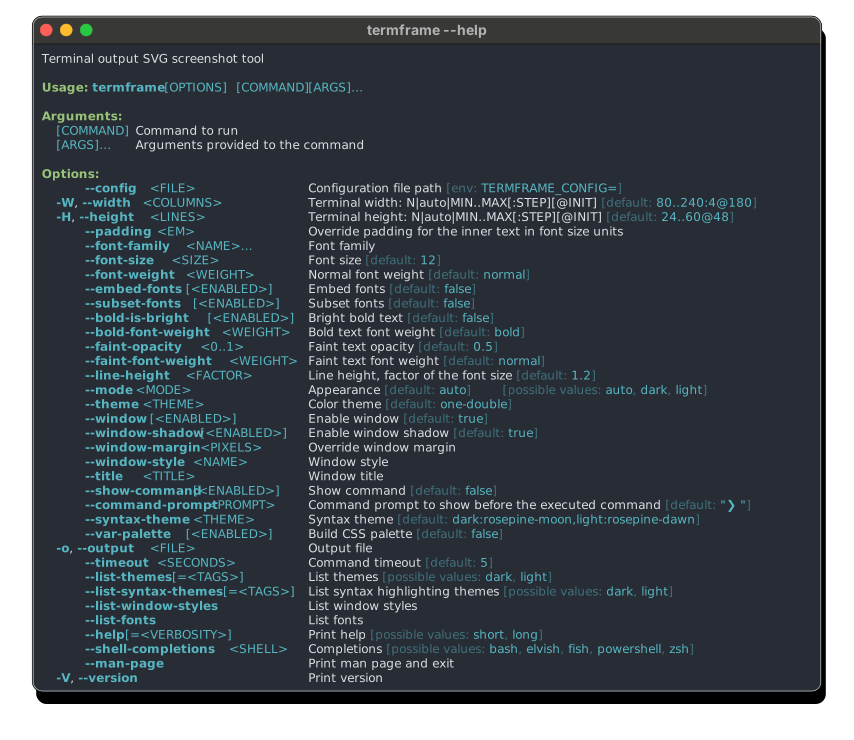
## Complete set of options and flags