taskii logo # taskii A fast, keyboard-driven task manager and dashboard for your terminal — built with [Bubble Tea](https://github.com/charmbracelet/bubbletea). Track today's tasks and appointments, see overdue items at a glance, run a Pomodoro timer, jot down notes, and review your progress with a GitHub-style contribution heatmap and weekly/monthly bar charts. Everything is saved locally as JSON — no account, no server, no telemetry. ![Go](https://img.shields.io/badge/Go-1.26-00ADD8?logo=go) ![License](https://img.shields.io/badge/license-MIT-blue)
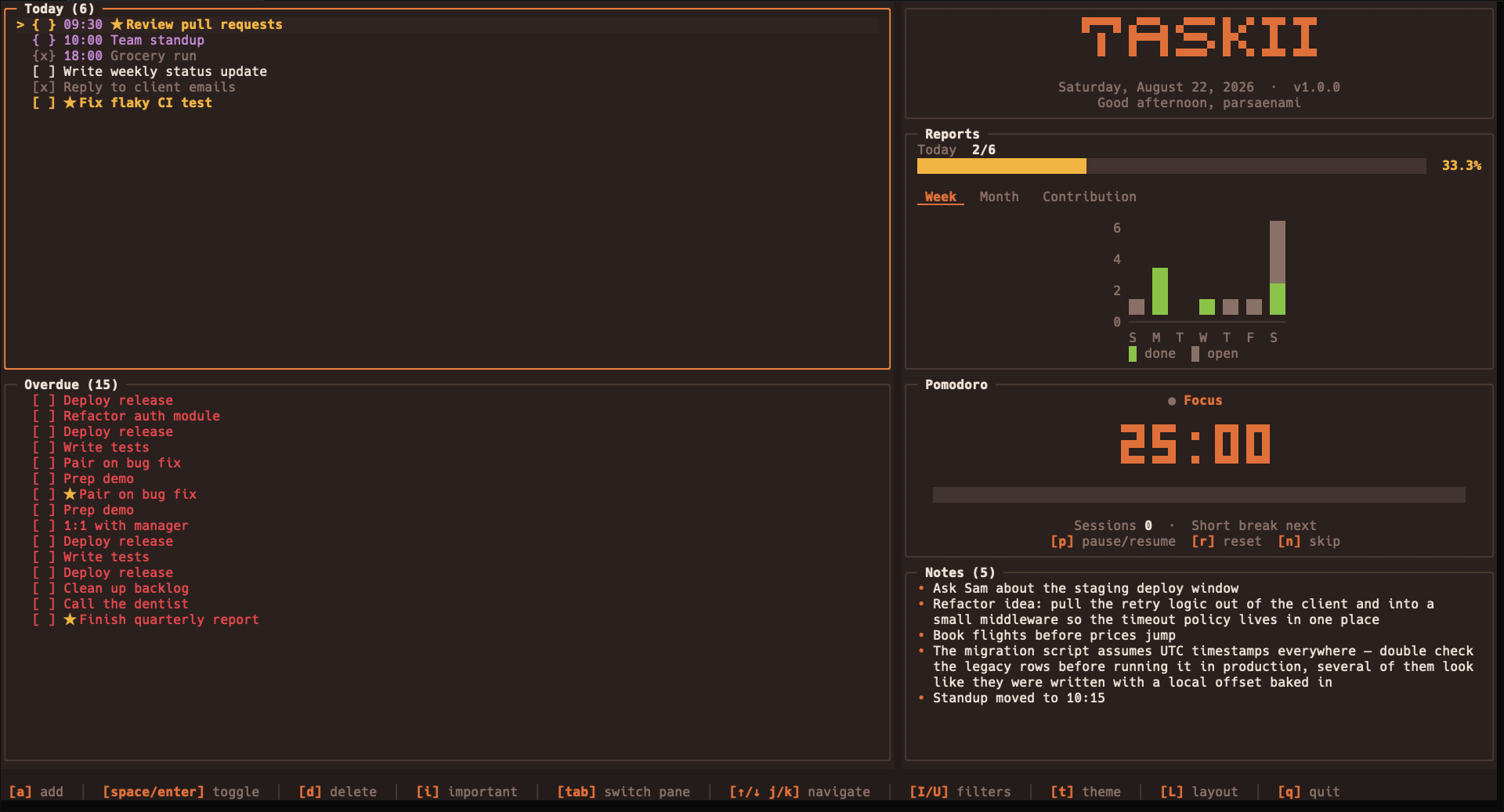
taskii normal mode

Normal mode — Today, Overdue, Reports, Pomodoro, and Notes panes
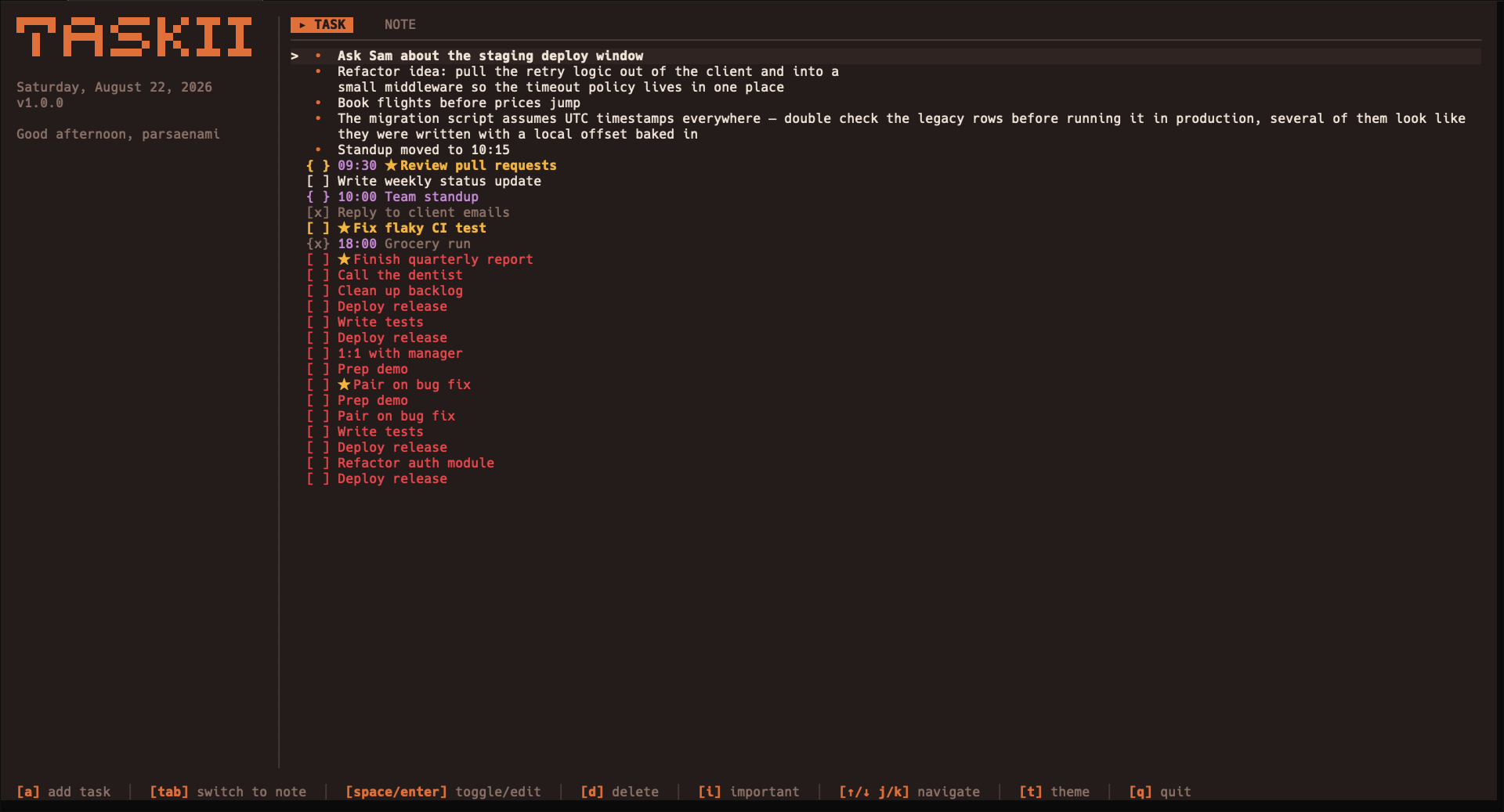
taskii simple mode

Simple mode — one combined list of tasks, appointments, and notes

## Install **Homebrew** (macOS/Linux): ```bash brew install parsaenami/tap/taskii ``` **Install with curl** (macOS/Linux): ```bash curl -fsSL https://raw.githubusercontent.com/parsaenami/taskii/main/install.sh | sh ``` **Download a binary** from the [releases page](https://github.com/parsaenami/taskii/releases) (macOS, Linux, Windows — amd64/arm64), then put it on your `PATH`. **Or build from source** (requires [Go](https://go.dev) 1.26+): ```bash go install github.com/parsaenami/taskii@latest ``` **Or clone and run:** ```bash git clone https://github.com/parsaenami/taskii.git cd taskii go run . ``` ## Run ```bash taskii ``` Data is stored in `data/tasks.json`, `data/notes.json`, and `data/settings.json` in the current directory, created automatically on first run. Flags: ```bash taskii --mock # launch with generated sample data instead of your real data taskii --simple # single-pane view: greeting + one combined list of tasks, overdue items, and notes ``` ## Keybindings | Key | Action | | --- | --- | | `↑/k`, `↓/j` | move selection | | `tab` / `shift+tab` | switch focused pane | | `a` | add task / note | | `space` / `enter` | toggle done (tasks) or open note | | `d` | delete (asks to confirm) | | `i` | toggle important | | `I` | filter: important only | | `U` | filter: undone only | | `e` | expand/collapse the notes board | | `C` | switch Today / Upcoming (current list / Upcoming in simple mode); clears all notes instead when the Notes pane is focused (asks to confirm) | | `p` | start/pause Pomodoro | | `r` | reset Pomodoro phase | | `n` | skip Pomodoro phase | | `t` | cycle next curated color theme | | `T` / `shift+t` | open interactive theme browser (340+ themes, fuzzy search & live preview) | | `L` | cycle layout | | `S` | open settings | | `q` / `ctrl+c` | quit | On the Reports pane, `←/→` (or `h/l`) switch between the Week, Month, and Contribution charts instead of moving a selection. ## Scheduled tasks Press `a` in the task pane and append a date, a time, or both: | Input | Result | | --- | --- | | `Read a chapter` | Task for today | | `Call Alex 14:30` | Appointment for today at 14:30 | | `Read a chapter 09-10` | Task for September 10 | | `Call Alex 09-10 14:30` | Appointment for September 10 at 14:30 | | `Submit report !5d` | Task with a deadline five days from today | | `Call Alex 09-10 14:30 !1d` | Scheduled appointment due tomorrow | Dates use `MM-DD` and times use `HH:MM` (24-hour clock). The date is the next occurrence of that month and day, including today. A date that has already passed rolls forward to next year; `02-29` selects the next valid leap day. Impossible dates, such as `02-30`, show an error and keep the input for correction. Date and time tokens must be at the end of the title, in that order when both are present. A trailing `MM-DD` token is interpreted as a schedule date. Append `!Nd` to set a deadline `N` calendar days from today: `!0d` is today, `!1d` is tomorrow, and `!5d` is five days away. The annotation is removed from the task title and stored as an absolute date, so it counts down naturally. Deadline tasks remain in Today until completed and show a right-aligned phrase such as `today`, `tomorrow`, `in 5 days`, `yesterday`, or `5 days ago`. `Shift+C` opens **Upcoming**, sorted by date and then appointment time, with untimed tasks after appointments on the same day. Each row shows its full date. Press it again to return to Today (or the current combined list in `--simple`). On the Notes pane, `Shift+C` retains its existing clear-board action. Adding a task switches to the view containing its date. Scheduled tasks automatically appear in Today on their date. Unfinished tasks from earlier dates appear in Overdue using the existing behavior. These lists refresh while the app is running; no restart or rescheduling is needed. The saved JSON format is unchanged: the scheduled day is stored in `Task.Date`. ## Features - **Today / Overdue** — add tasks or timed appointments, set deadlines with a trailing `!Nd`, toggle done, mark important, delete. - **Upcoming** — schedule tasks with a trailing `MM-DD`, optionally followed by `HH:MM`, and browse future dates with `Shift+C`. - **Notes** — a simple multi-line notes board, expandable to full screen. - **Pomodoro timer** — start, pause, reset, and skip work/break phases. - **Reports** — completion progress, a 7-day/monthly bar chart, and a contribution heatmap. - **Themes** — 7 curated core themes cycled with `t`, 340+ terminal themes accessible via interactive fuzzy-search browser (`T` / `shift+t`), and extensible custom JSON/JSONL theme support. - **Layouts** — multiple pane arrangements, cycled with `L`. ## Custom Themes You can add your own custom palettes by placing `.json` or `.jsonl` files in any of the following directories: - **Project local**: `data/themes/` - **Linux**: `$XDG_CONFIG_HOME/taskii/themes/` or `~/.config/taskii/themes/` - **macOS**: `~/Library/Application Support/taskii/themes/` or `~/.config/taskii/themes/` - **Windows**: `%AppData%\taskii\themes\` ### Example: Taskii Theme Format (`theme.json`) ```json { "name": "Custom Palette", "bg": "#121815", "pane_bg": "#18201c", "panel": "#202a25", "border": "#31423a", "border_focus": "#52b788", "text": "#d8f3dc", "muted": "#74c69d", "accent": "#52b788", "green": "#74c69d", "warning": "#ffe6a7", "danger": "#e63946", "purple": "#b5838d" } ``` ### Example: Terminal / Bubbletint Tint Format (`tint.json`) ```json { "display_name": "My Terminal Tint", "id": "my_tint", "dark": true, "bg": "#1a1b26", "fg": "#c0caf5", "red": "#f7768e", "green": "#9ece6a", "yellow": "#e0af68", "blue": "#7aa2f7" } ``` *(You can also bundle multiple themes into a single JSON array or a `.jsonl` file with one JSON theme object per line).* ## Development ```bash go test ./... # tests go build ./... # build go vet ./... # static checks gofmt -l . # formatting check ``` ## Support If taskii is useful to you, consider supporting its development: - Inside Iran: [donito.me/parsaenami](https://donito.me/parsaenami) - Outside Iran: [buymeacoffee.com/parsaenami](https://buymeacoffee.com/parsaenami) ## License [MIT](LICENSE)