# USB HID Autofire
[GitHub](https://github.com/pbek/usb_hid_autofire) |
[Latest release](https://github.com/pbek/usb_hid_autofire/releases/latest) |
[Changelog](CHANGELOG.md) |
[License](LICENSE.md)
[](https://github.com/pbek/usb_hid_autofire/actions/workflows/build-test.yml)
This is a simple Flipper Zero application to send left-clicks as a USB HID device.
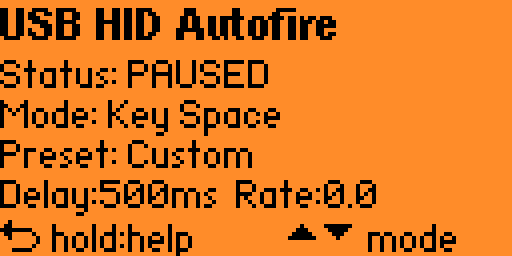
|
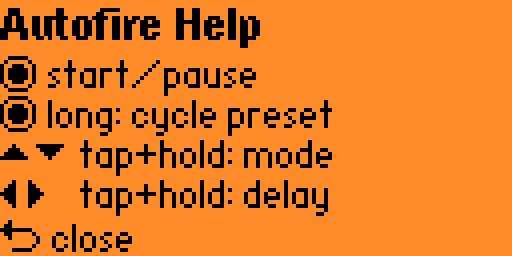
|
| Main screen |
Help screen |
## Use-case
- Great for auto-clicking in games like [Idle Wizard](https://store.steampowered.com/app/992070/Idle_Wizard/) 😁
## Installation
Download the [latest release](https://github.com/pbek/usb_hid_autofire/releases/latest)
of the _fap_ file and put it into the `apps` folder on your SD card of your Flipper Zero.
## Building
```shell
cd applications_user
git clone https://github.com/pbek/usb_hid_autofire.git
cd ..
# Build the application
./fbt fap_usb_hid_autofire
# Build and launch the application
./fbt launch_app APPSRC=usb_hid_autofire
```
## Launch On Flipper From WSL
When VS Code runs in `Remote - WSL`, you can deploy and launch the app directly on a
USB-connected Flipper from WSL.
1. Attach the Flipper USB device to WSL from Windows PowerShell:
```powershell
usbipd list
usbipd bind --busid
usbipd attach --wsl --busid
```
2. In WSL, verify the device is available:
```shell
ls /dev/ttyACM*
```
3. Run launch from the firmware root:
```shell
./fbt launch APPSRC=applications_user/usb_hid_autofire
```
If your firmware/toolchain still uses the older launch target, use:
```shell
./fbt launch_app APPSRC=usb_hid_autofire
```
### Troubleshooting
- If you see `Permission denied: '/dev/ttyACM0'`, add your user to `dialout` and restart WSL:
```shell
sudo usermod -aG dialout "$USER"
```
Then run in Windows PowerShell:
```powershell
wsl --shutdown
```
- Close `qFlipper` while launching from WSL, otherwise the serial port may be busy.