
A native, open-source RAW photo editor for Mac, iPad, and iPhone that anyone who knows Lightroom will find familiar.





Watch the film: Introducing Redlamp (1:42, on YouTube)
> **Status: alpha, iteration 2 (macOS).** The core RAW pipeline and the Develop workspace work today: Basic (with Texture, Clarity and Dehaze), Tone Curve, Color Mixer, Color Grading, Detail (noise reduction and sharpening), Effects, lens corrections, crop and Upright, **masking** (gradients, brush, color and luminance range, Subject, Sky, Background, People and its parts, Objects, Landscape and Depth Range) with local adjustments, **healing and removal** (Heal, Clone, Remove, content-aware or generative, and Remove Dust), **focus stacking**, and **Base Looks** and **Recipes**, Redlamp's profiles and presets, with film looks measured from cameras' own renderings and **[film simulations](#film-simulations)** of 36 film looks from 30 stocks, built from the manufacturers' datasheets. AI Denoise and the rest of Develop parity are next, then 1.0 and the iPad and iPhone apps. See [Where we are](#where-we-are), the [Roadmap](#roadmap), and [how Redlamp compares with Lightroom](docs/lightroom-comparison.md). > > This README is the project's primary status page and is kept up to date as work lands. *Last updated: 4 October 2026.*

 Portra 160 Colour negative |
 Portra 400 Colour negative |
 Portra 800 Colour negative |
 Ektar 100 Colour negative |
 Gold 200 Colour negative |
 UltraMax 400 Colour negative |
 Superia 400 Colour negative |
 Pro 400H Colour negative |
 CineStill 800T Tungsten negative |
 CineStill 50D Daylight negative |
 Vision3 500T Cinema print |
 Vision3 250D Cinema print |
 Vision3 50D Cinema print |
 Eterna Vivid Cinema print |
 Provia 100F Slide |
 Velvia 50 Slide |
 Velvia 100 Slide |
 Ektachrome Slide |
 Kodachrome 64 Slide |
 Tri-X 400 Black and white |
 T-Max 100 Black and white |
 T-Max 400 Black and white |
 HP5 Plus Black and white |
 Delta 100 Black and white |
 Delta 3200 Black and white |
 FP4 Plus Black and white |
 Pan F Plus Black and white |
 Darkroom Print Grade 2 print |
 Soft Print Grade 1 print |
 Hard Print Grade 4 print |
 Portra 400 · +2 Overexposed |
 Portra 800 · 1600 Pushed |
 Tri-X · 1600 Pushed |
 2383 Bleach Bypass Cinema print |
 Velvia 50 · Cross Cross-processed |
 Provia 100F · Cross Cross-processed |
| [Portra 160](#portra-160) | Kodak · Colour negative · ISO 160 | Scanned, Frontier-like | 15 / 7 |
| | [Portra 400](#portra-400) | Kodak · Colour negative · ISO 400 | Scanned, Frontier-like | 20 / 8 |
| | [Portra 800](#portra-800) | Kodak · Colour negative · ISO 800 | Scanned, Frontier-like | 27 / 9 |
| | [Portra 800 · Pushed to 1600](#portra-800-1600) | Kodak · Colour negative · ISO 800 pushed to 1600 | Scanned, Frontier-like | 32 / 9 |
| | [Ektar 100](#ektar-100) | Kodak · Colour negative · ISO 100 | Scanned, Frontier-like | 8 / 6 |
| | [Gold 200](#gold-200) | Kodak · Colour negative · ISO 200 | Scanned, Frontier-like | 23 / 9 |
| | [UltraMax 400](#ultramax-400) | Kodak · Colour negative · ISO 400 | Scanned, Frontier-like | 25 / 9 |
| | [Superia 400](#superia-400) | Fujifilm · Colour negative · ISO 400 | Scanned, Frontier-like | 24 / 8 |
| | [Pro 400H](#pro-400h) | Fujifilm · Colour negative · ISO 400 (discontinued) | Scanned, Frontier-like | 24 / 8 |
| | [CineStill 800T](#cinestill-800t) | CineStill · Tungsten colour negative · ISO 800 | Scanned, Noritsu-like | 26 / 70, bloom 8 |
| | [CineStill 50D](#cinestill-50d) | CineStill · Daylight colour negative · ISO 50 | Scanned, Noritsu-like | 12 / 60, bloom 6 |
| | [Vision3 500T · 2383](#vision3-500t-2383) | Kodak · Cinema negative on print film · ISO 500 | Printed on 2383 and projected | 24 / 14, bloom 6 |
| | [Vision3 250D · 2383](#vision3-250d-2383) | Kodak · Cinema negative on print film · ISO 250 | Printed on 2383 and projected | 20 / 12, bloom 6 |
| | [Vision3 50D · 2383](#vision3-50d-2383) | Kodak · Cinema negative on print film · ISO 50 | Printed on 2383 and projected | 12 / 10, bloom 5 |
| | [Eterna Vivid 250D · 2383](#eterna-vivid-250d-2383) | Fujifilm · Cinema negative on print film · ISO 250 (discontinued) | Printed on 2383 and projected | 21 / 12, bloom 6 |
| | [Provia 100F](#provia-100f) | Fujifilm · Slide film · ISO 100 | Slide, viewed on a light box | 8 / 4 |
| | [Velvia 50](#velvia-50) | Fujifilm · Slide film · ISO 50 | Slide, viewed on a light box | 9 / 4 |
| | [Velvia 100](#velvia-100) | Fujifilm · Slide film · ISO 100 | Slide, viewed on a light box | 8 / 4 |
| | [Ektachrome E100](#ektachrome-e100) | Kodak · Slide film · ISO 100 | Slide, viewed on a light box | 8 / 4 |
| | [Kodachrome 64](#kodachrome-64) | Kodak · Slide film · ISO 64 (discontinued) | Slide, viewed on a light box | 10 / 4 |
| | [Tri-X 400](#tri-x-400) | Kodak · Black and white negative · ISO 400 | Scanned | 37 / 5 |
| | [T-Max 100](#t-max-100) | Kodak · Black and white negative · ISO 100 | Scanned | 18 / 4 |
| | [T-Max 400](#t-max-400) | Kodak · Black and white negative · ISO 400 | Scanned | 22 / 5 |
| | [HP5 Plus](#hp5-plus) | Ilford · Black and white negative · ISO 400 | Scanned | 40 / 5 |
| | [Delta 100](#delta-100) | Ilford · Black and white negative · ISO 100 | Scanned | 16 / 4 |
| | [Delta 3200](#delta-3200) | Ilford · Black and white negative · ISO 3200 | Scanned | 52 / 6 |
| | [FP4 Plus](#fp4-plus) | Ilford · Black and white negative · ISO 125 | Scanned | 24 / 5 |
| | [Pan F Plus](#pan-f-plus) | Ilford · Black and white negative · ISO 50 | Scanned | 12 / 4 |
| | [Tri-X · Darkroom Print](#tri-x-multigrade) | Kodak · Ilford · Black and white print · grade 2 | Printed on paper | 34 / 5 |
| | [Portra 400 · +2](#portra-400-overexposed) | Kodak · Colour negative · ISO 400 rated 100 | Scanned, Frontier-like | 16 / 8 |
| | [Tri-X 400 · Pushed to 1600](#tri-x-1600) | Kodak · Black and white negative · ISO 400 pushed to 1600 | Scanned | 46 / 6 |
| | [Tri-X · Soft Print](#tri-x-multigrade-soft) | Kodak · Ilford · Black and white print · grade 1 | Printed on paper | 34 / 5 |
| | [Tri-X · Hard Print](#tri-x-multigrade-hard) | Kodak · Ilford · Black and white print · grade 4 | Printed on paper | 34 / 5 |
| | [Vision3 500T · 2383 Bleach Bypass](#vision3-2383-bleach-bypass) | Kodak · Cinema negative on print film, bleach bypass · ISO 500 | Printed on 2383 and projected | 26 / 12, bloom 6 |
| | [Velvia 50 · Cross-Processed](#velvia-50-cross) | Fujifilm · Slide film in C-41 · ISO 50 | Developed in C-41, scanned | 12 / 5 |
| | [Provia 100F · Cross-Processed](#provia-100f-cross) | Fujifilm · Slide film in C-41 · ISO 100 | Developed in C-41, scanned | 11 / 5 |
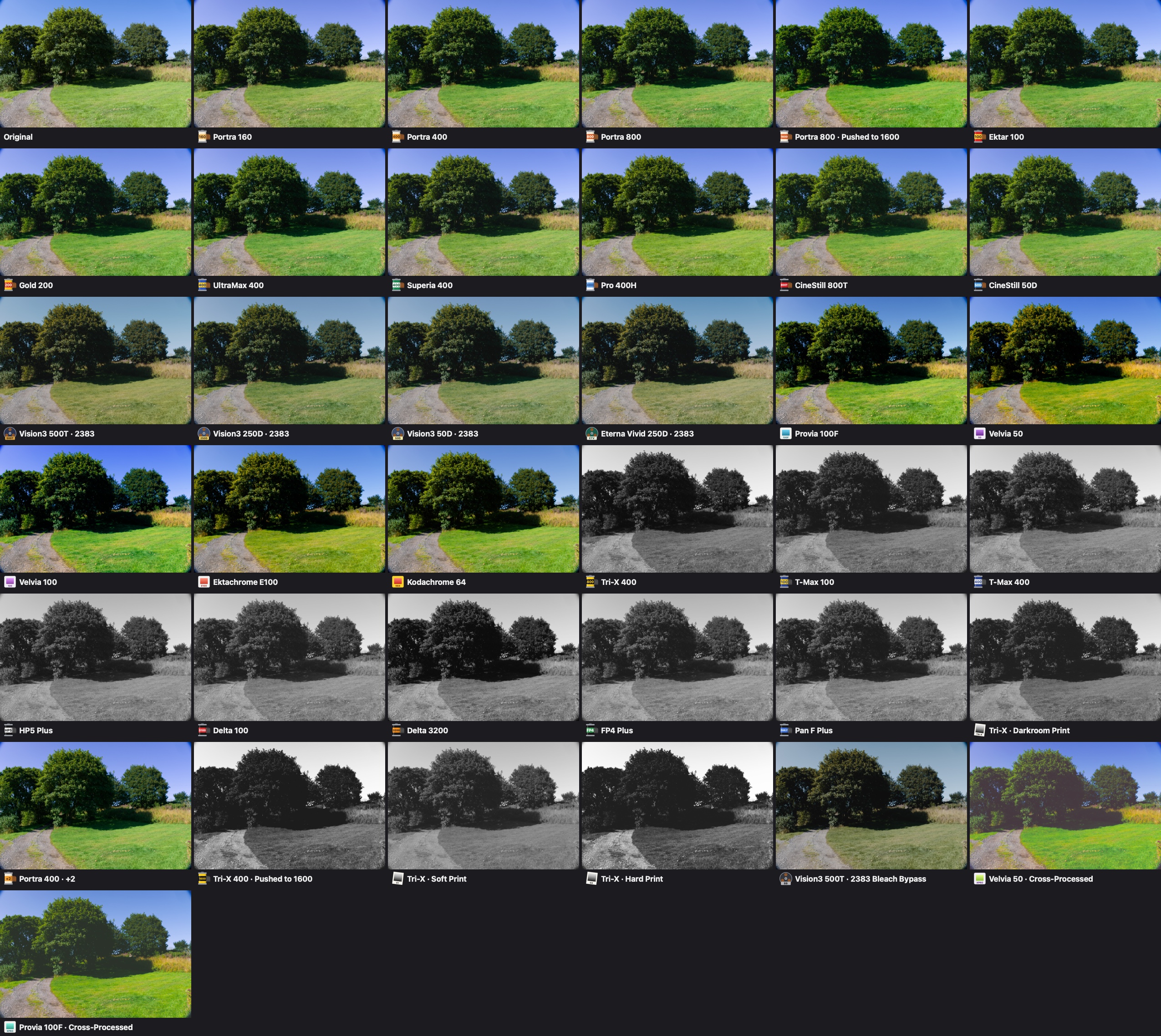
Every look on the same photo:
### Examples
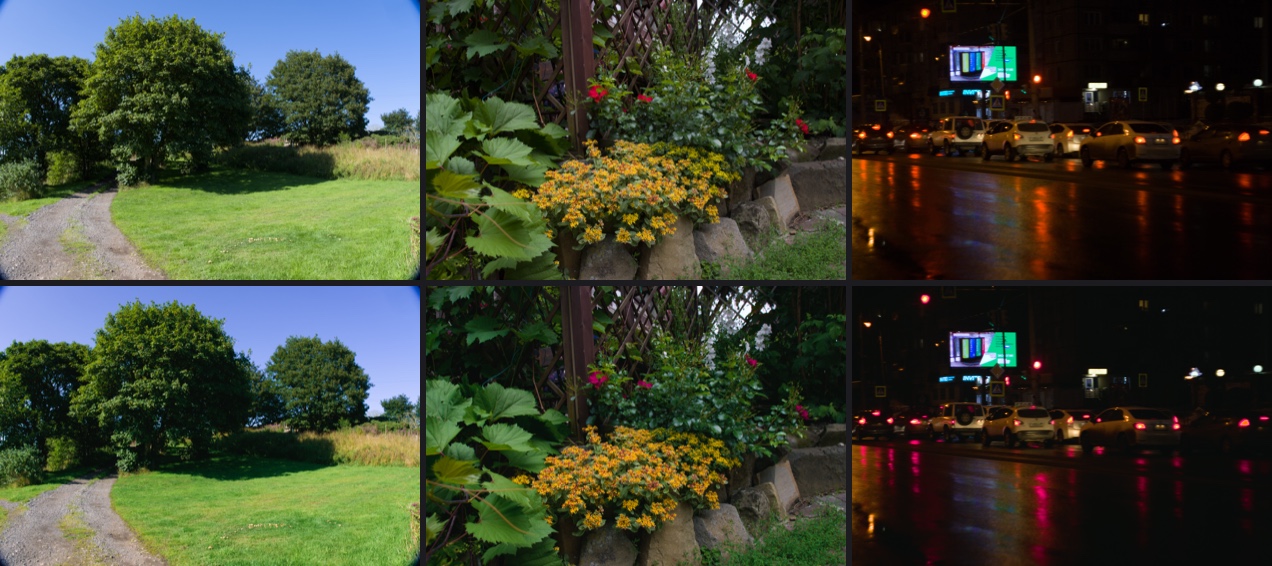
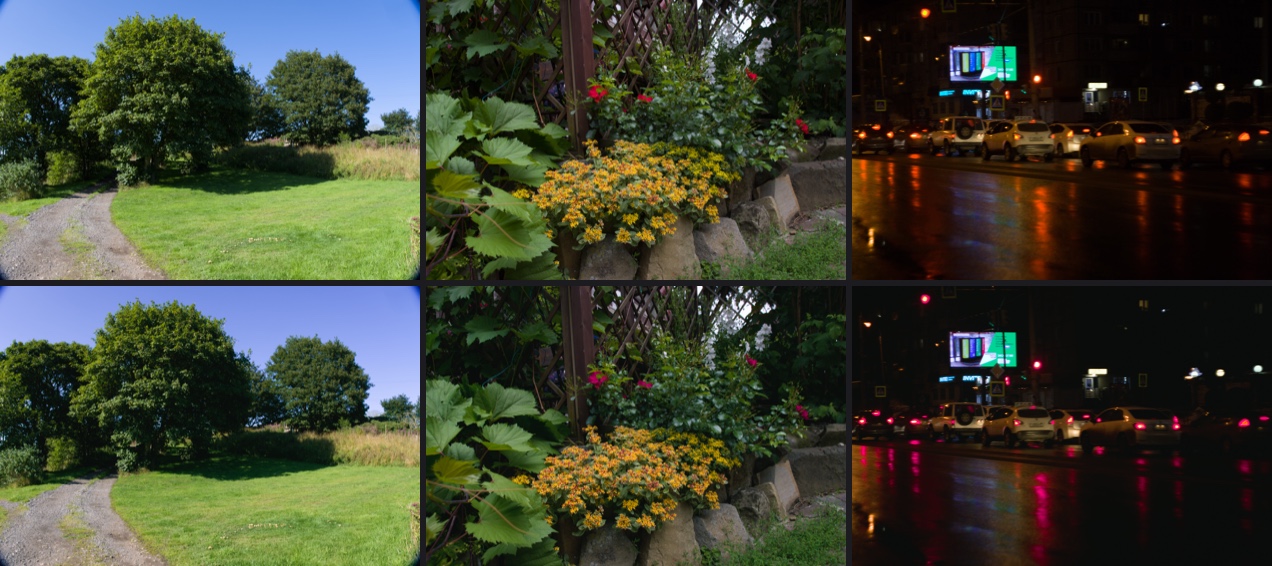
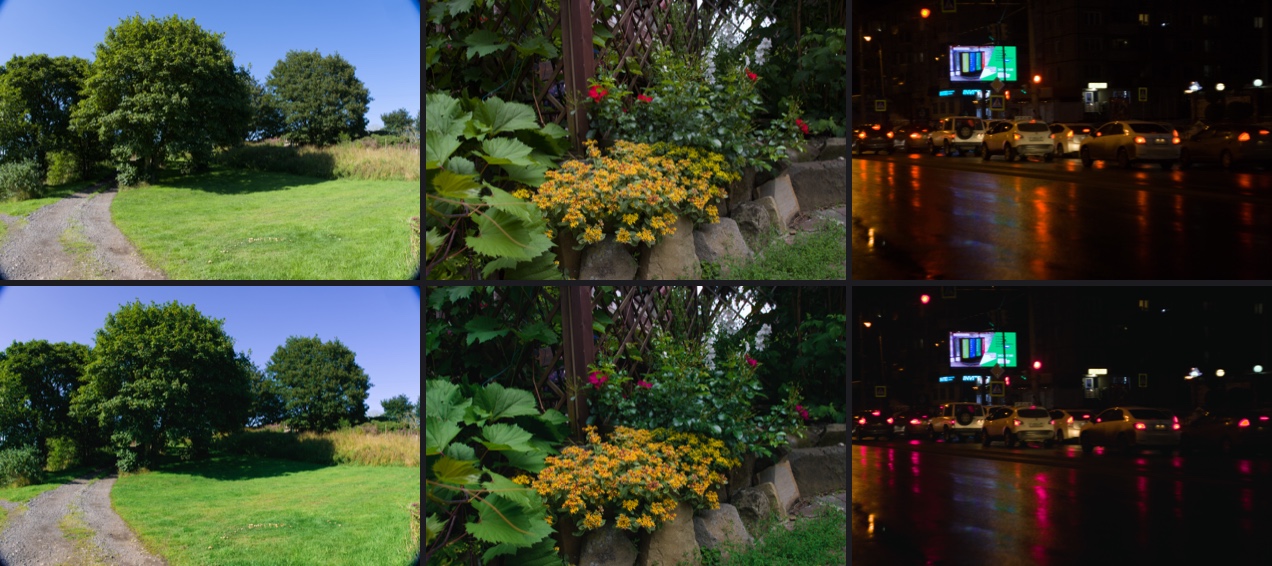
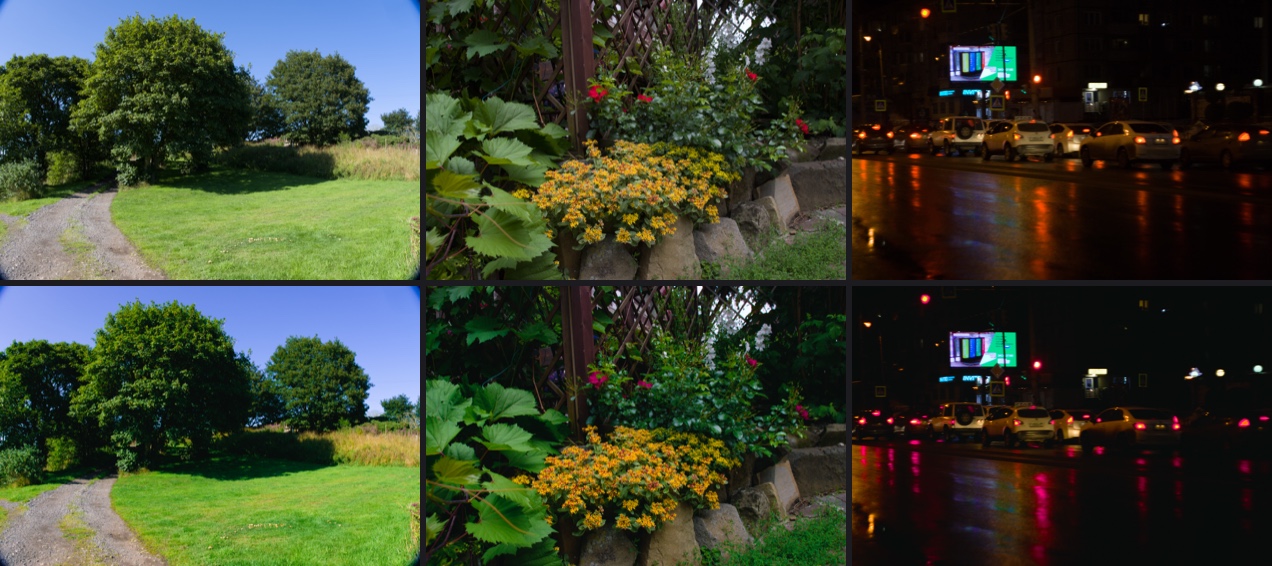
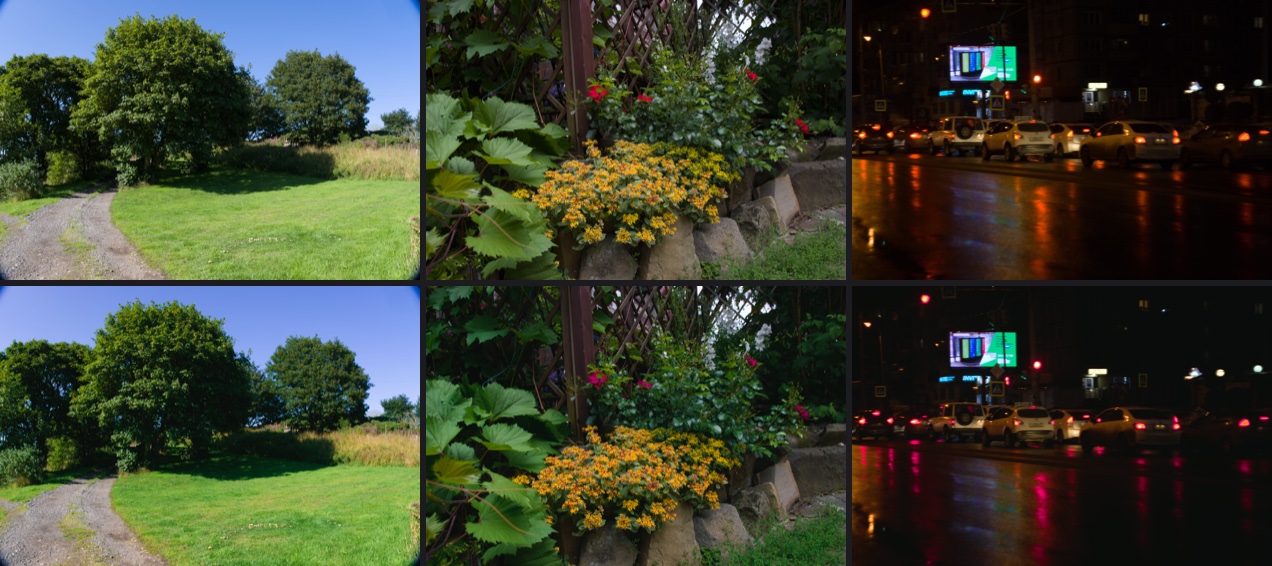
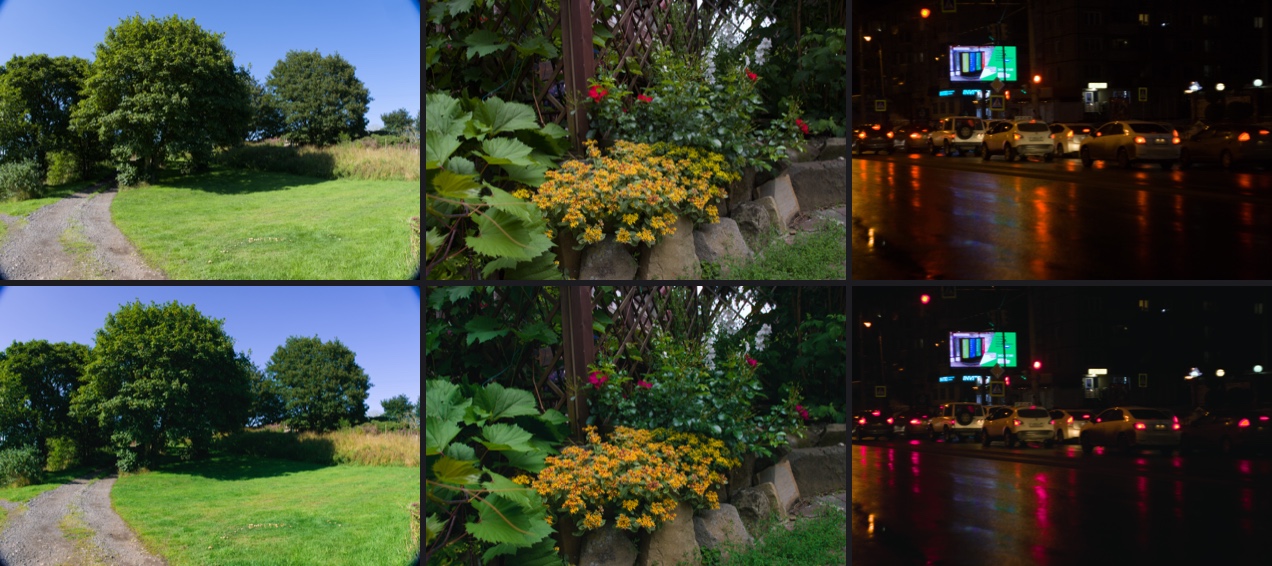
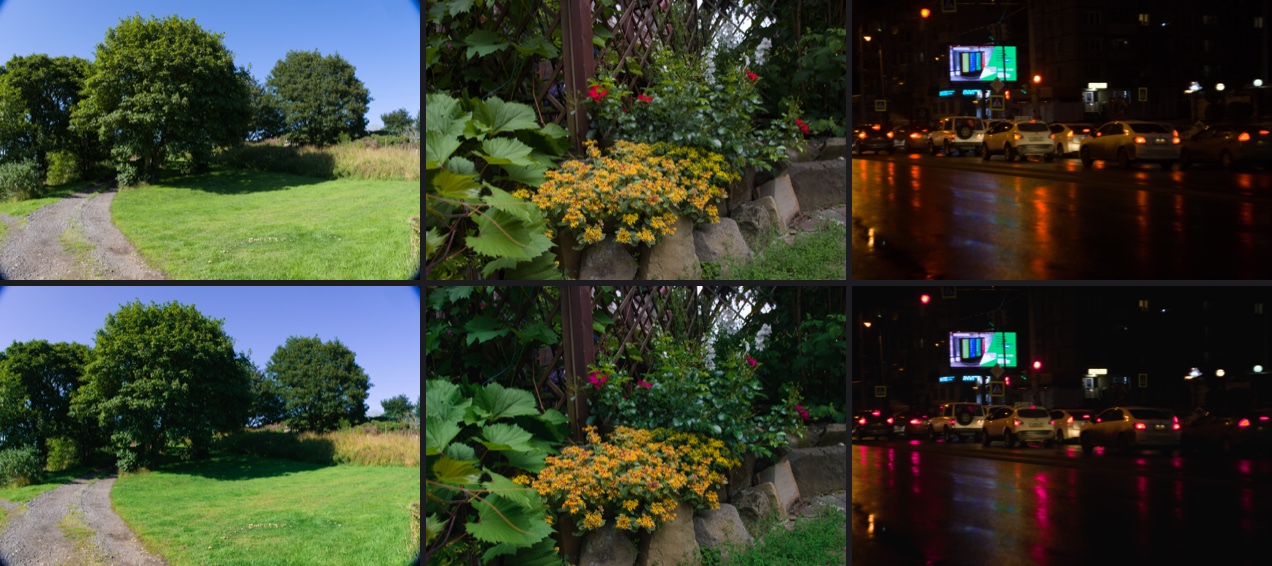
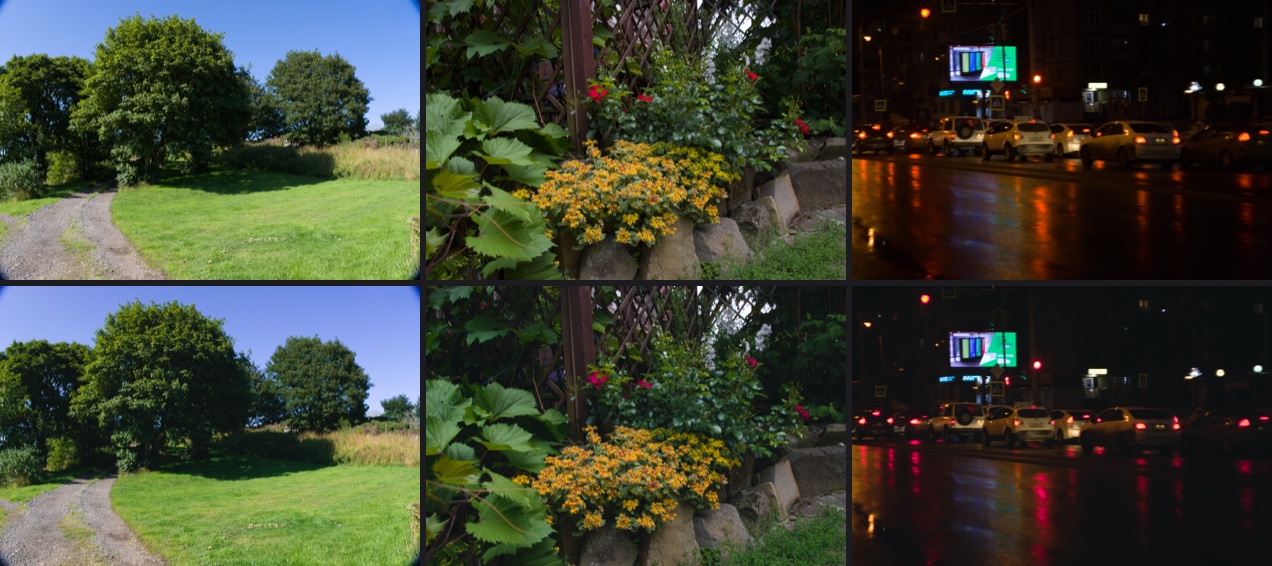
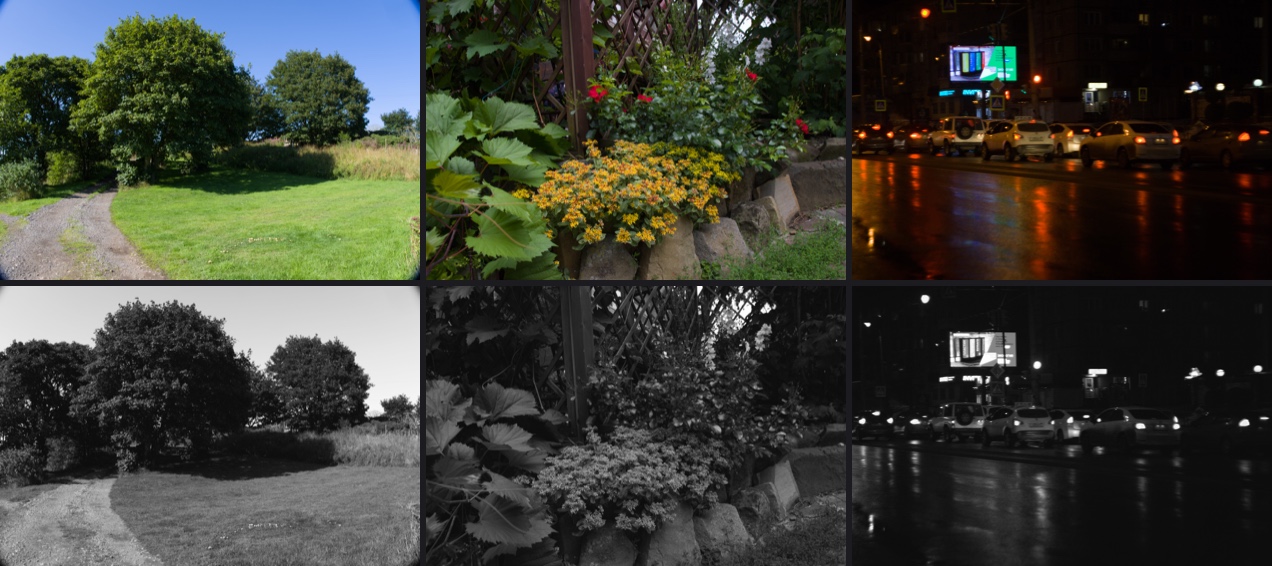
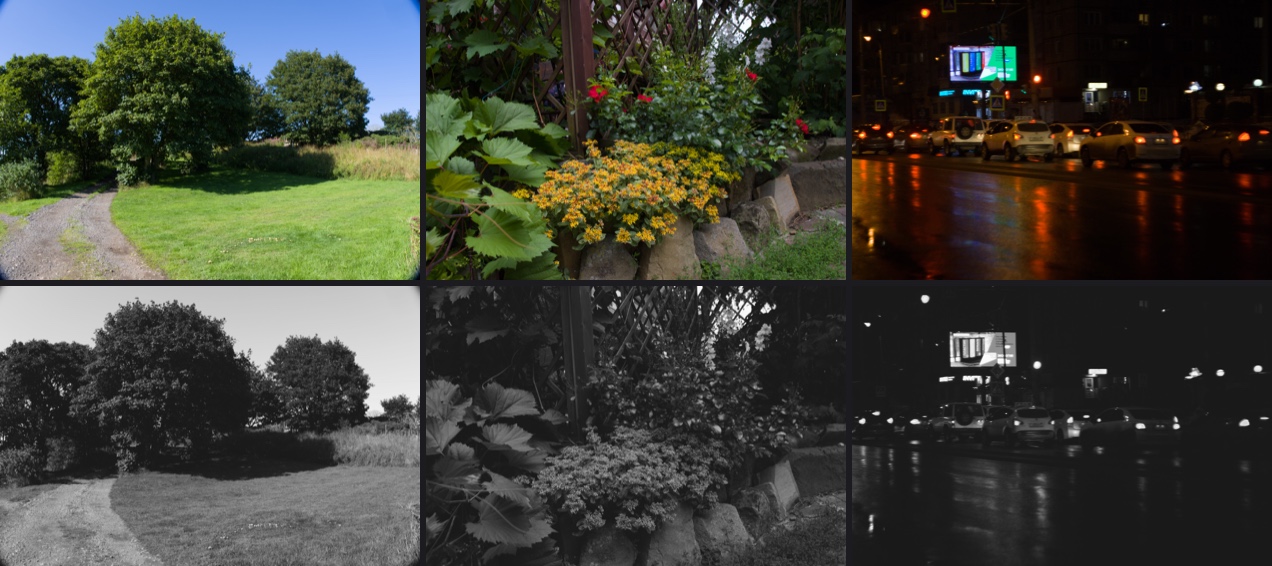
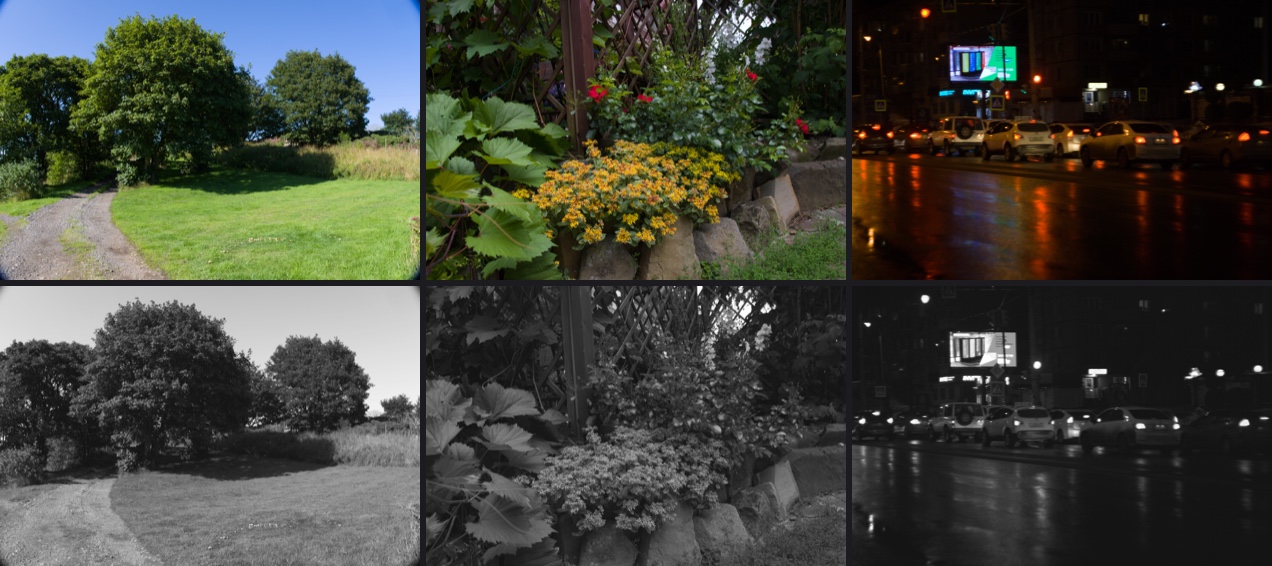
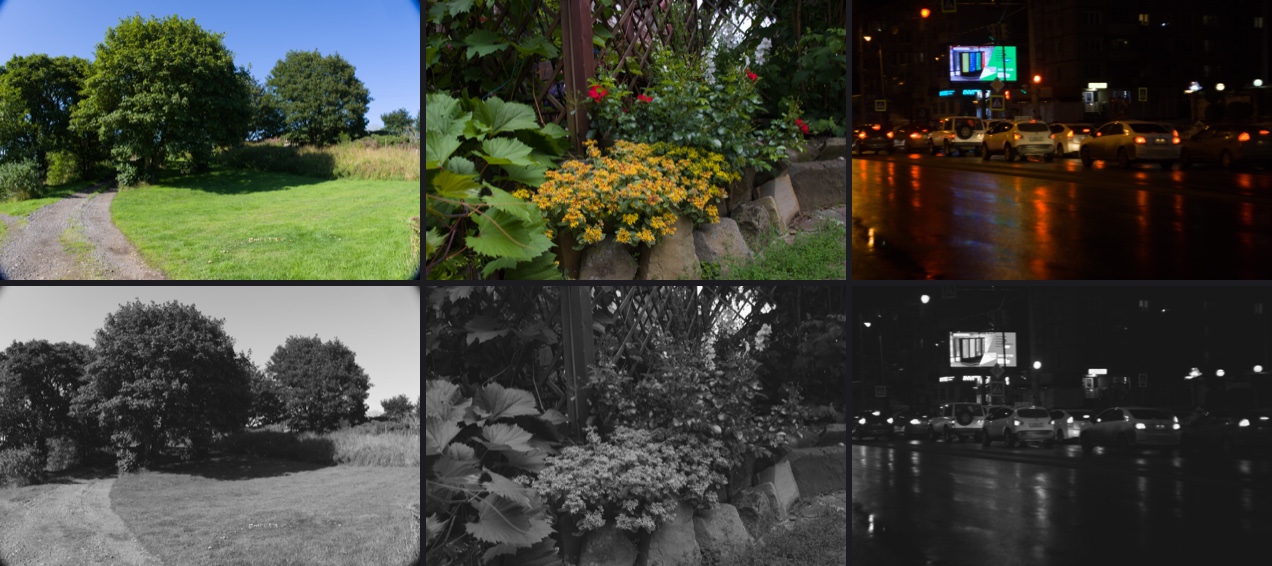
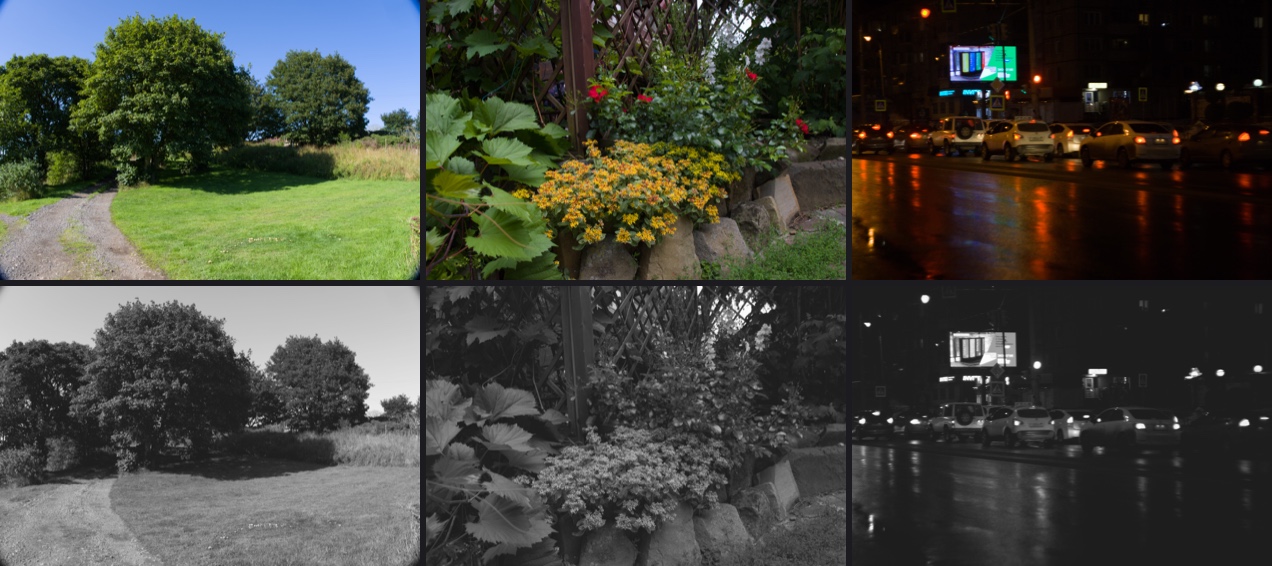
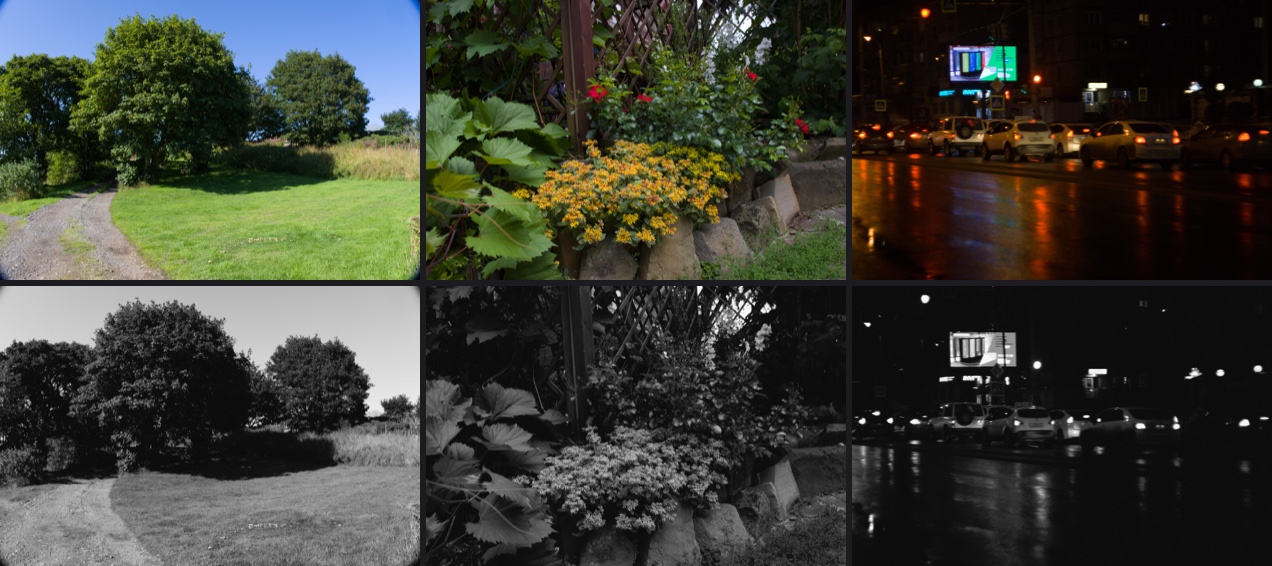
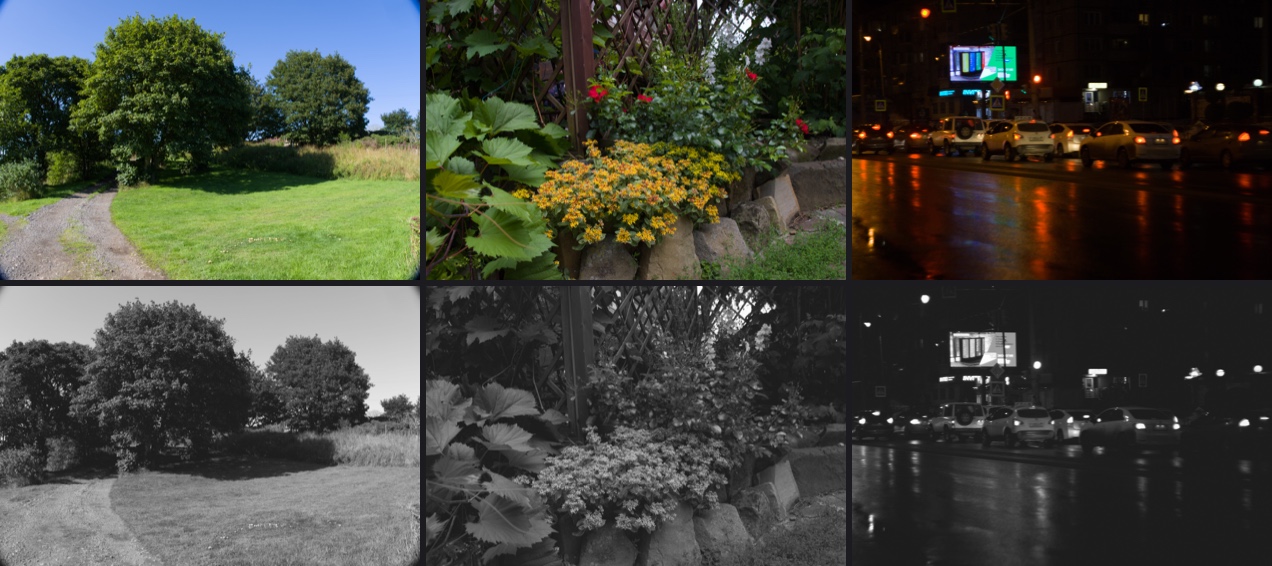
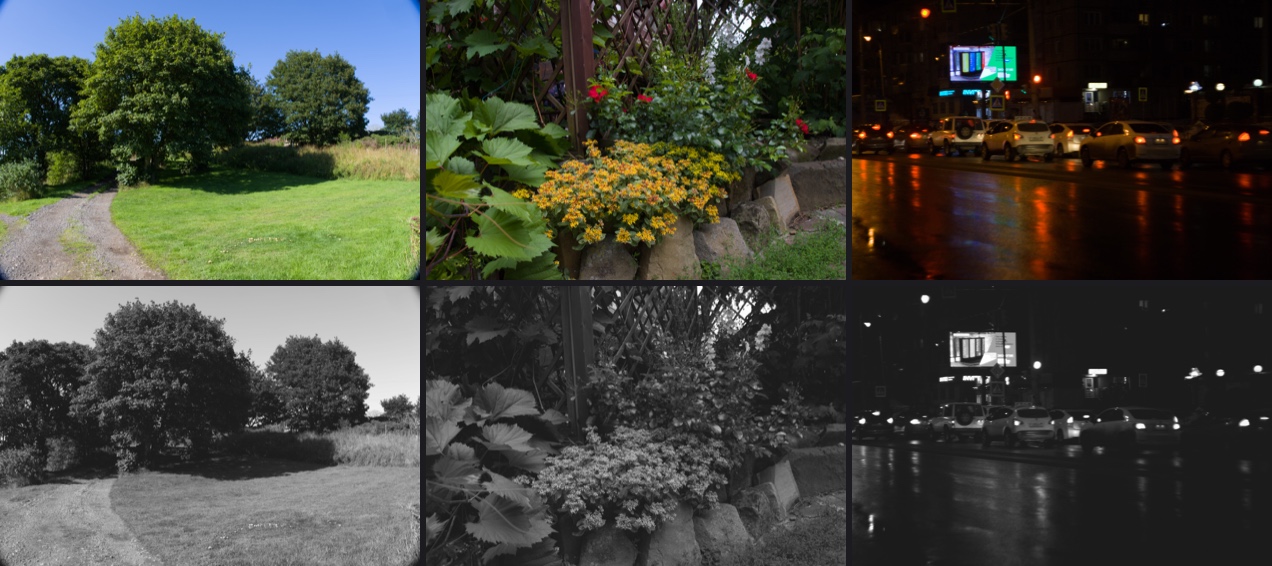
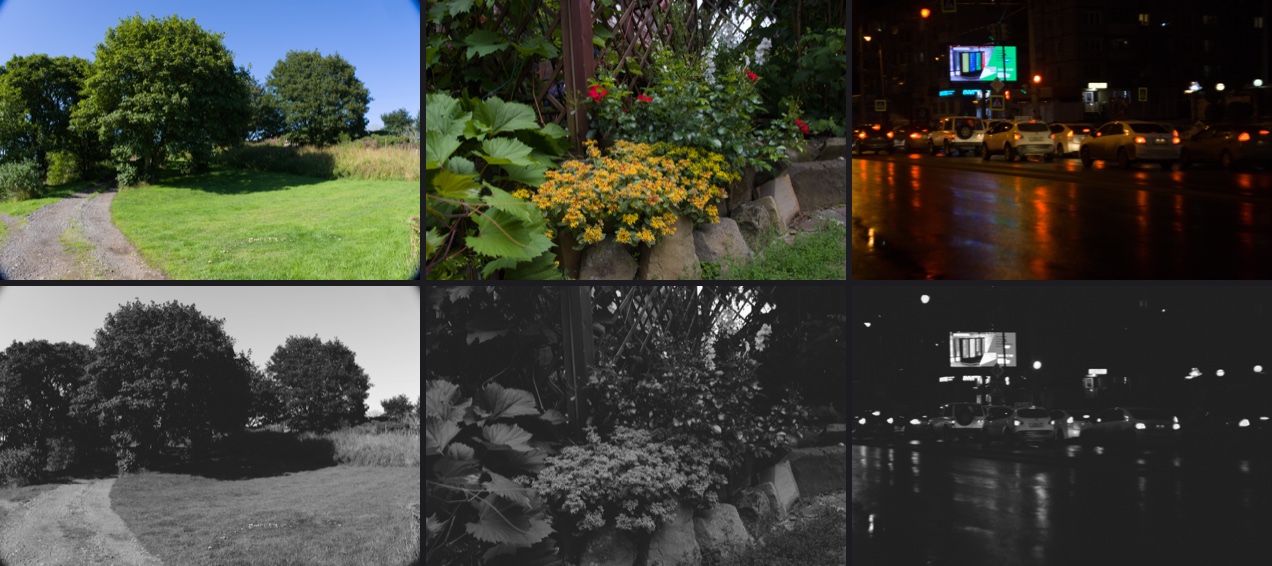
Each example shows three CC0 photos from the [look-development set](docs/recipes/look-development.md#the-look-development-set): a landscape, flowers and a night street. The top row is Redlamp's default rendering, the bottom row the film look with its grain, halation and bloom.
#### Portra 400
Warm and gentle. Kind to skin, with soft greens and a little extra warmth in the highlights, as a Frontier lab scan renders it.
#### Portra 160
Portra's slower sister: finer grain and an even gentler rendering, for portraits in good light.
#### Portra 800
Fast Portra: warmer and richer, with more grain and a little more contrast.
#### Portra 800 · Pushed to 1600
Portra 800 rated at 1600 and pushed a stop, from Kodak's own push curves: denser shadows, more contrast and grain.
#### Ektar 100
Kodak's finest-grained colour negative: richer reds and deeper colour than Portra.
#### Gold 200
Warm consumer film. Golden yellows, slightly greener foliage and more grain.
#### UltraMax 400
Kodak's punchy everyday film: warm, saturated and a little grainy.
#### Superia 400
Cooler than the Kodak stocks, with Fujifilm's greens.
#### Pro 400H
Fujifilm's discontinued wedding film, with its fourth colour layer: soft contrast, pastel skin and minty greens.
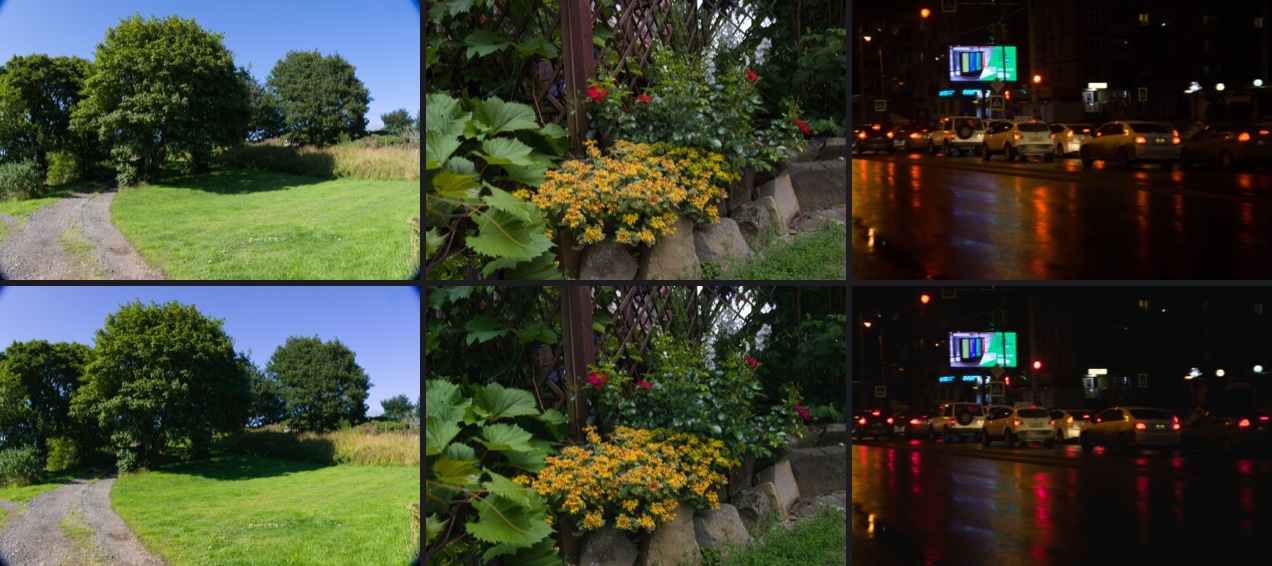
#### CineStill 800T
Vision3 500T without its anti-halation backing. Bright lights glow red-orange, the look of night streets and neon.
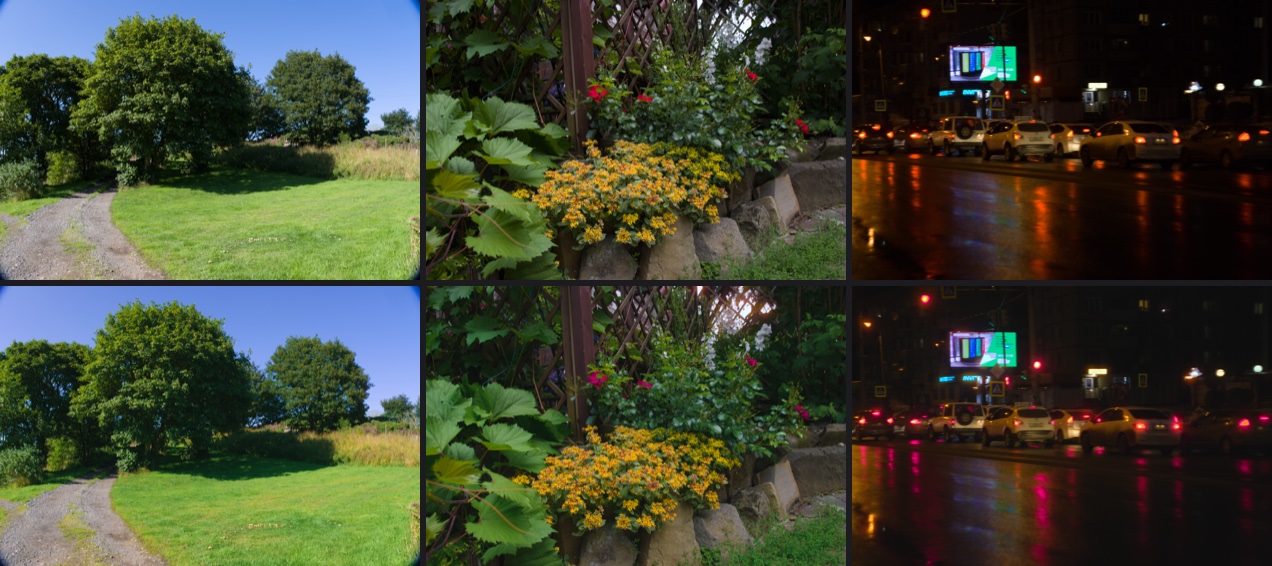
#### CineStill 50D
Vision3 50D without its anti-halation backing: very fine grain, daylight colour and glowing highlights.
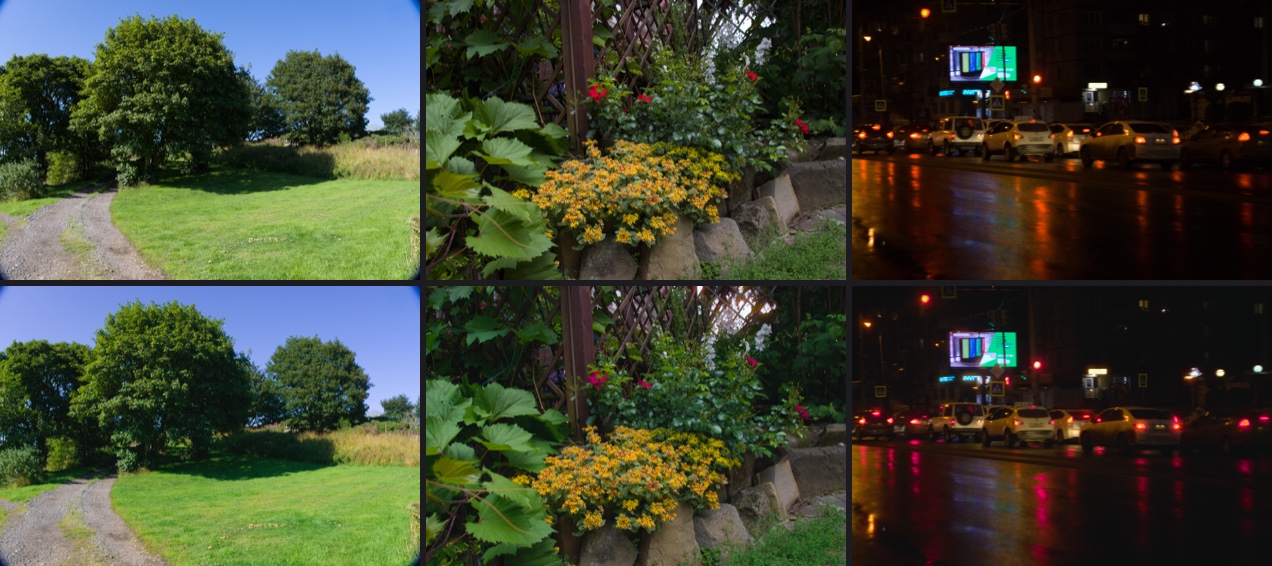
#### Vision3 500T · 2383
The motion-picture look: a cinema negative printed on release print film. Softer and denser, with cool shadows and warm highlights.
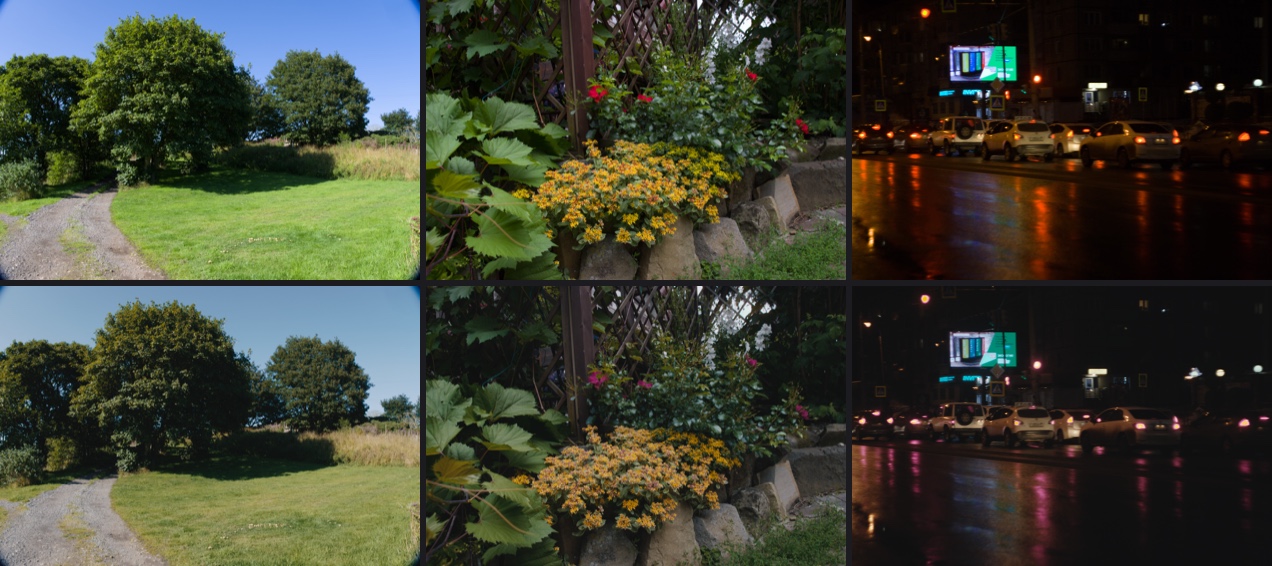
#### Vision3 250D · 2383
Kodak's daylight cinema negative printed on 2383: the bright exterior look of feature films.
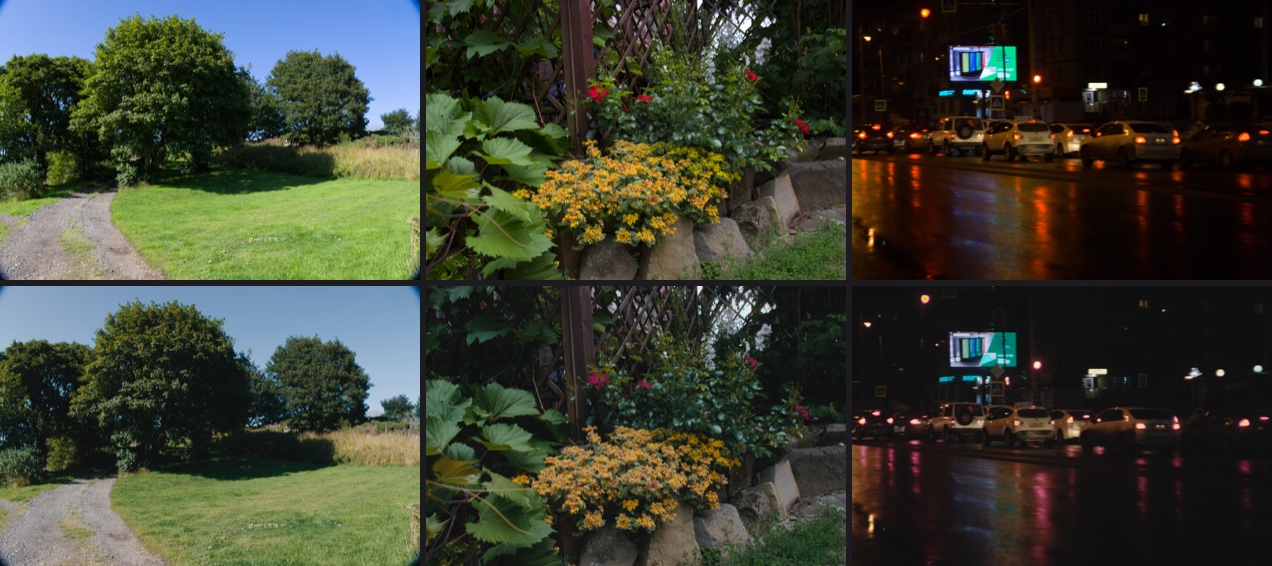
#### Vision3 50D · 2383
The finest-grained cinema negative on 2383: clean, saturated daylight.
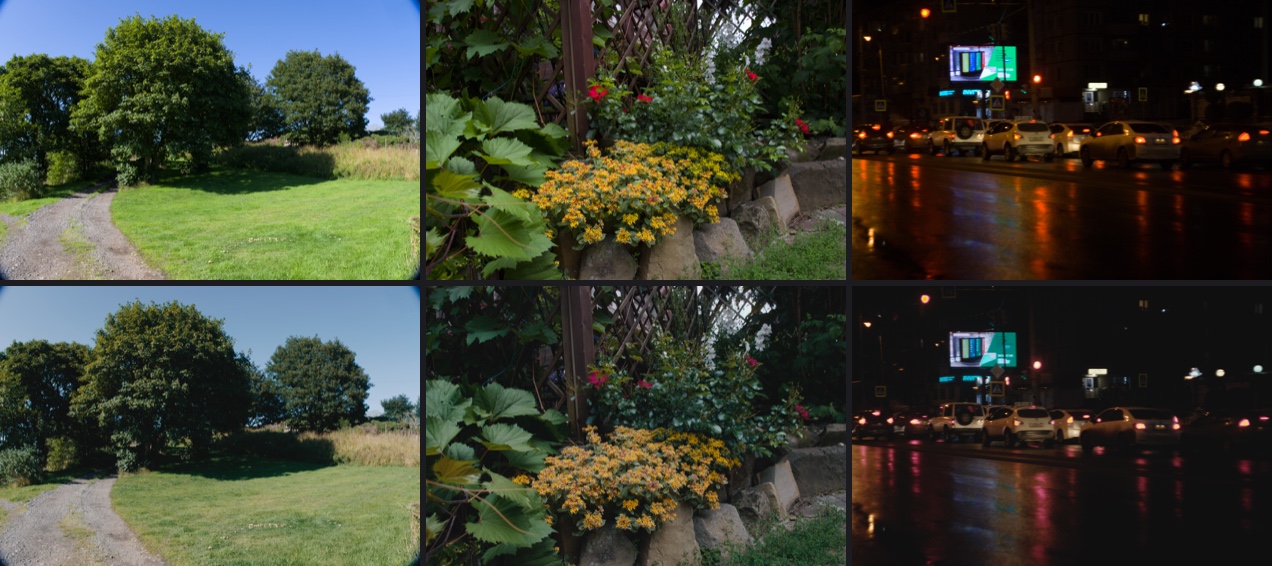
#### Eterna Vivid 250D · 2383
Fujifilm's discontinued vivid daylight cinema negative, printed on 2383: more saturated than Vision3.
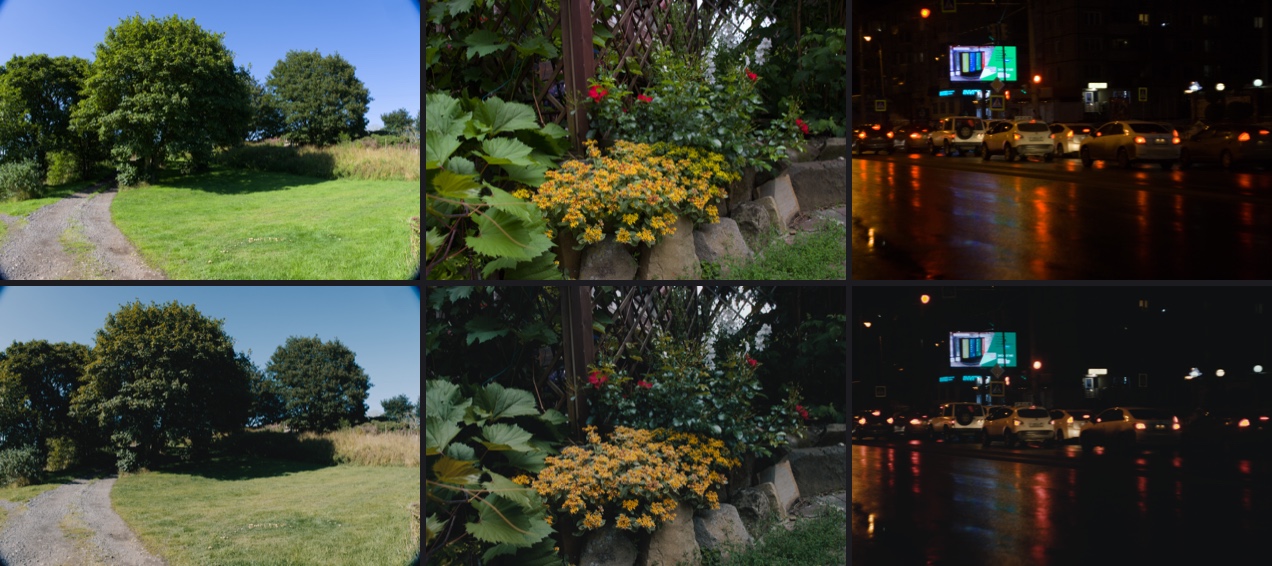
#### Provia 100F
Clean, natural slide film. Contrasty, with deep skies and dense shadows, exposed for the highlights.
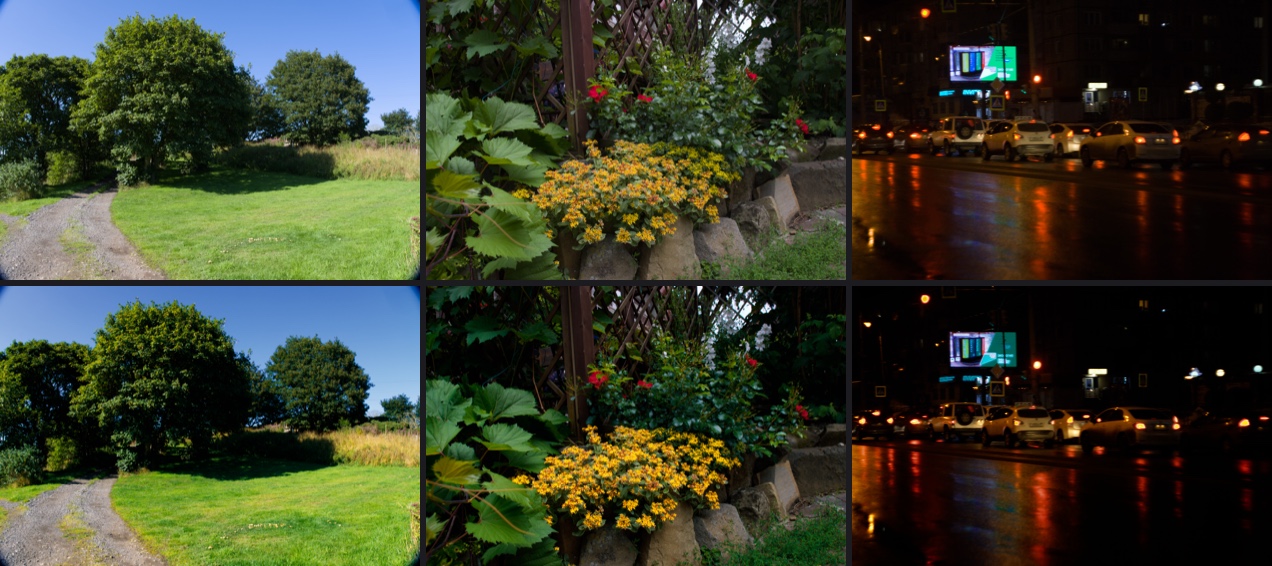
#### Velvia 50
The landscape slide: saturated greens, yellows and blues, and more contrast still.
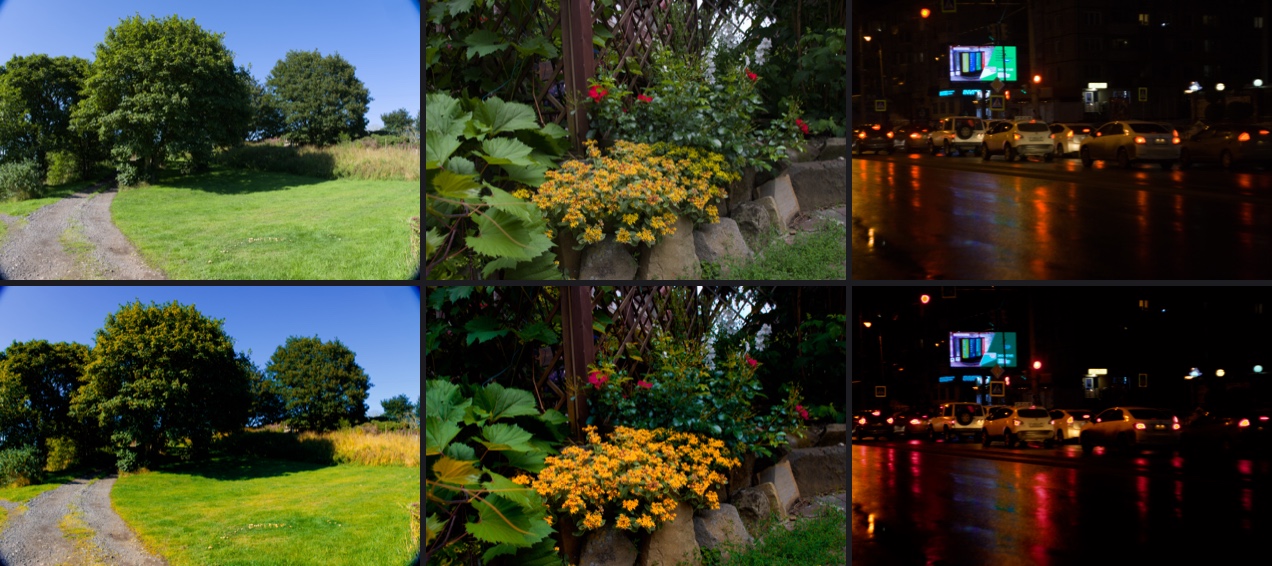
#### Velvia 100
Velvia's faster sibling: just as saturated, a touch gentler in the shadows.
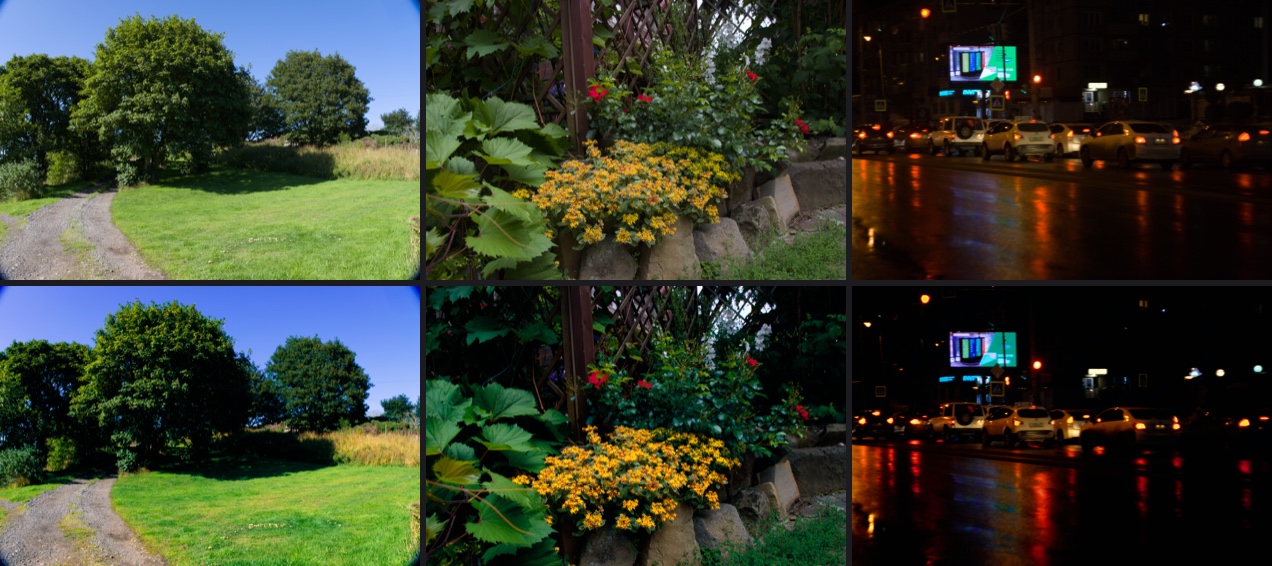
#### Ektachrome E100
Kodak's modern slide film: clean, neutral to cool, with fine grain.
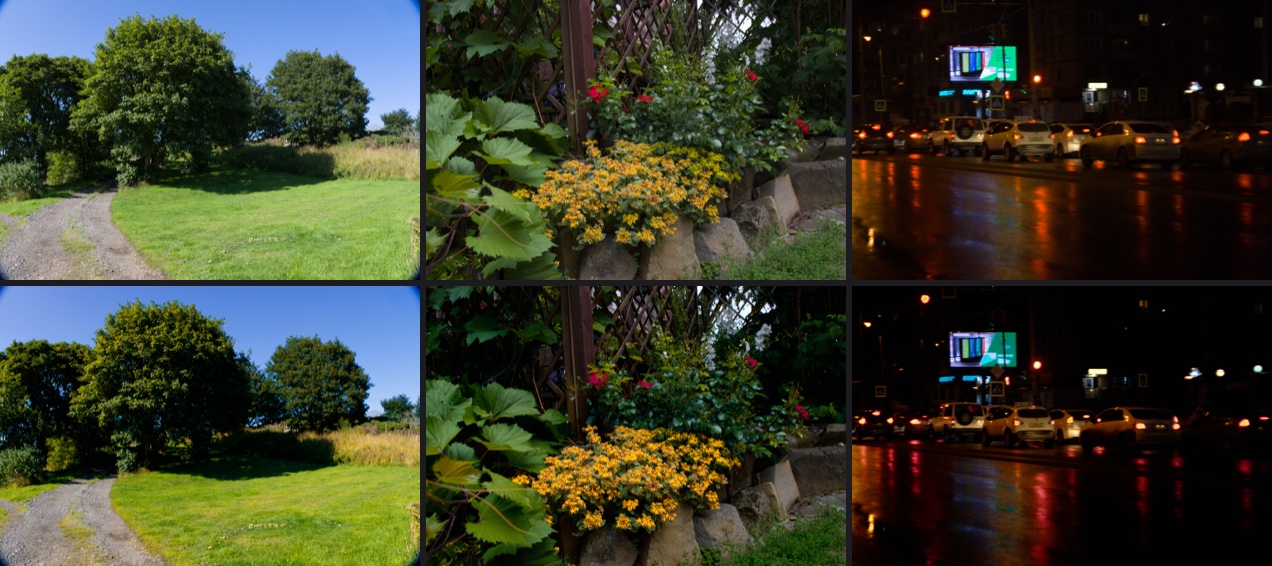
#### Kodachrome 64
The legendary K-14 slide film, from Kodak's archived datasheet: warm reds, deep blues and dense shadows.
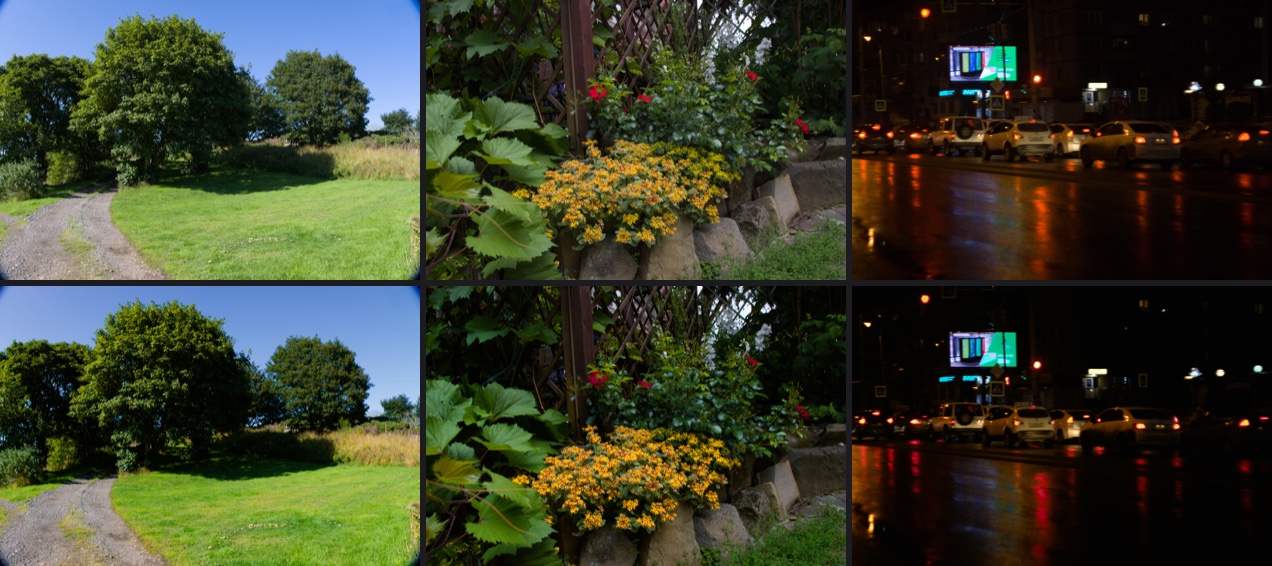
#### Tri-X 400
Classic black and white. Bright and crisp, with pronounced, sharp grain.
#### T-Max 100
Kodak's finest-grained black and white: smooth, sharp and long in tone.
#### T-Max 400
Modern fast black and white: tighter grain than Tri-X and a longer tonal range.
#### HP5 Plus
Softer and grainier than Tri-X, with a gentler shoulder.
#### Delta 100
Ilford's fine-grained modern black and white.
#### Delta 3200
Ilford's fastest film: big, gritty grain and hard contrast for low light.
#### FP4 Plus
Classic medium-speed black and white with a gentle shoulder.
#### Pan F Plus
Slow, ultra-fine black and white with rich contrast.
#### Tri-X · Darkroom Print
A darkroom print: deeper blacks and the paper's own contrast.
### Variants and processes
The same datasheets also describe how a film behaves when it's exposed or processed differently, and the model follows them:
- **Exposure.** A lab calibrates its scanner at box speed and prints each frame up or down until mid-grey is right. Overexposed highlights crowd onto the film's shoulder, and underexposed shadows block up at the film base.
- **Push processing** uses the datasheet's own curves for longer development.
- **Paper grades** use Ilford's published curve for each Multigrade filter.
- **Bleach bypass** leaves the developed silver in with the dyes, as neutral density where dye formed.
- **Cross-processing** develops a slide emulsion as a negative: its curves are mirrored and there's no orange mask. Slide datasheets don't publish C-41 curves, so this one is an approximation.
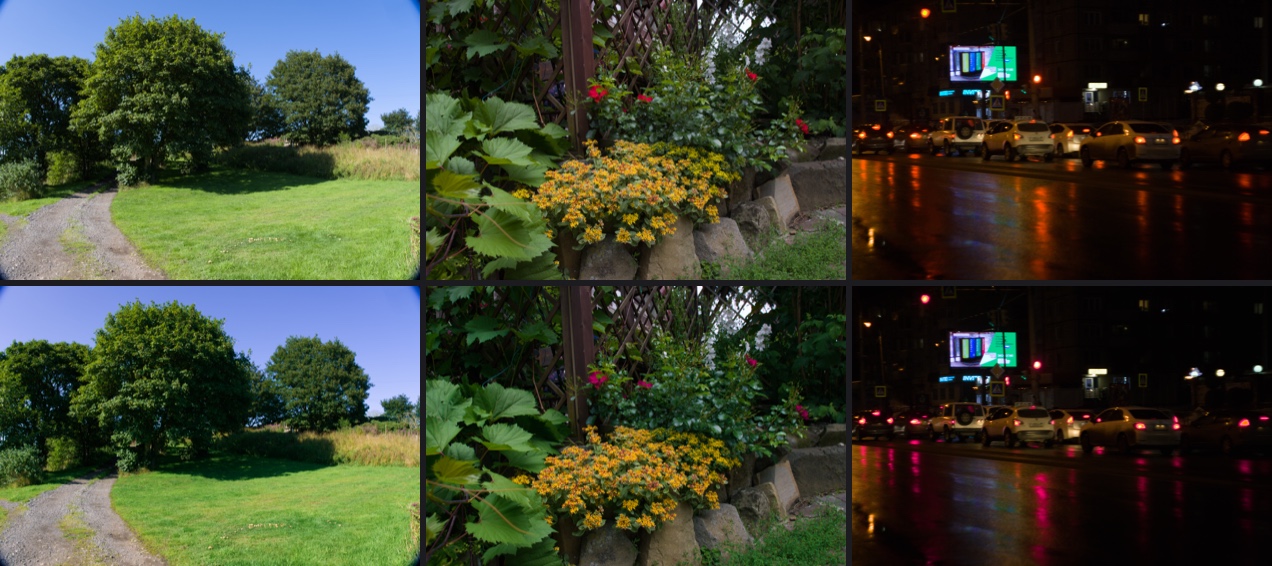
#### Portra 400 · +2
The popular overexposed Portra: two stops of extra exposure crowd the highlights onto the film's shoulder, for an airy, pastel, soft look.
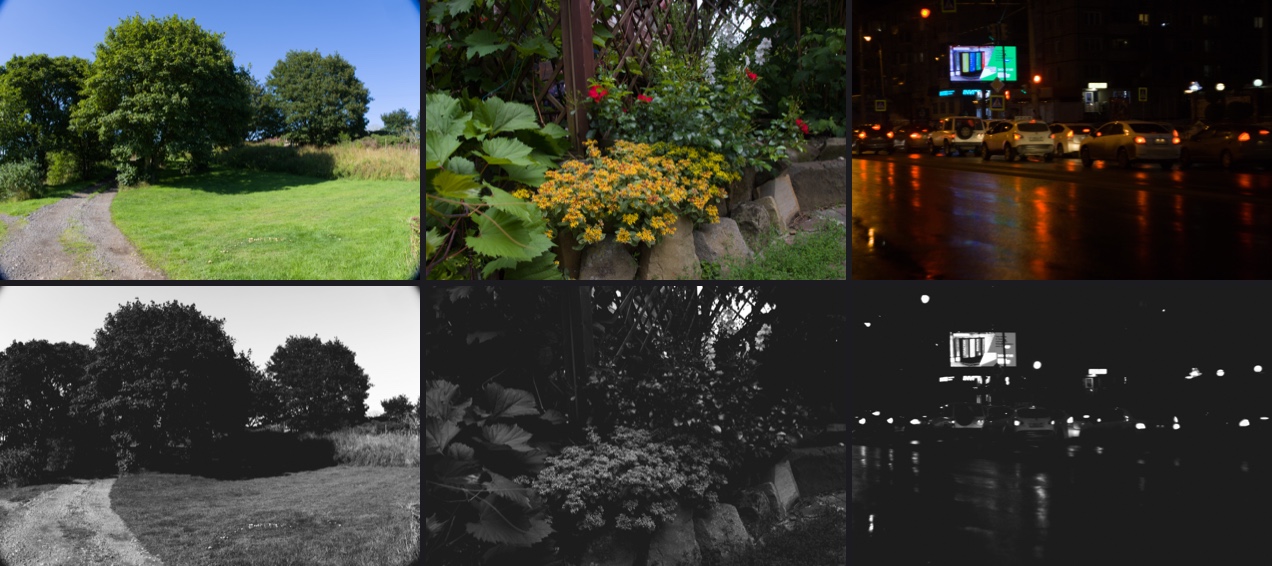
#### Tri-X 400 · Pushed to 1600
Push processing: two stops underexposed and developed longer, using the datasheet's own longest D-76 curve. The shadows block up and grain and contrast rise.
#### Tri-X · Soft Print
A gentle, open darkroom print on a soft grade, using Ilford's published grade 1 curve.
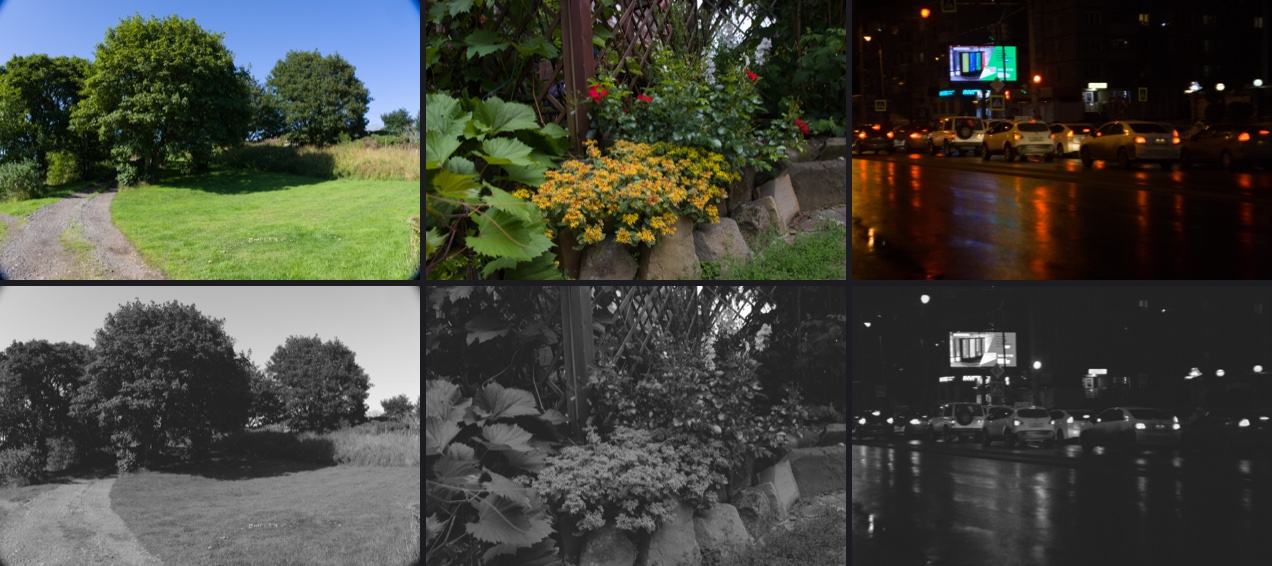
#### Tri-X · Hard Print
A hard grade: deep blacks and bright whites, using Ilford's published grade 4 curve.
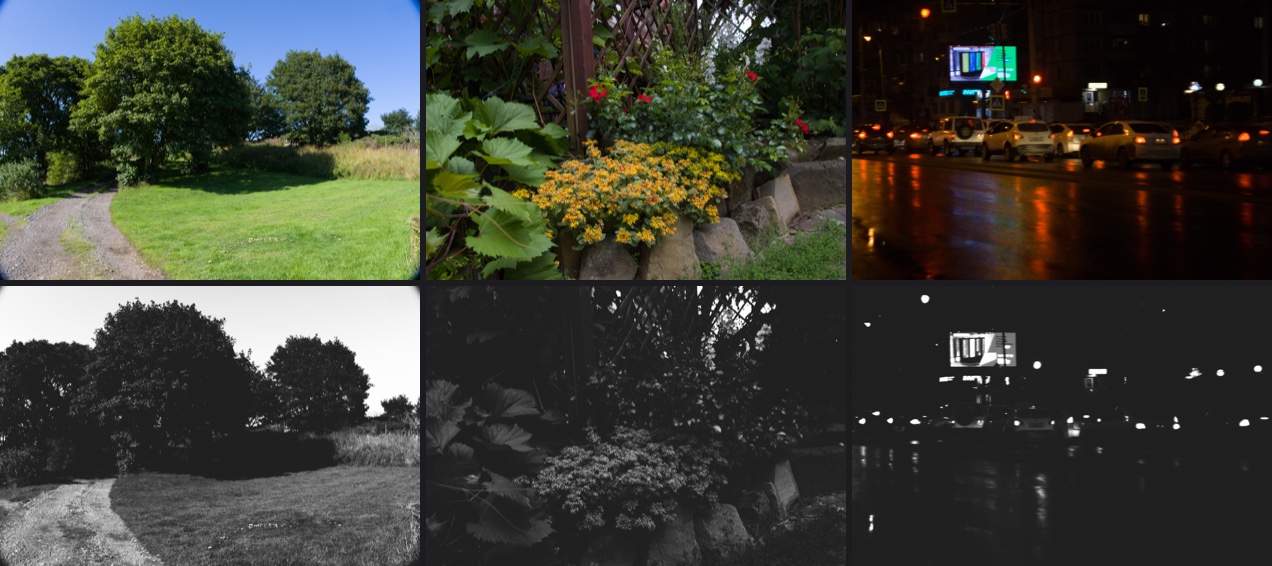
#### Vision3 500T · 2383 Bleach Bypass
The bleach-bypass print: the silver is left in with the dyes, so the image is desaturated, dense and hard, the look of many war films.
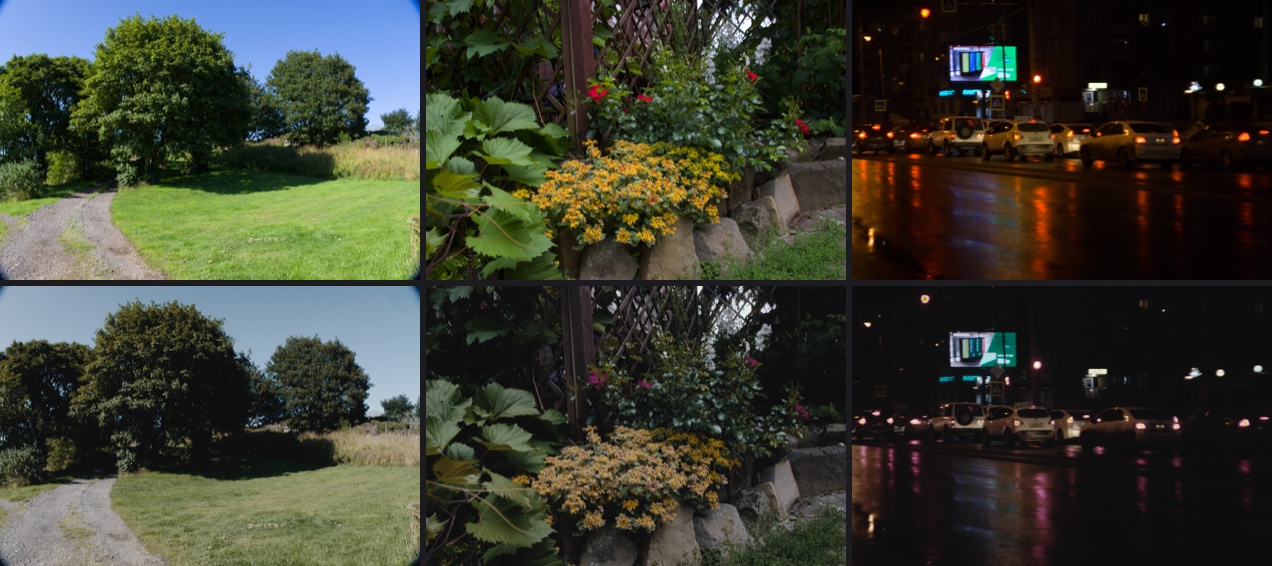
#### Velvia 50 · Cross-Processed
Slide film developed as a negative: punchy, with the colour shifts that a slide emulsion with no orange mask gives.
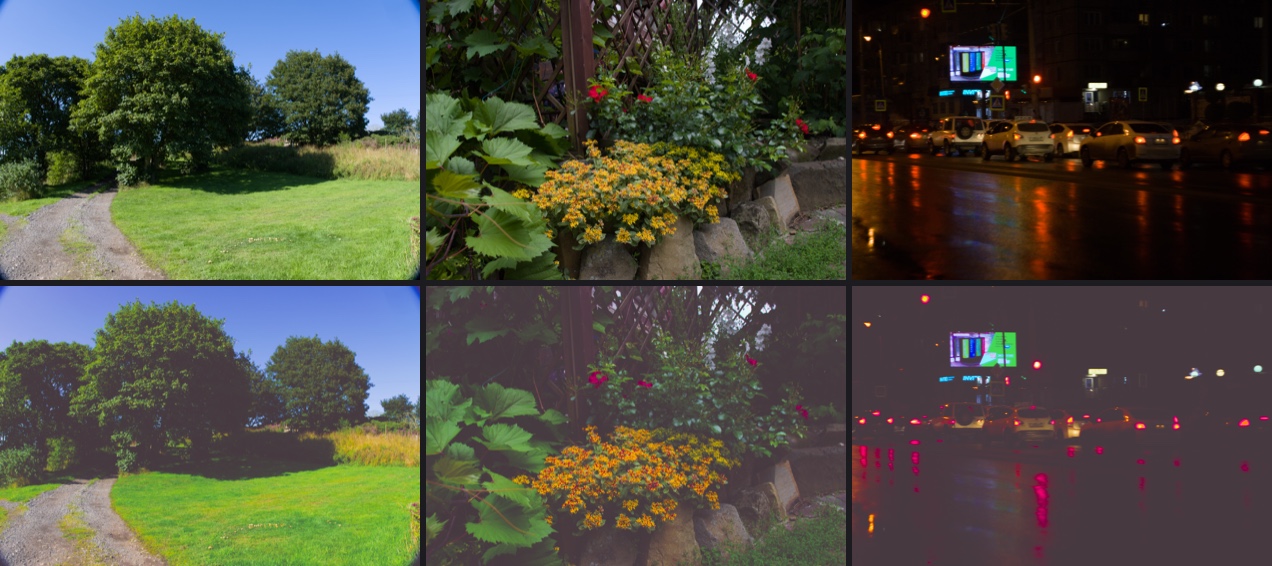
#### Provia 100F · Cross-Processed
Provia cross-processed: contrasty, with cool green-cyan shadows.
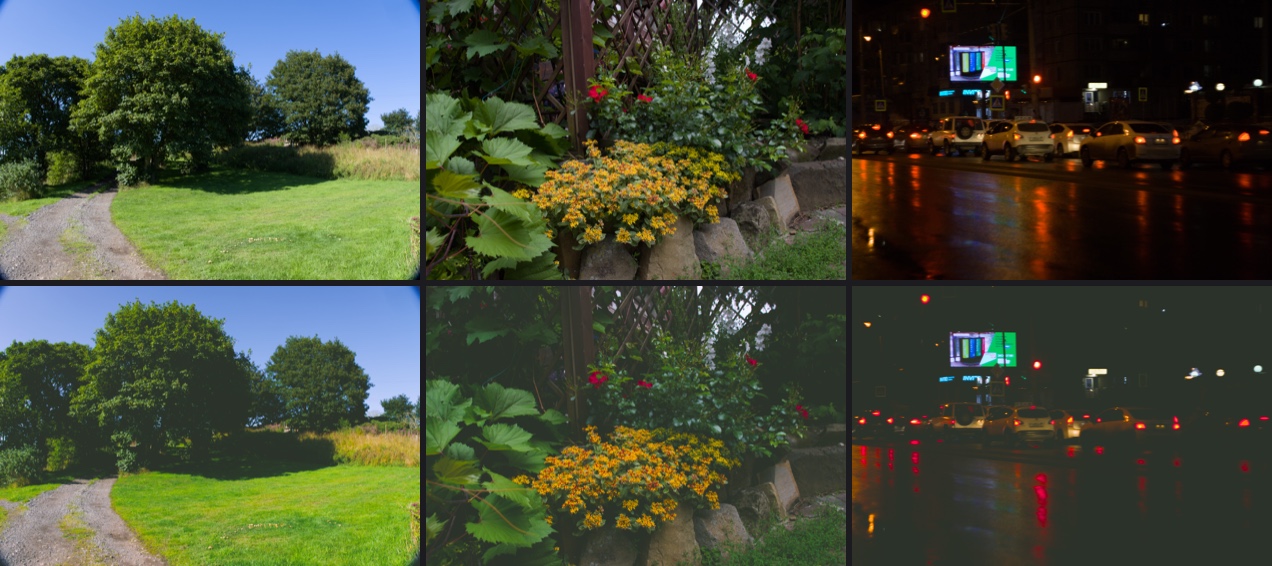
### Mood looks
One-tap looks in the spirit of Prequel's filters. Each starts from a film look, with its grain, halation and bloom, and adds the Effects **Light Leak** (Amount, Warmth and Variation) and **Dust & Scratches**. They're in the sidebar under **Recipes ▸ Mood**, and the effects work on any photo. A mood never sets or takes away a border: borders are their own recipes, under [Borders](#borders).
| Mood | Built on | Adds |
| --- | --- | --- |
| Golden Leak | Portra 400 · +2 | a warm light leak and soft bloom |
| Lost Roll | Gold 200 | leaks, dust and scratches |
| Summer '98 | UltraMax 400 | a warm leak |
| Night Glow | CineStill 800T | strong halation, bloom and a little dust |
| Blue Hour | Pro 400H | a cool leak and a soft mist |
| Mist | Portra 160 | a diffusion filter's glow and gentler contrast |
| Home Movie | Vision3 50D · 2383 | projector scratches, dust and a dark edge |
| Slide Show | Kodachrome 64 | a few specks of dust, as on projected slides |
| Contact Sheet | Tri-X · Hard Print | darkroom dust |
| Neon Rain | Provia 100F · Cross-Processed | halation and a cool leak |

Lost Roll, Summer '98, Home Movie, Slide Show and Contact Sheet used to carry a frame drawn over the photo's edges; their new versions leave it to [Borders](#borders), and edits made with the old versions keep their frames.
Ten more are **tuned on the photographs shot on each film**. `redlamp recipe film --fit-moods` fits the style fingerprint of a film's 20 reference photographs with the recipe studio's fitter, adjusting tone, saturation, grading and grain on top of the film's own look. The fitted values are pinned in the source. Shared film scans are bright and open, and the moods carry that. The fit leaves out per-colour hue and saturation, which follow the photographs' subjects more than the film.
| Mood | Built on | Fitted to |
| --- | --- | --- |
| Portra Days | Portra 400 | bright, airy scans |
| Ektar Colour | Ektar 100 | warm, vivid colour with open shadows |
| Gold Summer | Gold 200 | sunny warmth, soft contrast, more grain |
| Superia Snapshots | Superia 400 | bright, cool-leaning snapshots |
| Wedding Day | Pro 400H | pastel, soft wedding scans |
| CineStill Nights | CineStill 800T | deep shadows and a cool split tone |
| Velvia Landscapes | Velvia 50 | open shadows and rich colour |
| Kodachrome Memories | Kodachrome 64 | bright slides with cool shadows |
| Tri-X Street | Tri-X 400 | open, bright street prints |
| HP5 Documentary | HP5 Plus | bright midtones with deep blacks |

### Borders
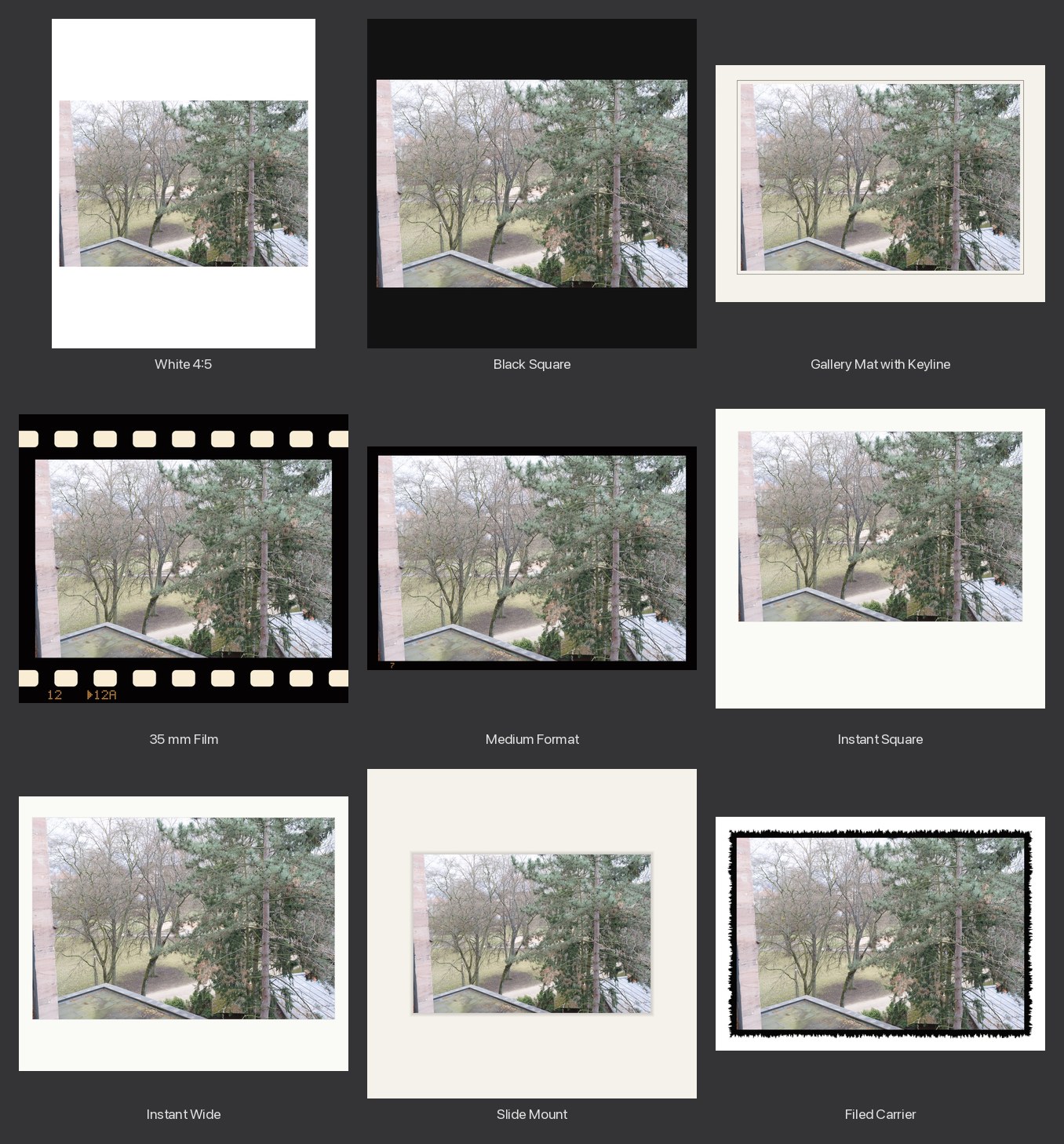
A border goes **around** the photo: the canvas grows to hold it, so nothing of the photo is hidden, as borders made with Lightroom Classic's Print to JPEG or export plug-ins are. Lightroom has no border in Develop; here it's the **Border** panel, the last in Develop, and the **Recipes ▸ Borders** folder, apart from looks and moods, so a mood never sets or takes away a border and a border recipe never touches the look.
- **Plain:** Even (the same margin all round), or a shape, 1:1, 4:5, 3:4, 2:3, 9:16, 5:7, 11:14, A paper or custom, turned with the photo or kept Portrait or Landscape, so a carousel of portrait and landscape photos shares one 4:5 canvas. **Size** is the margin on the narrowest sides, in percent of the photo's long side, so a border looks the same at 1080 pixels and at full size; **Vertical** raises the photo for the heavier bottom margin a framer's mat has. **Color** has White, Paper, Grey and Black, and a colour well whose magnifier picks a colour from the photo; a **Keyline** adds a line around the photo, with its width, gap and colour.
- **Film and instant frames,** at their formats' published proportions, scaled to the photo: 35 mm film with its rebate, sprocket holes and dot-matrix edge print (the frame number, following the file's number so a set reads as one roll, and the film look's name when the Base Look is a film stock), medium format, instant square, mini and wide cards, card and plastic slide mounts, and a filed-out negative carrier's rough black edge. **Crop to Format** crops the photo to the frame's own shape.
- **While editing,** the histogram and clipping warnings count the photo alone, so a white border never reads as clipped; masks, spots and samplers ignore the border; the crop tool and the colour-assessment view (`⇧L`) show the photo without it; the panel's switch takes it away to judge tone, since a white mat makes a photo look darker.
- **Recipes ▸ Borders:** White 4:5, Black 4:5, White 3:4, White Square, Black Square, Story 9:16, Thin White, Thin Black, Gallery Mat, Gallery Mat with Keyline, Print 8×10, and the film and instant frames, each previewed on the photo as the pointer passes. Create Recipe leaves Border unticked unless asked, and Copy Settings leaves it unticked too, as it does the crop.
- **Export:** a **Border** menu, As Edited, None (for a lab or a client), or a border recipe on every photo exported, saved with presets; sizes include the border, so Long Edge 1350 with White 4:5 writes 1080 × 1350. `redlamp export --border` does the same.
TON-25's frames, drawn over the photo's edges, keep rendering in the edits that have them; the Effects panel shows them only there, with **Move to Border**.
### Checked against photographs shot on the films
`research/film-references/` lists 477 photographs from Wikimedia Commons whose pages name the film. There are 8 to 20 per stock, licensed CC0, CC BY or CC BY-SA, and they're used as references only, never shipped or committed. `redlamp recipe film --validate` renders each look on the look-development set, and `research/film-references/analyse.py` compares them with the photographs in OKLab. It compares contrast and saturation, and the colour of foliage, sky, skin and near-neutral shadows and highlights.
The two sets show different scenes, so the useful tests are relative ones:
- **Ranking:** do the looks order the stocks as the photographs do?
- **Same-scene comparison:** what does each look change against Redlamp's own rendering of the same photos?
The check found one clear error, now fixed. The slides were *less* saturated than Redlamp's default, though in the photographs slide films are the most saturated of all. Slides get much of their saturation from strong interimage effects between their layers, which the model had set as mildly as for negatives. With stronger effects calibrated to the photographs' order (version 2 of the slide looks), saturation against the default rendering is:
| Look | Saturation |
| --- | --- |
| Velvia 50 | +31% |
| Velvia 100 | +20% |
| Provia 100F | +10% |
| Ektachrome E100 | +10% |
| Kodachrome 64 | +7% |
The colour negatives stay within a few percent of the default in saturation and are slightly softer, as lab scans are. The reference photographs differ too much in subject for finer conclusions: Pro 400H's are mostly weddings, CineStill's night streets, and Velvia's landscapes.
### How faithful are they?
- **The colour comes from the datasheets.** It follows each stock's own curves, sensitivities and dyes, and the stocks keep their published order of contrast and grain.
- **A lab's scan or print timing shapes the rest.** Negatives are scanned by a modelled lab scanner calibrated on a grey scale. Its Frontier-like and Noritsu-like profiles are characterised from how labs describe the two scanners, not measured from them. The 2383 print is timed partway back to neutral, as a colourist would.
- **Some data is fitted or uncertain.** Nine colour negatives publish no individual dye curves: Portra 160, 400 and 800, Ektar, Gold, UltraMax, Superia, Pro 400H and Eterna Vivid. Their dyes are Vision3's shapes, fitted until together they match the stock's own published mid-scale neutral. Kodak 2383's sensitivity was re-traced, and both 2383 looks are on version 2. Kodachrome 64 and Eterna Vivid come from Internet Archive copies of Kodak's and Fujifilm's own pages. Ilford publishes only relative scales, which the model's grey balance makes up for.
- **CineStill is modelled with no anti-halation layer,** as CineStill sells it. Kodak's current Vision3 datasheets describe an anti-halation undercoat in place of the old rem-jet backing, and no document settles which current CineStill stock has.
- **Grain follows film** (process 2, TON-19). It's sized to the frame, so it looks the same on any camera's resolution, and it's strongest in the low midtones and shadows. The fitted preview shows the grain the export will have.
Kodak, Portra, Ektar, Gold, Vision3, Tri-X, Fujifilm, Superia, Provia, Velvia, Ilford, HP5, Multigrade and CineStill are trademarks of their owners. Redlamp isn't affiliated with them: its looks are built from the published technical data.
**Rebuilding them:** `redlamp recipe film --all --install --readme` builds every look from the datasheets, installs the tables the app bundles, and regenerates the icons and images on this page. Bundled looks are versioned and never change once published; a test fails if the datasheets or the model would build a different look under the same version.
## Screenshots
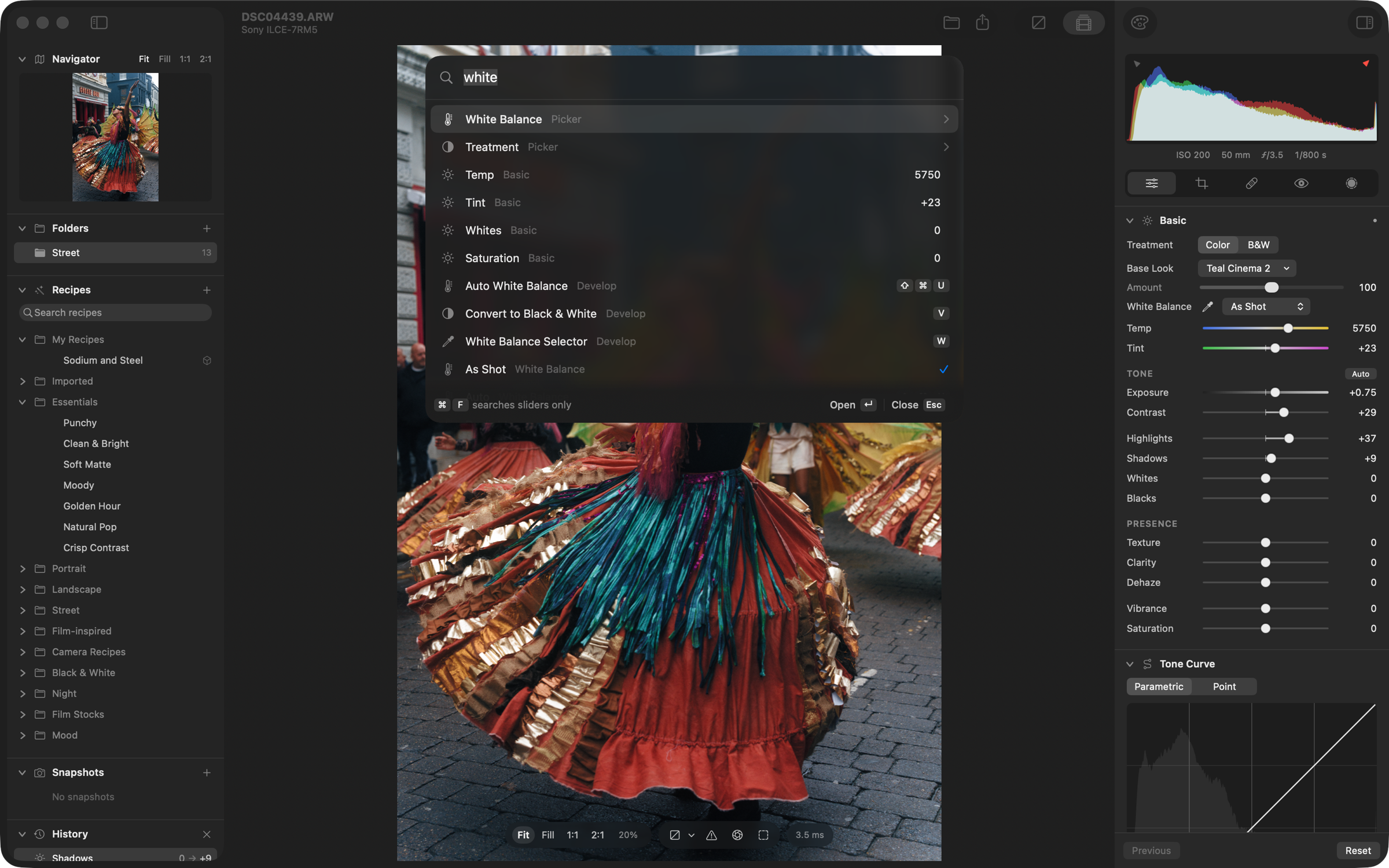
**The command palette (⌘K).** One search for every action, with its shortcut beside it, every Develop slider with its value, and pickers for white balance, treatment, Base Looks, recipes, Before / After, snapshots and history.
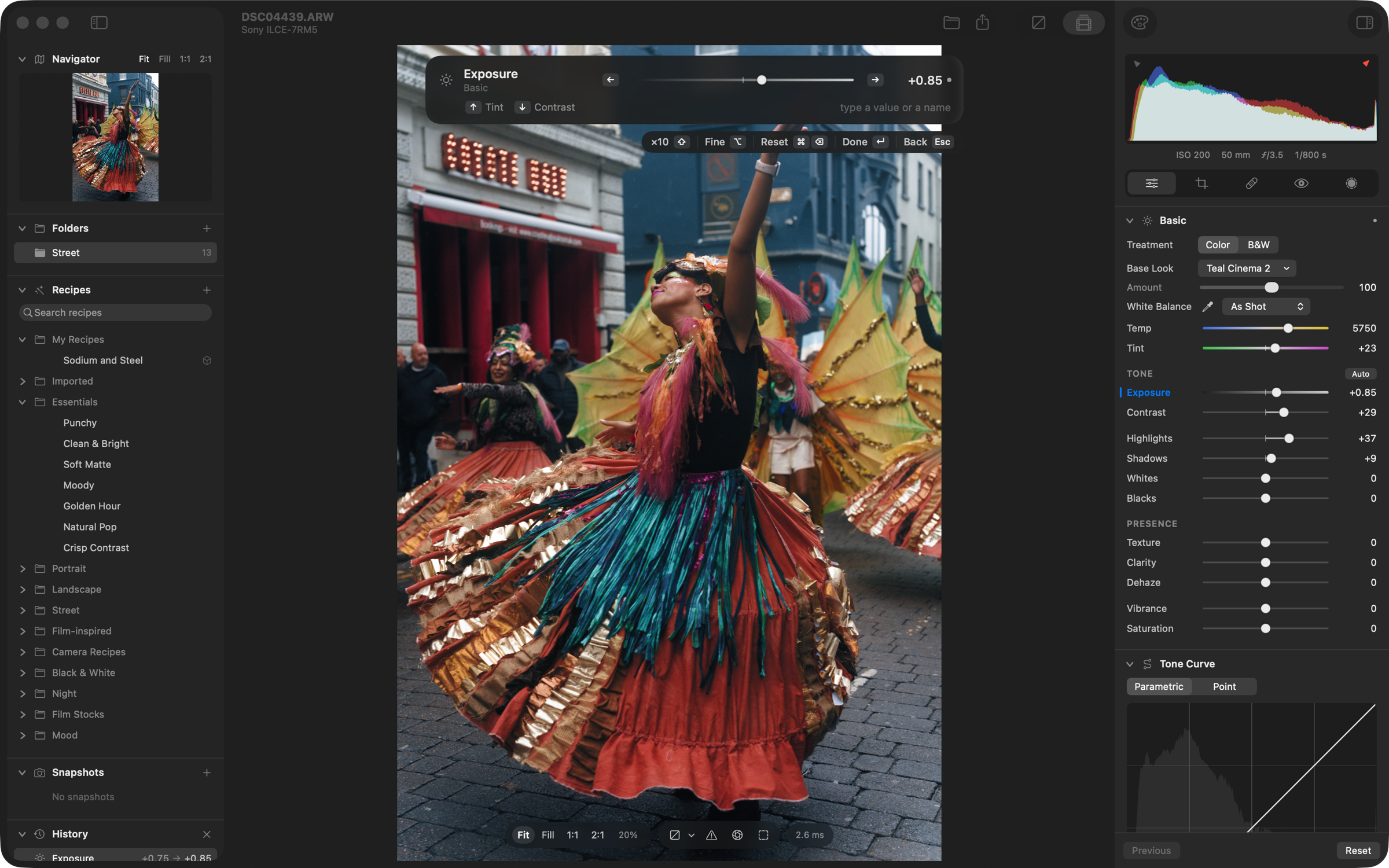
**Adjusting from the keyboard.** ↵ on a slider shrinks the palette to a slider bar over the photo: ← → step it (⇧ ×10, ⌥ finer), ↑ ↓ move to the next slider, and you can type a value or `x+0.3`. A run of presses is one history step.
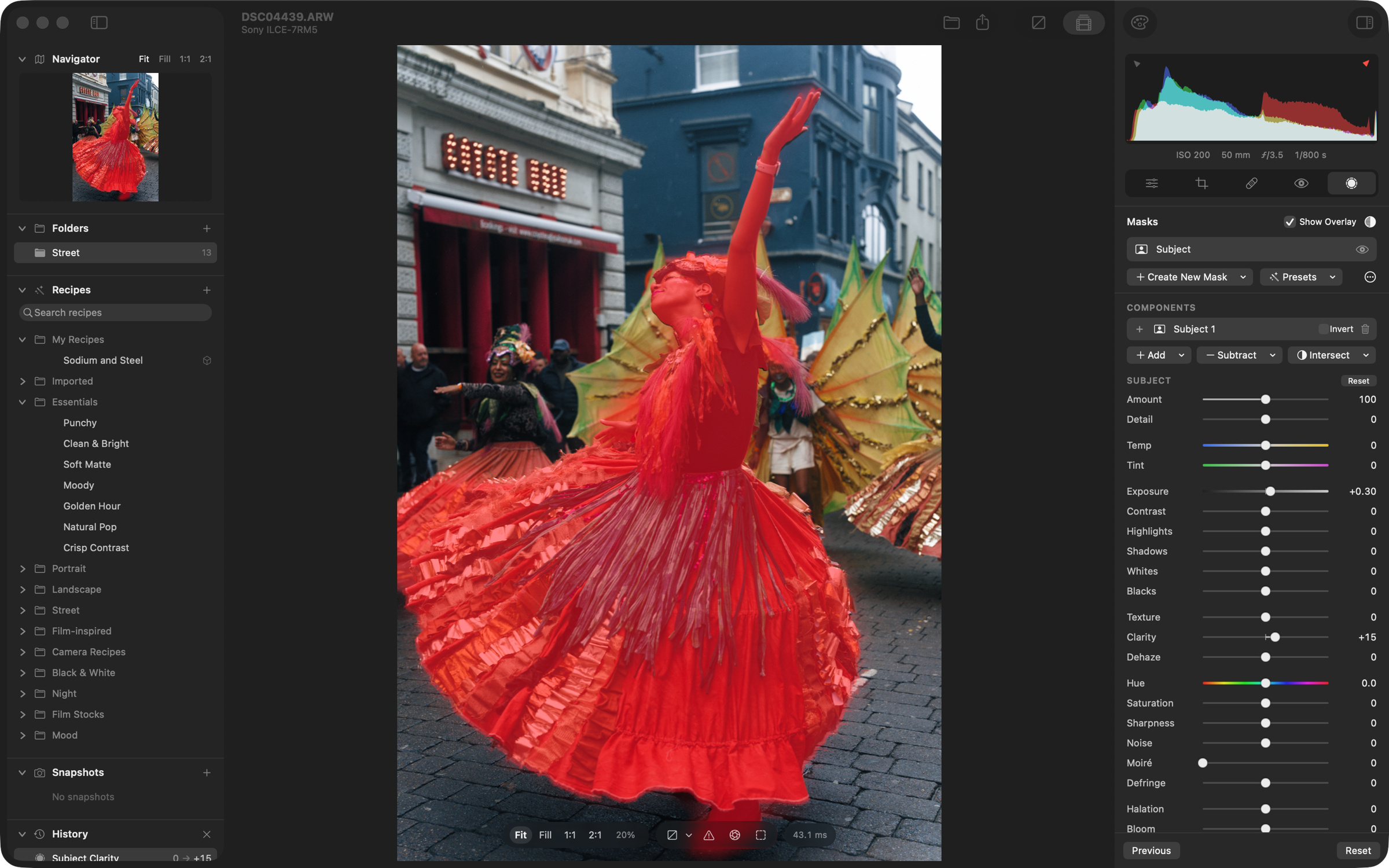
**A Subject mask in the red overlay.** Made on the device by Apple Vision, with nothing to download, and given its own Exposure and Clarity. The Masks panel lists the mask's components, which combine by add, subtract and intersect.
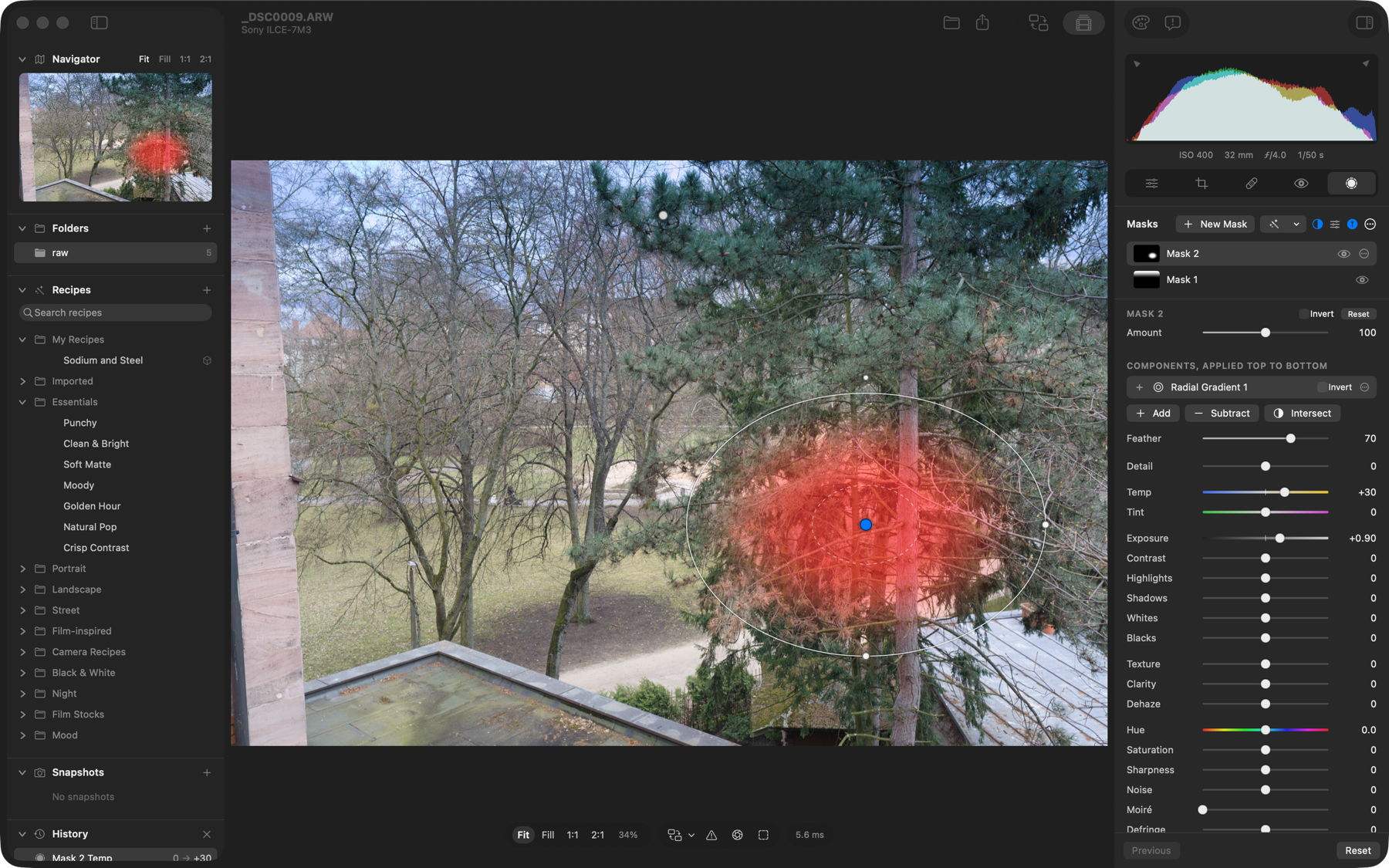
**Masking on a Sony A7 III ARW.** A linear gradient darkens and cools the sky, and a feathered radial gradient warms and lifts the trees. The red overlay shows the selected mask's coverage.
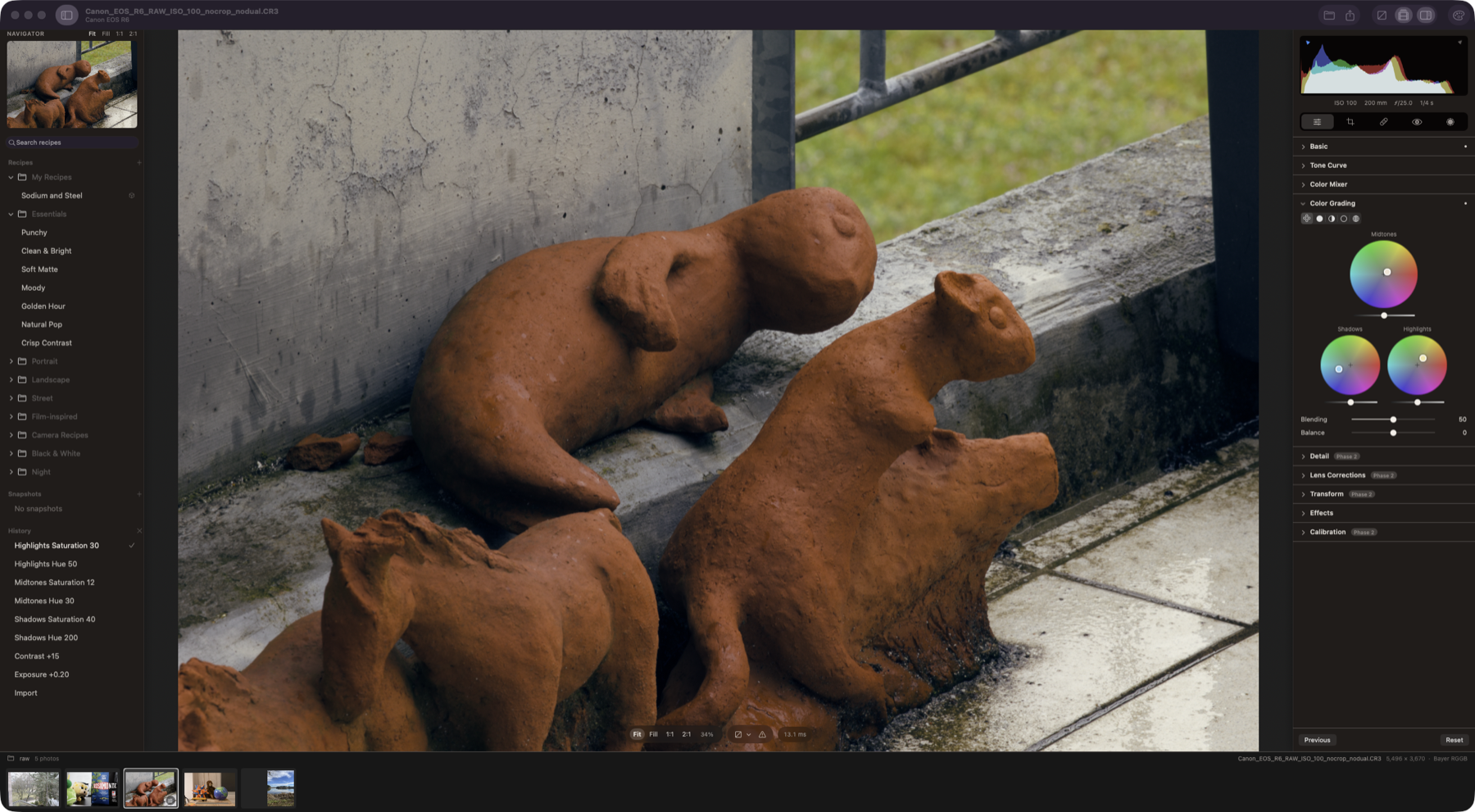
**Color grading on a Canon EOS R6 CR3.** Split-toned shadows and highlights with the 3-way wheels.
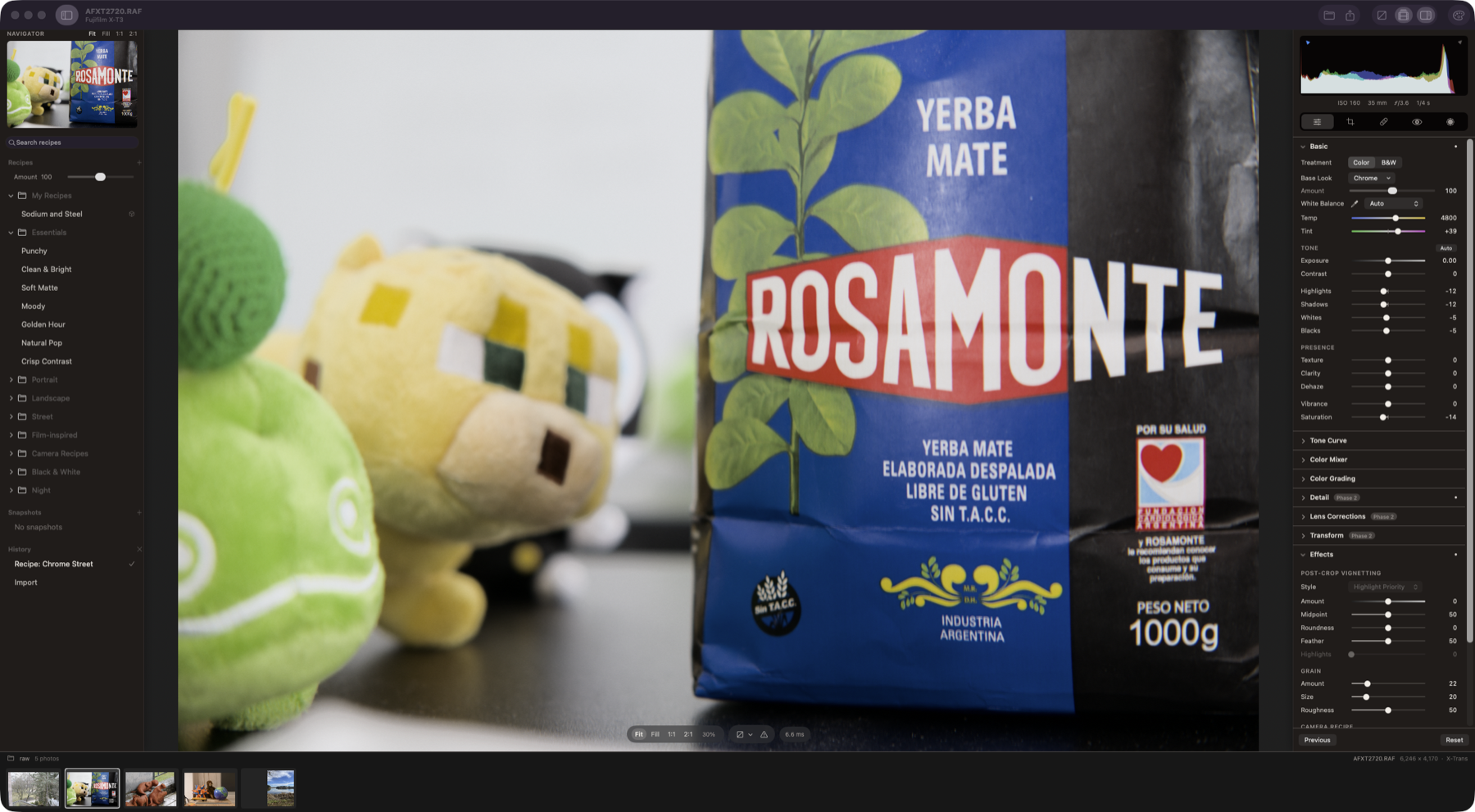
**A camera recipe on a Fujifilm X-T3 RAF.** Chrome Street, built from a Fujifilm-style recipe card, on the measured Chrome Base Look. The recipe's Amount is in the Recipes panel, and its tone, Color Chrome and grain settings land in the Basic and Effects panels like any other edit.
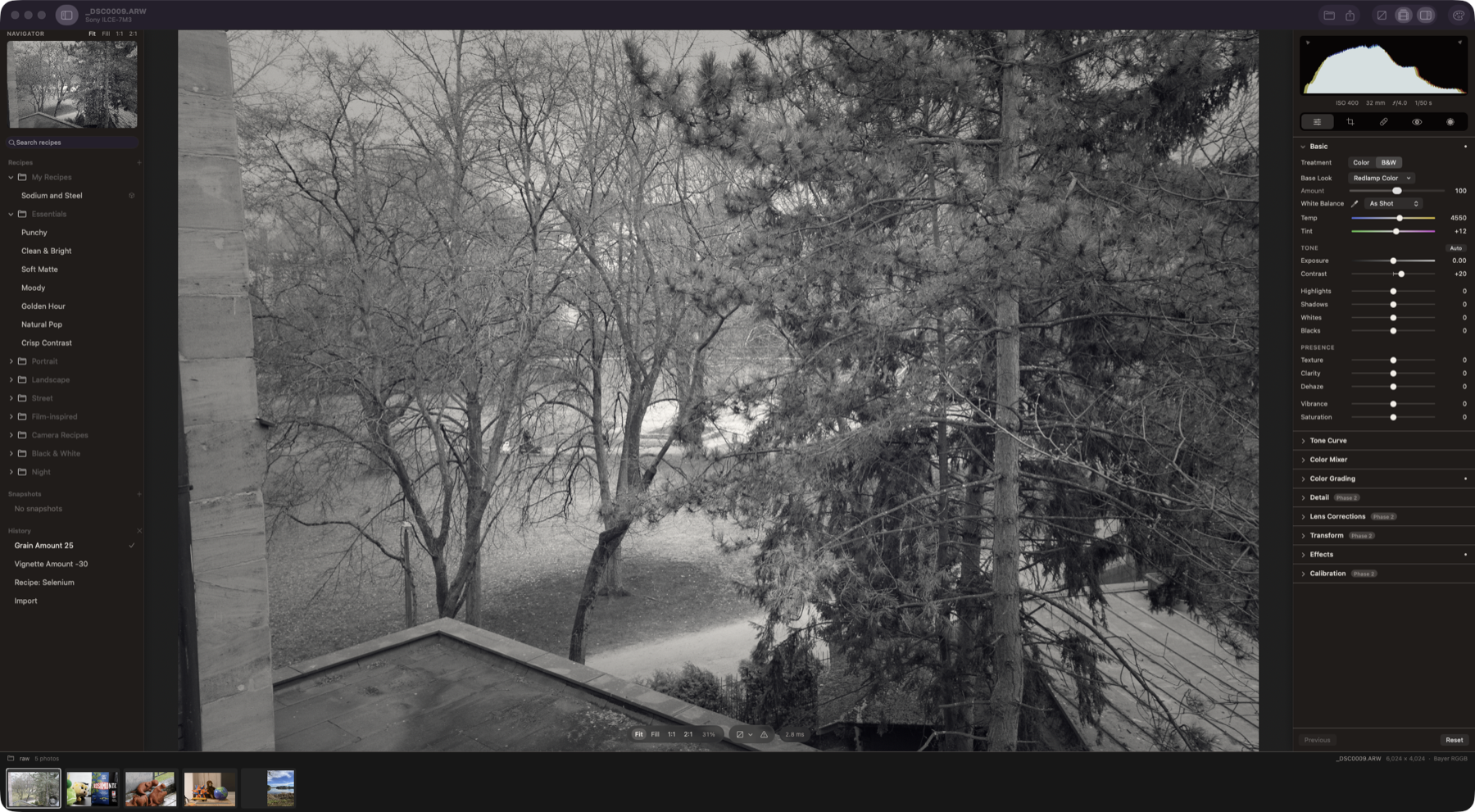
**Black & white on a Sony A7 III ARW.** The Selenium recipe plus vignette and grain, with every step in History.
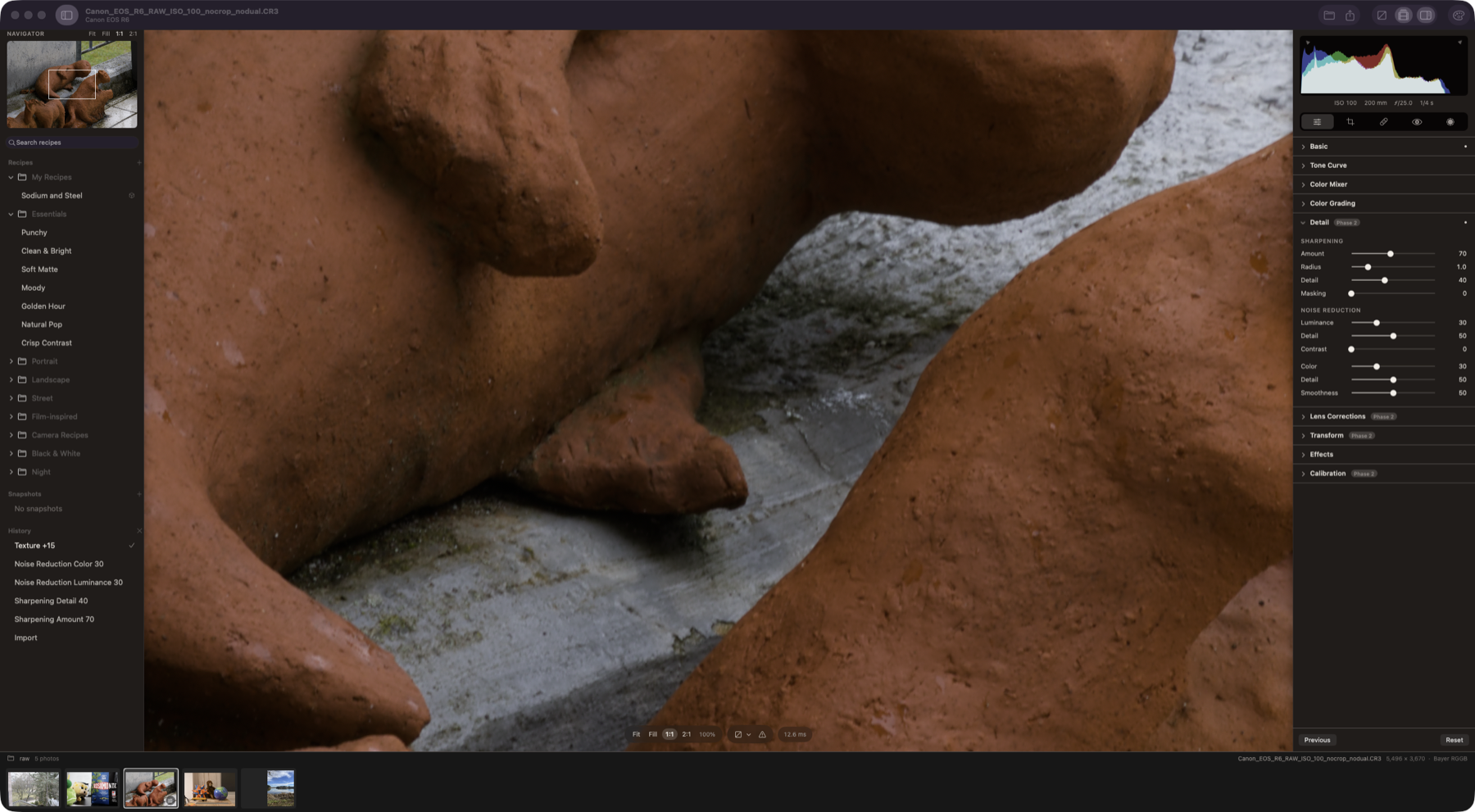
**Detail at 1:1 on a Canon EOS R6 CR3.** Noise reduction scaled to the photo's measured noise, and noise-aware sharpening that measures detail on a denoised copy, so grain isn't sharpened.
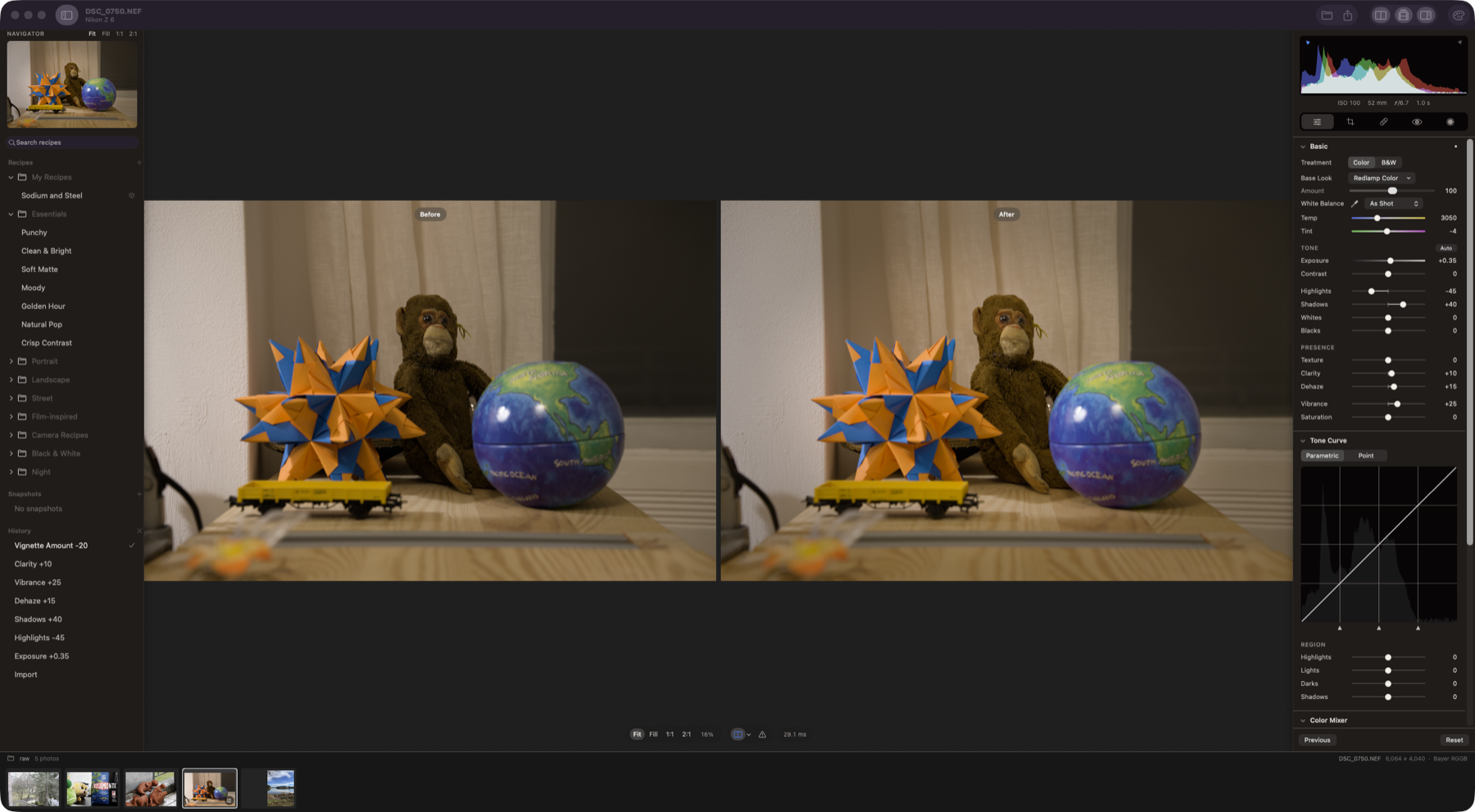
**Before and after, side by side, on a Nikon Z 6 NEF.** Exposure, Highlights, Shadows, Dehaze, Clarity and Vibrance; the original renders once and is cached.
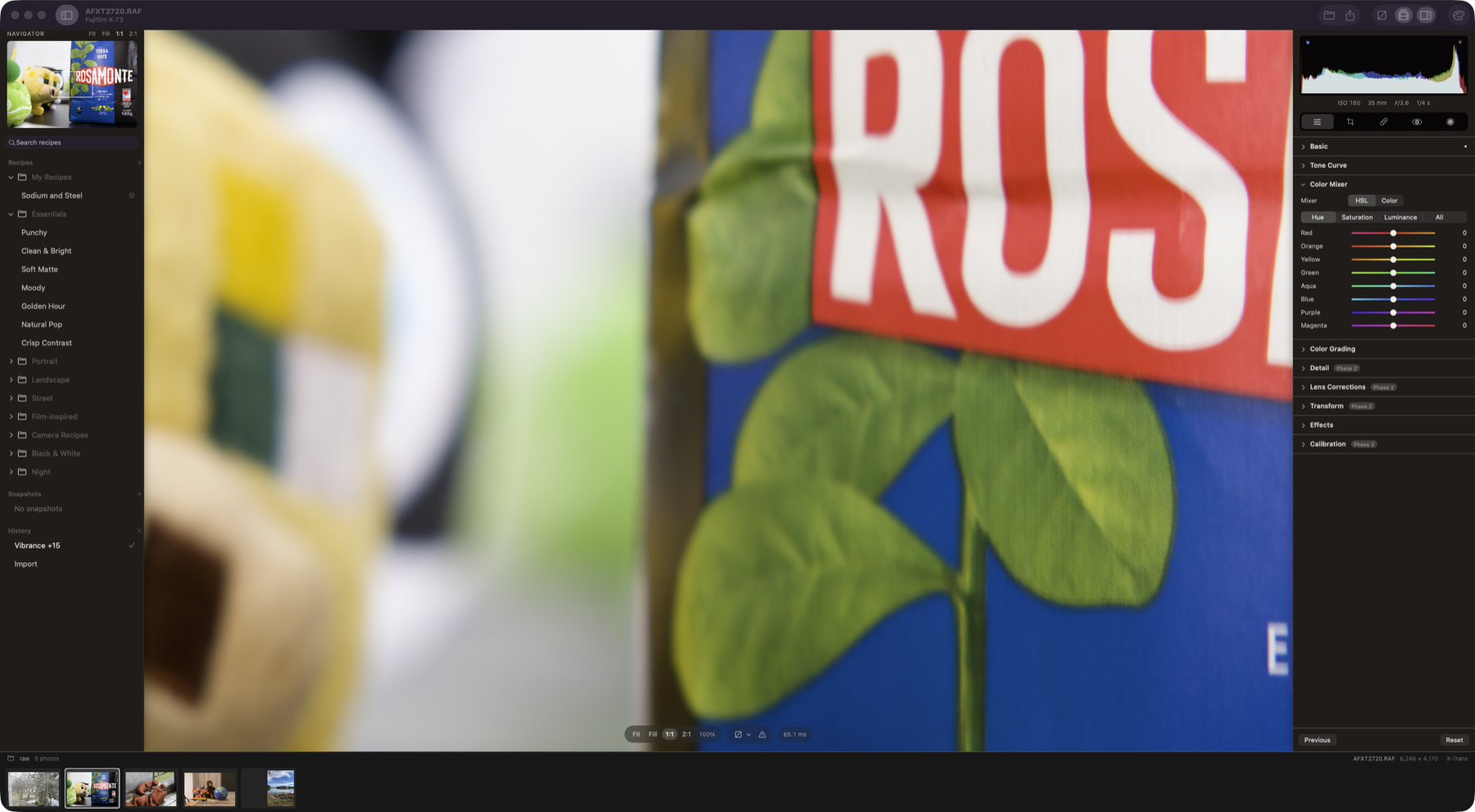
**Fujifilm X-T3 X-Trans RAF at 1:1.** The full-resolution frame renders in about 13 ms, and the Color Mixer is shown in HSL mode.
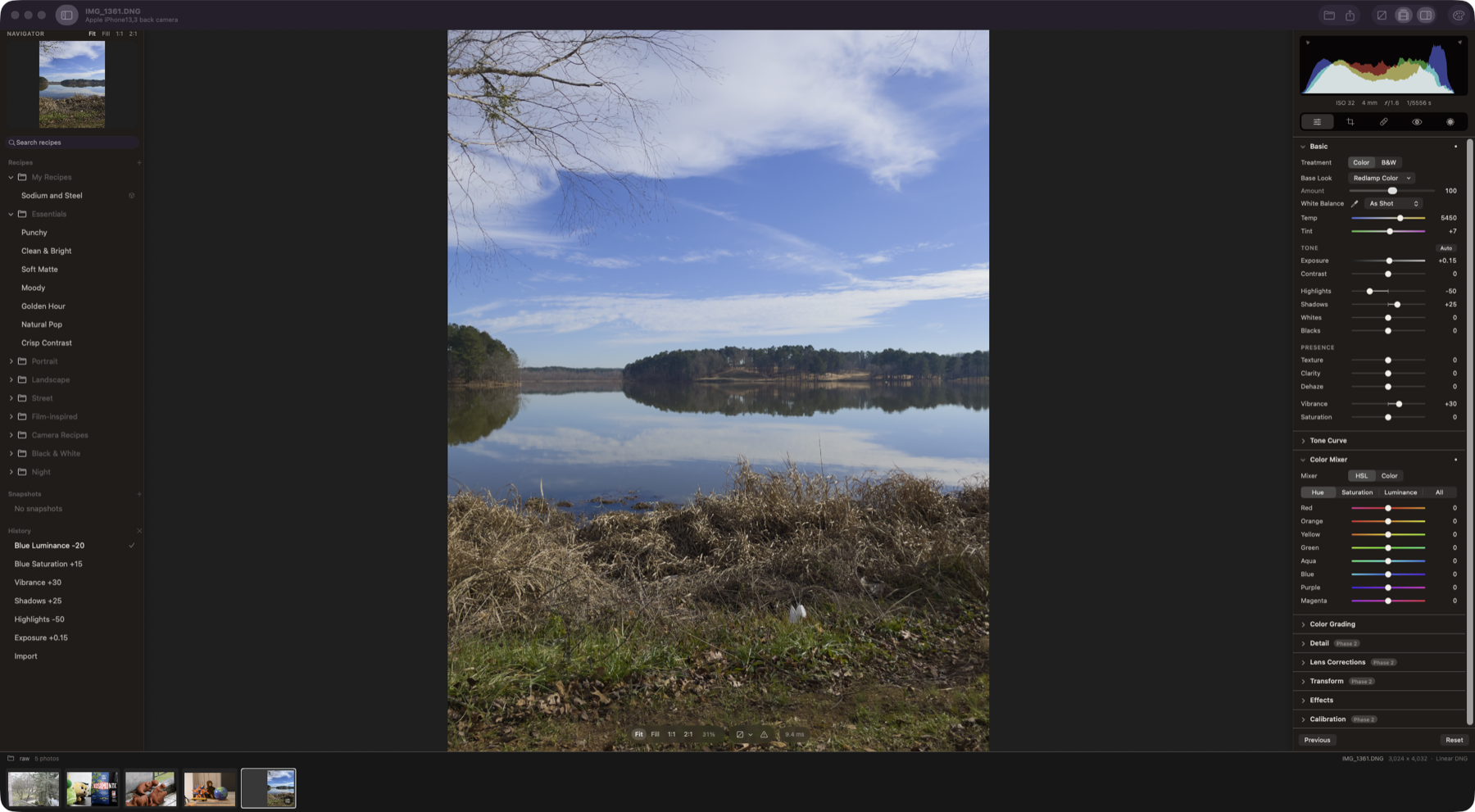
**iPhone 12 Pro ProRAW (linear DNG).** Portrait orientation, with highlight recovery and blues tuned in the Color Mixer.
### The Recipe Lab
The Lab lives in the [component harness](#component-harness). It renders every recipe, Base Look and imported LUT on a 40-image CC0 look-development set.
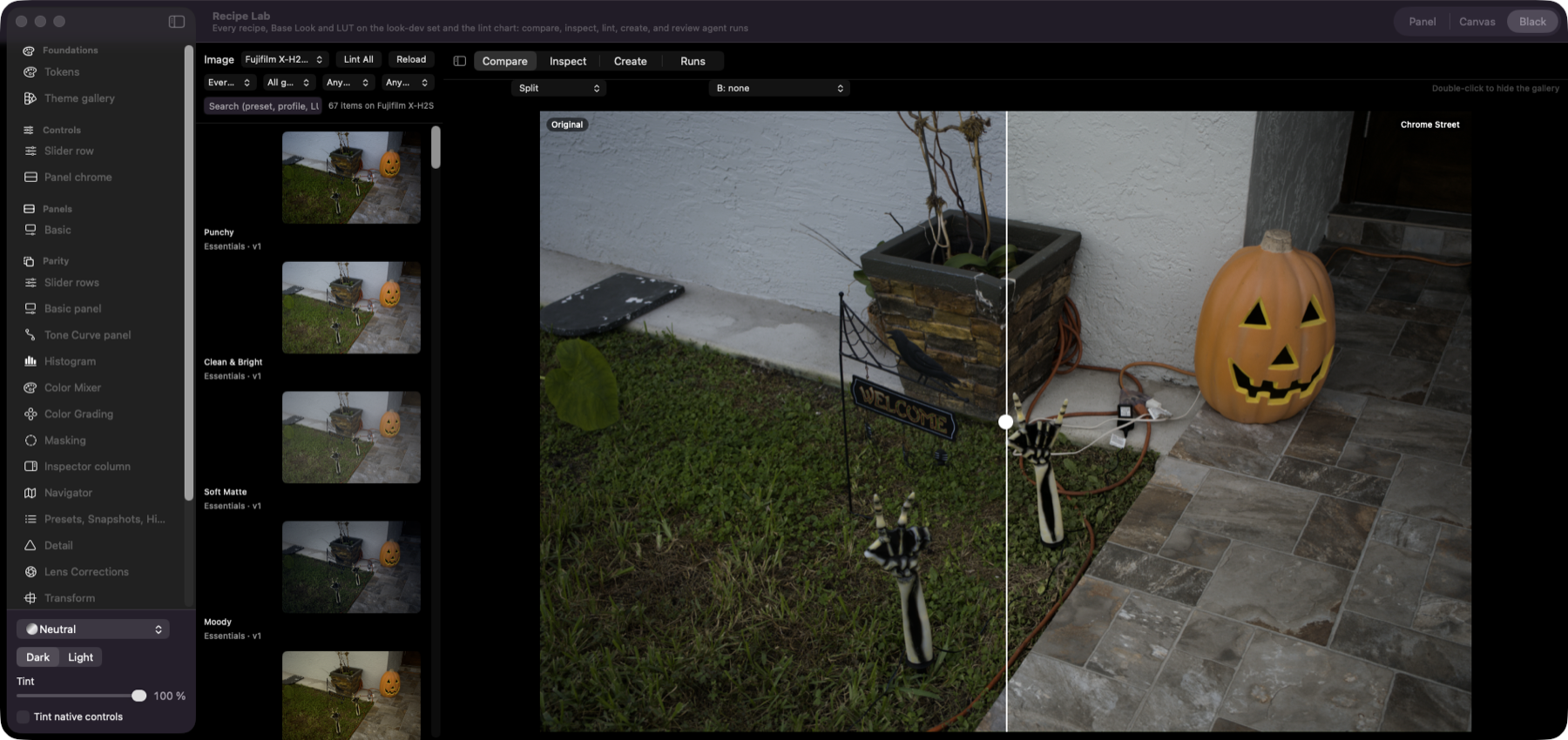
**Gallery and split compare.** Thumbnails of every item on the chosen photo, filtered by kind, group, tag and lint result. On the right, the selected recipe (Chrome Street) against the original, with a draggable divider.
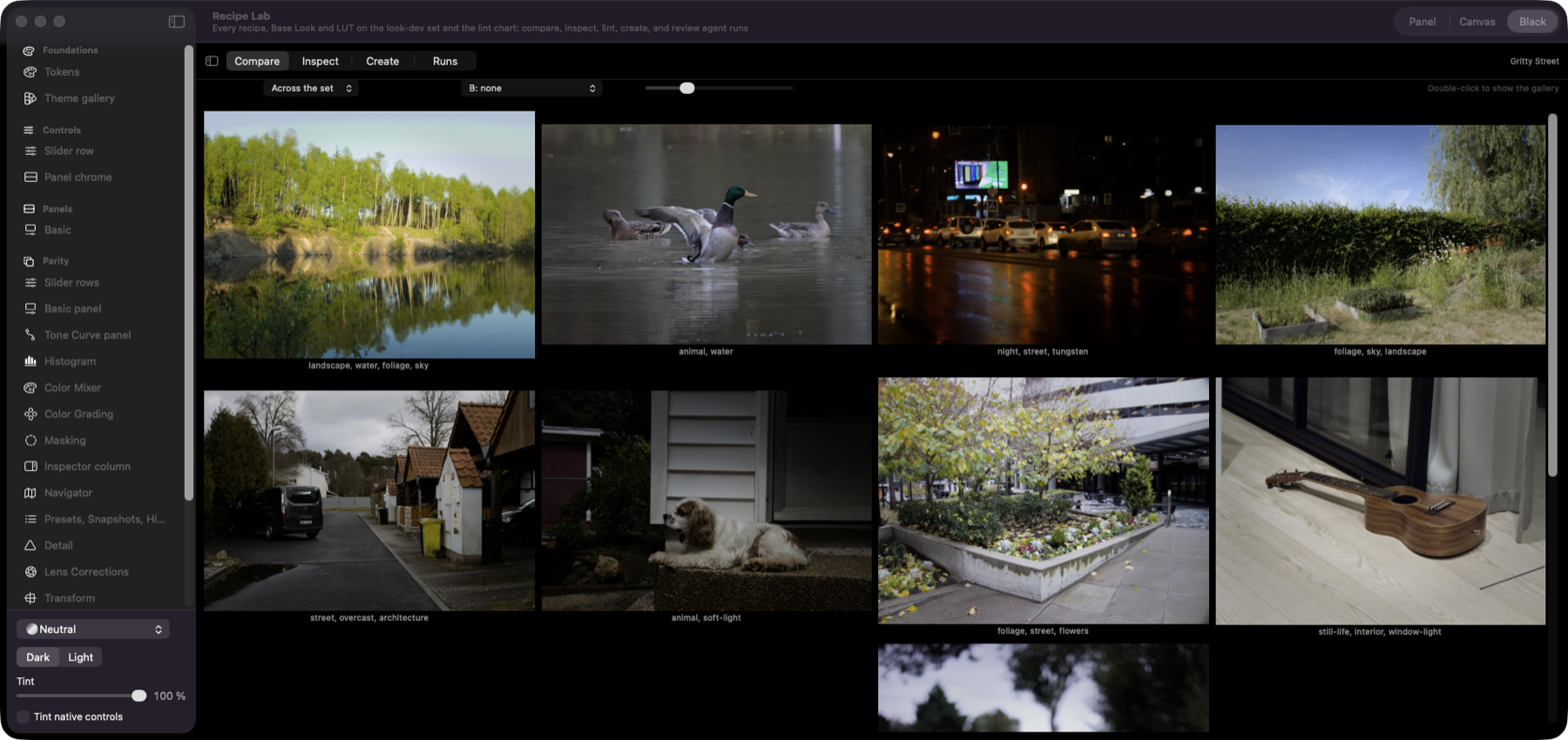
**One recipe across the set.** Gritty Street on landscapes, animals, night streets, foliage and interiors at once, to catch a look that only works on one kind of photo.
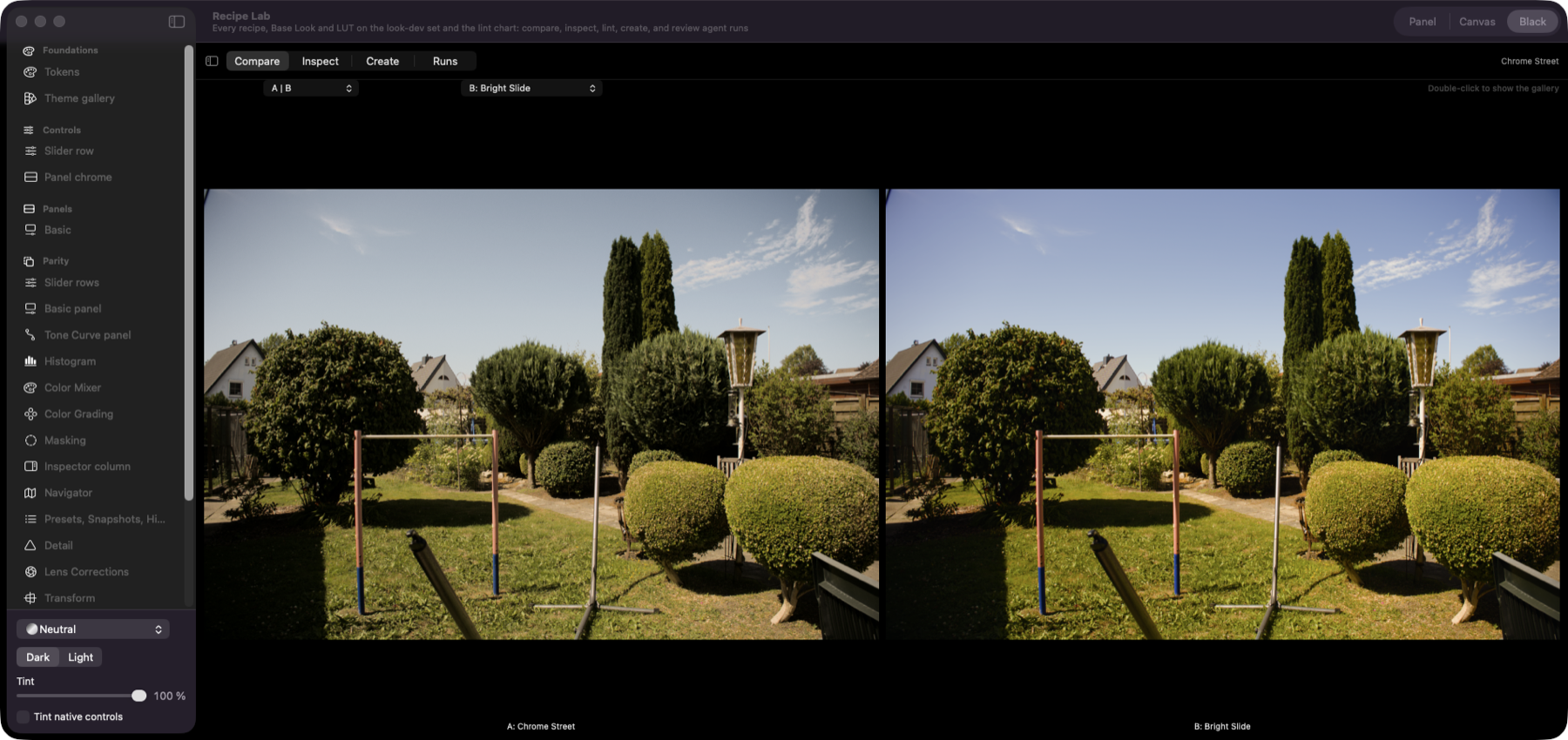
**A against B.** Two camera recipes, Chrome Street and Bright Slide, on the same photo.
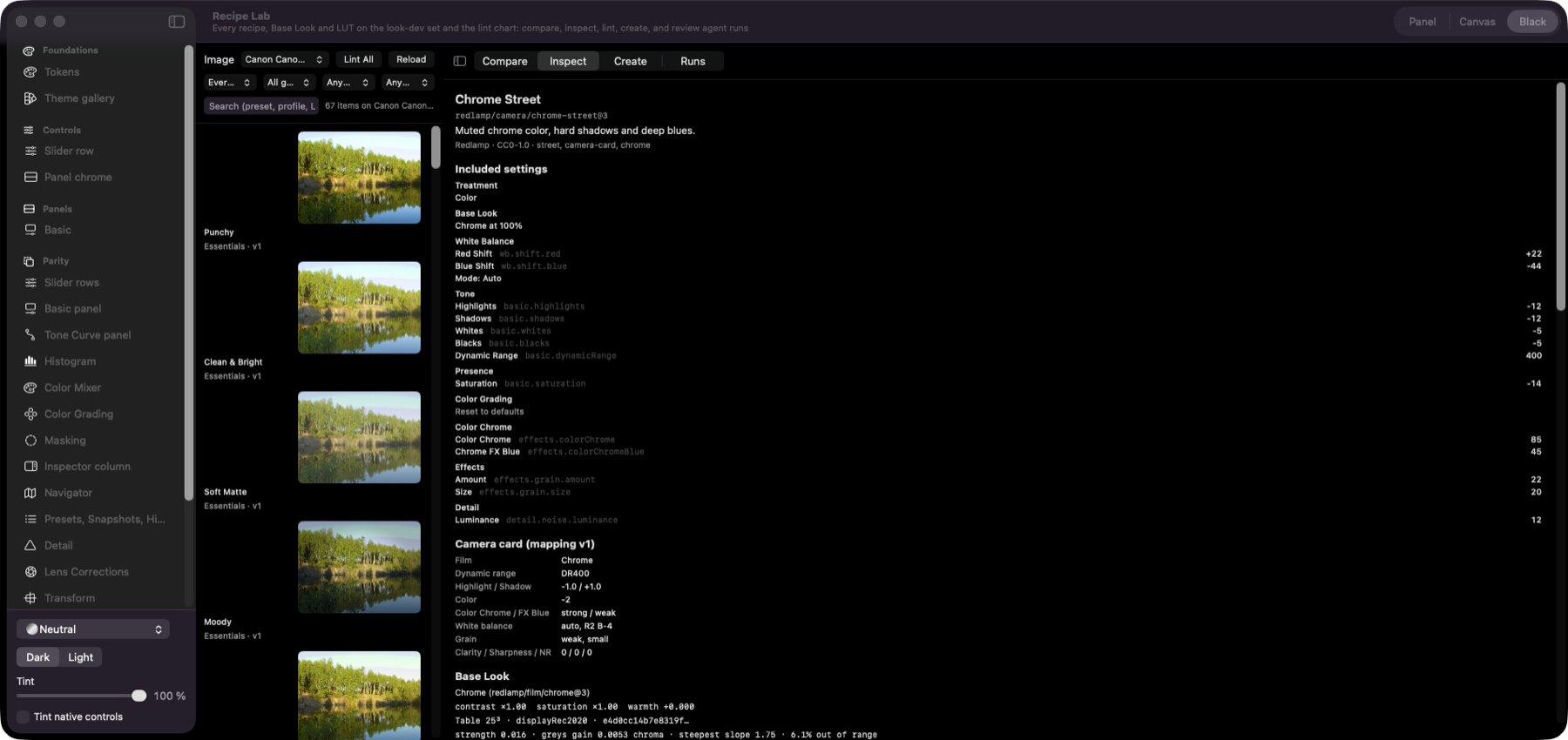
**Inspect.** Every included setting with its key, the camera card the recipe was built from, and the Base Look's table statistics and lint.
**Agent studio runs.** A brief with the public-domain references it was drawn from, and the candidates developed against it with their lineage, lint and distance to the references. Each candidate opens in Compare at full size; pairwise picks and final picks are recorded for the critics' evals.
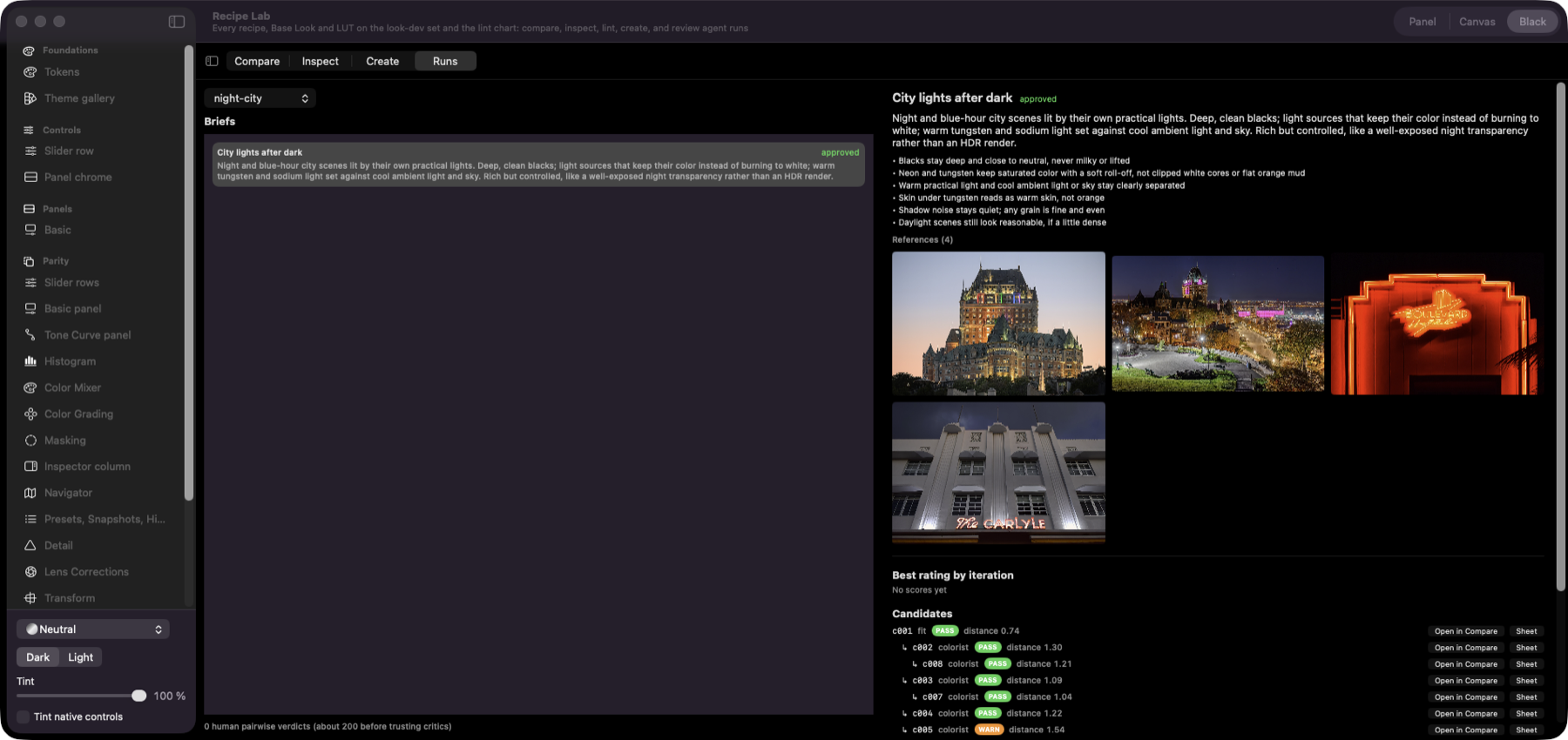
The hero image at the top and the first three screenshots are the author's own photos, captured in the default Neutral theme by `scripts/capture-hero.sh`. The other sample images are CC0 files from [raw.pixls.us](https://raw.pixls.us); the brief's references are public-domain and CC0 photos from Wikimedia Commons. Those screenshots are generated by `mise run screenshots`.
## Roadmap
The Mac comes first: Phases 1 to 4 build a high-quality editor and engine on macOS, and iPad and iPhone follow in Phase 5, once the main features are complete. The engine stays platform-neutral throughout, so the port is a new shell rather than a rewrite. Where each Lightroom feature stands, done, in progress, planned or left out, is in [Redlamp and Lightroom compared](docs/lightroom-comparison.md), also at [redlamp.app/compare](https://redlamp.app/compare); the [Lightroom feature inventory](docs/lightroom-feature-inventory.md) is the detailed reference.
Each item names the [tracker](docs/research/research-tracker.md) rows behind it in a comment, and `scripts/roadmap-sync.py` keeps the boxes in step with them.
### Phase 0: Foundations *(largely done)*
- [x] mise and Tuist workspace, module graph with enforced boundaries, and an engine purity gate
- [x] LibRaw vendored as a pinned, static XCFramework (macOS, iOS, and Simulator; arm64 only)
- [x] Engine API contract, headless CLI, and a unit and engine smoke-test suite
- [x] Lightroom feature inventory
- [x] GitHub Actions CI: purity gate, SwiftFormat lint, build, and tests, with cached LibRaw and fixtures
- [x] A benchmark harness and a recorded performance history, drawn at [redlamp.app/performance](https://redlamp.app/performance)
- [ ] Performance lab: a CI runner on Apple Silicon with regression gates that block merges (iPhone and iPad tiers come with Phase 5)
- [x] An end-to-end regression suite that works the app through every feature by its keys, menus, clicks and drags, checks for crashes, hangs and slowdowns, and gates every release
- [x] Golden-image color regression tests (ΔE2000) for camera files, and a golden render for every bundled recipe version
- [ ] Written clean-room policy and a license-audit gate in CI
### Phase 1: First light *(done)*
- [x] RAW pipeline core, fused develop kernel, cached pyramid, and latest-wins rendering
- [x] Develop workspace on macOS, Basic panel, histogram, before/after, sidecars, undo, and export
- [x] Layer and mask engine, with linear and radial gradient masks, local adjustments, and the Masking panel
- [x] Sandboxed XPC decode helper
- [x] Render scheduler with priority lanes, tile cancellation, and thermal awareness
- [x] Coordinated sidecar I/O for iCloud Drive
### Phase 2: Develop parity *(in progress)*
- [x] Texture, Clarity and Dehaze, globally and inside masks, and Moiré and Defringe inside masks
- [x] Copy Settings with Lightroom's checklist, Sync and Auto Sync across a filmstrip selection
- [x] Detail panel: noise reduction scaled to each photo's measured noise, and noise-aware sharpening, with Lightroom's controls
- [x] Menon Bayer demosaic with a dual pass for flat noisy areas, hot-pixel repair and highlight reconstruction that keeps a clipped sky's colour
- [x] **Recipes:** one format for presets, profiles and LUTs, Base Look tables, camera recipe cards, `.cube`, `.3dl` and HaldCLUT import (with LUTs for S-Log3, LogC3, V-Log and Apple Log footage), 39 bundled recipes, and the Recipe Lab
- [x] Before/After layouts, themes and a Settings window
- [x] **Export dialog:** JPEG, HEIC, AVIF, PNG and TIFF, a file size limit, 8, 10 or 16 bits, sRGB or Display P3, resizing, metadata, presets and Export with Previous, developed at full resolution and downscaled last
- [x] **Command palette** (⌘K): every action, Develop slider and picker from the keyboard, and a slider bar that adjusts by key
- [x] **Folders,** as in Lightroom Classic: remembered folders as a tree with counts, and a filmstrip that follows the disk and stays fast with any number of photos
- [x] Versions of a photo, as Lightroom's virtual copies, kept in its one sidecar
- [x] Edge-aware Highlights and Shadows, and edge-refined Dehaze
- [x] Red, green and blue curves in the Tone Curve, as Lightroom's point curve has
- [x] **Film effects for recipes:** halation (the red glow around bright lights), bloom and diffusion, film grain that varies with density and scales with output size, and light leaks, dust and scratches, and frames, with Mood recipes built on them
- [x] **Film simulations:** 36 looks from 30 stocks, built physically from the manufacturers' datasheets, including pushed, overexposed, bleach-bypass and cross-processed variants, with a Film Looks window and each film's icon in the Base Looks panel
- [x] DNG camera profiles: dual-illuminant colour, the embedded HueSatMap, and the profile's own look offered as a Base Look
- [ ] Your own Adobe camera profiles in the Base Look menu: each camera's Adobe Standard and Camera Matching profiles, and Adobe Color and Adobe's other looks with their Amount, where Lightroom Classic or Camera Raw installs them or from files you choose, used on your Mac only; where a profile isn't on the Mac, Redlamp's look of the same name stands in
- [x] Calibration panel: Shadows Tint and the red, green and blue primaries' Hue and Saturation, and the Process version, which moves an edit to a newer rendering only when you ask
- [x] Remove Chromatic Aberration, from the lens profile or measured from the photo's own edges, and Lightroom's Defringe (Purple and Green Amount and Hue)
- [x] Lens corrections the raw file carries (DNG opcodes, Sony's and Fujifilm's), and manual Distortion and Vignetting, in the same geometry map
- [x] Adobe LCP lens profiles you put in Redlamp's Lens Profiles folder, named in the Lens Corrections panel
- [x] Lens profiles as Lightroom uses them: those Lightroom Classic and Camera Raw install, read where they are, profiles made on another body whose sensor covers the photo's, and Lightroom's Setup, Make, Model and Profile menus to choose one by hand
- [x] **Crop and straighten** (aspect presets and lock, composition overlays, Angle and the Straighten tool, Constrain to Image), rotate and flip, and the manual Transform sliders, all one geometry map that masks follow
- [x] Crop: custom aspect ratios kept in the Aspect menu, a button that swaps portrait and landscape, and turning the photo by dragging outside the crop
- [x] Upright: Auto, Level, Vertical and Full from the photo's own straight edges, found by Redlamp's line detector, and Guided from drawn guides. A correction is applied only when the edges agree on it, so a landscape or a still life is levelled at most, and Auto leaves strong perspective partly in place
- [x] Brush, color range, and luminance range masks, and Vision AI masks (subject, sky, background, people)
- [x] Lightroom XMP preset import, setting by setting, with a report of what came across
- [ ] **Best-in-class classical noise reduction** on raw data, profiled per camera and ISO, with the mosaic cleaned before demosaicing and deep shadows kept true
- [x] Better X-Trans demosaicing (Markesteijn)
- [x] **Camera bench:** test your own camera's raws against the camera's own JPEG on your Mac, and send only the measurements, which build the evidence on the cameras page
- [x] Nikon's High Efficiency NEFs and newer bodies such as the Sony A7 V, through Redlamp's own fork of LibRaw
- [ ] ICC input profiles
- [x] **Point Color**, globally and inside masks, with Capture One's uniformity for evening out skin tones
- [ ] Lens corrections from the lensfun database (waits on counsel)
- [ ] Slider-feel calibration against Lightroom: response curves fitted against Lightroom's renders
- [ ] Photos library integration and a Photos editing extension
- [x] Tools that behave like Lightroom's: zoom and pan in every tool, and every brush sized from the keyboard and pointer with its size shown as it changes
- [x] The filmstrip hidden automatically or kept up, from its pin or a setting, with the photo fitted above it
- [x] The filmstrip: a scroll bar, thumbnails you can resize, Home and End for the first and last photo, and its line of text made optional
- [x] Looks in one place: each film stock listed once, with its film's icon, and a short Base Look menu
- [x] A Base Looks panel before Recipes: every look, film stock and LUT in one searchable panel, Recipes as presets, and your own recipes and imported looks shown in Finder or moved to the Trash, with built-in folders hidden
- [x] The pixel under the pointer under the histogram: its RGB percentages or L\*a\*b\* values
- [x] Panel on/off switches, as Lightroom's, and a value on every control that has one, to type (with arithmetic) or scrub
- [x] Sensor clipping, which marks the photosites the camera clipped, and a colour-assessment view
- [x] A welcome at first launch, What's New after each update, and Report a Bug or Send Feedback from the app with no GitHub account needed, with crash and hang reports offered on the next launch
- [x] Masks: reorder masks and components, every overlay mode and its opacity
- [x] Masks: a Color swatch
- [x] Masks: local Whites and Blacks as true end points
- [x] Masks: Detail, which keeps only a mask's textured or flat areas, and any mask reused inside another
- [ ] **Mask edges that hold up:** a mask's edit applied to the sky's or the subject's own colour along its edge, so darkening a sky leaves no light rim along twigs and hair, and sky, subject and people edges refined per pixel, with the stray strands ViTMatte finds, that hold up in haze, backlight and flyaway hair
### Phase 3: Pro masking, healing, AI denoise, focus stacking, and looks *(in progress)*
- [x] SAM-class object and face-part masks, depth range, mask refinement, mask presets, and recomputing AI masks for pasted settings
- [x] Updating AI masks across a selection of photos
- [x] Heal and Clone, as spots and brushed strokes, each finding its own source
- [x] Content-aware Remove, and removing people, objects and things named in words with a click, taking their cast shadows and reflections with them
- [x] Removing an object picked by rectangle or brush, not only with a click
- [x] Remove Dust and Visualize Spots, for one photo or across a shoot
- [x] **Focus stacking:** stacks found in the filmstrip, alignment through focus breathing, depth-map fusion (Auto, Smooth and Detail), a retouch brush, and results that develop like a raw
- [x] `redlamp-profiler`: look matching by black-box measurement against cameras' own JPEGs; four measured film looks ship
- [x] Generative fill on the device, for areas too large for content-aware Remove
- [ ] Landscape and body-part masks on a model trained on data we have rights to
- [x] AI mask edges solved per pixel, coarse masks refined at full resolution, with Feather and Edge sliders
- [x] Objects selected by rectangle or brush
- [x] Curves inside masks
- [x] Snow and adaptive Landscape presets
- [x] The Masks panel redesigned: one picker for every mask, its actions on screen, masks that preview themselves, Invert for a whole mask, one mask shown alone, People and Landscape pickers, and presets on every selected photo
- [x] Effects for a mask's adjustments, as Lightroom's Effect menu has: Dodge, Burn, Smooth Skin, Whiten Teeth and others, and your own saved from a mask
- [ ] **AI Denoise:** an on-device model working on raw data, matching or beating the best commercial denoisers, with a fast 1:1 preview and non-destructive results
- [ ] Focus stacking: lens corrections before alignment, halo handling, vendors' focus-bracketing tags, and baking a stack to DNG
- [x] Manufacturer lens corrections embedded in Panasonic and OM System raw files: their distortion, from process 16
- [ ] Chromatic aberration and vignetting from the corrections Panasonic and OM System raw files carry, and Fujifilm's 1.25× crop modes
- [ ] The remaining film simulations (Eterna, Classic Negative, Nostalgic Negative, Pro Neg, Acros, Reala Ace), which need more photos with the camera's JPEG beside the raw; until then, Fujifilm's own published LUTs for ten simulations, which you download from Fujifilm, import in one step and fill the film slots that recipe cards use; and, as an experiment you turn on in Settings, a model of the camera's own processing for twenty simulations, with their Highlight and Shadow Tone, Color and D-Range settings
- [x] **Borders around the photo:** plain borders and gallery mats shaped for Instagram, Stories and paper, film and instant frames, a Borders folder in Recipes apart from the moods, and borders left out or added at export
- [ ] **Analogue film stocks:** film and digital shot side by side with charts, scanned and fitted by the profiler, with halation, bloom and grain per stock
- [ ] **The agent recipe studio at scale:** many more recipes developed from briefs, once the critics agree with human picks (about 200 pairwise verdicts)
- [x] Each raw opens about as bright as its camera's own JPEG, from a table of 576 cameras Redlamp measures, never from Adobe's data
- [ ] **Reproduction work:** a scene-referred rendering with no tone curve or look, exposure tied to each camera's metering with readouts in stops, readout points pinned on the photo, and Adobe RGB, ProPhoto and eciRGB v2 export
- [ ] **Looks measured from other apps' filters at scale:** look references made on the iPhone with Redlamp Bench, fitted into ranked candidate looks in the Recipe Lab
### Phase 4: 1.0 *(in progress)*
- [ ] **Edits made in Lightroom:** each photo's develop settings, from its XMP sidecar or a Lightroom Classic catalog, converted once with a report of what came across, photos edited in Lightroom's first versions included, and a catalog's virtual copies as versions
- [ ] HDR and EDR editing and export
- [x] Batch export
- [x] JPEG XL export, lossy or lossless
- [x] The edit embedded in exported files
- [ ] **AI-assisted focus stacking:** learned fusion and halo suppression, occlusion and motion handling, and good stacks from fewer or handheld frames
- [ ] **AI Super Resolution** (2x and 4x) that stays faithful and doesn't invent detail
- [ ] **A library for a million photos:** an index on your Mac of every photo under your folders, kept current as the disks change, with thumbnails and previews that let you browse slow, network and disconnected drives; edits and metadata stay beside each photo, or in Redlamp on this Mac for folders it can't write to, moved between the two from a folder's menu, and several Macs can share the same folders
- [ ] Working on your photos away from home over your own private network, such as Tailscale, with the photos left on a drive at home: a study first
- [ ] **Library and Develop in one window:** switch with a key or a click, with your selection, source and filmstrip carried across, and a second window for another screen
- [ ] **Search and filters:** results as you type, one query language for the filter bar, the command palette, smart collections and `redlamp library`, counts for every filter, traits such as long exposures, panoramas, and wide-open, telephoto and ultra-wide shots, and an empty search that names the filter in its way or a name a typo away
- [ ] **Grid and culling:** a grid and loupe that held arrow keys fly through, photos grouped into moments, days, cameras or lenses, Compare and Survey, sensor clipping, a raw histogram and focus peaking while culling, thumbnails that show your edits, and ratings, flags, colour labels and marks on whole selections, with Undo, by key, by mouse or from the command palette
- [ ] **Soft frames in bursts:** the sharpest frame of each burst at the camera's focus point, proposed for you to accept
- [x] **Your own keyboard shortcuts:** any action on the key you choose, with keymaps for people coming from Lightroom Classic, Photo Mechanic and Bridge
- [ ] **Keywords, metadata and collections:** a keyword list with sets and a painter, IPTC fields, metadata presets and corrected capture times, and collections and smart collections, with a target collection and a rule editor, in the left panel beside All Photographs, Previous Import, Marked and Rejected, saved with each photo and carried into exports; other apps' XMP read, and written when you turn it on in Settings › Library, as Lightroom's Automatically write changes into XMP does
- [x] **Versions in the library:** each version of a photo shown, rated, labelled and collected as a photo of its own, on the same file, as Lightroom Classic's virtual copies are
- [ ] **Files on disk:** naming templates, batch rename, moving and copying files and new folders with Undo and Stop partway, removing photos to the Trash from their menu or the Delete key, importing from cards with a backup copy, stacks, and Library Health: exact duplicates, damaged and misnamed files, and a rule for raw and JPEG pairs, moved to the Trash only from a list you confirm, and photos whose files went missing, found again or removed
- [ ] **Coming from Lightroom:** a Lightroom Classic catalog's ratings, keywords and collections, in a window that shows its progress, and other apps' libraries
- [ ] **Coming from Apple Photos:** the albums you choose copied into your folders with their favourites, dates and original names, and their ratings, captions and keywords on macOS 27, each album a collection and a photo edited in Photos stacked with its edited version; new photos in those albums offered as they arrive, or imported on their own
- [ ] **Apple Photos without copying:** your albums in the library beside your folders, left in Photos, with originals stored in iCloud downloaded when you view, edit or export them
- [ ] Library research, and a design measured against a stress harness of up to two million photos on simulated spinning and network disks, with budgets that fail on regressions
- [ ] The app in the App Sandbox, which the Mac App Store requires, so that it reaches only the files you give it
- [ ] Accessibility, usability testing, and the Mac App Store release
### Phase 5: iPad and iPhone
- [ ] The iPhone design, decided before it's built: a study of how photographers edit on a phone, and concepts tried in the harness on the Mac and on the iPhone
- [ ] iPad and iPhone shells on the same engine (compact layout, touch, Apple Pencil), with in-process decoding
- [ ] Coordinated sidecar I/O through Files, and edits moving between devices
- [ ] Tiled rendering for large exports within iPhone and iPad memory
- [ ] On-device timing of the AI models on iPhone and iPad, and performance-lab tiers for both
- [ ] App Store releases for iPad and iPhone
### Later
- CloudKit sync with lightweight proxy RAW files
- Panorama and HDR merge
- **The library's AI and map:** AI-assisted culling, similar photos, suggested keywords and text search, natural-language search, people, a map, and sensor dust followed from shoot to shoot
- **Tethered shooting:** capture sessions with settings for the next captures and a hot folder for any camera, then camera control and Live View for Canon, Nikon, Sony and Fujifilm, wireless, and focus brackets straight into a stack ([research](docs/research/tethering-findings.md))
- Importing your own `.dcp` camera profiles (deferred in October 2026)
- More AI features, subject to the research below: lens blur, distraction removal, and personalized auto settings
- **Cloud processing** for work too heavy for the Mac, generative fill first and then masking and denoise: through a provider you bring your own key for, a third-party provider, or a ComfyUI server ([study, paused](docs/research/notes/INF-11-README.md))
### Research
The [AI and computational photography brief](docs/research/ai-and-computational-photography-brief.md) covers denoise, AI across the product (upscaling, masks, removal, auto settings), and focus stacking. Its first round of [findings](docs/research/ai-findings.md) gives a verdict for each workstream, a license matrix for every candidate model and dataset, the engine AI architecture, measured Core ML and focus-stacking prototypes (in [`research/prototypes/`](research/prototypes/README.md)), and proposed changes to the phases above.
A [study of darktable](docs/research/darktable-findings.md), the most complete open-source raw developer, covers how it handles cameras, color science, modules and masks, presets and sidecars, lenses, performance and UX, and what Redlamp should adopt, do better or skip in each area. A [study of Topaz-style upscaling and sharpening](docs/research/notes/H-topaz-upscale-sharpen.md) includes a measured bake-off of open models. A [study of RapidRAW](docs/research/rapidraw-findings.md), an open-source raw editor whose AI runs built in, on a ComfyUI server the photographer runs or on a paid cloud, compares its AI with Redlamp's and leads to fills from a server on the local network, an AI-Free mode and Generative Remove on 8 GB Macs. Every recommendation from these studies is tracked, with its decision, phase and status, in the [research intake tracker](docs/research/research-tracker.md).
## Installation
Redlamp runs on Apple Silicon Macs with **macOS 26** or later. Download the [latest release](https://github.com/pdcgomes/redlamp/releases/latest), a signed and notarized `Redlamp.app`, install it with Homebrew, or build it yourself from source. Move a downloaded copy to Applications before you open it: a copy opened from Downloads or from the disk image can't update itself.
### Homebrew
```bash
brew tap pdcgomes/redlamp https://github.com/pdcgomes/redlamp
brew install --cask pdcgomes/redlamp/redlamp
```
This installs the latest signed and notarized Redlamp.app in `/Applications` and puts the [`redlamp` command-line tool](#command-line-tool) on your `PATH`. The tap is this repository, so the explicit URL is needed the first time. Since Homebrew 7, casks from taps other than Homebrew's own load only once you trust them, and naming the cask in full, as above, trusts this one. If you tapped Redlamp earlier and Homebrew refuses to load it, run `brew trust --cask pdcgomes/redlamp/redlamp` once.
```bash
brew upgrade --cask redlamp # update to the latest release
brew uninstall --cask redlamp # remove the app and the CLI
brew uninstall --zap --cask redlamp # also remove your recipes, looks and preferences
```
Edits live in sidecars next to your photos (see [where edits are stored](#where-edits-are-stored)), so no uninstall touches them.
### Updates
From 0.2.0-prealpha, Redlamp keeps itself up to date with [Sparkle](https://sparkle-project.org), however you installed it. On its second launch it asks whether to check for updates automatically. **Redlamp › Check for Updates…** checks at any time, and **Settings › About** turns the automatic checks on or off. Copies of 0.1.0-prealpha and 0.1.1-prealpha can't update themselves, so download the latest release once more or run `brew upgrade --cask redlamp`. Builds from source never check for updates.
After an update, Redlamp asks redlamp.app for the release's highlights, its What's New, on the first launch of each new version and at most once a day after that. The request sends nothing about you, your Mac or your photos: the whole list comes down, and the app picks what its version has. **Settings › About** turns this off, and builds from source show What's New only from the Help menu.
### Build from source
You need **Xcode 26** or later and [**mise**](https://mise.jdx.dev). Then:
```bash
git clone https://github.com/pdcgomes/redlamp.git && cd redlamp
mise install # Tuist, SwiftFormat, SwiftLint at pinned versions
mise run generate # builds vendored LibRaw, then generates Redlamp.xcworkspace
CONFIGURATION=Release mise run build # the app
SCHEME=redlamp CONFIGURATION=Release mise run build # the CLI
```
Both land in `build/DerivedData/Build/Products/Release/`. Copy the app into `/Applications`, and link the CLI from somewhere on your `PATH`. The CLI loads the frameworks next to it, so link it rather than copying it:
```bash
ditto build/DerivedData/Build/Products/Release/Redlamp.app /Applications/Redlamp.app
mkdir -p ~/.local/bin && ln -sf "$PWD/build/DerivedData/Build/Products/Release/redlamp" ~/.local/bin/redlamp
```
Builds are signed with the project's development team. To sign with your own, set `redlampDevelopmentTeam` in `Tuist/ProjectDescriptionHelpers/Module.swift` to your team ID and run `mise run generate` again.
## Getting started
This section is for working on Redlamp. To just use it, see [Installation](#installation).
### Requirements
- An Apple Silicon Mac running **macOS 26** or later
- **Xcode 26** or later
- [**mise**](https://mise.jdx.dev), which installs the pinned Tuist, SwiftFormat, and SwiftLint versions
### Build and run
```bash
git clone https://github.com/pdcgomes/redlamp.git && cd redlamp
mise install # Tuist, SwiftFormat, SwiftLint at pinned versions
mise run generate # builds vendored LibRaw, then generates Redlamp.xcworkspace
mise run fixtures # optional: downloads CC0 sample raw files (about 1.4 GB) into tests/fixtures
mise run fixtures-shoots # optional: about 800 MB more, for the dust evaluation
mise run run -- tests/fixtures/raw # build and launch, opening a folder
```
You can also run `mise run run` on its own and choose **File → Open Folder…** (⌘O), or drop a folder or files onto the window: folders join the Folders panel. Redlamp remembers them and reopens the last folder, collection or Library entry, on the photo you were on.
### Command-line tool
The `redlamp` CLI uses the same engine API as the app. It is useful for scripting, quick checks, and reproducing renders.
```bash
mise run render -- info ~/Pictures/DSC01234.ARW
mise run render -- render ~/Pictures/DSC01234.ARW -o out.jpg --size 2048 \
--set exposure=0.5 --set shadows=30 --wb auto --base-look vivid
```
`redlamp export