---
# required metadata
title: How to use Azure AD to access Intune APIs in Microsoft Graph
titlesuffix: Microsoft Intune
description: Describes steps needed for apps to use Azure AD to access the Intune APIs in Microsoft Graph.
keywords: intune graphapi c# powershell permission roles
author: vhorne
manager: dougeby
ms.author: victorh
ms.date: 03/08/2018
ms.topic: article
ms.prod:
ms.service: microsoft-intune
ms.technology:
ms.assetid: 79A67342-C06D-4D20-A447-678A6CB8D70A
# optional metadata
#ROBOTS:
#audience:
#ms.devlang:
#ms.reviewer: [ALIAS]
ms.suite: ems
#ms.tgt_pltfrm:
ms.custom: intune-azure
---
# How to use Azure AD to access the Intune APIs in Microsoft Graph
The [Microsoft Graph API](https://developer.microsoft.com/graph/) now supports Microsoft Intune with specific APIs and permission roles. The Microsoft Graph API uses Azure Active Directory (Azure AD) for authentication and access control.
Access to the Intune APIs in Microsoft Graph requires:
- An application ID with:
- Permission to call Azure AD and the Microsoft Graph APIs.
- Permission scopes relevant to the specific application tasks.
- User credentials with:
- Permission to access the Azure AD tenant associated with the application.
- Role permissions required to support the application permission scopes.
- The end user to grant permission to the app to perform applications tasks for their Azure tenant.
This article:
- Shows how to register an application with access to the Microsoft Graph API and relevant permission roles.
- Describes the Intune API permission roles.
- Provides Intune API authentication examples for C# and PowerShell.
- Describes how to support multiple tenants.
To learn more, see:
- [Authorize access to web applications using OAuth 2.0 and Azure Active Directory](https://docs.microsoft.com/azure/active-directory/develop/active-directory-protocols-oauth-code)
- [Getting start with Azure AD authentication](https://www.visualstudio.com/docs/integrate/get-started/auth/oauth)
- [Integrating applications with Azure Active Directory](https://docs.microsoft.com/azure/active-directory/develop/active-directory-integrating-applications)
- [Understand OAuth 2.0](https://oauth.net/2/)
## Register apps to use the Microsoft Graph API
To register an app to use Microsoft Graph API:
1. Sign into [the Azure portal](https://portal.azure.com) using administrative credentials.
As appropriate, you may use:
- The tenant admin account.
- A tenant user account with the **Users can register applications** setting enabled.
2. From the menu, choose **Azure Active Directory** > **App Registrations**.
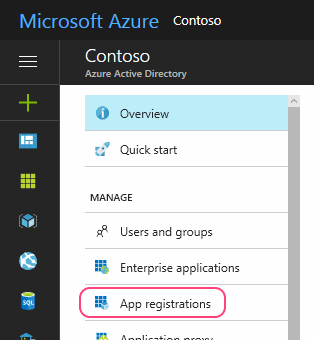 3. Either choose **New application registration** to create a new application or choose an existing application. (If you choose an existing application, skip the next step.)
4. On the **Create** blade, specify the following:
1. A **Name** for the application (displayed when users sign in).
2. The **Application type** and **Redirect URI** values.
These vary according to your requirements. For example, if you're using an Azure AD [Authentication Library](https://docs.microsoft.com/azure/active-directory/develop/active-directory-authentication-libraries) (ADAL), set **Application Type** to `Native` and **Redirect URI** to `urn:ietf:wg:oauth:2.0:oob`.
3. Either choose **New application registration** to create a new application or choose an existing application. (If you choose an existing application, skip the next step.)
4. On the **Create** blade, specify the following:
1. A **Name** for the application (displayed when users sign in).
2. The **Application type** and **Redirect URI** values.
These vary according to your requirements. For example, if you're using an Azure AD [Authentication Library](https://docs.microsoft.com/azure/active-directory/develop/active-directory-authentication-libraries) (ADAL), set **Application Type** to `Native` and **Redirect URI** to `urn:ietf:wg:oauth:2.0:oob`.
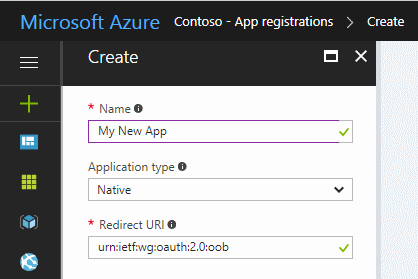 To learn more, see [Authentication Scenarios for Azure AD](https://docs.microsoft.com/azure/active-directory/develop/active-directory-authentication-scenarios).
5. From the application blade:
1. Note the **Application ID** value.
2. Choose **Settings** > **API access** > **Required permissions**.
To learn more, see [Authentication Scenarios for Azure AD](https://docs.microsoft.com/azure/active-directory/develop/active-directory-authentication-scenarios).
5. From the application blade:
1. Note the **Application ID** value.
2. Choose **Settings** > **API access** > **Required permissions**.
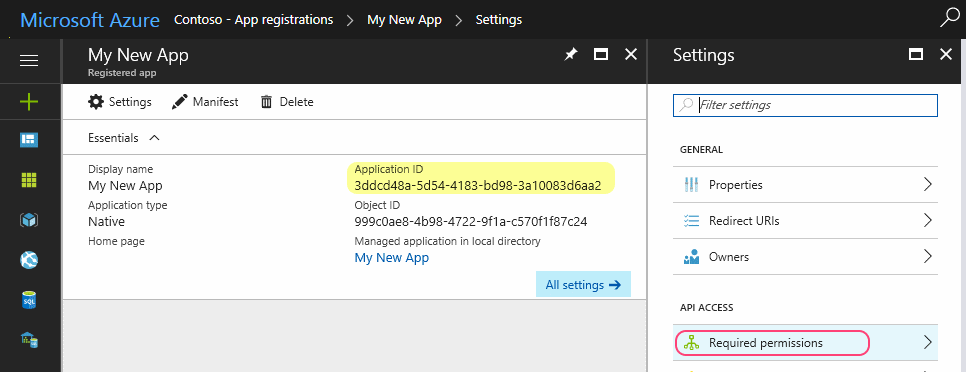 6. From the **Required Permissions** blade, choose **Add** > **Add API access** > **Select an API**.
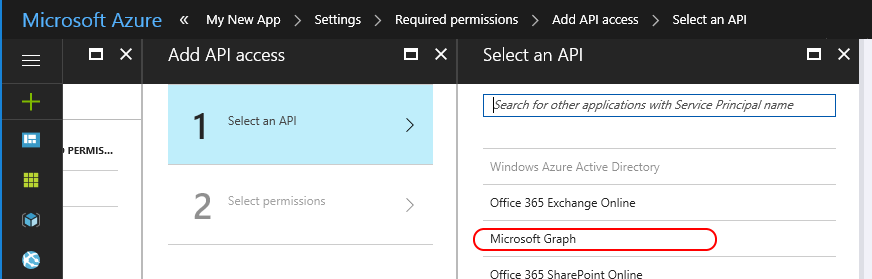 7. From the **Select an API** blade, choose **Microsoft Graph** > **Select**. The **Enable access** blade opens and lists permission scopes available to your application.
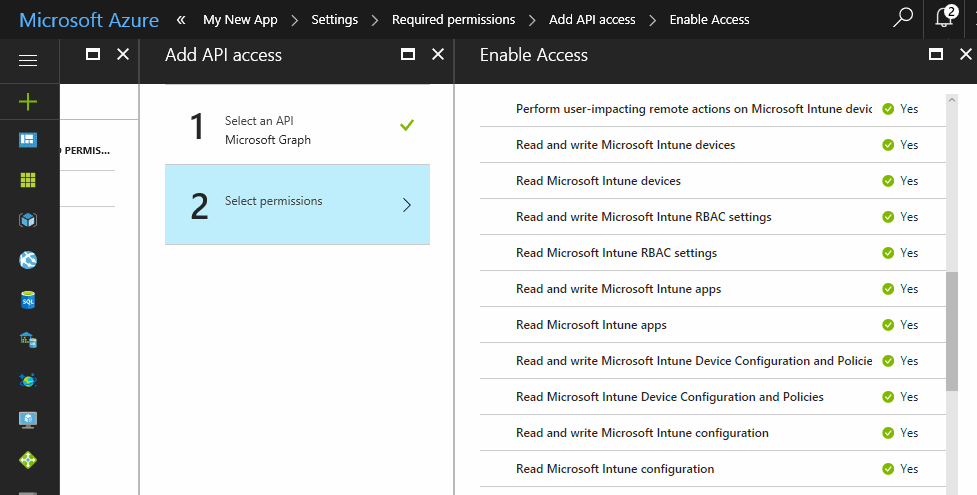 Choose the roles required for your app by placing a checkmark to the left of the relevant names. To learn about specific Intune permission scopes, see [Intune permission scopes](#intune-permission-scopes). To learn about other Graph API permission scopes, see [Microsoft Graph permissions reference](https://developer.microsoft.com/graph/docs/concepts/permissions_reference).
For best results, choose the fewest roles needed to implement your application.
When finished, choose **Select** and **Done** to save you changes.
At this point, you may also:
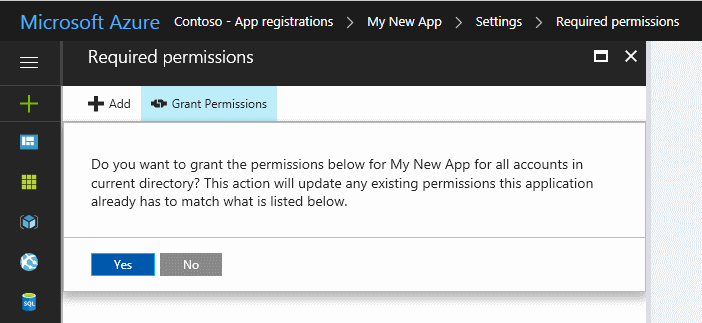
- Choose to grant permission for all tenant accounts to use the app without providing credentials.
To do so, choose **Grant permissions** and accept the confirmation prompt.
When you run the application for the first time, you're prompted to grant the app permission to perform the selected roles.
Choose the roles required for your app by placing a checkmark to the left of the relevant names. To learn about specific Intune permission scopes, see [Intune permission scopes](#intune-permission-scopes). To learn about other Graph API permission scopes, see [Microsoft Graph permissions reference](https://developer.microsoft.com/graph/docs/concepts/permissions_reference).
For best results, choose the fewest roles needed to implement your application.
When finished, choose **Select** and **Done** to save you changes.
At this point, you may also:
- Choose to grant permission for all tenant accounts to use the app without providing credentials.
To do so, choose **Grant permissions** and accept the confirmation prompt.
When you run the application for the first time, you're prompted to grant the app permission to perform the selected roles.
 - Make the app available to users outside your tenant. (This is typically only required for partners supporting multiple tenants/organizations.)
To do so:
1. Choose **Manifest** from the application blade, which opens the **Edit Manifest** blade.
- Make the app available to users outside your tenant. (This is typically only required for partners supporting multiple tenants/organizations.)
To do so:
1. Choose **Manifest** from the application blade, which opens the **Edit Manifest** blade.
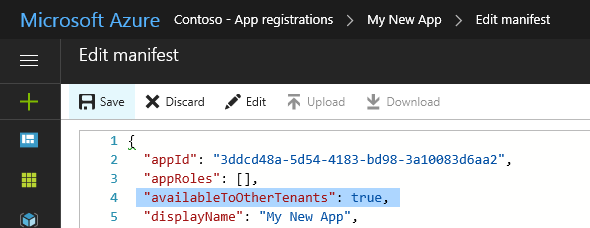 2. Change the value of the `availableToOtherTenants` setting to `true`.
3. Save your changes.
## Intune permission scopes
Azure AD and Microsoft Graph use permission scopes to control access to corporate resources.
Permission scopes (also called the _OAuth scopes_) control access to specific Intune entities and their properties. This section summarizes the permission scopes for Intune API features.
To learn more:
- [Azure AD authentication](https://docs.microsoft.com/azure/active-directory/connect/active-directory-aadconnect-pass-through-authentication)
- [Application permission scopes](https://docs.microsoft.com/azure/active-directory/develop/active-directory-v2-scopes)
When you grant permission to Microsoft Graph, you can specify the following scopes to control access to Intune features:
The following table summarizes the Intune API permission scopes. The first column shows the name of the feature as displayed in the Azure portal and the second column provides the permission scope name.
_Enable Access_ setting | Scope name
:--|:--
__Perform user-impacting remote actions on Microsoft Intune devices__ | [DeviceManagementManagedDevices.PrivilegedOperations.All](#mgd-po)
__Read and write Microsoft Intune devices__ | [DeviceManagementManagedDevices.ReadWrite.All](#mgd-rw)
__Read Microsoft Intune devices__ | [DeviceManagementManagedDevices.Read.All](#mgd-ro)
__Read and write Microsoft Intune RBAC settings__ | [DeviceManagementRBAC.ReadWrite.All](#rac-rw)
__Read Microsoft Intune RBAC settings__ | [DeviceManagementRBAC.Read.All](#rac=ro)
__Read and write Microsoft Intune apps__ | [DeviceManagementApps.ReadWrite.All](#app-rw)
__Read Microsoft Intune apps__ | [DeviceManagementApps.Read.All](#app-ro)
__Read and write Microsoft Intune Device Configuration and Policies__ | [DeviceManagementConfiguration.ReadWrite.All](#cfg-rw)
__Read Microsoft Intune Device Configuration and Policies__ | [DeviceManagementConfiguration.Read.All](#cfg-ro)
__Read and write Microsoft Intune configuration__ | [DeviceManagementServiceConfig.ReadWrite.All](#svc-rw)
__Read Microsoft Intune configuration__ | [DeviceManagementServiceConfig.Read.All](#svc-ra)
The table lists the settings as they appear in the Azure portal. The following sections describe the scopes in alphabetical order.
At this time, all Intune permission scopes require administrator access. This means you need corresponding credentials when running apps or scripts that access Intune API resources.
### DeviceManagementApps.Read.All
- **Enable Access** setting: __Read Microsoft Intune apps__
- Permits read access to the following entity properties and status:
- Mobile Apps
- Mobile App Categories
- App Protection Policies
- App Configurations
### DeviceManagementApps.ReadWrite.All
- **Enable Access** setting: __Read and write Microsoft Intune apps__
- Allows the same operations as __DeviceManagementApps.Read.All__
- Also permits changes to the following entities:
- Mobile Apps
- Mobile App Categories
- App Protection Policies
- App Configurations
### DeviceManagementConfiguration.Read.All
- **Enable Access** setting: __Read Microsoft Intune device configuration and policies__
- Permits read access to the following entity properties and status:
- Device Configuration
- Device Compliance Policy
- Notification Messages
### DeviceManagementConfiguration.ReadWrite.All
- **Enable Access** setting: __Read and write Microsoft Intune device configuration and policies__
- Allows the same operations as __DeviceManagementConfiguration.Read.All__
- Apps can also create, assign, delete, and change the following entities:
- Device Configuration
- Device Compliance Policy
- Notification Messages
### DeviceManagementManagedDevices.PrivilegedOperations.All
- **Enable Access** setting: __Perform user-impacting remote actions on Microsoft Intune devices__
- Permits the following remote actions on a managed device:
- Retire
- Wipe
- Reset/Recover Passcode
- Remote Lock
- Enable/Disable Lost Mode
- Clean PC
- Reboot
- Delete User from Shared Device
### DeviceManagementManagedDevices.Read.All
- **Enable Access** setting: __Read Microsoft Intune devices__
- Permits read access to the following entity properties and status:
- Managed Device
- Device Category
- Detected App
- Remote actions
- Malware information
### DeviceManagementManagedDevices.ReadWrite.All
- **Enable Access** setting: __Read and write Microsoft Intune devices__
- Allows the same operations as __DeviceManagementManagedDevices.Read.All__
- Apps can also create, delete, and change the following entities:
- Managed Device
- Device Category
- The following remote actions are also allowed:
- Locate devices
- Bypass activation lock
- Request remote assistance
### DeviceManagementRBAC.Read.All
- **Enable Access** setting: __Read Microsoft Intune RBAC settings__
- Permits read access to the following entity properties and status:
- Role Assignments
- Role Definitions
- Resource Operations
### DeviceManagementRBAC.ReadWrite.All
- **Enable Access** setting: __Read and write Microsoft Intune RBAC settings__
- Allows the same operations as __DeviceManagementRBAC.Read.All__
- Apps can also create, assign, delete, and change the following entities:
- Role Assignments
- Role Definitions
### DeviceManagementServiceConfig.Read.All
- **Enable Access** setting: __Read Microsoft Intune configuration__
- Permits read access to the following entity properties and status:
- Device Enrollment
- Apple Push Notification Certificate
- Apple Device Enrollment Program
- Apple Volume Purchase Program
- Exchange Connector
- Terms and Conditions
- Telecoms Expense Management
- Cloud PKI
- Branding
- Mobile Threat Defense
### DeviceManagementServiceConfig.ReadWrite.All
- **Enable Access** setting: __Read and write Microsoft Intune configuration__
- Allows the same operations as DeviceManagementServiceConfig.Read.All_
- Apps can also configure the following Intune features:
- Device Enrollment
- Apple Push Notification Certificate
- Apple Device Enrollment Program
- Apple Volume Purchase Program
- Exchange Connector
- Terms and Conditions
- Telecoms Expense Management
- Cloud PKI
- Branding
- Mobile Threat Defense
## Azure AD authentication examples
This section shows how to incorporate Azure AD into your C# and PowerShell projects.
In each example, you'll need to specify an application ID that has at least the `DeviceManagementManagedDevices.Read.All` permission scope (discussed earlier).
When testing either example, you may receive HTTP status 403 (Forbidden) errors similar to the following:
``` javascript
{
"error": {
"code": "Forbidden",
"message": "Application is not authorized to perform this operation - Operation ID " +
"(for customer support): 00000000-0000-0000-0000-000000000000 - " +
"Activity ID: cc7fa3b3-bb25-420b-bfb2-1498e598ba43 - " +
"Url: https://example.manage.microsoft.com/" +
"Service/Resource/RESTendpoint?" +
"api-version=2017-03-06 - CustomApiErrorPhrase: ",
"innerError": {
"request-id": "00000000-0000-0000-0000-000000000000",
"date": "1980-01-0112:00:00"
}
}
}
```
If this happens, verify that:
- You've updated the application ID to one authorized to use the Microsoft Graph API and the `DeviceManagementManagedDevices.Read.All` permission scope.
- Your tenant credentials support administrative functions.
- Your code is similar to the displayed samples.
### Authenticate Azure AD in C\#
This example shows how to use C# to retrieve a list of devices associated with your Intune account.
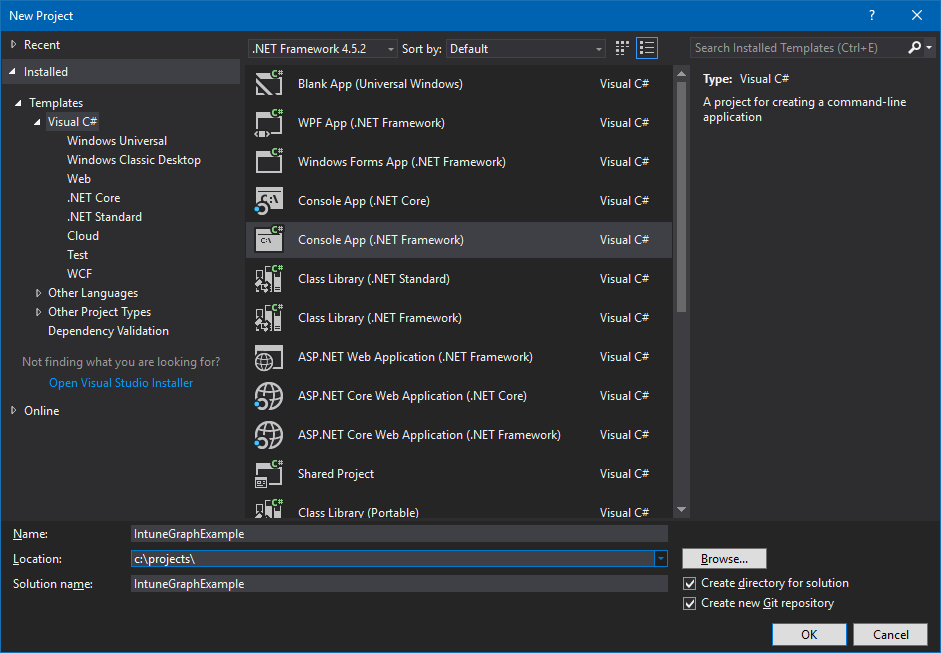
1. Start Visual Studio and then create a new Visual C# Console app (.NET Framework) project.
2. Enter a name for your project and provide other details as desired.
2. Change the value of the `availableToOtherTenants` setting to `true`.
3. Save your changes.
## Intune permission scopes
Azure AD and Microsoft Graph use permission scopes to control access to corporate resources.
Permission scopes (also called the _OAuth scopes_) control access to specific Intune entities and their properties. This section summarizes the permission scopes for Intune API features.
To learn more:
- [Azure AD authentication](https://docs.microsoft.com/azure/active-directory/connect/active-directory-aadconnect-pass-through-authentication)
- [Application permission scopes](https://docs.microsoft.com/azure/active-directory/develop/active-directory-v2-scopes)
When you grant permission to Microsoft Graph, you can specify the following scopes to control access to Intune features:
The following table summarizes the Intune API permission scopes. The first column shows the name of the feature as displayed in the Azure portal and the second column provides the permission scope name.
_Enable Access_ setting | Scope name
:--|:--
__Perform user-impacting remote actions on Microsoft Intune devices__ | [DeviceManagementManagedDevices.PrivilegedOperations.All](#mgd-po)
__Read and write Microsoft Intune devices__ | [DeviceManagementManagedDevices.ReadWrite.All](#mgd-rw)
__Read Microsoft Intune devices__ | [DeviceManagementManagedDevices.Read.All](#mgd-ro)
__Read and write Microsoft Intune RBAC settings__ | [DeviceManagementRBAC.ReadWrite.All](#rac-rw)
__Read Microsoft Intune RBAC settings__ | [DeviceManagementRBAC.Read.All](#rac=ro)
__Read and write Microsoft Intune apps__ | [DeviceManagementApps.ReadWrite.All](#app-rw)
__Read Microsoft Intune apps__ | [DeviceManagementApps.Read.All](#app-ro)
__Read and write Microsoft Intune Device Configuration and Policies__ | [DeviceManagementConfiguration.ReadWrite.All](#cfg-rw)
__Read Microsoft Intune Device Configuration and Policies__ | [DeviceManagementConfiguration.Read.All](#cfg-ro)
__Read and write Microsoft Intune configuration__ | [DeviceManagementServiceConfig.ReadWrite.All](#svc-rw)
__Read Microsoft Intune configuration__ | [DeviceManagementServiceConfig.Read.All](#svc-ra)
The table lists the settings as they appear in the Azure portal. The following sections describe the scopes in alphabetical order.
At this time, all Intune permission scopes require administrator access. This means you need corresponding credentials when running apps or scripts that access Intune API resources.
### DeviceManagementApps.Read.All
- **Enable Access** setting: __Read Microsoft Intune apps__
- Permits read access to the following entity properties and status:
- Mobile Apps
- Mobile App Categories
- App Protection Policies
- App Configurations
### DeviceManagementApps.ReadWrite.All
- **Enable Access** setting: __Read and write Microsoft Intune apps__
- Allows the same operations as __DeviceManagementApps.Read.All__
- Also permits changes to the following entities:
- Mobile Apps
- Mobile App Categories
- App Protection Policies
- App Configurations
### DeviceManagementConfiguration.Read.All
- **Enable Access** setting: __Read Microsoft Intune device configuration and policies__
- Permits read access to the following entity properties and status:
- Device Configuration
- Device Compliance Policy
- Notification Messages
### DeviceManagementConfiguration.ReadWrite.All
- **Enable Access** setting: __Read and write Microsoft Intune device configuration and policies__
- Allows the same operations as __DeviceManagementConfiguration.Read.All__
- Apps can also create, assign, delete, and change the following entities:
- Device Configuration
- Device Compliance Policy
- Notification Messages
### DeviceManagementManagedDevices.PrivilegedOperations.All
- **Enable Access** setting: __Perform user-impacting remote actions on Microsoft Intune devices__
- Permits the following remote actions on a managed device:
- Retire
- Wipe
- Reset/Recover Passcode
- Remote Lock
- Enable/Disable Lost Mode
- Clean PC
- Reboot
- Delete User from Shared Device
### DeviceManagementManagedDevices.Read.All
- **Enable Access** setting: __Read Microsoft Intune devices__
- Permits read access to the following entity properties and status:
- Managed Device
- Device Category
- Detected App
- Remote actions
- Malware information
### DeviceManagementManagedDevices.ReadWrite.All
- **Enable Access** setting: __Read and write Microsoft Intune devices__
- Allows the same operations as __DeviceManagementManagedDevices.Read.All__
- Apps can also create, delete, and change the following entities:
- Managed Device
- Device Category
- The following remote actions are also allowed:
- Locate devices
- Bypass activation lock
- Request remote assistance
### DeviceManagementRBAC.Read.All
- **Enable Access** setting: __Read Microsoft Intune RBAC settings__
- Permits read access to the following entity properties and status:
- Role Assignments
- Role Definitions
- Resource Operations
### DeviceManagementRBAC.ReadWrite.All
- **Enable Access** setting: __Read and write Microsoft Intune RBAC settings__
- Allows the same operations as __DeviceManagementRBAC.Read.All__
- Apps can also create, assign, delete, and change the following entities:
- Role Assignments
- Role Definitions
### DeviceManagementServiceConfig.Read.All
- **Enable Access** setting: __Read Microsoft Intune configuration__
- Permits read access to the following entity properties and status:
- Device Enrollment
- Apple Push Notification Certificate
- Apple Device Enrollment Program
- Apple Volume Purchase Program
- Exchange Connector
- Terms and Conditions
- Telecoms Expense Management
- Cloud PKI
- Branding
- Mobile Threat Defense
### DeviceManagementServiceConfig.ReadWrite.All
- **Enable Access** setting: __Read and write Microsoft Intune configuration__
- Allows the same operations as DeviceManagementServiceConfig.Read.All_
- Apps can also configure the following Intune features:
- Device Enrollment
- Apple Push Notification Certificate
- Apple Device Enrollment Program
- Apple Volume Purchase Program
- Exchange Connector
- Terms and Conditions
- Telecoms Expense Management
- Cloud PKI
- Branding
- Mobile Threat Defense
## Azure AD authentication examples
This section shows how to incorporate Azure AD into your C# and PowerShell projects.
In each example, you'll need to specify an application ID that has at least the `DeviceManagementManagedDevices.Read.All` permission scope (discussed earlier).
When testing either example, you may receive HTTP status 403 (Forbidden) errors similar to the following:
``` javascript
{
"error": {
"code": "Forbidden",
"message": "Application is not authorized to perform this operation - Operation ID " +
"(for customer support): 00000000-0000-0000-0000-000000000000 - " +
"Activity ID: cc7fa3b3-bb25-420b-bfb2-1498e598ba43 - " +
"Url: https://example.manage.microsoft.com/" +
"Service/Resource/RESTendpoint?" +
"api-version=2017-03-06 - CustomApiErrorPhrase: ",
"innerError": {
"request-id": "00000000-0000-0000-0000-000000000000",
"date": "1980-01-0112:00:00"
}
}
}
```
If this happens, verify that:
- You've updated the application ID to one authorized to use the Microsoft Graph API and the `DeviceManagementManagedDevices.Read.All` permission scope.
- Your tenant credentials support administrative functions.
- Your code is similar to the displayed samples.
### Authenticate Azure AD in C\#
This example shows how to use C# to retrieve a list of devices associated with your Intune account.
1. Start Visual Studio and then create a new Visual C# Console app (.NET Framework) project.
2. Enter a name for your project and provide other details as desired.
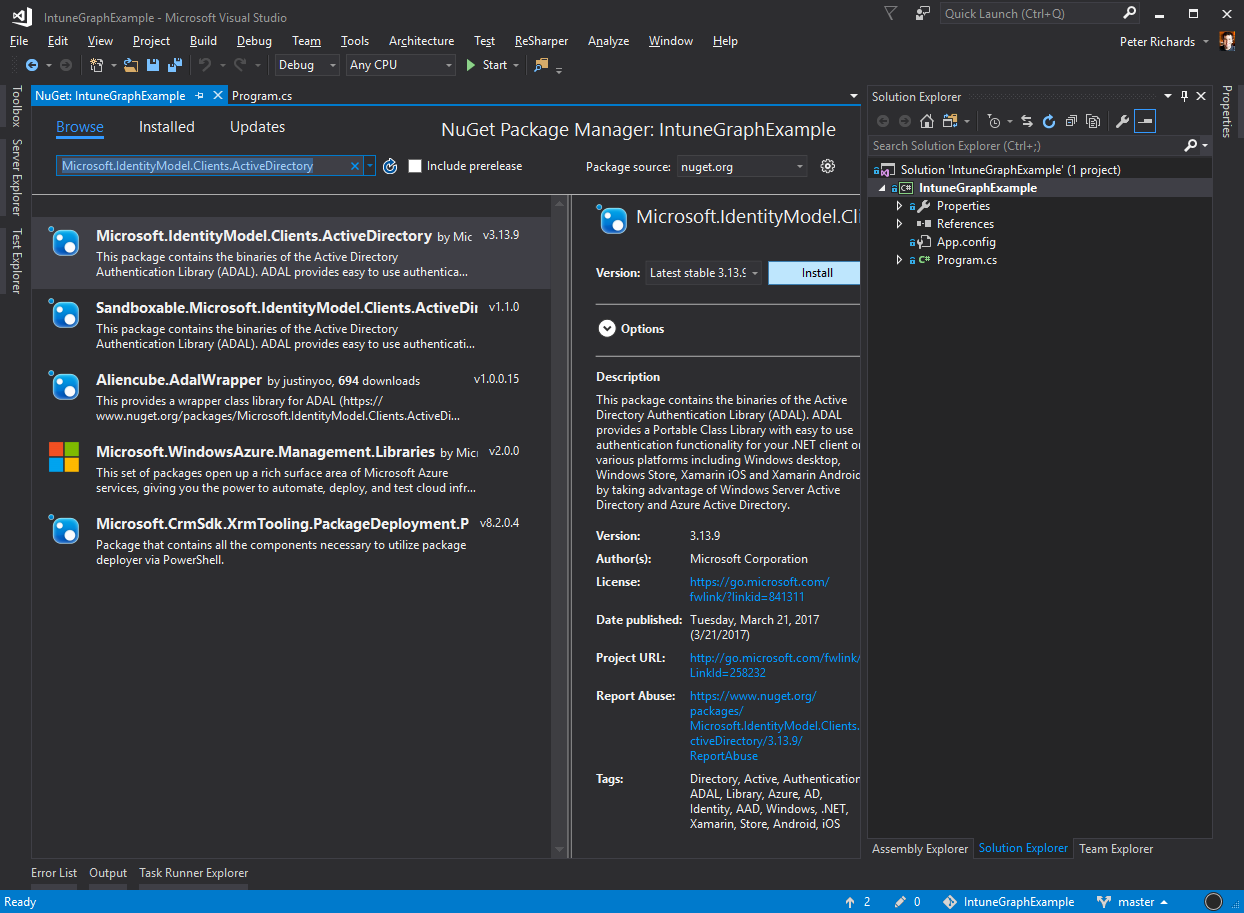
 3. Use the Solution Explorer to add the Microsoft ADAL NuGet package to the project.
1. Right-click the Solution Explorer.
2. Choose **Manage NuGet Packages…** > **Browse**.
3. Select `Microsoft.IdentityModel.Clients.ActiveDirectory` and then choose **Install**.
3. Use the Solution Explorer to add the Microsoft ADAL NuGet package to the project.
1. Right-click the Solution Explorer.
2. Choose **Manage NuGet Packages…** > **Browse**.
3. Select `Microsoft.IdentityModel.Clients.ActiveDirectory` and then choose **Install**.
 4. Add the following statements to the top of **Program.cs**:
``` csharp
using Microsoft.IdentityModel.Clients.ActiveDirectory;
using System.Net.Http;
```
5. Add a method to create the authorization header:
``` csharp
private static async Task GetAuthorizationHeader()
{
string applicationId = "";
string authority = "https://login.microsoftonline.com/common/";
Uri redirectUri = new Uri("urn:ietf:wg:oauth:2.0:oob");
AuthenticationContext context = new AuthenticationContext(authority);
AuthenticationResult result = await context.AcquireTokenAsync(
"https://graph.microsoft.com",
applicationId, redirectUri,
new PlatformParameters(PromptBehavior.Auto));
return result.CreateAuthorizationHeader();
```
Remember to change the value of `application_ID` to match one granted at least the `DeviceManagementManagedDevices.Read.All` permission scope, as described earlier.
6. Add a method to retrieve the list of devices:
``` csharp
private static async Task GetMyManagedDevices()
{
string authHeader = await GetAuthorizationHeader();
HttpClient graphClient = new HttpClient();
graphClient.DefaultRequestHeaders.Add("Authorization", authHeader);
return await graphClient.GetStringAsync(
"https://graph.microsoft.com/beta/me/managedDevices");
}
```
7. Update **Main** to call **GetMyManagedDevices**:
``` csharp
string devices = GetMyManagedDevices().GetAwaiter().GetResult();
Console.WriteLine(devices);
```
8. Compile and run your program.
When you first run your program, you should receive two prompts. The first requests your credentials and the second grants permissions for the `managedDevices` request.
For reference, here's the completed program:
``` csharp
using Microsoft.IdentityModel.Clients.ActiveDirectory;
using System;
using System.Net.Http;
using System.Threading.Tasks;
namespace IntuneGraphExample
{
class Program
{
static void Main(string[] args)
{
string devices = GetMyManagedDevices().GetAwaiter().GetResult();
Console.WriteLine(devices);
}
private static async Task GetAuthorizationHeader()
{
string applicationId = "";
string authority = "https://login.microsoftonline.com/common/";
Uri redirectUri = new Uri("urn:ietf:wg:oauth:2.0:oob");
AuthenticationContext context = new AuthenticationContext(authority);
AuthenticationResult result = await context.AcquireTokenAsync("https://graph.microsoft.com", applicationId, redirectUri, new PlatformParameters(PromptBehavior.Auto));
return result.CreateAuthorizationHeader();
}
private static async Task GetMyManagedDevices()
{
string authHeader = await GetAuthorizationHeader();
HttpClient graphClient = new HttpClient();
graphClient.DefaultRequestHeaders.Add("Authorization", authHeader);
return await graphClient.GetStringAsync("https://graph.microsoft.com/beta/me/managedDevices");
}
}
}
```
### Authenticate Azure AD (PowerShell)
The following PowerShell script uses the AzureAD PowerShell module for authentication. To learn more, see [Azure Active Directory PowerShell Version 2](https://docs.microsoft.com/powershell/azure/install-adv2?view=azureadps-2.0) and the [Intune PowerShell examples](https://github.com/microsoftgraph/powershell-intune-samples).
In this example, update the value of `$clientID` to match a valid application ID.
``` powershell
function Get-AuthToken {
[cmdletbinding()]
param
(
[Parameter(Mandatory = $true)]
$User
)
$userUpn = New-Object "System.Net.Mail.MailAddress" -ArgumentList $User
$tenant = $userUpn.Host
Write-Host "Checking for AzureAD module..."
$AadModule = Get-Module -Name "AzureAD" -ListAvailable
if ($AadModule -eq $null) {
Write-Host "AzureAD PowerShell module not found, looking for AzureADPreview"
$AadModule = Get-Module -Name "AzureADPreview" -ListAvailable
}
if ($AadModule -eq $null) {
write-host
write-host "AzureAD Powershell module not installed..." -f Red
write-host "Install by running 'Install-Module AzureAD' or 'Install-Module AzureADPreview' from an elevated PowerShell prompt" -f Yellow
write-host "Script can't continue..." -f Red
write-host
exit
}
# Getting path to ActiveDirectory Assemblies
# If the module count is greater than 1 find the latest version
if ($AadModule.count -gt 1) {
$Latest_Version = ($AadModule | select version | Sort-Object)[-1]
$aadModule = $AadModule | ? { $_.version -eq $Latest_Version.version }
$adal = Join-Path $AadModule.ModuleBase "Microsoft.IdentityModel.Clients.ActiveDirectory.dll"
$adalforms = Join-Path $AadModule.ModuleBase "Microsoft.IdentityModel.Clients.ActiveDirectory.Platform.dll"
}
else {
$adal = Join-Path $AadModule.ModuleBase "Microsoft.IdentityModel.Clients.ActiveDirectory.dll"
$adalforms = Join-Path $AadModule.ModuleBase "Microsoft.IdentityModel.Clients.ActiveDirectory.Platform.dll"
}
[System.Reflection.Assembly]::LoadFrom($adal) | Out-Null
[System.Reflection.Assembly]::LoadFrom($adalforms) | Out-Null
$clientId = ""
$redirectUri = "urn:ietf:wg:oauth:2.0:oob"
$resourceAppIdURI = "https://graph.microsoft.com"
$authority = "https://login.microsoftonline.com/$Tenant"
try {
$authContext = New-Object "Microsoft.IdentityModel.Clients.ActiveDirectory.AuthenticationContext" -ArgumentList $authority
# https://msdn.microsoft.com/library/azure/microsoft.identitymodel.clients.activedirectory.promptbehavior.aspx
# Change the prompt behaviour to force credentials each time: Auto, Always, Never, RefreshSession
$platformParameters = New-Object "Microsoft.IdentityModel.Clients.ActiveDirectory.PlatformParameters" -ArgumentList "Auto"
$userId = New-Object "Microsoft.IdentityModel.Clients.ActiveDirectory.UserIdentifier" -ArgumentList ($User, "OptionalDisplayableId")
$authResult = $authContext.AcquireTokenAsync($resourceAppIdURI, $clientId, $redirectUri, $platformParameters, $userId).Result
# If the accesstoken is valid then create the authentication header
if ($authResult.AccessToken) {
# Creating header for Authorization token
$authHeader = @{
'Content-Type' = 'application/json'
'Authorization' = "Bearer " + $authResult.AccessToken
'ExpiresOn' = $authResult.ExpiresOn
}
return $authHeader
}
else {
Write-Host
Write-Host "Authorization Access Token is null, please re-run authentication..." -ForegroundColor Red
Write-Host
break
}
}
catch {
write-host $_.Exception.Message -f Red
write-host $_.Exception.ItemName -f Red
write-host
break
}
}
$authToken = Get-AuthToken -User ""
try {
$uri = "https://graph.microsoft.com/beta/me/managedDevices"
Write-Verbose $uri
(Invoke-RestMethod -Uri $uri –Headers $authToken –Method Get).Value
}
catch {
$ex = $_.Exception
$errorResponse = $ex.Response.GetResponseStream()
$reader = New-Object System.IO.StreamReader($errorResponse)
$reader.BaseStream.Position = 0
$reader.DiscardBufferedData()
$responseBody = $reader.ReadToEnd();
Write-Host "Response content:`n$responseBody" -f Red
Write-Error "Request to $Uri failed with HTTP Status $($ex.Response.StatusCode) $($ex.Response.StatusDescription)"
write-host
break
}
```
## Support multiple tenants and partners
If your organization supports organizations with their own Azure AD tenants, you may want to permit your clients to use your application with their respective tenants.
To do so:
1. Verify that the client account exists in the target Azure AD tenant.
2. Verify that your tenant account allows users to register applications (see **User settings**).
3. Establish a relationship between each tenant.
To do so, either:
a. Use the [Microsoft Partner Center](https://partnercenter.microsoft.com/) to define a relationship with your client and their email address.
b. Invite the user to become a guest of your tenant.
To invite the user to be a guest of your tenant:
1. Choose **Add a guest user** from the **Quick tasks** panel.
4. Add the following statements to the top of **Program.cs**:
``` csharp
using Microsoft.IdentityModel.Clients.ActiveDirectory;
using System.Net.Http;
```
5. Add a method to create the authorization header:
``` csharp
private static async Task GetAuthorizationHeader()
{
string applicationId = "";
string authority = "https://login.microsoftonline.com/common/";
Uri redirectUri = new Uri("urn:ietf:wg:oauth:2.0:oob");
AuthenticationContext context = new AuthenticationContext(authority);
AuthenticationResult result = await context.AcquireTokenAsync(
"https://graph.microsoft.com",
applicationId, redirectUri,
new PlatformParameters(PromptBehavior.Auto));
return result.CreateAuthorizationHeader();
```
Remember to change the value of `application_ID` to match one granted at least the `DeviceManagementManagedDevices.Read.All` permission scope, as described earlier.
6. Add a method to retrieve the list of devices:
``` csharp
private static async Task GetMyManagedDevices()
{
string authHeader = await GetAuthorizationHeader();
HttpClient graphClient = new HttpClient();
graphClient.DefaultRequestHeaders.Add("Authorization", authHeader);
return await graphClient.GetStringAsync(
"https://graph.microsoft.com/beta/me/managedDevices");
}
```
7. Update **Main** to call **GetMyManagedDevices**:
``` csharp
string devices = GetMyManagedDevices().GetAwaiter().GetResult();
Console.WriteLine(devices);
```
8. Compile and run your program.
When you first run your program, you should receive two prompts. The first requests your credentials and the second grants permissions for the `managedDevices` request.
For reference, here's the completed program:
``` csharp
using Microsoft.IdentityModel.Clients.ActiveDirectory;
using System;
using System.Net.Http;
using System.Threading.Tasks;
namespace IntuneGraphExample
{
class Program
{
static void Main(string[] args)
{
string devices = GetMyManagedDevices().GetAwaiter().GetResult();
Console.WriteLine(devices);
}
private static async Task GetAuthorizationHeader()
{
string applicationId = "";
string authority = "https://login.microsoftonline.com/common/";
Uri redirectUri = new Uri("urn:ietf:wg:oauth:2.0:oob");
AuthenticationContext context = new AuthenticationContext(authority);
AuthenticationResult result = await context.AcquireTokenAsync("https://graph.microsoft.com", applicationId, redirectUri, new PlatformParameters(PromptBehavior.Auto));
return result.CreateAuthorizationHeader();
}
private static async Task GetMyManagedDevices()
{
string authHeader = await GetAuthorizationHeader();
HttpClient graphClient = new HttpClient();
graphClient.DefaultRequestHeaders.Add("Authorization", authHeader);
return await graphClient.GetStringAsync("https://graph.microsoft.com/beta/me/managedDevices");
}
}
}
```
### Authenticate Azure AD (PowerShell)
The following PowerShell script uses the AzureAD PowerShell module for authentication. To learn more, see [Azure Active Directory PowerShell Version 2](https://docs.microsoft.com/powershell/azure/install-adv2?view=azureadps-2.0) and the [Intune PowerShell examples](https://github.com/microsoftgraph/powershell-intune-samples).
In this example, update the value of `$clientID` to match a valid application ID.
``` powershell
function Get-AuthToken {
[cmdletbinding()]
param
(
[Parameter(Mandatory = $true)]
$User
)
$userUpn = New-Object "System.Net.Mail.MailAddress" -ArgumentList $User
$tenant = $userUpn.Host
Write-Host "Checking for AzureAD module..."
$AadModule = Get-Module -Name "AzureAD" -ListAvailable
if ($AadModule -eq $null) {
Write-Host "AzureAD PowerShell module not found, looking for AzureADPreview"
$AadModule = Get-Module -Name "AzureADPreview" -ListAvailable
}
if ($AadModule -eq $null) {
write-host
write-host "AzureAD Powershell module not installed..." -f Red
write-host "Install by running 'Install-Module AzureAD' or 'Install-Module AzureADPreview' from an elevated PowerShell prompt" -f Yellow
write-host "Script can't continue..." -f Red
write-host
exit
}
# Getting path to ActiveDirectory Assemblies
# If the module count is greater than 1 find the latest version
if ($AadModule.count -gt 1) {
$Latest_Version = ($AadModule | select version | Sort-Object)[-1]
$aadModule = $AadModule | ? { $_.version -eq $Latest_Version.version }
$adal = Join-Path $AadModule.ModuleBase "Microsoft.IdentityModel.Clients.ActiveDirectory.dll"
$adalforms = Join-Path $AadModule.ModuleBase "Microsoft.IdentityModel.Clients.ActiveDirectory.Platform.dll"
}
else {
$adal = Join-Path $AadModule.ModuleBase "Microsoft.IdentityModel.Clients.ActiveDirectory.dll"
$adalforms = Join-Path $AadModule.ModuleBase "Microsoft.IdentityModel.Clients.ActiveDirectory.Platform.dll"
}
[System.Reflection.Assembly]::LoadFrom($adal) | Out-Null
[System.Reflection.Assembly]::LoadFrom($adalforms) | Out-Null
$clientId = ""
$redirectUri = "urn:ietf:wg:oauth:2.0:oob"
$resourceAppIdURI = "https://graph.microsoft.com"
$authority = "https://login.microsoftonline.com/$Tenant"
try {
$authContext = New-Object "Microsoft.IdentityModel.Clients.ActiveDirectory.AuthenticationContext" -ArgumentList $authority
# https://msdn.microsoft.com/library/azure/microsoft.identitymodel.clients.activedirectory.promptbehavior.aspx
# Change the prompt behaviour to force credentials each time: Auto, Always, Never, RefreshSession
$platformParameters = New-Object "Microsoft.IdentityModel.Clients.ActiveDirectory.PlatformParameters" -ArgumentList "Auto"
$userId = New-Object "Microsoft.IdentityModel.Clients.ActiveDirectory.UserIdentifier" -ArgumentList ($User, "OptionalDisplayableId")
$authResult = $authContext.AcquireTokenAsync($resourceAppIdURI, $clientId, $redirectUri, $platformParameters, $userId).Result
# If the accesstoken is valid then create the authentication header
if ($authResult.AccessToken) {
# Creating header for Authorization token
$authHeader = @{
'Content-Type' = 'application/json'
'Authorization' = "Bearer " + $authResult.AccessToken
'ExpiresOn' = $authResult.ExpiresOn
}
return $authHeader
}
else {
Write-Host
Write-Host "Authorization Access Token is null, please re-run authentication..." -ForegroundColor Red
Write-Host
break
}
}
catch {
write-host $_.Exception.Message -f Red
write-host $_.Exception.ItemName -f Red
write-host
break
}
}
$authToken = Get-AuthToken -User ""
try {
$uri = "https://graph.microsoft.com/beta/me/managedDevices"
Write-Verbose $uri
(Invoke-RestMethod -Uri $uri –Headers $authToken –Method Get).Value
}
catch {
$ex = $_.Exception
$errorResponse = $ex.Response.GetResponseStream()
$reader = New-Object System.IO.StreamReader($errorResponse)
$reader.BaseStream.Position = 0
$reader.DiscardBufferedData()
$responseBody = $reader.ReadToEnd();
Write-Host "Response content:`n$responseBody" -f Red
Write-Error "Request to $Uri failed with HTTP Status $($ex.Response.StatusCode) $($ex.Response.StatusDescription)"
write-host
break
}
```
## Support multiple tenants and partners
If your organization supports organizations with their own Azure AD tenants, you may want to permit your clients to use your application with their respective tenants.
To do so:
1. Verify that the client account exists in the target Azure AD tenant.
2. Verify that your tenant account allows users to register applications (see **User settings**).
3. Establish a relationship between each tenant.
To do so, either:
a. Use the [Microsoft Partner Center](https://partnercenter.microsoft.com/) to define a relationship with your client and their email address.
b. Invite the user to become a guest of your tenant.
To invite the user to be a guest of your tenant:
1. Choose **Add a guest user** from the **Quick tasks** panel.
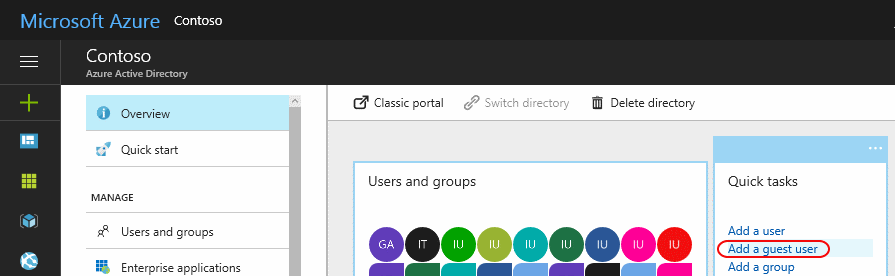 2. Enter the client's email address and (optionally) add a personalized message for the invite.
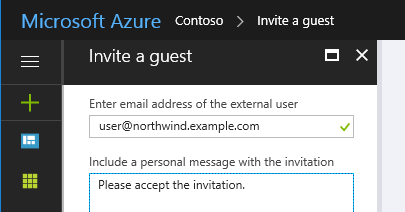 3. Choose **Invite**.
This sends an invite to the user.
3. Choose **Invite**.
This sends an invite to the user.
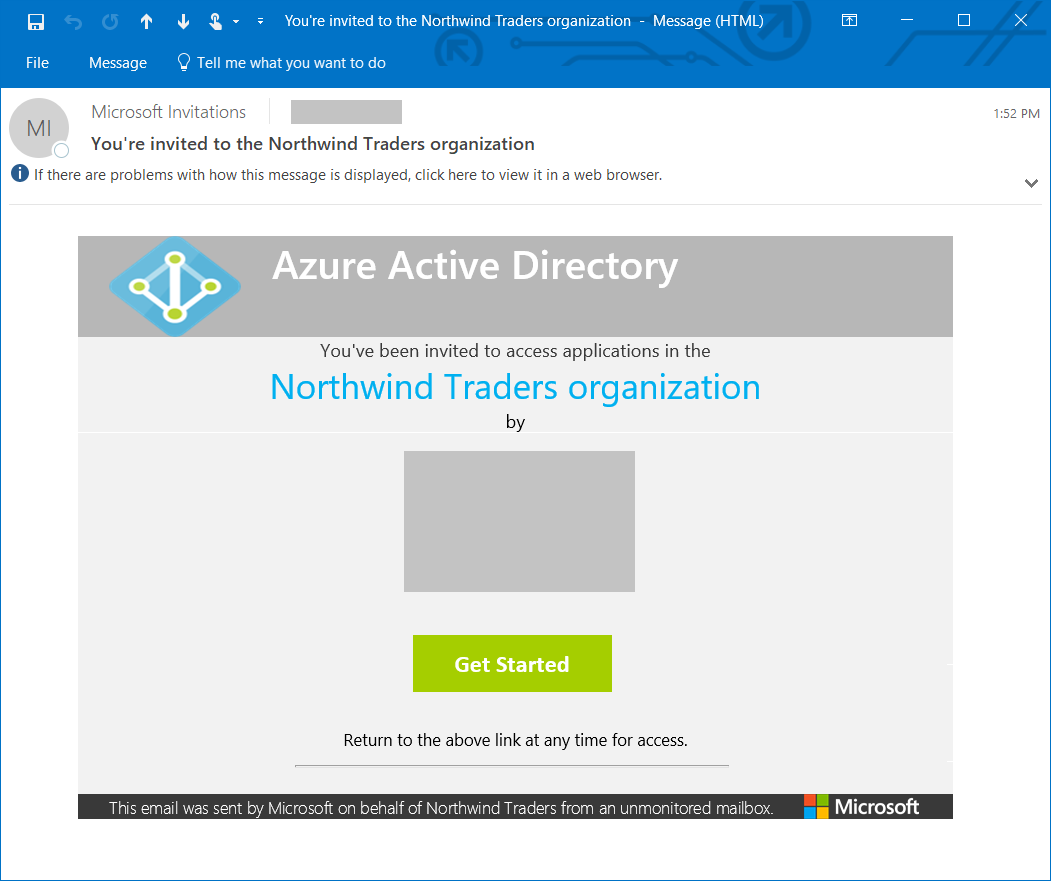 The user needs to choose the **Get Started** link to accept your invitation.
When the relationship is established (or your invitation has been accepted), add the user account to the **Directory role**.
Remember to add the user to other roles as needed. For example, to allow the user to manage Intune settings, they need to be either a **Global Administrator** or an **Intune Service administrator**.
Also:
- Use https://portal.office.com to assign an Intune license to your user account.
- Update application code to authenticate to the client's Azure AD tenant domain, rather than your own.
For example, suppose your tenant domain is `contosopartner.onmicrosoft.com` and your client's tenant domain is `northwind.onmicrosoft.com`, you would update your code to authenticate to your client's tenant.
To do so in a C# application based on the earlier example, you'd change the value of the `authority` variable:
``` csharp
string authority = "https://login.microsoftonline.com/common/";
```
to
``` csharp
string authority = "https://login.microsoftonline.com/northwind.onmicrosoft.com/";
```
The user needs to choose the **Get Started** link to accept your invitation.
When the relationship is established (or your invitation has been accepted), add the user account to the **Directory role**.
Remember to add the user to other roles as needed. For example, to allow the user to manage Intune settings, they need to be either a **Global Administrator** or an **Intune Service administrator**.
Also:
- Use https://portal.office.com to assign an Intune license to your user account.
- Update application code to authenticate to the client's Azure AD tenant domain, rather than your own.
For example, suppose your tenant domain is `contosopartner.onmicrosoft.com` and your client's tenant domain is `northwind.onmicrosoft.com`, you would update your code to authenticate to your client's tenant.
To do so in a C# application based on the earlier example, you'd change the value of the `authority` variable:
``` csharp
string authority = "https://login.microsoftonline.com/common/";
```
to
``` csharp
string authority = "https://login.microsoftonline.com/northwind.onmicrosoft.com/";
```