## DB clusters
!!! caution alert alert-primary "Do not use for mission-critical workloads"
DBaaS feature is deprecated. We encourage you to use [Percona Everest](http://per.co.na/pmm-to-everest) instead. Check our [Migration guide](http://per.co.na/pmm-to-everest-guide).
### Add a DB Cluster
In order to create a database cluster you must have at least one Kubernetes cluster registered to PMM. Start [here](dbaas/setting-up.md#create-a-kubernetes-cluster) if you haven't done that yet.
!!! caution alert alert-warning "Important"
In order for PMM to collect metrics from your DB clusters, you must first set the [public address](../how-to/configure.md#public-address) of your PMM server.
You can create a DB cluster with the click of a button! We have populated all needed fields with suitable defaults but you can customize many aspects of your DB cluster's configuration.
To create a DB cluster, do the following:
1. Select the *DB Cluster* tab.
2. Click *Create DB Cluster*.
3. From the drop-down menu, select the values for the following:
- *Kubernetes Cluster*
- *Database Type*
- *Database Version*
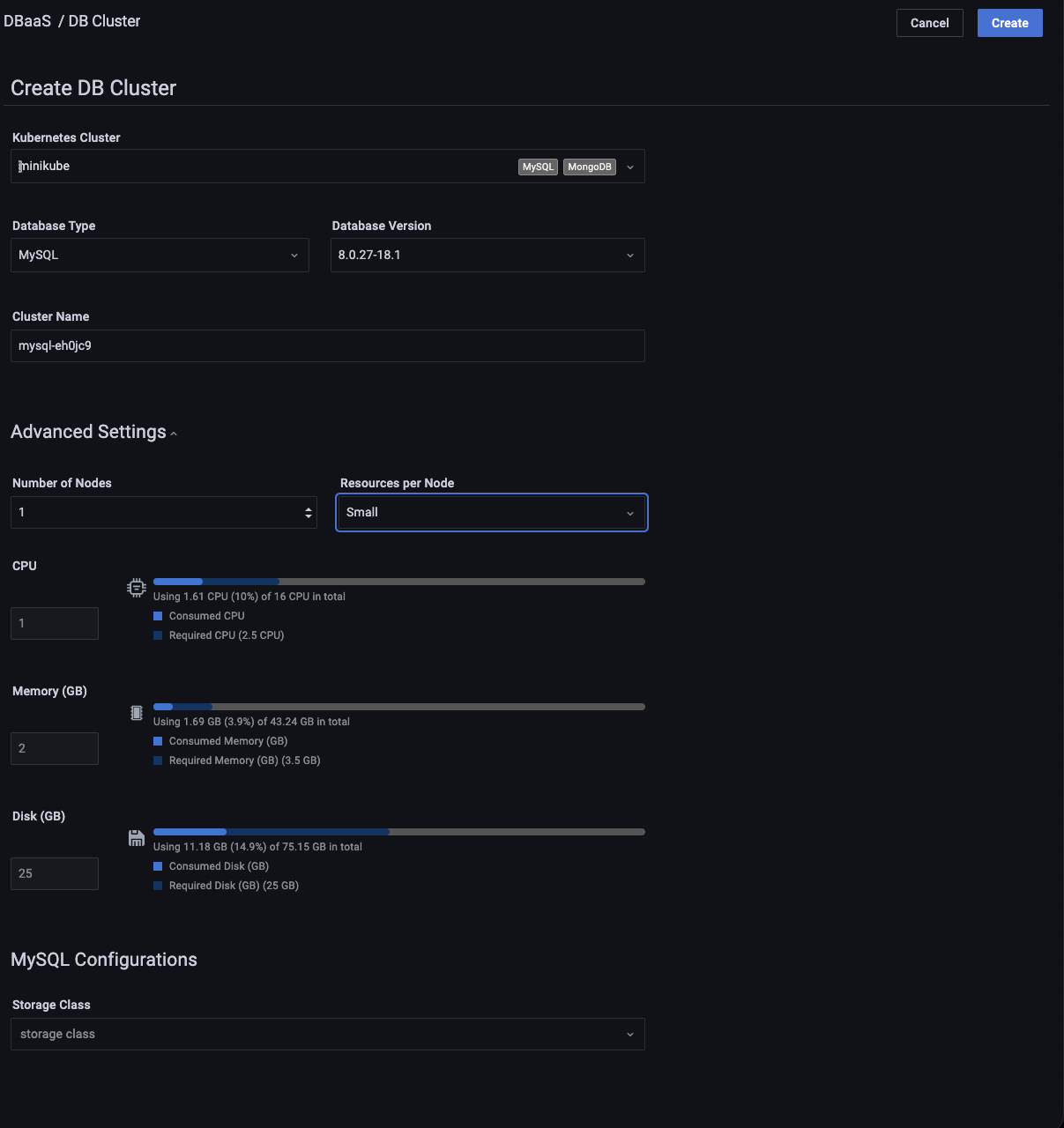
4. Optionally expand *Advanced Settings* panel for further customization.
1. Select the number of nodes. (1 is the minimum)
2. Select a preset *Resources per Node*.
*Small*, *Medium* and *Large* are fixed preset values for *Memory*, *CPU*, and *Disk*.
Values for the *Custom* preset can be edited.
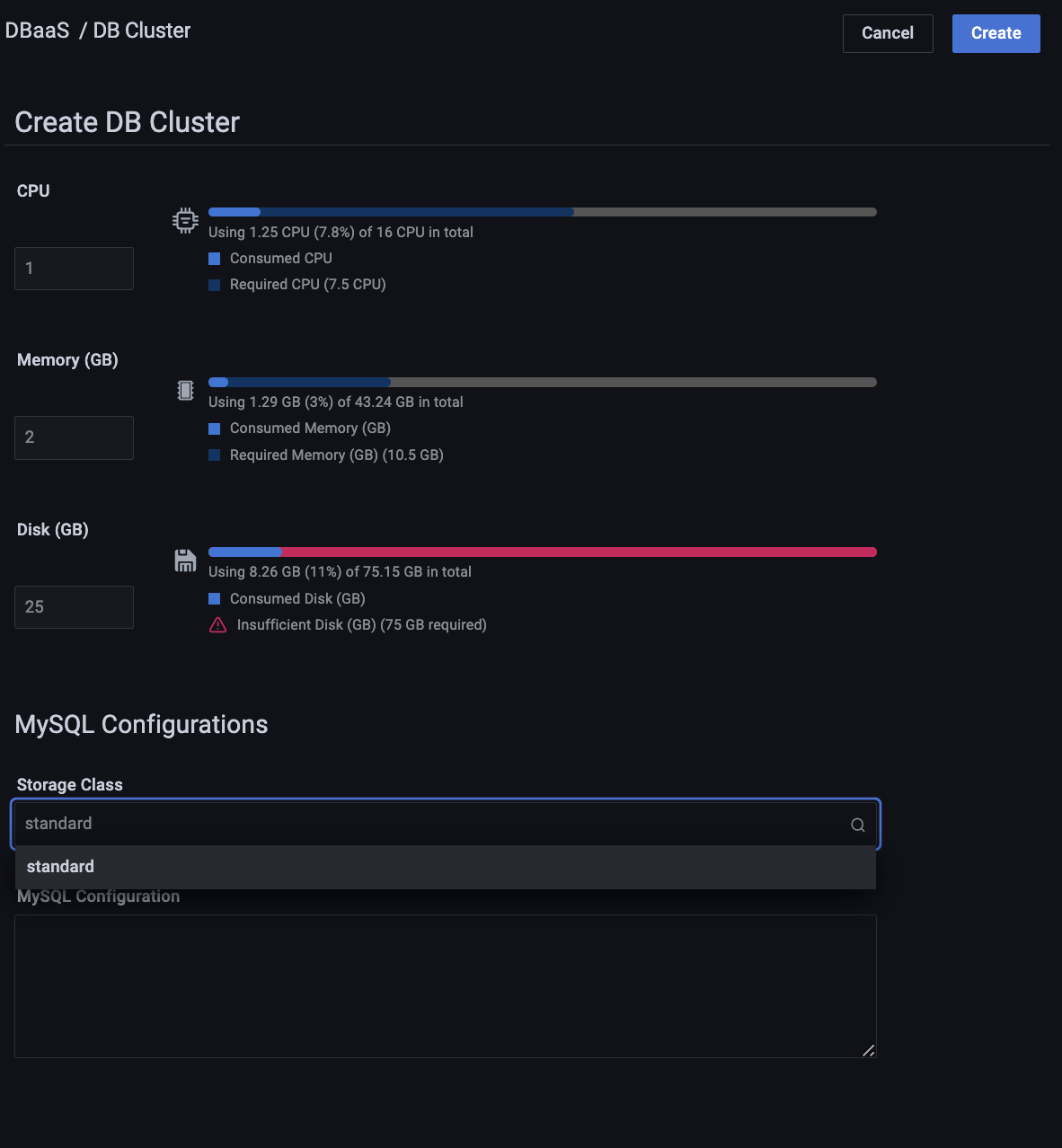
Beside each resource type is an estimate of the required and available resources represented numerically in absolute and percentage values, and graphically as a colored, segmented bar showing the projected ratio of used to available resources. A red warning triangle is shown if the requested resources exceed those available.
3. Enter the following on the *Database Configurations* panel:
- *Storage Class* - Select the storage class from the drop-down. Storage classes allow dynamic provisioning of persistent storage for PMM. Using storage classes, you can create and attach volumes on-demand without manually managing the underlying storage infrastructure.
- *Database configuration*- Enter the config string into the Configuration text box to configure the database engine.
4. Enter the following on the *Network and Security* panel:
- *Expose* - Select this checkbox to make this DB cluster available outside of the kubernetes cluster.
- *Internet Facing* - Select this checkbox if you want the cluster to be accessible on the Internet.
- *Source Range* - For security, you can control the exposure level by providing the IP address in the *Source Range* field. This allows you to choose the IP addresses that can access your DB cluster. To add more than one source range, click *Add New*.
5. Click *Create Cluster* to create your cluster.
6. A row appears with information on your cluster:
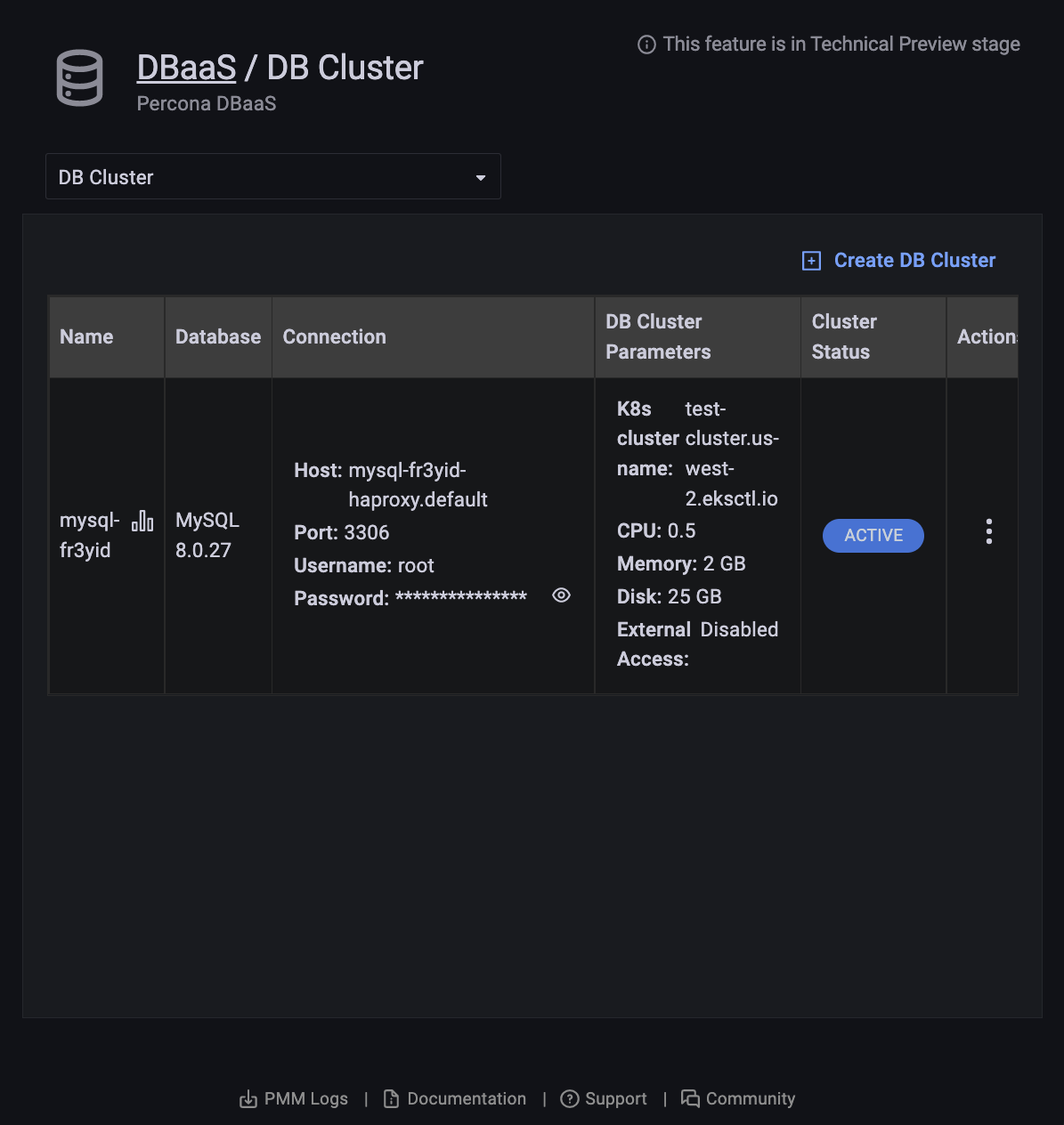
- *Name*: The cluster name.
- *Database*: The cluster database type and version.
- *Connection*:
- *Host*: The hostname.
- *Port*: The port number.
- *Username*: The connection username.
- *Password*: The connection password (click the eye icon to reveal).
- *DB Cluster Parameters*:
- *K8s cluster name*: The Kubernetes cluster name.
- *CPU*: The number of CPUs allocated to the cluster.
- *Memory*: The amount of memory allocated to the cluster.
- *Disk*: The amount of disk space allocated to the cluster.
- *Cluster Status*:
- *PENDING*: The cluster is being created.
- *ACTIVE*: The cluster is active.
- *FAILED*: The cluster could not be created.
- *DELETING*: The cluster is being deleted.
- *UPDATING*: The cluster is being updated.
### Delete a DB Cluster
1. Select the *DB Cluster* tab.
2. Find the row with the database cluster you want to delete.
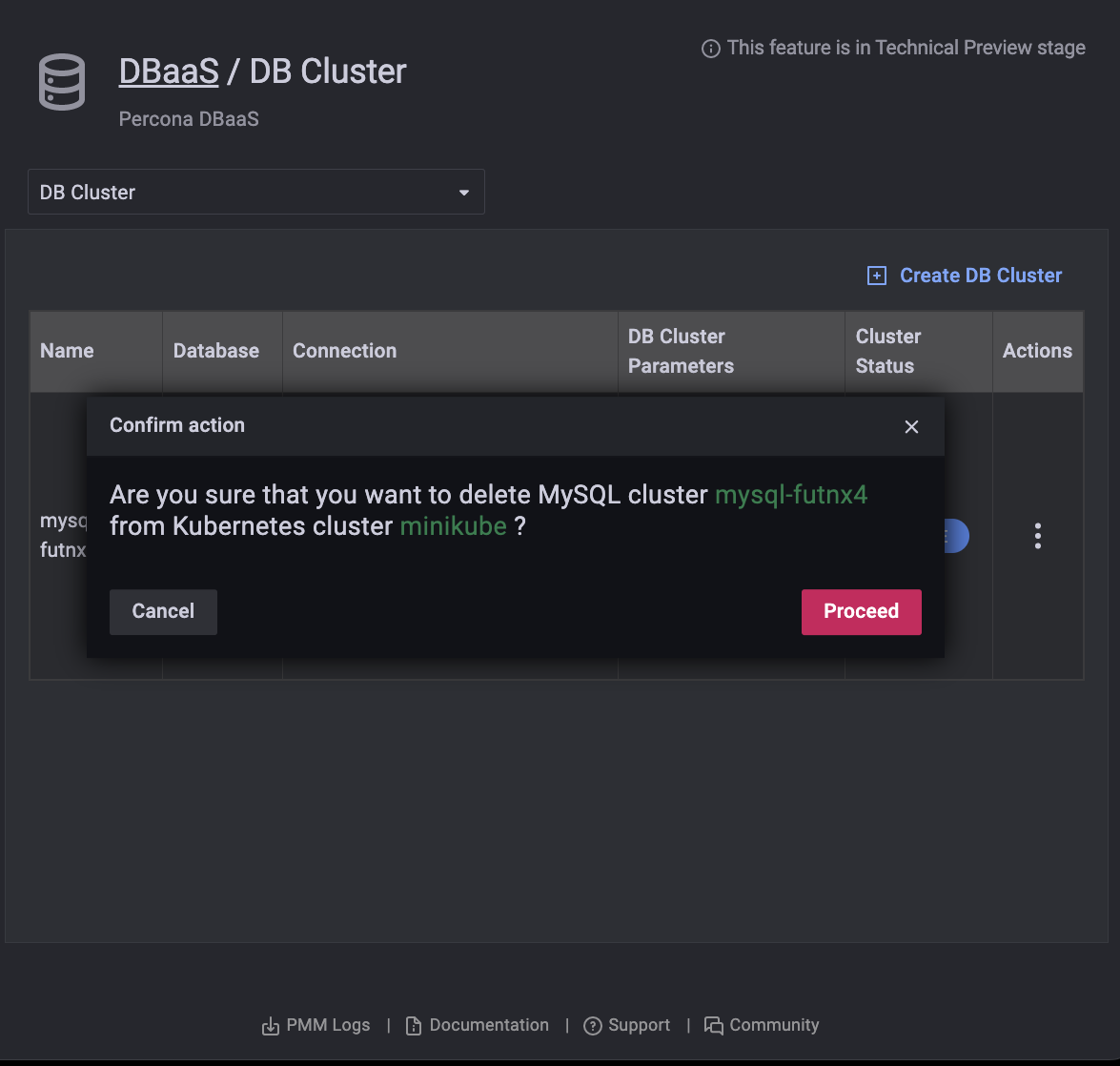
3. In the *Actions* column, open the menu and click *Delete*.
4. Confirm the action by clicking *Proceed*, or abandon by clicking *Cancel*.
!!! danger alert alert-danger "Danger"
Deleting a cluster also deletes any attached volumes. Please proceed with caution.
### Edit a DB Cluster
1. Select the *DB Cluster* tab.
2. Find the row with the database cluster you want to change.
3. In the *Actions* column, open the menu and click *Edit*.
A paused cluster can't be edited.
### Restart a DB Cluster
1. Select the *DB Cluster* tab.
2. Identify the database cluster to be changed.
3. In the *Actions* column, open the menu and click *Restart*.
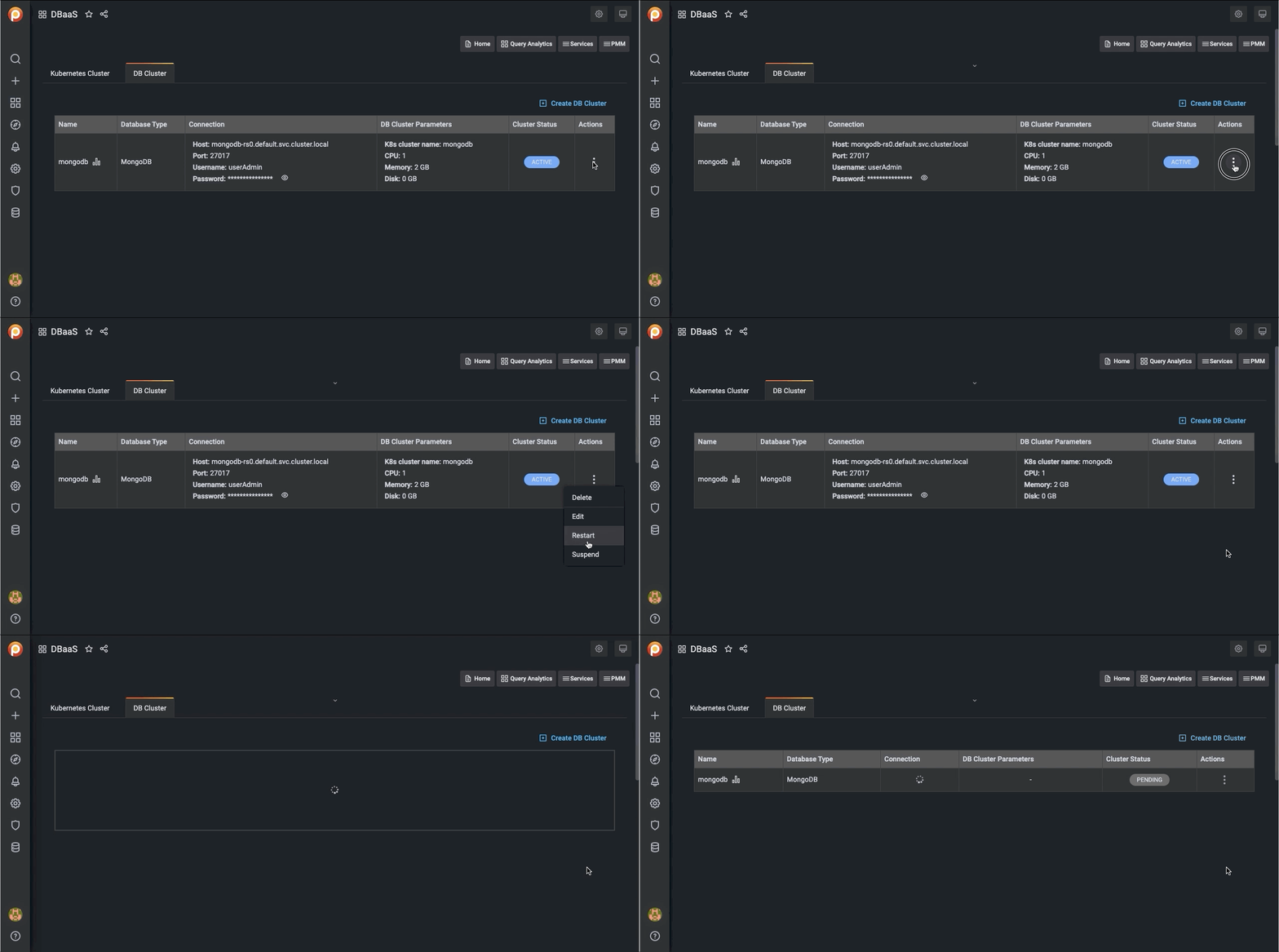
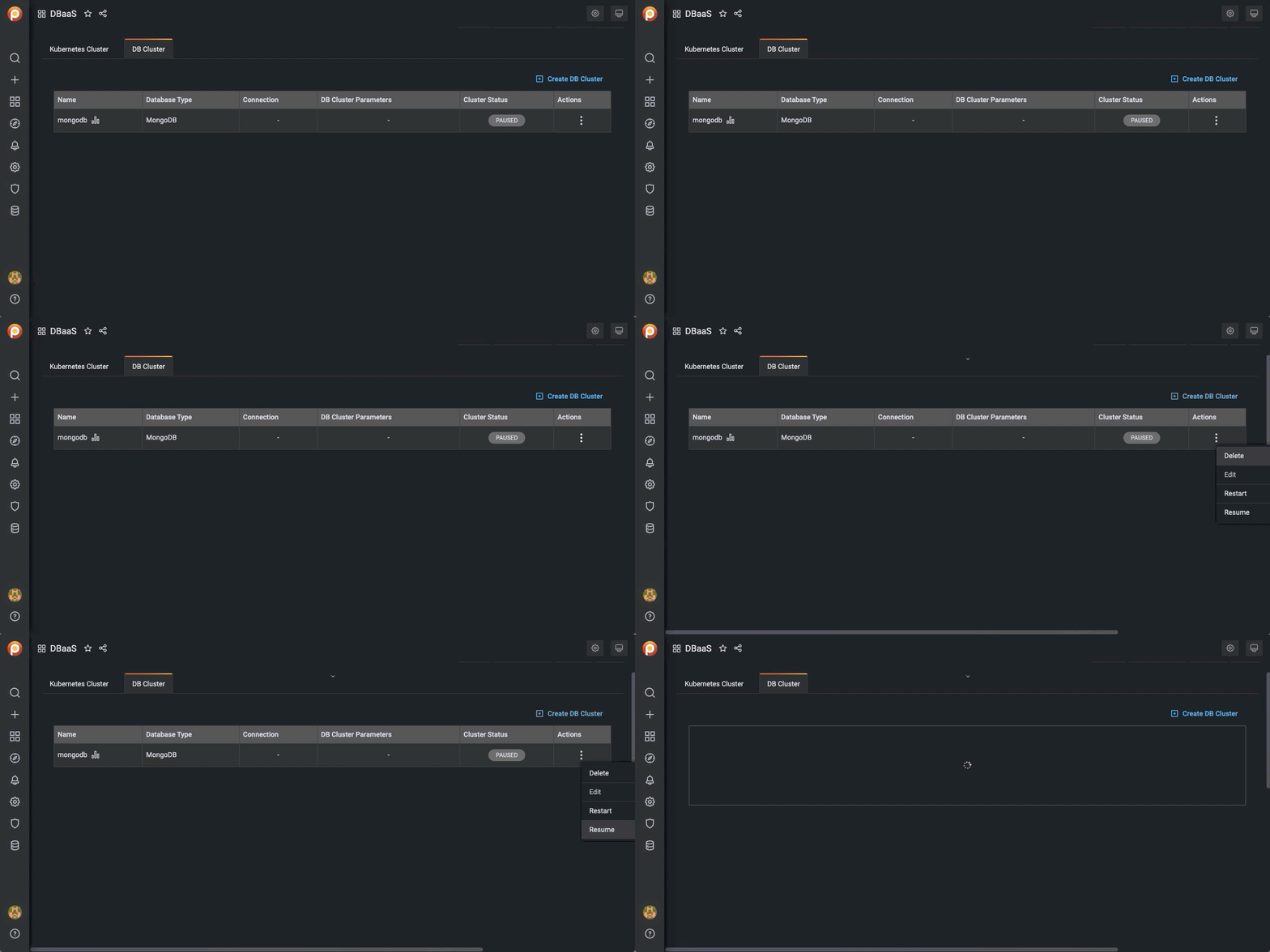
### Suspend or resume a DB Cluster
1. Select the *DB Cluster* tab.
2. Identify the DB cluster to suspend or resume.
3. In the *Actions* column, open the menu and click the required action:
- For active clusters, click *Suspend*.
- For paused clusters, click *Resume*.
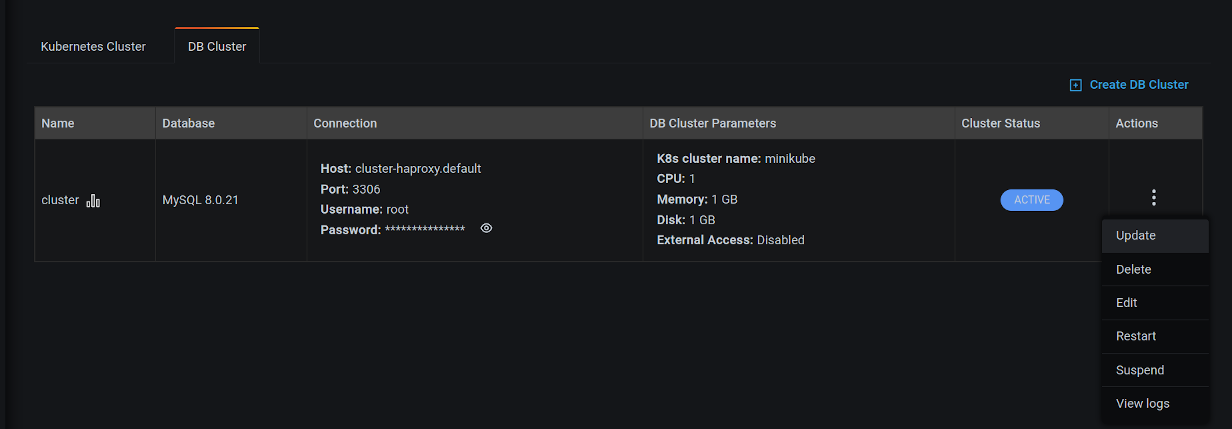
### Update a DB Cluster
1. Select the *DB Cluster* tab.
2. Identify the DB cluster to update.
3. In the *Actions* column, open the menu and click *Update*:
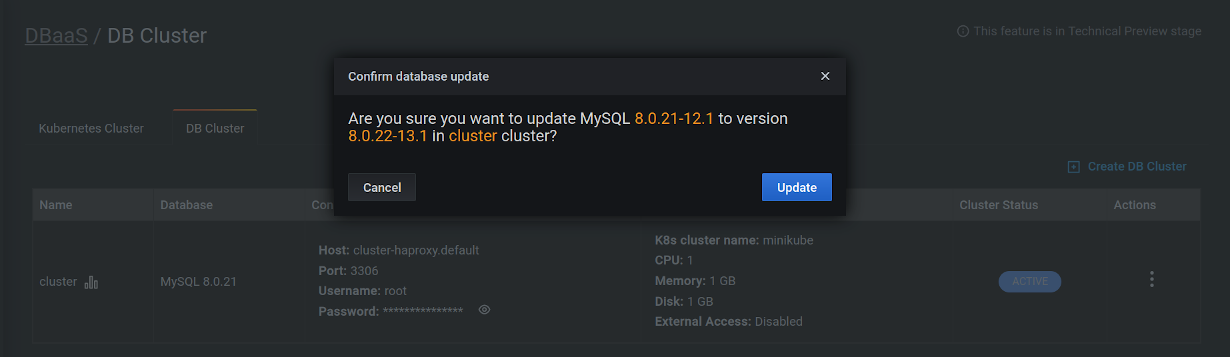
4. Confirm the update by clicking on *Update*, or abandon by clicking *Cancel*.
!!! seealso alert alert-info "See also"
[Setting up a development environment for DBaaS](../dbaas/setting-up.md)
[ALPHA]: https://en.wikipedia.org/wiki/Software_release_life_cycle#Alpha
[Amazon Elastic Kubernetes Service (EKS)]: https://aws.amazon.com/eks/
[AWS documentation]: https://docs.aws.amazon.com/general/latest/gr/aws-sec-cred-types.html