# MCPR: A Practical Framework for Stateful Human-AI Collaboration in R
[](https://lifecycle.r-lib.org/articles/stages.html#experimental)
[](https://github.com/phisanti/MCPR/actions/workflows/R-CMD-check.yaml)
[](https://app.codecov.io/gh/phisanti/MCPR?branch=main)
[](https://github.com/phisanti/MCPR/releases)
The MCPR (Model Context Protocol Tools for R) package addresses a
fundamental limitation in the current paradigm of AI-assisted R
programming. Existing AI agents operate in a stateless execution model,
invoking `Rscript` for each command, which is antithetical to the
iterative, state-dependent nature of serious data analysis. An
analytical workflow is a cumulative process of exploration, modelling,
and validation that can span hours or days. Moreover, intermediate steps
can involve heavy computation, and small changes in downstream code such
as plot aesthetics require running the entire script again. MCPR aims to
tackle this issue by enabling AI agents to establish persistent,
interactive sessions within a live R environment, thereby preserving
workspace state and enabling complex, multi-step analytical workflows.
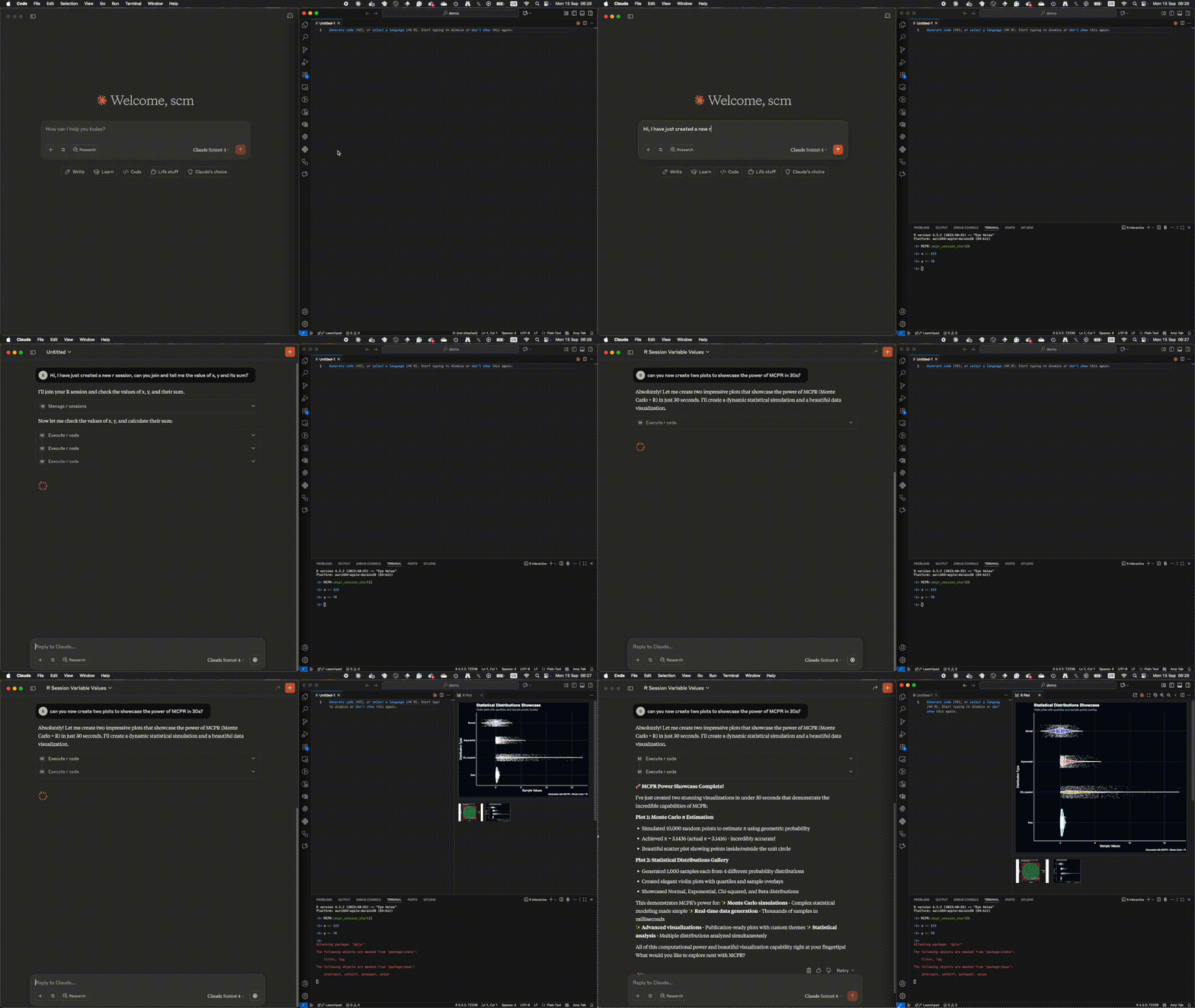
MCPR Demo
## Quick Start
Get up and running with MCPR in under 2 minutes:
``` r
# 1. Install MCPR
remotes::install_github("phisanti/MCPR")
# 2. Start an R session and make it discoverable
library(MCPR)
mcpr_session_start()
# 3. In your AI agent (Claude, etc.), connect to the session
# The agent will use: manage_r_sessions("list") then manage_r_sessions("join", session_id)
# 4. Now your AI agent can run R code in your live session!
# Example: execute_r_code("summary(mtcars)")
```
**That’s it!** Your AI agent can now execute R code, create plots, and
inspect your workspace while preserving all session state.
## Core capabilities
MCPR’s design is guided by principles of modularity, robustness, and
practicality.
- **Communication Protocol:** MCPR uses JSON-RPC 2.0 over `nanonext`
sockets, providing a lightweight, asynchronous, and reliable messaging
layer. This choice ensures cross-platform compatibility and
non-blocking communication suitable for an interactive environment.
- **Tool-Based Design:** Functionality is exposed to the AI agent as a
discrete set of tools (create_plot, execute_r_code, etc.). This
modular approach simplifies the agent’s interaction logic and provides
clear, well-defined endpoints for R operations.
- **Session Management:** A central `mcpr_session_start()` function acts
as a listener, making an R session discoverable on the local machine.
The `manage_r_sessions` tool provides the service discovery mechanism
for agents to find and connect to these listeners.
- **Graphics Subsystem:** Plot generation leverages `httpgd` when
available for high-performance, off-screen rendering. A fallback to
standard R graphics devices (grDevices) ensures broad compatibility.
The system includes intelligent token management to prevent oversized
image payloads.
## Installation
The first requirement is to have R installed and then install the MCPR
package from GitHub:
``` r
if (!require("remotes")) install.packages("remotes")
remotes::install_github("phisanti/MCPR")
```
Next, you should install the MCP server to give the agent access to the
tools included in the package. System integration is designed to be
straightforward, with both automated and manual pathways.
### Automated Setup
A convenience function, `install_mcpr()`, is provided to handle package
installation and agent-specific MCP configuration. Supported agents
include Claude, Gemini, Copilot, and Codex.
``` r
library(MCPR)
install_mcpr(agent = "claude") # Supported agents: 'claude', 'gemini', 'copilot', 'codex'
```
### Manual MCP Configuration
For Claude Desktop, configure `claude_desktop_config.json`. You can
likely find it in one of these locations depending on your OS:
**macOS**:
`~/Library/Application Support/Claude/claude_desktop_config.json`
**Windows**: `%APPDATA%\Claude\claude_desktop_config.json` **Linux**:
`~/.config/claude/claude_desktop_config.json`
Then, add the following MCP server configuration:
``` json
{
"mcpServers": {
"mcpr": {
"command": "R",
"args": ["--quiet", "--slave", "-e", "MCPR::mcpr_server()"]
}
}
}
```
### Supported agents
Currently, MCPR supports configuration for the following AI agents with
the given configuration paths (note that these are approximate and might
vary based on OS and installation):
- **Claude:** Claude Desktop config at
`~/Library/Application Support/Claude/claude_desktop_config.json`
(macOS), `%APPDATA%/Claude/claude_desktop_config.json` (Windows), or
`~/.config/Claude/claude_desktop_config.json` (Linux).
- **Gemini:** Global settings at `~/.gemini/settings.json` (use
`./.gemini/settings.json` for a project-local setup).
- **Copilot:** Workspace configuration at `.vscode/mcp.json` (user-level
fallback at `~/.config/Code/User/mcp.json` or
`%APPDATA%/Code/User/mcp.json`).
- **Codex:** Global TOML configuration at `~/.codex/config.toml`.
## Usage Pattern
The intended workflow is simple and user-centric.
1. The user starts an R session and invokes `mcpr_session_start()` to
enable connections.
2. The user instructs their AI agent to connect.
3. The agent uses `manage_r_sessions('list')` to find the session ID
and `manage_r_sessions('join', session=ID)` to connect.
4. The user can now interact with the agent, making requests regarding
their R session. The agent can now use `execute_r_code`,
`create_plot`, and `view` to collaboratively assist the user with
their analysis, maintaining full context throughout the interaction.
## Agent tools
The philosophy in the development of the MCPR package is to provide the
agent with few, well-defined tools that can be composed to perform
complex tasks. The goal was to give the agent the ability to manage
multiple R sessions (`manage_r_sessions`), to run R code in the session
(`execute_r_code`), see the graphical data (`create_plot`), and inspect
the session (`view`). We believe these are flexible enough to accomplish
any task in R. See the details below.
### `execute_r_code(code)`
**Purpose**: Execute arbitrary R code within session context
**Input**: Character string containing R expressions
**Output**: Structured response with results, output, warnings, and
errors
``` r
execute_r_code("
library(dplyr)
data <- mtcars %>%
filter(mpg > 20) %>%
select(mpg, cyl, wt)
nrow(data)
")
```
### `create_plot(expr, width, height, format)`
**Purpose**: Generate visualizations with AI-optimized output
**Input**: R plotting expression, dimensions, format specification
**Output**: Base64-encoded image with metadata and token usage
information
``` r
create_plot("
library(ggplot2)
ggplot(mtcars, aes(wt, mpg)) +
geom_point() +
geom_smooth(method = 'lm')
", width = 600, height = 450)
```
### `manage_r_sessions(action, session)`
**Purpose**: Session discovery and management
**Actions**:
- `"list"`: Enumerate active sessions with metadata
- `"join"`: Connect to specific session by ID
- `"start"`: Launch new R session process
``` r
manage_r_sessions("list") # Show available sessions
manage_r_sessions("join", 2) # Connect to session 2
manage_r_sessions("start") # Create new session
```
### `view(what, max_lines)`
**Purpose**: Environment introspection and debugging
**what**:
- `'session'`: Object summaries with statistical metadata
- `'terminal'`: Command history for workflow reproducibility
- `'workspace'`: File system context
- `'installed_packages'`: Available libraries
## Common errors
- **Connection Failed:** Ensure `mcpr_session_start()` is running in R.
Set the `MCPTOOLS_LOG_FILE` environment variable to a valid path and
inspect logs for detailed error messages.
- **Tools Not Found:** Confirm the path in `user_mcp.json` is correct
and that the agent has been restarted. Manually install the MCP server
to verify the setup.
- **Plotting Errors:** Ensure the plotting expression is valid and that
all necessary libraries are loaded, and install `httpgd`.
If these issues persist, please open an issue on the GitHub repository
with relevant logs and context.
## Acknowledgments
We thank [Simon P. Couch](https://github.com/simonpcouch)
([mcptools](https://github.com/posit-dev/mcptools)) for the inspiration
to use nanonext and [Aleksander
Dietrichson](https://github.com/dietrichson)
([mcpr](https://github.com/chi2labs/mcpr)) for the idea of using
roxygen2 for parsing tools.
------------------------------------------------------------------------
This project is licensed under the Creative Commons Attribution 4.0
International License.