### 🌐 **[pickywawa.github.io/cyberdog](https://pickywawa.github.io/cyberdog/)**
**Website · screenshots · comparisons · downloads**

# Cyberdog
**Your SSH servers, one beautiful window.**
A free, open-source alternative to Cyberduck, WinSCP and Termius: SFTP explorer, built-in terminal, server-health dashboard and one-click scripts. Also speaks FTP, S3, Azure, WebDAV and cloud drives. For macOS, Windows and Linux.
[**🌐 Website**](https://pickywawa.github.io/cyberdog/) · [**⬇️ Download**](https://github.com/pickywawa/cyberdog/releases/latest) · [**Cyberduck alternative**](https://pickywawa.github.io/cyberdog/cyberduck-alternative.html) · [**WinSCP alternative**](https://pickywawa.github.io/cyberdog/winscp-alternative.html) · [**Termius alternative**](https://pickywawa.github.io/cyberdog/termius-alternative.html)


**English** · [Français](README.fr.md)

 ## 🔁 Coming from Cyberduck, WinSCP, FileZilla or Termius?
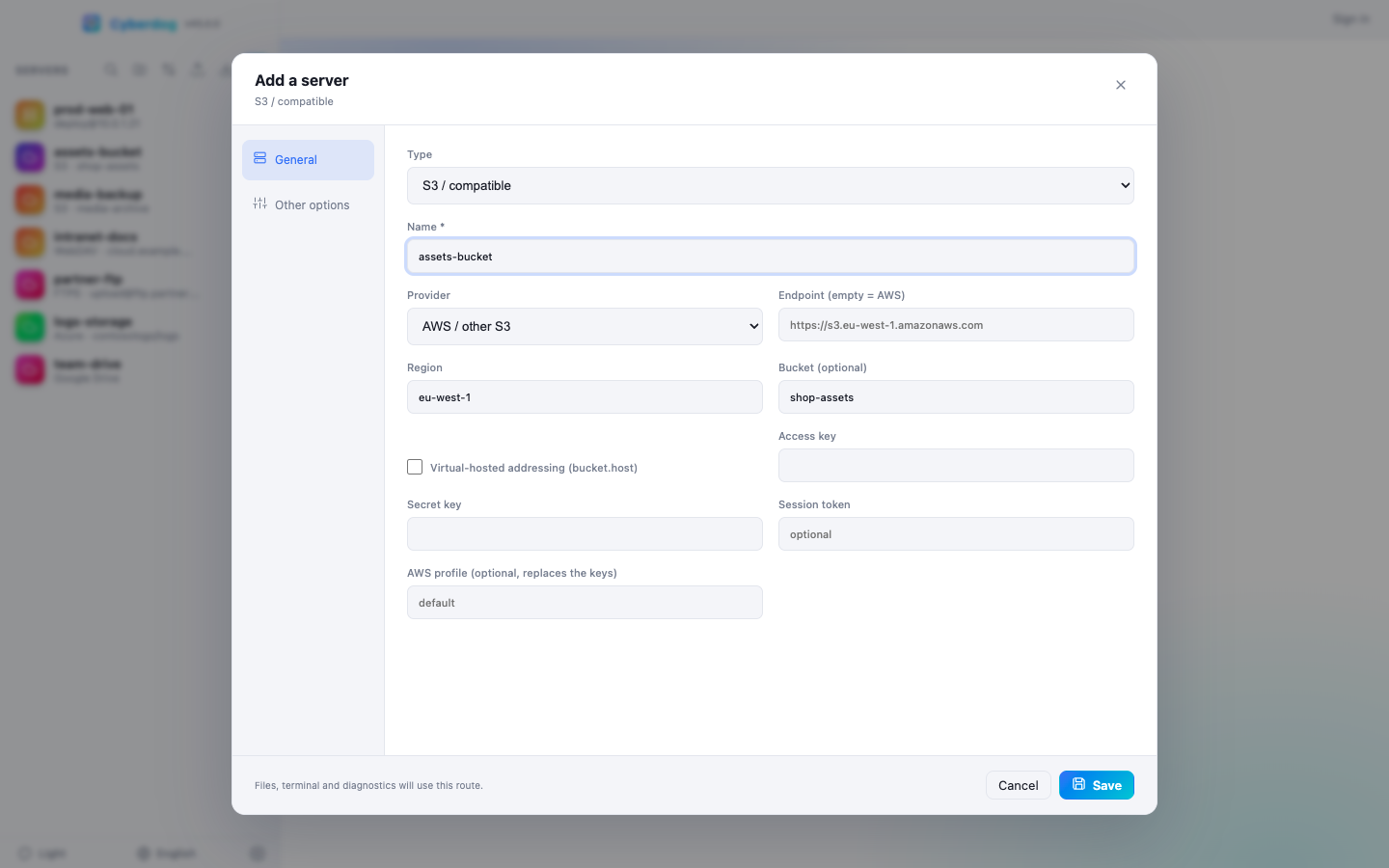
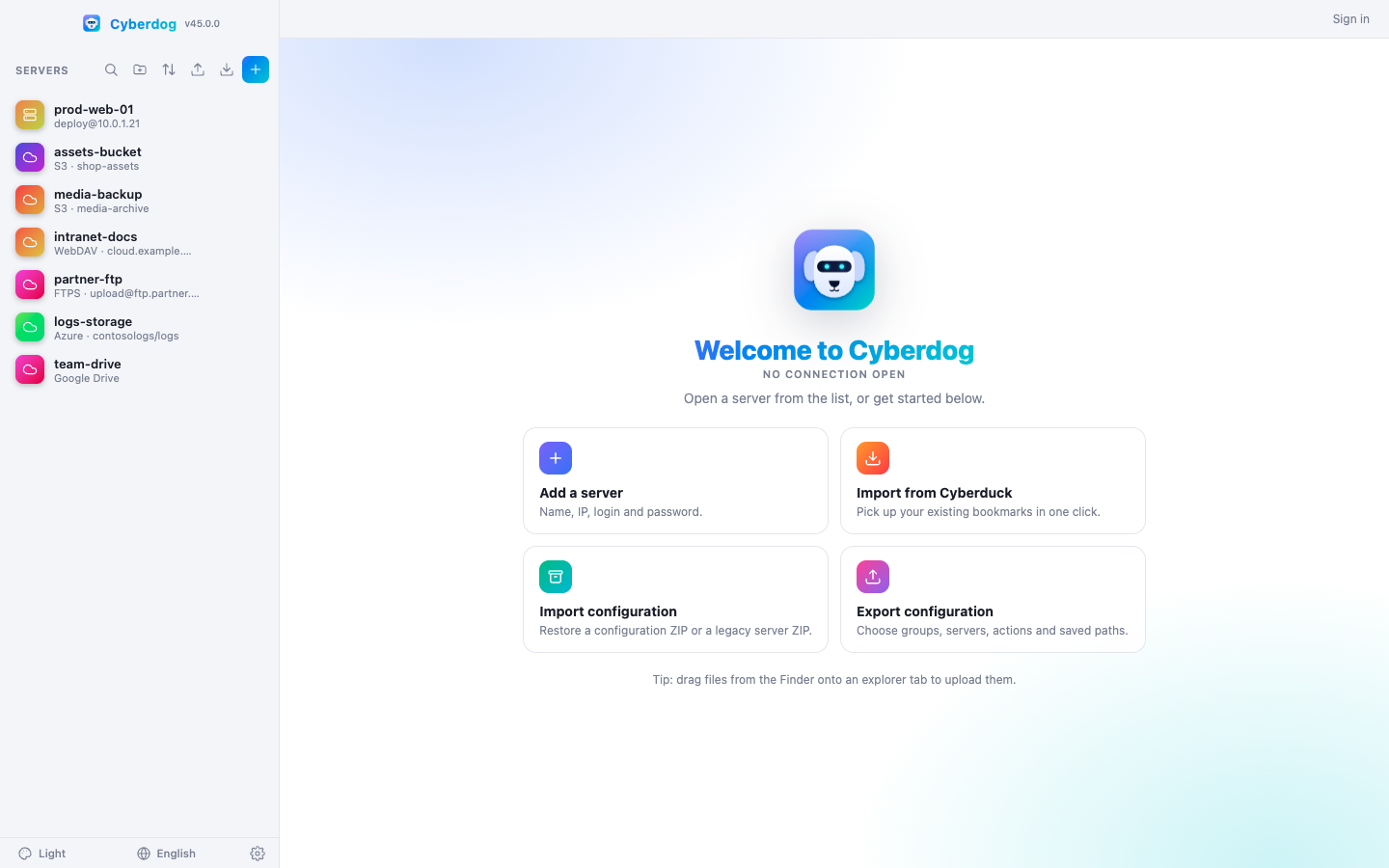
- **Import your servers:** Cyberdog finds Cyberduck, FileZilla, WinSCP, Transmit, WebSSH, MobaXterm, SecureCRT, PuTTY, Tabby, rclone and your SSH config (VS Code Remote-SSH) on this computer and shows how many servers are waiting on the home page. A summary lets you pick them before importing; saved passwords come along when the client keeps them readable.
- **Comparisons, including where the others are better:** [Cyberdog vs Cyberduck](https://pickywawa.github.io/cyberdog/cyberduck-alternative.html) · [Cyberdog vs WinSCP](https://pickywawa.github.io/cyberdog/winscp-alternative.html) · [Cyberdog vs Termius](https://pickywawa.github.io/cyberdog/termius-alternative.html).
---
## 🛡️ Bastions (jump hosts)
Reach servers that are only visible from a bastion, without opening a terminal on the bastion first. In a server's form, choose **Network access → Via a bastion** and pick the bastion among your servers.
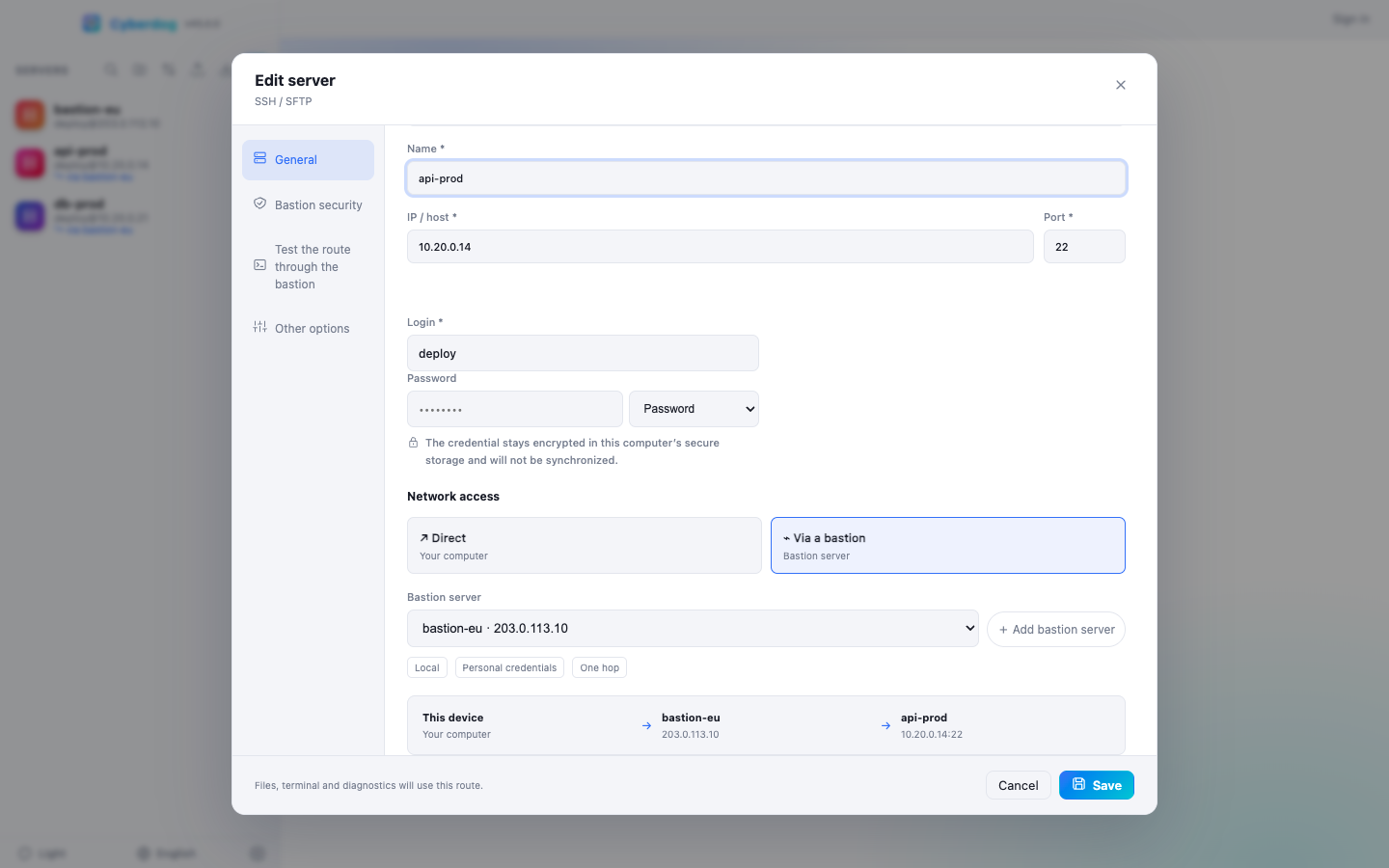 - **How it works:** Cyberdog connects to the bastion over SSH, opens a channel to the target's SSH port, then starts a **second SSH session from your computer** through that channel. The final session stays end-to-end encrypted: the bastion sees where you connect, not what you do, and never receives the target's private key. Nothing to install on the bastion, whose SSH server must allow TCP forwarding.
- **Reusable:** a bastion is an ordinary server entry, with its own credentials, used by as many servers as you like. One hop per server: a bastion cannot itself go through another bastion. The bastion and the target must live in the same space (local, personal or the same team).
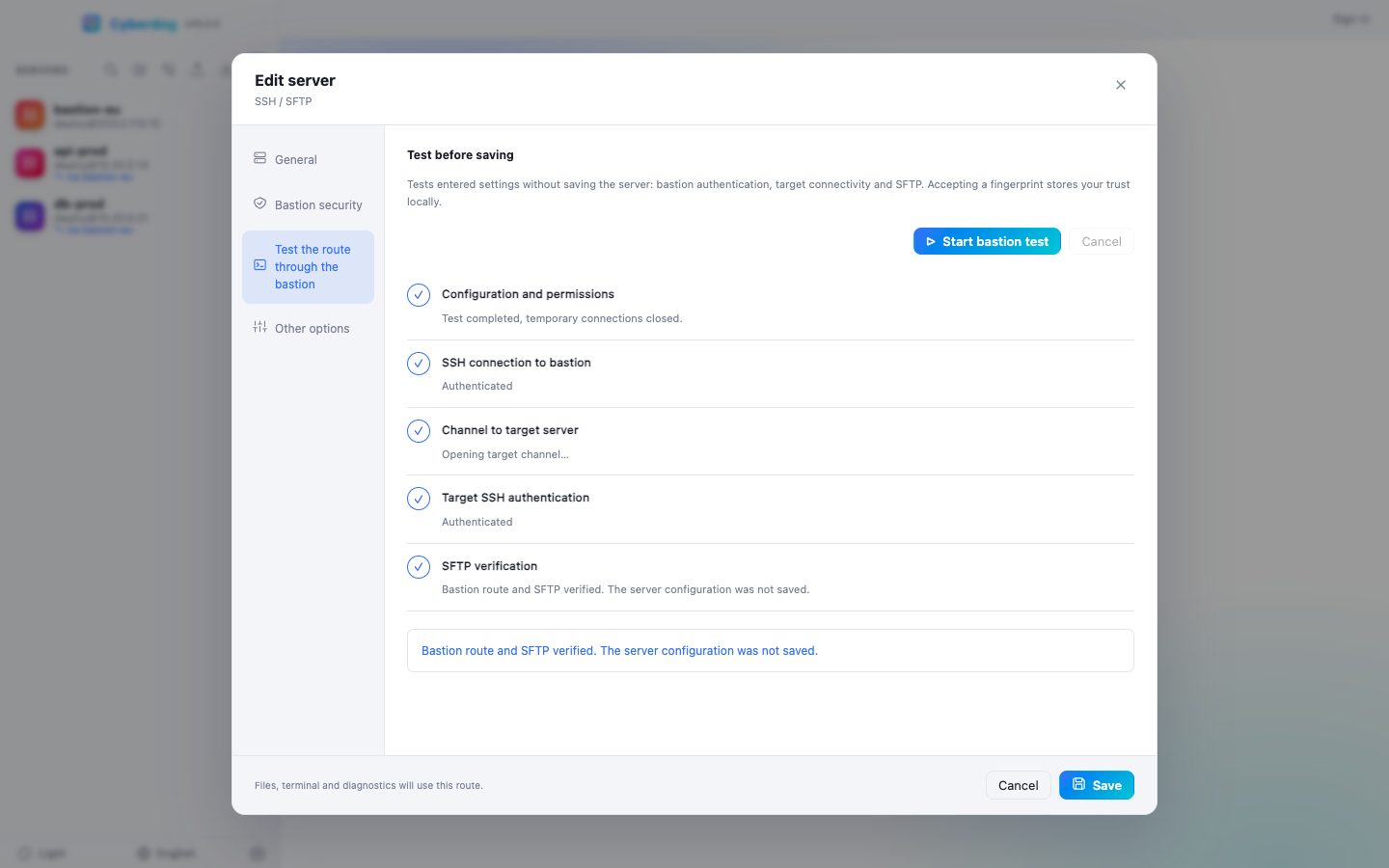
- **Test the route before saving:** configuration, SSH connection to the bastion, channel to the target, target authentication and an SFTP check. The test saves nothing and closes its temporary connections.
- **Fingerprints:** the bastion and target host keys are shown for verification the first time, a changed fingerprint blocks the connection, and trust can be reset from the server's form.
- **Interactive authentication:** passphrases and keyboard-interactive or MFA prompts appear when connecting.
- **Same route everywhere:** files, terminal, health dashboard, services, logs and Docker all use it.
 ---
## 👥 Teams, sharing and secret vaults
Cyberdog works without an account. A free, optional account adds teams:
- **Sign in** from *Settings → Sign in* with your e-mail address; a code sent by e-mail verifies it. You can delete your account from the same page.
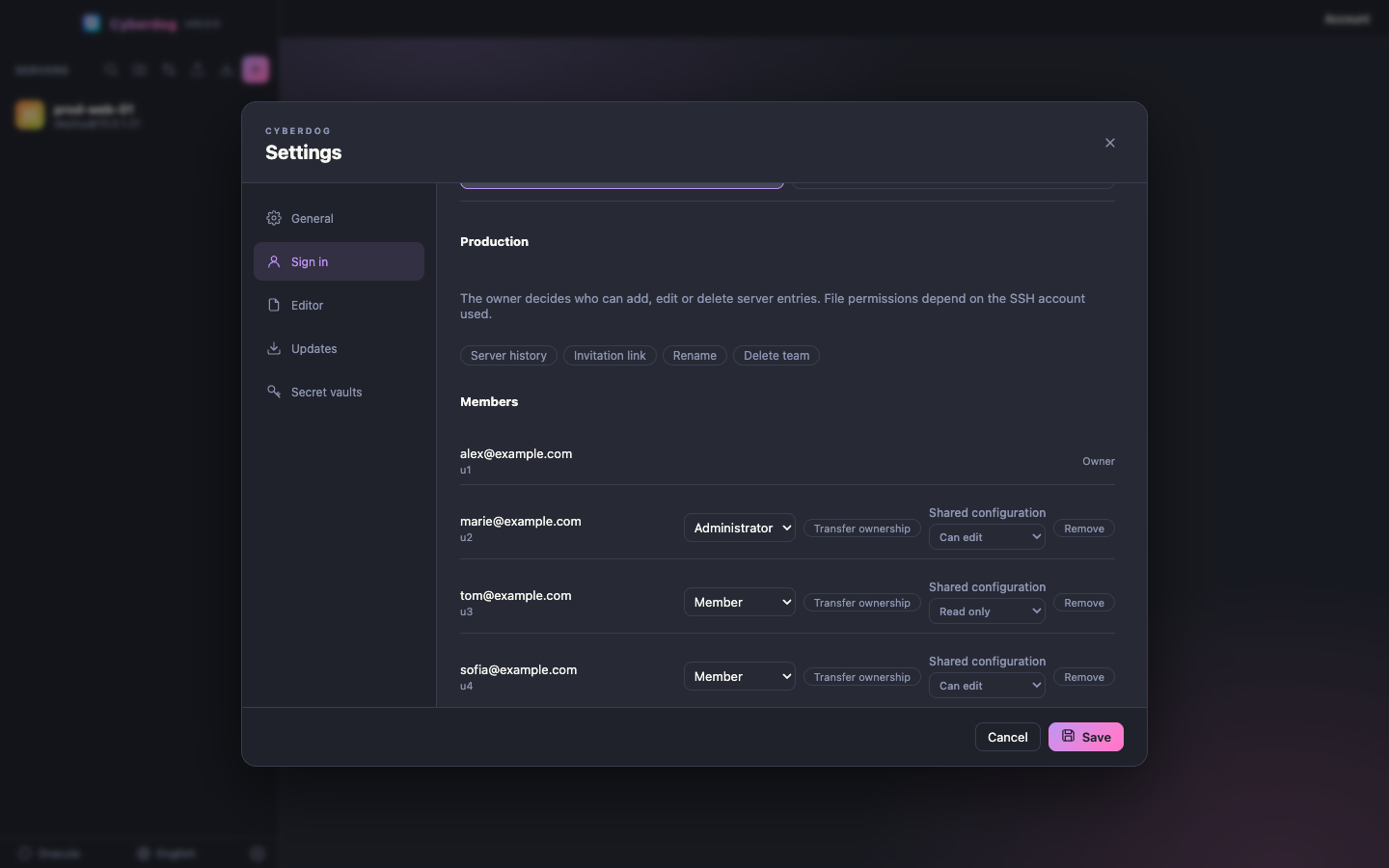
- **Personal space and teams**, with roles (owner, administrator, member) and read-only or edit rights per member on the shared configuration.
- **Invitation links**, valid 7 days, for one or several uses, revocable.
- **Shared servers, groups, quick actions and saved paths**, in *Local*, *My workspace* or a team you can edit.
- **Server history:** who changed what and when, and restore a previous version.
- SSH passwords and keys stay on your computer unless you choose to sync them for a shared server, in which case they are encrypted server-side.
 ### Shared assets and server history
Groups, quick actions and saved paths support **Local**, **My workspace** and writable **team** locations. Groups stay within their workspace; personal paths/actions can be used on your servers, while team paths/actions apply to that team's servers. Shared scripts require full preview and are revalidated before execution. Do not embed credentials in shared scripts.
Member read/write permissions cover shared configuration and server restoration. Catalogs load at startup and after your own changes; other members' changes are available on the next launch.
Open server history from a shared server's context menu or the personal/team panel in Settings → Sign in, including deleted servers. Revisions record the signed-in account, email, time and configuration. Restoring creates another revision and requires write permission. Snapshots include only name, host, port, SSH username and group, never SSH credentials. Local configurations have no cloud history. Attribution identifies the account that made the change.
### Secret vault integrations
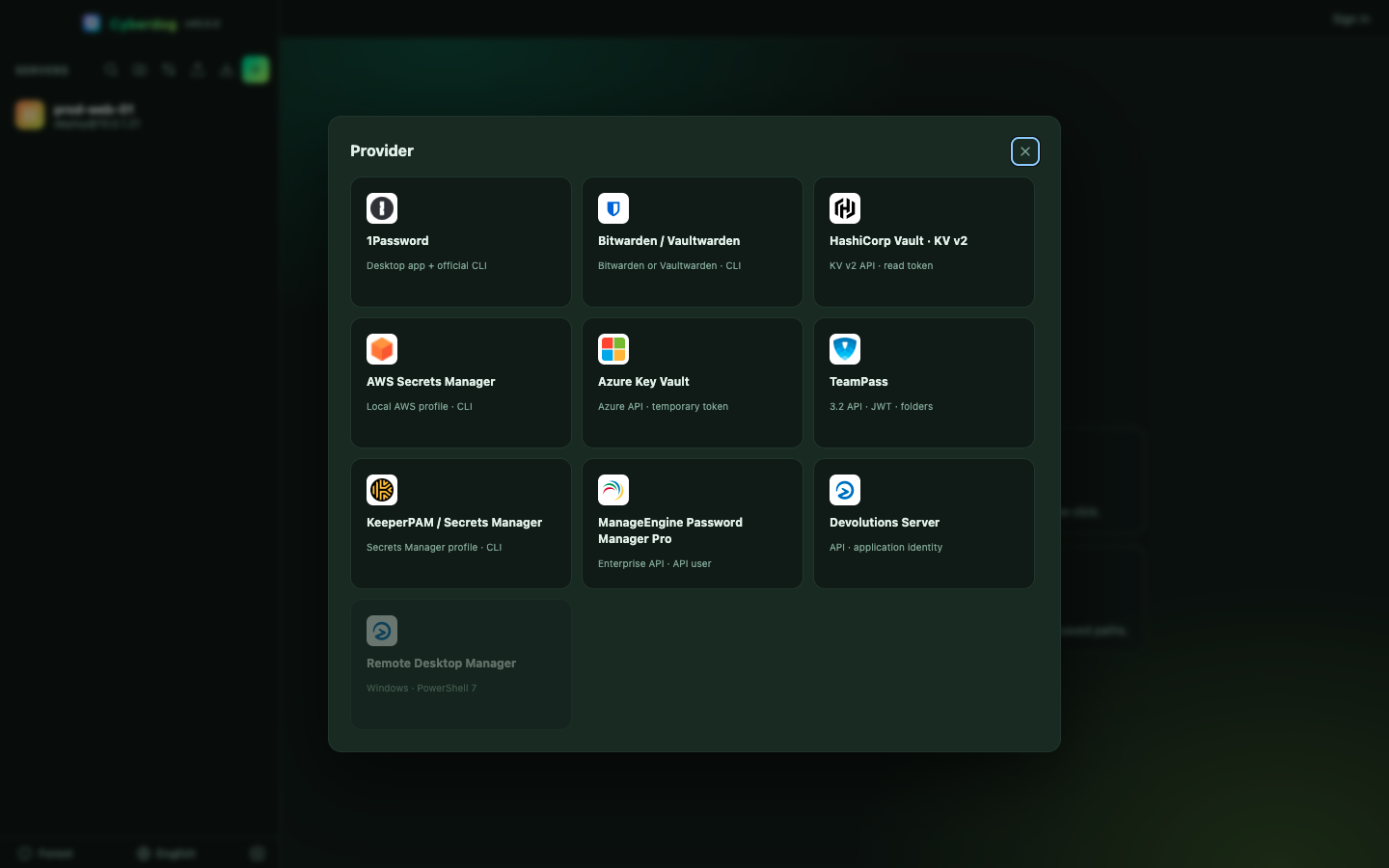 **Settings → Secret vaults** adds **1Password**, **Bitwarden/Vaultwarden**, **HashiCorp Vault KV v2**, **AWS Secrets Manager**, **Azure Key Vault**, **TeamPass 3.2**, **Keeper Secrets Manager/PAM**, **ManageEngine Password Manager Pro Enterprise**, **Devolutions Server** and **Windows Remote Desktop Manager** entries to dedicated sections in the server list. Connectors and shortcuts stay local, excluded from exports and Supabase. Passwords and SSH keys are read on connection; locking a vault closes its connections.
See the [setup guide and provider comparison](./docs/secret-vaults.md) for CLI prerequisites, sessions, Vault policies and custom field mapping.
---
## ⚙️ Settings
The **Settings** button beside the language selector — or **Cyberdog → Settings…** on macOS — groups language, theme, default editor and update preferences. You can also select an external configuration folder to share servers, groups, quick actions, saved paths and favorite searches while keeping personal preferences local to each computer.
Window size, position and maximized state are restored at the next launch. If a monitor is disconnected, the window returns to an available screen.
An optional **Reopen connections at startup** checkbox restores the server tabs and terminals left open when quitting. It is disabled by default. It stores only server references and whether a terminal was open; terminal commands are never replayed.
Double-clicking a file opens it in the built-in editor. Binary files and files over 10 MB open in the external editor chosen in *Settings → Editor*, which uploads every saved change back to the server. *Settings → General* also sets how many transfers run at the same time (up to 10).
---
## 📦 Install
Download the latest installer from the **[Releases page](https://github.com/pickywawa/cyberdog/releases/latest)**.
Cyberdog shows its version beside the logo and highlights new versions with an animated **New** badge. On Windows (standard installation), click it to download and install the update, then restart the app. On macOS, once the DMG has downloaded, Cyberdog offers to open it and quit automatically so you can drag the update into Applications, then reopen the app. Choose Later to keep using Cyberdog and install the downloaded DMG another time. If the DMG cannot be opened, Cyberdog stays running. The portable Windows build downloads and opens its executable.
Update checks and downloads use Electron’s native networking to honor the system proxy, including enterprise PAC/WPAD configurations.
### macOS (Apple Silicon & Intel)
With [Homebrew](https://github.com/pickywawa/homebrew-cyberdog): `brew install --cask pickywawa/cyberdog/cyberdog`
Or by hand:
1. Download `Cyberdog-
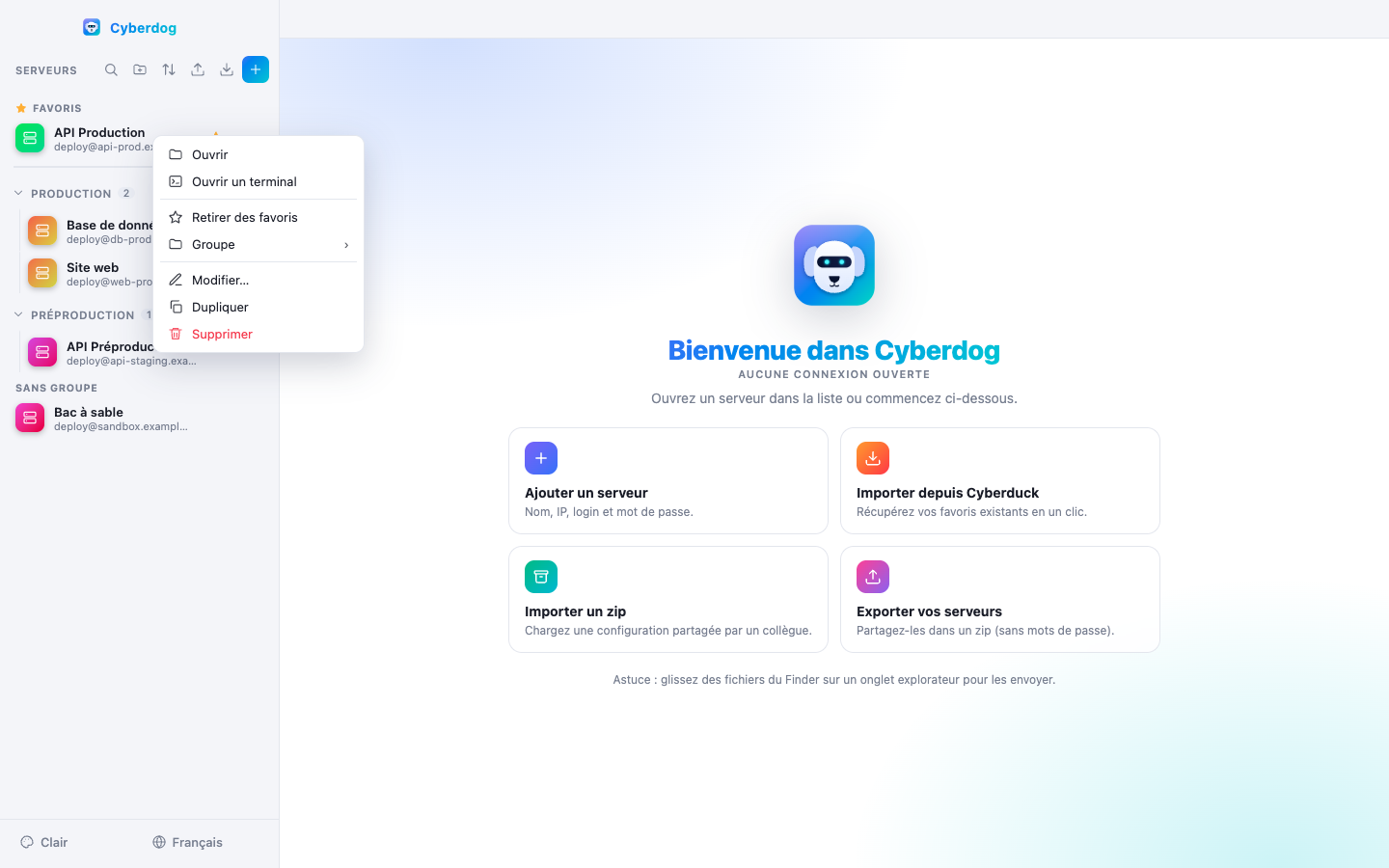
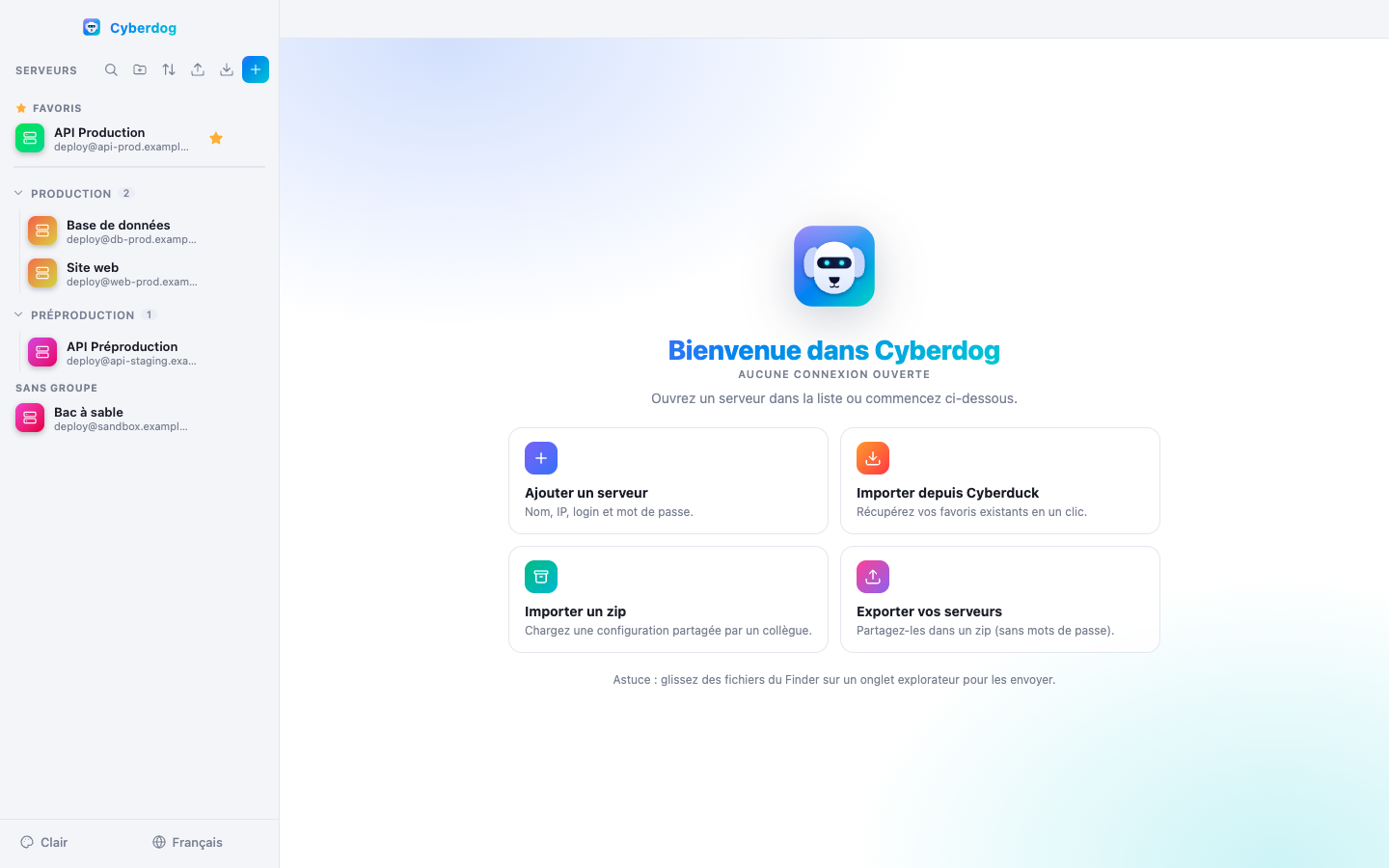 Right-click a server and choose **Duplicate** to open a prefilled form without creating a connection or copying its identity.
 ### A modern file explorer
Folders first, colored icons by file type, resizable columns, multi-selection (⌘/Ctrl-click, Shift-click), and a right-click menu with *Download as…, Copy, Cut, Paste, Duplicate, Move to…, Copy name, Copy full path, Copy URL, Edit with…, Compress, Extract, Rename, Delete, Properties, New folder, New file*.
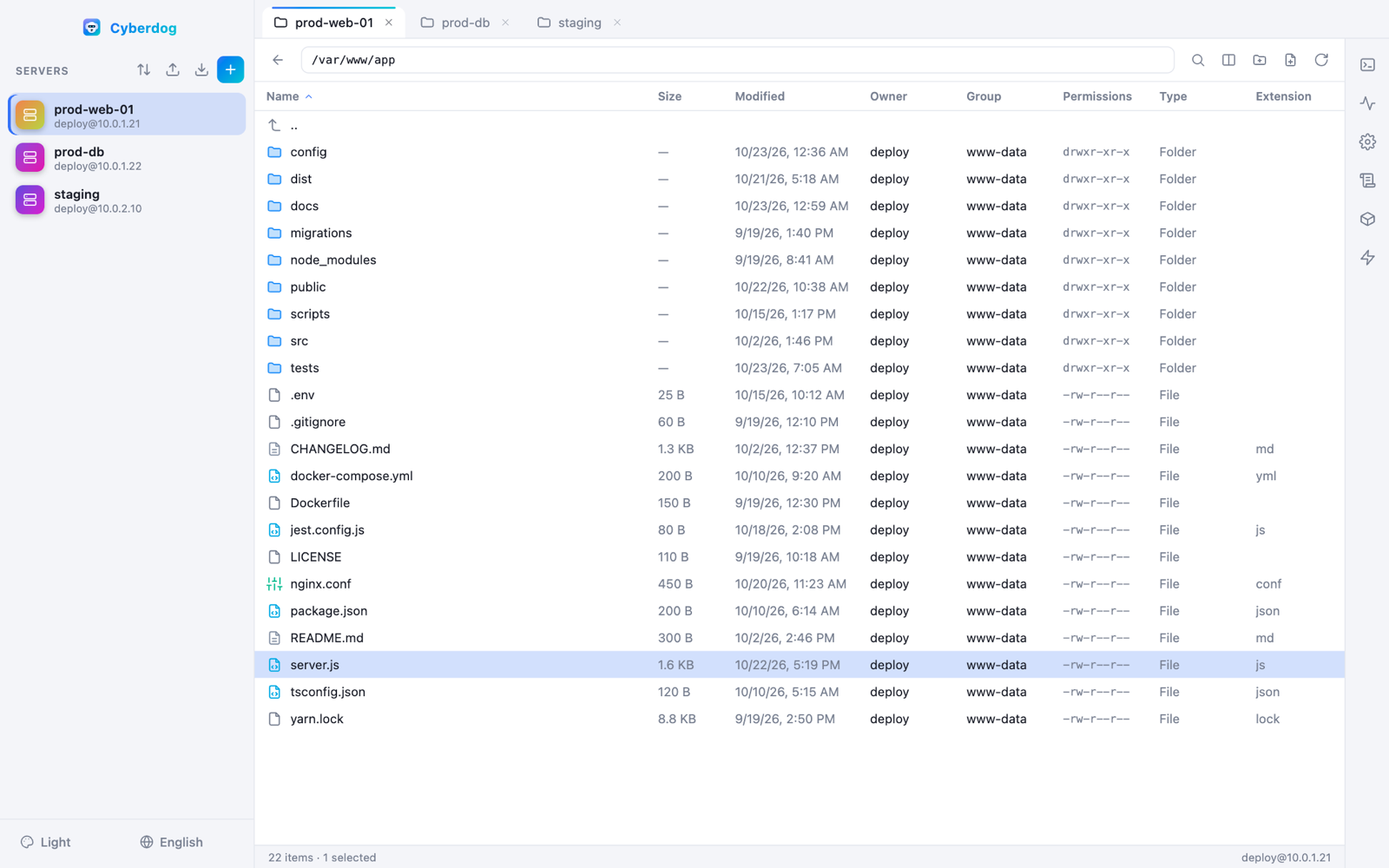 **Clickable path**: click a folder of the path to go there; click the current folder (or ⌘/Ctrl-L) to type a path. **Rename** by clicking the name of the selected file again (the name is selected without its extension), with F2 or from the right-click menu.
**Copy, cut and paste** (⌘C / ⌘X / ⌘V, Ctrl on Windows and Linux) between folders, panes and servers; ⌘D duplicates, *Move to…* asks for a destination. Drag onto a folder to move, or from one pane to another to copy directly between two servers.
**Name filter**: a discreet filter (`*.log, node_modules`) hides what you don't need, hidden files included. **Properties** (⌘I) gives the size of a folder.
### Built-in editor
Double-click a file (or press Enter) to open it in an editor inside Cyberdog, the one of VS Code (Monaco): syntax colours for about 80 languages, search and replace, multiple cursors and VS Code shortcuts. Several files open in tabs, side by side if you like, with minimap and line-wrap buttons. ⌘S / Ctrl+S saves to the server, ⌘W / Ctrl+W closes.
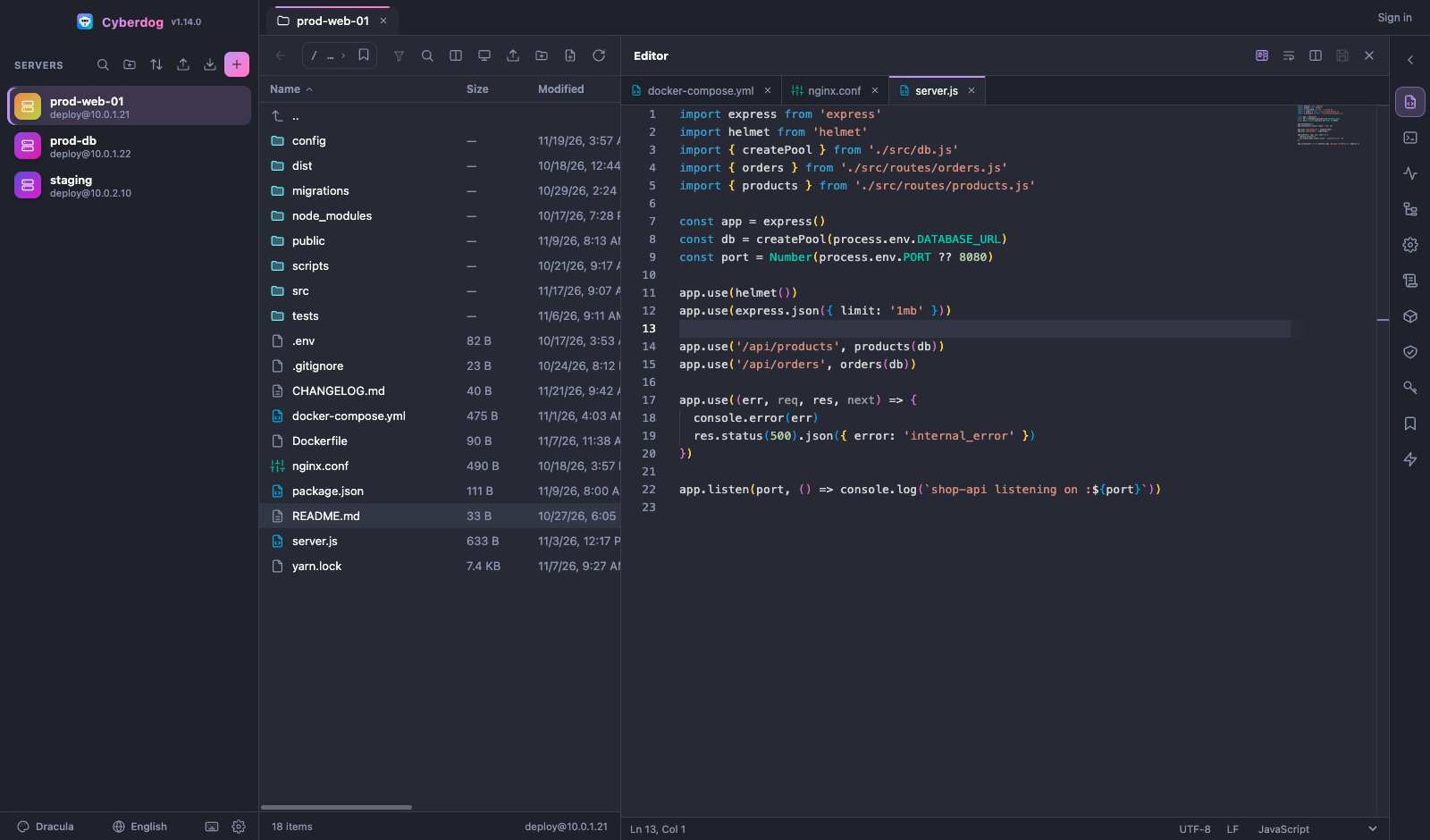
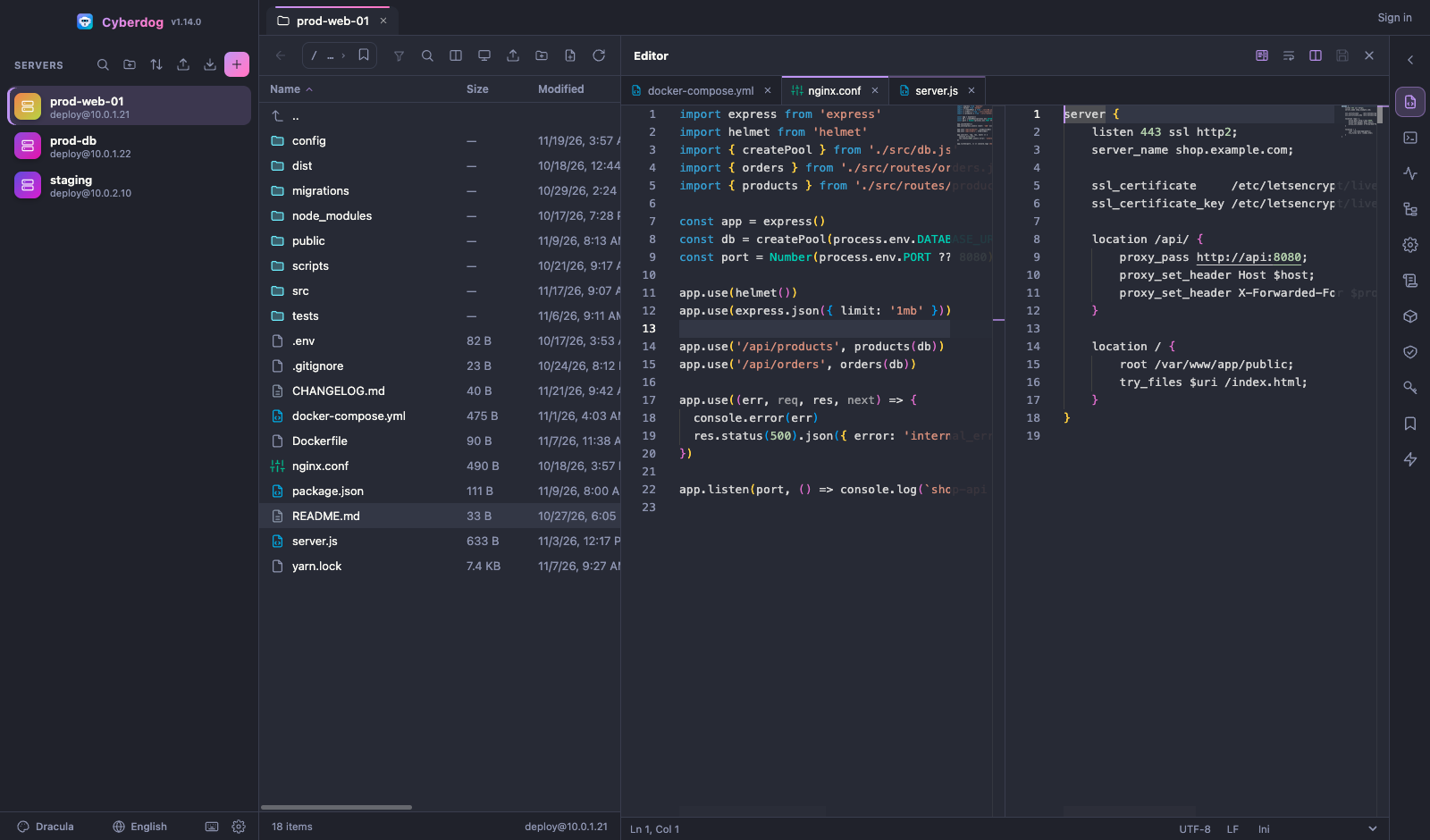 Files keep their encoding (UTF-8 with or without BOM, UTF-16, Windows-1252) and their line endings. A file changed on the server in the meantime is never overwritten without asking. Binary files and files over 10 MB open in your usual application instead.
**Test and reload, from the editor**: for a configuration file Cyberdog knows — nginx, Apache, `sshd_config`, HAProxy, Caddy, systemd units, Docker Compose and sudoers — a bar under the tabs shows the service and its state, with **Test** (`nginx -t`, `apachectl configtest`, `sshd -t`, `haproxy -c`, `caddy validate`, `systemd-analyze verify`, `docker compose config`, `visudo -c`), **Reload**, **Restart** and **Save and apply**: save, test, then reload only if the test passes. Errors are underlined on their line, a click jumps there, and **Restore previous version** puts back what was on the server before your last save. `sudo` is used as for services; `sshd` is only reloaded, never restarted, so open sessions stay up.
**Edit with…** downloads the file, opens it in VS Code, Cursor, Sublime Text, Notepad++, TextEdit… (whatever is installed) and **uploads it back every time you save**.
 **Saved paths**: the 🔖 button inside the path bar drops down your favorite folders (per server or for all servers) — click one to jump there. Manage them from the 🔖 button of the right-hand toolbar.
**Search the server** (🔍 or ⌘/Ctrl-F): type a few letters, get live suggestions — in the current folder or on the whole server — and jump straight to the file's parent folder with the file selected.
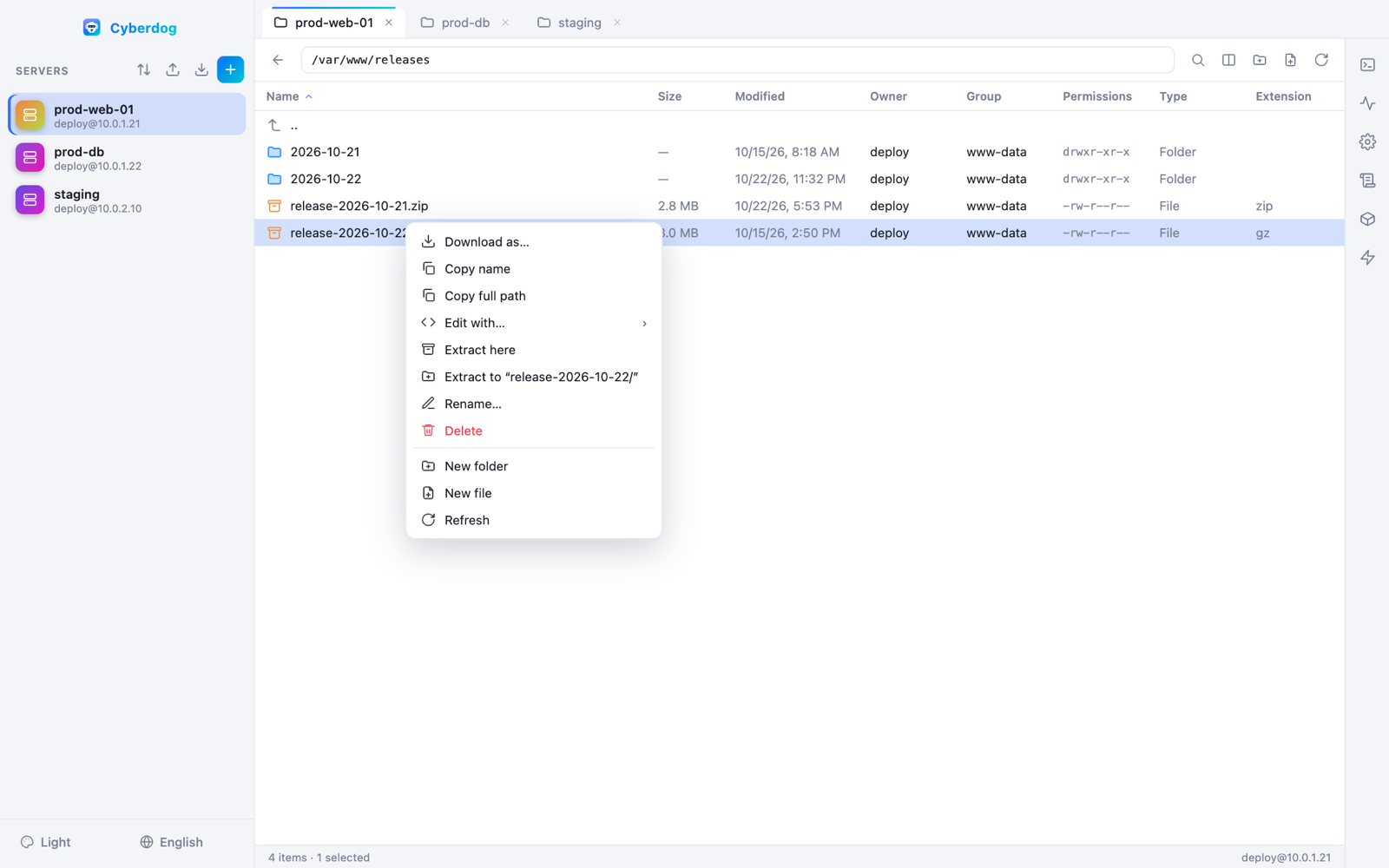
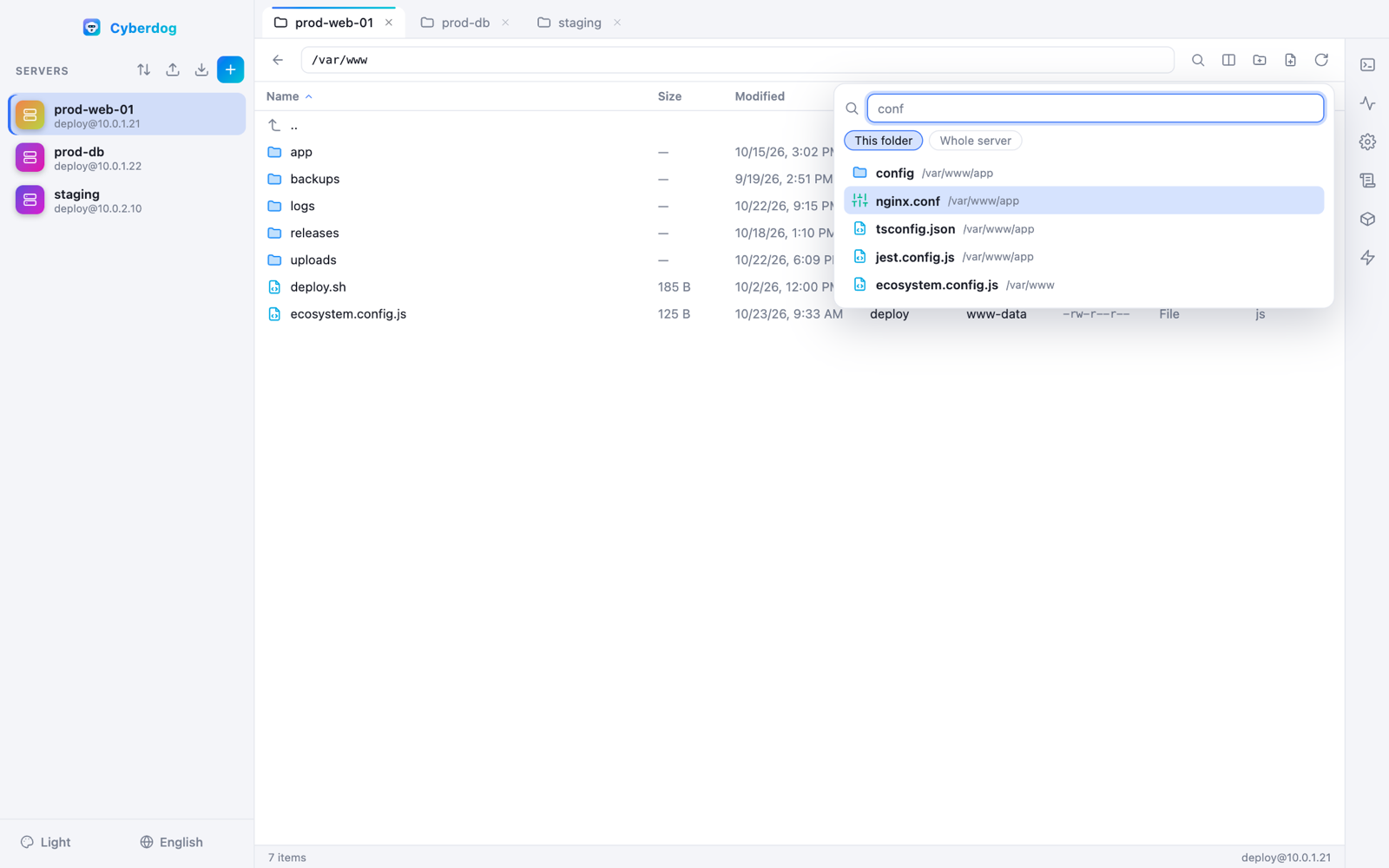 **Extract archives in place**: right-click a `.zip`, `.tar.gz`, `.tgz`, `.tar.bz2`, `.tar.xz`, `.7z`, `.rar`, `.gz`… and choose *Extract here* or *Extract to "name/"* — it runs on the server, nothing is downloaded. **Create archives** the same way: select one or more items, then *Compress → .tar.gz* or *.zip* (SSH servers). The archive is created next to the selection and never overwrites an existing file.
**Split view**: the ⧉ button in the explorer toolbar splits it into **two independent explorers** (own path, history, selection, sort and search) to compare folders or work in two places at once. Drag files from one side to the other to copy them, even across folders. Click ⧉ again to merge.
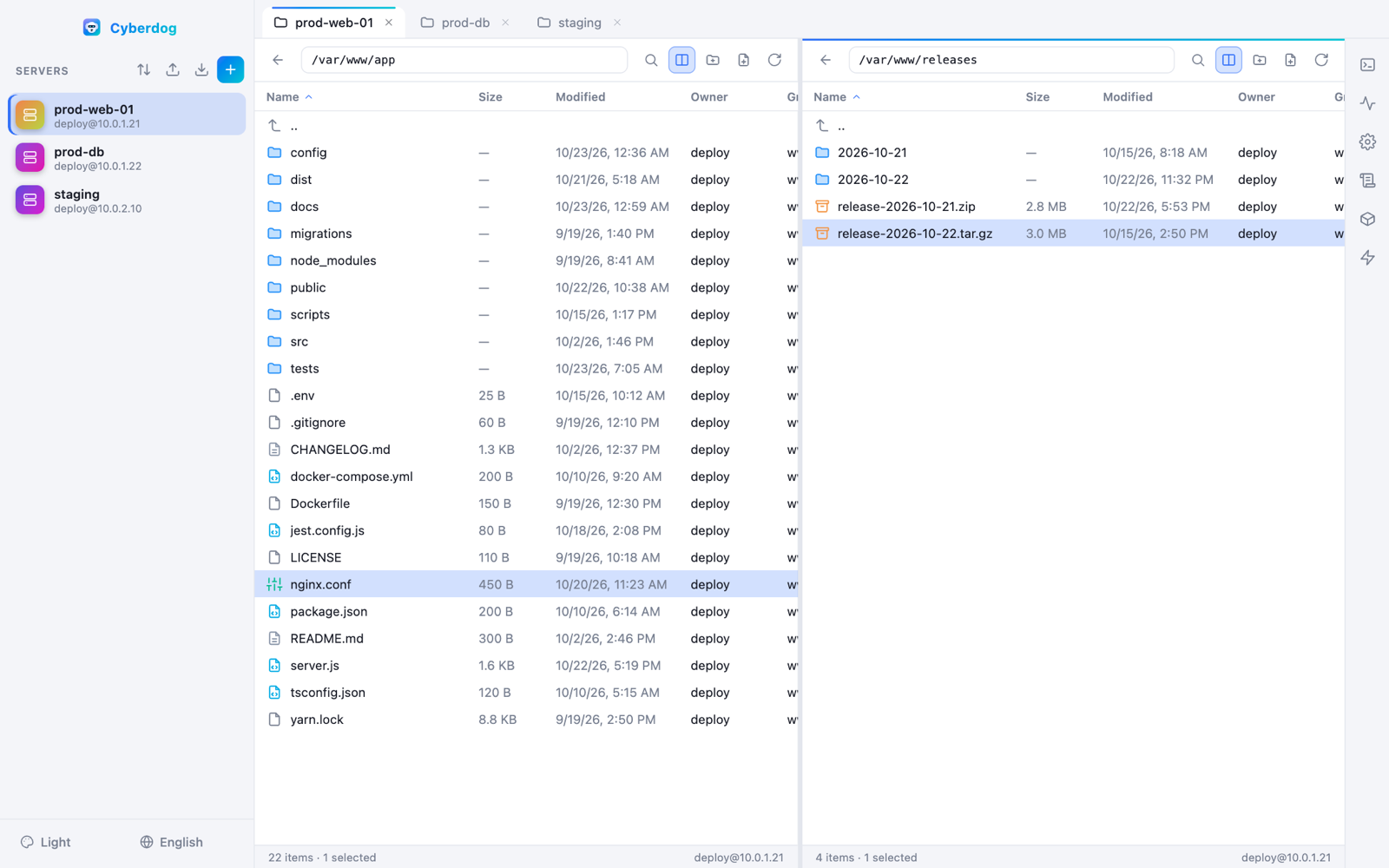 **Drag & drop** files from your desktop to upload them (folders included), or drag files from Cyberdog to your desktop to download them.
**Everything is resizable**: drag the edge of the server list, of the right-hand panel, of the terminal or between the two explorers. Sizes are remembered.
### Keyboard shortcuts
| | macOS | Windows / Linux |
|---|---|---|
| Refresh | ⌘R or F5 | Ctrl+R or F5 |
| Move / extend the selection | ↑ ↓, ⇧↑ ⇧↓ | ↑ ↓, Shift+↑ Shift+↓ |
| Open, parent folder, back | Enter, ⌘↑, ⌘[ | Enter, Ctrl+↑, Ctrl+[ |
| Select all, rename, delete | ⌘A, F2, ⌘⌫ | Ctrl+A, F2, Delete |
| Copy, cut, paste, duplicate | ⌘C, ⌘X, ⌘V, ⌘D | Ctrl+C, Ctrl+X, Ctrl+V, Ctrl+D |
| New folder, new file | ⇧⌘N, ⌥⌘N | Ctrl+Shift+N, Ctrl+Alt+N |
| Edit the path, copy the path, properties | ⌘L, ⇧⌘C, ⌘I | Ctrl+L, Ctrl+Shift+C, Ctrl+I |
| Search the server | ⌘F | Ctrl+F |
| Tabs | ⌘1…9, Ctrl+Tab, ⌘W | Ctrl+1…9, Ctrl+Tab, Ctrl+W |
| Toggle the terminal | Ctrl+` | Ctrl+` |
| All shortcuts | ⌘/ | Ctrl+/ |
Tab moves from one pane to the other, and typing the start of a name selects it. Inside the terminal, Ctrl keys stay with the shell.
### Permissions and ownership
Right-click a file or folder and choose **Permissions…** to see the current owner and select another account from the server. The octal mode (`0644`, `0755`…) stays synchronized with **Read / Write / Execute** checkboxes for owner, group and others. Special `setuid`, `setgid` and `sticky` bits are available too.
The file group is preserved. Changes use your SSH account’s permissions; denied ownership changes and partially applied changes are reported.
### Terminal, right where you work
The terminal opens under the explorer, starts in the current folder and stays open while you switch panels. Drag the splitter to resize it.
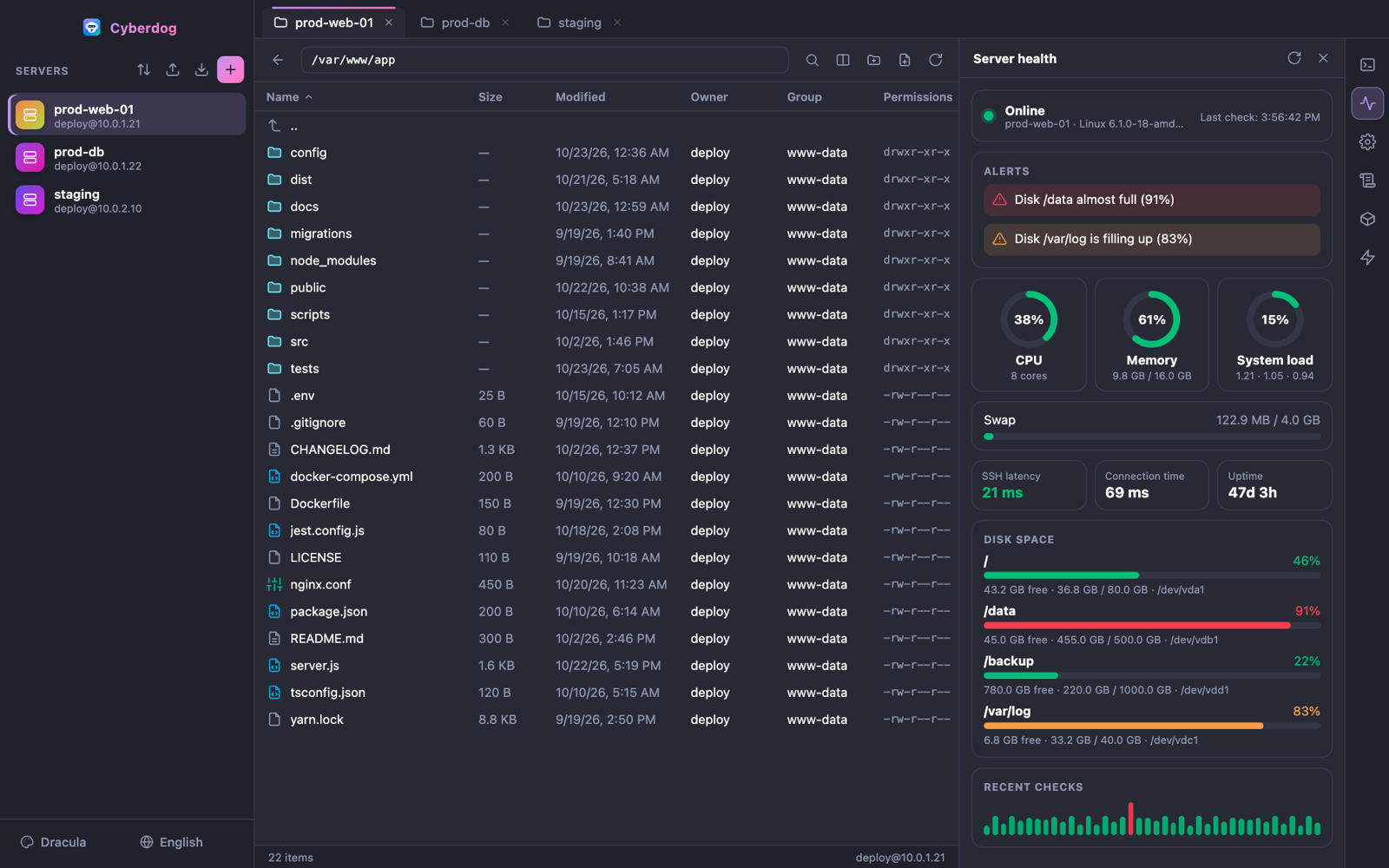
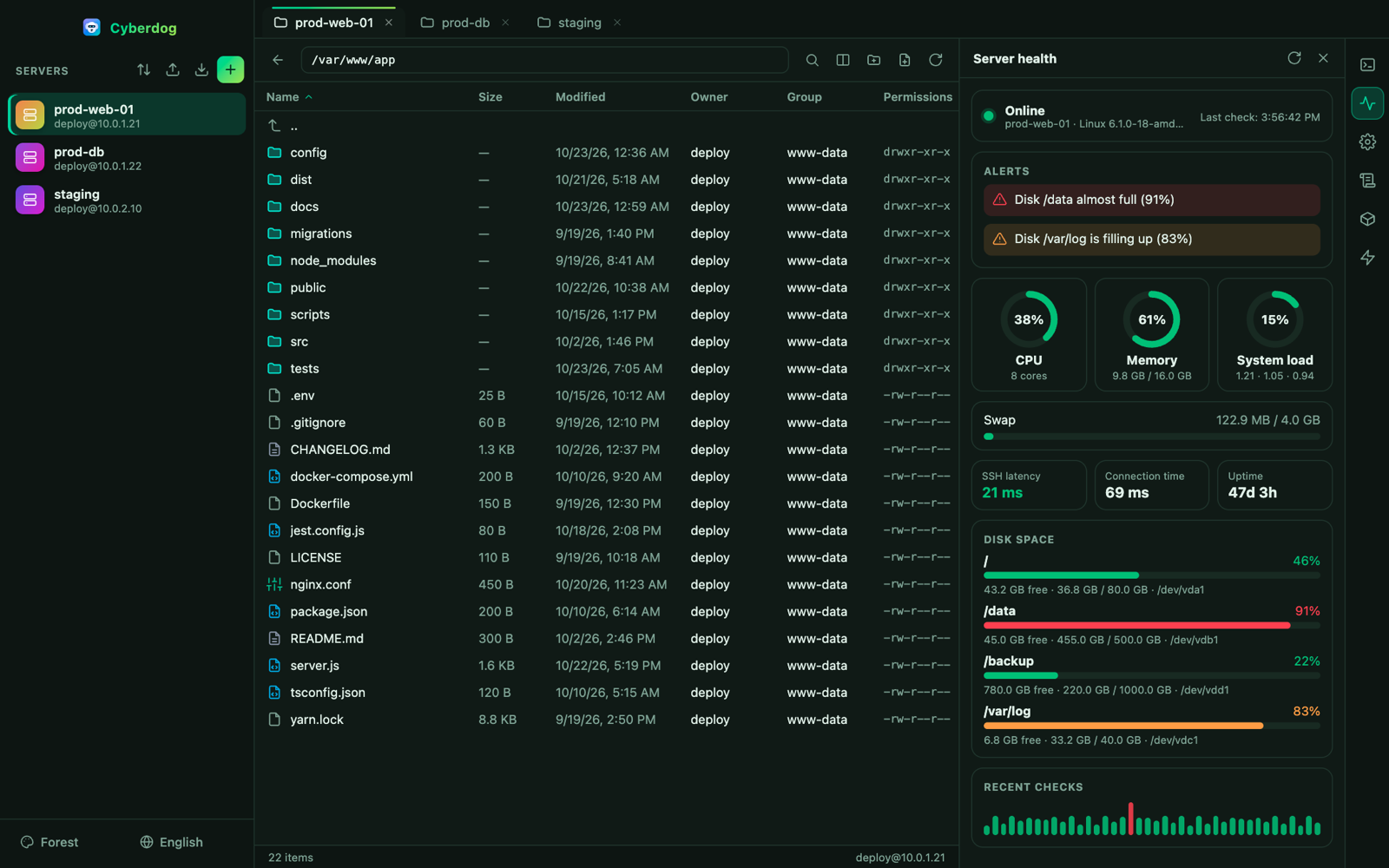
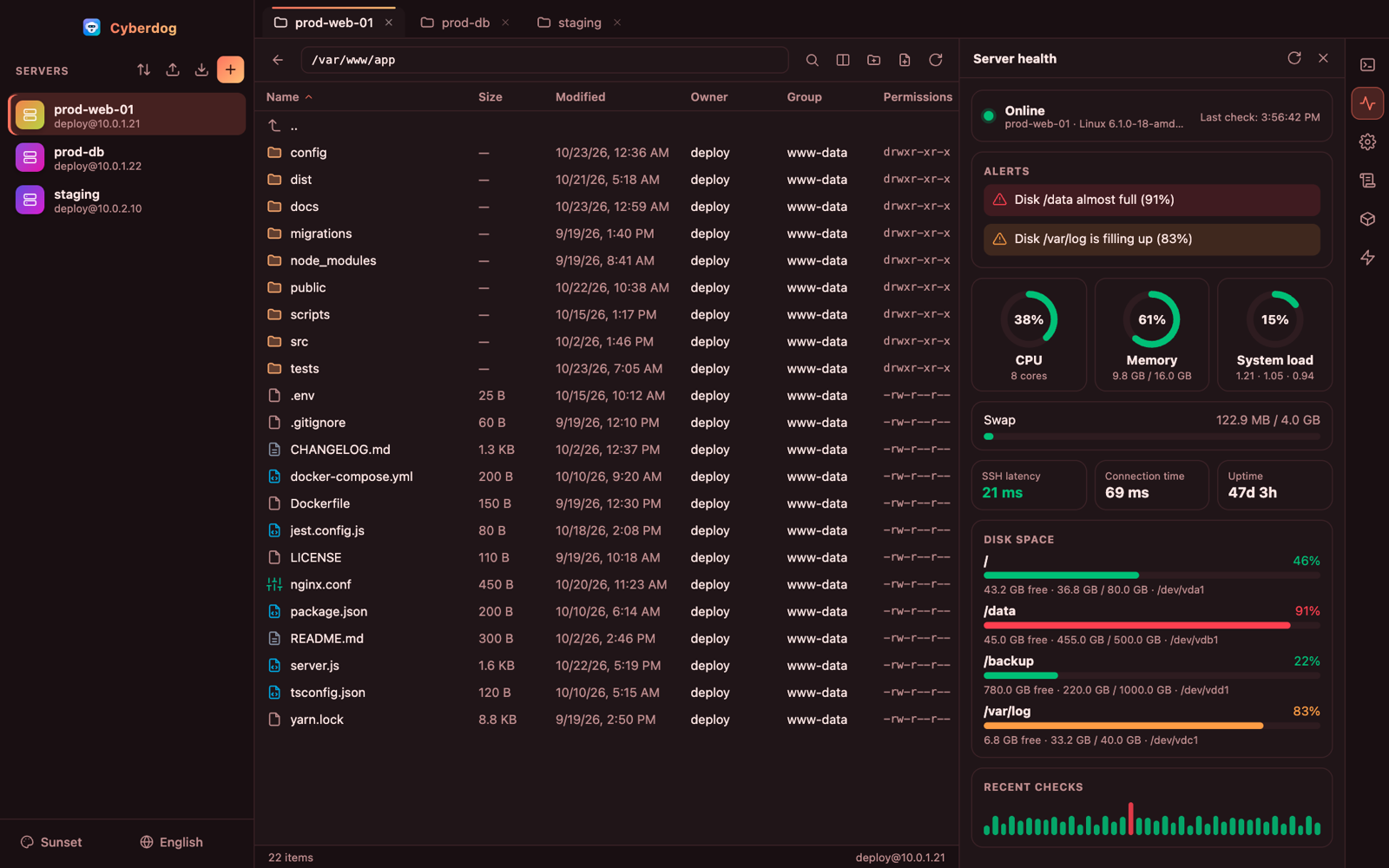
### Server health dashboard
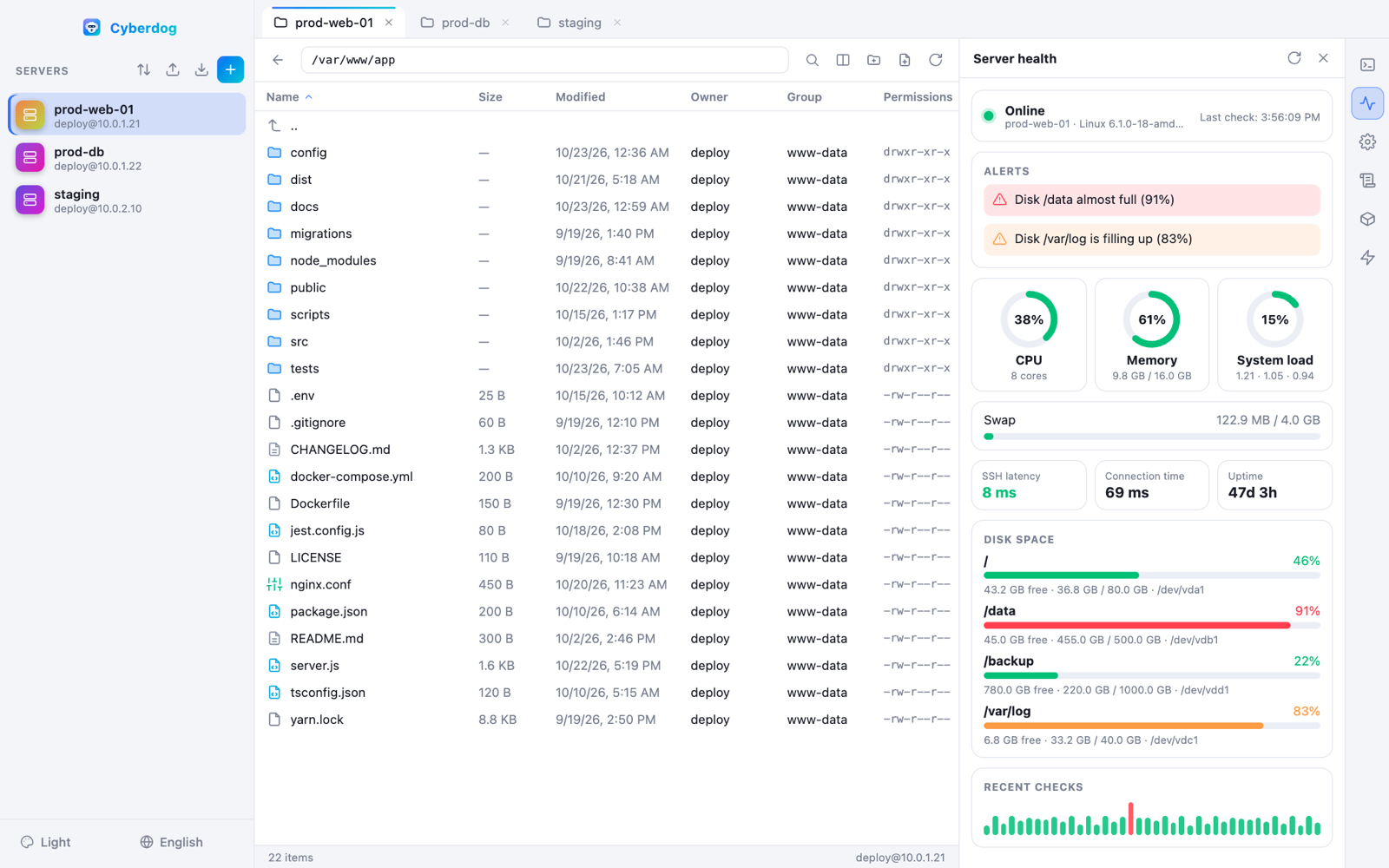
Click the 📈 button in the right-hand toolbar (the terminal, health, services, logs, Docker and quick-action buttons all live there). Every 10 seconds you get:
- **Online / offline** status and the time of the last check
- **CPU, memory, swap and system load**
- **Disk space per volume** with warnings at 80 % and critical alerts at 90 %
- **Uptime, SSH latency and connection time**, plus a history of recent checks
 ### Process Explorer
The right-hand **Process Explorer** shows Linux processes over SSH without an agent. It refreshes every 5 seconds, with search and grouping by program, parent tree, user, systemd service or container. CPU/memory trends use observed samples for up to 5 minutes, flagging CPU spikes, memory growth, zombies and uninterruptible I/O waits.
On-demand details show listening ports, working directory and command. Local rules provide a guided diagnosis. The context menu opens logs or an SSH terminal and offers **SIGTERM / SIGKILL**, with confirmation. Available details depend on permissions; Linux `/proc` and `procps` are required, `ss` supplies ports and the systemd journal supplies logs.
Right-hand panels resize down to a minimum of **290 px**, with their width remembered between launches.
### SSL certificates and SSH keys
The far-right navigation can be **expanded or collapsed** to show view titles; its state is remembered.
**SSL certificates** scans PEM/DER certificates over SSH in the Let’s Encrypt, nginx, Apache and `/etc/pki/tls/certs` directories, or an absolute directory you choose. The server needs OpenSSL. The view shows domains, issuer, file locations, SHA-256 fingerprint and validity dates. Duplicate certificates are grouped by fingerprint. A limited scan is flagged so you can select a more specific directory.
Expiry alerts can be set to **7, 14, 30, 60 or 90 days**, with separate states for expired and not-yet-valid certificates. Scans repeat every minute while the view is open; the latest scan’s alerts also appear in the health dashboard. No monitoring runs when the app is closed. **Use sudo** accesses protected directories according to the connected account’s privileges.
**Renew with Certbot** is available for certificates managed under `/etc/letsencrypt/live` when Certbot is installed. It reuses existing configuration and hooks, without forcing early renewal. Command output is shown and certificate dates are refreshed afterwards. See the [Certbot documentation](https://eff-certbot.readthedocs.io/en/stable/using.html#renewing-certificates).
**SSH key manager** generates local **Ed25519** or **RSA 4096** keys, with an optional passphrase, in `~/.ssh/cyberdog`. Import an existing `.pub` file, display or copy the public key and SHA-256 fingerprint, or reveal the local file. Private keys are never sent to the server.
**Install on this server** appends the public key to the connected account’s `~/.ssh/authorized_keys`, preserving existing keys and avoiding duplicates. **Use for this server** selects the local private key for future connections without interrupting the current connection. Required passphrases are requested and kept only in memory until the app closes.
The SSH key manager also lists public keys authorized on the current server from `~/.ssh/authorized_keys`, with their SHA-256 fingerprints. These are shown separately from locally managed keys. Reading requires permission on the remote file; private keys are never read from the server.
### Services
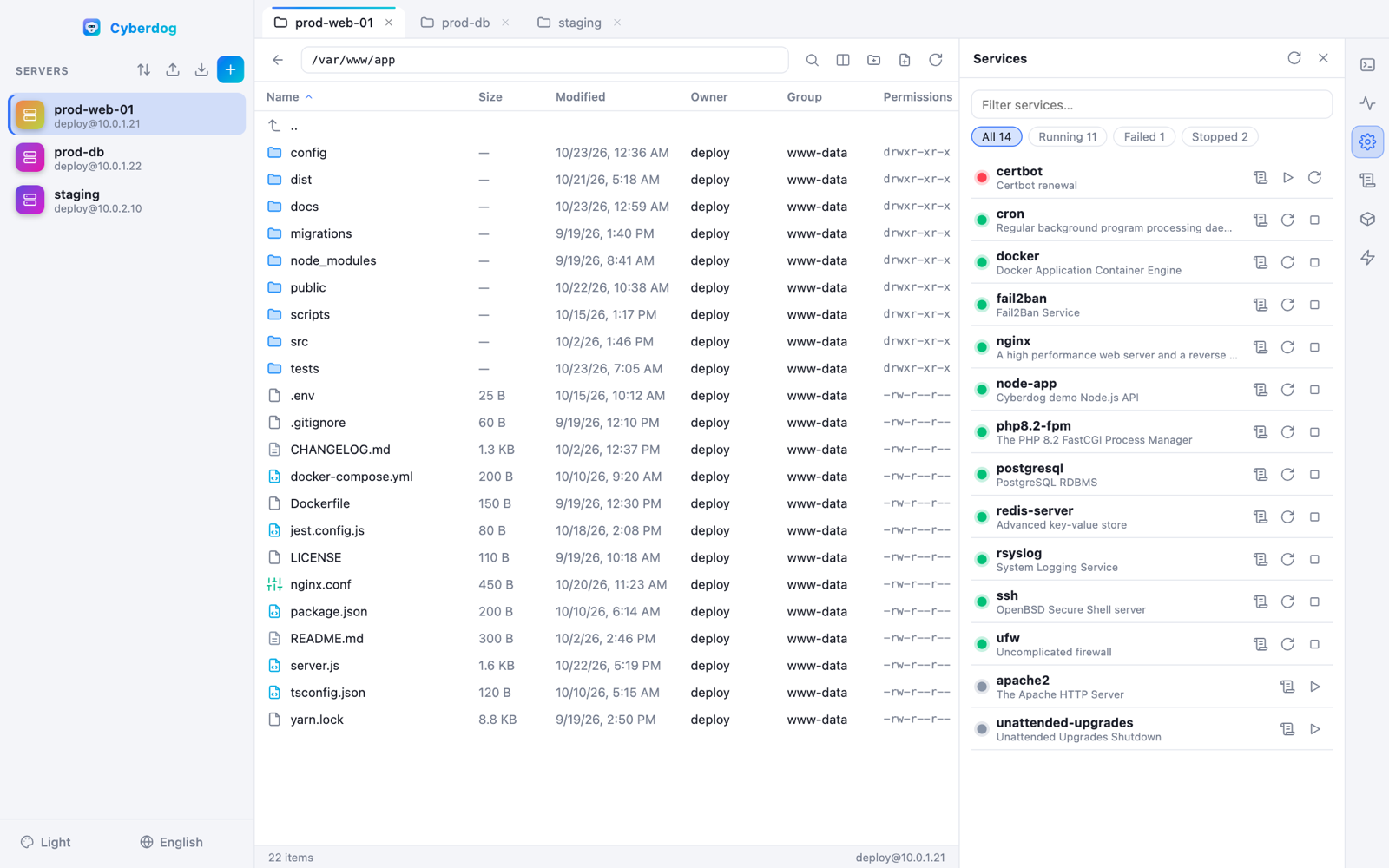
The ⚙️ button lists your `systemctl` services with their state, a search box and filters (running / failed / stopped). Start a stopped service, restart or stop a running one — `sudo` is handled for you when you are not root — or jump to its logs in one click.
 ### Scheduled tasks
The 🕒 button gathers your **crontab**, the system crontabs (`/etc/crontab`, `/etc/cron.d`, `/etc/cron.daily`…) and the **systemd timers**, sorted by next run, failed timers first. Each schedule is written in plain words (*Monday to Friday at 09:00*) with its next runs in the server's time. Add, edit, disable or delete tasks of your crontab with a live preview of the schedule and presets; **Run now** any task (as cron would: from your home folder, with the crontab's variables) and see its output; start, enable or disable a timer and follow its service's journal. System crontabs are read-only.
### Live logs
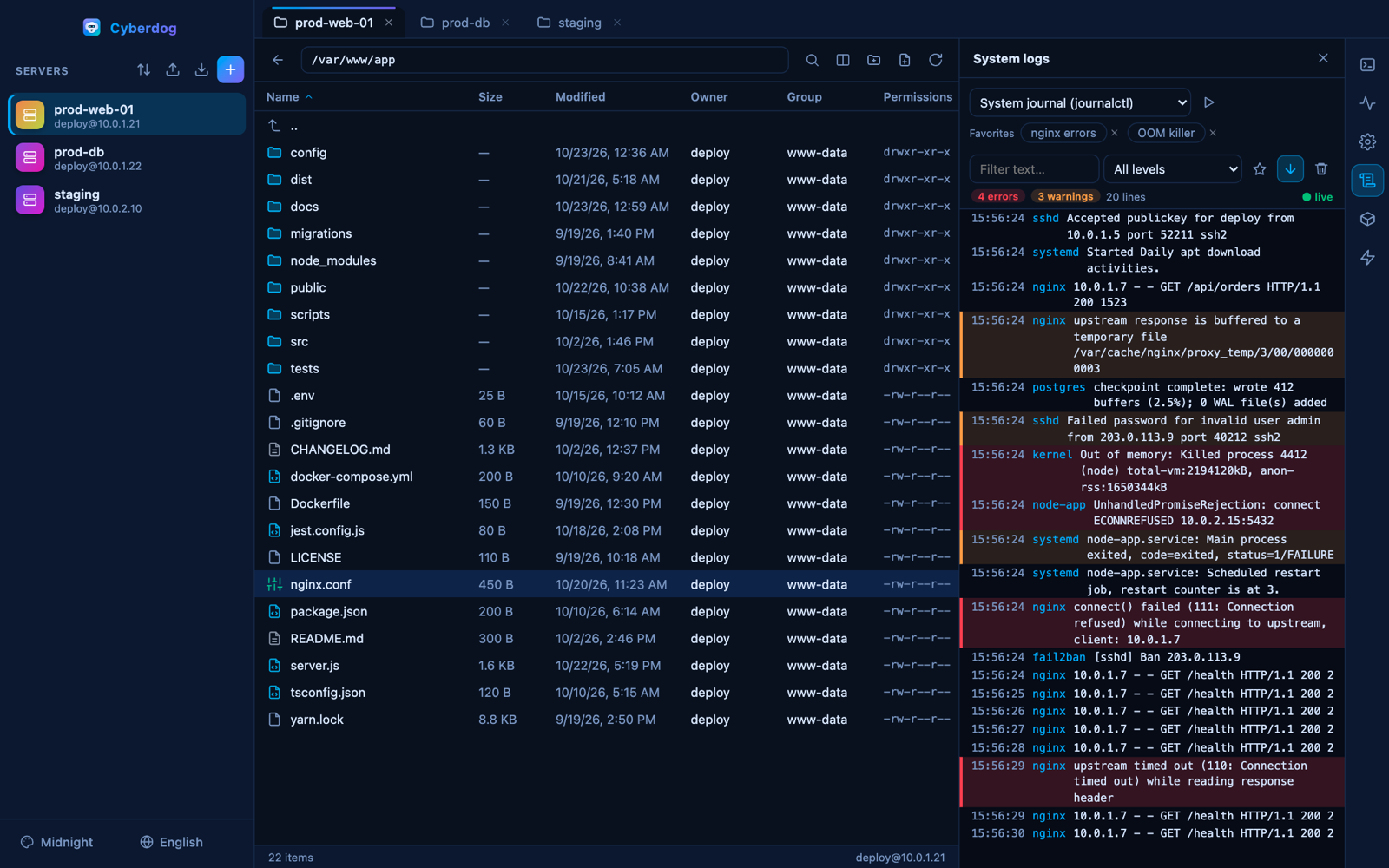
The 📜 button follows your logs in real time: the **system journal** (`journalctl -f`), a **single unit**, **Nginx** error/access logs, `syslog`, `auth.log` or **any file**. Filter by text and by level, see errors and warnings **highlighted** (with counters), pause by scrolling, and keep **favorite searches** one click away.
 ### Docker
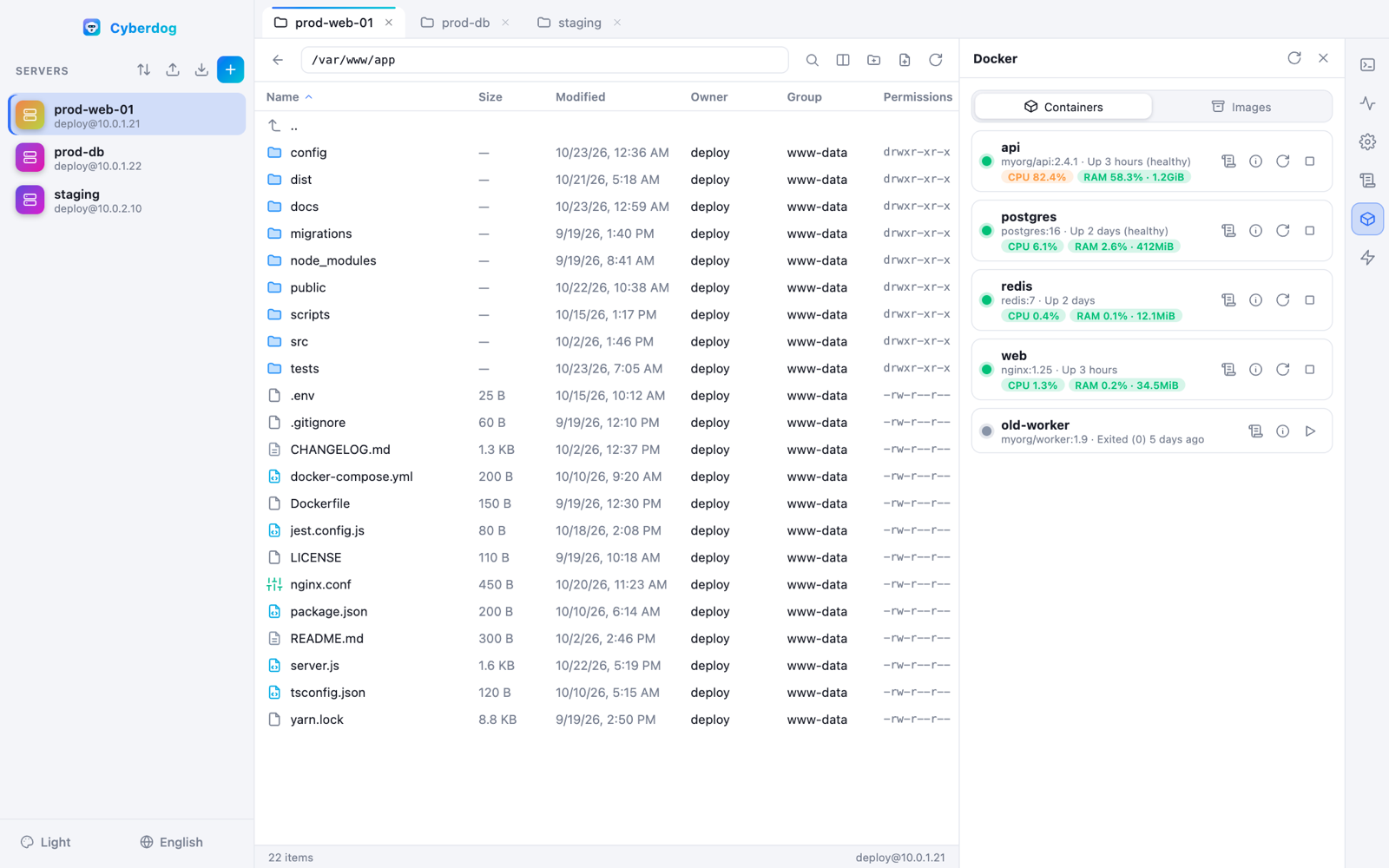
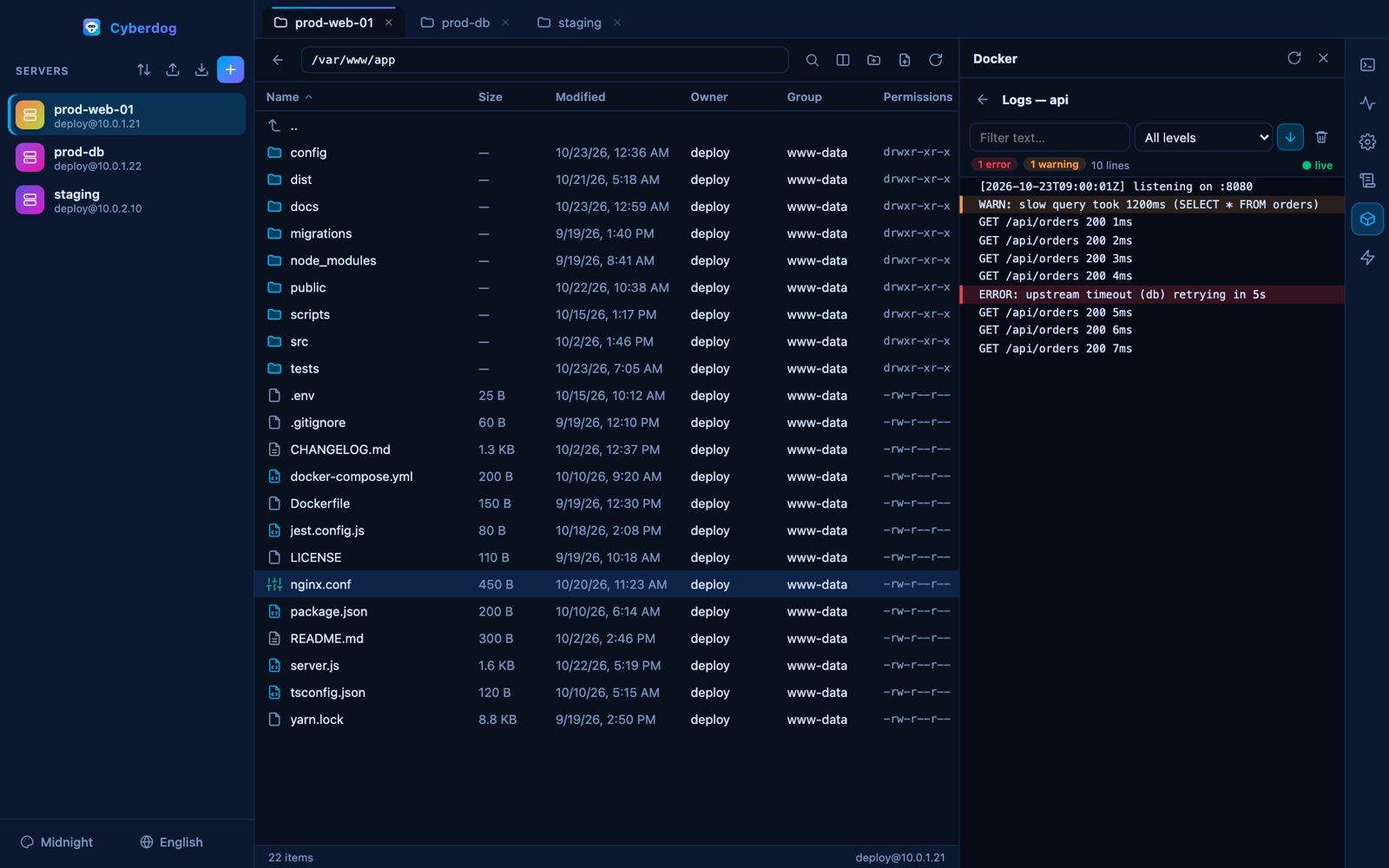
The 📦 button lists your containers with live **CPU / RAM usage**, lets you **start, stop and restart** them, **tail their logs live** and **inspect** containers and images (ports, mounts, env, layers…). Ideal when your servers host containerized apps.
 **Kubernetes**, in its own panel (right below Docker in the bar): browse the cluster with the server's own `kubectl` (or `k3s kubectl`, `microk8s kubectl`), over SSH, nothing to install. Pick the context and namespace, then **pods** (status as in `kubectl get`: *CrashLoopBackOff*, *Init:1/2*, restarts and the last termination reason, CPU/RAM when metrics-server is there), **workloads** (deployments, statefulsets, daemonsets with their ready replicas), **services**, **ingresses**, **nodes** and **events**. Click a pod for its live logs (container by container), open a **shell** in it in the terminal below, **describe** or read the **YAML** of any object, delete a pod so that it is recreated, **restart** (rolling) or **scale** a workload. A kubeconfig only root can read (k3s, microk8s) switches to `sudo` by itself, as for Docker.
### Databases
The database button of the right bar: PostgreSQL, MySQL / MariaDB and Redis are found on their own, installed as services or running in Docker containers, and opened with the server's own clients (`psql`, `mysql`, `redis-cli`) over SSH: no port to open, nothing to install. Most of the time no password is needed: `sudo -u postgres` (peer authentication), MariaDB's root through its socket, the user and password a container was started with. A login can also be typed per database (kept encrypted). Each database shows an **overview** (version, uptime, connections, size, cache hits), a **read-only data browser** (databases, tables with their size and rows, 100 rows per page, structure and indexes; Redis keys with their type, TTL and value), an **SQL editor** (read only by default, enforced by the server too; writing is asked for and confirmed), the **sessions** with their running query (cancel it, end the session), **users and rights**, the server's **log**, and **backups** (`pg_dump`, `mysqldump`, Redis RDB, gzipped into `~/cyberdog-backups` on the server, then downloaded in one click).
### Quick actions
Save your everyday bash snippets (restart a stack, clean logs, disk report…) next to your servers. Run one on the current server, or on **every open server at once**, and read each output right in the panel. Export your actions to a zip and share them with your team.
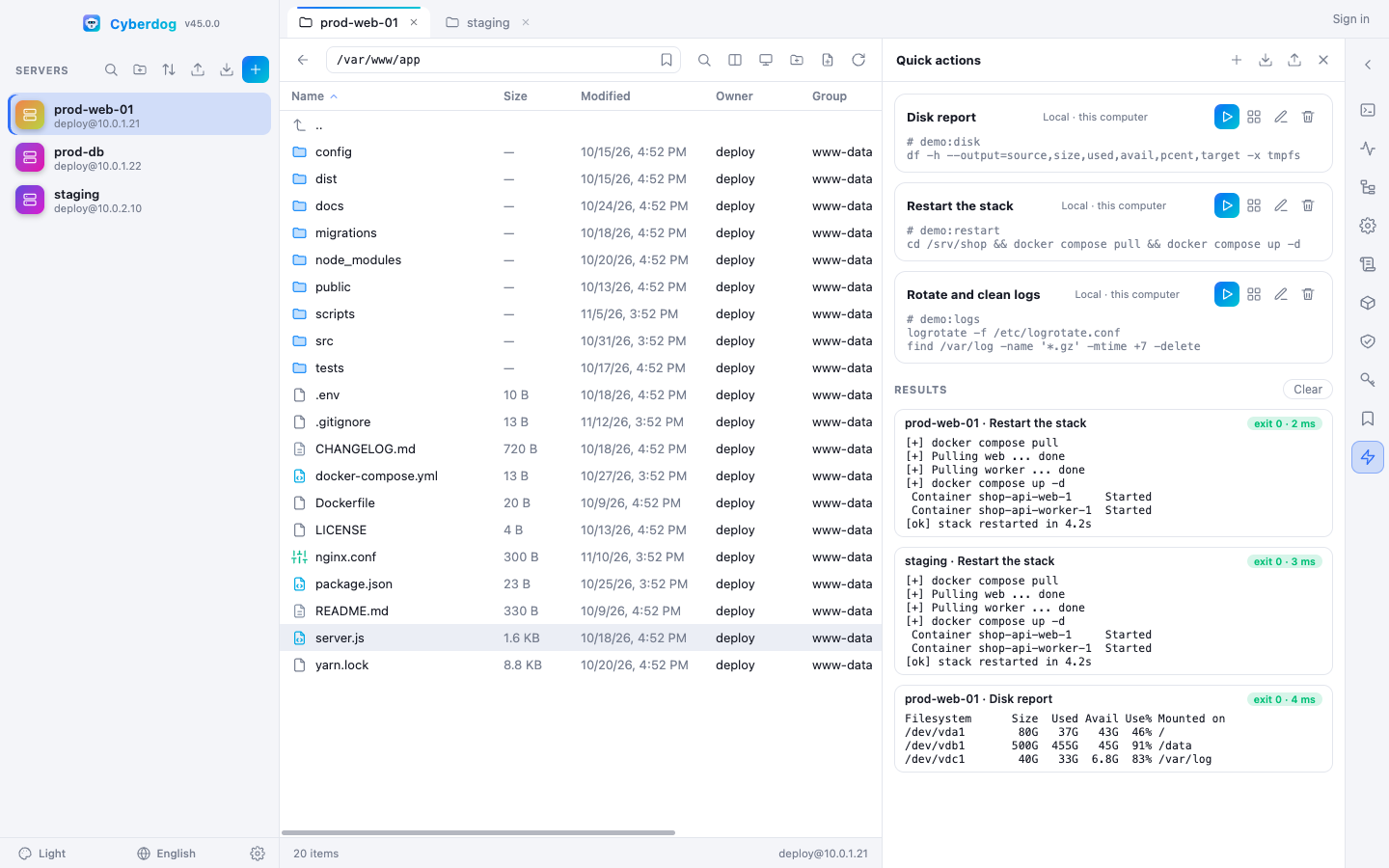 **Cyberdog commands.** A line printed by an action drives the app once the script has run: `cyberdog:download /path` downloads a file to this computer, `cyberdog:open /path` opens a file in the editor or a folder in the explorer, `cyberdog:terminal [/path]` opens the terminal, `cyberdog:refresh` refreshes the explorer, `cyberdog:notify text` shows a message, `cyberdog:url https://…` opens a link.
**Actions that ask.** Print a form and stop; Cyberdog shows it, then runs the script again with each answer in its variable:
```bash
if [ -z "$FILE" ]; then
echo "cyberdog:title Download a log"
echo "cyberdog:select FILE|Application"
echo "cyberdog:option FILE|/app/log/wildfly-ideophm/debug.log|ideophm"
echo "cyberdog:option FILE|/app/log/wildfly-ideolink/debug.log|ideolink"
exit 0
fi
echo "cyberdog:download $FILE"
```
`cyberdog:input VAR|Label|default` asks for text and `cyberdog:buttons VAR|Question|Yes=yes|No=no` shows buttons. Actions can be made for a single server, and a right-click on a server lists its actions to run them directly.
### Transfer manager and remote navigation
The explorer footer shows the current upload or download. Click it to open the **transfer queue**: up to 10 transfers at the same time (*Settings → General*), pause and resume, priorities, reorder, retry failed transfers, and *Queue / Failed / Done* tabs with progress, speed, remaining time, start and end times and duration. Downloads can be added to the queue without starting. Folder transfers include nested files, and interrupted transfers can be **resumed**.
When a file **already exists** at the destination, Cyberdog asks: overwrite, overwrite if newer, overwrite if the size differs, resume, keep both or skip, with *do the same for the next files*.
Finished downloads, in the queue and in the *Downloaded* notification, have a **Show in Finder / Explorer** button that reveals the file on your computer.
The path field supports `~` and `~/…` for the connected user’s home directory. Entering a file path opens its parent folder and selects that file. Saved paths are available immediately after startup, including in the path dropdown.
### Folder synchronization
Pair a folder on your computer with a folder on the server, the way WinSCP's *Keep remote directory up to date* does. Right-click in the explorer (the background or a folder) > **Synchronize with a local folder…**, choose the local folder, then:
- **Compare and synchronize**: Cyberdog lists both sides and shows what would change — **added**, **modified**, **deleted** and **conflicts** (a file changed on the server since the last sync, or newer there) — with a checkbox per file and per group. Only what you tick is sent.
- **Keep the server up to date**: after that first review, every file you save, create or delete locally is sent on its own, a few hundred milliseconds later, through the transfer queue (pause, resume, retry). Watching starts again when you open the server, and after the computer wakes up.
Deleting on the server is off by default. A file only on the server that was never synchronized is never deleted unless you tick it, deletions found after a restart wait for your review, and a large batch of deletions (an emptied or unmounted folder) is never applied on its own. `.git`, `node_modules`, `.DS_Store`, `*.swp`… are excluded by default; the list is yours to edit. On SFTP the local date is kept on the server, so the next comparison sees untouched files as identical.
The **Sync** button of the right bar lists the synchronized folders of the server with their state (watching, sending, last sync, deletions waiting) and Compare, Watch / Pause, Edit and Delete. A badge in the path bar shows that the folder you browse is synchronized. With the **local pane** open next to the server, a button compares the two folders shown.
Synchronization goes from your computer to the server; it works with every protocol (SFTP, FTP, S3, Azure, WebDAV…).
### A right bar of your own
The ⚙️ button at the bottom of the right bar switches it to **configuration mode**: drag the views to put them in your order (the others slide out of the way), click one to hide or show it, **Reset** to go back to the default order. The layout is the same for every server and is kept between launches.
### Themes & languages
System, Light, Dark, Midnight, Dracula, Forest and Sunset — the terminal follows. The interface is available in **14 languages**: English, Français, Deutsch, Italiano, Español, Português, 中文, العربية (right-to-left), हिन्दी, Русский, 日本語, 한국어, Türkçe and Bahasa Indonesia.