# Tmux configurations 💻
I couldn't decide what a good Tmux Spaceduck statusline would look like, so I customized a few options using this [tmux plugin](https://github.com/edkolev/tmuxline.vim).
If you're not using a [patched font](https://www.nerdfonts.com/) you can use the nice basic statusline that I have listed here.
## Basic tmux statusline
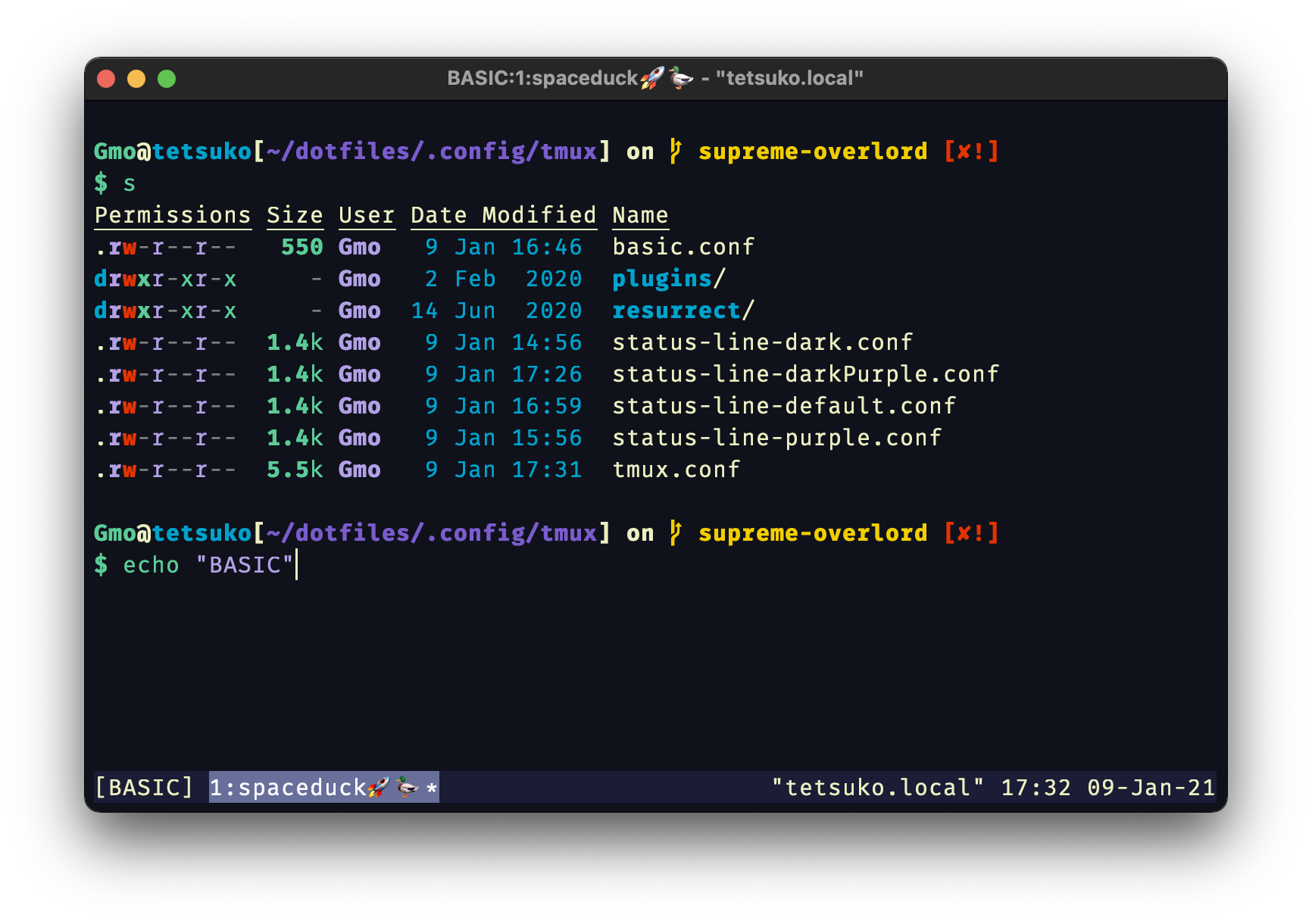 Put this bad boy in your [tmux.conf](https://wiki.archlinux.org/index.php/tmux#Configuration) or you can download the `basic.conf` and source it by using:
```tmux
source-file basic.conf
```
```tmux
# Basic color support setting
set-option -g default-terminal "screen-256color"
# Default bar color
set-option -g status-style bg='#1b1c36',fg='#ecf0c1'
# Active Pane
set -g pane-active-border-style "fg=#5ccc96"
# Inactive Pane
set -g pane-border-style "fg=#686f9a"
# Active window
set-option -g window-status-current-style bg='#686f9a',fg='#ffffff'
# Message
set-option -g message-style bg='#686f9a',fg='#ecf0c1'
set-option -g message-command-style bg='#686f9a',fg='#ecf0c1'
# When Commands are run
set -g message-style "fg=#0f111b,bg=#686f9a"
```
## Screenshots of the other configs
### Default
Put this bad boy in your [tmux.conf](https://wiki.archlinux.org/index.php/tmux#Configuration) or you can download the `basic.conf` and source it by using:
```tmux
source-file basic.conf
```
```tmux
# Basic color support setting
set-option -g default-terminal "screen-256color"
# Default bar color
set-option -g status-style bg='#1b1c36',fg='#ecf0c1'
# Active Pane
set -g pane-active-border-style "fg=#5ccc96"
# Inactive Pane
set -g pane-border-style "fg=#686f9a"
# Active window
set-option -g window-status-current-style bg='#686f9a',fg='#ffffff'
# Message
set-option -g message-style bg='#686f9a',fg='#ecf0c1'
set-option -g message-command-style bg='#686f9a',fg='#ecf0c1'
# When Commands are run
set -g message-style "fg=#0f111b,bg=#686f9a"
```
## Screenshots of the other configs
### Default
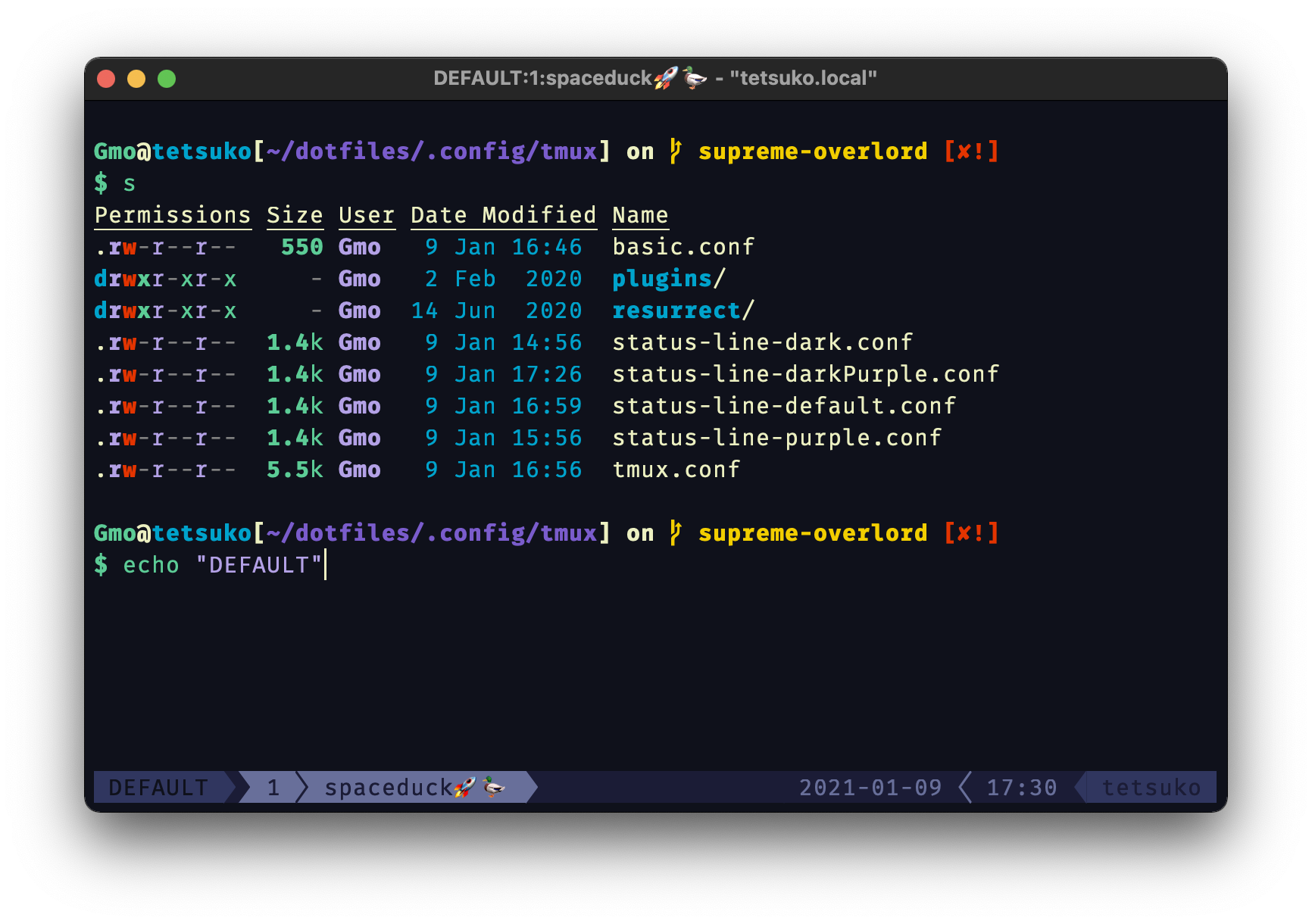 To use this statusline just download the file and source it with this command:
```tmux
source-file status-line-default.conf
```
### Dark
To use this statusline just download the file and source it with this command:
```tmux
source-file status-line-default.conf
```
### Dark
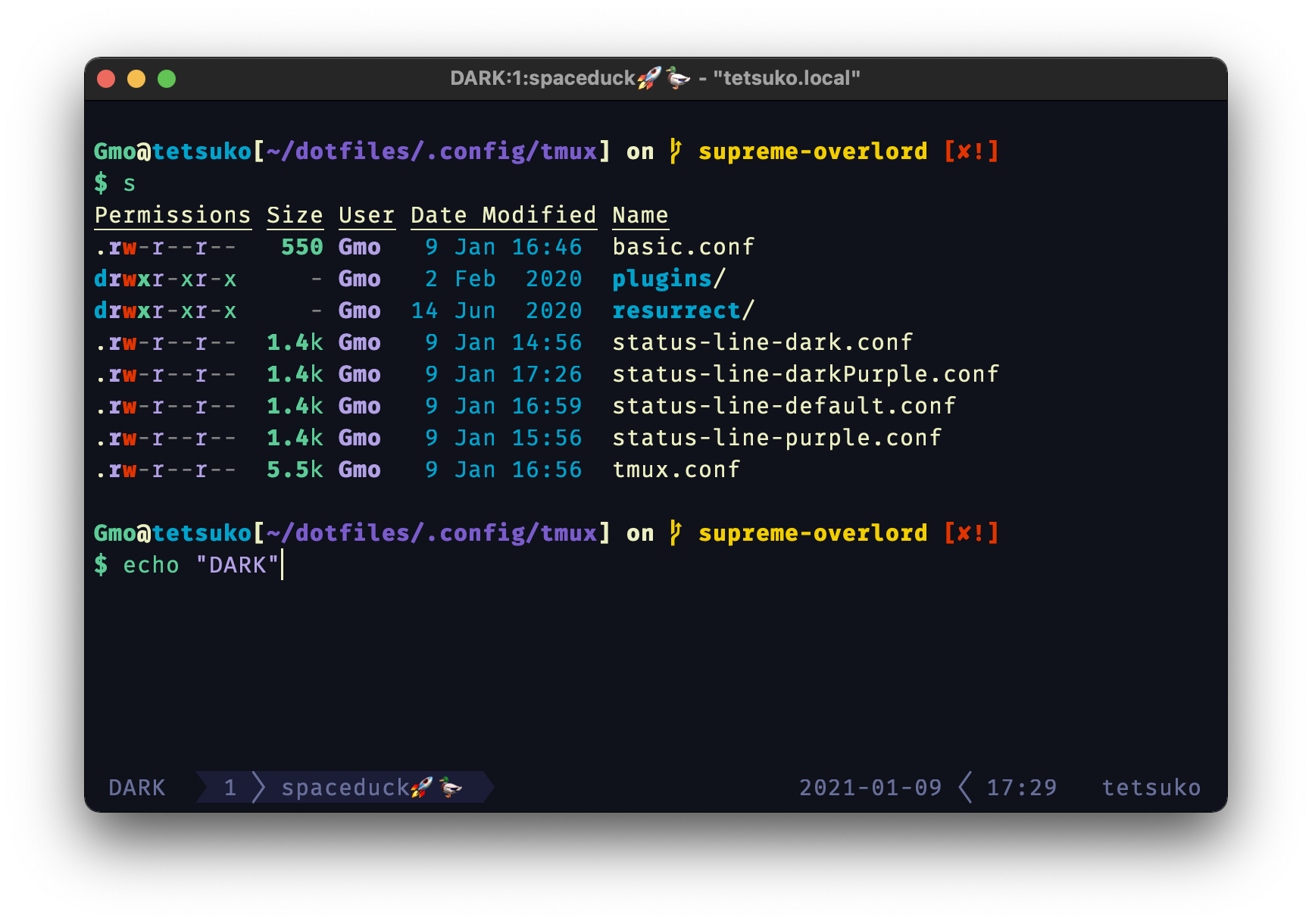 To use this statusline just download the file and source it with this command:
```tmux
source-file status-line-dark.conf
```
### Dark Purple
To use this statusline just download the file and source it with this command:
```tmux
source-file status-line-dark.conf
```
### Dark Purple
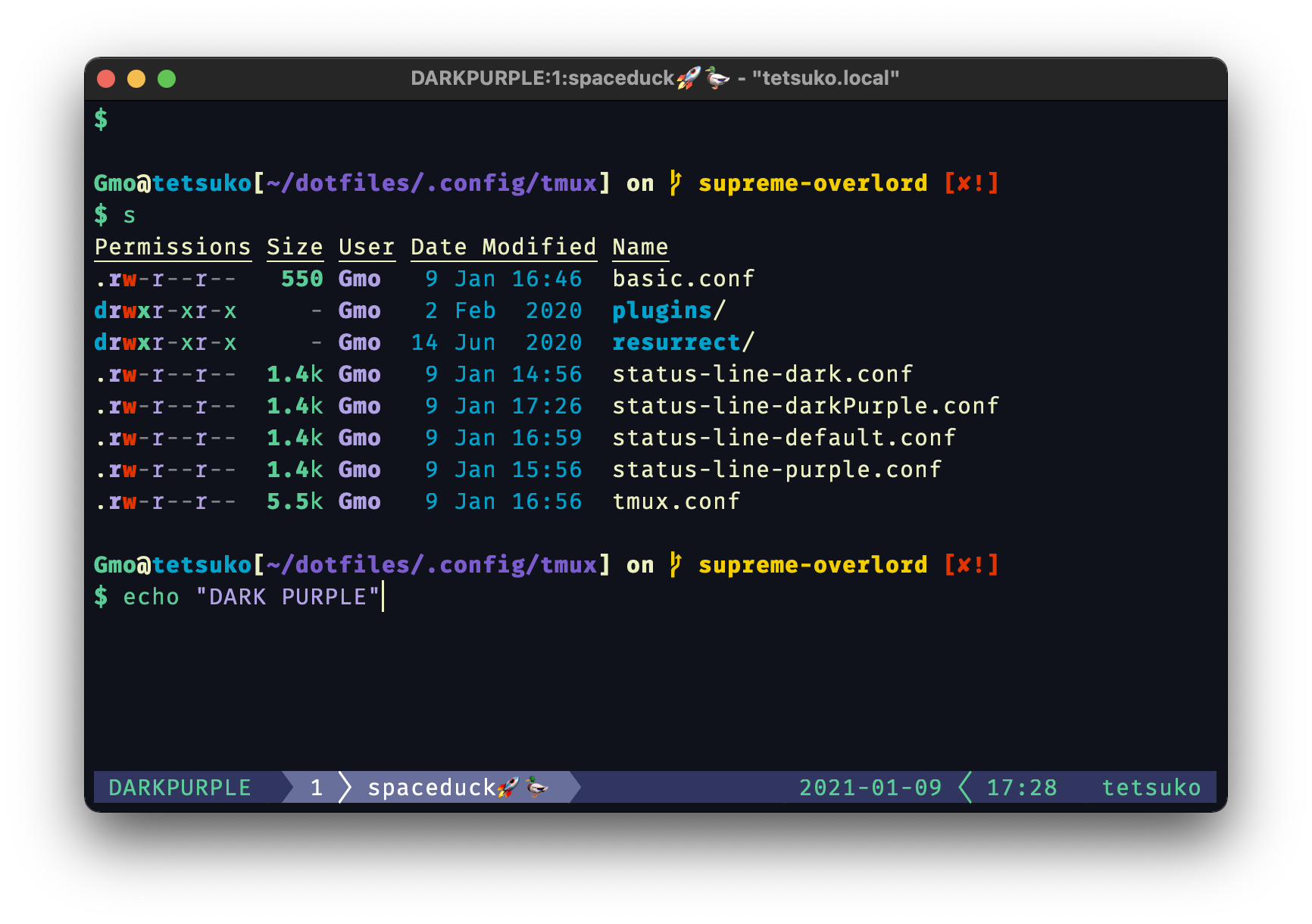 To use this statusline just download the file and source it with this command:
```tmux
source-file status-line-darkPurple.conf
```
### Purple
To use this statusline just download the file and source it with this command:
```tmux
source-file status-line-darkPurple.conf
```
### Purple
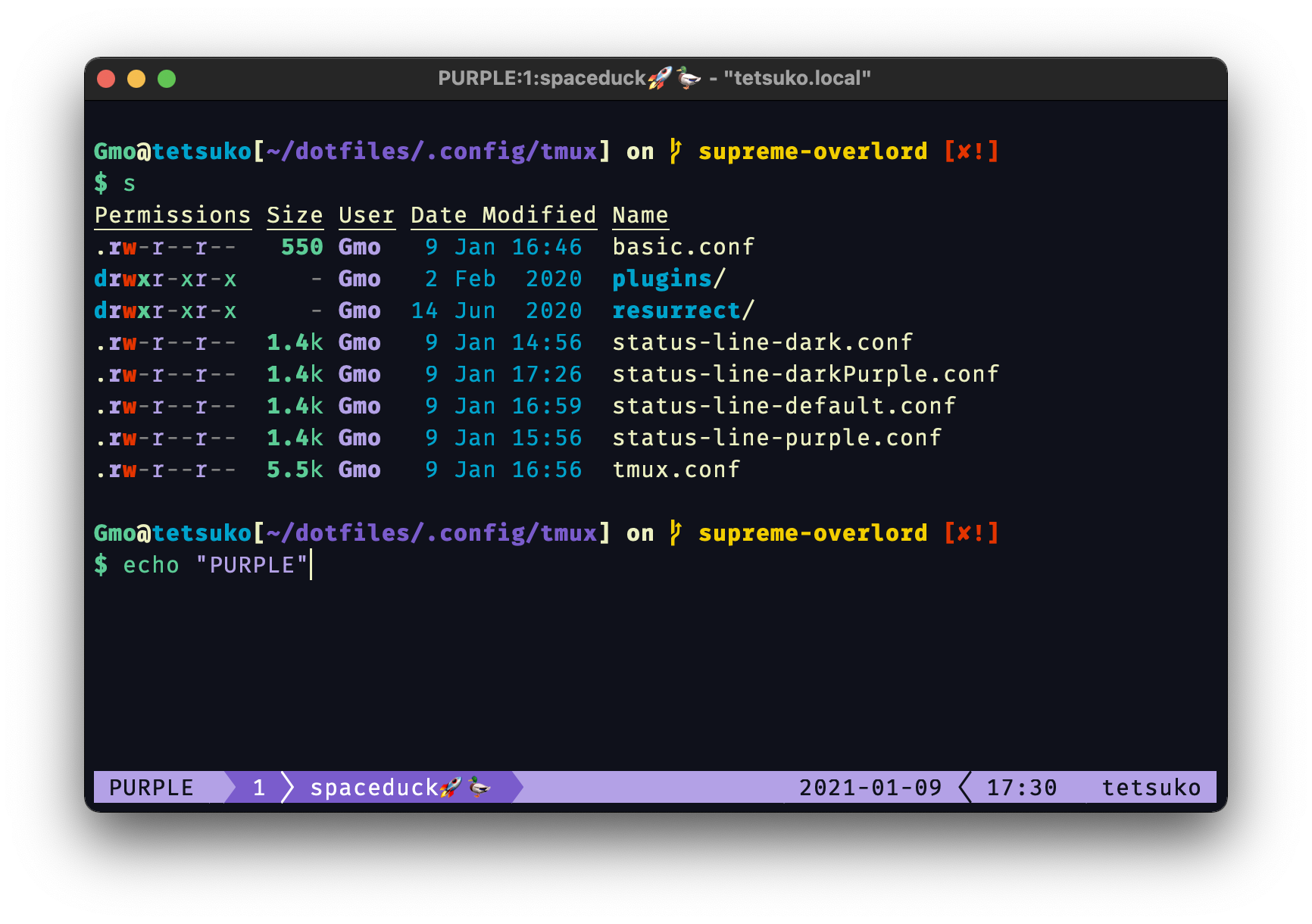 To use this statusline just download the file and source it with this command:
```tmux
source-file status-line-purple.conf
```
To use this statusline just download the file and source it with this command:
```tmux
source-file status-line-purple.conf
```