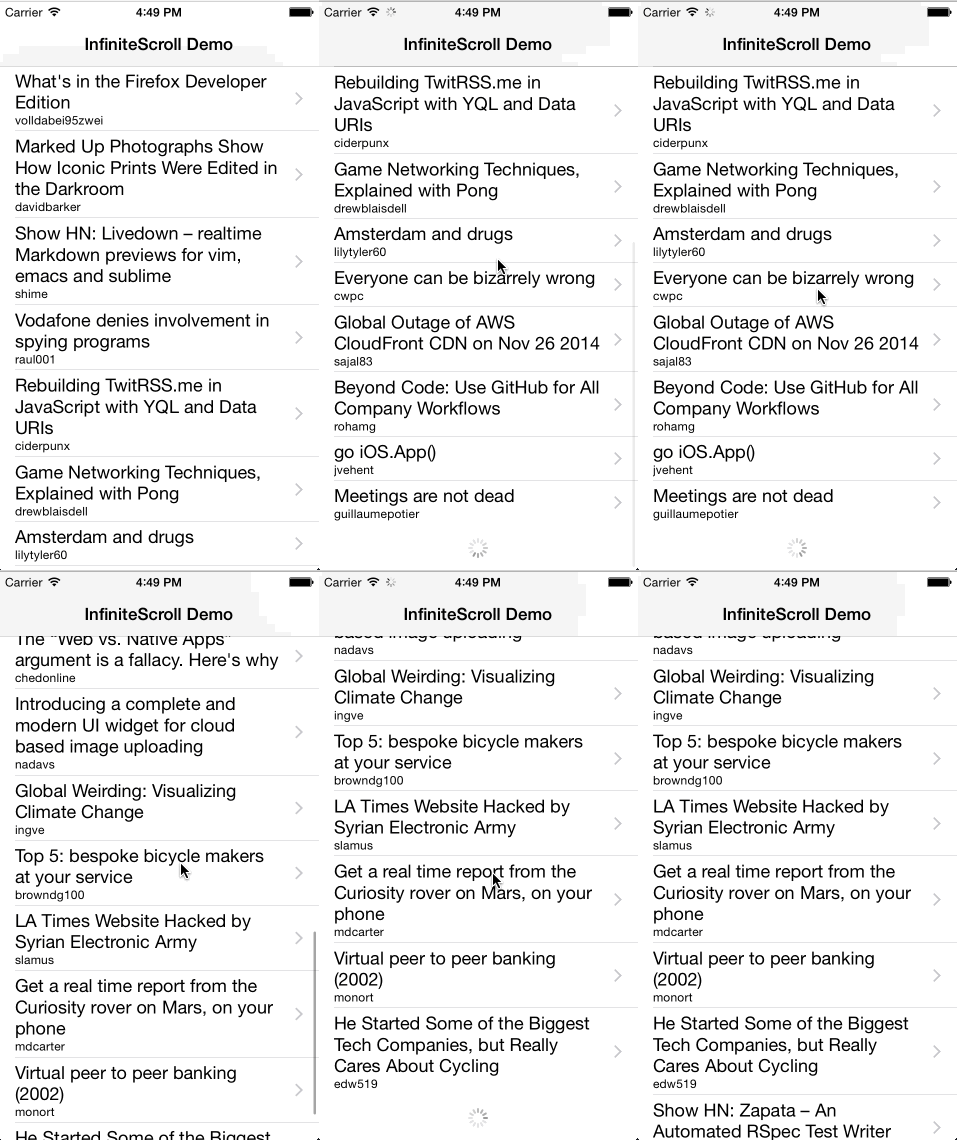
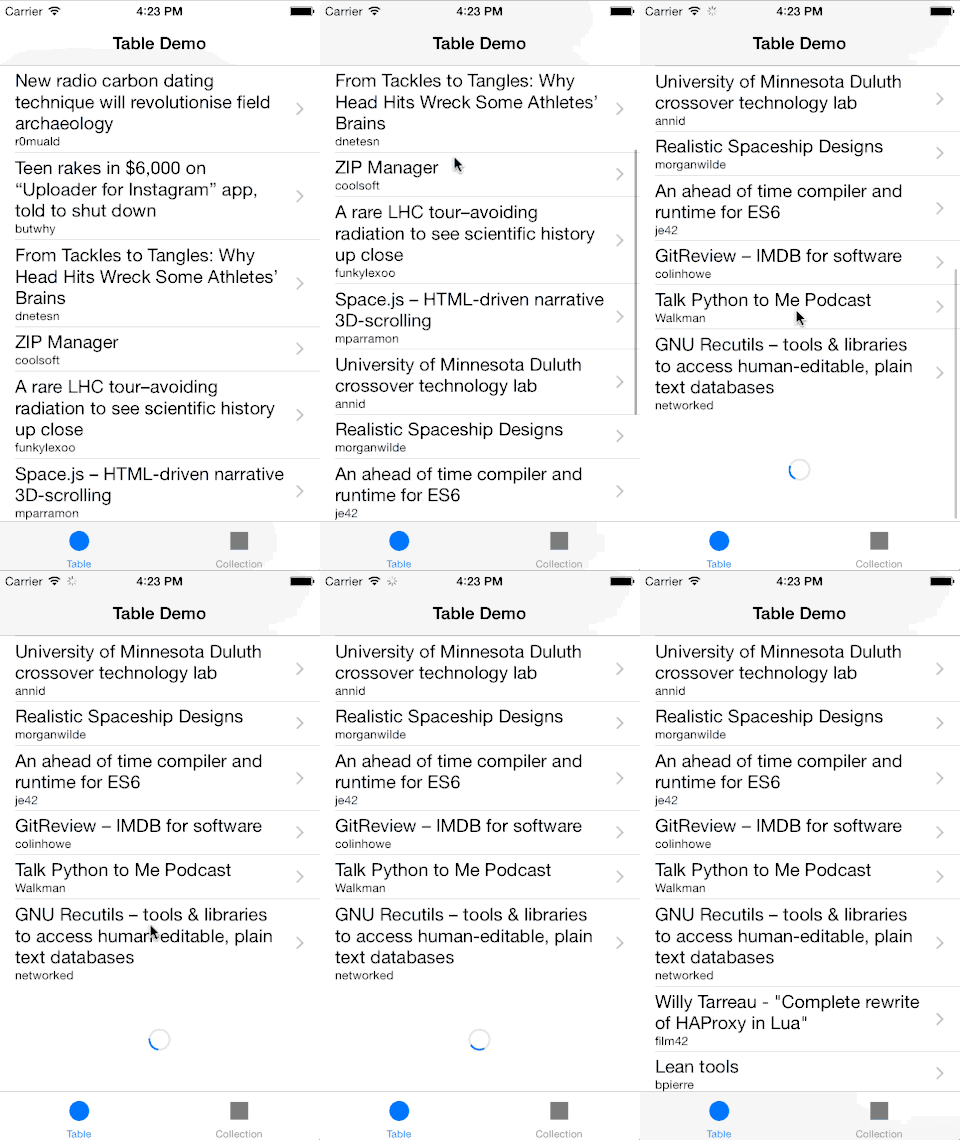
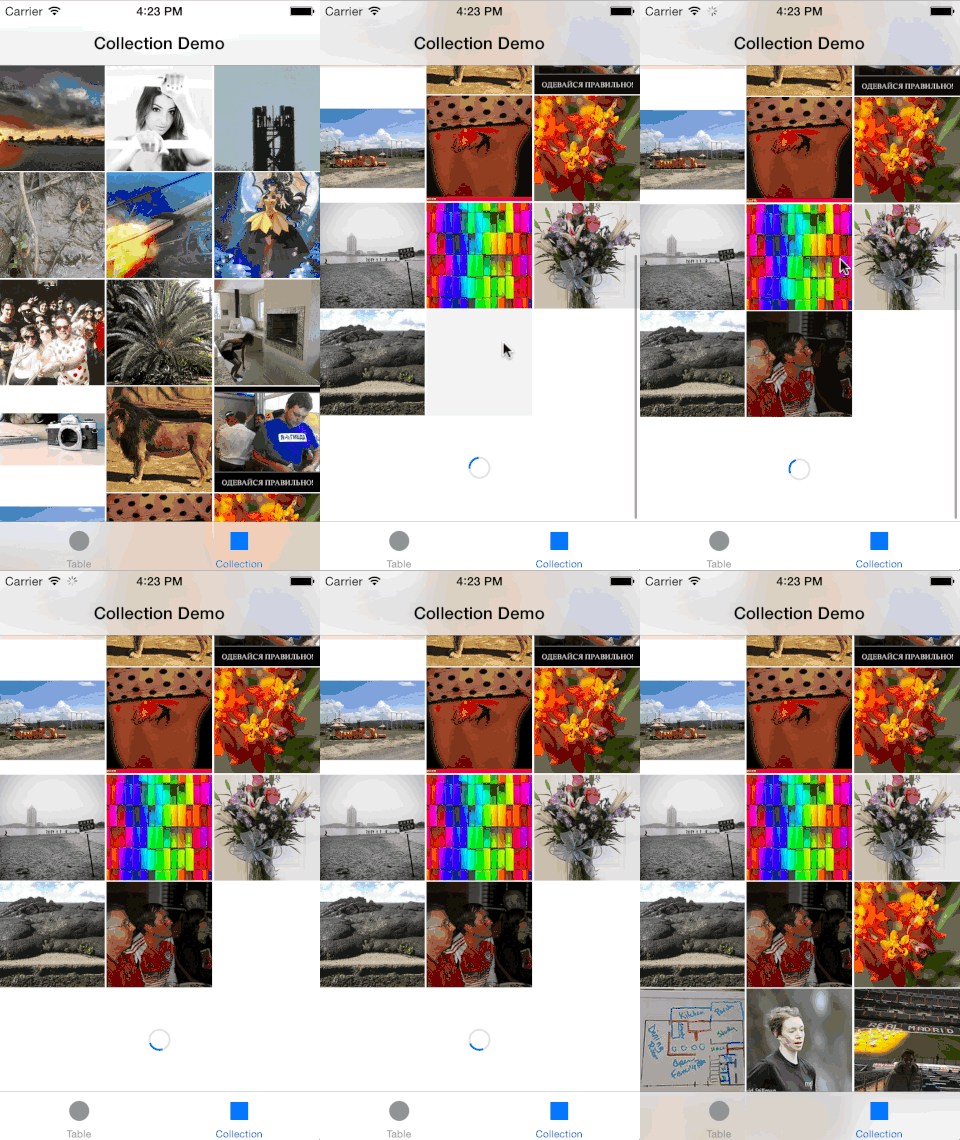
## UIScrollView+InfiniteScroll
Infinite scroll implementation as a category for UIScrollView.
\* The content used in demo app is publicly available and provided by hn.algolia.com and Flickr.
Both can be inappropriate.
### Swizzling
Be aware that this category [swizzles](http://nshipster.com/method-swizzling/) `setContentOffset`
and `setContentSize` on `UIScrollView`.
### Swift Package Manager
Add new package using github repo URL:
```
https://github.com/pronebird/UIScrollView-InfiniteScroll
```
Then import module in the source code:
```swift
import UIScrollView_InfiniteScroll
```
### CocoaPods
Add the following line in your Podfile:
```ruby
pod 'UIScrollView-InfiniteScroll', '~> 1.3.0'
```
#### Objective-C
```objc
#import
```
or if using modules:
```objc
@import UIScrollView_InfiniteScroll;
```
#### Swift
Add the following line in your bridging header file:
```objc
#import
```
### Carthage
Add the following line in your Cartfile:
```ruby
github "pronebird/UIScrollView-InfiniteScroll" ~> 1.3.0
```
#### Objective-C
```objc
#import
```
or if using modules:
```objc
@import UIScrollView_InfiniteScroll;
```
#### Swift
```swift
import UIScrollView_InfiniteScroll
```
### Examples
This component comes with example app written in Swift.
If you use CocoaPods you can try it by running:
```bash
pod try UIScrollView-InfiniteScroll
```
### Documentation
http://pronebird.github.io/UIScrollView-InfiniteScroll/
### Basics
In order to enable infinite scroll you have to provide a handler block using
`addInfiniteScrollWithHandler`. The block you provide is executed each time infinite scroll
component detects that more data needs to be provided.
The purpose of the handler block is to perform asynchronous task, typically networking or database
fetch, and update your scroll view or scroll view subclass.
The block itself is called on main queue, therefore make sure you move any long-running tasks to
background queue. Once you receive new data, update table view by adding new rows and sections,
then call `finishInfiniteScroll` to complete infinite scroll animations and reset the state of
infinite scroll components.
`viewDidLoad` is a good place to install handler block.
Make sure that any interactions with UIKit or methods provided by Infinite Scroll happen on main
queue. Use `dispatch_async(dispatch_get_main_queue, { ... })` in Objective-C or
`DispatchQueue.main.async { ... }` in Swift to run UI related calls on main queue.
Many people make mistake by using external reference to table view or collection view within the
handler block. Don't do this. This creates a circular retention. Instead use the instance of scroll
view or scroll view subclass passed as first argument to handler block.
#### Objective-C
```objc
// setup infinite scroll
[tableView addInfiniteScrollWithHandler:^(UITableView* tableView) {
// update table view
// finish infinite scroll animation
[tableView finishInfiniteScroll];
}];
```
#### Swift
```swift
tableView.addInfiniteScroll { (tableView) -> Void in
// update table view
// finish infinite scroll animation
tableView.finishInfiniteScroll()
}
```
### Collection view quirks
`UICollectionView.reloadData` causes contentOffset to reset. Instead use
`UICollectionView.performBatchUpdates` when possible.
#### Objective-C
```objc
[self.collectionView addInfiniteScrollWithHandler:^(UICollectionView* collectionView) {
[collectionView performBatchUpdates:^{
// update collection view
} completion:^(BOOL finished) {
// finish infinite scroll animations
[collectionView finishInfiniteScroll];
}];
}];
```
#### Swift
```swift
collectionView.addInfiniteScroll { (collectionView) -> Void in
collectionView.performBatchUpdates({ () -> Void in
// update collection view
}, completion: { (finished) -> Void in
// finish infinite scroll animations
collectionView.finishInfiniteScroll()
});
}
```
### Start infinite scroll programmatically
You can reuse infinite scroll flow to load initial data or fetch more using
`beginInfiniteScroll(forceScroll)`. `viewDidLoad` is a good place for loading initial data,
however absolutely up to you to decide that.
When `forceScroll` parameter is `true`, Infinite Scroll component will attempt to scroll down to
reveal indicator view. Keep in mind that scrolling will not happen if user is interacting with
scroll view.
#### Objective-C
```objc
[self.tableView beginInfiniteScroll:YES];
```
#### Swift
```swift
tableView.beginInfiniteScroll(true)
```
### Prevent infinite scroll
Sometimes you need to prevent the infinite scroll from continuing. For example, if your search API
has no more results, it does not make sense to keep making the requests or to show the spinner.
#### Objective-C
```objc
[tableView setShouldShowInfiniteScrollHandler:^BOOL (UITableView *tableView) {
// Only show up to 5 pages then prevent the infinite scroll
return (weakSelf.currentPage < 5);
}];
```
#### Swift
```swift
// Provide a block to be called right before a infinite scroll event is triggered.
// Return YES to allow or NO to prevent it from triggering.
tableView.setShouldShowInfiniteScrollHandler { _ -> Bool in
// Only show up to 5 pages then prevent the infinite scroll
return currentPage < 5
}
```
### Seamlessly preload content
Ideally you want your content to flow seamlessly without ever showing a spinner. Infinite scroll
offers an option to specify offset in points that will be used to start preloader before user
reaches the bottom of scroll view.
The proper balance between the number of results you load each time and large enough offset should
give your users a decent experience. Most likely you will have to come up with your own formula for
the combination of those based on kind of content and device dimensions.
```objc
// Preload more data 500pt before reaching the bottom of scroll view.
tableView.infiniteScrollTriggerOffset = 500;
```
### Custom indicator
You can use custom indicator instead of default `UIActivityIndicatorView`.
Custom indicator must be a subclass of `UIView` and implement the following methods:
```swift
@objc func startAnimating()
@objc func stopAnimating()
```
#### Swift
```swift
let frame = CGRect(x: 0, y: 0, width: 24, height: 24)
tableView.infiniteScrollIndicatorView = CustomInfiniteIndicator(frame: frame)
```
Please see example implementation of custom indicator view:
* Swift: [CustomInfiniteIndicator.swift](https://github.com/pronebird/UIScrollView-InfiniteScroll/blob/master/InfiniteScrollViewDemoSwift/CustomInfiniteIndicator.swift)
At the moment InfiniteScroll uses indicator's frame directly so make sure you size custom indicator
view beforehand. Such views as `UIImageView` or `UIActivityIndicatorView` will automatically resize
themselves so no need to setup frame for them.
### Contributors
Please see [CHANGES](https://github.com/pronebird/UIScrollView-InfiniteScroll/blob/master/CHANGES)
### Attributions
Demo app icon by [PixelResort](http://appicontemplate.com/ios8/).