.msi`: a machine-wide installer that registers the
service, for deployment through Group Policy, Intune, or SCCM (see
[Windows MSI](https://github.com/ptweezy/cronstable/wiki/Windows-MSI)).
At startup, a standalone binary unpacks its embedded Python runtime into a
temporary directory, so on a read-only root filesystem it needs a small
writable, executable temporary mount. The container images, pip installs, and
the Windows `.zip` and `.msi` builds don't unpack anything at startup. For a
tmpfs or `emptyDir` recipe, the full asset table, and the other install
methods (ubi, mise, and Nix), see
[installation](https://github.com/ptweezy/cronstable/wiki/Installation) in the
wiki.
#### Choose an x86-64 build
Every x86-64 binary, package, and Docker image comes in two builds:
* `amd64v3` (recommended for compatible CPUs): uses an optimized embedded
Python runtime and requires the full x86-64-v3 feature set, as on Intel
Haswell and newer Core and Xeon CPUs, or AMD Excavator and Zen.
* `amd64` (compatibility build): runs on any x86-64 CPU. Choose it when the
CPU or VM doesn't expose x86-64-v3, or when you're unsure.
Homebrew and WinGet install the `amd64` builds. For the exact feature list,
see
[CPU requirements](https://github.com/ptweezy/cronstable/wiki/Installation#amd64v3-cpu-requirements).
## Web dashboard
[](https://raw.githubusercontent.com/ptweezy/cronstable/main/docs/img/dashboard-reel.webp)
> Web UI tour.
The daemon serves the built-in web dashboard at `/` on each `http://` and
`https://` listener. It's one self-contained page, with no build step and no
external requests, served under a strict Content Security Policy. To turn it
on, add a `web` listener, as in the [quick start](#quick-start):
```yaml
web:
listen:
- http://127.0.0.1:8080
```
[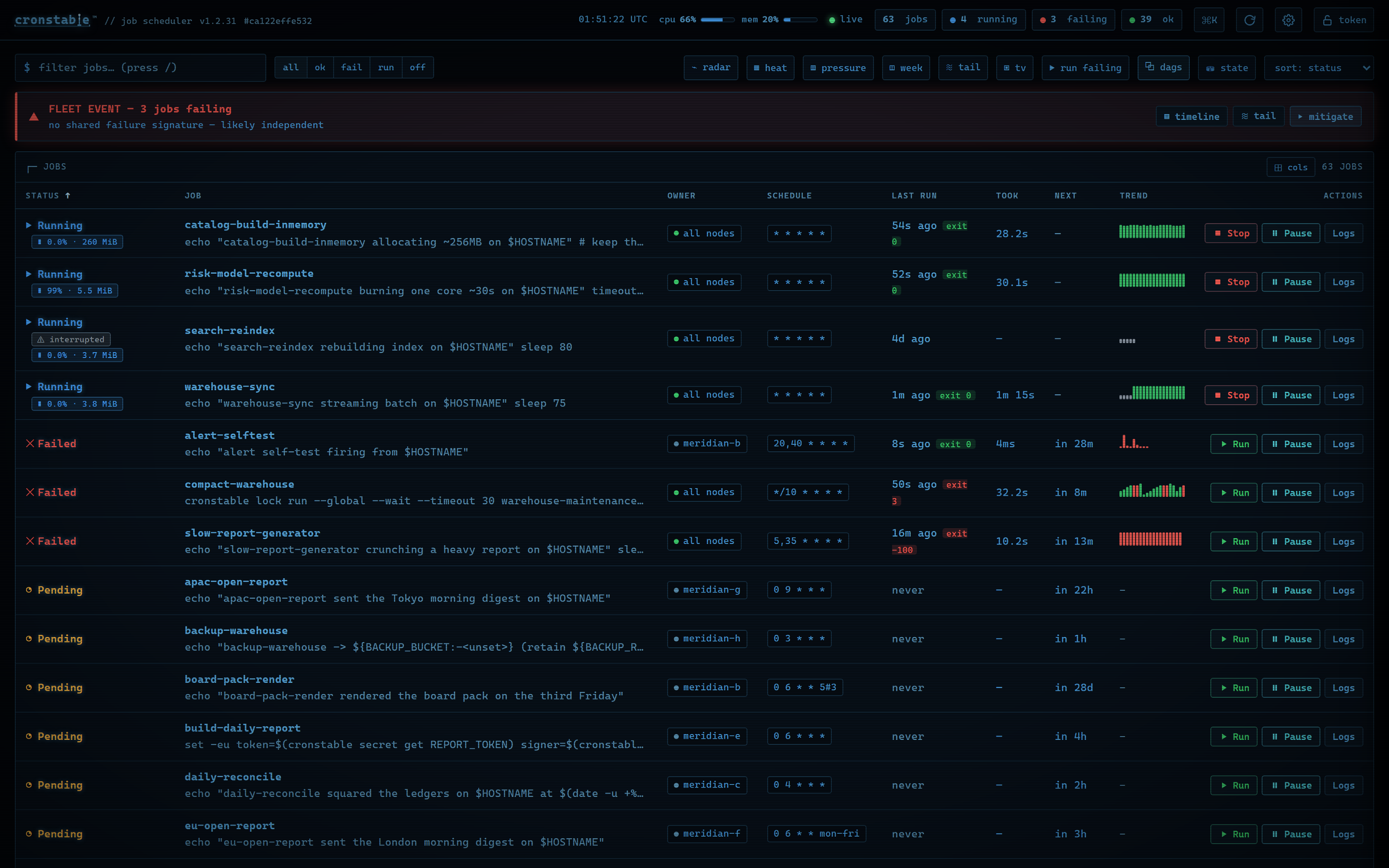](https://raw.githubusercontent.com/ptweezy/cronstable/main/docs/img/dashboard-overview.png)
The overview shows each job's status, upcoming runs, recent outcomes, and,
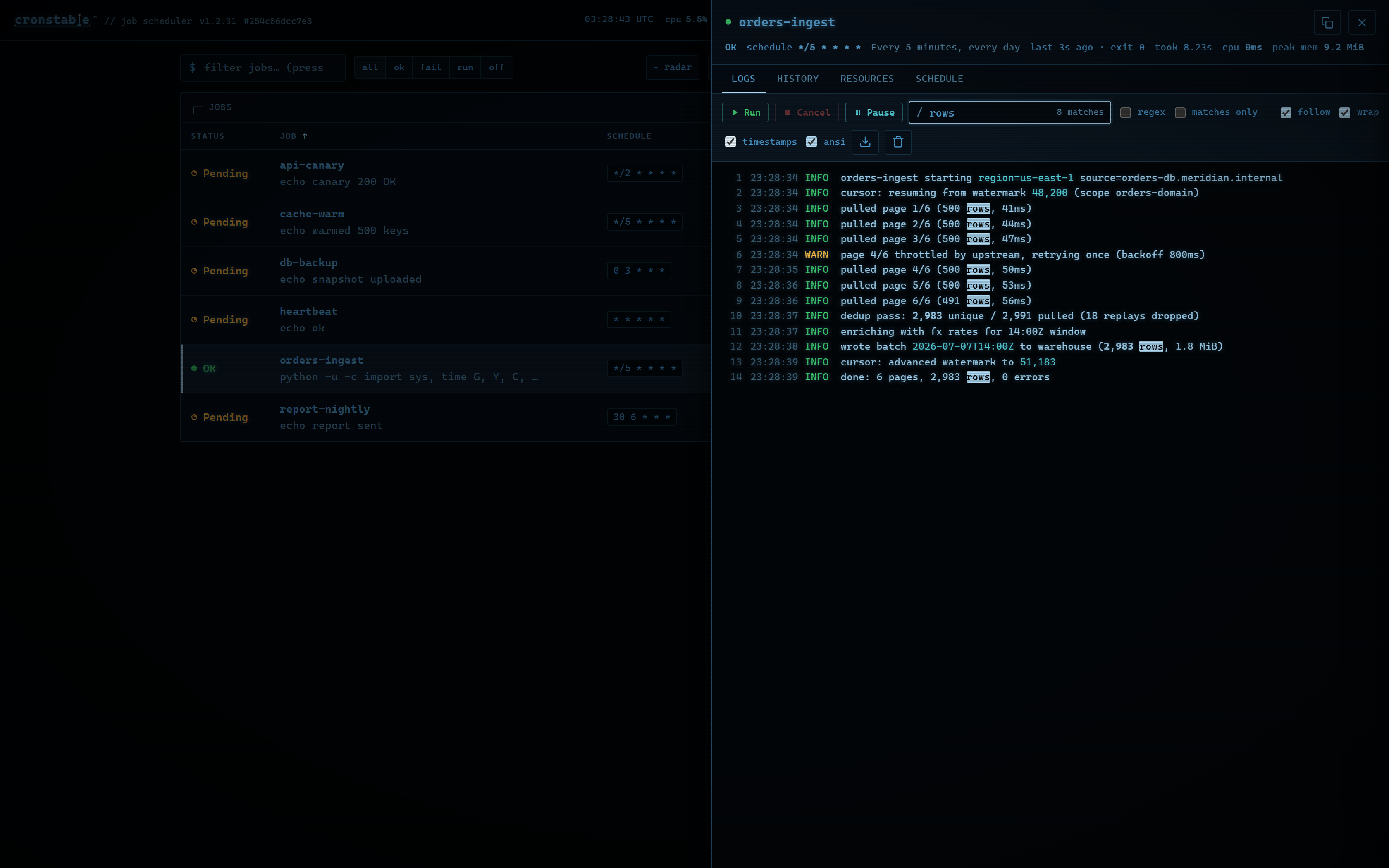
when monitoring is on, resource usage. Open a job to follow its logs, review
its run history, or inspect its schedule. You can also:
* Trigger workflows, follow their task graphs, and approve or reject approval
gates.
* Inspect cluster health and compare each job's runs across nodes.
* Investigate failures with an incident timeline and merged live logs.
* Use the wallboard, the activity heatmap, and the durable state inspector.
| Live logs | Workflow task graph | Fleet view |
| :---: | :---: | :---: |
| [](https://raw.githubusercontent.com/ptweezy/cronstable/main/docs/img/dashboard-logs.png) | [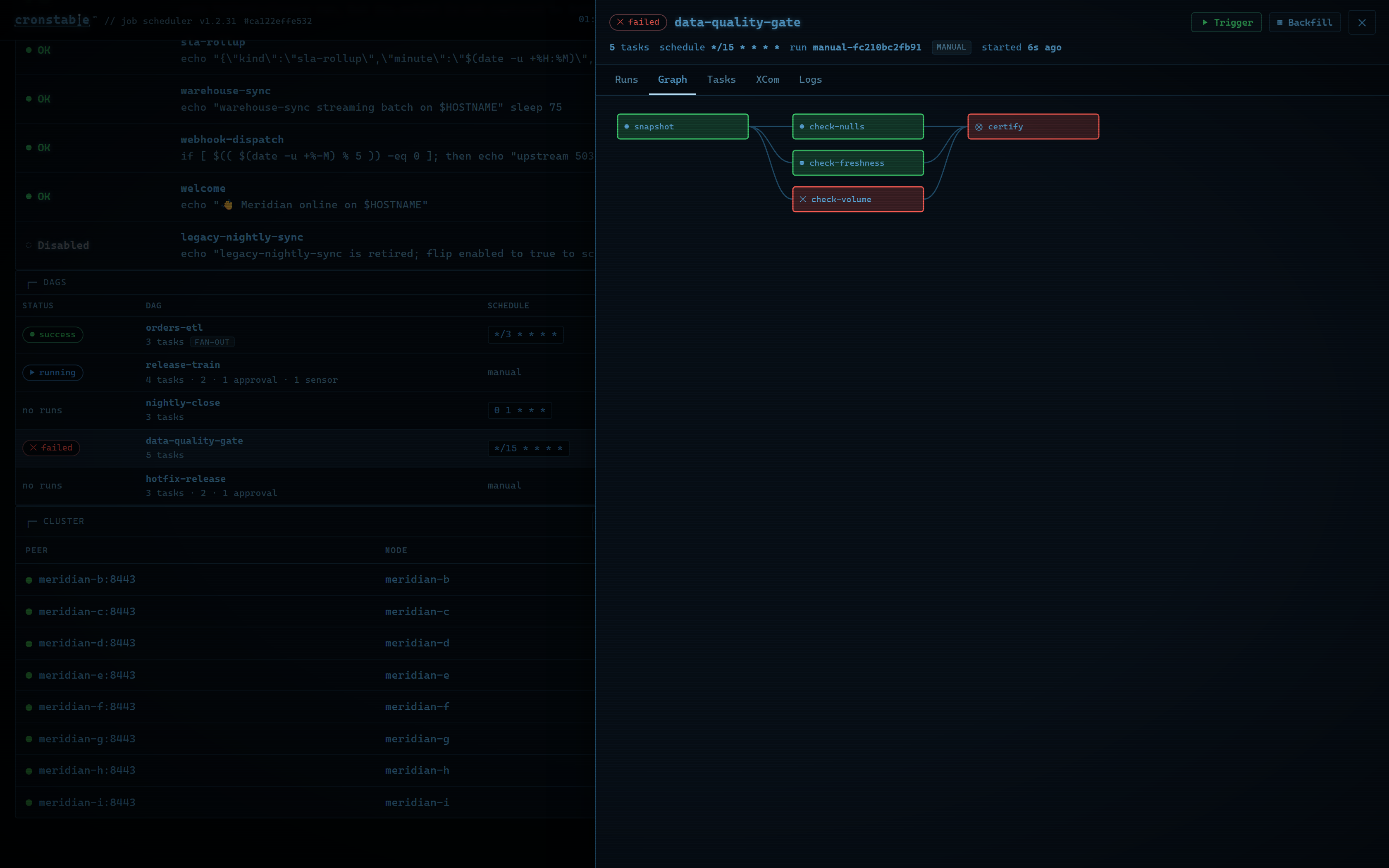](https://raw.githubusercontent.com/ptweezy/cronstable/main/docs/img/dashboard-dag-graph.png) | [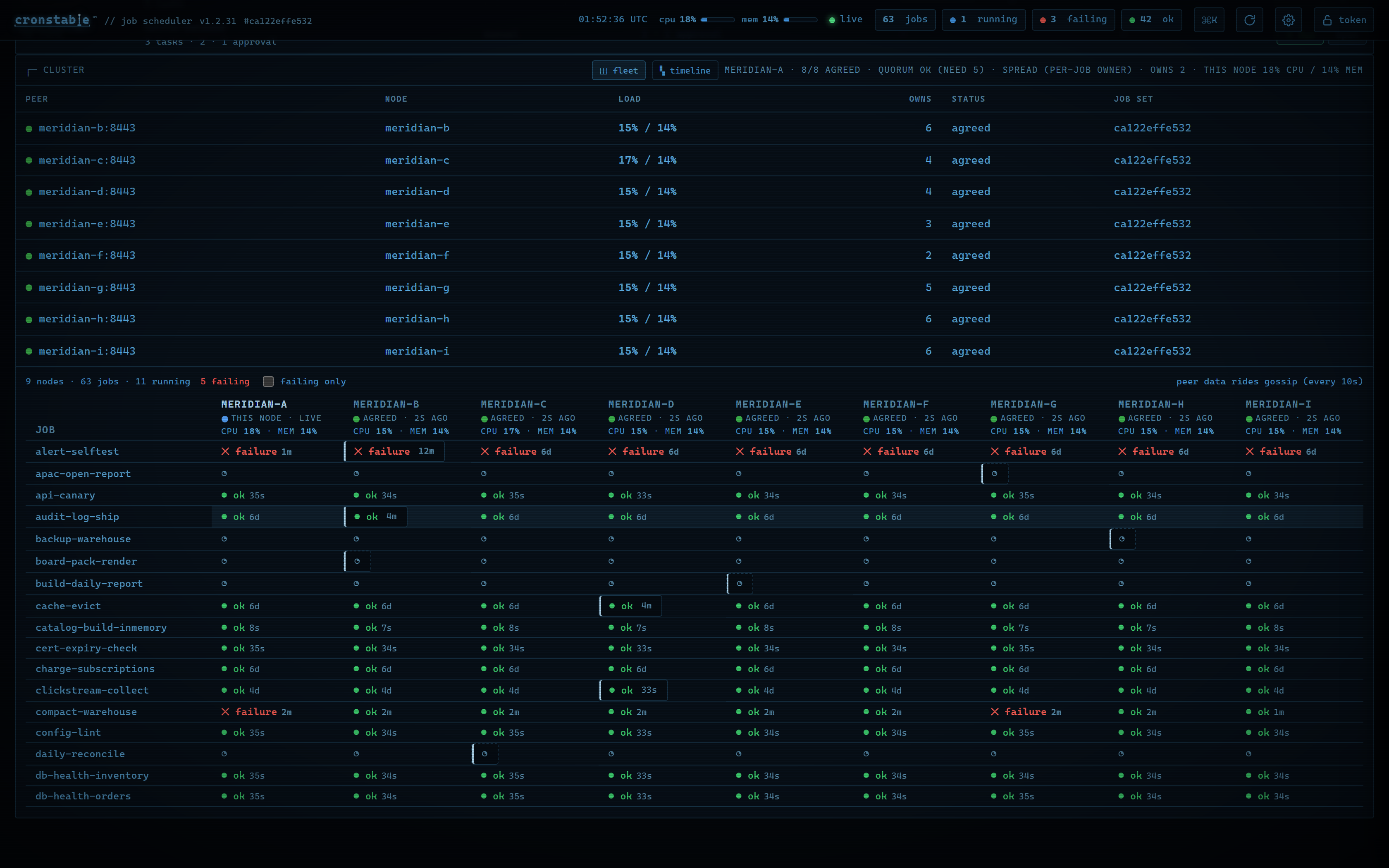](https://raw.githubusercontent.com/ptweezy/cronstable/main/docs/img/dashboard-fleet.png) |
Press `Ctrl-K` or `⌘K` for the command palette, `?` for shortcuts, or `Enter`
to open the selected job. The dashboard has ten themes, adjustable fonts and UI
scale, color-vision-safe palettes, and reduced-motion support. It shows status
with text and symbols as well as color.
Run history and captured output stay in memory unless you enable the
[durable state store](https://github.com/ptweezy/cronstable/wiki/Durable-State),
which keeps run history across restarts. To also keep each run's captured
output, set `archiveOutput: true` on the job or under `defaults:`. For every
panel, shortcut, and setting, see the
[web dashboard guide](https://github.com/ptweezy/cronstable/wiki/Web-Dashboard).
To try the dashboard with a varied set of demo jobs, run this command from a
clone of this repository, and then open :
```shell
docker compose up
```
The [example gallery](#example-gallery) has larger setups, including a
three-node cluster and the nine-node grand tour.
## Terminal dashboard
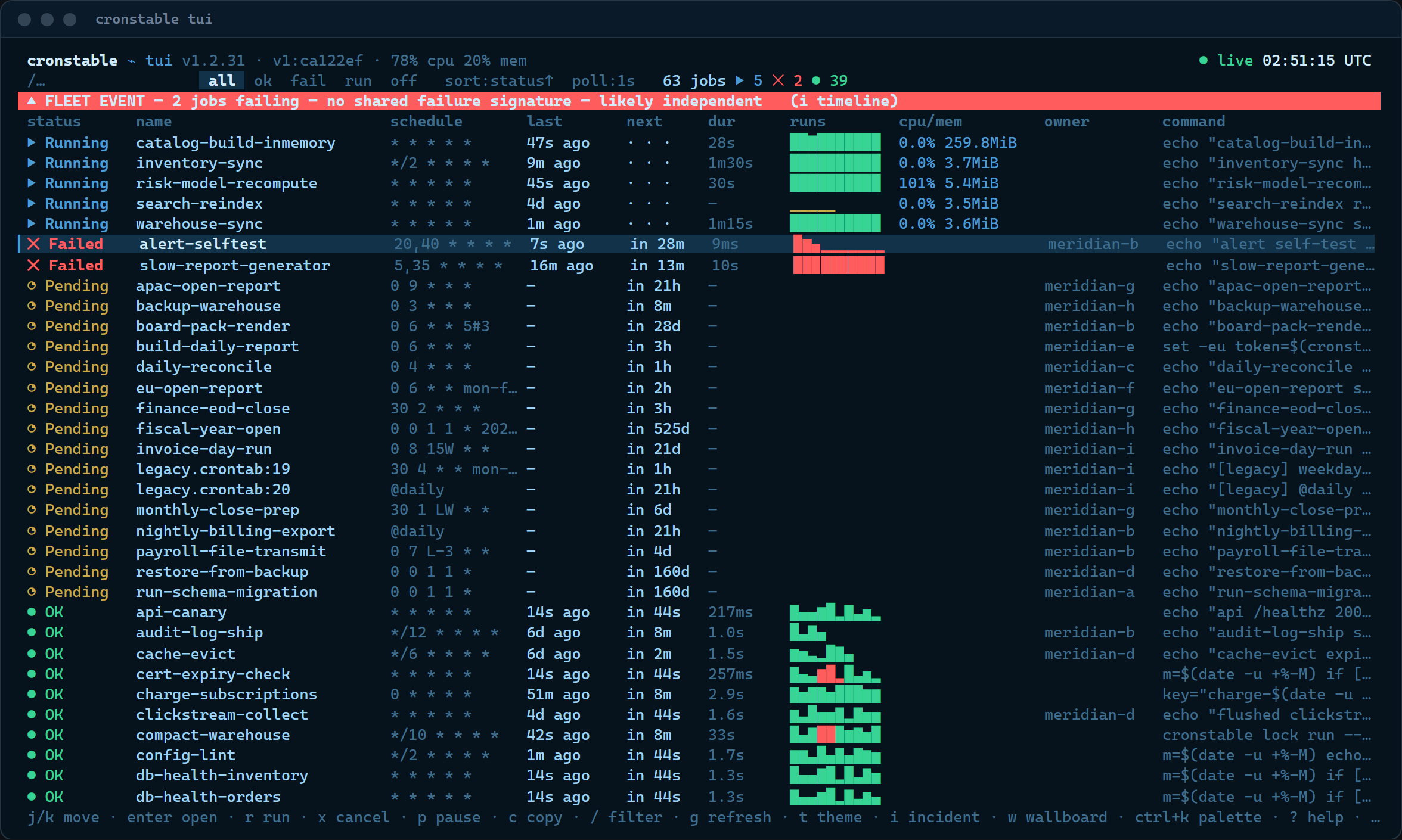
The `cronstable tui` command brings the dashboard to your terminal, including
over SSH and in tmux. It's a client of the same HTTP API, uses the web
dashboard's keyboard shortcuts, and has job logs, history, workflows, cluster
views, and incident tools.
[](https://raw.githubusercontent.com/ptweezy/cronstable/main/docs/img/tui-overview.png)
```shell
cronstable tui # local daemon on port 8080
cronstable tui --url http://prod-node:8080 # remote daemon
cronstable tui --tv # open the wallboard
```
If the daemon requires a [token](#authentication), set the
`CRONSTABLE_WEB_TOKEN` environment variable, or name another variable with
`--token-env`. Use `--job` to open a job's details at startup, or `--ascii`
when your terminal font lacks the status symbols. For all options, panels, and
themes, see the
[terminal dashboard guide](https://github.com/ptweezy/cronstable/wiki/Terminal-Dashboard).
## iOS app
Cronstable for iPhone and iPad
The on-call companion and native dashboard for your cronstable servers.

The app connects directly to your servers over the LAN, Tailscale, or HTTPS,
and receives [encrypted push alerts](#push-notifications). It needs no account
or sign-up, has no analytics or ads, and keeps access tokens in the device
Keychain.
The app includes these features:
* Alerts for failed runs, SLA breaches, workflow failures, and approval gates.
Each alert is sealed to the device's key before it leaves your server, and
you can approve or reject a gate from the lock screen.
* The jobs board, run history, live log tails, workflow runs, run trends, CPU
and memory charts, and node and cluster views.
* Schedule tools: pressure heatmaps, duplicate detection, a cron expression
sandbox, and an answer to "why did this run?"
* Home Screen widgets for fleet health, and your job schedule as a calendar
subscription.
Push notifications are optional. Without the `push` reporter, the app polls
your servers directly, every 1 to 300 seconds.
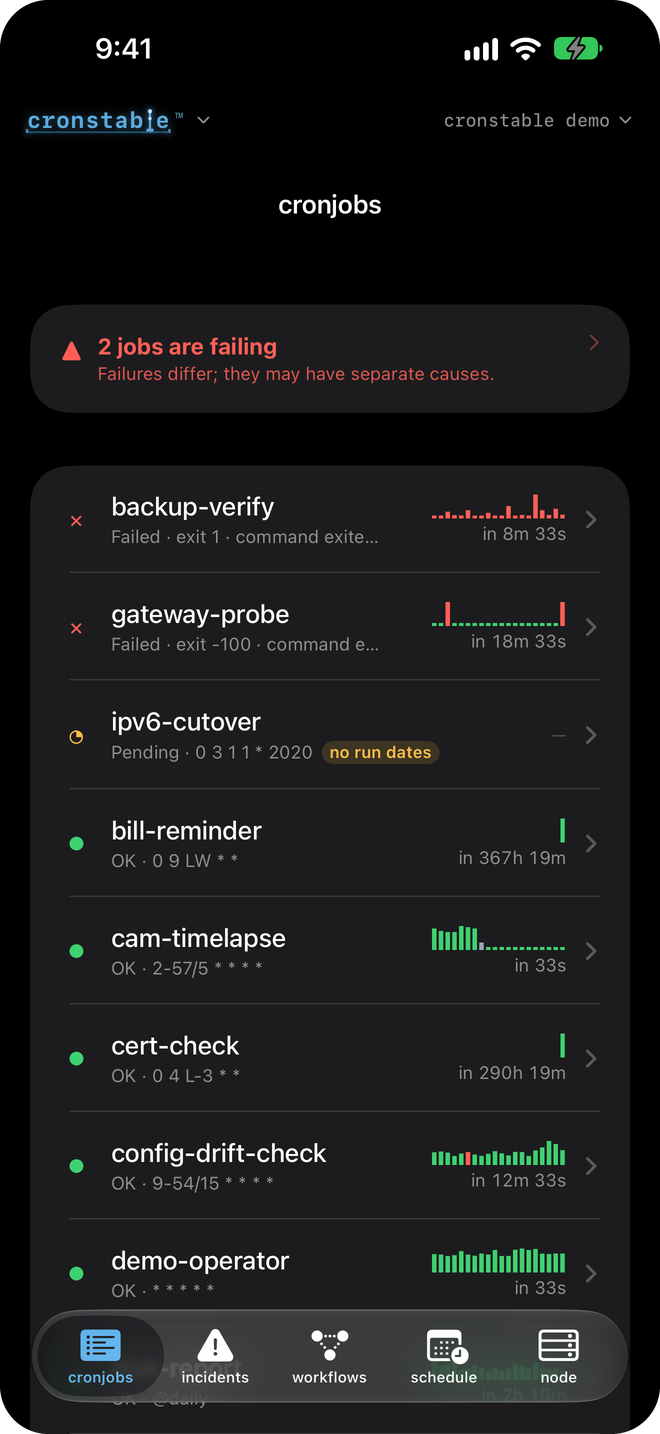
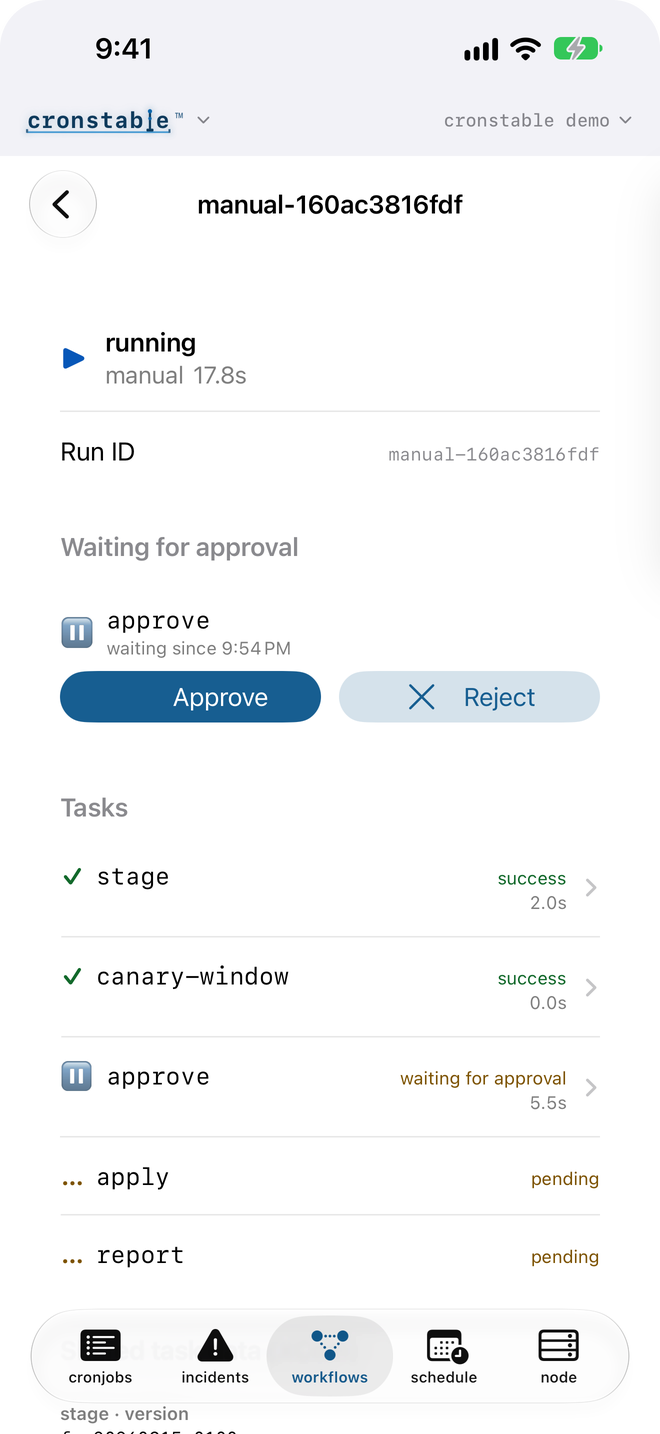
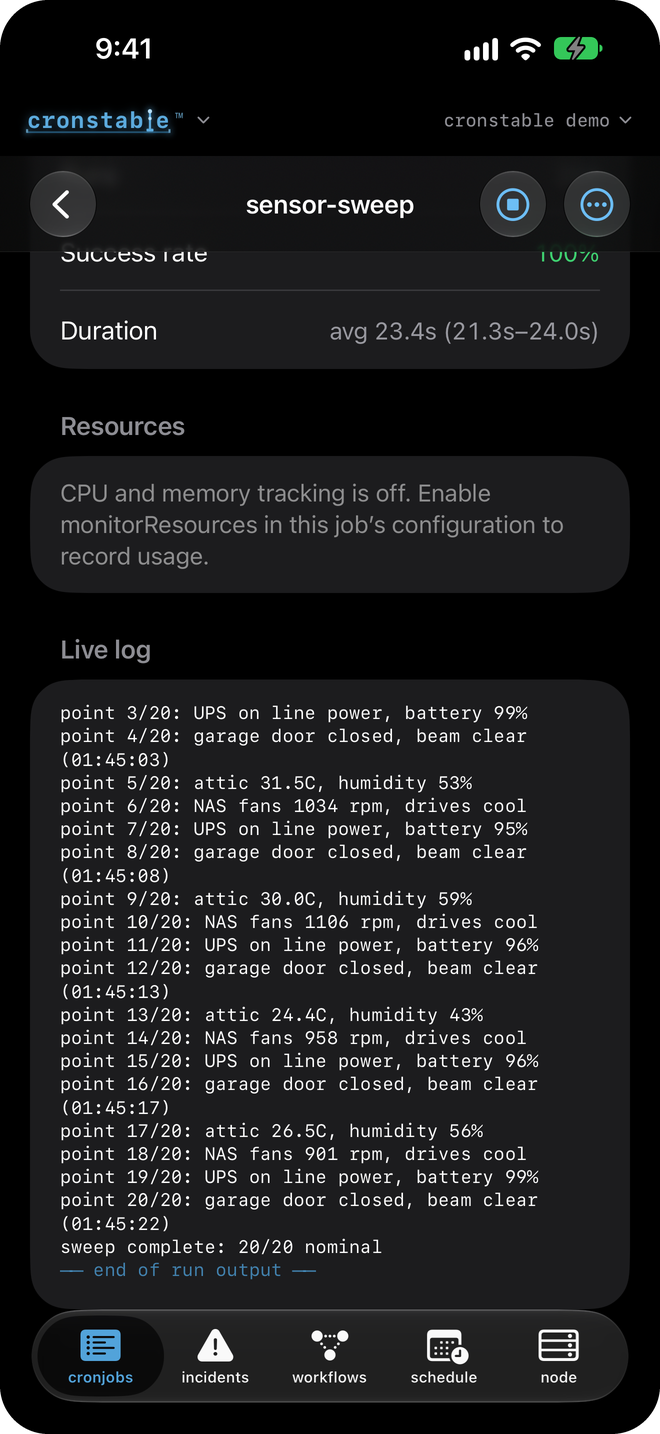
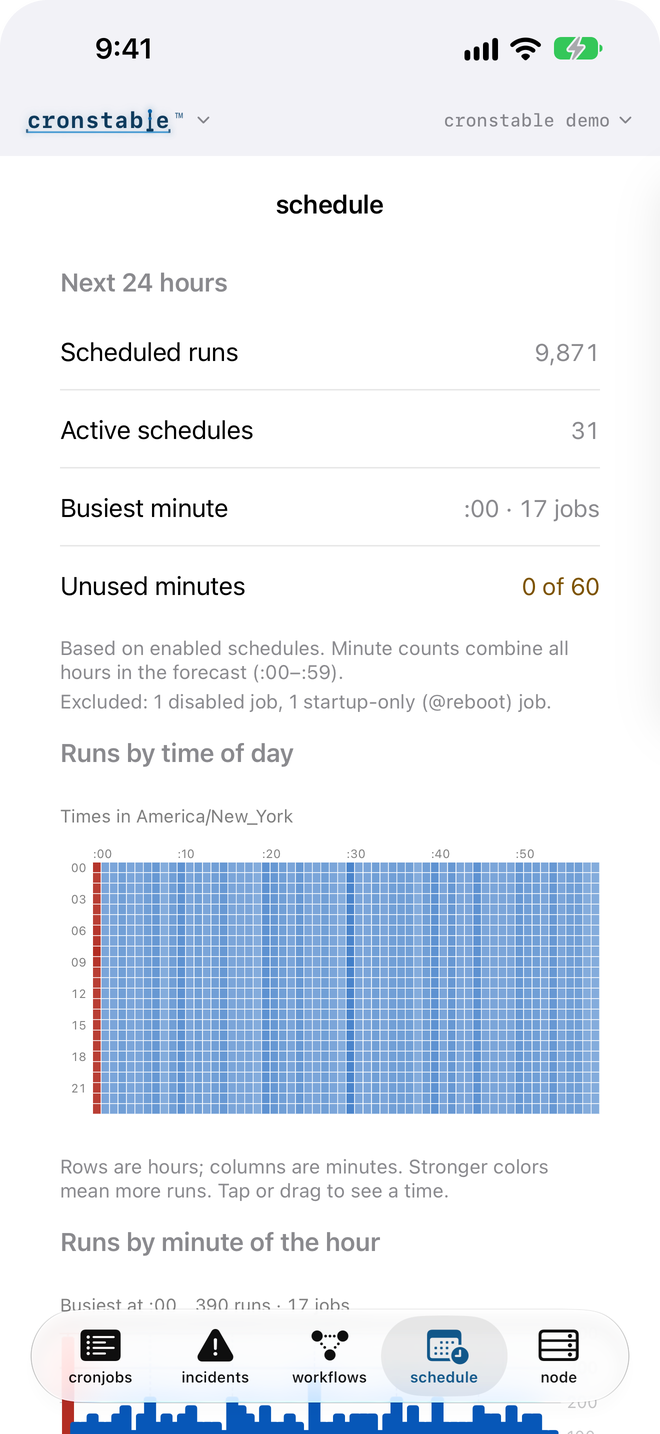
Jobs board · Approval gates · Live log tail · Schedule pressure
To connect the app to a server, follow these steps:
1. Install [Cronstable](https://apps.apple.com/app/cronstable/id6801933039)
from the App Store.
2. Enable the [HTTP API](#http-api) on an address that your phone can reach,
such as a LAN, Tailscale, or HTTPS address, and
[require a token](#authentication). A phone can't reach `127.0.0.1`.
3. Open the [web dashboard](#web-dashboard) at that address. On a page opened
at a loopback address, such as `127.0.0.1`, the **Pair a device** panel
shows no code.
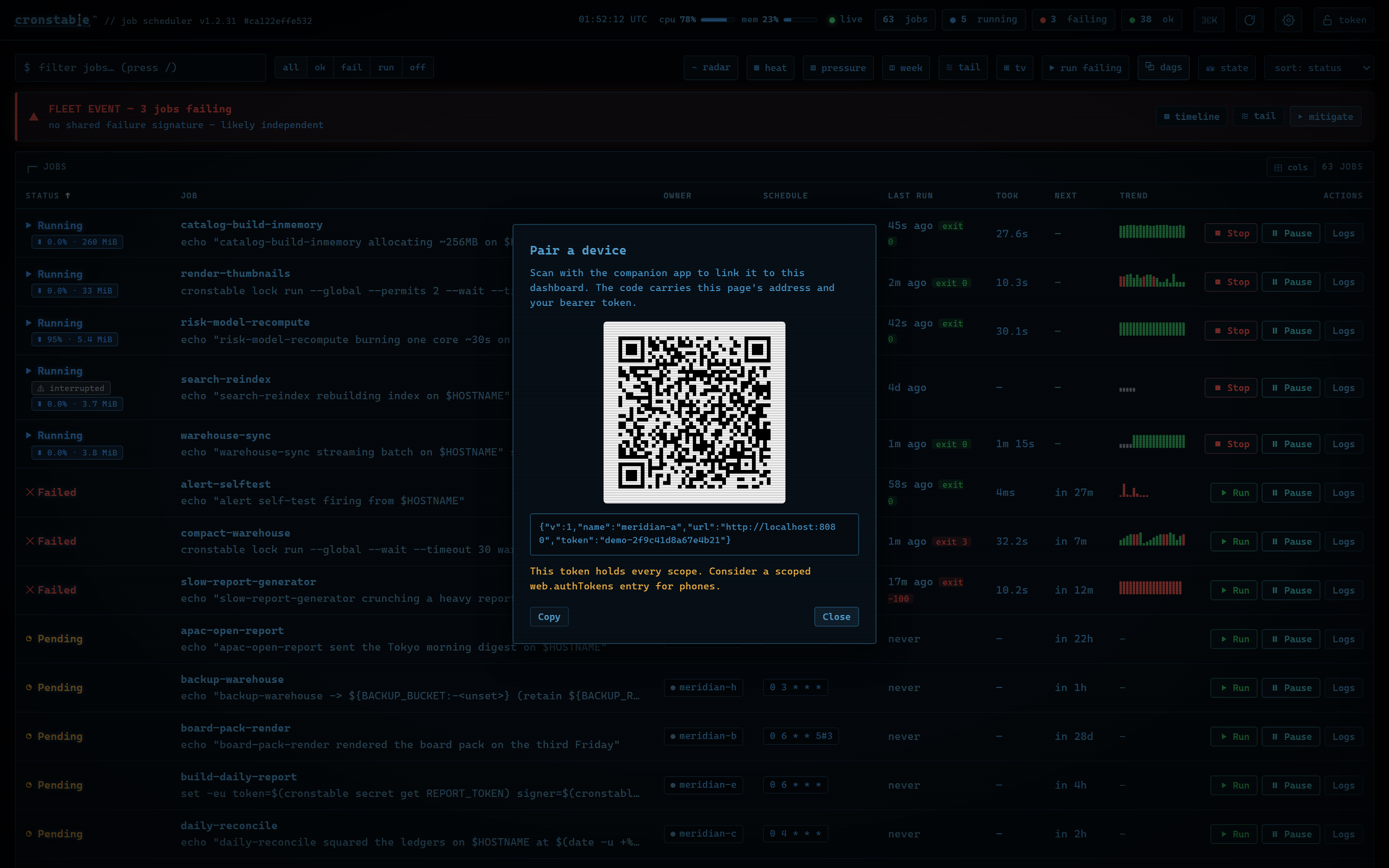
4. In the command palette (`Ctrl-K` or `⌘K`) or in settings, select
**Pair a device**.
5. Scan the QR code with the phone's camera, or tap **Scan QR code** in the
app. The QR code contains the page's address and its access token, so pair
over HTTPS or a trusted network, and give the phone a
[scoped token](https://github.com/ptweezy/cronstable/wiki/HTTP-API#scoped-tokens-webauthtokens)
instead of the all-scopes token.
6. To get lock-screen alerts, enable the [`push` reporter](#push-notifications).
[](https://raw.githubusercontent.com/ptweezy/cronstable/main/docs/img/dashboard-pair.png)
The QR code is a deep link. If the app isn't installed, scanning it opens a
page that explains how to get the app.
To let the app find the daemon without a typed address, install the
`discovery` extra and set `web.bonjour: true`. The daemon then advertises the
API as a `_cronstable._tcp` mDNS service on the local network, and the app
lists it under **Find nearby servers** (see
[LAN discovery](https://github.com/ptweezy/cronstable/wiki/LAN-Discovery)). To
explore the app before you set up a server, tap **Try the demo** on the welcome
screen to connect to a live sample fleet.
The app is optional. The web and terminal dashboards, the API, and every other
reporter work without it.
### Pair from the terminal
To pair on a server that runs the API without the dashboard page
(`web.ui: false`), or from a shell with no browser, run `cronstable pair`. It
prints the same QR code in the terminal:
```shell
export CRONSTABLE_WEB_TOKEN=phone-token-value # the token the phone gets
cronstable pair # local daemon on port 8080
cronstable pair --public-url https://cron.example.net # the address the phone uses
```
The code contains the token that `cronstable pair` uses, so pass a
[scoped token](https://github.com/ptweezy/cronstable/wiki/HTTP-API#scoped-tokens-webauthtokens)
for the phone.
When `--url` is a loopback address, the command puts the host's LAN address in
the code if the daemon answers there. Pass `--public-url` when the phone uses
another address, such as a reverse proxy's. In the
[terminal dashboard](#terminal-dashboard), **Pair a device (QR)** in the
command palette shows the same code. For the options and the terminal size the
code needs, see
[pairing from the terminal](https://github.com/ptweezy/cronstable/wiki/Terminal-Pairing).
## Tutorials
These four short walkthroughs build on the [quick start](#quick-start)
configuration. Each example passes `cronstable --validate-config`: add it to
your quick start file and replace the example commands with your own. Each
tutorial links to the wiki page that covers its topic in full.
### Tutorial 1: Retry failed jobs and alert when retries fail
This example retries a failed job with exponential backoff, and it posts to a
Slack channel only if the job still fails after its last retry:
```yaml
jobs:
- name: nightly-backup
command: /usr/local/bin/backup --incremental
schedule: "0 3 * * *"
captureStderr: true # include stderr in the report
onFailure:
retry:
maximumRetries: 5
initialDelay: 5 # waits 5s, 10s, 20s, 40s, then 80s
maximumDelay: 300 # no single wait exceeds 300s
backoffMultiplier: 2
onPermanentFailure: # fires once, after the last retry fails
report:
webhook:
url:
fromEnvVar: SLACK_WEBHOOK_URL
```
By default, a job fails when it exits with a nonzero status or writes to a
captured stderr. To change that for a job, use
[`failsWhen`](#failure-detection-and-retries). The webhook's default body is
Slack-compatible, and Mattermost and Teams accept it as is. To report by email,
Sentry, or a shell command, add the corresponding block under `report:`. Email
and Sentry reports render Jinja2 templates with the run's name, output, and
exit code, and shell command reports receive the same details as `CRONSTABLE_*`
environment variables. For details, see
[failure detection and retries](https://github.com/ptweezy/cronstable/wiki/Failure-Detection-and-Retries)
and [reporting](https://github.com/ptweezy/cronstable/wiki/Reporting) in the
wiki.
### Tutorial 2: Survive restarts, catch up what was missed
By default, cronstable keeps no state across restarts. To handle a deploy or a
reboot in the middle of a schedule, add a `state:` block:
```yaml
state:
path: ./cronstable-state # a local directory, or a shared mount for a fleet
jobs:
- name: hourly-invoice-emit
command: python -m billing.emit_hourly
schedule: "0 * * * *"
onMissed: run-all # replay each hour missed while the daemon was down
startingDeadlineSeconds: 21600 # skip missed runs older than 6 hours
onFailure:
retry:
maximumRetries: 10
initialDelay: 30
maximumDelay: 600
backoffMultiplier: 2
```
Setting `state.path` alone has these effects:
* Run history survives restarts, and the dashboard reloads it.
* Pending retries resume at their original deadlines.
* `@reboot` runs once per boot instead of once per daemon start.
* Prometheus counters keep their values across restarts.
The `onMissed` setting adds catch-up. `run-once` combines any number of missed
runs into one launch, and `run-all` replays each missed run.
`startingDeadlineSeconds` limits how old a missed run can be. Catch-up applies
after a restart, and also when the daemon resumes after system sleep or a long
stall.
The same store gives job commands persistent storage and coordination tools
through a loopback endpoint: key-value storage, cursors, fleet-wide locks,
idempotency keys, artifacts, and run-scoped secrets. Commands use them through
the `cronstable state`, `cursor`, `lock`, `idempotent`, `artifact`, and
`secret` subcommands. For details, see
[durable state](https://github.com/ptweezy/cronstable/wiki/Durable-State).
### Tutorial 3: Your first DAG, a durable pipeline
A `dags:` block defines a durable workflow as a directed acyclic graph (DAG) of
tasks. This example runs a build, waits for a person to approve it, and then
publishes:
```yaml
state:
path: ./cronstable-state # DAGs live on the state store
dags:
- name: release-train # no schedule: manual-only
tasks:
- id: build
command: make dist
- id: approve
type: approval # waits for approval
dependsOn:
- build
- id: publish
dependsOn:
- approve
command: make publish
retries: 2 # task-level retries, DAG-owned
retryDelaySeconds: 60
```
Trigger the DAG and approve the gate, or click **Approve** in the dashboard's
DAG drawer instead:
```shell
curl -X POST http://127.0.0.1:8080/dags/release-train/trigger
# -> {"dag": "release-train", "runKey": "manual-..."}
curl -X POST http://127.0.0.1:8080/dags/release-train/runs//tasks/approve/decision \
-H 'Content-Type: application/json' -d '{"decision": "approve", "by": "alice"}'
```
The state store records workflow progress, so the daemon can resume a run after
a restart. Across a fleet, a lease coordinates which node advances each run.
Recovery can retry an interrupted task even if its earlier process is still
running, so make task side effects safe to repeat, for example with an
[idempotency key](https://github.com/ptweezy/cronstable/wiki/Durable-State#idempotency-keys).
Scheduled DAGs also support catch-up and `backfill` over a date range. Tasks
can pass data with `cronstable xcom push` and `cronstable xcom pull`, fan out
over a list that an upstream task produced, and poll for conditions with
`type: sensor`. For details, see
[orchestration and DAGs](https://github.com/ptweezy/cronstable/wiki/Orchestration-and-DAGs).
### Tutorial 4: Coordinate two replicas
Run the same configuration on two or more hosts that share a POSIX mount. The
hosts elect a leader through a fenced lease file, without certificates or a
coordination service. The mount must support locks across hosts, and every host
must keep its clock synchronized with NTP:
```yaml
state:
path: /mnt/shared/cronstable/state # optional: durable state shared by the fleet
cluster:
backend: filesystem
filesystem:
path: /mnt/shared/cronstable # the mount is the election store
electLeader: true # each node is named by its hostname
jobs:
- name: charge-subscriptions
command: python -m billing.charge
schedule: "0 6 * * *"
clusterPolicy: Leader # the default: only the leader runs it
```
Only the elected leader starts scheduled `Leader` jobs. If the leader stops, a
follower can take over after the lease is released or expires, provided it can
reach the shared mount. The lease coordinates which node can start jobs; it
doesn't make job side effects exactly-once. Each job's `clusterPolicy` sets its
behavior when leadership can't be confirmed:
* `Leader`: skips scheduled runs.
* `PreferLeader`: allows runs when the coordination store is unreachable, so
multiple replicas can run the same job.
* `EveryNode`: runs the job on every node, for work that belongs on each node.
Without a shared mount, use another backend: `gossip` elects a leader over
mutual TLS with no shared store, `kubernetes` uses a `coordination.k8s.io`
Lease, and `etcd` uses a lease-bound key. To spread job ownership across the
fleet, use the `gossip` backend with `distribution: spread`. For details, see
[clustering and leader election](#clustering-and-leader-election).
## Example gallery
Every example in
[`example/`](https://github.com/ptweezy/cronstable/tree/main/example) is a
self-contained, annotated project that you can run from a clone of this
repository. Each Compose file is in its example's folder, except for `demo`,
which uses the root `docker-compose.yml`. The following table lists the main
examples:
| Example | One command | What it shows |
| --- | --- | --- |
| [`demo`](https://github.com/ptweezy/cronstable/tree/main/example/demo) | `docker compose up` | The dashboard playground: varied jobs, live logs, retries, a long-running job, and an on-demand job. |
| [`grand-tour`](https://github.com/ptweezy/cronstable/tree/main/example/grand-tour) | `docker compose -f example/grand-tour/docker-compose.yml up --build` | Everything at once: a 9-node mTLS cluster, shared durable state, five DAG patterns, second-level probes, and all five cross-platform reporters connected to live sinks. |
| [`cluster`](https://github.com/ptweezy/cronstable/tree/main/example/cluster) | `docker compose -f example/cluster/docker-compose.yml up` | A 3-node gossip cluster: peer attestation, quorum, leader election, and live failover. |
| [`cluster-large`](https://github.com/ptweezy/cronstable/tree/main/example/cluster-large) | `docker compose -f example/cluster-large/docker-compose.yml up` | A 10-node, CPU-heavy fleet for watching `distribution: spread` and the load meters. |
| [`dag`](https://github.com/ptweezy/cronstable/tree/main/example/dag) | `cronstable -c example/dag` | Orchestration on a single node: dependencies, XCom, fan-out, a sensor, and an approval gate. |
| [`dag-cluster`](https://github.com/ptweezy/cronstable/tree/main/example/dag-cluster) | `docker compose -f example/dag-cluster/docker-compose.yml up` | DAGs coordinating across three nodes on one shared store, with leases and crash recovery. |
| [`job-state`](https://github.com/ptweezy/cronstable/tree/main/example/job-state) | `cronstable -c example/job-state` | The state primitives for jobs: key-value storage, cursors, locks, idempotency keys, artifacts, and secrets. |
| [`mcp`](https://github.com/ptweezy/cronstable/tree/main/example/mcp) | `docker compose -f example/mcp/docker-compose.yml up --build` | The MCP server: an AI agent (Claude, Cursor, Copilot) observing and driving the scheduler over `POST /mcp`, or the `cronstable mcp` stdio bridge. |
| [`pulse-monitor`](https://github.com/ptweezy/cronstable/tree/main/example/pulse-monitor) | `docker compose -f example/pulse-monitor/docker-compose.yml up` | Second-level scheduling as a real-time uptime and SLA monitor. |
| [`pulse-cluster`](https://github.com/ptweezy/cronstable/tree/main/example/pulse-cluster) | `docker compose -f example/pulse-cluster/docker-compose.yml up` | The same probes spread across a 3-node cluster with leader election. |
| [`zen-demo`](https://github.com/ptweezy/cronstable/tree/main/example/zen-demo) | `docker compose -f example/zen-demo/docker-compose.yml up` | A deliberately calm board, for the wallboard's zen screensaver. |
| [`crontab`](https://github.com/ptweezy/cronstable/tree/main/example/crontab) | `cronstable -c example/crontab` | Five-field user crontabs alongside YAML jobs. |
| [`kubernetes`](https://github.com/ptweezy/cronstable/tree/main/example/kubernetes) | `kubectl apply -f example/kubernetes/deployment.yaml` | Leader election through a `coordination.k8s.io/v1` Lease. |
| [`etcd`](https://github.com/ptweezy/cronstable/tree/main/example/etcd) | `docker compose -f example/etcd/docker-compose.yml up` | Leader election through an etcd lease, over plain HTTP. |
| [`docker`](https://github.com/ptweezy/cronstable/tree/main/example/docker) | `docker build -t cronstable-example example/docker` | The minimal "add cronstable to your own image" recipe. |
## Configuration
### Configuration basics
cronstable reads its configuration from YAML files. Pass a file or a directory
with `-c`:
```shell
cronstable -c /etc/cronstable.d
```
From a directory, cronstable reads every `*.yaml` and `*.yml` file and every
classic crontab (`*.crontab`, `*.cron`, or a file named `crontab`), and skips
names that start with `_` or `.`. Without `-c`, cronstable reads
`/etc/cronstable.d` on POSIX systems (for Windows, see [Windows](#windows)).
`cronstable init` writes a commented starter configuration to that default
location, which needs root; `cronstable init DIRECTORY` writes it elsewhere.
cronstable runs in the foreground and logs to stdout and stderr, so run it
under a supervisor such as systemd or a container runtime. About once a minute,
it checks the configuration for changes and applies them without a restart. To
reload immediately, send it `SIGHUP`. If a changed configuration is invalid,
cronstable logs the error and keeps running the previous jobs. To check a
configuration without starting the scheduler, run
`cronstable --validate-config -c `.
Each job needs a `name`, a `command`, and a `schedule`. This job runs every 5
minutes:
```yaml
jobs:
- name: test-01
command: echo "foobar"
shell: /bin/bash
schedule: "*/5 * * * *"
```
A string `command` runs through a shell: `/bin/sh` by default, or the job's
`shell`, which is `/bin/bash` in the preceding example. A list `command` runs
directly, without a shell, and each item becomes one argument:
```yaml
jobs:
- name: test-01
command:
- echo
- foobar
schedule: "*/5 * * * *"
```
For every option, see the
[configuration reference](https://github.com/ptweezy/cronstable/wiki/Configuration-Reference).
### Schedules
A string `schedule` uses crontab syntax, which cronstable's built-in cron
engine parses. It accepts five, six, or seven fields:
* Five fields: `minute hour day-of-month month day-of-week`, as in classic
cron.
* Six fields: the classic five, plus a trailing `year`.
* Seven fields: a leading `second`, the classic five, and a trailing `year`
(see [second-level schedules](#second-level-schedules)).
Fields accept ranges, steps, lists, names such as `jan` and `mon`, and
Quartz's `?` on its own in a day field. cronstable also supports these forms:
* `L` alone in the day-of-month field for the month's last day, and `L5` in
the day-of-week field for the month's last Friday.
* Business-day forms: `LW` for the month's last weekday, `L-3` for three days
before the month's last day, `15W` for the weekday nearest the 15th, and
`5#3` for the third Friday (see
[business-day schedules](https://github.com/ptweezy/cronstable/wiki/Business-Day-Schedules)).
* `H`, which picks a stable value from a hash of the job's name, so a fleet of
hourly jobs spreads across the hour instead of all starting at `:00` (see
[hashed schedules](https://github.com/ptweezy/cronstable/wiki/Hashed-Schedules)).
* Nicknames such as `@hourly` and `@daily`, and `@reboot`, which runs the job
once when cronstable starts.
A six-field expression reads its sixth field as a year. If that field can't be
a year, as in a Quartz expression that ends in `?`, cronstable reports an error
that explains how to convert it. A Quartz expression that ends in `*`, such as
`0 15 10 * * *`, is valid but means something else here, so check converted
expressions with `GET /schedule/preview`. For the full syntax, see
[schedules and time zones](https://github.com/ptweezy/cronstable/wiki/Schedules-and-Timezones).
The `schedule` option can also be an object. This job runs every 5 minutes on
July 19 each year:
```yaml
jobs:
- name: test-01
command: echo "foobar"
schedule:
minute: "*/5"
dayOfMonth: 19
month: 7
dayOfWeek: "*"
```
### Second-level schedules
Schedules have one-minute granularity by default. To run a job at one-second
granularity, write a seven-field crontab string whose first field is the
second, or use the object form with a `second:` property. Both of these jobs
run every 15 seconds, at seconds 0, 15, 30, and 45 of every minute:
```yaml
jobs:
- name: every-15s-string
command: echo "tick"
schedule: "*/15 * * * * * *" # 7 fields: the leading field is seconds
- name: every-15s-object
command: echo "tick"
schedule:
second: "*/15"
```
The seconds field accepts the same syntax as the other fields, so
`second: "*"` runs a job every second. While any enabled job uses seconds, the
scheduler wakes once per second instead of once per minute, and minute-level
jobs still run once in their scheduled minute. Second-level schedules are
available only in YAML; [classic crontab files](#classic-crontab-files) keep
cron's five fields.
For a runnable example, see
[`example/pulse-monitor`](https://github.com/ptweezy/cronstable/tree/main/example/pulse-monitor),
a small uptime and SLA monitor that probes a service every few seconds, and its
three-node version,
[`example/pulse-cluster`](https://github.com/ptweezy/cronstable/tree/main/example/pulse-cluster).
### Time zones
cronstable interprets schedules in UTC by default. To interpret a job's
schedule in a specific time zone, set `timezone`. The following job runs every
day at 19:27 in Los Angeles:
```yaml
jobs:
- name: test-01
command: echo "hello"
schedule: "27 19 * * *"
timezone: America/Los_Angeles
captureStdout: true
```
To use the machine's local time instead, set `utc: false`.
### Job environment
To set environment variables for the command, use the `environment` option. To
load them from a file, use `env_file`:
```yaml
jobs:
- name: test-01
command: echo "foobar"
shell: /bin/bash
schedule: "*/5 * * * *"
env_file: .env
environment:
- key: PATH
value: /bin:/usr/bin
```
The file contains one `KEY=VALUE` pair per line. cronstable ignores empty lines
and lines that start with `#`. Variables in the `environment` option override
variables from `env_file`.
### Classic crontab files
cronstable reads five-field user crontabs in the classic Vixie format. Export
your crontab and pass the file to `-c`:
```shell
crontab -l > my.crontab
cronstable -c my.crontab
```
System crontabs such as `/etc/crontab` and files in `/etc/cron.d` contain an
extra user column that cronstable doesn't parse. To preserve per-job users,
convert these entries to YAML and set each job's
[`user` field](#run-as-another-user-or-group). If all jobs should run as the
daemon's user, remove the user column from a copy of the file instead.
You can also put files named `*.crontab`, `*.cron`, or `crontab` in a
configuration directory next to YAML files, or load them with
[`include`](#includes). For example, a user crontab can contain:
```crontab
SHELL=/bin/bash
PATH=/usr/local/bin:/usr/bin:/bin
# m h dom mon dow command
*/15 * * * * /usr/local/bin/backup --incremental
30 4 * * mon-fri /usr/local/bin/report --daily
@daily /usr/local/bin/rotate-logs
0 0 * * * pg_dump mydb > /backup/mydb-$(date +\%F).sql
```
Comments, `NAME=value` environment lines, nicknames such as `@reboot` and
`@daily`, and `\%` escapes all work as described in `man 5 crontab`. An
environment line applies to the entries after it, and cronstable honors `SHELL`
and `CRON_TZ`. Each entry becomes an ordinary cronstable job named
`:`, with cronstable's standard defaults rather than an emulation
of cron's environment:
* Schedules run in UTC unless the crontab sets `CRON_TZ`.
* A run fails when it exits with a nonzero status or writes to stderr.
cronstable doesn't send `MAILTO` mail.
* An unescaped `%`, which cron passes to the command as standard input, causes
an error when the file loads. `\%` still produces a literal `%`.
To give an entry retries, reporting, timeouts, or any other per-job option,
move it to YAML. For the full mapping and every difference from cron, see
[classic crontabs](https://github.com/ptweezy/cronstable/wiki/Classic-Crontabs)
in the wiki. For a runnable example, see
[`example/crontab`](https://github.com/ptweezy/cronstable/tree/main/example/crontab),
a configuration directory that combines a crontab with YAML jobs and the
dashboard.
### Defaults
A `defaults` section sets default values for the jobs in the same file, and
each job can override them:
```yaml
defaults:
environment:
- key: PATH
value: /bin:/usr/bin
shell: /bin/bash
utc: false
jobs:
- name: test-01
command: echo "foobar" # runs with /bin/bash
schedule: "*/5 * * * *"
- name: test-02
command: echo "zbr"
shell: /bin/sh # overrides the default shell
schedule: "*/5 * * * *"
```
In a configuration directory, each file's `defaults` section applies only to the
jobs in that file. To share defaults across files, use [includes](#includes).
### Includes
The `include` option merges a list of files into the current configuration so
that multiple files can share defaults and other settings. For example, this is
the main configuration:
```yaml
include:
- _inc.yaml
jobs:
- name: my-job
...
```
The shared defaults live in `_inc.yaml`:
```yaml
defaults:
shell: /bin/bash
onPermanentFailure:
report:
sentry:
...
```
A directory load skips files whose names start with `_`, so `_inc.yaml` applies
only where a file includes it. For the merge rules, see
[includes, defaults, and multi-file config](https://github.com/ptweezy/cronstable/wiki/Includes-and-Defaults).
### Environment variable interpolation
Any string value in the configuration can read cronstable's environment
variables with `${VAR}`, or with `${VAR:-default}` to set a fallback. One
configuration file can then serve many environments without a wrapper script
that templates it. To write a literal `$`, use `$$`.
Interpolation runs after the file is validated, so it works in any string
field, such as a listen address, a state path, a time zone, or a webhook URL.
If a `${VAR}` is unset and has no default, cronstable reports a configuration
error that names the variable, and `cronstable --validate-config` catches it.
```yaml
web:
listen:
- "http://0.0.0.0:${WEB_PORT:-8080}" # port from the environment, default 8080
state:
path: ${STATE_DIR} # required: unset fails --validate-config
jobs:
- name: rollup-${REGION} # required, like STATE_DIR
command: run-rollup # ${VAR} in a command is left for the shell
schedule:
minute: "0"
timezone: ${TZ:-UTC}
```
cronstable doesn't interpolate the `command` and `shell` of jobs and reporters,
so the shell expands their `${VAR}` references at run time against the job's
own environment, not the daemon's. It also leaves the `logging` section for
Python's `logging.config`. For the full rules, including how interpolation
affects the [job-set ID](#job-set-id), see
[environment variable interpolation](https://github.com/ptweezy/cronstable/wiki/Environment-Variable-Interpolation).
### Disable a job
Jobs are enabled by default. To disable a job, add `enabled: false`. cronstable
validates disabled jobs but doesn't run them.
```yaml
jobs:
- name: test-01
enabled: false # skipped until you set this to true
command: echo "foobar"
shell: /bin/bash
schedule: "* * * * *"
```
### Custom logging
To customize cronstable's own logs, add a `logging` section in the format of
Python's
[`logging.config` dictionary schema](https://docs.python.org/3/library/logging.config.html#dictionary-schema-details).
For example, the following configuration adds a timestamp to each log line:
```yaml
logging:
version: 1
disable_existing_loggers: false
formatters:
simple:
format: '%(asctime)s [%(processName)s/%(threadName)s] %(levelname)s (%(name)s): %(message)s'
datefmt: '%Y-%m-%d %H:%M:%S'
handlers:
console:
class: logging.StreamHandler
level: DEBUG
formatter: simple
stream: ext://sys.stdout
root:
level: INFO
handlers:
- console
```
For more, see
[logging configuration](https://github.com/ptweezy/cronstable/wiki/Logging-Configuration).
## Schedule introspection
cronstable answers questions about its own schedule. Each of these features has
its own wiki page:
* Why didn't it run: `GET /schedule/why?job=&at=` shows, field
by field, how the scheduler's match test evaluates one job at one moment. For
a job scheduled `0 9 * * mon,fri`, asking about a Tuesday at 09:00 returns
`"matches": false` with `day-of-week` as the failed field, plus the job's
nearest runs before and after that moment
([Why Didn't It Run?](https://github.com/ptweezy/cronstable/wiki/Why-No-Run)).
* Schedule linting: when cronstable loads the configuration, it flags valid
expressions that probably don't mean what they say. Examples include an
expression with no future occurrence, a schedule that sets both day of month
and day of week, `*/n` steps that don't divide evenly, and wall-clock times
that daylight saving time skips or repeats. Findings appear on `/jobs` and
`/status`, and `GET /schedule/preview` checks any expression before it
becomes a job
([Schedule Linting](https://github.com/ptweezy/cronstable/wiki/Schedule-Linting)).
* Schedule pressure: `GET /schedule/pressure` groups the next 24 hours of
scheduled runs into a collision heatmap, which both dashboards display
([Schedule Pressure](https://github.com/ptweezy/cronstable/wiki/Schedule-Pressure)).
* Duplicate detection: `GET /schedule/duplicates` groups jobs whose schedules
run at exactly the same times, even when the expressions are written
differently
([Duplicate Schedule Detection](https://github.com/ptweezy/cronstable/wiki/Duplicate-Schedule-Detection)).
* Suggest a slot: `GET /schedule/suggest` recommends the least busy time for a
new job, based on the fleet's actual runs
([Suggest a Slot](https://github.com/ptweezy/cronstable/wiki/Suggest-a-Slot)).
## Job behavior
### Failure detection and retries
By default, a run fails when the process exits with a nonzero status, or when it
writes to stderr, which cronstable captures unless the job sets
`captureStderr: false`. To change what counts as a failure, set the Boolean
fields of the job's `failsWhen` option:
| Field | Default | When `true` |
| --- | --- | --- |
| `nonzeroReturn` | `true` | A nonzero exit status fails the run. |
| `producesStderr` | `true` | Output on a captured stderr fails the run. |
| `producesStdout` | `false` | Output on a captured stdout fails the run. |
| `always` | `false` | Every run fails, whatever its exit status or output. |
A `retry` block inside `onFailure` retries a failed run with exponential
backoff. The `onPermanentFailure` hook runs only after the last retry fails:
```yaml
jobs:
- name: test-01
command: |
echo "hello" 1>&2
exit 10
schedule:
minute: "*/10"
captureStderr: true
onFailure:
retry:
maximumRetries: 10
initialDelay: 1
maximumDelay: 30
backoffMultiplier: 2
onPermanentFailure:
report:
mail:
from: cron@example.com
to: ops@example.com
smtpHost: 127.0.0.1
```
The first retry waits `initialDelay` seconds, and each later wait is multiplied
by `backoffMultiplier`, up to `maximumDelay`. To retry forever, set
`maximumRetries: -1`, for example to restart a long-running `@reboot` process
whenever it fails. Pending retries stay in memory unless you configure a
`state:` section, which lets them resume after a restart. To check a job's
output before recording success, see
[result verification](https://github.com/ptweezy/cronstable/wiki/Result-Verification).
For details, see
[failure detection and retries](https://github.com/ptweezy/cronstable/wiki/Failure-Detection-and-Retries)
in the wiki.
### Late-run detection (SLA monitoring)
Failure hooks only see runs that happened. To detect runs that are late,
missing, or taking too long, add an `sla:` block. Each job can set up to three
independent thresholds, and an in-process monitor checks them once per minute.
When a threshold is breached, the `onLate` hook runs once. It takes the same
`report` block as `onFailure`:
```yaml
jobs:
- name: nightly-etl
command: python -m etl.run
schedule: "0 4 * * *"
sla:
maxTimeSinceSuccessSeconds: 129600 # no success for 36 hours
lateAfterSeconds: 900 # a due run hasn't started within 15 minutes
maxRuntimeSeconds: 7200 # a run is still going after 2 hours
onLate:
report:
webhook:
url:
fromEnvVar: SLACK_WEBHOOK_URL
```
Each breach produces one report, not one per minute. When the check clears,
cronstable logs a recovery line and sends no report. `maxRuntimeSeconds` only
observes a run and never stops it; to enforce a limit, use
[`executionTimeout`](#execution-timeout). The monitor skips paused and disabled
jobs. Under leader election, only the node that owns the job checks it, so each
breach sends a single alert.
Breaches appear as an **OVERDUE** badge in both dashboards, as an `sla` object
on `GET /jobs`, and as the `cronstable_job_late{job_name, check}` and
`cronstable_job_sla_breaches_total{job_name, check}` metrics. The monitor runs
inside the daemon, so it can't report that the daemon itself has stopped; pair
it with an external Prometheus staleness alert. For details, see
[late-run detection](https://github.com/ptweezy/cronstable/wiki/Late-Run-Detection)
in the wiki.
### Concurrency
If a job is still running when its next run is due, `concurrencyPolicy`
decides what happens:
* `Allow` (default): starts the new run alongside the running one.
* `Forbid`: skips the new run.
* `Replace`: cancels the running job and starts the new run in its place.
The policy applies on each node. On a cluster that shares a `state:` store, set
`concurrencyScope: cluster` to apply `Forbid` and `Replace` across nodes. To
limit how many runs of several jobs can happen at once, use a
[resource pool](https://github.com/ptweezy/cronstable/wiki/Resource-Pools). For
details, see
[concurrency and timeouts](https://github.com/ptweezy/cronstable/wiki/Concurrency-and-Timeouts).
### Execution timeout
To stop a job after a set number of seconds, set `executionTimeout`. When
cronstable stops a job, it first asks the job to exit, waits up to
`killTimeout` seconds (30 by default), and then forces it to stop. On POSIX
systems, the request is `SIGTERM` to the job's process group, followed by
`SIGKILL`. On Windows, it's `CTRL_BREAK_EVENT`, followed by ending the job's
process tree. The same steps apply when `concurrencyPolicy: Replace` or a
cancel request stops a job.
The following job would take 10 seconds to finish. After one second,
cronstable sends `SIGTERM` to its process group. The shell and its `sleep`
child both ignore the signal, so cronstable sends `SIGKILL` half a second
later:
```yaml
jobs:
- name: test-03
command: |
trap '' TERM
echo "starting..."
sleep 10
echo "all done."
schedule:
minute: "*"
captureStderr: true
executionTimeout: 1 # in seconds
killTimeout: 0.5
```
### Run as another user or group
The `user` field sets the user (UID or username) that a job's process runs as,
and the `group` field sets the group (GID or group name). If you set only
`user`, the group defaults to that user's primary group. For example:
```yaml
jobs:
- name: test-03
command: id
schedule:
minute: "*"
captureStderr: true
user: www-data
```
To switch users, cronstable must run as root. This feature relies on `setuid`
and `setgid`, so it's available only on POSIX systems. On Windows, cronstable
rejects a job that sets `user` or `group` with a configuration error.
### Working directory
By default, a job starts in cronstable's own working directory. To start it in
a different directory, set `workingDirectory`. This matters most on Windows,
where an elevated console starts the daemon in the system directory, so
relative paths in a script resolve to the wrong place. It's the equivalent of
the **Start in** box on a Task Scheduler action.
```yaml
jobs:
- name: nightly-import
command: import.bat
schedule:
minute: "0"
hour: "2"
workingDirectory: C:\jobs\importer
```
cronstable expands `~` and `${VAR}` in the path and makes it absolute when it
loads the configuration. The operating system checks that the directory exists
when the job starts, so a missing directory fails only that run instead of
rejecting the whole configuration. You can also set `workingDirectory` in a
`defaults:` block and on a DAG task. For details, see
[commands and environment](https://github.com/ptweezy/cronstable/wiki/Commands-and-Environment#workingdirectory).
### Process priority
The `priority` option sets a job's CPU scheduling priority relative to the
other processes on the machine: `idle`, `below-normal`, `normal` (the default),
`above-normal`, or `high`.
```yaml
jobs:
- name: nightly-reindex
command: reindex.sh
schedule:
minute: "0"
hour: "3"
priority: idle
```
On POSIX systems, cronstable renices the job's process group right after it
starts the job: `idle` is nice 19, and `high` is nice -10. Raising the priority
requires privileges; if the change is denied, the job runs at its inherited
priority. On Windows, the level becomes the process's priority class. Child
processes inherit a lowered priority on both platforms, but on Windows, the
children of an `above-normal` or `high` job start at normal priority. The
default, `normal`, leaves the inherited priority unchanged. For details, see
[commands and environment](https://github.com/ptweezy/cronstable/wiki/Commands-and-Environment#priority).
### Resource monitoring
To find out which jobs use the most CPU and memory, turn on per-job resource
accounting. Set `monitorResources: true` on a job, as in the following example,
or under `defaults:` to cover every job:
```yaml
jobs:
- name: nightly-model-refresh
command: python -m models.refresh
schedule: "0 4 * * *"
monitorResources: true
```
While the job runs, cronstable uses [psutil](https://github.com/giampaolo/psutil)
to sample its whole process tree, including child processes. When the run ends,
cronstable records its total CPU time and peak resident memory. The dashboard
shows the numbers live on the job's row, per run in the **History** tab, and as
charts in the **Resources** tab. They also appear in `GET /jobs/{name}/runs`, in
Prometheus metrics such as `cronstable_job_cpu_seconds_total`, and in report
templates, so a failure alert can show how large the run was. With a
[state store](https://github.com/ptweezy/cronstable/wiki/Durable-State), they
survive restarts.
Resource monitoring only observes: it never changes whether a run succeeds or
fails. To cap a job's CPU, memory, or process count, see
[resource limits](#resource-limits). Monitoring is off by default and adds no
overhead when it's off. Because the numbers are sampled, figures for short runs
are approximate. To tune the sampling interval and chart history, or to monitor
DAG tasks and whole nodes, see
[resource monitoring](https://github.com/ptweezy/cronstable/wiki/Resource-Monitoring).
### Resource limits
To bound what each run of a job can use, set `resourceLimits` on the job, as in
the following example, or under `defaults:` to cap every job:
```yaml
jobs:
- name: nightly-model-refresh
command: python -m models.refresh
schedule: "0 4 * * *"
resourceLimits:
cpu: 1.5 # CPUs, like docker run --cpus
memory: 512M # powers of 1024
processes: 64
```
The kernel enforces the caps across the run's whole process tree. A run at its
CPU cap runs more slowly, and a run at its process cap cannot start more
processes. A run that goes over its memory cap is killed with every process it
started and fails with `memory limit exceeded (512 MiB)`. The dashboards, the
run history, and Prometheus metrics show each job's caps and whether its runs
hit them.
On Linux, each capped run gets its own cgroup (cgroup v2), which needs a cgroup
delegated to cronstable. The packaged systemd unit sets `Delegate=memory pids`
and `OOMPolicy=continue`, so memory and process caps work with no setup, and
CPU caps need `Delegate=yes` in a drop-in. In a container, cronstable needs
root and a writable cgroupfs, in the container's own cgroup namespace or in a
container cgroup that the runtime delegated; the published images run as a
non-root user, so capped jobs run uncapped there. On Windows, each capped run
gets its own Job Object, with no setup. macOS, the BSDs, and illumos cannot
enforce caps. Where the host cannot enforce a cap, the run goes ahead without
it, the daemon logs a warning, and the run record says so. With
`required: true`, the run fails instead. For details, see
[resource limits](https://github.com/ptweezy/cronstable/wiki/Resource-Limits).
## Reporting and metrics
### Reporting
cronstable has six built-in reporters: `sentry`, `mail`, `shell`, `webhook`
(Slack-compatible with no extra configuration), `push` (see
[push notifications](#push-notifications)), and `eventlog` (see
[Windows Event Log](#windows-event-log)). Each reporter can run on the
`onFailure`, `onPermanentFailure`, `onSuccess`, and `onLate` hooks. The mail
`subject` and `body` and the Sentry `body` are Jinja2 templates that can use the
run's outcome and captured output. Secrets such as DSNs, passwords, and webhook
URLs can come from `value`, `fromFile`, or `fromEnvVar`:
```yaml
jobs:
- name: test-01
command: |
echo "hello" 1>&2
exit 10
schedule:
minute: "*/2"
captureStderr: true
onFailure:
report:
sentry:
dsn:
fromEnvVar: SENTRY_DSN
mail:
from: cron@example.com
to: ops@example.com
smtpHost: 127.0.0.1
subject: Cron job '{{name}}' failed
body: |
{{stderr}}
(exit code: {{exit_code}})
shell:
shell: /bin/bash
command: echo "Error code $CRONSTABLE_RETCODE"
webhook:
url:
fromEnvVar: SLACK_WEBHOOK_URL
```
A report includes the output streams that the job captures. `captureStderr` is
on by default, and `captureStdout` is off. For the capture options, including
the `streamPrefix` line prefix, see
[output capturing](https://github.com/ptweezy/cronstable/wiki/Output-Capturing).
For every reporter's options, including HTML mail, Sentry fingerprints, webhook
examples for other services, the template variables, and the shell reporter's
`CRONSTABLE_*` environment variables, see
[reporting](https://github.com/ptweezy/cronstable/wiki/Reporting) in the wiki.
### Push notifications
The `push` reporter sends end-to-end encrypted alerts to devices paired with the
[iOS app](#ios-app). Before an alert leaves your server, the daemon seals it to
the device's public key. Where the platform supports it, the seal uses X-Wing,
a post-quantum hybrid of ML-KEM-768 and X25519; elsewhere it uses an X25519
sealed box. The hosted relay forwards each alert to the Apple Push Notification
service (APNs) and sees only ciphertext and routing metadata. It never sees job
names, hostnames, or log lines.
The reporter needs three things: the `push` extra
(`pip install "cronstable[push]"`), a daemon-wide `push:` section, and `push`
enabled on a reporting hook. If a configuration enables push without the extra
or the `push:` section, cronstable refuses to start instead of dropping alerts:
```yaml
push:
relay:
url: https://relay.cronstable.com/
devicesFile: /var/lib/cronstable/devices.json
defaults:
onFailure:
report:
push:
enabled: true
```
If you configure a `state:` section, you can omit `devicesFile`. The durable
store then keeps the pairings, and every node that shares it sees them. To pair
a device, follow the steps in [iOS app](#ios-app). For the report options,
pairing through the API, revocation, size limits, and the relay trust model,
see [push notifications](https://github.com/ptweezy/cronstable/wiki/Push-Notifications)
in the wiki.
### Windows Event Log
On Windows, the `eventlog` reporter writes each outcome to the Application
event log, which Event Viewer, Windows Event Forwarding, SCOM, and SIEM
connectors read. It requires no optional dependencies. Each record has a stable
event ID and a fixed set of insertion strings for rules to match:
```yaml
defaults:
onFailure:
report:
eventlog:
enabled: true
```
```powershell
Get-WinEvent -FilterHashtable @{ LogName = 'Application'; ProviderName = 'cronstable'; ID = 1001, 1002 }
```
Jobs use event IDs 1000 (succeeded), 1001 (failed), 1002 (failed permanently),
and 1003 (overdue). Daemon and orchestration events use 1010 and 1011.
cronstable writes as an unregistered event source, so Event Viewer adds a
generic "description cannot be found" note to the rendered text. The XML view,
`Get-WinEvent`, forwarding, and SIEM connectors read every field normally. On
other platforms, the reporter does nothing, and cronstable says so once when it
loads the configuration. For the field tables and how to register the source,
see [Windows Event Log](https://github.com/ptweezy/cronstable/wiki/Windows-Event-Log)
in the wiki.
### Metrics
When the [HTTP API](#http-api) is enabled, `GET /metrics` serves built-in
Prometheus metrics, so you don't need an exporter sidecar. They cover job run
outcomes, duration histograms, retries, next-run times, configuration reload
health, and cluster and leader election state, in both the Prometheus text
format and OpenMetrics. For the full metric reference, scrape configuration,
and example alert rules, see
[metrics with Prometheus](https://github.com/ptweezy/cronstable/wiki/Metrics-with-Prometheus).
The daemon can also push per-job metrics to
[statsd](https://github.com/statsd/statsd):
```yaml
jobs:
- name: test01
command: echo "hello"
schedule: "* * * * *"
statsd:
host: my-statsd.example.com
port: 8125
prefix: my.cron.jobs.prefix.test01
```
With this configuration, cronstable sends the following metrics over UDP to the
statsd server at `my-statsd.example.com:8125`:
```text
my.cron.jobs.prefix.test01.start:1|g # sent when the job starts
my.cron.jobs.prefix.test01.stop:1|g # the rest are sent when the job stops
my.cron.jobs.prefix.test01.success:1|g
my.cron.jobs.prefix.test01.duration:3|ms
```
For details, see
[metrics with statsd](https://github.com/ptweezy/cronstable/wiki/Metrics-with-Statsd).
### Status badges
The [HTTP API](#http-api) serves a live SVG badge for each job, and one for
the whole job set, in the style of the build badges on many README files:


Embed a badge with Markdown that links it to the job in the dashboard:
```markdown
[](https://cron.example.com/#job/nightly-backup)
```
A job's badge shows a verdict such as `passing`, `failing`, `overdue`, or
`paused`, and the fleet badge at `/badge.svg` counts the jobs in the most
urgent state, such as `2 failing`. The command palettes of the web and
terminal dashboards copy this Markdown. When authentication is enabled, badge
requests require a token, which GitHub's image proxy can't send. Browsers also
block pages on other origins from embedding the badge. Set
`web.badges.public: true` to allow unauthenticated, cross-origin requests to
the two badge routes. For every verdict, the query parameters, and caching, see
[status badges](https://github.com/ptweezy/cronstable/wiki/Status-Badges) in
the wiki.
## HTTP API
To control cronstable remotely, add a `web` section with one or more listeners:
```yaml
web:
listen:
- http://127.0.0.1:8080
- unix:///tmp/cronstable.sock
```
Every listen address needs a scheme: `http://`, `https://` (see
[TLS and client certificates](#tls-and-client-certificates)), or `unix://`,
which Windows doesn't support. The same listeners serve the
[web dashboard](#web-dashboard); to serve only the API, set `web.ui: false`.
The API covers these areas:
* The daemon: version, status, summary, metrics, and job-set ID
* Jobs: start, cancel, pause and resume, run history, live log tails over
server-sent events (SSE), and resources
* Schedules: preview, pressure, duplicates, suggest, and why
* DAGs
* The durable state store
* Push device pairing
* The cluster and fleet views
* An iCal feed of upcoming runs
* SVG status badges for a README or wiki
For example, the following HTTPie command pauses a job for a two-hour
maintenance window:
```shell
$ http post http://127.0.0.1:8080/jobs/test-02/pause durationSeconds:=7200 note="db migration"
HTTP/1.1 200 OK
{"paused": {"since": "2026-07-19T14:00:00+00:00", "until": "2026-07-19T16:00:00+00:00", "note": "db migration", "by": "api", "channel": "api"}}
```
The [HTTP API](https://github.com/ptweezy/cronstable/wiki/HTTP-API) reference in
the wiki documents every endpoint, with its request and response shapes. The
repository also includes a machine-readable
[OpenAPI specification](https://github.com/ptweezy/cronstable/blob/main/docs/openapi.yaml).
### Authentication
By default, the API is unauthenticated: anyone who can reach a listener can call
every endpoint except `POST /shutdown`, which always requires a token. A
loopback address keeps other machines out, but every local account on the host
can still reach it. To require a bearer token, set `web.authToken`:
```yaml
web:
listen:
- http://0.0.0.0:8080
authToken:
fromEnvVar: CRONSTABLE_WEB_TOKEN
```
Clients send the token in an `Authorization: Bearer ` header. The
dashboard page loads without a token, then prompts for one and keeps it only in
that browser tab. `cronstable tui`, `cronstable mcp`, and `cronstable pair`
read it from the `CRONSTABLE_WEB_TOKEN` environment variable. For narrower
credentials, such as a view-only token for a wallboard, add
[scoped tokens](https://github.com/ptweezy/cronstable/wiki/HTTP-API#scoped-tokens-webauthtokens).
To turn the dashboard into a public read-only board, add `view` to
`web.anonymousScopes` alongside the tokens:
```yaml
web:
listen:
- http://0.0.0.0:8080
authToken:
fromEnvVar: CRONSTABLE_WEB_TOKEN
anonymousScopes:
- view
```
Requests without credentials then get the `view` scope, the dashboard skips the
token prompt and shows a view-only interface, and every route that changes
state still requires a token. For details, see
[public read-only access](https://github.com/ptweezy/cronstable/wiki/HTTP-API#public-read-only-access-webanonymousscopes).
### TLS and client certificates
The `web.listen` option also accepts `https://` addresses, which use the
certificate and key from a `web.tls` block. Each listener keeps its own
transport, so one daemon can serve the same API and dashboard in plaintext on
loopback and over TLS on a routable interface. `unix://` listeners are always
plaintext; the socket's own permissions (`socketMode`) control access.
```yaml
web:
listen:
- http://127.0.0.1:8080 # loopback, plaintext
- https://0.0.0.0:8443 # served with the material below
tls:
cert: /etc/cronstable/web.pem
key: /etc/cronstable/web.key
clientCa: /etc/cronstable/callers-ca.pem # optional: require client certificates
```
To require mutual TLS, which authenticates clients as well as encrypting
connections, set `clientCa`. Web certificates rotate in place without a daemon
restart. The `cronstable tui`, `cronstable mcp`, and `cronstable pair` clients
take matching `--cacert`, `--client-cert`, `--client-key`, and `--insecure`
flags. The listeners, the cluster, the job CLI, and these clients verify
certificates in OpenSSL's strict X.509 mode on every Python version. With
OpenSSL 3.0 or later, a CA certificate needs critical `basicConstraints`, a
key usage with `keyCertSign`, and a Subject Key Identifier. Certificates
issued by a CA need an Authority Key Identifier. Failed handshakes log
the rejection reason. For how to issue the certificates, the mTLS trust
model and how it combines with `web.authToken`, and how rotation works, see
[listener TLS](https://github.com/ptweezy/cronstable/wiki/Listener-TLS) in the
wiki.
## Replicas
### Job-set ID
The job-set ID is a fingerprint of the set of jobs that a cronstable instance
runs. Two instances have the same ID exactly when they run the same set of
jobs, so replicas deployed from one configuration can compare IDs to confirm
that none has drifted.
cronstable computes the ID from each job's effective configuration, after
merging defaults. The ID doesn't depend on job order, on whether a setting is
written inline or in a `defaults` block, or on whether a schedule is written as
an object or as the equivalent crontab string. It covers every field that
affects behavior, such as `command`, `schedule`, `shell`, retry and reporting
policy, `timezone`, and `enabled`. It never includes secret values or
`environment` values (only variable names), so it's safe to log and serve. It
also leaves out per-host values such as `workingDirectory`. Because it reflects
platform-dependent defaults, such as the default `shell`, compare only instances
that run on the same platform.
You can get the ID in three ways:
* The CLI prints the ID and exits, which is useful in scripts and health
checks:
```shell
$ cronstable -c /etc/cronstable.d --job-set-id
v1:b834d7565aee0da50cd017f666651a5ba3b2e6b161daf0cb6e430f23f51ce90b
```
* `GET /job-set-id` on the [HTTP API](#http-api) returns it, as JSON if you
send `Accept: application/json`. The dashboard header shows it too.
* cronstable logs the ID at startup, and again whenever a configuration reload
changes it.
For everything the fingerprint covers and why, see
[job-set ID](https://github.com/ptweezy/cronstable/wiki/Job-Set-ID) in the wiki.
### Clustering and leader election
By default, cronstable runs as a single instance, and every replica runs every
job. An optional `cluster` section lets several replicas coordinate. With the
default `gossip` backend, each node serves a small `GET /peer` endpoint over
mutual TLS and polls its configured peers. The nodes compare
[job-set IDs](#job-set-id) to confirm that they run the same set of jobs, which
is called cluster peer attestation. With `electLeader: true`, the nodes also use
that attestation to elect a leader, which requires a quorum:
```yaml
cluster:
listen: "0.0.0.0:8443" # the mTLS listener for this node
tls:
ca: /etc/cronstable/cluster-ca.pem # trust anchor for peer certificates
cert: /etc/cronstable/this-node.pem # this node's certificate
key: /etc/cronstable/this-node.key
peers:
- host: cronstable-b.internal:8443
- host: cronstable-c.internal:8443
nodeName: cronstable-a # optional; defaults to the system hostname
electLeader: true # observe-only if false (the default)
```
Each node independently elects the member with the lowest `nodeName` among the
peers that agree on the job-set ID, provided those peers form a quorum (a
strict majority) of the cluster. Because peer views can differ or become stale,
multiple nodes can consider themselves leader, so the `gossip` election is best
effort: it can duplicate or skip runs during failures or changes in cluster
membership.
To coordinate leadership through a shared lease, set `cluster.backend` to
`kubernetes` (a `coordination.k8s.io/v1` Lease), `etcd` (a lease-bound key), or
`filesystem` (a shared mount with locks across hosts and bounded clock skew, as
in [tutorial 4](#tutorial-4-coordinate-two-replicas)). These backends fence
leadership while the coordination store is reachable. Jobs can still miss runs,
and the lease doesn't make their side effects exactly-once. Each job's
`clusterPolicy` (`Leader`, `PreferLeader`, or `EveryNode`) sets its behavior
when leadership can't be confirmed, as tutorial 4 describes.
The `GET /cluster` endpoint returns the current view: members, the elected
leader, quorum, and any conflicts, and the dashboard shows the same view in a
panel. For the trust model, quorum math, sizing guidance,
`distribution: spread` load balancing, and the lease backends, see the
[clustering and leader election](https://github.com/ptweezy/cronstable/wiki/Clustering-and-Leader-Election)
guide in the wiki. To watch an election live, try a cluster from the
[example gallery](#example-gallery).
## Production container deployment
In its default stateless configuration, the cronstable container needs no
writable filesystem paths. The daemon reads its configuration and secrets and
writes its output to stdout and stderr. It can run as a non-root user with the
`RuntimeDefault` seccomp profile, a read-only root filesystem, all Linux
capabilities dropped, and configuration and secret volumes mounted with an
`fsGroup`.
Mount writable storage for the optional features you enable:
* Durable state needs a writable directory at `state.path` for history,
retries, workflows, and any archived output.
* Filesystem clustering needs a writable shared directory at
`cluster.filesystem.path` that supports locks across hosts.
* Push device pairing needs a writable directory containing `push.devicesFile`,
or a writable state store when `devicesFile` is omitted.
* A `unix://` web listener needs a writable directory for its socket.
* The standalone binary needs a writable, executable temporary directory (see
[install a standalone binary](#install-a-standalone-binary)). The container
images and pip installations don't need one.
Job commands and custom file logging can also need writable paths or additional
permissions. Per-job [user and group switching](#run-as-another-user-or-group)
requires root.
The published images (`ghcr.io/ptweezy/cronstable` and
`docker.io/ptweezy/cronstable`) run as non-root, with `cronstable` as the
entrypoint and `-c /etc/cronstable.d` as the default command. Mount your configuration
read-only, and provide writable mounts for the features and jobs that need them.
For deployment examples, including a Kubernetes `Deployment` with a restricted
security context, baking configuration into your own image, and health checks,
see
[production deployment](https://github.com/ptweezy/cronstable/wiki/Production-Deployment)
in the wiki.
## Windows
cronstable runs natively on Windows (x64, ARM64, and 32-bit x86). Install it
with [WinGet](#install-using-homebrew-or-winget), with pip, or from the
[Windows builds](#install-a-standalone-binary) on the releases page, which
don't need Python. Scheduling, reporting, retries, the HTTP API, and the
dashboards work the same as on POSIX systems. These details differ:
* Default configuration location: without `-c`, cronstable uses the
machine-wide `%ProgramData%\cronstable` directory when it contains
configuration, and otherwise the per-user `%APPDATA%\cronstable` directory.
`cronstable init` writes a commented starter configuration to whichever
applies.
* Default shell: a string `command` without a `shell` runs through the native
command processor (`%ComSpec%`, which is `cmd.exe`). You can also set
`shell: cmd` or `shell: powershell`, or pass `command` as a list to bypass
the shell:
```yaml
jobs:
- name: powershell-job
command:
- powershell
- -Command
- Get-Date
schedule: "*/5 * * * *"
captureStdout: true
```
* Graceful shutdown: press `Ctrl-C` to stop cronstable after the running jobs
finish, the same as `SIGTERM` on POSIX. Each job runs in its own console
process group, so the keystroke never reaches the jobs themselves. Closing
the console window or shutting down the machine also lets running jobs
finish, within the few seconds that Windows allows. Signing out doesn't stop
the daemon. To stop a daemon that has no console, call the authenticated
`POST /shutdown` route.
* Unsupported options: Windows has no `setuid` or `setgid` equivalent, so
cronstable rejects per-job `user` and `group` settings with a configuration
error. It also skips `unix://` web listeners with a warning; use an
`http://` listener instead.
For everything else that differs, see
[running on Windows](https://github.com/ptweezy/cronstable/wiki/Running-on-Windows)
in the wiki.
### Windows service
`cronstable service install -c C:\ProgramData\cronstable` registers the
scheduler with the Service Control Manager (SCM). The service starts at boot,
runs whether or not anyone is signed in, appears in `services.msc`, and uses the
Windows recovery actions. When you stop the service, it lets running jobs finish
first. `cronstable service reload` rereads the configuration immediately, like
`SIGHUP` on POSIX.
The single-file `.exe` can't host a service, because its bootloader runs the
program in a child process that the SCM never sees; `service install` reports
this. To run as a service, install with pip or pipx, or use the one-directory
`.zip` or the MSI. To run the single-file `.exe` unattended, start it at boot
from Task Scheduler instead (see the
[Task Scheduler recipe](https://github.com/ptweezy/cronstable/wiki/Running-on-Windows#task-scheduler-for-the-one-file-executable)).
For details, see
[Windows Service](https://github.com/ptweezy/cronstable/wiki/Windows-Service).
### Import from Task Scheduler
`cronstable import-taskscheduler tasks.xml -o jobs.yaml` converts exported Task
Scheduler tasks into cronstable jobs. It maps time, calendar, and boot triggers;
`Exec` actions; working directories; execution time limits; instance policy;
and priority. It lists everything it can't convert, with the reason, instead of
dropping it. On a whole-machine export, that list is long, because most tasks
on a stock Windows installation are COM handlers or event-driven internals
rather than schedules. Exporting a task leaves it registered, so disable or
remove the original task after you migrate it, or it runs in both schedulers.
For details, see
[Importing from Task Scheduler](https://github.com/ptweezy/cronstable/wiki/Importing-Task-Scheduler).
## Documentation map
Every feature has its own page in the
[wiki](https://github.com/ptweezy/cronstable/wiki), and the wiki's sidebar is
the full index. Good places to start are
[Installation](https://github.com/ptweezy/cronstable/wiki/Installation), the
[Configuration Reference](https://github.com/ptweezy/cronstable/wiki/Configuration-Reference),
the [Command-Line Reference](https://github.com/ptweezy/cronstable/wiki/CLI-Reference),
the [Web Dashboard tour](https://github.com/ptweezy/cronstable/wiki/Web-Dashboard),
and [Troubleshooting](https://github.com/ptweezy/cronstable/wiki/Troubleshooting).
## Contributing and license
Bug reports, feature ideas, and pull requests are welcome, including ones
written with AI help. For the development setup, the Developer Certificate of
Origin (DCO) sign-off, and how to open a pull request, see
[CONTRIBUTING.md](https://github.com/ptweezy/cronstable/blob/main/CONTRIBUTING.md).
For how releases work, see
[Release Pipeline](https://github.com/ptweezy/cronstable/wiki/Release-Pipeline).
The [performance benchmarks](https://github.com/ptweezy/cronstable/wiki/Performance-Benchmarks)
compare speed and memory use against the latest release on every commit to
catch regressions before release.
cronstable's development relies on AI agents. The maintainer reviews
every change before it merges, and each change must pass the test suite and its
coverage floor. The project judges each contribution by the work itself,
whatever tools produced it (see
[AI use](https://github.com/ptweezy/cronstable/blob/main/CONTRIBUTING.md#ai-use)).
Report security vulnerabilities privately, not in a public issue.
[SECURITY.md](https://github.com/ptweezy/cronstable/blob/main/SECURITY.md)
describes the disclosure process, what's in scope (including the hosted relay
and the public demo), and what to expect.
cronstable is
[MIT-licensed](https://github.com/ptweezy/cronstable/blob/main/LICENSE); for how
the repository's licensing is organized, see
[LICENSING.md](https://github.com/ptweezy/cronstable/blob/main/LICENSING.md).
The MIT License covers the code, not the brand: cronstable™ and the cronstable
logo are trademarks of Parker Loflin (see
[TRADEMARKS.md](https://github.com/ptweezy/cronstable/blob/main/TRADEMARKS.md)).
The rendered logo artwork is also excluded from the MIT grant, but the code that
draws it is MIT-licensed (see
[brand assets](https://github.com/ptweezy/cronstable/blob/main/LICENSING.md#brand-assets)).
cronstable is a fork of [yacron](https://github.com/gjcarneiro/yacron) by
Gustavo Carneiro, and it continues development from yacron version 0.19.