# Instruction
- [GUI Krokiet](#gui-krokiet)
- [GUI GTK](#gui-gtk)
- [CLI](#cli)
- [Common Workflows](#common-workflows)
- [Config / Cache files](#configcache-files)
- [Tips, tricks and known bugs](#tips-tricks-and-known-bugs)
- [Tools](#tools)
Czkawka contains three independent frontends - the terminal app (CLI) and two graphical apps (Krokiet and GTK) which share the core module.
**Krokiet** is the new primary GUI written in Slint, providing a consistent cross-platform experience with better performance and fewer bugs.
**GTK** is the older GUI that is still maintained but will eventually be replaced by Krokiet.
## GUI Krokiet
 Krokiet is the new Czkawka frontend written in Slint. It provides a modern, consistent interface across all platforms (Linux, Windows, macOS) and is designed to be more performant and stable than the GTK version.
### Main Interface Structure
The Krokiet interface consists of several key areas:
1. **Left Side Panel** - Tool selector with tabs for each scanning mode (Duplicates, Empty Files, Similar Images, etc.)
2. **Top Bar** - Contains scan button, settings button, and status information
3. **Directory Selection Panel** - Area to add/remove included and excluded directories, set file filters
4. **Results Area** - Displays scan results in a table/list format
5. **Bottom Panel** - Action buttons for working with results (Select, Delete, Move, etc.)
6. **Right Side Panel** - Preview area for images and additional information
### Settings Screen
Accessible via the settings button, contains multiple subsections:
**General Settings**
- Language selection
- UI scale factor
- Theme selection (Light/Dark)
- Audio notification settings
**Performance Settings**
- Thread count configuration
- Cache behavior settings
- Memory limits
**Tool-Specific Settings**
Each tool has its own settings page with advanced options:
- Cache management (enable/disable, clear old entries)
- Scan depth limits
- Excluded items lists
- Algorithm-specific parameters
### Translations
Krokiet have full support for multiple languages in GUI. Language can be changed in Settings → General → Language.
## GUI GTK
Krokiet is the new Czkawka frontend written in Slint. It provides a modern, consistent interface across all platforms (Linux, Windows, macOS) and is designed to be more performant and stable than the GTK version.
### Main Interface Structure
The Krokiet interface consists of several key areas:
1. **Left Side Panel** - Tool selector with tabs for each scanning mode (Duplicates, Empty Files, Similar Images, etc.)
2. **Top Bar** - Contains scan button, settings button, and status information
3. **Directory Selection Panel** - Area to add/remove included and excluded directories, set file filters
4. **Results Area** - Displays scan results in a table/list format
5. **Bottom Panel** - Action buttons for working with results (Select, Delete, Move, etc.)
6. **Right Side Panel** - Preview area for images and additional information
### Settings Screen
Accessible via the settings button, contains multiple subsections:
**General Settings**
- Language selection
- UI scale factor
- Theme selection (Light/Dark)
- Audio notification settings
**Performance Settings**
- Thread count configuration
- Cache behavior settings
- Memory limits
**Tool-Specific Settings**
Each tool has its own settings page with advanced options:
- Cache management (enable/disable, clear old entries)
- Scan depth limits
- Excluded items lists
- Algorithm-specific parameters
### Translations
Krokiet have full support for multiple languages in GUI. Language can be changed in Settings → General → Language.
## GUI GTK
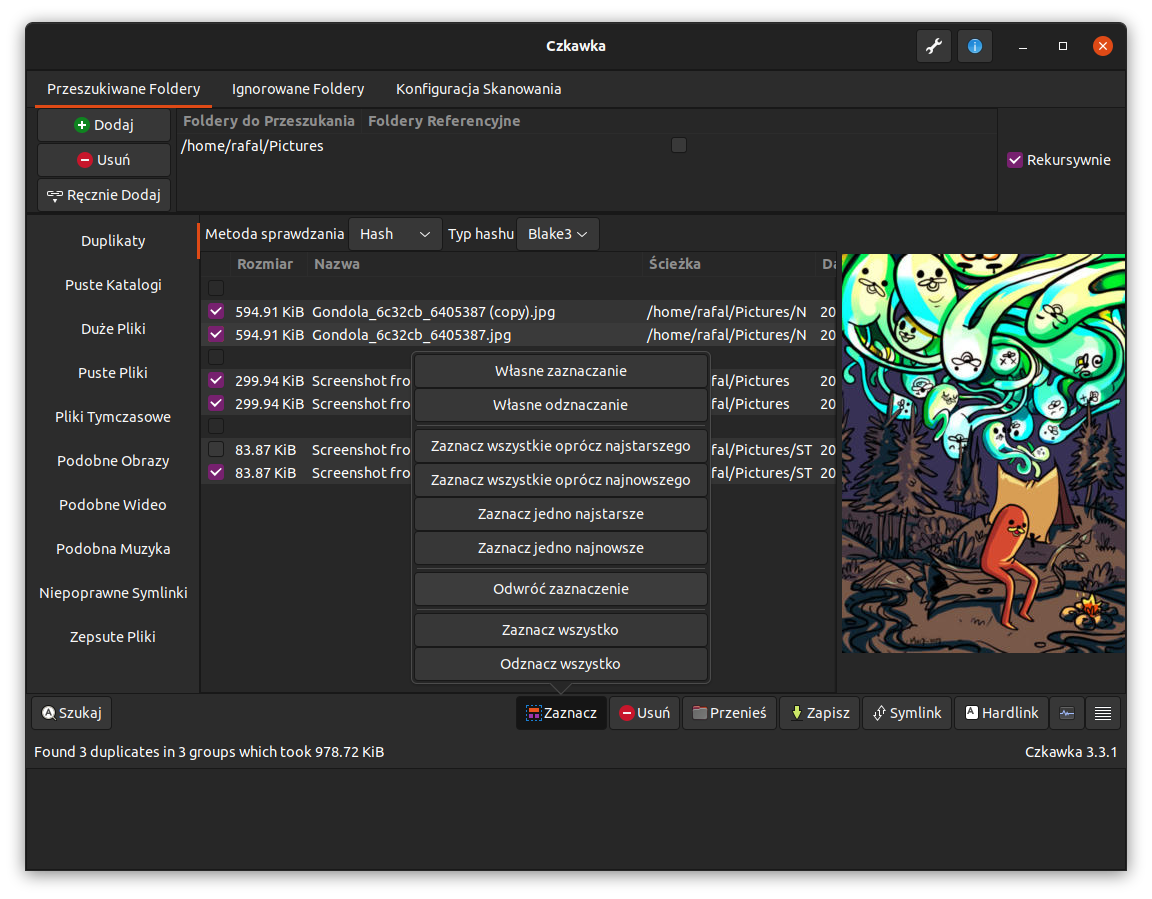 **Note**: GTK GUI is the older interface that is still maintained but will eventually be replaced by Krokiet. For new users, we recommend using Krokiet.
### GUI overview
The GUI is built from different pieces:
- 1 - Image preview - it is used in duplicate files and similar images finder. Cannot be resized, but can be disabled.
- 2 - Main Notebook to change used tool.
- 3 - Main results window - allows to choose, delete, configure results.
- 4 - Bottom image panels - contains buttons which do specific actions on data(like selecting them) or e.g. hide/show parts of GUI
- 5 - Text panel - prints messages/warnings/errors about executed actions. User can hide it.
- 6 - Panel with selecting specific directories to use or exclude. Also, here are specified allowed extensions and file sizes.
- 7 - Buttons which opens About Window(shows info about app) and Settings in which scan can be customized
## Terminology (shared across CLI / GTK / Krokiet)
This short glossary contains terms used consistently by all frontends (CLI, GTK and Krokiet).
- Reference paths
- After adding directories or files, you can mark them as "Reference paths" (a path can be a file or a folder) by checking the checkbox next to them in the directory selection UI or using the CLI flag where available.
- Reference paths are used for comparison but are protected: they cannot be modified, moved or deleted by the automatic actions in the UI or by the CLI.
- Use cases: compare a working folder against a master backup, protect original files when removing duplicates, or use a dataset as read-only baseline.
- Included / Excluded paths
- Included paths are scanned by the tools. Excluded paths are explicitly ignored during scans.
- Configuration vs Cache
- Configuration files are frontend-specific (each frontend stores its own UI/settings files). Configuration is not shared between GTK, Krokiet and CLI by default(CLI doesn't even store config files).
- Cache files are shared across frontends and contain computed data (hashes, thumbnails, analysis results). Cache is placed in a shared cache directory so all frontends can reuse computed results.
### Translations
GTK GUI is fully translatable.
For now at least 10 languages are supported(some was translated by automatic translation, so may not be perfect).
### Opening/Manipulating files
It is possible to open selected files by double-clicking on them.
To open multiple file just select desired files with CTRL key pressed and still when clicking this key, double-click at selected items with left mouse button.
To open folder containing selected file, just click twice on it with right mouse button.
To invert a selection of files, click on a file with the middle mouse button, and it will invert the selection of the other files in the same group.
### Adding directories
By default, current path is loaded to included directory and excluded directories are filled with default paths.
It is possible to override this, by adding arguments when opening app e.g. `czkawka_gui /home /usr --/home/rafal --/home/zaba` which means that `/home` and `/usr` directories will be checked and `/home/rafal` and `/home/zaba` will be excluded.
When using additional command line arguments, saving at exit option become disabled, so this current info about directories will not be saved until user save it manually.
Both relative and absolute path are supported, so user can use both `../home` and `/home`.
After adding a path it is possible to mark one or more paths as a _Reference path_. Reference paths (files or folders) cannot be acted upon, e.g. selected, moved or removed. This behaviour can be useful if you want to leave a path untouched, but still use it for comparison against others.
## CLI
Czkawka CLI frontend is great to automate some tasks like removing empty directories.
To get general info how to use it just try to open czkawka_cli in console `czkawka_cli`
**Note**: GTK GUI is the older interface that is still maintained but will eventually be replaced by Krokiet. For new users, we recommend using Krokiet.
### GUI overview
The GUI is built from different pieces:
- 1 - Image preview - it is used in duplicate files and similar images finder. Cannot be resized, but can be disabled.
- 2 - Main Notebook to change used tool.
- 3 - Main results window - allows to choose, delete, configure results.
- 4 - Bottom image panels - contains buttons which do specific actions on data(like selecting them) or e.g. hide/show parts of GUI
- 5 - Text panel - prints messages/warnings/errors about executed actions. User can hide it.
- 6 - Panel with selecting specific directories to use or exclude. Also, here are specified allowed extensions and file sizes.
- 7 - Buttons which opens About Window(shows info about app) and Settings in which scan can be customized
## Terminology (shared across CLI / GTK / Krokiet)
This short glossary contains terms used consistently by all frontends (CLI, GTK and Krokiet).
- Reference paths
- After adding directories or files, you can mark them as "Reference paths" (a path can be a file or a folder) by checking the checkbox next to them in the directory selection UI or using the CLI flag where available.
- Reference paths are used for comparison but are protected: they cannot be modified, moved or deleted by the automatic actions in the UI or by the CLI.
- Use cases: compare a working folder against a master backup, protect original files when removing duplicates, or use a dataset as read-only baseline.
- Included / Excluded paths
- Included paths are scanned by the tools. Excluded paths are explicitly ignored during scans.
- Configuration vs Cache
- Configuration files are frontend-specific (each frontend stores its own UI/settings files). Configuration is not shared between GTK, Krokiet and CLI by default(CLI doesn't even store config files).
- Cache files are shared across frontends and contain computed data (hashes, thumbnails, analysis results). Cache is placed in a shared cache directory so all frontends can reuse computed results.
### Translations
GTK GUI is fully translatable.
For now at least 10 languages are supported(some was translated by automatic translation, so may not be perfect).
### Opening/Manipulating files
It is possible to open selected files by double-clicking on them.
To open multiple file just select desired files with CTRL key pressed and still when clicking this key, double-click at selected items with left mouse button.
To open folder containing selected file, just click twice on it with right mouse button.
To invert a selection of files, click on a file with the middle mouse button, and it will invert the selection of the other files in the same group.
### Adding directories
By default, current path is loaded to included directory and excluded directories are filled with default paths.
It is possible to override this, by adding arguments when opening app e.g. `czkawka_gui /home /usr --/home/rafal --/home/zaba` which means that `/home` and `/usr` directories will be checked and `/home/rafal` and `/home/zaba` will be excluded.
When using additional command line arguments, saving at exit option become disabled, so this current info about directories will not be saved until user save it manually.
Both relative and absolute path are supported, so user can use both `../home` and `/home`.
After adding a path it is possible to mark one or more paths as a _Reference path_. Reference paths (files or folders) cannot be acted upon, e.g. selected, moved or removed. This behaviour can be useful if you want to leave a path untouched, but still use it for comparison against others.
## CLI
Czkawka CLI frontend is great to automate some tasks like removing empty directories.
To get general info how to use it just try to open czkawka_cli in console `czkawka_cli`
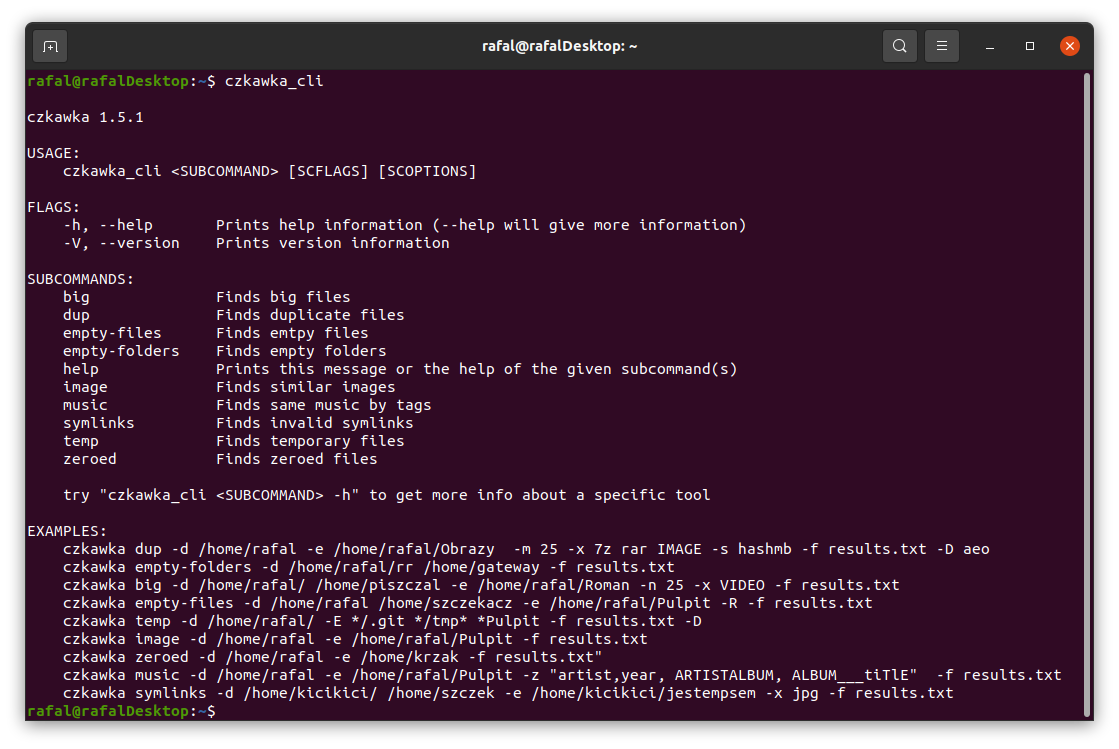 You should see a lot of examples how to use this app.
If you want to get more detailed info about certain tool, just add after its name `-h` or `--help` to get more details.
You should see a lot of examples how to use this app.
If you want to get more detailed info about certain tool, just add after its name `-h` or `--help` to get more details.
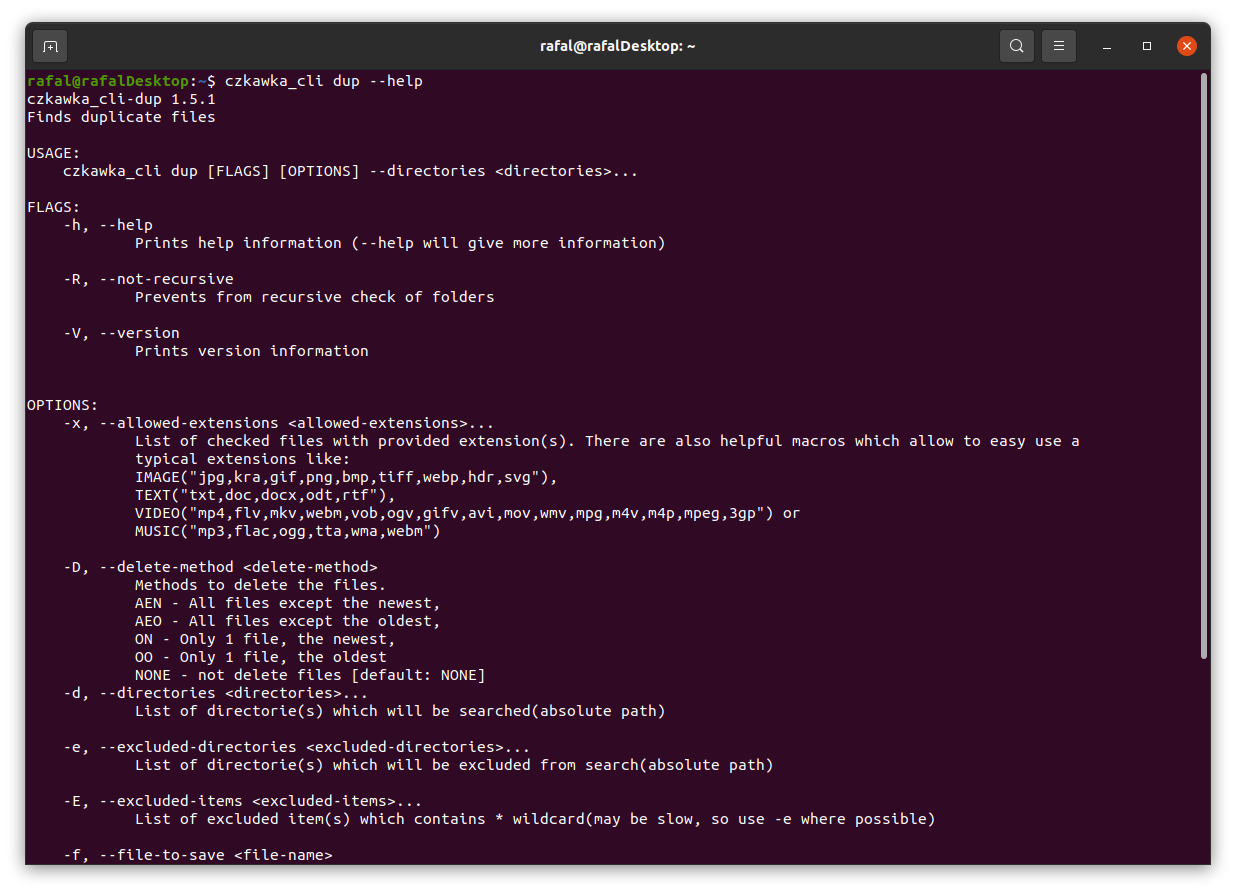 By default, all tools only write about results to console, but it is possible with specific arguments to delete some files/arguments or save it to file.
App returns exit code 0 when everything is ok, 1 when some error occurred and 11 when some files were found.
## Common Workflows
This section describes typical workflows for common tasks using Czkawka.
### Finding and Removing Duplicates
**Scenario**: You want to find and remove duplicate files from your Downloads folder, but keep files from your Documents folder as reference.
**Steps (Krokiet)**:
1. Open Krokiet and select the **Duplicate Files** tab from the left panel
2. Click **Add Directory** in the Directory Selection Panel
3. Add your Downloads folder to included directories
4. Add your Documents folder to included directories
5. Right-click on Documents folder and select **Mark as Reference Path** - files here won't be deleted
6. In tool settings, set:
- Check method: **Hash** (most reliable)
- Hash type: **Blake3** (fastest for most cases)
- Minimal file size: **1 KB** (skip very small files)
7. Click **Scan** button in the top bar
8. Wait for the scan to complete
9. Review results in the Results Area
10. Use **Select** button to choose files to remove:
- **All** - selects all but one file in each group
- **Custom** - allows advanced selection rules
11. Click **Delete** to remove selected duplicates
12. Confirm the deletion when prompted
**Steps (GTK)**:
1. Open Czkawka GTK and select **Duplicate Files** tab
2. In the directories panel (6), add Downloads folder to included directories
3. Add Documents folder and mark it as Reference Path (right-click → Mark as Reference)
4. In settings (button 7), configure:
- Check Method: **Hash**
- Hash Type: **Blake3**
5. Click **Search** button
6. After scan completes, use bottom panel buttons (4) to select duplicates
7. Click **Delete** button and confirm
### Finding Similar Images
**Scenario**: You have multiple folders with photos and want to find similar images (different sizes, minor edits).
**Steps (Krokiet)**:
1. Select **Similar Images** tab
2. Add all photo directories to included directories
3. Set similarity threshold (lower = more strict):
- **0-5**: Nearly identical images only
- **6-15**: Similar images with minor differences
- **16-30**: Images with noticeable differences
4. Choose hash algorithm:
- **Gradient**: Good for most photos (recommended)
- **Mean**: Fast, less accurate
- **Blockhash**: Good for resized images
5. Select hash size:
- **8x8**: Fastest, less precise
- **16x16**: Balanced (recommended)
- **32x32/64x64**: Most precise, slower
6. Click **Scan**
7. Use image preview panel to compare similar images visually
8. Select images to delete or move
9. Use **Delete** or **Move** action
### Finding Large Files
**Scenario**: Disk space is running low, you want to find the largest files.
**Steps**:
1. Select **Big Files** tab
2. Add directories to scan
3. Set how many files to display (e.g., 50 largest files)
4. Choose mode: **Largest** files
5. Click **Scan**
6. Review results sorted by size
7. Manually review and delete or move large files you don't need
### Working with Reference Paths
**Scenario**: You want to compare your working files against a master/backup collection without risking deletion of the master files.
**Use Cases**:
- Comparing current photos against backed-up originals
- Checking if work files are already in archive
- Finding duplicates without touching the reference collection
**How to Use**:
1. Add both your working directory and reference directory to included directories
2. Right-click on the reference directory (or use CLI flag) and select **Mark as Reference Path**
3. Files or folders marked as reference paths will:
- Appear in scan results for comparison
- Be protected from deletion or modification by automatic actions
- Be shown with a different indicator in the results if the UI supports it
4. Proceed with scan and operations — reference paths are protected
## Config/Cache files
- **Configuration files (frontend-specific)**
- Configuration files are kept per frontend and are not automatically shared. Examples:
- `czkawka_gui_config.txt` — GTK GUI configuration stored under the user config directory
- Krokiet stores its own settings file (created under the user config directory) — do not rely on configuration being synchronized between frontends
- **Cache files (shared across frontends)**
- Cache contains computed results (hashes, thumbnails, parsed metadata) and is shared by all frontends to avoid re-computation.
- Example cache files:
- `cache_similar_image_SIZE_HASH_FILTER.bin/json` — image hashes and cache
- `cache_broken_files.txt`
- `cache_duplicates_HASH.txt` — duplicates cache (only fully hashed files bigger than configured threshold are stored)
- `cache_similar_videos.bin/json`
It is possible to modify files with JSON extension (may be helpful when moving files to different disk or trying to use cache file on different computer). To do this, it is required to enable in settings option to generate also cache json file. By default, cache files with `bin` extension are loaded, but if it is missing (can be renamed or removed), then data from json file is loaded if exists.
Config files are located in this path:
Linux - `/home/username/.config/czkawka`
Linux Flatpak - `/home/username/.var/app/com.github.qarmin.czkawka/config/czkawka`
Mac - `/Users/username/Library/Application Support/pl.Qarmin.Czkawka`
Windows - `C:\Users\Username\AppData\Roaming\Qarmin\Czkawka\config`
Cache should be here:
Linux - `/home/username/.cache/czkawka`
Linux Flatpak - `/home/username/.var/app/com.github.qarmin.czkawka/cache/czkawka`
Mac - `/Users/Username/Library/Caches/pl.Qarmin.Czkawka`
Windows - `C:\Users\Username\AppData\Local\Qarmin\Czkawka\cache`
it is possible to change cache/config location by using `CZKAWKA_CONFIG_PATH` and `CZKAWKA_CACHE_PATH` env
e.g.
```
CZKAWKA_CONFIG_PATH="/media/rafal/Ventoy/config" CZKAWKA_CACHE_PATH="/media/rafal/Ventoy/cache" krokiet
```
It is possible to create portable version of app, by using running czkawka/krokiet with such script from pendrive:
`open_czkawka.sh` - on pendrive(along with czkawka/krokiet binary)
```shell
#!/bin/bash
CZKAWKA_CONFIG_PATH="$(dirname "$(realpath "$0")")/config"
CZKAWKA_CACHE_PATH="$(dirname "$(realpath "$0")")/cache"
./czkawka_gui
```
## Tips, Tricks and Known Bugs
- **Speedup of CPU bounds tasks with LTO**
You can easily compile app with lto, by adding/modyfing in `Cargo.toml` file, this lines(small performance boost, big decrease in binary size):
```
[profile.release]
lto = "thin" # or "fat"
```
- **Speedup of CPU-bound tasks using native CPU optimizations**
When doing CPU bound tasks, compiling with native CPU optimizations can give a significant speedup(speedup on x86_64_v4, when hashing images is usually 10-20%):
```
RUSTFLAGS="-C target-cpu=native" cargo build --release
```
or adding it globally to `~/.cargo/config.toml`
```
[target.x86_64-unknown-linux-gnu]
linker = "clang"
rustflags = [
"-C", "target-cpu=native",
]
```
- **Manually adding multiple directories**
You can manually edit config file `czkawka_gui_config.txt` and add/remove/change directories as you want.
After set required values, configuration must be loaded to Czkawka.
- **Slow checking due long loading/saving to cache step**
If you checked before a large number of files (several tens of thousands), then the required information about all of them are loaded and saved to the cache, even if you are working with only few files.
You can rename one of cache file which starts from `cache_similar_image`(to be able to use it again) or delete it - cache will then regenerate but with smaller number of entries and this way it should load and save cache faster.
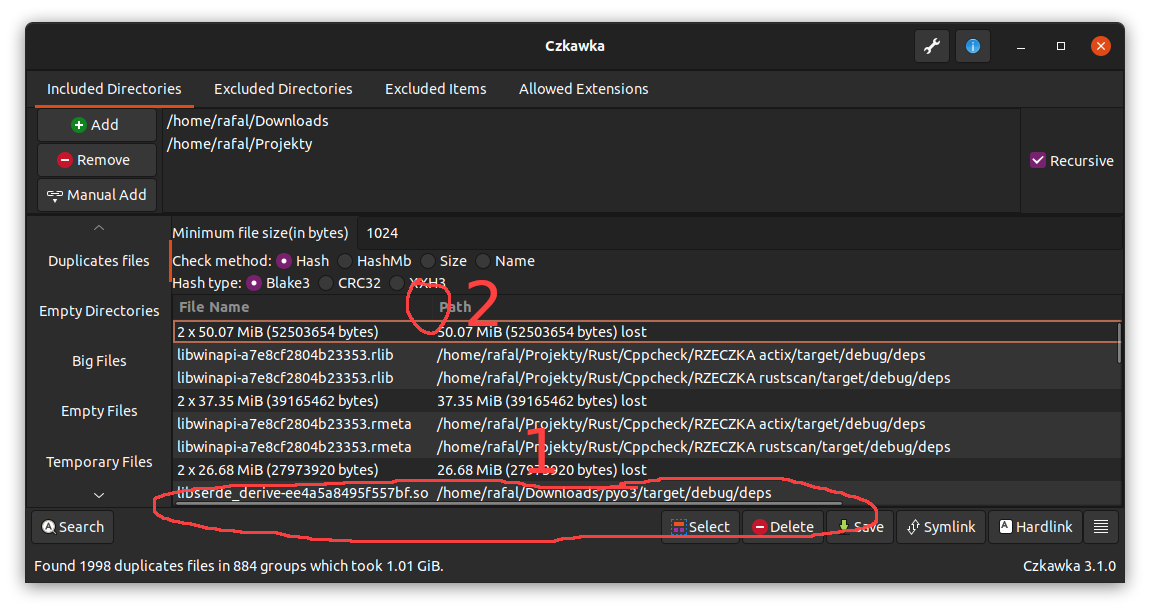
- **Not all columns with data(modification date, file size) are always visible in gui**
For now it is possible that some columns will not be visible when some are too wide.
There are 2 workarounds for now
- View can be scrolled via horizontal scroll bar (1 on image)
- Size of other columns can be slimmed (2)
This is checked if is possible to do in https://github.com/qarmin/czkawka/issues/169
- **Opening parent folders**
- It is possible to open parent folder of selected items with double click with right mouse button(RMB) it is also possible to open such item with double click with left mouse button(LMB).
- **Faster scanning for big number of duplicates**
By default for all files grouped by same size are computed partial hash(hash from only of start 4KB each file).
- Such hash is computed usually very fast, especially on SSD and fast multicore processors.
But when scanning a hundred of thousands or millions of files with HDD or slow processor, typically this step can take much time.
In settings exists option `Use prehash cache` which enables caching such things.
It is disabled by default because can increase time of loading/saving cache, with big number of entries.
- **Permanent store of cache entries**
After each scan, entries in cache are validated and outdated ones(which points at non-existent files) are removed.
This may be problematic when scanning external drivers(like pendrives, disks etc.) and later unplugging and plugging them again.
In settings exists option `Delete outdated cache entries automatically` which automatically clear this, but this can be disabled.
Disabling such option may create big cache files, so button `Remove outdated results` will do it manually.
- **Partial scanning**
If you know that you can't scan all files at once, you can still try to scan all files and during scan just stop it, so already calculated hashes/data will be saved to cache and will speedup later scans.
# Tools
### Duplicate Finder
Duplicate Finder allows you to search for files and group them according to a predefined criterion:
- **By name** - Compares and groups files by name e.g. `/home/john/cats.txt` will be treated like a duplicate of a file named
`/home/lucy/cats.txt`. This is the fastest method, but it is very unreliable and should not be used unless you know
what you are doing.
- **By size** - Compares and groups files by their size (in bytes and perfect matches only). It is as fast as the previous mode and
usually gives better results with duplicates, but I also do not recommend using it if you do not know what you are doing.
- **By size and name** - A mode that first compares files by size and then by name. Just like checking by size and name, this mode is not reliable.
- **By hash** - A mode containing a check of the hash (cryptographic hash) of a given file which determines with great
probability whether the files are identical.
This is the slowest, but almost 100% sure way to compare the files for being the same.
Because the hash is only checked inside groups of files of the same size, it is practically impossible for two different
files to be considered identical.
It consists of 3 steps:
- Grouping files of identical size - allows you to throw away files of unique size, which are already known to have no
duplicates at this stage.
- PreHash check - Each group of files of identical size is placed in a queue using all processor threads (each action in
the group is independent of the others). In each such group a small fragment of each file (2KB) is loaded in turn and
then hashed. All files whose partial hashes are unique within the group are removed from it. Using this step usually
allows me to reduce the time of searching for duplicates almost by half.
- Checking the hash - After leaving files that have the same beginning in groups, you should now check the whole contents
of the file to make sure they are identical.
### Empty Files
This tool finds files with zero bytes size.
**Process**
- Scans all files in specified directories
- Checks file metadata for size
- Files with size of 0 bytes are marked as empty
This is a fast operation since it only requires reading file metadata without accessing file contents.
### Empty Directories
This tool finds directories that contain no files or subdirectories.
**Process**
- Creates an entry for each directory with its parent path and empty status flag
- Initially marks all directories as potentially empty
- Examines each directory:
- If it contains files or subdirectories → marks it as not empty
- Marks all parent directories (direct and indirect) as not empty
- After processing, directories still marked as potentially empty are confirmed as empty
**Example**
Consider four directories: `/cow/`, `/cow/ear/`, `/cow/ear/stack/`, `/cow/ear/flag/`
If `/cow/ear/flag/` contains a file:
- `/cow/ear/flag/` is marked as not empty
- Parent directories `/cow/ear/` and `/cow/` are marked as not empty
- `/cow/ear/stack/` may still be empty
### Big Files
This tool finds the largest or smallest files in the specified directories.
**Process**
- Scans all files and reads their sizes
- Sorts files by size
- Returns a user-specified number of largest or smallest files
Useful for finding large files that take up disk space or identifying unusually small files that may be incomplete downloads.
### Temporary Files
This tool finds temporary files based on a predefined list of common temporary file extensions and names.
**Detected patterns**
Files with the following extensions or names are considered temporary:
```
["#", "thumbs.db", ".bak", "~", ".tmp", ".temp", ".ds_store", ".crdownload", ".part", ".cache", ".dmp", ".download", ".partial"]
```
This list covers the most common temporary files created by operating systems and applications. For more comprehensive system cleanup, consider using specialized tools like BleachBit.
### Invalid Symlinks
This tool finds broken symbolic links.
**Process**
- Identifies all symlinks in the specified directories
- For each symlink, checks if its target exists
- Detects two types of errors:
- Non-existent target - symlink points to a file or directory that does not exist
- Infinite recursion - symlink chain exceeds maximum jump count (20), indicating a circular reference
Both error types are reported in the results.
### Same Music
This tool finds duplicate or similar music files by comparing metadata tags or audio content.
**Process**
- Collects music files with extensions: `mp3`, `flac`, `m4a`
- Reads metadata tags: `artist`, `title`, `year`, `bitrate`, `genre`, `length`
**Duplicate Tags Mode**
- User selects which tag groups to compare (e.g., artist + title)
- Tags are normalized:
- Removes non-alphanumeric characters
- Converts to lowercase
- Optionally removes text in parentheses for approximate comparison (e.g., `bataty (feat. romba)` → `bataty`)
- Only files with non-empty tags are compared
**Similar Content Mode**
- Optionally groups files by simplified title first to reduce hash calculations
- Generates audio hash for each file
- Compares hashes using user-defined similarity threshold
- Requires minimum matching fragment length
Results show groups of files with matching tags or similar audio content.
### Similar Images
A tool for detecting similar images that may differ in aspects such as watermarks, size, or compression artifacts.
Currently, it works well for images that have not been rotated.
#### **Process Overview**
1. **Collecting Images**
- The tool gathers images with specific extensions, including RAWs, JPEGs, and many others.
2. **Loading Cached Data**
- Previously computed hashes are loaded from a cache file to avoid re-hashing the same files
- Cache entries pointing to non-existent files are automatically removed by default(this can be disabled in settings)
3. **Generating Perceptual Hashes**
- Image is resized to 8x8, 16x16, 32x32, or 64x64 pixels (inside `image_hasher` crate)
- A perceptual hash is computed for each image that is not already present in the cache
- Unlike cryptographic hashes, which produce completely different outputs for slight variations:
```
11110 ==> AAAAAB
11111 ==> FWNTLW
01110 ==> TWMQLA
```
Perceptual hashes generate similar outputs for similar images:
```
11110 ==> AAAAAB
11111 ==> AABABB
01110 ==> AAAACB
```
4. **Storing and Comparing Hashes**
- Computed hash data is stored in a specialized tree structure, allowing efficient comparison using [Hamming distance](https://en.wikipedia.org/wiki/Hamming_distance).
- The hashes are then saved to a file, ensuring images don’t need to be rehashed in future runs.
- Each hash is compared with others, and if the distance between them is below the user-defined threshold, the images are considered similar and removed from the pool of images to be checked.
#### **Hashing and Resizing Options**
- Users can select from **five different hash types**:
- `Gradient`
- `Mean`
- `VertGradient`
- `Blockhash`
- `DoubleGradient`
- Before hashing, images are typically resized to simplify computations. Supported resizing algorithms:
- `Lanczos3`
- `Gaussian`
- `CatmullRom`
- `Triangle`
- `Nearest`
- Supported hash sizes: `8x8`, `16x16`, `32x32`, `64x64`
- Both the resizing method and hash size can be adjusted within the application.
Each configuration generates separate cache files to prevent invalid results across different settings.
#### **Additional Features and Considerations**
- Some images may break hash functions, producing hashes filled entirely with `0` or `255`. These images are silently excluded from the final results but remain stored in the cache.
- A **CLI testing tool** is available. To test an algorithm, place a `test.jpg` file in a folder and run `czkawka_cli tester -i`
#### **Faster Comparison Mode**
The faster comparison option ensures that each pair of results is compared only once, significantly improving performance, especially when using a high similarity threshold.
#### **Tidbits**
- Smaller hash size does not always mean faster calculation.
- `Blockhash` is the only algorithm that does not resize images before hashing.
- The `Nearest` resizing algorithm can be up to **five times faster** than other methods but may produce worse results.
### Similar Videos
This tool finds similar videos using perceptual hashing, similar to the Similar Images feature.
**Requirements**
- Requires **FFmpeg** installed on the system
- Currently only compares videos with similar lengths
**Process**
- Collects video files based on their extensions (mp4, mkv, avi, mov, webm, etc.)
- For each video:
- Extracts several frames
- Generates perceptual hashes for each frame
- Stores hashes in cache file to avoid recalculating in future scans
- Compares hashes using user-defined similarity tolerance
- Groups similar videos in results
### Broken Files
This tool detects corrupted or invalid files that cannot be properly opened.
**Supported file types**
- Images - jpg, jpeg, png, tiff, tif, tga, gif, bmp, ico, jfif, webp, exr, avif, and others
- Audio - mp3, flac, wav, ogg, m4a, aac, and others
- Video - mp4, mkv, avi, mov, webm, and others
- Archives - zip, jar
- Documents - pdf
**Process**
- Files are collected based on their extensions
- Each file is validated by attempting to open it with appropriate libraries
- If an error occurs during opening, the file is marked as corrupted (with some exceptions to avoid false positives)
**Note**: Since this tool relies on external libraries, false positives may occur (e.g., [this issue](https://github.com/image-rs/jpeg-decoder/issues/130)). It is recommended to manually verify files before deletion.
### Bad Extensions
This mode allows finding files whose content does not match their extension.
It works as follows:
- Extracts the current file extension, e.g., `źrebię.zip` → `zip`
- Reads a few bytes from the file
- Matches these bytes with known signatures to determine the likely file type, e.g., `7z`
- Retrieves the MIME type (which may return multiple values) based on the detected extension, e.g., `Mime::Archive`
- Lists all file extensions associated with this MIME type, e.g., `rar, 7z, zip, p7`
- Expands the list with additional extensions when needed (some files, like `exe` and `dll`, may have similar byte signatures)
- If the file's current extension is in the list, it is likely correct; otherwise, it is flagged as having an invalid extension
In the **"Proper Extension"** column, the extension detected by the Infer library appears in parentheses, while extensions with the same MIME type are displayed outside.

### Bad Names
This tool finds files with problematic names that may cause issues on different operating systems or filesystems.
It can detect multiple naming problems:
- Uppercase extensions - e.g., `file.JPG` instead of `file.jpg`
- Emoji in filenames - e.g., `document😀.txt`
- Spaces at the start or end of filename - e.g., ` file.txt` or `file.txt `
- Non-ASCII characters - e.g., `файл.txt`, `文档.doc`
- Characters outside restricted charset - only specific characters are allowed (e.g., only `_`, `-`, ` `, `.`)
- Duplicated non-alphanumeric characters - e.g., `file___name.txt`, `doc---final.pdf`
Each check can be enabled or disabled independently. The tool suggests corrected filenames for all problematic files found.
### EXIF Remover
This tool finds image files containing EXIF metadata and allows selective removal of tags.
**Process**
- Scans image files with the following extensions: `jpg`, `jpeg`, `jfif`, `png`, `tiff`, `tif`, `avif`, `jxl`, `webp`, `heic`, `heif`
- Reads EXIF metadata from each file
- Lists all EXIF tags with their names, codes, and groups
- User can specify tags to ignore (e.g., `Orientation`, `ColorSpace`)
- Only files with non-ignored tags are shown in results
This is useful for finding images with privacy-sensitive metadata like GPS coordinates, camera serial numbers, or editing software information.
### Video Optimizer
This tool helps optimize video files by detecting optimization opportunities. It operates in two modes:
#### Transcode Mode
Identifies videos that could be re-encoded to a more efficient codec.
- Scans video files (e.g., `.mp4`, `.avi`, `.mkv`)
- Checks current video codec
- Lists videos not using excluded codecs (user-specified)
- Common use: find videos using older codecs (H264) that could be converted to newer ones (H265, AV1) for better compression
#### Crop Mode
Detects videos with black bars or static content that can be cropped.
- Scans video files
- Analyzes multiple frames to detect black bars or static content
- Supports two detection mechanisms:
- Black bars detection - finds letterbox/pillarbox black borders
- Static content detection - finds unchanging areas at edges
- Calculates optimal crop rectangle for each video
- Shows crop dimensions of video that can be removed
**Additional features**
- Can generate thumbnails for preview (single frame or grid)
- Thumbnail position configurable (percentage from video start)
- Supports minimum crop size threshold to avoid cropping too small areas
By default, all tools only write about results to console, but it is possible with specific arguments to delete some files/arguments or save it to file.
App returns exit code 0 when everything is ok, 1 when some error occurred and 11 when some files were found.
## Common Workflows
This section describes typical workflows for common tasks using Czkawka.
### Finding and Removing Duplicates
**Scenario**: You want to find and remove duplicate files from your Downloads folder, but keep files from your Documents folder as reference.
**Steps (Krokiet)**:
1. Open Krokiet and select the **Duplicate Files** tab from the left panel
2. Click **Add Directory** in the Directory Selection Panel
3. Add your Downloads folder to included directories
4. Add your Documents folder to included directories
5. Right-click on Documents folder and select **Mark as Reference Path** - files here won't be deleted
6. In tool settings, set:
- Check method: **Hash** (most reliable)
- Hash type: **Blake3** (fastest for most cases)
- Minimal file size: **1 KB** (skip very small files)
7. Click **Scan** button in the top bar
8. Wait for the scan to complete
9. Review results in the Results Area
10. Use **Select** button to choose files to remove:
- **All** - selects all but one file in each group
- **Custom** - allows advanced selection rules
11. Click **Delete** to remove selected duplicates
12. Confirm the deletion when prompted
**Steps (GTK)**:
1. Open Czkawka GTK and select **Duplicate Files** tab
2. In the directories panel (6), add Downloads folder to included directories
3. Add Documents folder and mark it as Reference Path (right-click → Mark as Reference)
4. In settings (button 7), configure:
- Check Method: **Hash**
- Hash Type: **Blake3**
5. Click **Search** button
6. After scan completes, use bottom panel buttons (4) to select duplicates
7. Click **Delete** button and confirm
### Finding Similar Images
**Scenario**: You have multiple folders with photos and want to find similar images (different sizes, minor edits).
**Steps (Krokiet)**:
1. Select **Similar Images** tab
2. Add all photo directories to included directories
3. Set similarity threshold (lower = more strict):
- **0-5**: Nearly identical images only
- **6-15**: Similar images with minor differences
- **16-30**: Images with noticeable differences
4. Choose hash algorithm:
- **Gradient**: Good for most photos (recommended)
- **Mean**: Fast, less accurate
- **Blockhash**: Good for resized images
5. Select hash size:
- **8x8**: Fastest, less precise
- **16x16**: Balanced (recommended)
- **32x32/64x64**: Most precise, slower
6. Click **Scan**
7. Use image preview panel to compare similar images visually
8. Select images to delete or move
9. Use **Delete** or **Move** action
### Finding Large Files
**Scenario**: Disk space is running low, you want to find the largest files.
**Steps**:
1. Select **Big Files** tab
2. Add directories to scan
3. Set how many files to display (e.g., 50 largest files)
4. Choose mode: **Largest** files
5. Click **Scan**
6. Review results sorted by size
7. Manually review and delete or move large files you don't need
### Working with Reference Paths
**Scenario**: You want to compare your working files against a master/backup collection without risking deletion of the master files.
**Use Cases**:
- Comparing current photos against backed-up originals
- Checking if work files are already in archive
- Finding duplicates without touching the reference collection
**How to Use**:
1. Add both your working directory and reference directory to included directories
2. Right-click on the reference directory (or use CLI flag) and select **Mark as Reference Path**
3. Files or folders marked as reference paths will:
- Appear in scan results for comparison
- Be protected from deletion or modification by automatic actions
- Be shown with a different indicator in the results if the UI supports it
4. Proceed with scan and operations — reference paths are protected
## Config/Cache files
- **Configuration files (frontend-specific)**
- Configuration files are kept per frontend and are not automatically shared. Examples:
- `czkawka_gui_config.txt` — GTK GUI configuration stored under the user config directory
- Krokiet stores its own settings file (created under the user config directory) — do not rely on configuration being synchronized between frontends
- **Cache files (shared across frontends)**
- Cache contains computed results (hashes, thumbnails, parsed metadata) and is shared by all frontends to avoid re-computation.
- Example cache files:
- `cache_similar_image_SIZE_HASH_FILTER.bin/json` — image hashes and cache
- `cache_broken_files.txt`
- `cache_duplicates_HASH.txt` — duplicates cache (only fully hashed files bigger than configured threshold are stored)
- `cache_similar_videos.bin/json`
It is possible to modify files with JSON extension (may be helpful when moving files to different disk or trying to use cache file on different computer). To do this, it is required to enable in settings option to generate also cache json file. By default, cache files with `bin` extension are loaded, but if it is missing (can be renamed or removed), then data from json file is loaded if exists.
Config files are located in this path:
Linux - `/home/username/.config/czkawka`
Linux Flatpak - `/home/username/.var/app/com.github.qarmin.czkawka/config/czkawka`
Mac - `/Users/username/Library/Application Support/pl.Qarmin.Czkawka`
Windows - `C:\Users\Username\AppData\Roaming\Qarmin\Czkawka\config`
Cache should be here:
Linux - `/home/username/.cache/czkawka`
Linux Flatpak - `/home/username/.var/app/com.github.qarmin.czkawka/cache/czkawka`
Mac - `/Users/Username/Library/Caches/pl.Qarmin.Czkawka`
Windows - `C:\Users\Username\AppData\Local\Qarmin\Czkawka\cache`
it is possible to change cache/config location by using `CZKAWKA_CONFIG_PATH` and `CZKAWKA_CACHE_PATH` env
e.g.
```
CZKAWKA_CONFIG_PATH="/media/rafal/Ventoy/config" CZKAWKA_CACHE_PATH="/media/rafal/Ventoy/cache" krokiet
```
It is possible to create portable version of app, by using running czkawka/krokiet with such script from pendrive:
`open_czkawka.sh` - on pendrive(along with czkawka/krokiet binary)
```shell
#!/bin/bash
CZKAWKA_CONFIG_PATH="$(dirname "$(realpath "$0")")/config"
CZKAWKA_CACHE_PATH="$(dirname "$(realpath "$0")")/cache"
./czkawka_gui
```
## Tips, Tricks and Known Bugs
- **Speedup of CPU bounds tasks with LTO**
You can easily compile app with lto, by adding/modyfing in `Cargo.toml` file, this lines(small performance boost, big decrease in binary size):
```
[profile.release]
lto = "thin" # or "fat"
```
- **Speedup of CPU-bound tasks using native CPU optimizations**
When doing CPU bound tasks, compiling with native CPU optimizations can give a significant speedup(speedup on x86_64_v4, when hashing images is usually 10-20%):
```
RUSTFLAGS="-C target-cpu=native" cargo build --release
```
or adding it globally to `~/.cargo/config.toml`
```
[target.x86_64-unknown-linux-gnu]
linker = "clang"
rustflags = [
"-C", "target-cpu=native",
]
```
- **Manually adding multiple directories**
You can manually edit config file `czkawka_gui_config.txt` and add/remove/change directories as you want.
After set required values, configuration must be loaded to Czkawka.
- **Slow checking due long loading/saving to cache step**
If you checked before a large number of files (several tens of thousands), then the required information about all of them are loaded and saved to the cache, even if you are working with only few files.
You can rename one of cache file which starts from `cache_similar_image`(to be able to use it again) or delete it - cache will then regenerate but with smaller number of entries and this way it should load and save cache faster.
- **Not all columns with data(modification date, file size) are always visible in gui**
For now it is possible that some columns will not be visible when some are too wide.
There are 2 workarounds for now
- View can be scrolled via horizontal scroll bar (1 on image)
- Size of other columns can be slimmed (2)
This is checked if is possible to do in https://github.com/qarmin/czkawka/issues/169

- **Opening parent folders**
- It is possible to open parent folder of selected items with double click with right mouse button(RMB) it is also possible to open such item with double click with left mouse button(LMB).
- **Faster scanning for big number of duplicates**
By default for all files grouped by same size are computed partial hash(hash from only of start 4KB each file).
- Such hash is computed usually very fast, especially on SSD and fast multicore processors.
But when scanning a hundred of thousands or millions of files with HDD or slow processor, typically this step can take much time.
In settings exists option `Use prehash cache` which enables caching such things.
It is disabled by default because can increase time of loading/saving cache, with big number of entries.
- **Permanent store of cache entries**
After each scan, entries in cache are validated and outdated ones(which points at non-existent files) are removed.
This may be problematic when scanning external drivers(like pendrives, disks etc.) and later unplugging and plugging them again.
In settings exists option `Delete outdated cache entries automatically` which automatically clear this, but this can be disabled.
Disabling such option may create big cache files, so button `Remove outdated results` will do it manually.
- **Partial scanning**
If you know that you can't scan all files at once, you can still try to scan all files and during scan just stop it, so already calculated hashes/data will be saved to cache and will speedup later scans.
# Tools
### Duplicate Finder
Duplicate Finder allows you to search for files and group them according to a predefined criterion:
- **By name** - Compares and groups files by name e.g. `/home/john/cats.txt` will be treated like a duplicate of a file named
`/home/lucy/cats.txt`. This is the fastest method, but it is very unreliable and should not be used unless you know
what you are doing.
- **By size** - Compares and groups files by their size (in bytes and perfect matches only). It is as fast as the previous mode and
usually gives better results with duplicates, but I also do not recommend using it if you do not know what you are doing.
- **By size and name** - A mode that first compares files by size and then by name. Just like checking by size and name, this mode is not reliable.
- **By hash** - A mode containing a check of the hash (cryptographic hash) of a given file which determines with great
probability whether the files are identical.
This is the slowest, but almost 100% sure way to compare the files for being the same.
Because the hash is only checked inside groups of files of the same size, it is practically impossible for two different
files to be considered identical.
It consists of 3 steps:
- Grouping files of identical size - allows you to throw away files of unique size, which are already known to have no
duplicates at this stage.
- PreHash check - Each group of files of identical size is placed in a queue using all processor threads (each action in
the group is independent of the others). In each such group a small fragment of each file (2KB) is loaded in turn and
then hashed. All files whose partial hashes are unique within the group are removed from it. Using this step usually
allows me to reduce the time of searching for duplicates almost by half.
- Checking the hash - After leaving files that have the same beginning in groups, you should now check the whole contents
of the file to make sure they are identical.
### Empty Files
This tool finds files with zero bytes size.
**Process**
- Scans all files in specified directories
- Checks file metadata for size
- Files with size of 0 bytes are marked as empty
This is a fast operation since it only requires reading file metadata without accessing file contents.
### Empty Directories
This tool finds directories that contain no files or subdirectories.
**Process**
- Creates an entry for each directory with its parent path and empty status flag
- Initially marks all directories as potentially empty
- Examines each directory:
- If it contains files or subdirectories → marks it as not empty
- Marks all parent directories (direct and indirect) as not empty
- After processing, directories still marked as potentially empty are confirmed as empty
**Example**
Consider four directories: `/cow/`, `/cow/ear/`, `/cow/ear/stack/`, `/cow/ear/flag/`
If `/cow/ear/flag/` contains a file:
- `/cow/ear/flag/` is marked as not empty
- Parent directories `/cow/ear/` and `/cow/` are marked as not empty
- `/cow/ear/stack/` may still be empty
### Big Files
This tool finds the largest or smallest files in the specified directories.
**Process**
- Scans all files and reads their sizes
- Sorts files by size
- Returns a user-specified number of largest or smallest files
Useful for finding large files that take up disk space or identifying unusually small files that may be incomplete downloads.
### Temporary Files
This tool finds temporary files based on a predefined list of common temporary file extensions and names.
**Detected patterns**
Files with the following extensions or names are considered temporary:
```
["#", "thumbs.db", ".bak", "~", ".tmp", ".temp", ".ds_store", ".crdownload", ".part", ".cache", ".dmp", ".download", ".partial"]
```
This list covers the most common temporary files created by operating systems and applications. For more comprehensive system cleanup, consider using specialized tools like BleachBit.
### Invalid Symlinks
This tool finds broken symbolic links.
**Process**
- Identifies all symlinks in the specified directories
- For each symlink, checks if its target exists
- Detects two types of errors:
- Non-existent target - symlink points to a file or directory that does not exist
- Infinite recursion - symlink chain exceeds maximum jump count (20), indicating a circular reference
Both error types are reported in the results.
### Same Music
This tool finds duplicate or similar music files by comparing metadata tags or audio content.
**Process**
- Collects music files with extensions: `mp3`, `flac`, `m4a`
- Reads metadata tags: `artist`, `title`, `year`, `bitrate`, `genre`, `length`
**Duplicate Tags Mode**
- User selects which tag groups to compare (e.g., artist + title)
- Tags are normalized:
- Removes non-alphanumeric characters
- Converts to lowercase
- Optionally removes text in parentheses for approximate comparison (e.g., `bataty (feat. romba)` → `bataty`)
- Only files with non-empty tags are compared
**Similar Content Mode**
- Optionally groups files by simplified title first to reduce hash calculations
- Generates audio hash for each file
- Compares hashes using user-defined similarity threshold
- Requires minimum matching fragment length
Results show groups of files with matching tags or similar audio content.
### Similar Images
A tool for detecting similar images that may differ in aspects such as watermarks, size, or compression artifacts.
Currently, it works well for images that have not been rotated.
#### **Process Overview**
1. **Collecting Images**
- The tool gathers images with specific extensions, including RAWs, JPEGs, and many others.
2. **Loading Cached Data**
- Previously computed hashes are loaded from a cache file to avoid re-hashing the same files
- Cache entries pointing to non-existent files are automatically removed by default(this can be disabled in settings)
3. **Generating Perceptual Hashes**
- Image is resized to 8x8, 16x16, 32x32, or 64x64 pixels (inside `image_hasher` crate)
- A perceptual hash is computed for each image that is not already present in the cache
- Unlike cryptographic hashes, which produce completely different outputs for slight variations:
```
11110 ==> AAAAAB
11111 ==> FWNTLW
01110 ==> TWMQLA
```
Perceptual hashes generate similar outputs for similar images:
```
11110 ==> AAAAAB
11111 ==> AABABB
01110 ==> AAAACB
```
4. **Storing and Comparing Hashes**
- Computed hash data is stored in a specialized tree structure, allowing efficient comparison using [Hamming distance](https://en.wikipedia.org/wiki/Hamming_distance).
- The hashes are then saved to a file, ensuring images don’t need to be rehashed in future runs.
- Each hash is compared with others, and if the distance between them is below the user-defined threshold, the images are considered similar and removed from the pool of images to be checked.
#### **Hashing and Resizing Options**
- Users can select from **five different hash types**:
- `Gradient`
- `Mean`
- `VertGradient`
- `Blockhash`
- `DoubleGradient`
- Before hashing, images are typically resized to simplify computations. Supported resizing algorithms:
- `Lanczos3`
- `Gaussian`
- `CatmullRom`
- `Triangle`
- `Nearest`
- Supported hash sizes: `8x8`, `16x16`, `32x32`, `64x64`
- Both the resizing method and hash size can be adjusted within the application.
Each configuration generates separate cache files to prevent invalid results across different settings.
#### **Additional Features and Considerations**
- Some images may break hash functions, producing hashes filled entirely with `0` or `255`. These images are silently excluded from the final results but remain stored in the cache.
- A **CLI testing tool** is available. To test an algorithm, place a `test.jpg` file in a folder and run `czkawka_cli tester -i`
#### **Faster Comparison Mode**
The faster comparison option ensures that each pair of results is compared only once, significantly improving performance, especially when using a high similarity threshold.
#### **Tidbits**
- Smaller hash size does not always mean faster calculation.
- `Blockhash` is the only algorithm that does not resize images before hashing.
- The `Nearest` resizing algorithm can be up to **five times faster** than other methods but may produce worse results.
### Similar Videos
This tool finds similar videos using perceptual hashing, similar to the Similar Images feature.
**Requirements**
- Requires **FFmpeg** installed on the system
- Currently only compares videos with similar lengths
**Process**
- Collects video files based on their extensions (mp4, mkv, avi, mov, webm, etc.)
- For each video:
- Extracts several frames
- Generates perceptual hashes for each frame
- Stores hashes in cache file to avoid recalculating in future scans
- Compares hashes using user-defined similarity tolerance
- Groups similar videos in results
### Broken Files
This tool detects corrupted or invalid files that cannot be properly opened.
**Supported file types**
- Images - jpg, jpeg, png, tiff, tif, tga, gif, bmp, ico, jfif, webp, exr, avif, and others
- Audio - mp3, flac, wav, ogg, m4a, aac, and others
- Video - mp4, mkv, avi, mov, webm, and others
- Archives - zip, jar
- Documents - pdf
**Process**
- Files are collected based on their extensions
- Each file is validated by attempting to open it with appropriate libraries
- If an error occurs during opening, the file is marked as corrupted (with some exceptions to avoid false positives)
**Note**: Since this tool relies on external libraries, false positives may occur (e.g., [this issue](https://github.com/image-rs/jpeg-decoder/issues/130)). It is recommended to manually verify files before deletion.
### Bad Extensions
This mode allows finding files whose content does not match their extension.
It works as follows:
- Extracts the current file extension, e.g., `źrebię.zip` → `zip`
- Reads a few bytes from the file
- Matches these bytes with known signatures to determine the likely file type, e.g., `7z`
- Retrieves the MIME type (which may return multiple values) based on the detected extension, e.g., `Mime::Archive`
- Lists all file extensions associated with this MIME type, e.g., `rar, 7z, zip, p7`
- Expands the list with additional extensions when needed (some files, like `exe` and `dll`, may have similar byte signatures)
- If the file's current extension is in the list, it is likely correct; otherwise, it is flagged as having an invalid extension
In the **"Proper Extension"** column, the extension detected by the Infer library appears in parentheses, while extensions with the same MIME type are displayed outside.

### Bad Names
This tool finds files with problematic names that may cause issues on different operating systems or filesystems.
It can detect multiple naming problems:
- Uppercase extensions - e.g., `file.JPG` instead of `file.jpg`
- Emoji in filenames - e.g., `document😀.txt`
- Spaces at the start or end of filename - e.g., ` file.txt` or `file.txt `
- Non-ASCII characters - e.g., `файл.txt`, `文档.doc`
- Characters outside restricted charset - only specific characters are allowed (e.g., only `_`, `-`, ` `, `.`)
- Duplicated non-alphanumeric characters - e.g., `file___name.txt`, `doc---final.pdf`
Each check can be enabled or disabled independently. The tool suggests corrected filenames for all problematic files found.
### EXIF Remover
This tool finds image files containing EXIF metadata and allows selective removal of tags.
**Process**
- Scans image files with the following extensions: `jpg`, `jpeg`, `jfif`, `png`, `tiff`, `tif`, `avif`, `jxl`, `webp`, `heic`, `heif`
- Reads EXIF metadata from each file
- Lists all EXIF tags with their names, codes, and groups
- User can specify tags to ignore (e.g., `Orientation`, `ColorSpace`)
- Only files with non-ignored tags are shown in results
This is useful for finding images with privacy-sensitive metadata like GPS coordinates, camera serial numbers, or editing software information.
### Video Optimizer
This tool helps optimize video files by detecting optimization opportunities. It operates in two modes:
#### Transcode Mode
Identifies videos that could be re-encoded to a more efficient codec.
- Scans video files (e.g., `.mp4`, `.avi`, `.mkv`)
- Checks current video codec
- Lists videos not using excluded codecs (user-specified)
- Common use: find videos using older codecs (H264) that could be converted to newer ones (H265, AV1) for better compression
#### Crop Mode
Detects videos with black bars or static content that can be cropped.
- Scans video files
- Analyzes multiple frames to detect black bars or static content
- Supports two detection mechanisms:
- Black bars detection - finds letterbox/pillarbox black borders
- Static content detection - finds unchanging areas at edges
- Calculates optimal crop rectangle for each video
- Shows crop dimensions of video that can be removed
**Additional features**
- Can generate thumbnails for preview (single frame or grid)
- Thumbnail position configurable (percentage from video start)
- Supports minimum crop size threshold to avoid cropping too small areas