# DSH BigFish 🐋
**A desktop companion that lives on Windows and reacts to real DeepSeek Harness activity.**
Enabled by DSH, owned by the DSH lifecycle, rendered on the desktop.
[中文](README.md) · [npm](https://www.npmjs.com/package/dsh-dafeiyu) · [Latest release](https://github.com/QCYTSN/dsh-dafeiyu/releases) · [Changelog](CHANGELOG.md) · [Update and rollback](docs/UPDATING.md) · [Acceptance notes](docs/ACCEPTANCE.md)
[](https://www.npmjs.com/package/dsh-dafeiyu) · [](https://github.com/QCYTSN/dsh-dafeiyu/releases)
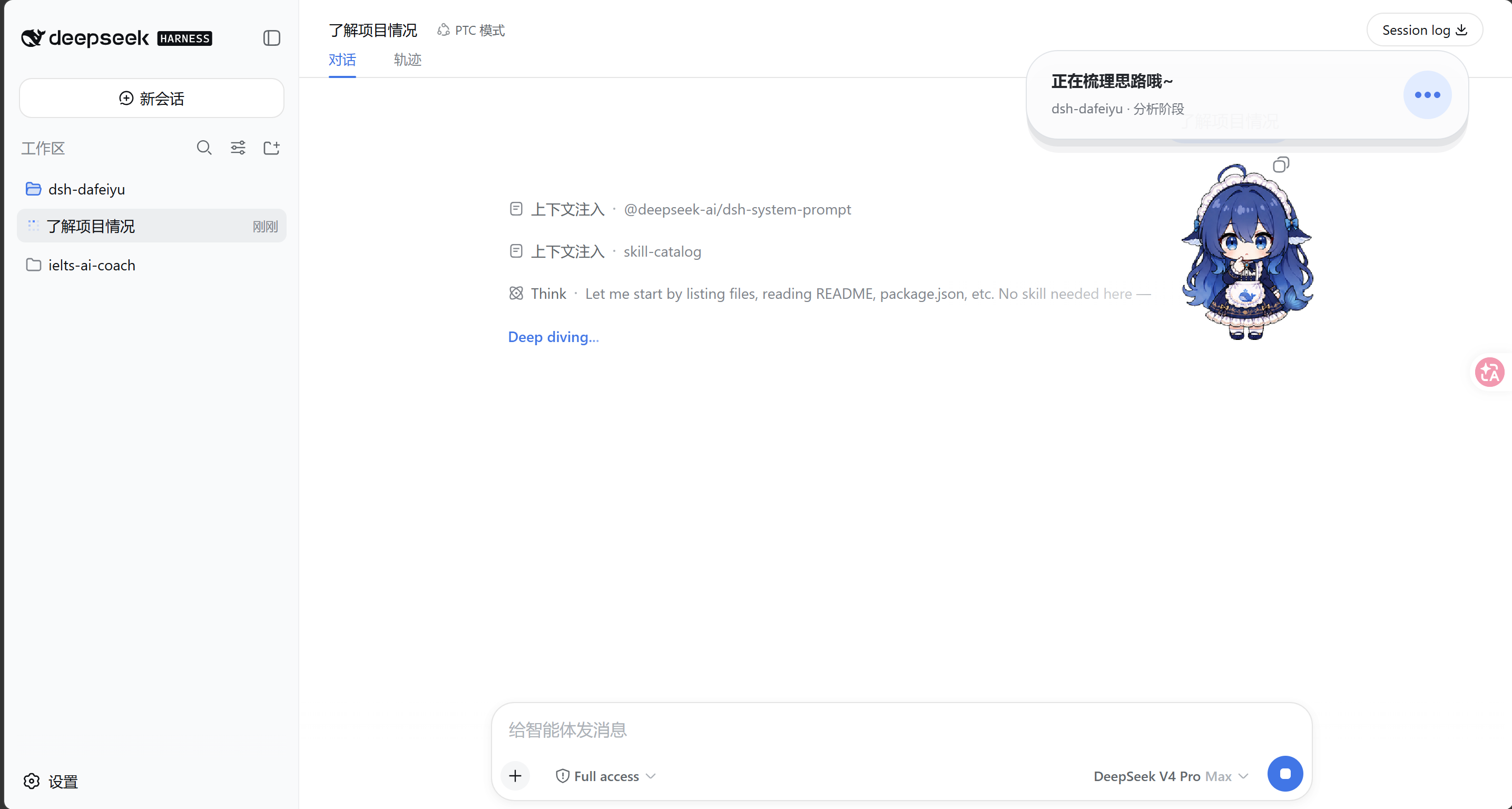
DSH BigFish is not a standalone desktop-pet application. DSH enables the plugin, starts and
stops its native Helper, and provides the Agent events that drive it. The transparent,
frameless companion stays above other Windows apps, so you can see whether DSH is thinking,
editing, testing, waiting, or finished while working in VS Code, a browser, or File Explorer.
> Current version: `0.1.1` · Windows / WSL2 Alpha
## Follow updates
- The latest version always matches npm [`latest`](https://www.npmjs.com/package/dsh-dafeiyu) and [GitHub Releases](https://github.com/QCYTSN/dsh-dafeiyu/releases) (which also carry the `.tgz` archives); the badges above update automatically.
- **Starring is just a bookmark — GitHub will not notify you of updates.** To get notified about what changed:
1. Open the repo and choose **Watch → Custom → Releases**;
2. or subscribe to the Releases feed:
- To upgrade an installed copy: fully exit DSH, then run
```powershell
dsh plugin --profile web update dsh-dafeiyu
```
and start DSH again.
## What is it for?
- **See DSH status away from the WebUI:** BigFish stays on top of the Windows desktop.
- **React to real Agent events:** it does not inspect the screen or mistake activity in other apps for DSH work.
- **Show useful, compact context:** the card can display the project, current phase, active step, and real todo progress.
- **Feel alive without becoming noisy:** thinking, searching, editing, commands, testing, waiting, success, and errors have distinct motion and friendly copy.
- **Avoid a second app experience:** users do not launch the Helper, install Python, or configure another port.
If DSH has not emitted a structured todo list, BigFish shows reliable phases such as
“Analysis,” “Implementation,” or “Verification” instead of inventing a percentage.
## Status previews
| Thinking | Working |
| --- | --- |
|  |  |
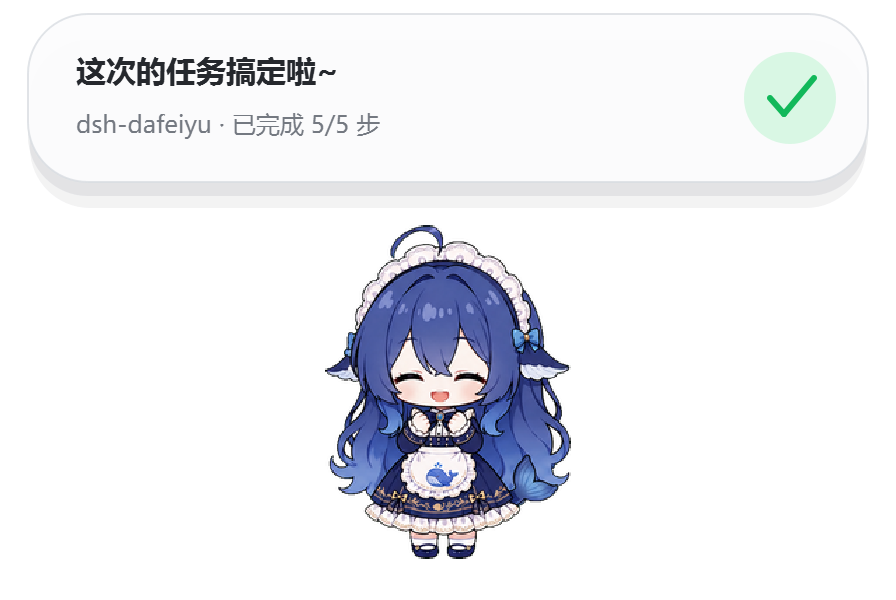
| Waiting for you | Complete |
| --- | --- |
|  |  |
| Needs attention |
| --- |
|  |
The high-level state flow is:
```mermaid
stateDiagram-v2
[*] --> Idle
Idle --> Thinking: DSH starts a turn
Thinking --> Working: search, read, edit, command, or test
Working --> Thinking: organize tool results
Thinking --> Waiting: user confirmation required
Working --> Waiting: user confirmation required
Thinking --> Success: turn completed
Working --> Success: turn completed
Thinking --> Error: turn ended abnormally
Working --> Error: tool or turn failed
Waiting --> Thinking: user continues
Error --> Thinking: user retries
Success --> Idle
```
When several DSH sessions run at once, the default attention priority is:
`Waiting > Error > Working > Thinking > Idle`
When multiple tasks are active, the status bubble lists them at the same time.
## Requirements
- Windows 10/11 x64, or WSL2 (runs the desktop Helper through Windows interop)
- A working DeepSeek Harness WebUI installation
- A DSH CLI that supports `plugin --profile web`
- the stable `dsh-dafeiyu` from npm (or `dsh-dafeiyu@alpha` to try prereleases early), or a `.tgz` archive from GitHub Releases
Regular users do **not** need Python or PySide6 and should not launch
`dsh-dafeiyu-helper.exe` manually. The Windows Helper is bundled in the release archive.
The current Alpha build uses Simplified Chinese for the settings UI and desktop status copy.
## Install
### 1. Fully exit DSH
Stop the DSH Host, not only the browser tab. An old Helper should not remain active during
installation or upgrade.
### 2. Install with one command
Open PowerShell in your DSH installation directory, for example:
```powershell
cd D:\DSH
```
Install the current stable release from npm:
```powershell
pnpm exec dsh plugin --profile web add dsh-dafeiyu
```
If `dsh` is already available globally, the command is simply:
```powershell
dsh plugin --profile web add dsh-dafeiyu
```
To try new features before they are stable, install from the `@alpha` tag instead:
`pnpm exec dsh plugin --profile web add dsh-dafeiyu@alpha`.
When DSH runs inside WSL2, run the same install command in the WSL terminal. The plugin
launches the bundled Windows Helper through `cmd.exe`; no manual `chmod`, Python, or
PySide6 installation is required inside WSL. The current target is WSL2 on Windows x64,
not ordinary Linux, remote Linux, or containers.
### 3. GitHub Release fallback
Open [GitHub Releases](https://github.com/QCYTSN/dsh-dafeiyu/releases) and download:
```text
dsh-dafeiyu-.tgz
```
Do not extract it. Install the downloaded archive from the DSH directory:
```powershell
pnpm exec dsh plugin --profile web add "C:\Users\you\Downloads\dsh-dafeiyu-.tgz"
```
### 4. Start DSH
Launch the DSH WebUI normally. The plugin is enabled by default, and DSH starts BigFish
automatically. Do not start the Helper yourself.
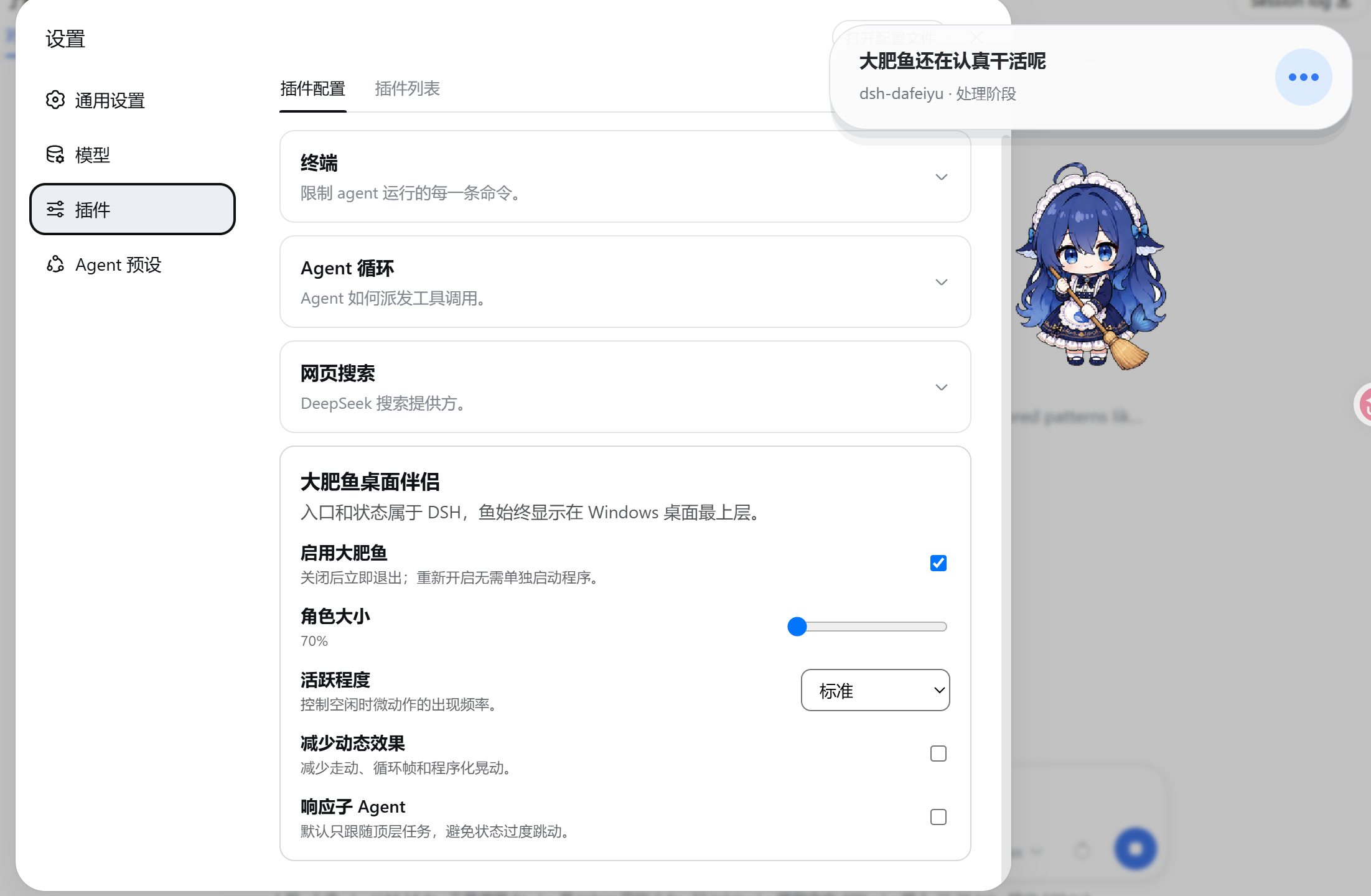
### 5. Open the settings
In the DSH WebUI, go to:
```text
Settings → Plugins → Plugin configuration → BigFish Desktop Companion
```
## How to use it
There is no separate workflow after installation:
1. Start DSH.
2. Begin a project task in DSH.
3. BigFish reacts to real DSH events and updates its animation and status card.
4. Switch to another app; BigFish remains above the desktop.
5. BigFish exits automatically when the DSH Host actually stops.
The status card can show:
- the project directory, such as `dsh-dafeiyu`
- the current phase, such as Analysis, Implementation, or Verification
- the active todo, such as “Improve project documentation”
- real progress, such as “3/5 steps complete”
- waiting, success, or error messages
BigFish does not watch VS Code, browsers, or other apps and does not take screenshots. Only
DSH Agent events can change its work state.
## Settings
| Setting | Purpose |
| --- | --- |
| Enable BigFish | Show or stop the desktop companion immediately |
| Character size | Scale the character from 70% to 140% |
| Bubble size | Scale the status bubble from 80% to 120% while keeping status text readable |
| Bubble visibility | Always show, hide completely, or choose which states show the bubble |
| Activity level | Control the frequency of idle blinks and micro-animations |
| Reduced motion | Reduce walking, looping frames, and procedural movement |
| Include subagents | Allow subagent sessions to participate in status priority; off by default |
DSH persists these settings, so a normal plugin update does not require reconfiguration.
## Desktop interactions
- **Drag:** move BigFish; its position is saved automatically.
- **Click or double-click:** trigger brief head-pat, poke, or tail reactions, then return to the latest DSH state.
- **Right-click:** change size, bubble size, reduce motion, open WebUI, hide for now, or close for this run.
- **Hide for now:** hides the window without disabling the plugin.
- **Close for this run:** closes the current Helper and suppresses restart until the next DSH launch.
## Update
An installed plugin does **not** change when new commits appear on GitHub. After a new version
is published, fully exit DSH and update the npm stable package:
```powershell
cd D:\DSH
pnpm exec dsh plugin --profile web update dsh-dafeiyu
```
Running the install command again also resolves the newest version behind the npm `latest` tag:
```powershell
pnpm exec dsh plugin --profile web add dsh-dafeiyu
```
Users who opted into `@alpha` can run the same commands with the package name `dsh-dafeiyu@alpha` instead.
Users who installed from GitHub Releases can download the new `.tgz` and install it over the
old version:
```powershell
pnpm exec dsh plugin --profile web add "C:\Users\you\Downloads\dsh-dafeiyu-.tgz"
```
All three paths replace the plugin and bundled Windows Helper while retaining settings saved
by DSH. See [Update and rollback](docs/UPDATING.md) for details.
## Roll back
Fully exit DSH and install a previously saved release archive with the same `add` command:
```powershell
cd D:\DSH
pnpm exec dsh plugin --profile web add "C:\Users\you\Downloads\dsh-dafeiyu-.tgz"
```
## Uninstall
Fully exit DSH, then run:
```powershell
cd D:\DSH
pnpm exec dsh plugin --profile web remove dsh-dafeiyu
```
Restart DSH afterward. The plugin and Helper are removed from the `web` profile. DSH may keep
an inactive copy of historical settings; it does not start a process or open a port.
## Troubleshooting
BigFish does not appear after installation
1. Confirm that you installed into `--profile web`.
2. Fully stop and restart the DSH Host.
3. Open “Settings → Plugins → Plugin configuration” and confirm that BigFish is enabled.
4. Use the Windows x64 release archive. A source-only clone may not contain the prebuilt Helper.
Why does BigFish remain after I close the DSH browser tab?
BigFish follows the DSH Host lifecycle, not the browser tab. It remains visible while the DSH
backend is still alive and exits when the Host actually stops.
Why is there no numeric progress?
The plugin can calculate “3/5 steps complete” only when DSH emits a structured todo list.
Without real progress data, the card shows the current phase instead of inventing a percentage.
Why does BigFish not restart after “Close for this run”?
That command intentionally suppresses automatic restart for the current DSH run. Fully restart
DSH to bring it back. To disable it permanently, turn off “Enable BigFish” in DSH settings.
## Privacy and boundaries
- Does not read or store model API keys
- Does not take screenshots or inspect other windows
- Does not send telemetry
- Does not monitor keyboard input or other app activity
- Does not open a new network port; the settings card reuses DSH's local Web service
- Follows the most recently active top-level DSH session by default
## Development and tests
```powershell
pnpm install
npm test
py -3 -m unittest discover -s runtime/tests -t .
```
Developers can run the source Helper directly, but regular users should not:
```powershell
py -3 -m pip install -r requirements.txt
py -3 runtime\helper.py
```
Build the Windows Helper:
```powershell
python -m pip install -r requirements.txt pyinstaller
$env:DSH_DAFEIYU_BUILD_PYTHON = (Get-Command python).Source
npm run build:helper:windows
```
## More documentation
- [Product scope and trade-offs](docs/PRODUCT_SCOPE.md)
- [Execution plan](docs/EXECUTION_PLAN.md)
- [Compatibility spike](docs/PHASE0.md)
- [Windows acceptance and performance](docs/ACCEPTANCE.md)
- [Update, rollback, and uninstall](docs/UPDATING.md)
- [Maintainer release workflow](docs/RELEASING.md)
- [Character asset license](ASSET_LICENSE.md)
Related project: [QCYTSN/ds-local-pet](https://github.com/QCYTSN/ds-local-pet) is the
standalone desktop-pet version. This repository is the DSH-only companion plugin.
## License
Code is released under the [MIT License](LICENSE). Character artwork is not covered by the MIT
code license; see [ASSET_LICENSE.md](ASSET_LICENSE.md) for provenance and usage boundaries.